

An app promises familiar features with a few extras. After installation, it asks for access that seems unrelated to what you wanted.
Arsink RAT shows why that moment deserves attention. The important clues are not always on the home screen or inside a dramatic warning.
Overview
Arsink is Android malware disguised as something useful
Arsink RAT is a remote-access trojan targeting Android. Reported campaigns distribute counterfeit APK packages through messages and file-sharing routes while borrowing familiar app branding.
An APK is an Android installation package. The extension describes a format, not whether the software is trustworthy.
The counterfeit may be offered as an enhanced or premium version. Its recognizable name is meant to encourage installation without the genuine publisher’s involvement.
This does not make the real applications being impersonated malicious. A copied icon and product name can belong to software distributed by someone else.
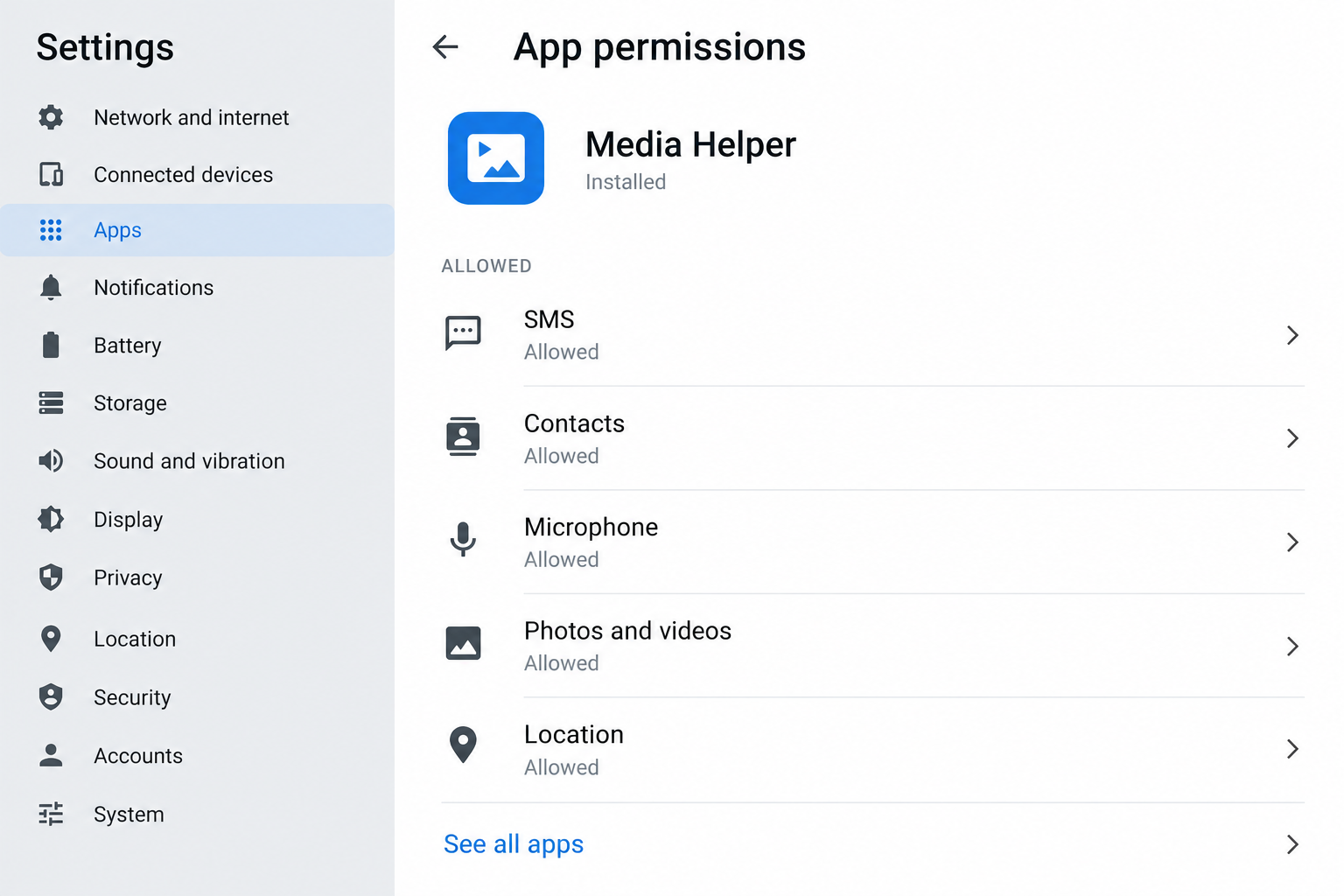
The image above shows a fictional app’s permissions. It is an illustration, not a screenshot of a real infection or a specific Arsink build.
Sensitive permissions can turn an app into a surveillance problem
Published analysis describes Arsink collecting information such as SMS, contacts, recordings, and files. Variants can also receive remote instructions and conceal their launcher icon.
The consequences depend on the installed build, Android version, granted access, and subsequent activity. An article cannot diagnose those details for an individual device.
Battery drain or slow performance alone is not an Arsink identification. Look at installation history and reliable security findings instead of guessing from common symptoms.
No malicious package was installed for this guide. It explains the documented threat and a practical response without claiming a reader’s data was stolen.
Removal must include account and data considerations
Deleting a suspicious app can stop an immediate problem, but it cannot recall information that already left the device.
If messages or account access may have been exposed, review those accounts separately from the Android cleanup.
- Stop using the suspect installation for sensitive activity.
- Identify the downloaded app through Android Settings, not its home-screen icon alone.
- Keep Play Protect and device security updates enabled.
- Use Android-specific removal instructions and trusted support.
If the device is managed by an employer, involve its IT team before wiping it or changing organizational access settings.
How a Familiar App Name Can Hide the Wrong Package
The download source matters more than the name on the icon
A message can offer a modified app with features the genuine version supposedly lacks. That explanation makes leaving normal installation routes seem intentional.
But the person supplying the package can choose its visible name. A familiar label does not connect it with the original developer.
Consider a link shared in a group where people exchange application tips. The fact that others discussed it does not establish what the package contains.
Use the publisher’s established route or an approved organizational catalog. Do not turn off warnings simply because a promoter says the app is misunderstood.
A permission request is an access decision
Some legitimate applications need sensitive permissions. The useful question is whether the access matches a feature you deliberately chose.
A request to read messages should have a clear purpose. A long list of unrelated permissions deserves scrutiny before you accept it.
Do not grant everything just to make an unfamiliar app start. If the promised function remains unavailable without unexplained access, stop rather than keep escalating permissions.
Permission names and menus vary by Android version and manufacturer. Follow the controls actually present on your device instead of copying a mismatched screenshot.
Removing an icon is not removing an application
A home-screen shortcut can disappear while an application remains installed. The installed-app list in Settings is the more useful place to check.
Do not assume a missing icon proves stealth malware either. Launchers and user settings can also affect what appears on the home screen.
Connect the observation with the package you installed and any security alert. Preserve enough information for support before making broad changes.
Never uninstall system components at random because their names sound unfamiliar. A technical responder can help distinguish the suspect package from normal Android services.
How the Arsink RAT Infection Chain Works
Step 1: A counterfeit app is offered outside the expected publisher route
The documented campaign uses impersonated applications and socially shared downloads. The visitor is persuaded to install a package rather than merely view a webpage.
This distinction is important. Seeing a link in a chat does not mean the app is installed, and downloading does not necessarily complete installation.
Record what happened: where the link arrived, which package downloaded, and whether Android’s installation process completed.
If you stopped at a warning, do not bypass it now to see the next screen. The installation attempt can be reported without completing it.
An unexpected request to allow installations from a browser or file manager is a reason to reconsider the source.
Step 2: The installed application asks for sensitive access
After installation, the permission decisions affect what the application can reach. Different data types may be controlled through different Android settings.
Read the actual request instead of the app’s explanation alone. “Required for protection” is not a complete account of why it needs your messages or microphone.
Some special access is separate from ordinary permissions. If a newly installed app asks you to enable additional services, understand the effect before proceeding.
This guide does not assume every Arsink sample uses every special permission. Check what is present on the actual device.
For a work installation, ask IT whether the software and requested access were approved. Do not interpret a promoter’s instructions as company policy.
Step 3: Background activity can expose information without a visible document
Arsink research describes background collection and abuse of legitimate cloud infrastructure. A trusted service name in network traffic does not authenticate the app sending data.
The ordinary user may not see a file leaving or a window opening. Lack of a dramatic symptom should not override a credible security finding.
Zimperium’s primary Arsink research explains the counterfeit-app campaign and its collection behavior. Its observations are not a current diagnosis of every Android device.
Do not disable essential cloud services indiscriminately. The problem is an abusive application and its access, not every legitimate use of the infrastructure.
On a managed device, responders may correlate app activity with account and network records. Give them the installation timeline rather than an assumed theft list.
Step 4: Cleaning the device does not settle every exposed account
Once an unwanted application is removed, account risks may remain. Information already disclosed cannot be made private again by uninstalling.
If authentication messages were potentially exposed, review relevant sign-ins and contact the account provider. Do not assume a one-time code remains usable indefinitely.
If private documents were involved, let the responsible person assess their sensitivity. A workplace may have reporting obligations and procedures beyond the owner’s personal cleanup.
Return to routine use only after device trust and important account access have been considered. Those are related tasks, not interchangeable ones.
Android Checks That Help Without Causing More Damage
Review installed apps and their permissions
Open Settings and the installed-app list. Compare recent additions with what you intended to install, using the package details where available.
Google’s privacy-dashboard guidance explains how supported Android versions show recent permission use and provide access controls.
A permission entry alone is not a malware verdict. Use it to understand the app’s reach and whether that access fits its purpose.
If an app cannot be removed, ask trusted support to assess why. Do not start altering device-administration or workplace-management controls without understanding them.
Use real security findings, not a browser alarm
A webpage telling you it found Arsink is not equivalent to a scan from an installed, trusted security product.
Record a genuine alert’s application name, detection label, and action taken. That context is more useful than matching every label exactly to this article.
Update security tools through their official distribution routes. Avoid a “special Arsink remover” offered by the same page that frightened you.
A completed scan should be considered alongside symptoms and installation history. No single result answers every question about data access or account misuse.
Plan a reset before starting one
If cleanup cannot be trusted, manufacturer-supported reset or recovery may be appropriate. Preserve essential personal data and necessary account-recovery information first.
Do not back up the suspicious APK as part of your restoration plan. Reinstall needed applications from approved sources instead of restoring everything blindly.
Make sure you can sign in afterward using a safe recovery route. Resetting before preparing can leave you locked out of legitimate accounts.
For company-managed equipment, let IT decide the collection and rebuild sequence. A personal reset can remove evidence or interfere with management.
What to Do for Arsink RAT Removal on Android
Limit sensitive use immediately. If a credible finding points to an installed malicious app, stop banking, handling confidential work, or changing important passwords on that device.
Use a separate trusted device to contact support. Disconnect the affected device where appropriate, while following workplace or manufacturer instructions for your situation.
Write down the exposure sequence. Record the app name, download source, approximate installation time, permissions granted, and any real detection alert.
Do not open the APK again to reproduce the installation. Keep potentially sensitive evidence private and let support specify a safe collection method.
Remove the untrusted application through Android controls. Use the installed-app settings or the security product’s recommended action. Ask the manufacturer or IT if removal is blocked.
Do not delete unrelated system files or disable broad security controls. Removing a home-screen shortcut alone does not establish that the application was uninstalled.
Run Android-appropriate security checks. Keep Play Protect enabled and install available security updates. Malwarebytes for Android can provide an additional malicious-app assessment.
Google’s unsafe-software guidance covers Play Protect, unwanted applications, account checks, and situations needing manufacturer help or a reset.
Secure important accounts from the clean device. Review recent sign-ins and recovery settings, and replace credentials where exposure or suspicious use warrants it.
If financial activity is unauthorized, contact the institution promptly. Preserve transaction details rather than assuming malware removal also disputes the payment.
Decide whether rebuilding is necessary. If the app returns, cannot be removed, or important trust questions remain, arrange a supported reset or professional assessment.
Restore reviewed data, update the system, and reinstall applications deliberately. Do not reintroduce the same modified package because it still promises a useful feature.
Prevent another unsafe installation. Review unnecessary install permissions for browsers and file managers. Consider AdGuard for malicious advertising, without treating it as an infection-removal tool.
In the reusable guide below, select the Android tab. The Windows and Mac instructions do not apply to this Android threat.
Is Your Device Infected? Run a Free Malware Scan
Slow performance, constant pop-ups, or strange behavior? These are classic signs of a malware infection. The fastest way to find out is to scan your device with Malwarebytes Free — one of the most trusted malware removal tools available.
The free version detects and removes the most common threats, including:
- Adware — the cause of those annoying pop-ups
- Browser hijackers — unwanted redirects and changed homepages
- Trojans and spyware — hidden programs stealing your data
- Potentially unwanted programs (PUPs) — software you never asked for
👉 Select your device below — Windows, Mac, or Android — then follow the simple steps to download Malwarebytes, scan your system, and remove any threats it finds. The scan usually takes 5 to 20 minutes.
Run a Malware Scan with Malwarebytes for Windows
Malwarebytes is one of the most popular and trusted anti-malware tools for Windows — and it’s completely free for removing infections. It catches threats that many antivirus programs miss, including adware, browser hijackers, and trojans. Follow the steps below to scan and clean your PC in just a few minutes.
Download Malwarebytes
Click the button below to download the latest version of Malwarebytes for Windows from the official source. The free version is all you need — it will scan your computer and remove adware, browser hijackers, and other malicious software at no cost.
Download MalwarebytesOfficial installer for Windows 11 and 10. Your download starts right away.Want real-time protection? See Malwarebytes Premium Malwarebytes Free for WindowsScans and removes malware at no cost
-
Install Malwarebytes
When the download finishes, open your Downloads folder and double-click the MBSetup file. If Windows shows a User Account Control pop-up, click “Yes” to allow the installation.

Follow the On-Screen Prompts to Install Malwarebytes
The setup wizard will walk you through a few quick screens:
-
Choose where you’re installing the program — “Personal Computer” or “Work Computer” — then click Next.

-
Malwarebytes will now install on your device. This usually takes under a minute.

-
When installation is complete, the “Welcome to Malwarebytes” screen will open automatically.

-
On the final screen, click Open Malwarebytes to launch the program.

-
Enable “Scan for Rootkits”
Before scanning, turn on rootkit detection so Malwarebytes can find even the most hidden threats. Click the Settings gear icon on the left side of the screen.

In the settings menu, find “Scan for rootkits” and click the toggle so it turns blue.

Done? Click “Dashboard” in the left pane to return to the main screen.
Start the Scan
Click the blue Scan button. Malwarebytes will automatically update its virus database and start checking your computer for malware.

-
Wait for the Scan to Finish
The scan checks your entire system for browser hijackers and other malicious programs, so it can take 5 to 20 minutes depending on your computer. Feel free to do something else — just check back occasionally to see the progress.

-
Quarantine the Detected Threats
When the scan is done, you’ll see a list of everything Malwarebytes found — malware, adware, and potentially unwanted programs. Click the “Quarantine” button to remove all of them at once.

Malwarebytes will now remove the malicious files and registry entries and move them safely into quarantine.

-
Restart Your Computer
Some threats can only be fully removed after a reboot. If Malwarebytes asks you to restart, click Yes. Once you’re logged back in, Malwarebytes has finished removing the threats it found.

That’s it — your Windows PC is now clean of trojans, adware, and other malware, and should be back to running smoothly.
If you are still having problems with your computer after completing these instructions, then please follow one of the steps:
- Run a computer scan with ESET Online Scanner
- Ask for help in our Windows Malware Removal Help & Support forum.
Run a Malware Scan with Malwarebytes for Mac
Malwarebytes for Mac is a free on-demand scanner that removes the malware other security software tends to miss — adware, browser hijackers, and unwanted programs included. Cleaning an infected Mac with Malwarebytes has always been completely free, and it’s our go-to recommendation. Follow the steps below to scan and clean your Mac in just a few minutes.
-
Download Malwarebytes for Mac
Click the button below to download the latest version of Malwarebytes for Mac.
Download MalwarebytesOfficial installer for macOS. Your download starts right away.Want real-time protection? See Malwarebytes PremiumMalwarebytes Free for MacScans and removes malware at no cost -
Open the Malwarebytes setup file
When the download finishes, open your Downloads folder and double-click the setup file to begin the installation.

-
Follow the On-Screen Prompts to Install Malwarebytes
The Malwarebytes for Mac Installer will guide you through a few quick screens. Click “Continue” and keep following the prompts until the installation completes.



When the installation is complete, Malwarebytes opens to the Welcome to Malwarebytes screen. Click “Get started“.
-
Select “Personal Computer” or “Work Computer”
Malwarebytes will ask what type of computer you’re installing it on. Click either Personal Computer or Work Computer, whichever applies.

-
Start the Scan
Click the “Scan” button. Malwarebytes will automatically update its detection database and begin checking your Mac for malware.

-
Wait for the Scan to Finish
Malwarebytes will scan your Mac for adware, browser hijackers, and other malicious programs. This can take a few minutes, so feel free to do something else — just check back occasionally to see the progress.

-
Quarantine the Detected Threats
When the scan is done, you’ll see a list of everything Malwarebytes found. Click the “Quarantine” button to remove all the threats at once.

-
Restart Your Mac
Malwarebytes will now remove all the malicious files it found. Some threats can only be fully removed after a reboot — if Malwarebytes asks you to restart, allow it. Once you’re logged back in, your Mac is clean.

That’s it — your Mac is now free of adware, rogue browser extensions, and other potentially harmful software.
If you are still experiencing problems while trying to remove a malicious program from your computer, please ask for help in our Mac Malware Removal Help & Support forum.
Run a Malware Scan with Malwarebytes for Android
Malwarebytes for Android automatically detects and removes dangerous threats like malware and ransomware so you don’t have to worry about your most-used device being compromised. Aggressive detection of adware and potentially unwanted programs keeps your Android phone or tablet running smooth.
-
Download Malwarebytes for Android.
You can download Malwarebytes for Android by clicking the link below.
Get Malwarebytes for AndroidOpens Google Play in a new tab.Want real-time protection? See Malwarebytes Premium for AndroidMalwarebytes for AndroidScans your phone and removes malware at no cost -
Install Malwarebytes for Android on your phone.
In the Google Play Store, tap “Install” to install Malwarebytes for Android on your device.

When the installation process has finished, tap “Open” to begin using Malwarebytes for Android. You can also open Malwarebytes by tapping on its icon in your phone menu or home screen.

-
Follow the on-screen prompts to complete the setup process
When Malwarebytes will open, you will see the Malwarebytes Setup Wizard which will guide you through a series of permissions and other setup options.
This is the first of two screens that explain the difference between the Premium and Free versions. Swipe this screen to continue.
Tap on “Got it” to proceed to the next step.
Malwarebytes for Android will now ask for a set of permissions that are required to scan your device and protect it from malware. Tap on “Give permission” to continue.
Tap on “Allow” to permit Malwarebytes to access the files on your phone.
-
Update database and run a scan with Malwarebytes for Android
You will now be prompted to update the Malwarebytes database and run a full system scan.

Click on “Update database” to update the Malwarebytes for Android definitions to the latest version, then click on “Run full scan” to perform a system scan.

-
Wait for the Malwarebytes scan to complete.
Malwarebytes will now start scanning your phone for adware and other malicious apps. This process can take a few minutes, so we suggest you do something else and periodically check on the status of the scan to see when it is finished.

-
Click on “Remove Selected”.
When the scan has been completed, you will be presented with a screen showing the malware infections that Malwarebytes for Android has detected. To remove the malicious apps that Malwarebytes has found, tap on the “Remove Selected” button.

-
Restart your phone.
Malwarebytes for Android will now remove all the malicious apps that it has found. To complete the malware removal process, Malwarebytes may ask you to restart your device.
That’s it — your Android phone is now clean — no more malicious apps, adware, or browser redirects.
If you are still having problems with your phone after completing these instructions, then please follow one of the steps:
- Restore your phone to factory settings by going to Settings > General management > Reset > Factory data reset.
- Ask for help in our Mobile Malware Removal Help & Support forum.
Stay Protected: Block Ads and Malicious Sites
Now that your device is clean, keep it that way. Most infections start with a malicious ad or a fake download button — so blocking them at the source is your best defense.
We recommend AdGuard, which blocks malicious ads, phishing pages, and dangerous redirects before they can reach you.
👉 Download AdGuard and browse safely
Consider Who Else May Be Affected
A compromised personal device may also hold work mail, shared files, and contacts. Inform the responsible team if those resources were accessible.
Do not warn every contact that all their messages were stolen unless the investigation supports it. Explain the known exposure and any specific requests to disregard.
If you suspect someone close to you is monitoring the device, consider whether visible cleanup could put you at risk.
Use a separate safe device to seek trusted assistance before making changes that might alert that person. The safest sequence can depend on your circumstances.
For ordinary malware response, keep a brief cleanup record: what was removed, which accounts were reviewed, and what remains unresolved.
That record prevents repeated guesswork if a security alert appears later. A second finding deserves comparison with the first incident, not automatic dismissal.
If the device supplies authentication for work, arrange a safe alternative with IT. Losing access to the affected installation should not force unsafe sign-in workarounds.
Check whether essential photos or documents have usable copies elsewhere before reset. Confirm that the backup opens without restoring the suspicious application.
Keep only the information needed for support. A report about suspected surveillance should not unnecessarily expose private conversations, contact lists, or photographs to additional people.
Where a financial account was misused, keep the fraud case reference with the device-cleanup record. The two investigations may proceed separately and need different evidence.
Frequently Asked Questions
What is Arsink RAT?
It is Android malware associated with counterfeit app packages and remote access. The reported campaign can expose private information through access granted to malicious software.
Are the real apps whose names were copied infected?
The impersonation does not establish that. Check the genuine publisher and installation source rather than blaming a legitimate app for an unrelated counterfeit package.
Can a slow device alone identify Arsink?
No. Slowdowns have many causes. Assess recent installations, permissions, and reliable security findings instead of assigning a malware family from performance alone.
Does a missing home-screen icon mean the app is gone?
No. Check Android’s installed-app list. An absent shortcut does not by itself prove either successful removal or malicious concealment.
Will uninstalling bring back information already exposed?
No. Removal addresses the installed threat. Account review, financial reporting, and assessment of disclosed data are separate follow-up tasks.
Should I follow the Windows removal instructions?
No. Arsink targets Android. Select Android-specific guidance and use controls appropriate to the device’s manufacturer, version, and management status.
The Bottom Line
Do not install a counterfeit app because its familiar name promises extra features. Arsink RAT removal starts with identifying and containing the untrusted Android installation.
Use trusted mobile security tools, recover important accounts through a clean route, and seek supported recovery if device trust remains uncertain.

Join the discussion
0 commentsShare your experience or ask a question about this article.
Discussion
Start the conversation
Have a question or something useful to share? Add the first comment.