

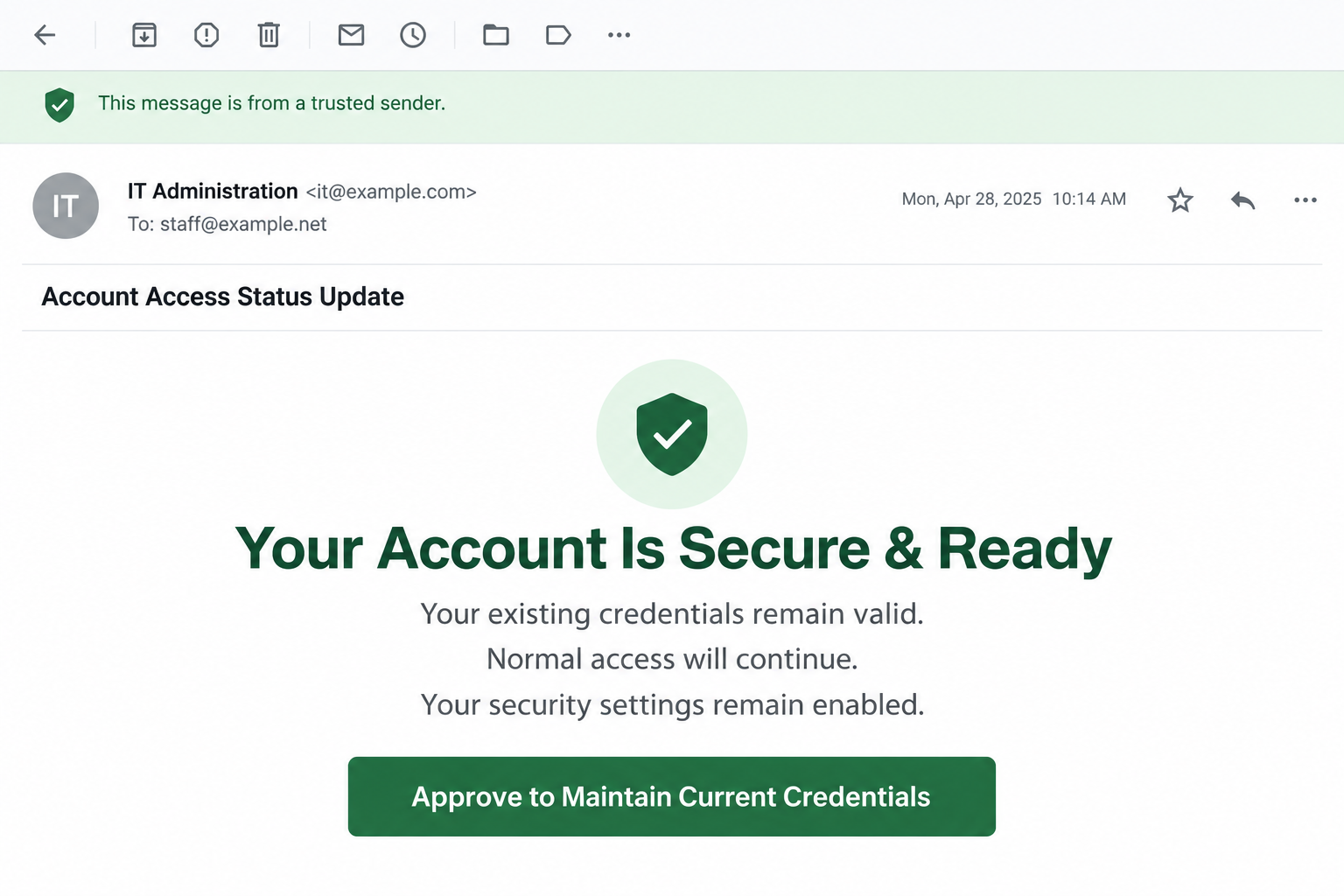
The email sounds reassuring: your account is secure, your password still works, and normal access will continue. There is just one approval button to finish the process.
Nothing appears to be wrong, which makes the request easy to overlook. Before approving it, consider what that extra step is actually asking you to do.
Overview
A positive status message creates an unnecessary task
The Your Account Is Secure and Ready email scam claims to confirm a successful routine review. It says existing credentials remain valid and security features remain enabled.
The reported message then asks the reader to approve keeping those credentials. Its language makes the action sound like a small administrative acknowledgment rather than a password change.
This is the point to question. A statement that nothing needs updating doesn’t authenticate a separate request to sign in through the message.
The approval link is the dangerous part
The reported destination, logon.connections[.]vu, presents a fake email-login request. The purpose is to obtain credentials, not preserve the reader’s existing account configuration.
The original page is currently unavailable through the screenshot service. There is no verified account event, live authentication test, or evidence of a completed login here.
The warning concerns the deceptive email and its credential request. It does not establish that every organization issuing a status notice uses an unsafe process.
The message doesn’t know whether your security settings are sound
Reassurance about multifactor authentication is another claim inside the lure. It does not prove that the sender inspected the account or controls the organization named.
Whether protection is enabled should be checked in your real account or with the administrator responsible for it. The email isn’t a security audit.
- An unexpected IT notice says your account needs no immediate update.
- A button nevertheless asks you to approve maintaining your password.
- The linked form requests the very secret it claims to be preserving.
- The safe alternative is your organization’s established support and sign-in process.
Why Reassurance Can Be as Persuasive as a Threat
Many people associate phishing with panic: a blocked account, a failed payment, or an approaching deletion deadline. This message takes a quieter route.
It tells the reader that the security work has already been done. That can lower the attention someone would normally give to a request involving credentials.
A small approval then feels like cooperation. You aren’t rescuing the account, according to the story, only helping IT keep an already acceptable configuration.
For an employee handling many routine notices, that distinction matters. A harmless-sounding acknowledgment can slip into the same mental category as accepting a meeting invitation.
But the sensitivity of an action depends on what you disclose or authorize, not the message’s tone. A calm request can still cross an important boundary.
Don’t measure the request by how polite it sounds. Ask whether a real organizational process explains it and whether the destination is the approved identity service.
This approach also protects against overreaction. A real administrative notice can be useful without requiring you to trust an unfamiliar password form attached to it.
How the Secure and Ready Email Scam Works
Step 1: The sender borrows the voice of internal administration
The email speaks as though someone responsible for your account has already reviewed it. That implied relationship does much of the persuasive work.
Words such as administration, security review, and credentials sound ordinary in a workplace. They are easy to place in a display name or message header.
Check whether the notice matches your organization’s actual process. If IT normally uses a service portal, a new email-only approval deserves confirmation.
Do not ask the sender to prove its identity by replying with more information about your employer. Use a known help-desk channel instead.
A correct organization name is useful context, not authentication. Public directories, old correspondence, or a recipient address can supply enough information to personalize a message.
Step 2: A no-change message becomes an approval requirement
The request creates a mismatch between the message’s reassurance and its action. If the current credentials are acceptable, why must the reader reveal them somewhere new?
An actual acknowledgment process may exist in some organizations. That still doesn’t excuse an unverified destination or mean the current password should be sent to a stranger.
Ask the administrator to identify the specific policy or task. A genuine request can be explained without requiring you to use the questionable button first.
Don’t let the desire to keep a familiar password override this check. Convenience is part of the lure when approval is presented as avoiding disruption.
The relevant decision is not whether you like your existing password. It is whether the site asking for it has authority to receive it.
Step 3: The approval page asks for a credential
A counterfeit login screen may look entirely routine. An email address, password field, and ordinary sign-in button are enough to resemble many legitimate systems.
The message may have carried the address into the form. A page that already knows your username hasn’t thereby proved that it belongs to your employer.
Don’t type a backup code, current password, or recovery secret to complete an unexplained acknowledgment. Each can provide more authority than the button’s wording suggests.
If a password manager doesn’t recognize the destination, stop and inspect it. Manually copying the password around that warning removes a useful protective signal.
Do not submit an invented password to experiment. The safe way to verify an administrative task is through the responsible team, not interaction with a questionable form.
Step 4: Recovery has to account for the information exposed
Once credentials were entered, the reassuring notice no longer matters. Treat the secret as exposed and move to the real account’s recovery controls.
Security protections may prevent some attempted access, but they should not be assumed to make the disclosure harmless. Tell the administrator exactly what was supplied.
If another prompt followed, include that too. A password, an authentication approval, and application consent are different events and can require different containment.
No specific multifactor-bypass technique has been demonstrated for this email. Don’t label every additional prompt as a proven token-theft attack without the relevant evidence.
The practical response is still straightforward: stop engaging with the lure, secure the affected identity, and investigate what occurred through legitimate records.
Check the Claimed IT Request Without Exposing Anything
Use the help desk you already recognize
Start a fresh support request through your employer’s existing portal or directory. Avoid a phone number or contact link supplied only by the suspicious message.
Describe the purported acknowledgment and ask whether it was issued. Include a copy through the organization’s approved reporting method if support needs the full message.
Don’t include your password in that report. Legitimate troubleshooting can identify the account and investigate the invitation without circulating the secret again.
Inspect settings inside the actual account
If the message says multifactor protection is active, inspect it in the established account settings. Make sure the methods belong to you, rather than trusting a sentence.
Google’s two-step verification guidance explains that an additional factor protects accounts when a password is stolen. Managed accounts may require administrator assistance.
Don’t turn protection off to make an approval page work. A request to reduce security is not a normal consequence of keeping the same credentials.
Review identity changes, not just whether the inbox opens
Successful access to your own mailbox doesn’t establish exclusive control. An intruder might retain another session or a different authorization while you continue using the service.
Microsoft’s compromised-account response guidance includes access revocation, authentication methods, application permissions, and mailbox settings.
Ask an administrator to interpret unfamiliar items before deleting legitimate business integrations. The goal is to remove unauthorized access, not break every connection you don’t recognize immediately.
What to Do If You Approved the Request
Separate the acknowledgment from any credentials you submitted. Write down whether you merely opened a page, entered a password, or accepted another authentication prompt.
That information determines the response. Clicking the email isn’t the same as authorizing an account session, and neither automatically proves malware was installed.
Notify your real IT or account-support team. Explain that the message claimed existing credentials were safe and asked you to approve keeping them.
If this is a personal mailbox, use the provider’s established security process. Do not let the email sender supply the recovery contact as well.
Change the disclosed password through the genuine service. Use a unique replacement. If a suspicious program also ran, make the change from a trusted device.
Replace reused passwords on other affected services. Do not interpret an absence of visible damage as evidence that the old secret remains private.
Check sessions, recovery methods, and authorized applications. For work accounts, let the administrator coordinate this review and determine which access should be revoked.
Record unexplained changes before they are corrected where evidence matters. Don’t add unknown recovery contacts because a supposed support representative recommends them.
Investigate device issues only where the encounter created them. Report any extension, application, notification permission, or remote-support installation requested along the way.
Malwarebytes may help assess a personal computer after unsafe software exposure. A scan is not evidence that all online sessions are secure.
AdGuard can add protection against some deceptive advertising. It cannot establish that an internal IT message is genuine or authorize a credential-maintenance request.
Review consequences with the people responsible. If sensitive work messages or financial instructions were affected, involve security or finance rather than handling the situation privately.
Keep the original message and a short timeline. Early, specific reporting helps contain the problem and can prevent colleagues from following the same approval.
Is Your Device Infected? Run a Free Malware Scan
Slow performance, constant pop-ups, or strange behavior? These are classic signs of a malware infection. The fastest way to find out is to scan your device with Malwarebytes Free — one of the most trusted malware removal tools available.
The free version detects and removes the most common threats, including:
- Adware — the cause of those annoying pop-ups
- Browser hijackers — unwanted redirects and changed homepages
- Trojans and spyware — hidden programs stealing your data
- Potentially unwanted programs (PUPs) — software you never asked for
👉 Select your device below — Windows, Mac, or Android — then follow the simple steps to download Malwarebytes, scan your system, and remove any threats it finds. The scan usually takes 5 to 20 minutes.
Run a Malware Scan with Malwarebytes for Windows
Malwarebytes is one of the most popular and trusted anti-malware tools for Windows — and it’s completely free for removing infections. It catches threats that many antivirus programs miss, including adware, browser hijackers, and trojans. Follow the steps below to scan and clean your PC in just a few minutes.
Download Malwarebytes
Click the button below to download the latest version of Malwarebytes for Windows from the official source. The free version is all you need — it will scan your computer and remove adware, browser hijackers, and other malicious software at no cost.
Download MalwarebytesOfficial installer for Windows 11 and 10. Your download starts right away.Want real-time protection? See Malwarebytes Premium Malwarebytes Free for WindowsScans and removes malware at no cost
-
Install Malwarebytes
When the download finishes, open your Downloads folder and double-click the MBSetup file. If Windows shows a User Account Control pop-up, click “Yes” to allow the installation.

Follow the On-Screen Prompts to Install Malwarebytes
The setup wizard will walk you through a few quick screens:
-
Choose where you’re installing the program — “Personal Computer” or “Work Computer” — then click Next.

-
Malwarebytes will now install on your device. This usually takes under a minute.

-
When installation is complete, the “Welcome to Malwarebytes” screen will open automatically.

-
On the final screen, click Open Malwarebytes to launch the program.

-
Enable “Scan for Rootkits”
Before scanning, turn on rootkit detection so Malwarebytes can find even the most hidden threats. Click the Settings gear icon on the left side of the screen.

In the settings menu, find “Scan for rootkits” and click the toggle so it turns blue.

Done? Click “Dashboard” in the left pane to return to the main screen.
Start the Scan
Click the blue Scan button. Malwarebytes will automatically update its virus database and start checking your computer for malware.

-
Wait for the Scan to Finish
The scan checks your entire system for browser hijackers and other malicious programs, so it can take 5 to 20 minutes depending on your computer. Feel free to do something else — just check back occasionally to see the progress.

-
Quarantine the Detected Threats
When the scan is done, you’ll see a list of everything Malwarebytes found — malware, adware, and potentially unwanted programs. Click the “Quarantine” button to remove all of them at once.

Malwarebytes will now remove the malicious files and registry entries and move them safely into quarantine.

-
Restart Your Computer
Some threats can only be fully removed after a reboot. If Malwarebytes asks you to restart, click Yes. Once you’re logged back in, Malwarebytes has finished removing the threats it found.

That’s it — your Windows PC is now clean of trojans, adware, and other malware, and should be back to running smoothly.
If you are still having problems with your computer after completing these instructions, then please follow one of the steps:
- Run a computer scan with ESET Online Scanner
- Ask for help in our Windows Malware Removal Help & Support forum.
Run a Malware Scan with Malwarebytes for Mac
Malwarebytes for Mac is a free on-demand scanner that removes the malware other security software tends to miss — adware, browser hijackers, and unwanted programs included. Cleaning an infected Mac with Malwarebytes has always been completely free, and it’s our go-to recommendation. Follow the steps below to scan and clean your Mac in just a few minutes.
-
Download Malwarebytes for Mac
Click the button below to download the latest version of Malwarebytes for Mac.
Download MalwarebytesOfficial installer for macOS. Your download starts right away.Want real-time protection? See Malwarebytes PremiumMalwarebytes Free for MacScans and removes malware at no cost -
Open the Malwarebytes setup file
When the download finishes, open your Downloads folder and double-click the setup file to begin the installation.

-
Follow the On-Screen Prompts to Install Malwarebytes
The Malwarebytes for Mac Installer will guide you through a few quick screens. Click “Continue” and keep following the prompts until the installation completes.



When the installation is complete, Malwarebytes opens to the Welcome to Malwarebytes screen. Click “Get started“.
-
Select “Personal Computer” or “Work Computer”
Malwarebytes will ask what type of computer you’re installing it on. Click either Personal Computer or Work Computer, whichever applies.

-
Start the Scan
Click the “Scan” button. Malwarebytes will automatically update its detection database and begin checking your Mac for malware.

-
Wait for the Scan to Finish
Malwarebytes will scan your Mac for adware, browser hijackers, and other malicious programs. This can take a few minutes, so feel free to do something else — just check back occasionally to see the progress.

-
Quarantine the Detected Threats
When the scan is done, you’ll see a list of everything Malwarebytes found. Click the “Quarantine” button to remove all the threats at once.

-
Restart Your Mac
Malwarebytes will now remove all the malicious files it found. Some threats can only be fully removed after a reboot — if Malwarebytes asks you to restart, allow it. Once you’re logged back in, your Mac is clean.

That’s it — your Mac is now free of adware, rogue browser extensions, and other potentially harmful software.
If you are still experiencing problems while trying to remove a malicious program from your computer, please ask for help in our Mac Malware Removal Help & Support forum.
Run a Malware Scan with Malwarebytes for Android
Malwarebytes for Android automatically detects and removes dangerous threats like malware and ransomware so you don’t have to worry about your most-used device being compromised. Aggressive detection of adware and potentially unwanted programs keeps your Android phone or tablet running smooth.
-
Download Malwarebytes for Android.
You can download Malwarebytes for Android by clicking the link below.
Get Malwarebytes for AndroidOpens Google Play in a new tab.Want real-time protection? See Malwarebytes Premium for AndroidMalwarebytes for AndroidScans your phone and removes malware at no cost -
Install Malwarebytes for Android on your phone.
In the Google Play Store, tap “Install” to install Malwarebytes for Android on your device.

When the installation process has finished, tap “Open” to begin using Malwarebytes for Android. You can also open Malwarebytes by tapping on its icon in your phone menu or home screen.

-
Follow the on-screen prompts to complete the setup process
When Malwarebytes will open, you will see the Malwarebytes Setup Wizard which will guide you through a series of permissions and other setup options.
This is the first of two screens that explain the difference between the Premium and Free versions. Swipe this screen to continue.
Tap on “Got it” to proceed to the next step.
Malwarebytes for Android will now ask for a set of permissions that are required to scan your device and protect it from malware. Tap on “Give permission” to continue.
Tap on “Allow” to permit Malwarebytes to access the files on your phone.
-
Update database and run a scan with Malwarebytes for Android
You will now be prompted to update the Malwarebytes database and run a full system scan.

Click on “Update database” to update the Malwarebytes for Android definitions to the latest version, then click on “Run full scan” to perform a system scan.

-
Wait for the Malwarebytes scan to complete.
Malwarebytes will now start scanning your phone for adware and other malicious apps. This process can take a few minutes, so we suggest you do something else and periodically check on the status of the scan to see when it is finished.

-
Click on “Remove Selected”.
When the scan has been completed, you will be presented with a screen showing the malware infections that Malwarebytes for Android has detected. To remove the malicious apps that Malwarebytes has found, tap on the “Remove Selected” button.

-
Restart your phone.
Malwarebytes for Android will now remove all the malicious apps that it has found. To complete the malware removal process, Malwarebytes may ask you to restart your device.
That’s it — your Android phone is now clean — no more malicious apps, adware, or browser redirects.
If you are still having problems with your phone after completing these instructions, then please follow one of the steps:
- Restore your phone to factory settings by going to Settings > General management > Reset > Factory data reset.
- Ask for help in our Mobile Malware Removal Help & Support forum.
Stay Protected: Block Ads and Malicious Sites
Now that your device is clean, keep it that way. Most infections start with a malicious ad or a fake download button — so blocking them at the source is your best defense.
We recommend AdGuard, which blocks malicious ads, phishing pages, and dangerous redirects before they can reach you.
👉 Download AdGuard and browse safely
What Organizations Can Make Clear Before the Next Notice
Employees should know how a real password-policy acknowledgment arrives. A predictable channel makes it easier to question a lookalike message without delaying legitimate work.
State what IT will never need in a ticket, including passwords and recovery codes. Give employees a reporting route that doesn’t depend on replying to the notice.
When a legitimate task requires authentication, explain the expected domain and purpose in existing internal documentation. Don’t rely on a logo or a reassuring footer to establish trust.
Make it acceptable to pause. A person should be able to confirm an unusual request without being told that hesitation itself puts the account at risk.
For smaller teams, keep the support provider’s contact details in a shared directory established beforehand. A fresh security email should not be the only place to find them.
After a reported attempt, send a precise internal warning. Name the misleading approval and the safe alternative, without reproducing a live link that someone might follow.
Review the process as well as the individual mistake if someone responded. A convincing imitation can expose ambiguity in genuine administrative messages that the organization can improve.
Don’t confuse an acknowledgment with permission to access data
A genuine notice may ask you to acknowledge a policy without requesting account access. Reading an announcement, signing in, and granting an application’s permissions are separate actions.
If an approval suddenly lists access to mail, files, or contacts, stop and ask why. The scope should match the task, not just the button’s reassuring description.
Do not assume your employer approved a third-party application because its request appears during the process. Confirm that tool through your organization’s established software or support channel.
This isn’t a finding that the reported campaign used application consent. It is a useful boundary if an additional request appears in your own encounter.
When reporting, describe which screen requested which action. That lets support distinguish a disclosed password from an accepted permission and choose the relevant containment.
Keep unrelated personal accounts outside a workplace acknowledgment. A message addressed to a work identity is not a reason to enter a personal recovery code.
A clear explanation from the real administrator should resolve the task without requiring you to trust an unknown form first. Until then, leave the request incomplete.
Frequently Asked Questions
Why is a message saying my account is secure suspicious?
The reassurance isn’t the problem by itself. The suspicious part is an unexpected approval that sends you to an unverified credential-collection page.
Must I approve an email to keep the same password?
Verify any claimed policy with your actual administrator. Don’t assume a message creates a legitimate requirement to enter your password on a new website.
Does the MFA statement mean the sender checked my account?
No. It is a claim the sender can write without inspecting anything. Review the real authentication methods in your account or ask the responsible administrator.
Can I trust the page if my address is already filled in?
A prefilled address doesn’t authenticate a website. It may have arrived as part of the link. Verify where the password would actually be sent.
What if I clicked approval but typed nothing?
Close the page and report the invitation. Check whether you accepted any other prompt or installed software, rather than assuming the button alone proves an account takeover.
Is changing the password the entire recovery process?
Not always. Account sessions, recovery methods, mailbox rules, and application permissions can need review too. Work with your provider or administrator when access may have occurred.
The Bottom Line
Don’t use the Secure and Ready email’s approval to maintain your credentials. Confirm the supposed task through the IT or account channel you already trust.
If a secret or authorization was supplied, report it and secure the affected identity. Reassuring wording does not reduce the importance of that exposure.

Join the discussion
0 commentsShare your experience or ask a question about this article.
Discussion
Start the conversation
Have a question or something useful to share? Add the first comment.