

A vendor invitation from a major company can look like the beginning of a valuable relationship. The first request may seem small: express interest and request paperwork.
Before your team starts preparing that response, examine who is asking. An impressive project opportunity still needs an independently verified route into procurement.
Overview
A supposed Chevron opportunity invites suppliers into an unverified process
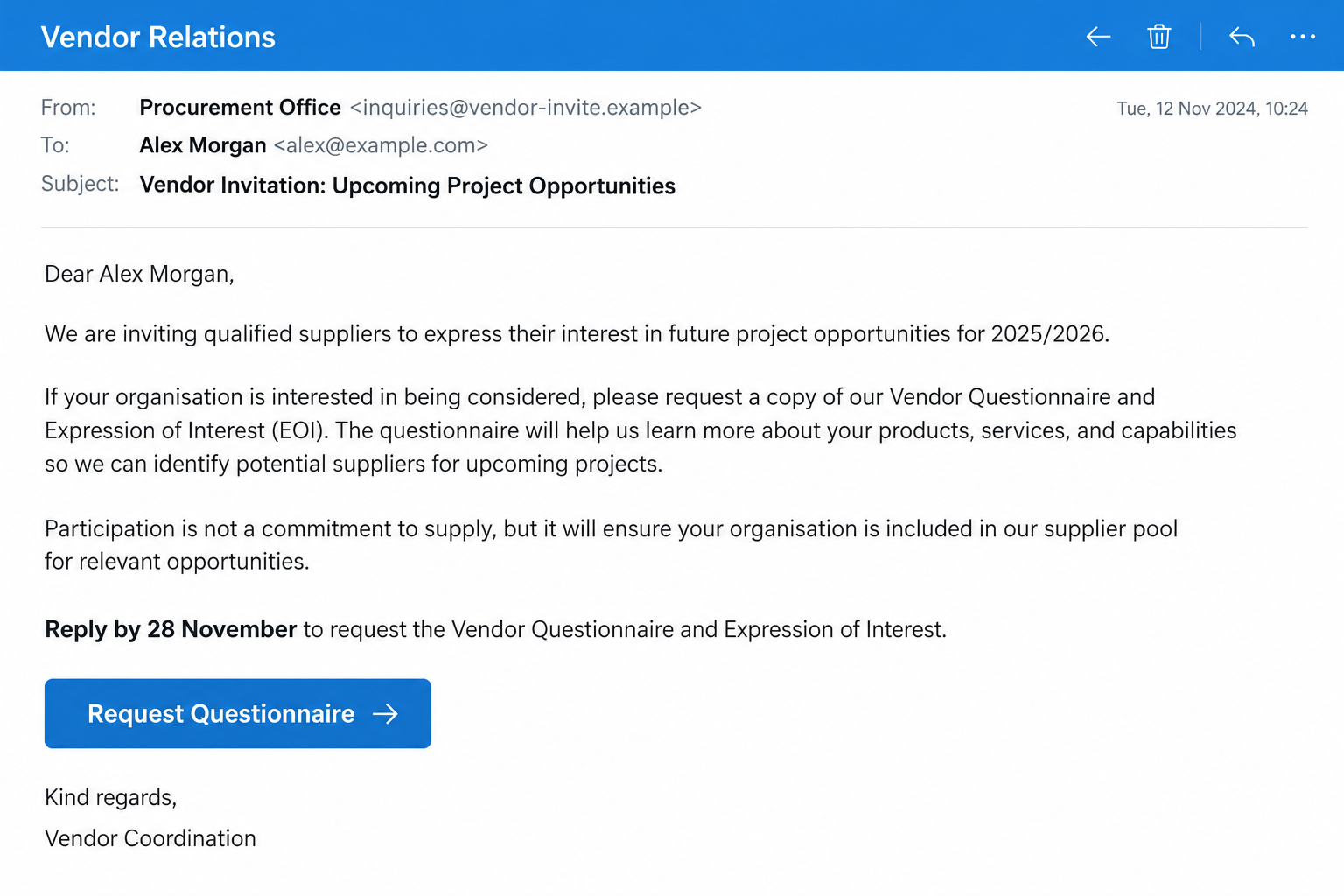
The Chevron vendor invitation email scam promotes an alleged project opportunity and requests supplier participation. It is not a genuine invitation from Chevron.
The reported message refers to projects for 2025 and 2026, a Vendor Questionnaire, and an Expression of Interest. Those details create a formal procurement setting.
The initial request is designed to look like an opening step, not an obvious demand for money. That makes verification before replying especially important.
A separate procurement-looking address and a QR option provide the route
The notice directs replies toward inquire@chevronprocurements[.]us and offers a QR route. Adding a company name to an address does not establish corporate control.
No QR destination was decoded for this article. The domain’s website root could not be captured, and that root is not assumed to be the QR target.
No specific malicious file, qualification payment, or completed fraud against a named supplier was demonstrated in this exact message.
Protect business records before the opportunity becomes a project
Chevron is the real company being impersonated. The sender’s use of its name and business context does not establish an authorized procurement relationship.
- Verify the opportunity with Chevron through independently obtained contacts.
- Don’t scan the invitation’s QR code simply to request verification.
- Keep banking records and identity documents out of an unverified questionnaire.
- Don’t pay a supposed qualification charge based only on this correspondence.
- Involve the relevant business owner and security team if information was disclosed.
Why a Questionnaire Can Be More Persuasive Than a Payment Demand
Supplier onboarding is a real business activity. Companies routinely describe their services, capabilities, delivery regions, and relevant experience when pursuing work.
That familiar activity gives an impostor an apparently reasonable starting point. A questionnaire can look like evidence of process rather than a request worth challenging.
But a form’s professional appearance does not explain who receives it. The important question comes before filling it in: is this an authorized opportunity?
A small business may also feel pressure to respond quickly to a large prospective customer. Nobody wants to lose work because they appeared slow or uncooperative.
A sensible verification call should not require submitting sensitive records first. An opportunity that exists independently should be confirmable outside the disputed invitation.
Do not confuse familiarity with entitlement. Recognizing a company’s public projects doesn’t prove the sender is authorized to recruit suppliers for them.
A copied office address, executive name, or company description has the same limitation. Public facts can make an unauthorized message sound well informed.
You don’t need to accuse anyone to pause. Tell your team the lead is unverified and keep ordinary supplier checks in place.
How the Chevron Vendor Invitation Email Scam Works
Step 1: A recognizable customer name creates an attractive sales lead
The message arrives as a potential commercial opportunity. Instead of threatening an account, it asks the business to imagine becoming a supplier.
That can make the notice feel appropriate for a sales inbox. Staff accustomed to answering inquiries may see responsiveness as the priority.
Before passing it into the pipeline, record where the lead originated. A new external email should not automatically become an approved procurement contact.
Check whether your organization already has a genuine relationship with the company. If so, ask the existing contact through the route already on file.
If no relationship exists, find the company’s actual public supplier information. Don’t use the invitation’s signature to establish its own legitimacy.
A real employee’s name in the message is not evidence that employee sent it. Avoid blaming the named person before authenticating the communication.
Step 2: Project language makes the invitation seem timely and specific
The reported notice references a defined project period and a November deadline. Those are details from the circulated message, not a current application window.
Specific dates can make an unsolicited pitch feel organized. They can also encourage a recipient to begin work before someone else secures the opportunity.
Don’t mistake a plausible timetable for an approved tender. Ask which genuine office manages the opportunity and where it can be independently confirmed.
The term Expression of Interest gives the request a familiar procurement label. That label doesn’t authenticate the person asking for it.
If your team cannot locate a genuine counterpart, keep the opportunity unverified. A sender’s explanation that the process is private is not independent confirmation.
Step 3: Replies are directed into a procurement-looking channel
The supplied address incorporates the company’s name and a purchasing-related word. It is meant to sound like an obvious place to handle supplier registration.
Read the complete address, including the domain ending. An address that describes procurement does not automatically belong to the named corporation.
The QR option creates another route into the process. A square code is not inherently trustworthy simply because it appears in a professional email.
You shouldn’t need to scan it to ask whether the invitation is real. Obtain a verification route from the actual company instead.
A failed website load also cannot clear an email address. An organization may receive mail at a domain without operating a useful public homepage there.
Conversely, a functioning homepage would not establish that Chevron controls it. Judge authorization independently rather than treating technical availability as the verdict.
Step 4: The questionnaire can normalize increasingly sensitive requests
Once a staff member requests the paperwork, the exchange can feel like active onboarding. Internal colleagues may assume the contact was already vetted.
Don’t let the existence of a thread replace that check. Someone answering promptly is not necessarily authorized to collect your business information.
If later paperwork seeks bank records, tax identifiers, identity copies, or account access, assess each request before disclosure. These are possible risks, not confirmed collected fields here.
Different records create different consequences. A public company brochure is not equivalent to a signed banking instruction or an employee’s identity document.
A supplier form should never become a reason to disclose an email password. Nor should a supposedly confidential project require disabling your normal approval controls.
Ask the genuine procurement organization how it collects necessary records. Use its verified process rather than an upload link supplied only by the disputed contact.
Step 5: Apparent progress can make a later demand harder to challenge
Preparing documents takes time. After several exchanges, a business may feel invested in completing the opportunity instead of rechecking how it began.
A later administrative charge or urgent change should still face normal scrutiny. Earlier cooperation does not make a new payment instruction trustworthy.
Chevron’s public fraud warning describes procurement impersonation involving qualification fees. That broader warning is relevant, but no such payment was observed in this particular invitation.
If you received later demands, preserve those messages separately. The opening invitation doesn’t tell us which demands every recipient encountered.
If the sender discourages independent contact, stop. A disputed correspondent should not be allowed to define every acceptable way of verifying their authority.
Check the Opportunity Without Relying on the Invitation
Use the company’s real website to find suitable contact information. If a regional operation is involved, identify that operation rather than assuming one universal supplier process.
Different regions can have different tender systems and requirements. A rule published for one location should not be generalized to every Chevron business worldwide.
Ask whether the invitation, named contact, and supposed project are recognized. Provide enough context for verification without submitting a full supplier pack.
Don’t start with sensitive banking information. You are checking whether an opportunity exists, not completing onboarding through an established relationship.
Keep the original message available for a genuine fraud report. The company may need its sender address and wording to identify the impersonation.
If a contact confirms the notice is false, circulate a concise internal warning. Remove the lead from active consideration without deleting evidence needed by security staff.
If a genuine opportunity exists separately, obtain its real application route. A real project does not retroactively authorize the false email’s collection channel.
Check before your team sends samples, prices, or confidential material. Commercial information can matter even where no card number or password was involved.
Chevron’s Procurement Warning Supports a Firm Response
The scams section of Chevron’s official contact information warns about false procurement approaches and qualification-fee schemes using its identity.
That warning supplies a genuine reference point outside the invitation. It does not mean every unfamiliar supplier inquiry from any company is automatically fraudulent.
It also should not be confused with recruitment guidance. A job applicant and a company seeking a supply contract face different processes and document requests.
For this email, the proper question is procurement authorization. Don’t use an unrelated recruitment policy as the sole test of a vendor invitation.
The same care applies to addresses and telephone numbers. A genuine corporate address copied into a footer doesn’t show where the correspondent actually operates.
No operator location, call-center identity, or company-registration finding is established here. An authoritative warning does not require unsupported claims about who is behind the message.
Don’t let a promising lead become an unchecked request for records or money. Establish the relationship through Chevron’s own channels before your team proceeds.
What to Do if You Have Fallen Victim to This Scam
Pause the supplier conversation. Don’t request another questionnaire, scan the code, or follow a replacement link. Retain the invitation and any replies already exchanged.
If you only expressed interest, record that fact without assuming a breach. Tell colleagues the lead has not been authenticated.
Notify the relevant business owner or security contact. Explain which employee responded and what information left the organization. Include the dates and channels used.
Let authorized staff coordinate the response. Avoid creating several independent conversations with the disputed sender in an attempt to investigate.
Inventory the records actually supplied. Separate public marketing material from banking information, tax identifiers, signed forms, identity copies, and confidential business documents.
Ask the appropriate internal owner what each disclosure requires. Don’t replace that assessment with a blanket claim that every company account was compromised.
Act promptly on payments or banking exposure. Contact the genuine bank or payment provider about transfers, changed instructions, or disclosed financial details.
Ask what containment or recall options remain. Do not pay a further qualification, cancellation, or refund-processing charge to the unverified correspondent.
Recover any account access that was exposed. Use the real service to change affected credentials and review unfamiliar sessions or recovery changes with your administrator.
If an email account was involved, investigate relevant forwarding rules and sent messages. Warn business contacts if authorized review finds they received fraudulent instructions.
Report the impersonation through Chevron’s genuine contact information. Preserve the email for analysis and use the appropriate national fraud-reporting service when relevant.
Don’t accuse a real employee or vendor merely because their identity appears in the correspondence. Explain what was claimed and what your business actually observed.
Investigate software exposure separately. If a questionnaire required installing software, enabling risky content, or granting remote access, involve IT and scan with current protection such as Malwarebytes.
AdGuard may reduce some misleading ads, but it doesn’t authenticate procurement. Neither tool retrieves supplier records or cancels a payment already authorized.
Is Your Device Infected? Run a Free Malware Scan
Slow performance, constant pop-ups, or strange behavior? These are classic signs of a malware infection. The fastest way to find out is to scan your device with Malwarebytes Free — one of the most trusted malware removal tools available.
The free version detects and removes the most common threats, including:
- Adware — the cause of those annoying pop-ups
- Browser hijackers — unwanted redirects and changed homepages
- Trojans and spyware — hidden programs stealing your data
- Potentially unwanted programs (PUPs) — software you never asked for
👉 Select your device below — Windows, Mac, or Android — then follow the simple steps to download Malwarebytes, scan your system, and remove any threats it finds. The scan usually takes 5 to 20 minutes.
Run a Malware Scan with Malwarebytes for Windows
Malwarebytes is one of the most popular and trusted anti-malware tools for Windows — and it’s completely free for removing infections. It catches threats that many antivirus programs miss, including adware, browser hijackers, and trojans. Follow the steps below to scan and clean your PC in just a few minutes.
Download Malwarebytes
Click the button below to download the latest version of Malwarebytes for Windows from the official source. The free version is all you need — it will scan your computer and remove adware, browser hijackers, and other malicious software at no cost.
Download MalwarebytesOfficial installer for Windows 11 and 10. Your download starts right away.Want real-time protection? See Malwarebytes Premium Malwarebytes Free for WindowsScans and removes malware at no cost
-
Install Malwarebytes
When the download finishes, open your Downloads folder and double-click the MBSetup file. If Windows shows a User Account Control pop-up, click “Yes” to allow the installation.

Follow the On-Screen Prompts to Install Malwarebytes
The setup wizard will walk you through a few quick screens:
-
Choose where you’re installing the program — “Personal Computer” or “Work Computer” — then click Next.

-
Malwarebytes will now install on your device. This usually takes under a minute.

-
When installation is complete, the “Welcome to Malwarebytes” screen will open automatically.

-
On the final screen, click Open Malwarebytes to launch the program.

-
Enable “Scan for Rootkits”
Before scanning, turn on rootkit detection so Malwarebytes can find even the most hidden threats. Click the Settings gear icon on the left side of the screen.

In the settings menu, find “Scan for rootkits” and click the toggle so it turns blue.

Done? Click “Dashboard” in the left pane to return to the main screen.
Start the Scan
Click the blue Scan button. Malwarebytes will automatically update its virus database and start checking your computer for malware.

-
Wait for the Scan to Finish
The scan checks your entire system for browser hijackers and other malicious programs, so it can take 5 to 20 minutes depending on your computer. Feel free to do something else — just check back occasionally to see the progress.

-
Quarantine the Detected Threats
When the scan is done, you’ll see a list of everything Malwarebytes found — malware, adware, and potentially unwanted programs. Click the “Quarantine” button to remove all of them at once.

Malwarebytes will now remove the malicious files and registry entries and move them safely into quarantine.

-
Restart Your Computer
Some threats can only be fully removed after a reboot. If Malwarebytes asks you to restart, click Yes. Once you’re logged back in, Malwarebytes has finished removing the threats it found.

That’s it — your Windows PC is now clean of trojans, adware, and other malware, and should be back to running smoothly.
If you are still having problems with your computer after completing these instructions, then please follow one of the steps:
- Run a computer scan with ESET Online Scanner
- Ask for help in our Windows Malware Removal Help & Support forum.
Run a Malware Scan with Malwarebytes for Mac
Malwarebytes for Mac is a free on-demand scanner that removes the malware other security software tends to miss — adware, browser hijackers, and unwanted programs included. Cleaning an infected Mac with Malwarebytes has always been completely free, and it’s our go-to recommendation. Follow the steps below to scan and clean your Mac in just a few minutes.
-
Download Malwarebytes for Mac
Click the button below to download the latest version of Malwarebytes for Mac.
Download MalwarebytesOfficial installer for macOS. Your download starts right away.Want real-time protection? See Malwarebytes PremiumMalwarebytes Free for MacScans and removes malware at no cost -
Open the Malwarebytes setup file
When the download finishes, open your Downloads folder and double-click the setup file to begin the installation.

-
Follow the On-Screen Prompts to Install Malwarebytes
The Malwarebytes for Mac Installer will guide you through a few quick screens. Click “Continue” and keep following the prompts until the installation completes.



When the installation is complete, Malwarebytes opens to the Welcome to Malwarebytes screen. Click “Get started“.
-
Select “Personal Computer” or “Work Computer”
Malwarebytes will ask what type of computer you’re installing it on. Click either Personal Computer or Work Computer, whichever applies.

-
Start the Scan
Click the “Scan” button. Malwarebytes will automatically update its detection database and begin checking your Mac for malware.

-
Wait for the Scan to Finish
Malwarebytes will scan your Mac for adware, browser hijackers, and other malicious programs. This can take a few minutes, so feel free to do something else — just check back occasionally to see the progress.

-
Quarantine the Detected Threats
When the scan is done, you’ll see a list of everything Malwarebytes found. Click the “Quarantine” button to remove all the threats at once.

-
Restart Your Mac
Malwarebytes will now remove all the malicious files it found. Some threats can only be fully removed after a reboot — if Malwarebytes asks you to restart, allow it. Once you’re logged back in, your Mac is clean.

That’s it — your Mac is now free of adware, rogue browser extensions, and other potentially harmful software.
If you are still experiencing problems while trying to remove a malicious program from your computer, please ask for help in our Mac Malware Removal Help & Support forum.
Run a Malware Scan with Malwarebytes for Android
Malwarebytes for Android automatically detects and removes dangerous threats like malware and ransomware so you don’t have to worry about your most-used device being compromised. Aggressive detection of adware and potentially unwanted programs keeps your Android phone or tablet running smooth.
-
Download Malwarebytes for Android.
You can download Malwarebytes for Android by clicking the link below.
Get Malwarebytes for AndroidOpens Google Play in a new tab.Want real-time protection? See Malwarebytes Premium for AndroidMalwarebytes for AndroidScans your phone and removes malware at no cost -
Install Malwarebytes for Android on your phone.
In the Google Play Store, tap “Install” to install Malwarebytes for Android on your device.

When the installation process has finished, tap “Open” to begin using Malwarebytes for Android. You can also open Malwarebytes by tapping on its icon in your phone menu or home screen.

-
Follow the on-screen prompts to complete the setup process
When Malwarebytes will open, you will see the Malwarebytes Setup Wizard which will guide you through a series of permissions and other setup options.
This is the first of two screens that explain the difference between the Premium and Free versions. Swipe this screen to continue.
Tap on “Got it” to proceed to the next step.
Malwarebytes for Android will now ask for a set of permissions that are required to scan your device and protect it from malware. Tap on “Give permission” to continue.
Tap on “Allow” to permit Malwarebytes to access the files on your phone.
-
Update database and run a scan with Malwarebytes for Android
You will now be prompted to update the Malwarebytes database and run a full system scan.

Click on “Update database” to update the Malwarebytes for Android definitions to the latest version, then click on “Run full scan” to perform a system scan.

-
Wait for the Malwarebytes scan to complete.
Malwarebytes will now start scanning your phone for adware and other malicious apps. This process can take a few minutes, so we suggest you do something else and periodically check on the status of the scan to see when it is finished.

-
Click on “Remove Selected”.
When the scan has been completed, you will be presented with a screen showing the malware infections that Malwarebytes for Android has detected. To remove the malicious apps that Malwarebytes has found, tap on the “Remove Selected” button.

-
Restart your phone.
Malwarebytes for Android will now remove all the malicious apps that it has found. To complete the malware removal process, Malwarebytes may ask you to restart your device.
That’s it — your Android phone is now clean — no more malicious apps, adware, or browser redirects.
If you are still having problems with your phone after completing these instructions, then please follow one of the steps:
- Restore your phone to factory settings by going to Settings > General management > Reset > Factory data reset.
- Ask for help in our Mobile Malware Removal Help & Support forum.
Stay Protected: Block Ads and Malicious Sites
Now that your device is clean, keep it that way. Most infections start with a malicious ad or a fake download button — so blocking them at the source is your best defense.
We recommend AdGuard, which blocks malicious ads, phishing pages, and dangerous redirects before they can reach you.
👉 Download AdGuard and browse safely
Give Staff a Verification Rule They Can Actually Use
“Be careful” is vague when someone is handling new leads all day. A clearer rule is to verify major-customer onboarding before releasing sensitive supplier records.
Specify who performs that verification and where the result is recorded. The next employee should not have to guess whether a previous reply established legitimacy.
Keep payment approvals separate from sales enthusiasm. A promising order should not let one external email bypass the person responsible for authorizing expenditure.
Make it easy to raise a concern without embarrassment. An early question about a suspicious questionnaire is far easier to handle than an unreported disclosure.
Frequently Asked Questions
Is this Chevron vendor invitation genuine?
The reported message is an impersonation. Its project language and questionnaire request do not establish an authorized Chevron procurement opportunity.
Verify separately before sharing supplier information.
Does the procurement-looking email domain prove company ownership?
No. Incorporating a brand and a purchasing-related word can make an unrelated address sound official.
Confirm the complete channel through genuine corporate information rather than its own signature.
Was the QR code confirmed to install malware?
No. Its destination was not decoded here, and no executable payload from it was established.
Avoid it because the invitation is untrusted, not because an untested malware outcome has been proven.
Did this exact email demand a qualification payment?
No such payment was demonstrated in the available message. Chevron warns about that demand in broader procurement impersonation schemes.
Any later charge should be independently checked before your business pays.
Is replying without attachments an account compromise?
A reply alone does not prove account takeover. Record what was disclosed and watch for further misleading contact.
Escalate according to actual records, credentials, payments, or software access involved.
What if we already sent our supplier pack?
Tell the appropriate business owner or security team and identify each document supplied. Banking records and identity copies may require different follow-up.
Do not send more documents to the unverified contact in return for a deletion promise.
The Bottom Line
A major company name is not a substitute for a verified procurement relationship. Don’t send records or money through this Chevron vendor invitation.
If your team already engaged, document the actual disclosure and involve the right internal owners. Resolve the exposure independently of the supposed opportunity.

Join the discussion
0 commentsShare your experience or ask a question about this article.
Discussion
Start the conversation
Have a question or something useful to share? Add the first comment.