

A message says someone else is about to collect money intended for you. Even without recognizing the sender, you may want to correct the mistake.
That uncomfortable possibility makes this compensation email worth examining carefully. The question about a supposed relative is doing more work than it first appears.
Overview
A claimed compensation award comes with an unfamiliar representative
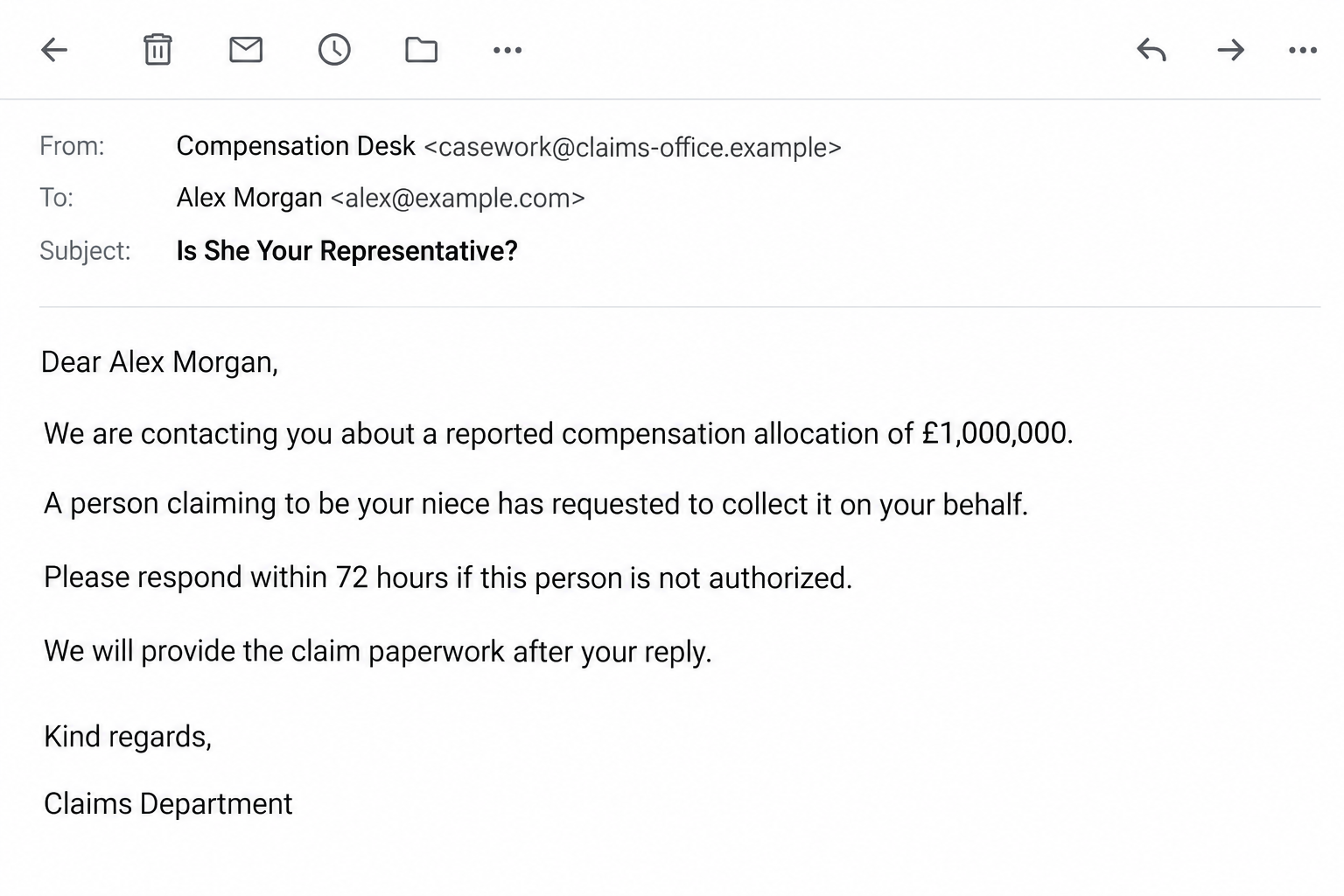
The UKFIU compensation email scam claims that a lawyer is handling a £1 million allocation for a cybercrime victim. It is an impersonation, not verified compensation.
The message introduces a supposed niece who wants to collect the money. Its subject asks whether this person represents the recipient.
That gives the recipient a reason to answer even when they never applied for a payout. They may respond to deny authorization rather than claim anything.
An official-sounding name lends weight to an unsupported story
UKFIU refers to the United Kingdom Financial Intelligence Unit. Its real existence does not authenticate an email using its name.
The sender’s claimed legal role, allocation, and relationship to a relative are unverified assertions. No actual niece or genuine representative is implicated by this message.
What follows a reply is not established in the available report. Promised paperwork does not prove that an award exists or that the sender can distribute it.
The immediate objective is to start a conversation
Instead of beginning with a payment button, the story encourages a correction. Once you answer, the sender can continue discussing the alleged claim.
- Don’t reply to confirm or deny the supposed niece’s authority.
- Don’t send identity documents to establish ownership of the alleged award.
- Keep genuine fraud reports separate from this unsolicited payout conversation.
- Verify agency contacts outside the email before discussing any real case.
- Respond to actual information exposure, not the sender’s invented deadline.
Why the Fake Niece Is Such an Effective Opening
A straightforward prize message asks you to believe you have won. This email starts with a different concern: someone might take what already belongs to you.
You may think, “I don’t know anything about this, but I certainly didn’t authorize her.” That feels like a sensible correction rather than a financial decision.
But the correction accepts the conversation’s setting. You are now discussing a supposed claim with the person who invented both the money and its rival collector.
The family reference can also make the situation feel specific. It invites you to search your memory for a relative instead of checking the sender’s authority.
Do not accuse a real family member based on that suggestion. The email is not evidence that anyone you know contacted an agency.
If you want reassurance from a relative, speak through your usual contact route. There is no need to forward the sender’s instructions or ask them to investigate.
Likewise, don’t send a family tree or explain which relatives you have. Correcting the story can disclose personal information the sender did not previously possess.
You can reject the premise without solving it. An unsolicited message does not create an obligation to prove who may represent you.
How the UKFIU Compensation Email Scam Works
Step 1: A supposed legal contact announces an existing claim
The sender presents the matter as something already underway. Alleged earlier attempts to reach you help explain why the notice has arrived unexpectedly.
That explanation can cover the most obvious problem: you don’t remember applying. The sender makes your lack of knowledge sound like missed correspondence.
A legal title encourages readers to treat the message as administrative business. You may worry that silence could harm your rights.
Before considering any deadline, ask what independent record establishes the claim. The sender’s own documents cannot supply independent confirmation of the sender’s authority.
A copied signature or named institution is not enough. Both can be placed in a message without permission from the person or organization mentioned.
Do not call a number supplied in the same notice to resolve that uncertainty. It may simply return you to the same unverified operation.
Step 2: A large award is framed as your existing entitlement
The compensation figure gives the conversation emotional weight. The message wants you to think about protecting an allocation rather than evaluating an unexpected offer.
Its use of a victim-compensation story is especially manipulative for someone who has previously lost money. It makes renewed contact sound like overdue help.
Having experienced fraud does not validate every later recovery approach. Nor does the sender knowing a few details prove that a real agency authorized the contact.
Keep the claimed award separate from any genuine case reference you possess. Don’t supply your whole complaint file so the stranger can make their story fit.
A legitimate inquiry can be checked without asking the disputed sender to reassure you. Use the agency’s established public contact information.
Step 3: The supposed niece creates a reason to answer quickly
The rival collector turns a vague opportunity into a potential loss. You are asked to intervene before someone else benefits.
The reported message adds a 72-hour window. That is part of the lure, not an independently verified legal deadline.
Don’t use the countdown to decide whether to send personal records. An urgent assertion needs verification just as much as a relaxed one.
The sender may receive a useful answer even if you say no. Your reply establishes that this address reaches someone willing to discuss the matter.
It can also reveal how best to continue the story. Explaining your family situation or earlier financial loss gives an impostor more material.
Step 4: Paperwork is offered as the next reassuring task
The invitation promises further claim instructions after a response. That gives the exchange an orderly appearance: first establish representation, then handle the documents.
A document request can feel less suspicious when it appears to follow a reasonable preliminary question. But the first question did not establish a genuine claim.
If later messages seek identification, bank details, or a payment, treat those as new sensitive requests. Don’t let the earlier conversation authenticate them.
Those follow-up demands are possible risks, not confirmed events from this particular report. Preserve what you actually received rather than assuming the next step.
A scanned letter can be persuasive without being official. Ask whether its issuing office can confirm it through independently obtained contact details.
Step 5: The conversation can make stopping feel costly
After several replies, you may feel close to finishing. Leaving can seem like abandoning compensation rather than ending an unverified conversation.
That feeling does not improve the evidence. Time spent answering questions is not proof that a payment exists or that the sender represents UKFIU.
You can stop even after cooperating. Sending another document won’t make an unsupported payout story genuine or protect the records you already shared.
If you already supplied information, switch from claim completion to exposure control. A further reply asking for deletion cannot guarantee the information will be removed.
Keep genuine support outside the exchange. An unexpected helper who references the same alleged award may be continuing it, not rescuing you from it.
What UKFIU Actually Does
The National Crime Agency’s UKFIU information describes financial-intelligence work involving Suspicious Activity Reports.
That role concerns receiving, analyzing, and disseminating intelligence. It does not authenticate this stranger’s claim that you were selected for compensation.
The distinction is practical, not just terminology. You should not send an ordinary victim complaint or compensation request through the Suspicious Activity Reports process.
Use the appropriate public fraud-reporting route instead. If you already have a genuine case contact, return through the route you established before this email.
A real agency’s name can be used inaccurately without its involvement. Be wary of treating an internet search showing that agency exists as proof of the message.
The same applies to a law firm or lawyer mentioned in correspondence. Check their involvement independently; don’t assume a named professional authorized the signature.
No one needs your email password to confirm whether they contacted you. Authentication codes also belong to the action your genuine provider describes, not an emailed explanation.
If a real compensation program is relevant to your circumstances, obtain its actual eligibility and application information. Do not use this email as its application route.
Reporting the Email Without Sending More Sensitive Information
The NCA’s fraud and economic crime guidance directs readers toward appropriate reporting channels, including current UK fraud-reporting information.
Check that guidance for the route relevant to your location. Reporting arrangements can differ across the UK and other countries.
Preserve the original email if your provider allows it. Full headers may help investigators examine routing, though a display name alone says little.
Include the supposed award and deadline in your report as claims. Do not describe them as money that was genuinely held for you.
If you replied, note what you sent. “I answered” and “I attached my passport” require very different protective responses.
Record payments separately, using genuine receipts rather than the sender’s release certificate. Your financial provider needs the real destination, amount, and time.
Keep originals private where they contain personal identifiers. A public warning can describe the lure without displaying your address, document number, or banking information.
Report promptly, but don’t wait for a reporting acknowledgement before securing an exposed account. The two tasks can proceed independently.
What to Do if You Have Fallen Victim to This Scam
End the compensation exchange. Don’t contest the supposed niece’s authority or request more claim documents. Stop answering and retain the messages you already received.
If you only replied with a brief denial, keep the response proportionate. That alone does not prove your bank account or device was accessed.
List the information you disclosed. Distinguish contact details, identity copies, financial records, passwords, and codes. Approximate dates are useful when exact times are unavailable.
Do not email additional documents to the sender to explain your concern. Use your own record to decide which genuine organizations need contacting.
Tell your payment provider about money actually sent. Explain the compensation impersonation and provide the transaction details. Ask what recall, dispute, or protective options remain available.
No reversal is guaranteed. Refuse any new release charge or recovery payment requested by the same correspondence or an unsolicited intermediary.
Secure credentials if you supplied them. Reach the affected service independently, change the exposed password, and ask about unfamiliar sessions or changes to account recovery details.
Update reused passwords elsewhere and retain multifactor protection. Never approve an unexpected code request because someone calls it cancellation of the compensation claim.
Address identity-document exposure through the proper issuer. Ask the relevant authority or provider what precautions apply to the particular document or identifier disclosed.
Monitor for misuse appropriate to your country. Don’t assume changing an email password retrieves a passport copy or removes a financial record already sent.
Report the impersonation through genuine channels. Use your email provider’s phishing report option and the appropriate national fraud-reporting service. Keep the resulting reference.
Tell investigators about the fake relative as part of the story, not as an accusation against a real family member.
Check software exposure if it occurred. If you installed an attachment, extension, or remote-support tool, stop using that untrusted access and investigate with updated security software.
Malwarebytes may assist with device threats. AdGuard may reduce some misleading advertisements, but neither tool recovers a payout or retrieves identity records already sent.
Is Your Device Infected? Run a Free Malware Scan
Slow performance, constant pop-ups, or strange behavior? These are classic signs of a malware infection. The fastest way to find out is to scan your device with Malwarebytes Free — one of the most trusted malware removal tools available.
The free version detects and removes the most common threats, including:
- Adware — the cause of those annoying pop-ups
- Browser hijackers — unwanted redirects and changed homepages
- Trojans and spyware — hidden programs stealing your data
- Potentially unwanted programs (PUPs) — software you never asked for
👉 Select your device below — Windows, Mac, or Android — then follow the simple steps to download Malwarebytes, scan your system, and remove any threats it finds. The scan usually takes 5 to 20 minutes.
Run a Malware Scan with Malwarebytes for Windows
Malwarebytes is one of the most popular and trusted anti-malware tools for Windows — and it’s completely free for removing infections. It catches threats that many antivirus programs miss, including adware, browser hijackers, and trojans. Follow the steps below to scan and clean your PC in just a few minutes.
Download Malwarebytes
Click the button below to download the latest version of Malwarebytes for Windows from the official source. The free version is all you need — it will scan your computer and remove adware, browser hijackers, and other malicious software at no cost.
Download MalwarebytesOfficial installer for Windows 11 and 10. Your download starts right away.Want real-time protection? See Malwarebytes Premium Malwarebytes Free for WindowsScans and removes malware at no cost
-
Install Malwarebytes
When the download finishes, open your Downloads folder and double-click the MBSetup file. If Windows shows a User Account Control pop-up, click “Yes” to allow the installation.

Follow the On-Screen Prompts to Install Malwarebytes
The setup wizard will walk you through a few quick screens:
-
Choose where you’re installing the program — “Personal Computer” or “Work Computer” — then click Next.

-
Malwarebytes will now install on your device. This usually takes under a minute.

-
When installation is complete, the “Welcome to Malwarebytes” screen will open automatically.

-
On the final screen, click Open Malwarebytes to launch the program.

-
Enable “Scan for Rootkits”
Before scanning, turn on rootkit detection so Malwarebytes can find even the most hidden threats. Click the Settings gear icon on the left side of the screen.

In the settings menu, find “Scan for rootkits” and click the toggle so it turns blue.

Done? Click “Dashboard” in the left pane to return to the main screen.
Start the Scan
Click the blue Scan button. Malwarebytes will automatically update its virus database and start checking your computer for malware.

-
Wait for the Scan to Finish
The scan checks your entire system for browser hijackers and other malicious programs, so it can take 5 to 20 minutes depending on your computer. Feel free to do something else — just check back occasionally to see the progress.

-
Quarantine the Detected Threats
When the scan is done, you’ll see a list of everything Malwarebytes found — malware, adware, and potentially unwanted programs. Click the “Quarantine” button to remove all of them at once.

Malwarebytes will now remove the malicious files and registry entries and move them safely into quarantine.

-
Restart Your Computer
Some threats can only be fully removed after a reboot. If Malwarebytes asks you to restart, click Yes. Once you’re logged back in, Malwarebytes has finished removing the threats it found.

That’s it — your Windows PC is now clean of trojans, adware, and other malware, and should be back to running smoothly.
If you are still having problems with your computer after completing these instructions, then please follow one of the steps:
- Run a computer scan with ESET Online Scanner
- Ask for help in our Windows Malware Removal Help & Support forum.
Run a Malware Scan with Malwarebytes for Mac
Malwarebytes for Mac is a free on-demand scanner that removes the malware other security software tends to miss — adware, browser hijackers, and unwanted programs included. Cleaning an infected Mac with Malwarebytes has always been completely free, and it’s our go-to recommendation. Follow the steps below to scan and clean your Mac in just a few minutes.
-
Download Malwarebytes for Mac
Click the button below to download the latest version of Malwarebytes for Mac.
Download MalwarebytesOfficial installer for macOS. Your download starts right away.Want real-time protection? See Malwarebytes PremiumMalwarebytes Free for MacScans and removes malware at no cost -
Open the Malwarebytes setup file
When the download finishes, open your Downloads folder and double-click the setup file to begin the installation.

-
Follow the On-Screen Prompts to Install Malwarebytes
The Malwarebytes for Mac Installer will guide you through a few quick screens. Click “Continue” and keep following the prompts until the installation completes.



When the installation is complete, Malwarebytes opens to the Welcome to Malwarebytes screen. Click “Get started“.
-
Select “Personal Computer” or “Work Computer”
Malwarebytes will ask what type of computer you’re installing it on. Click either Personal Computer or Work Computer, whichever applies.

-
Start the Scan
Click the “Scan” button. Malwarebytes will automatically update its detection database and begin checking your Mac for malware.

-
Wait for the Scan to Finish
Malwarebytes will scan your Mac for adware, browser hijackers, and other malicious programs. This can take a few minutes, so feel free to do something else — just check back occasionally to see the progress.

-
Quarantine the Detected Threats
When the scan is done, you’ll see a list of everything Malwarebytes found. Click the “Quarantine” button to remove all the threats at once.

-
Restart Your Mac
Malwarebytes will now remove all the malicious files it found. Some threats can only be fully removed after a reboot — if Malwarebytes asks you to restart, allow it. Once you’re logged back in, your Mac is clean.

That’s it — your Mac is now free of adware, rogue browser extensions, and other potentially harmful software.
If you are still experiencing problems while trying to remove a malicious program from your computer, please ask for help in our Mac Malware Removal Help & Support forum.
Run a Malware Scan with Malwarebytes for Android
Malwarebytes for Android automatically detects and removes dangerous threats like malware and ransomware so you don’t have to worry about your most-used device being compromised. Aggressive detection of adware and potentially unwanted programs keeps your Android phone or tablet running smooth.
-
Download Malwarebytes for Android.
You can download Malwarebytes for Android by clicking the link below.
Get Malwarebytes for AndroidOpens Google Play in a new tab.Want real-time protection? See Malwarebytes Premium for AndroidMalwarebytes for AndroidScans your phone and removes malware at no cost -
Install Malwarebytes for Android on your phone.
In the Google Play Store, tap “Install” to install Malwarebytes for Android on your device.

When the installation process has finished, tap “Open” to begin using Malwarebytes for Android. You can also open Malwarebytes by tapping on its icon in your phone menu or home screen.

-
Follow the on-screen prompts to complete the setup process
When Malwarebytes will open, you will see the Malwarebytes Setup Wizard which will guide you through a series of permissions and other setup options.
This is the first of two screens that explain the difference between the Premium and Free versions. Swipe this screen to continue.
Tap on “Got it” to proceed to the next step.
Malwarebytes for Android will now ask for a set of permissions that are required to scan your device and protect it from malware. Tap on “Give permission” to continue.
Tap on “Allow” to permit Malwarebytes to access the files on your phone.
-
Update database and run a scan with Malwarebytes for Android
You will now be prompted to update the Malwarebytes database and run a full system scan.

Click on “Update database” to update the Malwarebytes for Android definitions to the latest version, then click on “Run full scan” to perform a system scan.

-
Wait for the Malwarebytes scan to complete.
Malwarebytes will now start scanning your phone for adware and other malicious apps. This process can take a few minutes, so we suggest you do something else and periodically check on the status of the scan to see when it is finished.

-
Click on “Remove Selected”.
When the scan has been completed, you will be presented with a screen showing the malware infections that Malwarebytes for Android has detected. To remove the malicious apps that Malwarebytes has found, tap on the “Remove Selected” button.

-
Restart your phone.
Malwarebytes for Android will now remove all the malicious apps that it has found. To complete the malware removal process, Malwarebytes may ask you to restart your device.
That’s it — your Android phone is now clean — no more malicious apps, adware, or browser redirects.
If you are still having problems with your phone after completing these instructions, then please follow one of the steps:
- Restore your phone to factory settings by going to Settings > General management > Reset > Factory data reset.
- Ask for help in our Mobile Malware Removal Help & Support forum.
Stay Protected: Block Ads and Malicious Sites
Now that your device is clean, keep it that way. Most infections start with a malicious ad or a fake download button — so blocking them at the source is your best defense.
We recommend AdGuard, which blocks malicious ads, phishing pages, and dangerous redirects before they can reach you.
👉 Download AdGuard and browse safely
If Someone You Know Received the Same Story
A calm question helps more than ridicule: “Did you apply through an independently verified program?” Let them explain what they believe has happened.
They may be worried about losing the opportunity or admitting they replied. Focus on the next safe action rather than whether they should have recognized it.
Offer to help find the agency’s genuine public information. Don’t take over the conversation with the sender or try to negotiate a safer payment.
If documents or money were sent, help organize the evidence. Separate confirmed transactions from the award the email merely promised.
Encourage prompt contact with affected providers. Waiting until every detail is understood can delay a useful protective measure.
Finally, expect possible follow-up approaches. Someone mentioning the prior loss may be exploiting the same information rather than offering independent help.
Frequently Asked Questions
Is the £1 million compensation award real?
The reported email does not establish a genuine award. Its payout and representation story are the fraudulent claims at the center of this warning.
Don’t send money or documents to find out whether the sender will release it.
Why does the email mention a niece?
The alleged relative gives you a reason to answer quickly and deny permission. That response can begin a longer claim conversation.
It is not evidence that a real niece tried to collect money.
Does UKFIU’s existence make the message official?
No. A real institution can be named without authorizing the contact. Verify involvement through the institution’s independently obtained information.
Do not treat a logo, legal title, or attached letter as sufficient confirmation.
Should I reply just to say the person isn’t authorized?
There is no need to correct an invented representation story. Avoid giving the sender more family or identity information.
If you have a genuine concern about a real case, contact its established office separately.
Do I need a malware scan after reading the message?
Reading the email is not proof of infection. Device investigation becomes relevant if you installed something suspicious or granted software access.
Handle any exposed credentials, identity records, or payments through their own protective processes.
Can another agent guarantee recovery of money I sent?
No honest assessment can guarantee that outcome from an unsolicited approach. Be cautious of anyone demanding another payment to release or recover the funds.
Work with your actual financial provider and appropriate reporting authorities instead.
The Bottom Line
This UKFIU compensation email uses a supposed relative to turn an unexpected payout into something you feel you must protect. Don’t enter that conversation.
If you already responded, focus on what was actually disclosed or paid. Secure those exposures through genuine providers, without chasing the fictional award.

Join the discussion
0 commentsShare your experience or ask a question about this article.
Discussion
Start the conversation
Have a question or something useful to share? Add the first comment.