

Have you received an email with the subject “Adobe Scan: Your Urgent Signature is Required” asking you to review and sign an agreement? At first glance, the email looks legitimate — it may include Adobe’s branding, a professional layout, and language that seems official. But here’s the truth: many of these messages are scams designed to steal your information.
Phishing campaigns impersonating Adobe Acrobat Sign have surged in recent years, using fake document signing requests to trick recipients into clicking malicious links or providing sensitive personal and financial details. This article explains everything you need to know about the Adobe Acrobat Sign Request Scam, how it works, how to protect yourself, and what steps to take if you’ve already fallen victim.
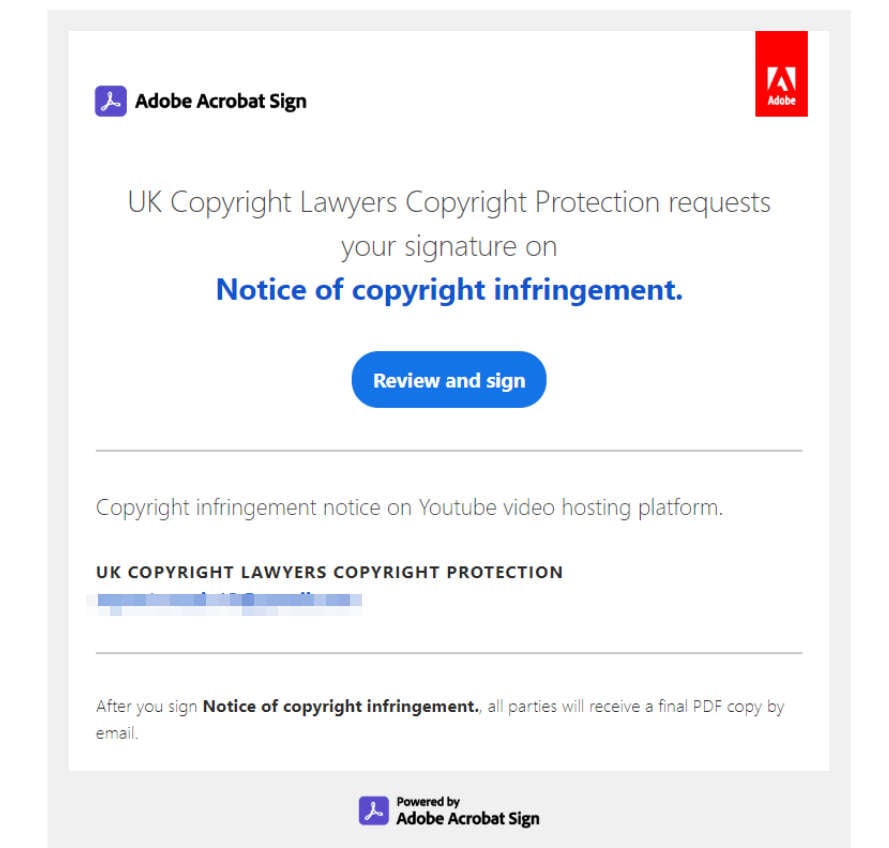
Scam Overview
The Adobe Acrobat Sign Request Scam is a phishing and social engineering campaign that impersonates Adobe’s legitimate e-signature service. Cybercriminals send emails that look like official Adobe Acrobat Sign notifications, urging recipients to “review and sign” an urgent document.
The fake email often includes:
- Official-looking Adobe branding and logos
- A subject line containing phrases like “Your signature is required”, “eSign document request”, or “Urgent document to review”
- A button or link labeled “Review and sign”
- A fake disclaimer or legal language to appear trustworthy
- A spoofed sender address that looks similar to Adobe’s real domain
These phishing emails aim to create a sense of urgency — pushing the victim to act quickly without verifying the message’s authenticity. Once the recipient clicks the link, they are usually redirected to a malicious website controlled by scammers.
Typical goals of this scam include:
- Harvesting personal information such as names, addresses, phone numbers, company details, and financial data.
- Stealing login credentials for email accounts, cloud services, or company portals.
- Distributing malware or remote access trojans (RATs) through malicious downloads.
- Impersonating the victim to defraud others (e.g., business email compromise).
Why This Scam Works So Well
- Trust in Adobe’s brand: Adobe Acrobat Sign is widely used by businesses, governments, schools, and individuals. People expect to receive legitimate signing requests.
- Professional design: Scammers replicate the layout, fonts, colors, and legal disclaimers found in real Adobe emails, making detection harder.
- Sense of urgency: Words like “urgent,” “required,” and “final notice” make recipients feel pressured to act fast.
- Realistic content: Many emails reference contracts, NDAs, invoices, or employment agreements, making the request believable.
Examples of Typical Scam Subject Lines
- Adobe Scan: Your Urgent Signature is Required
- Document Signature Request via Adobe Acrobat Sign
- Sign Agreement Before Deadline
- Your Electronic Signature is Needed
- Secure Document Awaiting Your Signature
How These Emails Bypass Detection
Scammers often use legitimate email sending services or spoof trusted domains. They may even pass SPF and DKIM checks, which are typically used to detect forged emails. This technical sophistication allows their messages to land in your inbox, not your spam folder.
In some cases, attackers compromise a real company email account and send Adobe-style phishing messages from a legitimate domain, increasing their credibility even further.
How the Adobe Acrobat Sign Request Scam Works
Phishing scams often follow a predictable pattern — but the Adobe Acrobat Sign Request Scam is particularly dangerous because it blends social engineering with realistic branding. Below is a step-by-step breakdown of how the scam typically unfolds.
Step 1: The Victim Receives a Fake Email
You receive an email claiming to be from Adobe Acrobat Sign, often with an official logo, formatted layout, and language urging you to sign a document quickly. Common phrases include:
“Your urgent signature is required.”
“Please review and sign the agreement.”
“Action needed: Sign to complete the transaction.”
The email usually contains a button that says “Review and Sign” or “Sign Document”.
Step 2: The Email Mimics Real Adobe Messages
To make the scam more convincing, attackers often:
- Include Adobe branding and footer disclaimers like “Powered by Adobe Acrobat Sign.”
- Spoof sender addresses (e.g.,
adobesign@adobesign.comor slight variations likeadobe-sign@secure-docs.net). - Use SSL certificates and HTTPS on fake sites to make victims feel safe.
These techniques lower suspicion and increase click-through rates.
Step 3: The Victim Clicks the Link
When the recipient clicks the “Review and sign” button, they are redirected to a phishing site or a malware landing page. This site often looks nearly identical to Adobe’s legitimate sign-in page.
Some common tactics used on these fake pages include:
- Asking the victim to log in with their email to “access the document.”
- Prompting the user to enter personal or financial information.
- Offering a malicious PDF or EXE file for download, disguised as the contract.
Step 4: Information or Access Is Stolen
Once the victim enters their credentials, the data is instantly sent to the attacker. This gives the scammer access to:
- Email accounts (Gmail, Outlook, company mailboxes)
- Cloud storage accounts
- Passwords and personal data
If malware is downloaded, it may infect the system, enabling attackers to steal data, spy on activity, or install ransomware.
Step 5: Attackers Escalate the Attack
With access to the victim’s email or personal data, scammers can:
- Launch further phishing campaigns using the compromised account.
- Impersonate the victim to trick colleagues, clients, or friends.
- Commit fraud (e.g., fake invoices, wire transfer scams).
- Sell stolen credentials on dark web marketplaces.
This is why even a single click can have serious consequences.
What To Do If You Have Fallen Victim to the Adobe Acrobat Sign Request Scam
If you’ve clicked on a suspicious “Adobe Sign” email or entered your details on a fake site, act immediately. The faster you respond, the more likely you are to limit damage.
1. Change Your Passwords Immediately
- If you entered your email and password, change that password as soon as possible.
- Enable two-factor authentication (2FA) for your email and other accounts.
- If you use the same password elsewhere, change it on all accounts.
2. Revoke Access and Secure Your Accounts
- Check your email account’s recent login activity.
- Revoke any suspicious sessions or connected apps.
- Update your security recovery options (backup email, phone number).
3. Run a Full Malware Scan
- If you downloaded a file or attachment from the email, your device may be infected.
- Run a full system scan with a trusted antivirus or anti-malware program.
- Remove any suspicious files or software found.
4. Notify Your IT Department (If Applicable)
- If the email was sent to your work address, report the incident to your IT or security team.
- They can check for network-wide threats and prevent escalation.
5. Report the Scam to Adobe
Adobe encourages users to report phishing attempts. You can:
- Forward the email to phish@adobe.com
- Visit Adobe’s official Security Alert page
- Include any suspicious attachments or links.
6. Report to Your Email Provider and Authorities
- Mark the message as “phishing” or “spam” in your inbox.
- This helps improve filters for everyone.
- In the U.S., report phishing attempts to the FTC at reportfraud.ftc.gov.
- In the EU, report to your local cybersecurity agency.
7. Monitor Your Accounts for Suspicious Activity
- Check your email, bank, and online accounts for unusual logins or transactions.
- Enable account alerts to catch unauthorized access early.
- Consider credit monitoring if you’ve shared financial data.
8. Educate Others in Your Network
- If the scam originated from your compromised account, notify your contacts.
- Warn colleagues, friends, or family not to click any suspicious links.
- Share tips on verifying real Adobe Sign emails.
Is Your Device Infected? Run a Free Malware Scan
Slow performance, constant pop-ups, or strange behavior? These are classic signs of a malware infection. The fastest way to find out is to scan your device with Malwarebytes Free — one of the most trusted malware removal tools available.
The free version detects and removes the most common threats, including:
- Adware — the cause of those annoying pop-ups
- Browser hijackers — unwanted redirects and changed homepages
- Trojans and spyware — hidden programs stealing your data
- Potentially unwanted programs (PUPs) — software you never asked for
👉 Select your device below — Windows, Mac, or Android — then follow the simple steps to download Malwarebytes, scan your system, and remove any threats it finds. The scan usually takes 5 to 20 minutes.
Run a Malware Scan with Malwarebytes for Windows
Malwarebytes is one of the most popular and trusted anti-malware tools for Windows — and it’s completely free for removing infections. It catches threats that many antivirus programs miss, including adware, browser hijackers, and trojans. Follow the steps below to scan and clean your PC in just a few minutes.
Download Malwarebytes
Click the button below to download the latest version of Malwarebytes for Windows from the official source. The free version is all you need — it will scan your computer and remove adware, browser hijackers, and other malicious software at no cost.
Download MalwarebytesOfficial installer for Windows 11 and 10. Your download starts right away.Want real-time protection? See Malwarebytes Premium Malwarebytes Free for WindowsScans and removes malware at no cost
-
Install Malwarebytes
When the download finishes, open your Downloads folder and double-click the MBSetup file. If Windows shows a User Account Control pop-up, click “Yes” to allow the installation.

Follow the On-Screen Prompts to Install Malwarebytes
The setup wizard will walk you through a few quick screens:
-
Choose where you’re installing the program — “Personal Computer” or “Work Computer” — then click Next.

-
Malwarebytes will now install on your device. This usually takes under a minute.

-
When installation is complete, the “Welcome to Malwarebytes” screen will open automatically.

-
On the final screen, click Open Malwarebytes to launch the program.

-
Enable “Scan for Rootkits”
Before scanning, turn on rootkit detection so Malwarebytes can find even the most hidden threats. Click the Settings gear icon on the left side of the screen.

In the settings menu, find “Scan for rootkits” and click the toggle so it turns blue.

Done? Click “Dashboard” in the left pane to return to the main screen.
Start the Scan
Click the blue Scan button. Malwarebytes will automatically update its virus database and start checking your computer for malware.

-
Wait for the Scan to Finish
The scan checks your entire system for browser hijackers and other malicious programs, so it can take 5 to 20 minutes depending on your computer. Feel free to do something else — just check back occasionally to see the progress.

-
Quarantine the Detected Threats
When the scan is done, you’ll see a list of everything Malwarebytes found — malware, adware, and potentially unwanted programs. Click the “Quarantine” button to remove all of them at once.

Malwarebytes will now remove the malicious files and registry entries and move them safely into quarantine.

-
Restart Your Computer
Some threats can only be fully removed after a reboot. If Malwarebytes asks you to restart, click Yes. Once you’re logged back in, Malwarebytes has finished removing the threats it found.

That’s it — your Windows PC is now clean of trojans, adware, and other malware, and should be back to running smoothly.
If you are still having problems with your computer after completing these instructions, then please follow one of the steps:
- Run a computer scan with ESET Online Scanner
- Ask for help in our Windows Malware Removal Help & Support forum.
Run a Malware Scan with Malwarebytes for Mac
Malwarebytes for Mac is a free on-demand scanner that removes the malware other security software tends to miss — adware, browser hijackers, and unwanted programs included. Cleaning an infected Mac with Malwarebytes has always been completely free, and it’s our go-to recommendation. Follow the steps below to scan and clean your Mac in just a few minutes.
-
Download Malwarebytes for Mac
Click the button below to download the latest version of Malwarebytes for Mac.
Download MalwarebytesOfficial installer for macOS. Your download starts right away.Want real-time protection? See Malwarebytes PremiumMalwarebytes Free for MacScans and removes malware at no cost -
Open the Malwarebytes setup file
When the download finishes, open your Downloads folder and double-click the setup file to begin the installation.

-
Follow the On-Screen Prompts to Install Malwarebytes
The Malwarebytes for Mac Installer will guide you through a few quick screens. Click “Continue” and keep following the prompts until the installation completes.



When the installation is complete, Malwarebytes opens to the Welcome to Malwarebytes screen. Click “Get started“.
-
Select “Personal Computer” or “Work Computer”
Malwarebytes will ask what type of computer you’re installing it on. Click either Personal Computer or Work Computer, whichever applies.

-
Start the Scan
Click the “Scan” button. Malwarebytes will automatically update its detection database and begin checking your Mac for malware.

-
Wait for the Scan to Finish
Malwarebytes will scan your Mac for adware, browser hijackers, and other malicious programs. This can take a few minutes, so feel free to do something else — just check back occasionally to see the progress.

-
Quarantine the Detected Threats
When the scan is done, you’ll see a list of everything Malwarebytes found. Click the “Quarantine” button to remove all the threats at once.

-
Restart Your Mac
Malwarebytes will now remove all the malicious files it found. Some threats can only be fully removed after a reboot — if Malwarebytes asks you to restart, allow it. Once you’re logged back in, your Mac is clean.

That’s it — your Mac is now free of adware, rogue browser extensions, and other potentially harmful software.
If you are still experiencing problems while trying to remove a malicious program from your computer, please ask for help in our Mac Malware Removal Help & Support forum.
Run a Malware Scan with Malwarebytes for Android
Malwarebytes for Android automatically detects and removes dangerous threats like malware and ransomware so you don’t have to worry about your most-used device being compromised. Aggressive detection of adware and potentially unwanted programs keeps your Android phone or tablet running smooth.
-
Download Malwarebytes for Android.
You can download Malwarebytes for Android by clicking the link below.
Get Malwarebytes for AndroidOpens Google Play in a new tab.Want real-time protection? See Malwarebytes Premium for AndroidMalwarebytes for AndroidScans your phone and removes malware at no cost -
Install Malwarebytes for Android on your phone.
In the Google Play Store, tap “Install” to install Malwarebytes for Android on your device.

When the installation process has finished, tap “Open” to begin using Malwarebytes for Android. You can also open Malwarebytes by tapping on its icon in your phone menu or home screen.

-
Follow the on-screen prompts to complete the setup process
When Malwarebytes will open, you will see the Malwarebytes Setup Wizard which will guide you through a series of permissions and other setup options.
This is the first of two screens that explain the difference between the Premium and Free versions. Swipe this screen to continue.
Tap on “Got it” to proceed to the next step.
Malwarebytes for Android will now ask for a set of permissions that are required to scan your device and protect it from malware. Tap on “Give permission” to continue.
Tap on “Allow” to permit Malwarebytes to access the files on your phone.
-
Update database and run a scan with Malwarebytes for Android
You will now be prompted to update the Malwarebytes database and run a full system scan.

Click on “Update database” to update the Malwarebytes for Android definitions to the latest version, then click on “Run full scan” to perform a system scan.

-
Wait for the Malwarebytes scan to complete.
Malwarebytes will now start scanning your phone for adware and other malicious apps. This process can take a few minutes, so we suggest you do something else and periodically check on the status of the scan to see when it is finished.

-
Click on “Remove Selected”.
When the scan has been completed, you will be presented with a screen showing the malware infections that Malwarebytes for Android has detected. To remove the malicious apps that Malwarebytes has found, tap on the “Remove Selected” button.

-
Restart your phone.
Malwarebytes for Android will now remove all the malicious apps that it has found. To complete the malware removal process, Malwarebytes may ask you to restart your device.
That’s it — your Android phone is now clean — no more malicious apps, adware, or browser redirects.
If you are still having problems with your phone after completing these instructions, then please follow one of the steps:
- Restore your phone to factory settings by going to Settings > General management > Reset > Factory data reset.
- Ask for help in our Mobile Malware Removal Help & Support forum.
Stay Protected: Block Ads and Malicious Sites
Now that your device is clean, keep it that way. Most infections start with a malicious ad or a fake download button — so blocking them at the source is your best defense.
We recommend AdGuard, which blocks malicious ads, phishing pages, and dangerous redirects before they can reach you.
👉 Download AdGuard and browse safely
How to Identify a Real Adobe Acrobat Sign Email vs. a Scam
Learning to spot phishing emails is your best defense. Here are key differences between legitimate Adobe emails and scams.
| Feature | Legitimate Adobe Email | Scam Email |
|---|---|---|
| Sender | adobesign@adobesign.com or verified Adobe domain | Spoofed or lookalike domain (e.g., @adobe-sign.net) |
| Personalization | Usually includes your name or company name | Generic greeting or none |
| Links | Go to official Adobe domains (adobe.com) | Redirect to unrelated or strange URLs |
| Urgency | Professional tone, no pressure | Urgent wording (“immediate,” “final notice”) |
| Attachments | Rarely included | May contain malicious files |
| Request for login info | Never asks in the email itself | Often asks you to log in via fake pages |
| URL bar after clicking | https://documentcloud.adobe.com or official Adobe site | Suspicious domain names or typos |
Tip: Always hover over the link (without clicking) to see the real URL. If it doesn’t lead to an Adobe.com domain, it’s fake.
Best Practices to Protect Yourself from Adobe Sign Phishing Scams
1. Verify Before Clicking
- Never click on unexpected signature requests without verifying the source.
- If unsure, log in directly at adobe.com to check if a document awaits your signature.
2. Use Two-Factor Authentication
- Enable 2FA on your email and Adobe accounts.
- Even if scammers steal your password, they won’t be able to log in without the second factor.
3. Keep Your Software Updated
- Regularly update your operating system, browsers, and security software.
- Updates often patch vulnerabilities exploited by phishing campaigns.
4. Train Your Employees
For businesses, phishing attacks can lead to data breaches, financial loss, or ransomware infections. Regular security awareness training can significantly reduce risk.
5. Use Email Security Tools
- Spam filters and phishing detection systems help block malicious emails.
- Solutions like DMARC, SPF, and DKIM can help reduce spoofing risks.
6. Enable Notifications
Enable login alerts and security notifications for your email and cloud accounts. This way, you’ll know immediately if someone else tries to access your accounts.
Common Variants of the Adobe Acrobat Sign Scam
Scammers constantly tweak their tactics to bypass filters. Some common variants include:
- Malware-laced attachments disguised as “agreement forms.”
- Fake secure portal links that steal Microsoft 365 or Google Workspace credentials.
- Compromised company accounts sending fake Adobe requests to employees.
- Invoice or payment scams, where scammers pretend to send a contract or bill that needs signing.
These variations all share one thing: they impersonate Adobe Acrobat Sign to gain your trust.
Real Examples of Adobe Sign Scam Emails
A typical fraudulent message might look like this:
Subject: Adobe Scan: Your Urgent Signature is Required

Adobe Acrobat Sign

eSign requests your signature on

[Review and sign button]

Please review and sign the agreement.

xxxxxxxx

After you sign, all parties will receive a final PDF copy.

Don’t forward this email: If you don’t want to sign, you can delegate to someone else.

Powered by Adobe Acrobat Sign

By proceeding, you agree that this agreement may be signed using electronic or handwritten signatures.

© 2025 Adobe. All rights reserved.
At first glance, everything seems legitimate. But the link behind “Review and sign” typically leads to a malicious site, not Adobe.
Why Businesses Are Prime Targets
While anyone can receive this phishing email, businesses and organizations are prime targets because:
- They frequently use e-signature solutions for contracts, invoices, and legal documents.
- Compromised business accounts offer high-value data and network access.
- Employees may be less suspicious of document signing requests, especially from partners or clients.
Attackers may also use compromised email accounts to distribute further phishing messages, making the scam appear to come from a trusted source inside the organization.
Reporting and Fighting Back Against the Scam
Reporting helps security teams and service providers block malicious domains and protect other users. Here’s how you can report:
- Adobe: Forward the phishing email to phish@adobe.com.
- Your Email Provider: Use the “Report Phishing” option in Gmail, Outlook, or your provider’s dashboard.
- Authorities: Report to government cybersecurity agencies in your country (e.g., FTC in the U.S.).
- Workplace Security: Inform your IT team immediately if received on a corporate account.
Legal and Financial Risks of Falling for the Scam
Victims of the Adobe Acrobat Sign phishing scam may face:
- Unauthorized financial transactions if bank or payment credentials are stolen.
- Data breaches involving sensitive business documents.
- Identity theft, where attackers use stolen personal data for fraudulent activities.
- Reputational damage if a compromised email account is used to target clients or employees.
If financial or identity theft occurs, consider freezing your credit, filing fraud reports, and consulting legal counsel.
How Adobe Is Responding to Phishing Campaigns
Adobe actively monitors and takes down phishing sites that impersonate its brand. The company:
- Maintains a dedicated security team to respond to phishing reports.
- Implements DMARC, SPF, and DKIM on its domains to reduce spoofing.
- Regularly publishes security bulletins to alert users of new scam trends.
- Partners with ISPs and cybersecurity firms to takedown malicious sites.
However, since scammers constantly adapt, user vigilance remains the most powerful defense.
The Bottom Line
The Adobe Acrobat Sign Request Scam is a well-executed phishing scheme that preys on trust in Adobe’s brand and the urgency of signing important documents. Even experienced users can fall for these scams because they are designed to look authentic.
Key takeaways:
- Adobe will never pressure you to sign documents immediately through threatening or urgent language.
- Always verify sender addresses and links before clicking.
- If in doubt, log in directly to your Adobe account through the official website.
- Enable two-factor authentication and keep your software updated.
- Report phishing attempts to Adobe and your email provider.
A single careless click can expose your personal information, credentials, or even your entire organization to cyber threats. By staying informed and cautious, you can protect yourself and your business from falling victim to this increasingly common scam.
Frequently Asked Questions (FAQ)
What is the Adobe Acrobat Sign Request Scam?
The scam involves fake emails impersonating Adobe Acrobat Sign, urging recipients to sign a document via a malicious link. The goal is to steal credentials or install malware.
How can I tell if an Adobe Sign email is real?
Real emails come from @adobesign.com and never pressure you to act urgently. Fake ones often use generic greetings, spoofed addresses, and suspicious URLs.
What should I do if I clicked on the link?
Immediately change your passwords, enable 2FA, scan your device for malware, and report the incident to Adobe and your email provider.
Can scammers access my Adobe account?
Yes, if you entered your login credentials on a fake site. Change your password and revoke unauthorized sessions immediately.
Should I report the scam to Adobe?
Yes. Forward phishing messages to phish@adobe.com and mark the email as phishing in your inbox.
Is Adobe Acrobat Sign itself compromised?
No. The scam involves impersonation, not a breach of Adobe’s systems. Attackers are using lookalike emails and fake sites.
Can this scam affect businesses?
Yes. Businesses are high-value targets because they regularly handle sensitive documents. Attackers may use phishing to gain access to corporate networks.
How can I protect myself?
Enable two-factor authentication, keep software updated, verify links before clicking, and avoid signing documents from unexpected emails.
What happens if I downloaded the attached file?
Run a full system antivirus scan immediately. Malicious attachments can install keyloggers, trojans, or ransomware.
Is there a way to verify a document without clicking the email?
Yes. Log in directly at adobe.com or your Acrobat Sign dashboard to see if any real signing requests are pending.
By recognizing the signs of phishing and acting fast, you can stop scammers before they cause damage. Stay cautious, verify every request, and report suspicious activity to keep your information safe.








