

The “Amazon Pending Prize” scam is a new form of online fraud that is catching many shoppers off guard. Scammers are becoming increasingly sophisticated in their efforts to divert victims to fake websites and steal their personal information and money. This article will provide an in-depth look at how this scam works, what to do if you have fallen victim, and how to stay safe while shopping online.
Overview of the “Amazon Pending Prize” Scam
The “Amazon Pending Prize” scam starts with malvertising, malicious redirects, pop-ups or spam emails designed to lure victims to fake websites dressed up to resemble Amazon. These sites congratulate shoppers for “winning” an iPhone or other desirable prize. To claim their prize, victims are prompted to complete a short survey and pay a small shipping fee. However, the credit card details entered by victims end up enabling scammers to charge recurring, hard-to-cancel fees for unwanted subscriptions and services.
This is a form of subscription scam that can quickly spiral out of control. An initial $2 charge may climb to $39, $59 or even $99 as scammers bill credit cards repeatedly for products or services the victims never requested. Canceling these fraudulent charges or subscriptions is made purposefully difficult, allowing scammers to rack up substantial ill-gotten gains before victims can put a stop to it.
How the Scam Spreads
Cybercriminals behind this scam rely on malvertising, malicious redirects and spam emails to drive traffic to their fake Amazon domains.
- Malvertising refers to online ads infected with malware that redirects victims without consent. These may appear on otherwise trusted websites.
- Malicious redirects also hijack browsers unexpectedly to route victims towards dangerous sites without them realizing it. After clicking a compromised link, users may be bounced through various sites before landing on the fake Amazon prize page.
- Spam emails promising prizes or special offers may also contain embedded links or attachments with malware enabling redirects to the phishing site.
In other cases, victims may encounter an official-looking pop-up ad while shopping at Amazon offering a special promotion or prize. Clicking anywhere on the pop-up causes an unauthorized redirect to the fraudulent website.
Regardless of how victims arrive, the result is the same. They are duped into entering personal information under the pretense of claiming an attractive prize, enabling scammers to steal their identity and money.
How the “Amazon Pending Prize” Scam Works
The “Amazon Pending Prize” scam is carefully orchestrated at every step to take advantage of unsuspecting shoppers. Here is an inside look at precisely how this scam unfolds.
1. Landing on the Fake Website
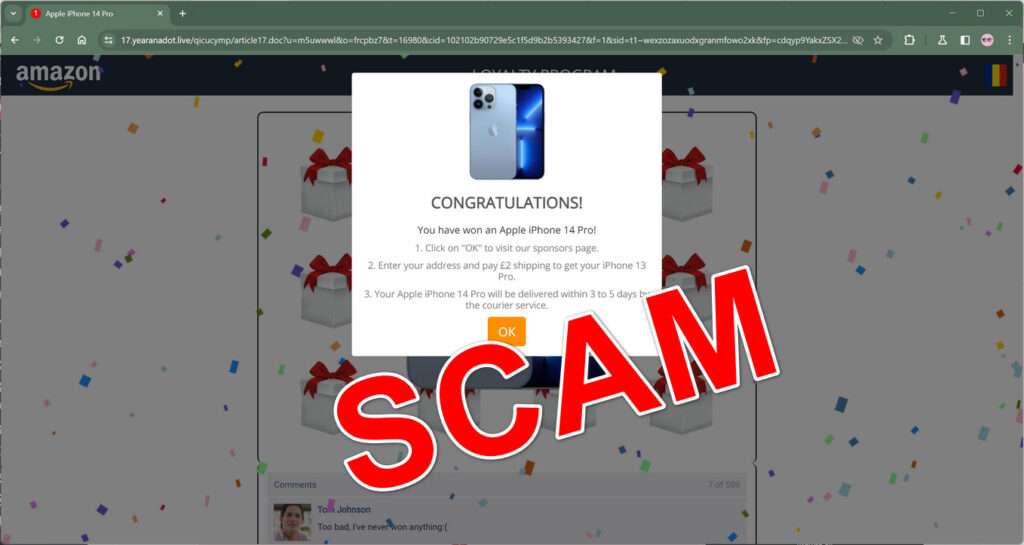
Victims redirected to the fraudulent website are met with an exciting announcement declaring them the winner of a free Apple iPhone 14 Pro or other extravagant prize. The page is made to closely resemble a legitimate Amazon promotions page using copied images and branding elements.
A countdown clock ratschets up urgency about “limited prizes” while fake reviews and comments manufacture social proof. In reality, every visitor appears as the lucky “winner” and there is no prize draw occurring.
2. Completing the “Survey”
To claim their “prize,” visitors must first complete a “short survey” disclosed as a precondition for the offer. The questions asked seem innocuous, covering age range, gender and shopping habits on Amazon.
Victims eager to secure their prize provide answers quickly without considering the ramifications of handing personal data directly to criminals. With information like age, name, address and shopping tendencies, scammers can fine-tune social engineering tactics in follow-up attempts.
After finishing all the survey questions, another congratulatory message appears confirming the ruse was successful.
3. Claiming the “Prize”
The next step pressures visitors to “claim their iPhone 14 Pro” by selecting the correct box among three options that supposedly contains the device. Victims are granted three attempts to get it right. Of course, each box results in another congratulatory message and request to proceed towards collecting the prize.
Scammers use psychological manipulation to make victims feel they have earned the reward, hoping they will now comply with the final step and pay the shipping fee. The small $2 charge seems a pittance compared to the promised $1000 iPhone.
Visitors asked to enter a valid shipping address and credit card create a binding financial relationship with scammers operating the fake promotions website. While told the charge is for delivery, simply handing over payment details authorizes recurring billing down the road.
4. Hidden Subscription Sign-Up
After victims enter payment information, many notice a small initial $2 charge from an unfamiliar company for “shipping and processing” fees. However, the true costs quickly escalate unbeknownst to most victims.
Within days, much larger charges appear from the same shady merchant along the lines of:
- Fast PDF Converter subscription – $39/month
- Mega Ebook Bundle subscription – $59/month
- Unlimited Movie Club subscription – $99/month
Canceling these expensive subscriptions or services is difficult by design, allowing scammers to rack up hundreds in fraudulent credit card charges before victims catch on.
The minimal upfront cost is simply to capture the credit card details for ongoing billing, while distracted shoppers remain unaware they have been scammed until the larger recurrent fees hit their accounts.
What to Do If You Are a Victim
If you have fallen victim to the “Amazon Pending Prize” or similar online subscription scam, remain calm and take the following steps right away:
Step 1: Contact Your Credit Card Provider
Call the number on the back of your credit/debit card and speak with someone in the fraud department. Alert them you have been scammed into providing your card information and wish to report fraudulent charges.
Provide details like the initial charge amount, name of the merchant and any subsequent charges from the same vendor. This will allow the fraud team to identify charges stemming from the scam purchase and begin investigating.
Step 2: Request a Chargeback
Clearly state you wish to contest all charges related to the scam website as unauthorized and fraudulent. This officially launches a chargeback dispute which requires the merchant prove charges are legitimate – something scammers cannot do.
If charges are still hitting your account, requesting a chargeback also authorizes your credit card company to block the vendor entirely from future billing.
Step 3: Cancel Compromised Cards
Even if you request a new card number, scammers may still have access to the CSV code and expiration date enabling them to generate additional charges.
To prevent repeated fraudulent billing, request entirely new card details from your bank or credit provider. This severs all payment authorization granted previously to the scammers.
Monitor account activity closely for the next 1-2 billing cycles to ensure no residual fake charges slip through. Report any suspicious or unrecognized activity immediately to reinstate a block.
Step 4: Secure Other Accounts
If you used the compromised card details to pay for any subscriptions, memberships or services online, scammers may have accessed this information as well.
Log in and change your payment details on all other sites that may have stored the card data to avoid potential fallout from the initial scam.
Use unique passwords and turn on enhanced security settings where available as an extra precaution going forward.
Step 5: Watch for Identity Theft
Unfortunately, the personal details handed to scammers may empower additional fraud down the road. With information like your name, address, age and shopping habits, criminals can impersonate you more convincingly online and via phone.
Sign up for free credit monitoring to keep an eye out for loans or accounts opened fraudulently in your name. Security freezes restricting new lines of credit may also help protect against follow-up identity theft.
Remain vigilant and review all account statements routinely to catch unauthorized activity right away. Report anything suspicious to the appropriate financial institutions.
How to Avoid “Amazon Pending Prize” Scams
While cleverly designed, awareness of common red flags can help consumers steer clear of “Amazon Pending Prize” scams entirely. Here are some top warning signs:
You Didn’t Enter Any Contest or Drawing
Real prizes and giveaways always publicize official rules for entry and selection of winners. If you don’t recall opting in or submitting your details intentionally somewhere, claims of you winning a random drawing are scams.
Links and pop-ups Lead to Odd URLs
Inspect all links closely before clicking. Hover to preview destinations if able. Secure Amazon domains should route to URLs starting with “Amazon.com” or variations like “Amazon.co.uk” for regional sites.
Any redirection to an unfamiliar site should elicit caution about sharing data or making purchases.
Suspicious Requests for Personal Details
Amazon and most legitimate brands avoid asking for private information like age, gender or shopping habits without consent. Be wary of any site that demands this data paired with credit card details – it is likely a scam phishing for data.
Upfront Costs to Claim Prizes
You should never pay money as a condition for receiving sweepstakes prizes, giveaways or contest winnings. Requests for shipping fees, processing charges or taxes are universally scam red flags.
Aggressive Sales Tactics
High pressure ploys insisting offers are extremely limited or expiring imminently should make consumers skeptical. Strip away urgency tactics and scams often reveal inconsistent logic why total strangers are entitled to lavish gifts requiring payment.
Is Your Device Infected? Run a Free Malware Scan
Slow performance, constant pop-ups, or strange behavior? These are classic signs of a malware infection. The fastest way to find out is to scan your device with Malwarebytes Free — one of the most trusted malware removal tools available.
The free version detects and removes the most common threats, including:
- Adware — the cause of those annoying pop-ups
- Browser hijackers — unwanted redirects and changed homepages
- Trojans and spyware — hidden programs stealing your data
- Potentially unwanted programs (PUPs) — software you never asked for
👉 Select your device below — Windows, Mac, or Android — then follow the simple steps to download Malwarebytes, scan your system, and remove any threats it finds. The scan usually takes 5 to 20 minutes.
Run a Malware Scan with Malwarebytes for Windows
Malwarebytes is one of the most popular and trusted anti-malware tools for Windows — and it’s completely free for removing infections. It catches threats that many antivirus programs miss, including adware, browser hijackers, and trojans. Follow the steps below to scan and clean your PC in just a few minutes.
Download Malwarebytes
Click the button below to download the latest version of Malwarebytes for Windows from the official source. The free version is all you need — it will scan your computer and remove adware, browser hijackers, and other malicious software at no cost.
Download MalwarebytesOfficial installer for Windows 11 and 10. Your download starts right away.Want real-time protection? See Malwarebytes Premium Malwarebytes Free for WindowsScans and removes malware at no cost
-
Install Malwarebytes
When the download finishes, open your Downloads folder and double-click the MBSetup file. If Windows shows a User Account Control pop-up, click “Yes” to allow the installation.

Follow the On-Screen Prompts to Install Malwarebytes
The setup wizard will walk you through a few quick screens:
-
Choose where you’re installing the program — “Personal Computer” or “Work Computer” — then click Next.

-
Malwarebytes will now install on your device. This usually takes under a minute.

-
When installation is complete, the “Welcome to Malwarebytes” screen will open automatically.

-
On the final screen, click Open Malwarebytes to launch the program.

-
Enable “Scan for Rootkits”
Before scanning, turn on rootkit detection so Malwarebytes can find even the most hidden threats. Click the Settings gear icon on the left side of the screen.

In the settings menu, find “Scan for rootkits” and click the toggle so it turns blue.

Done? Click “Dashboard” in the left pane to return to the main screen.
Start the Scan
Click the blue Scan button. Malwarebytes will automatically update its virus database and start checking your computer for malware.

-
Wait for the Scan to Finish
The scan checks your entire system for browser hijackers and other malicious programs, so it can take 5 to 20 minutes depending on your computer. Feel free to do something else — just check back occasionally to see the progress.

-
Quarantine the Detected Threats
When the scan is done, you’ll see a list of everything Malwarebytes found — malware, adware, and potentially unwanted programs. Click the “Quarantine” button to remove all of them at once.

Malwarebytes will now remove the malicious files and registry entries and move them safely into quarantine.

-
Restart Your Computer
Some threats can only be fully removed after a reboot. If Malwarebytes asks you to restart, click Yes. Once you’re logged back in, Malwarebytes has finished removing the threats it found.

That’s it — your Windows PC is now clean of trojans, adware, and other malware, and should be back to running smoothly.
If you are still having problems with your computer after completing these instructions, then please follow one of the steps:
- Run a computer scan with ESET Online Scanner
- Ask for help in our Windows Malware Removal Help & Support forum.
Run a Malware Scan with Malwarebytes for Mac
Malwarebytes for Mac is a free on-demand scanner that removes the malware other security software tends to miss — adware, browser hijackers, and unwanted programs included. Cleaning an infected Mac with Malwarebytes has always been completely free, and it’s our go-to recommendation. Follow the steps below to scan and clean your Mac in just a few minutes.
-
Download Malwarebytes for Mac
Click the button below to download the latest version of Malwarebytes for Mac.
Download MalwarebytesOfficial installer for macOS. Your download starts right away.Want real-time protection? See Malwarebytes PremiumMalwarebytes Free for MacScans and removes malware at no cost -
Open the Malwarebytes setup file
When the download finishes, open your Downloads folder and double-click the setup file to begin the installation.

-
Follow the On-Screen Prompts to Install Malwarebytes
The Malwarebytes for Mac Installer will guide you through a few quick screens. Click “Continue” and keep following the prompts until the installation completes.



When the installation is complete, Malwarebytes opens to the Welcome to Malwarebytes screen. Click “Get started“.
-
Select “Personal Computer” or “Work Computer”
Malwarebytes will ask what type of computer you’re installing it on. Click either Personal Computer or Work Computer, whichever applies.

-
Start the Scan
Click the “Scan” button. Malwarebytes will automatically update its detection database and begin checking your Mac for malware.

-
Wait for the Scan to Finish
Malwarebytes will scan your Mac for adware, browser hijackers, and other malicious programs. This can take a few minutes, so feel free to do something else — just check back occasionally to see the progress.

-
Quarantine the Detected Threats
When the scan is done, you’ll see a list of everything Malwarebytes found. Click the “Quarantine” button to remove all the threats at once.

-
Restart Your Mac
Malwarebytes will now remove all the malicious files it found. Some threats can only be fully removed after a reboot — if Malwarebytes asks you to restart, allow it. Once you’re logged back in, your Mac is clean.

That’s it — your Mac is now free of adware, rogue browser extensions, and other potentially harmful software.
If you are still experiencing problems while trying to remove a malicious program from your computer, please ask for help in our Mac Malware Removal Help & Support forum.
Run a Malware Scan with Malwarebytes for Android
Malwarebytes for Android automatically detects and removes dangerous threats like malware and ransomware so you don’t have to worry about your most-used device being compromised. Aggressive detection of adware and potentially unwanted programs keeps your Android phone or tablet running smooth.
-
Download Malwarebytes for Android.
You can download Malwarebytes for Android by clicking the link below.
Get Malwarebytes for AndroidOpens Google Play in a new tab.Want real-time protection? See Malwarebytes Premium for AndroidMalwarebytes for AndroidScans your phone and removes malware at no cost -
Install Malwarebytes for Android on your phone.
In the Google Play Store, tap “Install” to install Malwarebytes for Android on your device.

When the installation process has finished, tap “Open” to begin using Malwarebytes for Android. You can also open Malwarebytes by tapping on its icon in your phone menu or home screen.

-
Follow the on-screen prompts to complete the setup process
When Malwarebytes will open, you will see the Malwarebytes Setup Wizard which will guide you through a series of permissions and other setup options.
This is the first of two screens that explain the difference between the Premium and Free versions. Swipe this screen to continue.
Tap on “Got it” to proceed to the next step.
Malwarebytes for Android will now ask for a set of permissions that are required to scan your device and protect it from malware. Tap on “Give permission” to continue.
Tap on “Allow” to permit Malwarebytes to access the files on your phone.
-
Update database and run a scan with Malwarebytes for Android
You will now be prompted to update the Malwarebytes database and run a full system scan.

Click on “Update database” to update the Malwarebytes for Android definitions to the latest version, then click on “Run full scan” to perform a system scan.

-
Wait for the Malwarebytes scan to complete.
Malwarebytes will now start scanning your phone for adware and other malicious apps. This process can take a few minutes, so we suggest you do something else and periodically check on the status of the scan to see when it is finished.

-
Click on “Remove Selected”.
When the scan has been completed, you will be presented with a screen showing the malware infections that Malwarebytes for Android has detected. To remove the malicious apps that Malwarebytes has found, tap on the “Remove Selected” button.

-
Restart your phone.
Malwarebytes for Android will now remove all the malicious apps that it has found. To complete the malware removal process, Malwarebytes may ask you to restart your device.
That’s it — your Android phone is now clean — no more malicious apps, adware, or browser redirects.
If you are still having problems with your phone after completing these instructions, then please follow one of the steps:
- Restore your phone to factory settings by going to Settings > General management > Reset > Factory data reset.
- Ask for help in our Mobile Malware Removal Help & Support forum.
Stay Protected: Block Ads and Malicious Sites
Now that your device is clean, keep it that way. Most infections start with a malicious ad or a fake download button — so blocking them at the source is your best defense.
We recommend AdGuard, which blocks malicious ads, phishing pages, and dangerous redirects before they can reach you.
👉 Download AdGuard and browse safely
Protecting Yourself Online
Beyond the specific context of prize scams, consumers can adopt certain safeguards to reduce the risk of tricks like malicious redirects and bogus websites stealing financial information:
- Install reputable malware and phishing browser extensions that block known fraudulent sites automatically behind the scenes.
- Be wary of online ads in general and never click pop-up advertisements which commonly spread redirects. Use an ad-blocker if available.
- Hovers over links to verify destinations before clicking. Known brands should have easily identifiable URLs.
- Use unique complex passwords on all accounts and enable two-factor authentication where available.
- Monitor financial accounts routinely for unfamiliar charges from merchants you don’t recognize.
Ultimately, skepticism is the consumer’s best defense against increasingly clever fraud tactics like the “Amazon Pending Prize” scam. If an offer seems too good to be true, it almost universally is. Report suspicious activities to appropriate institutions to get fraudulent charges reversed quickly.
Frequently Asked Questions about the “Amazon Pending Prize” Scam
The “Amazon Pending Prize” scam tricks users into signing up for unwanted subscriptions and services. This FAQ covers key questions to help consumers identify and respond to this fraud.
What is the “Amazon Pending Prize” scam?
The “Amazon Pending Prize” scam uses false advertisements and prize claims to redirect users to fake websites impersonating Amazon. These scam pages congratulate victims on winning a free gift and request personal details to ship the prize. However, the true motive is to capture credit card information for fraudulent recurring charges.
How does the Amazon prize scam work?
- Scammers rely on malicious ads or email links to send users to sham Amazon domains.
- The fake site declares visitors as prize winners to build trust and excitement.
- Victims asked to complete a “prize claim” survey give away personal data.
- After entering a credit card for a small $2 “shipping fee”, larger unauthorized subscription charges begin hitting victims’ accounts.
What happens once credit card information is entered?
While a legitimate shipping charge may initially appear for a small amount, entering payment details enables scammers to make recurring monthly charges. Additional subscriptions for things like PDF services, ebooks, or movie clubs are repeatedly billed to victims. These charges can escalate to $39, $59 or even $99 without consent.
What types of monthly fees may I see?
Typical fraudulent monthly charges from the same vendor include:
- Fast PDF Converter – $39
- Mega Ebook Bundle – $59
- Unlimited Movie Club – $99
However, scam merchants can bill for any sort of fictional digital service to profit from stolen payment details.
Why are these monthly fees so difficult to cancel?
By design, scammers make it extremely difficult for victims to halt recurring credit card charges once established. Fake customer service numbers may simply disconnect calls rather than assist with cancellation. This enables criminals to rack up substantial ill-gotten gains through unauthorized billing.
How can I tell if an Amazon prize offer is a scam?
Warning signs of the Amazon pending prize scam include:
- Redirects to odd URLs not starting with “Amazon.com”.
- Requests for personal data like age and shopping preferences.
- Upfront costs to claim prizes you never entered to win originally.
- High-pressure tactics insisting offers are expiring immediately.
What should I do if I already provided my information?
If you entered any personal or financial data, take these steps quickly:
- Contact your credit card company to report fraudulent charges
- Block future charges by requesting new card numbers
- Ask about reversing charges through a chargeback dispute
- Monitor accounts closely for 1-2 billing cycles for further suspicious charges
How can I avoid Amazon prize scams in the future?
To steer clear of prize scams:
- Avoid clicking pop-up ads and verify redirect URLs before entering information
- Reject prizes requiring upfront costs that you didn’t proactively sign up to win
- Use unique passwords and enable two-factor authentication on all accounts
- Review financial statements routinely for any unfamiliar subscription billings
With proper precautions, consumers can take full advantage of mobile and online shopping without risk of predatory prize scams.
The Bottom Line
The “Amazon Pending Prize” scam preys on excited shoppers distracted by the prospect of free gifts. By failing to scrutinize improbable rewards, visitors hand over personal financial data and open themselves to recurring subscription fees exceeding $100 in some cases.
If you have fallen victim, act swiftly to halt payments by requesting chargebacks from your credit card company. Change account details stored by any vendors recently and monitor closely for identity theft. Avoid prizes or special offers requiring upfront costs to claim and watch for pressure tactics insisting you act now.

Join the discussion
0 commentsShare your experience or ask a question about this article.
Discussion
Start the conversation
Have a question or something useful to share? Add the first comment.