

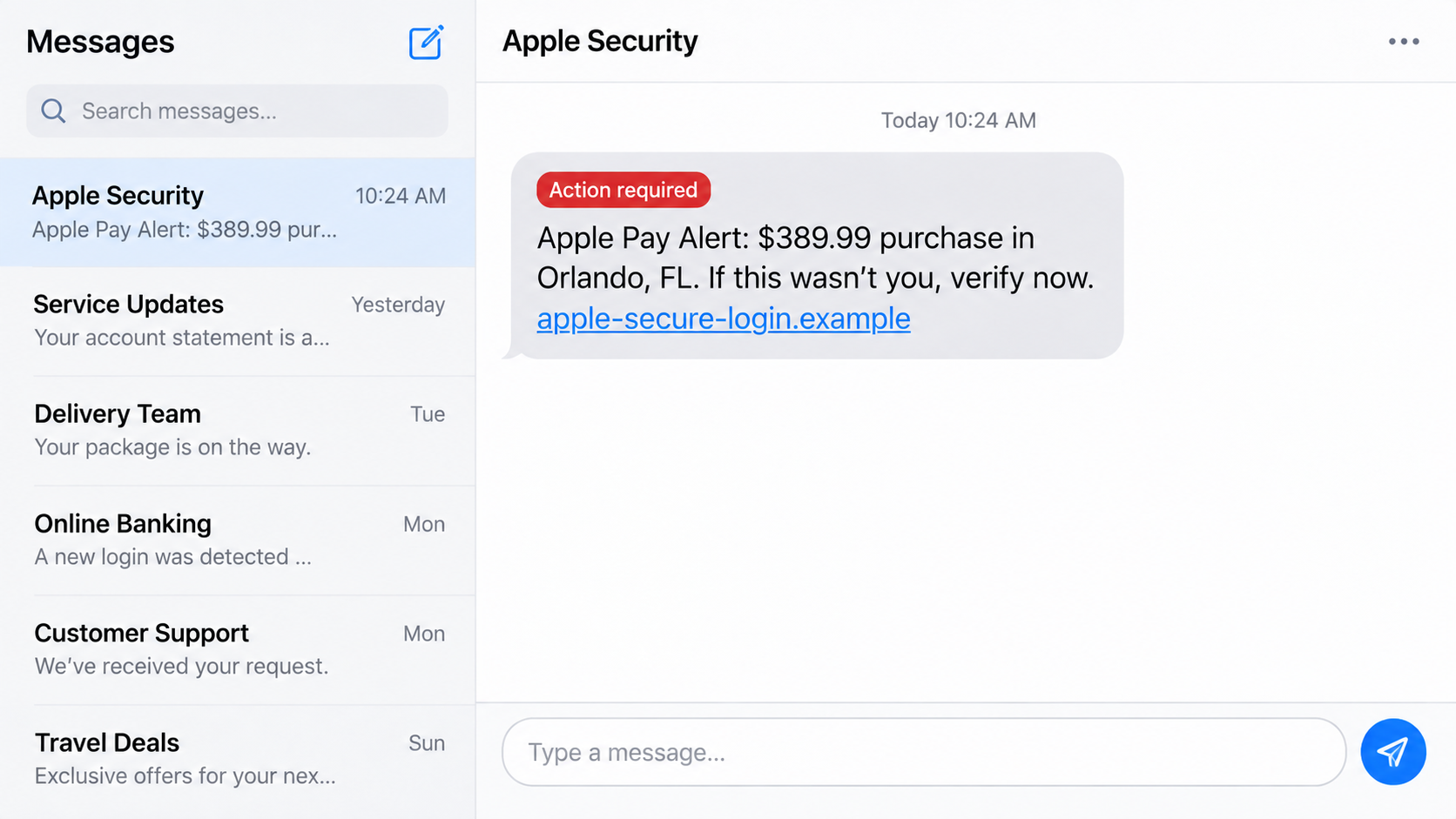
A text reports a $389.99 Apple Pay purchase in another city and offers one reassuring option: tap a link to stop it. The message arrives like a security alert, but it is asking the recipient to leave every real security control behind.
The unauthorized purchase may be entirely fictional. The costly account theft that follows the deceptive link is immediate, deliberate, damaging, and very real.
Overview
The text creates a believable payment emergency
Fake alerts claim that Apple Pay approved or declined a purchase, added a new card, sent an Apple Cash transfer, or detected a sign-in. An amount in the low hundreds feels serious enough to demand attention without seeming impossible.
The message may name Orlando or another distant city so the recipient instantly thinks, “That was not me.” This emotional confirmation makes the supplied link or phone number feel like the obvious next step.
The sender name and copied design prove nothing
“Apple Security,” an Apple logo, polished grammar, and a professional verification page can all be imitated. Sender names can be manipulated, while compromised accounts and bulk-messaging services help fraudulent texts bypass simple expectations.
Apple advises users to presume an unexpected request for passwords, codes, personal data, or money is a scam and contact the company through official support channels instead.
The verification process gives the criminal control
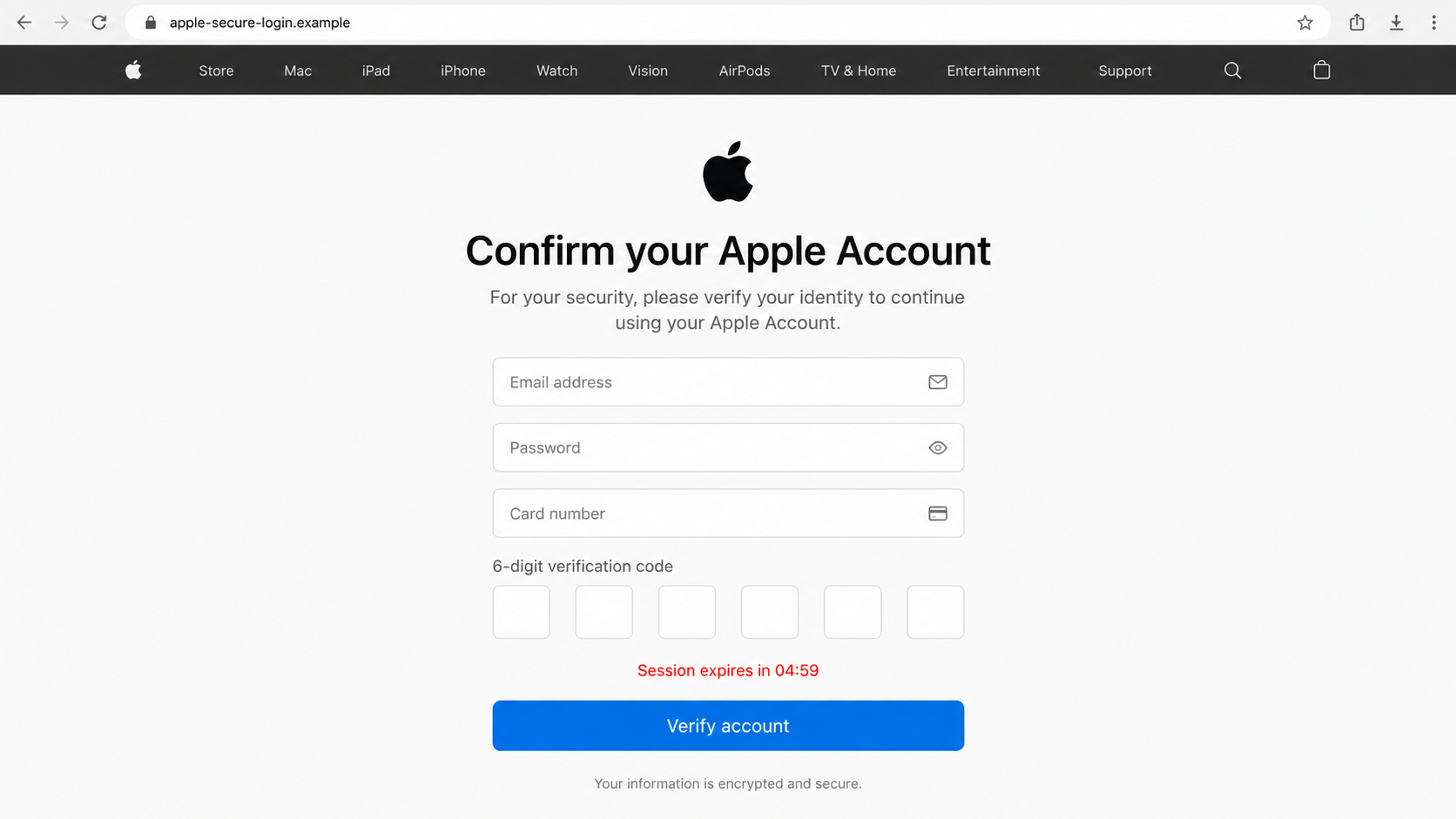
A fake site may request an Apple Account email, password, card details, and a six-digit code. The scammer can use those details in real time to sign in, reset security settings, enroll a payment method, or take over other accounts.
Some messages replace the link with a support number. The caller then requests codes, remote access, gift cards, cryptocurrency, or a transfer to a so-called secure account.
- A surprise text reports an unauthorized Apple Pay transaction.
- The message creates a short deadline to dispute the charge.
- A non-Apple link opens a convincing account-verification page.
- The form requests a password, card details, and security code.
- A caller may add remote access or a money-transfer demand.
- Compromised credentials are reused across email, banking, and shopping accounts.
Apple Pay, Apple Cash, and Apple Account Are Different Targets
Apple Pay is the wallet feature used with eligible cards. Apple Cash is a U.S. peer-to-peer payment service provided through Green Dot Bank, while the Apple Account controls access to Apple services, purchases, devices, and recovery settings.
Scam messages blur these names because many recipients are unsure which company handles a disputed transaction. A text may call an ordinary card purchase an “Apple Pay transfer” and then ask for an Apple Account password.
For a card transaction, the card issuer is an essential verification source. For Apple Account security, use account settings or Apple’s official support. For Apple Cash, use the transaction record and official Apple Cash support path.
A fraudulent text tries to collapse those separate channels into one convenient link or call. That convenience gives the attacker control over the diagnosis, the evidence, and the proposed solution.
Apple says it never asks for an Apple Account password, device passcode, verification code, or recovery key to provide support. It also warns users not to disable security features at a caller’s direction.
How the Apple Pay Text Message Scam Works
Step 1: A fake transaction is tailored to trigger recognition
The message uses a familiar merchant, Apple Store purchase, device order, or Apple Cash transfer. A city and exact amount make a mass-produced text feel connected to a real account.
Recipients who do not use Apple Pay may delete it. Scammers need only a small fraction of the much larger group who recognize the service and worry that a stored card is at risk.
Step 2: Urgency narrows the recipient’s choices
The text says the account will be locked, the charge will finalize, or the recipient will become liable unless action is taken within minutes. The artificial deadline suppresses the instinct to open Wallet or call the bank independently.
A real security process does not require the customer to trust an unsolicited link. Taking time to verify an alert through an existing app does not authorize a charge.
Step 3: The link opens a lookalike account page
The destination may use Apple-like typography, navigation, and spacing while sitting on a domain that merely contains words such as apple, secure, wallet, or support. A browser padlock encrypts the connection but does not establish Apple ownership.
The page may first request only an email address. Showing additional fields later makes each step feel normal and lets the criminal save partial information from users who stop midway.
Step 4: Credentials and the six-digit code are captured
After receiving the password, criminals can attempt a genuine sign-in or password reset. The real Apple verification code then reaches the victim, who enters it into the fake page believing it cancels the $389.99 purchase.
The code actually completes the attacker’s action. A timer on the phishing page keeps the victim moving quickly enough for the live takeover to succeed.
Step 5: Payment or remote access is added
A fraudulent agent may call after the form is submitted and claim that the account remains compromised. The victim is asked to install screen-sharing software, move money, purchase gift cards, or send Apple Cash to test security.
Apple says it does not request Apple Cash payments for support and does not ask customers to install screen-sharing tools to resolve an account alert. A supposed test payment is still a real transfer.
Step 6: The compromised account becomes leverage
Access to an Apple Account can expose trusted phone numbers, email addresses, purchases, backups, and device information. Criminals may change recovery details or use the account to make other impersonation attempts.
If the same password protects email or shopping accounts, the damage spreads. The victim may later receive recovery scams from people who already know which account was taken.
Common Variations of the Fake Apple Pay Alert
The unauthorized-purchase version names a retailer, city, and amount, then asks the recipient to dispute the charge. The link may lead directly to a credential form, while a phone number begins a longer support impersonation.
A suspended-wallet version says Apple Pay was limited because identity verification failed. The fake form requests a government ID, selfie, card details, and account password under the pretext of restoring access.
The new-device version claims that a card was added to Apple Pay on an unfamiliar iPhone or Mac. Recipients are pushed to “remove device” through a link that actually collects their Apple Account credentials.
An Apple Cash variant reports a transfer to an unknown person or asks the victim to return an accidental payment. Sending money back as a separate transaction can create a real loss even if the incoming balance later disappears.
Fake support callers may claim that compromised funds must be moved to Apple Cash, cryptocurrency, gift cards, or a secure bank account. Apple states that it does not request Apple Cash payments to provide support.
Another version says an Apple Account recovery request is underway. The victim is told to read a verification code or approve a prompt to stop it, when that approval may actually complete the attacker’s reset.
Messages can arrive in an existing thread because sender IDs and routing are imperfect trust signals. A familiar conversation history does not override a request for passwords, codes, payments, or security changes.
Fraudsters also combine channels. A text is followed by a call, the call directs the victim to a website, and the website triggers a genuine code. Each transition makes the next stage appear independently confirmed.
The defense remains consistent across every variation: leave the conversation, inspect trusted account records, and contact the relevant company through a route the sender did not provide.
Shared family accounts need special attention because a security change can affect purchases, subscriptions, recovery options, and device access for several people. Notify the organizer through a known channel if an alert concerns shared services.
Work-managed devices may contain company email, files, and authentication apps. Employees should report a submitted password or remote-control session to the organization’s security team rather than trying to clean the incident silently.
A screenshot is safer evidence than forwarding a live link to friends. Warnings shared with others should hide phone numbers, addresses, card endings, account emails, and verification codes.
Regularly reviewing trusted devices and recovery contacts makes unusual changes easier to notice. Removing old devices and outdated phone numbers also reduces the number of paths a criminal can exploit during an attempted reset.
Company, Address, and Fulfillment Checks
Verify the transaction inside Wallet and the bank app
Do not begin from the text. Open Wallet through the device, then check the card issuer’s official app or website for the transaction and any fraud alert.
If the $389.99 charge appears nowhere in trusted records, the text has not established that it exists. If a real charge appears, contact the issuer through the number on the card.
Inspect the link without signing in
Apple Account pages should be reached by typing account.apple.com or by using device settings. Extra words before or after “apple” do not make a domain official.
Do not enter credentials merely to see the next page. A phishing site can save each field as it is typed or when the form advances.
Protect passwords, passcodes, and verification codes
Apple states that its representatives do not ask for an Apple Account password, device passcode, or two-factor authentication code. No cancellation requires sharing those secrets.
Read every genuine code notification. If it describes a sign-in, password reset, or wallet action you did not initiate, deny it and secure the account directly.
Use only independently sourced support
Open the Apple Support app, type Apple’s support address yourself, or use the card issuer’s verified contact. Do not call a number printed in the alert.
Apple accepts screenshots of suspicious SMS messages at reportphishing@apple.com. The company also provides Report Junk inside Messages when the feature is available.
What to Do if You Have Fallen Victim to This Scam
- Change the Apple Account password immediately. Use account settings or type account.apple.com on a clean device. Do not return through the message link.
- Review account security. Check trusted devices, phone numbers, recovery contacts, sign-in notifications, payment methods, and recent purchases. Remove anything you do not recognize.
- Contact card issuers. If card data was entered, report it as exposed, replace the card if advised, and review wallet tokens and pending charges.
- Protect the verification channel. Contact the mobile carrier if a number was moved, service unexpectedly stopped, or a SIM change was requested. Add an account PIN where supported.
- Remove remote-access software. Disconnect the device if someone controlled it, uninstall the tool, and run a reputable scan such as Malwarebytes before using sensitive accounts.
- Filter malicious links and ads. AdGuard can reduce exposure to known phishing domains and deceptive advertising, but it cannot secure an account after credentials were submitted.
- Change reused passwords. Start with email and banking because control of email can enable resets elsewhere. Use unique passwords and multi-factor authentication.
- Report and preserve the message. Screenshot it, note the sender and URL, email the image to reportphishing@apple.com, use Report Junk, and forward the text to 7726 where supported.
- Report financial loss. Contact the bank or Apple Cash support as appropriate, then file with the FTC, IC3, and local police. Ignore recovery offers requiring upfront payment.
If the scammer convinced you to disable two-factor authentication, Stolen Device Protection, or another safeguard, restore it through official settings. Security features should not be weakened to help a stranger “investigate.”
Frequently Asked Questions
Does Apple send security text messages?
Apple can send legitimate account notifications, but an unexpected message requesting credentials, a code, money, or a non-Apple link should be treated as suspicious and verified independently.
Can the sender name “Apple Security” be faked?
Yes. A display name is not proof of origin. Judge the request, destination domain, and independent account record rather than the label at the top of the thread.
What if the unauthorized charge is real?
Open Wallet and the issuer’s app without using the text. Contact the issuer through the card or official app to dispute a genuine transaction.
Will Apple ask for my six-digit code?
No. Apple says support does not ask for verification codes, account passwords, device passcodes, or recovery keys. A person requesting one may be completing an account takeover.
Is Apple Pay the same as Apple Cash?
No. Apple Pay is a wallet payment feature; Apple Cash is a U.S. peer-to-peer service. Scammers deliberately blur the terms to confuse recipients.
Can I recover an Apple Cash payment sent to a scammer?
Recovery is not guaranteed. Contact official Apple Cash support and the linked bank immediately, preserve the transaction, and report the fraud.
The Bottom Line
The Apple Pay text message scam turns a fictional charge into a real account emergency. Its link or caller collects the very credentials and codes that genuine security systems are meant to protect.
Check Wallet and the card issuer independently, keep every verification code private, and contact Apple only through official channels you opened yourself. The safest response to an urgent text is to leave it and verify the claim elsewhere.

Join the discussion
0 commentsShare your experience or ask a question about this article.
Discussion
Start the conversation
Have a question or something useful to share? Add the first comment.