

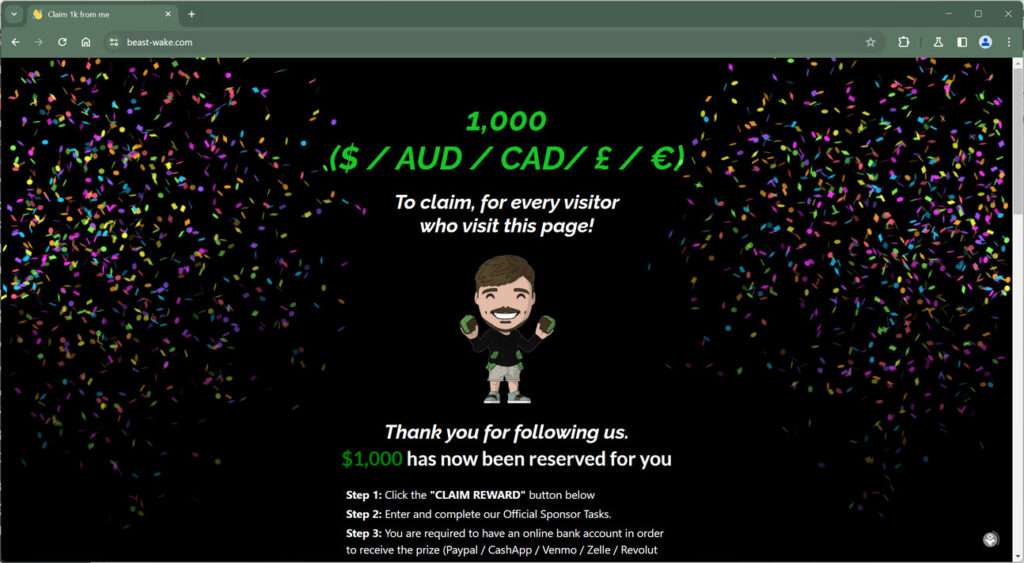
A new phishing scam website called Beast-Wake.com has emerged, falsely claiming to offer $1,000 cash prizes to every visitor in an effort to steal personal and financial information. This fraudulent site impersonates popular YouTuber MrBeast’s branding and philanthropic reputation to take advantage of unsuspecting victims.
In this comprehensive guide, we will provide an in-depth look at how the Beast-Wake.com scam operates, tactics it uses to deceive people, how to identify and avoid it, what actions to take if you fell victim, and answer frequently asked questions. By understanding the inner workings of this scam website, you can protect yourself and help prevent others from falling for this nefarious scheme.
Overview of the Beast-Wake.com Scam
Beast-Wake.com promotes itself as a cash giveaway sponsored by MrBeast, promising every visitor who claims their reward $1,000 for free. However, the entire premise is completely fraudulent, aimed solely at tricking users into handing over valuable personal data that enables identity theft and financial theft.
This scam capitalizes on MrBeast’s widespread fame, his reputation for conducting massive giveaways, and his extensive philanthropic work. The scam artists behind it are counting on his celebrity status and the allure of free money to entice people to throw caution to the wind and fall for their tricks.
By mimicking MrBeast’s branding style, graphics, and video titles, Beast-Wake.com attempts to add legitimacy to their claims in order to lower visitors’ defenses. The promise of easy money allows the scammers to overcome people’s skepticism just long enough to harvest personal information.
This scam operates on a grand scale, utilizing bots and fake accounts to promote the fraudulent website across every major social media platform. The broad reach increases the number of potential victims dramatically. Those who click on the links in the ads become targets for identity theft and financial fraud.
Tactics Used to Carry Out the Scam
Here are the key tactics used by Beast-Wake.com to perpetrate this scam:
- Impersonating MrBeast’s brand via logo, color scheme, graphics, and messaging style
- Promising every visitor can obtain $1,000 just for clicking a button
- Countdown timers and text warning prizes are almost gone to pressure visitors
- Fake account login screens to harvest usernames, passwords, and private data
- Surveys that ask for personal details to enable identity theft
- Malware downloads that infect devices to compromise accounts and spy
The comprehensive schemes used by this single website illustrate the immense threat phishing scams pose in the modern digital landscape. Awareness and caution are essential to avoid falling victim.
How the Beast-Wake.com Scam Works
The operators of Beast-Wake.com rely on sophisticated psychological manipulation tactics to trick unsuspecting visitors. Let’s examine the step-by-step process they use to carry out this scam:
Step 1: Drive Traffic to the Fraudulent Website
The first step for the scammers is driving a high volume of traffic to Beast-Wake.com. This is accomplished by aggressively promoting the scam website through:
- Bots that share posts on social media platforms like Instagram, Facebook, Twitter, TikTok, and more.
- Fake accounts that leave comments promoting the scam giveaway.
- Ads using clickbait headlines that entice people to click without skepticism.
- Exploiting interest in MrBeast’s brand and cash giveaways.
- Targeting users who show interest in online contests, sweepstakes, and prizes.
The bots and fake accounts leave comments and share posts using carefully crafted messaging like:
“MrBeast is giving away $1,000 cash to everyone who visits Beast-Wake.com! I just claimed mine. Get yours before they run out!”
These types of posts are engineered to bypassspam filters and seem authentic. They take advantage of people’s desire to get something for nothing and leverage MrBeast’s reputation.
Step 2: Deceive Visitors on the Landing Page
When a victim arrives at the Beast-Wake.com landing page, they encounter further deception tactics:
- Branding, graphics, colors copied directly from MrBeast videos to look legitimate.
- Fake testimonials from people claiming they received their $1,000.
- Timers and notifications warning prizes being claimed quickly to create urgency.
- Emphatic language stating visitors are guaranteed up to $1,000 just for clicking a button.
- A prominent “Claim Reward” button intended to collect personal data.
These psychological tricks pressure visitors to take the actions necessary for the scam to succeed. The false sense of urgency causes irrational behavior and leads people to ignore obvious red flags.
Step 3: Steal Personal Data and Money
Once a visitor clicks the “Claim Reward” button, the scam shifts into the data harvesting phase:
- Survey questions ask for private details like full name, date of birth, address, phone number, etc.
- Account login pages trick visitors into surrendering usernames and passwords.
- Phone numbers are collected and devices might receive SMS spam or malware links.
- Downloads contain viruses and spyware to infect the victim’s device.
- With enough info obtained, identities can be stolen to access and drain financial accounts.
The scammers immediately begin exploiting all collected information to steal money, open fraudulent credit lines, or sell data on the dark web. Visitors believing they will receive $1,000 end up losing much more.
Step 4: Disappear Without a Trace
After obtaining what they want from a victim, the scammers erase all traces of their existence.
- The Beast-Wake.com website vanishes, replaced with an error message.
- Social media posts promoting the scam are deleted.
- Email addresses used go inactive.
- Stolen money quickly disappears into cryptocurrency wallets and offshore accounts.
Victims are left with compromised accounts, drained finances, and stolen identities, but the thieves behind it are almost impossible to track down. The Beast-Sofa scammers exploit the anonymity of the internet to escape accountability.
What to Do if You Fell Victim to the Beast-Wake.com Scam
If you entered personal information or downloaded anything from Beast-Wake.com, here are the steps to take right away:
1. Scan Devices for Malware and Change Passwords
If you downloaded any files, clicked suspicious links, or entered account credentials – assume your devices are infected.
- Download reputable malware scanners like MalwareBytes to check for infections.
- If infected, you may need to wipe devices and restore to factory settings.
- Change ALL passwords immediately from a clean device. Make them unique for every account.
- Enable two-factor authentication on email, banking, and social media accounts for increased security.
Changing passwords quickly can prevent scammers from accessing and draining financial accounts tied to your email or username. Enabling 2FA adds an extra layer of security in case your password is compromised in the future.
2. Contact Banks and Credit Bureaus
If any financial accounts were compromised, contact banks and credit card issuers immediately.
- Notify them that your identity may be stolen and accounts accessed without authorization.
- Carefully monitor all accounts for any signs of fraudulent activity and dispute unauthorized charges.
- Consider adding alerts, limits, and locks to all accounts whenever possible.
Also contact credit bureaus to place fraud alerts on your file and closely monitor your credit reports:
- Equifax – 1-888-766-0008
- Experian – 1-888-397-3742
- TransUnion – 1-800-680-7289
This will help detect any attempts by scammers trying to open new lines of credit with your stolen identity. Monitor credit reports regularly for new inquiries or accounts.
3. File an Identity Theft Report
If your personal information was stolen, file an identity theft report with the FTC at IdentityTheft.gov. This creates an official record that aids recovery:
- Provides access to credit monitoring services to track your reports.
- Makes it easier to dispute fraudulent accounts and charges.
- Stops companies from holding you liable for scammer activities.
You can also report identity theft to your local police department to build your case.
4. Warn Contacts About the Scam
Make people in your contacts and social networks aware of the scam site to prevent others from falling victim:
- Post warnings not to visit or download anything from Beast-Wake.com.
- Advise everyone not to click questionable links in emails, messages, or on unknown websites.
- Share tips on identifying and avoiding phishing scams.
Raising awareness about this specific scam website makes it less likely friends and family will be victimized as well. Scammers rely on ongoing deception, so prevent future theft by exposing their tactics.
Is Your Device Infected? Run a Free Malware Scan
Slow performance, constant pop-ups, or strange behavior? These are classic signs of a malware infection. The fastest way to find out is to scan your device with Malwarebytes Free — one of the most trusted malware removal tools available.
The free version detects and removes the most common threats, including:
- Adware — the cause of those annoying pop-ups
- Browser hijackers — unwanted redirects and changed homepages
- Trojans and spyware — hidden programs stealing your data
- Potentially unwanted programs (PUPs) — software you never asked for
👉 Select your device below — Windows, Mac, or Android — then follow the simple steps to download Malwarebytes, scan your system, and remove any threats it finds. The scan usually takes 5 to 20 minutes.
Run a Malware Scan with Malwarebytes for Windows
Malwarebytes is one of the most popular and trusted anti-malware tools for Windows — and it’s completely free for removing infections. It catches threats that many antivirus programs miss, including adware, browser hijackers, and trojans. Follow the steps below to scan and clean your PC in just a few minutes.
Download Malwarebytes
Click the button below to download the latest version of Malwarebytes for Windows from the official source. The free version is all you need — it will scan your computer and remove adware, browser hijackers, and other malicious software at no cost.
Download MalwarebytesOfficial installer for Windows 11 and 10. Your download starts right away.Want real-time protection? See Malwarebytes Premium Malwarebytes Free for WindowsScans and removes malware at no cost
-
Install Malwarebytes
When the download finishes, open your Downloads folder and double-click the MBSetup file. If Windows shows a User Account Control pop-up, click “Yes” to allow the installation.

Follow the On-Screen Prompts to Install Malwarebytes
The setup wizard will walk you through a few quick screens:
-
Choose where you’re installing the program — “Personal Computer” or “Work Computer” — then click Next.

-
Malwarebytes will now install on your device. This usually takes under a minute.

-
When installation is complete, the “Welcome to Malwarebytes” screen will open automatically.

-
On the final screen, click Open Malwarebytes to launch the program.

-
Enable “Scan for Rootkits”
Before scanning, turn on rootkit detection so Malwarebytes can find even the most hidden threats. Click the Settings gear icon on the left side of the screen.

In the settings menu, find “Scan for rootkits” and click the toggle so it turns blue.

Done? Click “Dashboard” in the left pane to return to the main screen.
Start the Scan
Click the blue Scan button. Malwarebytes will automatically update its virus database and start checking your computer for malware.

-
Wait for the Scan to Finish
The scan checks your entire system for browser hijackers and other malicious programs, so it can take 5 to 20 minutes depending on your computer. Feel free to do something else — just check back occasionally to see the progress.

-
Quarantine the Detected Threats
When the scan is done, you’ll see a list of everything Malwarebytes found — malware, adware, and potentially unwanted programs. Click the “Quarantine” button to remove all of them at once.

Malwarebytes will now remove the malicious files and registry entries and move them safely into quarantine.

-
Restart Your Computer
Some threats can only be fully removed after a reboot. If Malwarebytes asks you to restart, click Yes. Once you’re logged back in, Malwarebytes has finished removing the threats it found.

That’s it — your Windows PC is now clean of trojans, adware, and other malware, and should be back to running smoothly.
If you are still having problems with your computer after completing these instructions, then please follow one of the steps:
- Run a computer scan with ESET Online Scanner
- Ask for help in our Windows Malware Removal Help & Support forum.
Run a Malware Scan with Malwarebytes for Mac
Malwarebytes for Mac is a free on-demand scanner that removes the malware other security software tends to miss — adware, browser hijackers, and unwanted programs included. Cleaning an infected Mac with Malwarebytes has always been completely free, and it’s our go-to recommendation. Follow the steps below to scan and clean your Mac in just a few minutes.
-
Download Malwarebytes for Mac
Click the button below to download the latest version of Malwarebytes for Mac.
Download MalwarebytesOfficial installer for macOS. Your download starts right away.Want real-time protection? See Malwarebytes PremiumMalwarebytes Free for MacScans and removes malware at no cost -
Open the Malwarebytes setup file
When the download finishes, open your Downloads folder and double-click the setup file to begin the installation.

-
Follow the On-Screen Prompts to Install Malwarebytes
The Malwarebytes for Mac Installer will guide you through a few quick screens. Click “Continue” and keep following the prompts until the installation completes.



When the installation is complete, Malwarebytes opens to the Welcome to Malwarebytes screen. Click “Get started“.
-
Select “Personal Computer” or “Work Computer”
Malwarebytes will ask what type of computer you’re installing it on. Click either Personal Computer or Work Computer, whichever applies.

-
Start the Scan
Click the “Scan” button. Malwarebytes will automatically update its detection database and begin checking your Mac for malware.

-
Wait for the Scan to Finish
Malwarebytes will scan your Mac for adware, browser hijackers, and other malicious programs. This can take a few minutes, so feel free to do something else — just check back occasionally to see the progress.

-
Quarantine the Detected Threats
When the scan is done, you’ll see a list of everything Malwarebytes found. Click the “Quarantine” button to remove all the threats at once.

-
Restart Your Mac
Malwarebytes will now remove all the malicious files it found. Some threats can only be fully removed after a reboot — if Malwarebytes asks you to restart, allow it. Once you’re logged back in, your Mac is clean.

That’s it — your Mac is now free of adware, rogue browser extensions, and other potentially harmful software.
If you are still experiencing problems while trying to remove a malicious program from your computer, please ask for help in our Mac Malware Removal Help & Support forum.
Run a Malware Scan with Malwarebytes for Android
Malwarebytes for Android automatically detects and removes dangerous threats like malware and ransomware so you don’t have to worry about your most-used device being compromised. Aggressive detection of adware and potentially unwanted programs keeps your Android phone or tablet running smooth.
-
Download Malwarebytes for Android.
You can download Malwarebytes for Android by clicking the link below.
Get Malwarebytes for AndroidOpens Google Play in a new tab.Want real-time protection? See Malwarebytes Premium for AndroidMalwarebytes for AndroidScans your phone and removes malware at no cost -
Install Malwarebytes for Android on your phone.
In the Google Play Store, tap “Install” to install Malwarebytes for Android on your device.

When the installation process has finished, tap “Open” to begin using Malwarebytes for Android. You can also open Malwarebytes by tapping on its icon in your phone menu or home screen.

-
Follow the on-screen prompts to complete the setup process
When Malwarebytes will open, you will see the Malwarebytes Setup Wizard which will guide you through a series of permissions and other setup options.
This is the first of two screens that explain the difference between the Premium and Free versions. Swipe this screen to continue.
Tap on “Got it” to proceed to the next step.
Malwarebytes for Android will now ask for a set of permissions that are required to scan your device and protect it from malware. Tap on “Give permission” to continue.
Tap on “Allow” to permit Malwarebytes to access the files on your phone.
-
Update database and run a scan with Malwarebytes for Android
You will now be prompted to update the Malwarebytes database and run a full system scan.

Click on “Update database” to update the Malwarebytes for Android definitions to the latest version, then click on “Run full scan” to perform a system scan.

-
Wait for the Malwarebytes scan to complete.
Malwarebytes will now start scanning your phone for adware and other malicious apps. This process can take a few minutes, so we suggest you do something else and periodically check on the status of the scan to see when it is finished.

-
Click on “Remove Selected”.
When the scan has been completed, you will be presented with a screen showing the malware infections that Malwarebytes for Android has detected. To remove the malicious apps that Malwarebytes has found, tap on the “Remove Selected” button.

-
Restart your phone.
Malwarebytes for Android will now remove all the malicious apps that it has found. To complete the malware removal process, Malwarebytes may ask you to restart your device.
That’s it — your Android phone is now clean — no more malicious apps, adware, or browser redirects.
If you are still having problems with your phone after completing these instructions, then please follow one of the steps:
- Restore your phone to factory settings by going to Settings > General management > Reset > Factory data reset.
- Ask for help in our Mobile Malware Removal Help & Support forum.
Stay Protected: Block Ads and Malicious Sites
Now that your device is clean, keep it that way. Most infections start with a malicious ad or a fake download button — so blocking them at the source is your best defense.
We recommend AdGuard, which blocks malicious ads, phishing pages, and dangerous redirects before they can reach you.
👉 Download AdGuard and browse safely
Frequently Asked Questions
Is Beast-Wake.com really affiliated with MrBeast?
No. Beast-Wake.com is a fraudulent phishing website that has no connection whatsoever to MrBeast (Jimmy Donaldson) or any of his companies. It is using his brand without permission solely to scam people.
Can you really get $1,000 from Beast-Wake.com?
No, there is no cash you can obtain from the Beast-Wake.com website. Any claims of rewards are outright false promises intended to trick visitors. No legitimate giveaway would ever guarantee $1,000 for simply clicking a button.
Is Beast-Wake.com stealing people’s money?
Yes, the ultimate goal of any phishing scam is monetizing the personal data they steal. The operators behind Beast-Wake.com use tactics to drain bank accounts, make fraudulent purchases, take loans out in your name, and resell your information.
What information does the Beast-Wake.com scam collect?
The scam website collects a wide range of personal data that enables identity theft and account compromise. This includes full names, birthdays, addresses, phone numbers, usernames, passwords, social security numbers, answers to security questions and more.
Should I download files or enter info into Beast-Wake.com?
Absolutely not. Anything you download or any information entered has a significant chance of being malware or enabling your identity to be stolen. No legitimate website would ever require downloads or excessive personal details to claim a prize.
Can the Beast-Wake.com scam really hack my device?
Yes, phishing sites like Beast-Wake.com frequently trick visitors into downloading malware hidden under the guise of a necessary “plugin” or “extension” to claim rewards. This malware can silently infect your device and compromise your data. Never download anything from an unfamiliar site.
How can I identify and avoid the Beast-Wake.com scam?
The best way to avoid this scam is to look for typical phishing red flags:
- Too good to be true offers like guaranteed money for nothing.
- Typos, grammatical errors, and other signs of shoddy construction.
- Fake scarcity claims and high-pressure tactics urging fast action.
- Requests for personal information not logically required for a giveaway.
- Poor imitation branding, logos, graphics, and messaging that seem “off”.
Use skepticism before clicking on links or sharing data. When in doubt, avoid engaging altogether. Don’t let the promise of free money override your judgment.
What should I do if I already entered my information on Beast-Wake.com?
If you already provided any sensitive personal information or account credentials, take these steps immediately:
- Change all passwords for any compromised accounts
- Contact banks to monitor for unauthorized charges
- Place fraud alerts on credit reports and monitor closely
- Scan all devices for malware infections
- Consider an identity theft protection service
Acting quickly can help limit the damage from any stolen data. Always be on high alert going forward to detect fraud or criminal activity conducted with your information.
Conclusion
Sophisticated phishing scams like Beast-Wake.com represent serious threats in today’s digital landscape. By mimicking trusted brands and exploiting human desires like greed, they successfully trick countless victims. But knowledge of their tactics and techniques is the best safeguard.
Spread awareness about phishing schemes to protect yourself and help others avoid falling into traps set by unscrupulous fraudsters. When visiting unfamiliar sites, maintaining skepticism could defend you from having identities, finances, and devices compromised by those seeking to profit off deception.

Join the discussion
0 commentsShare your experience or ask a question about this article.
Discussion
Start the conversation
Have a question or something useful to share? Add the first comment.