

Online scams continue to evolve and target internet users through deceptive tactics and impersonation of celebrities or brands. One recent widespread scam is the “Beastgiveaway.com” website fraudulently claiming affiliation with popular YouTuber MrBeast to manipulate victims. This article will examine how this scam operates, how to identify it, and steps to take to avoid falling prey.
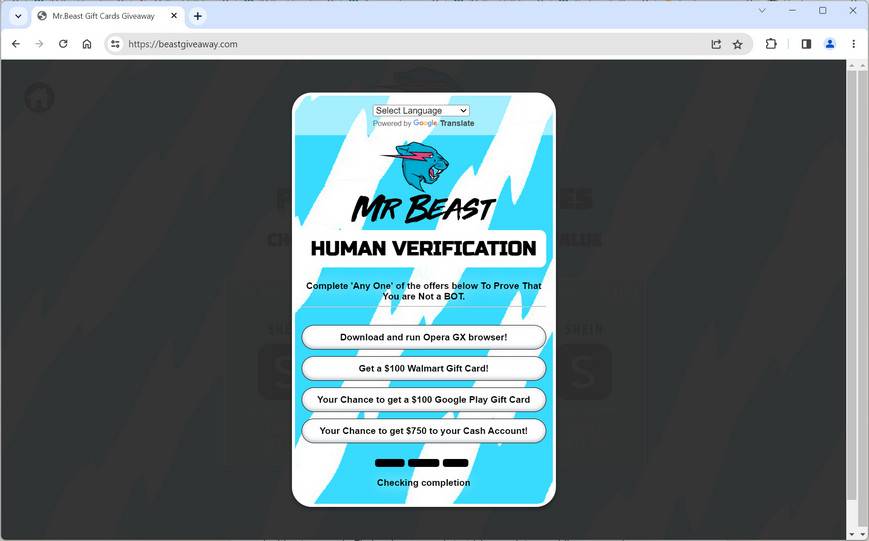
What is the Beastgiveaway.com Scam Website?
Beastgiveaway.com falsely presents itself as a website affiliated with MrBeast, the YouTube personality known for expensive stunts and charity work. The scam website claims users can obtain free gift cards to major retailers supposedly funded by MrBeast by participating in an online giveaway.
In reality, Beastgiveaway.com has no association with MrBeast himself. The website is a phishing scam aimed at deceiving victims into providing personal details and completing dubious actions that ultimately only benefit the scammers behind the site. No free gift cards are ever truly awarded.
How Does the Beastgiveaway.com Scam Work?
The Beastgiveaway.com website employs various deceitful techniques to scam and take advantage of victims. Firstly, the site falsely claims affiliation with the popular YouTuber MrBeast. The scam website uses MrBeast’s name, image, brand logos, and likeness all over the site without his permission. This is done to make the site appear credible to MrBeast’s fans and trick them into believing the scam giveaway is endorsed by the real MrBeast.
The site advertises that users can obtain high-value gift cards totally free to major retailers like Xbox, Roblox, PlayStation, Amazon, and more. The scam claims these gift cards, worth hundreds of dollars each, are being given away directly through MrBeast to fans who participate. These outrageously enticing rewards are dangled to tempt victims into engaging with the fraudulent site.
To supposedly claim the offered gift cards, users are prompted to provide personal details like their name, email address, phone number, home address, birthday, and more. Victims are misled into believing this information is needed to deliver the promised rewards. In reality, these details are harvested by the scammers to sell off to criminal entities or use for identity theft purposes.
Additionally, the site requires users to complete various bonus “tasks” to finalize the reward redemption process. These activities involve filling surveys, downloading unknown third-party applications, watching videos, subscribing to sketchy services, clicking links, or other dubious actions. The tasks aim to generate illicit ad revenue, sign-ups, app installs, and traffic for the scammers. Some downloaded apps may even contain dangerous malware aimed at infecting the users’ devices.
By leveraging MrBeast’s brand, promising free gift cards, gathering personal information, and making users complete questionable bonus activities – all under false pretenses – the Beastgiveaway.com website seeks to take advantage of innocent victims and profit at their expense through fraudulent means.
How to Identify and Avoid sites like Beastgiveaway.com
While sophisticated, these tips can help users identify and steer clear of the Beastgiveaway.com phishing scam:
- No verified affiliation – Check that giveaways are officially endorsed. MrBeast has not endorsed any gift card giveaways.
- Suspicious domain – Domain name “beastgiveaway.com” aims to sound legit but is unconnected to MrBeast’s real brand.
- Too-good-to-be-true offers – Legitimate giveaways don’t offer such hugely valuable gifts for free.
- Requests for personal information – No legitimate giveaways require sensitive personal details upfront before distributing prizes.
- Pressuring urgency – Scammers use countdown timers or other urgency tactics to short-circuit judgment.
- Mandatory subscriptions and downloads – Don’t download anything or subscribe to anything mandatory to get a ‘prize.’
- Poor spelling and grammar – Legitimate businesses have proper spelling and grammar.
- No secure connection – Check site has HTTPS protocol and verified SSL certificate. Unsecured means scam.
- Reviews and comments – Fake reviews and comments often used on scam sites to appear legitimate.
Avoid entering any personal details, downloading software, clicking links, or buying into too-good-to-be-true offers. If something seems suspicious, trust your instincts and steer clear.
What to Do if You Suspect You Are a Victim
If you suspect you have been victimized by the Beastgiveaway.com scam, here are important steps to take:
- Contact bank or credit card companies – If you made any payments or purchases report unauthorized charges. Cancel any cards used on the site.
- Run anti-virus software – Download and run Malwarebytes Anti-Malware Free to check for any malware that may have infected your devices.
- Change account passwords – Change passwords on any online accounts using the same credentials entered on the scam site.
- Freeze credit – Consider freezing credit reports to block scammers from opening unauthorized accounts.
- Monitor accounts – Review bank statements regularly for signs of fraudulent activity on accounts.
- Report scam site – File an online scam complaint with the FTC on the Beastgiveaway.com website.
- Spread awareness – Report on social media and tell friends and family to avoid this prominent scam.
Is Your Device Infected? Run a Free Malware Scan
Slow performance, constant pop-ups, or strange behavior? These are classic signs of a malware infection. The fastest way to find out is to scan your device with Malwarebytes Free — one of the most trusted malware removal tools available.
The free version detects and removes the most common threats, including:
- Adware — the cause of those annoying pop-ups
- Browser hijackers — unwanted redirects and changed homepages
- Trojans and spyware — hidden programs stealing your data
- Potentially unwanted programs (PUPs) — software you never asked for
👉 Select your device below — Windows, Mac, or Android — then follow the simple steps to download Malwarebytes, scan your system, and remove any threats it finds. The scan usually takes 5 to 20 minutes.
Run a Malware Scan with Malwarebytes for Windows
Malwarebytes is one of the most popular and trusted anti-malware tools for Windows — and it’s completely free for removing infections. It catches threats that many antivirus programs miss, including adware, browser hijackers, and trojans. Follow the steps below to scan and clean your PC in just a few minutes.
Download Malwarebytes
Click the button below to download the latest version of Malwarebytes for Windows from the official source. The free version is all you need — it will scan your computer and remove adware, browser hijackers, and other malicious software at no cost.
Download MalwarebytesOfficial installer for Windows 11 and 10. Your download starts right away.Want real-time protection? See Malwarebytes Premium Malwarebytes Free for WindowsScans and removes malware at no cost
-
Install Malwarebytes
When the download finishes, open your Downloads folder and double-click the MBSetup file. If Windows shows a User Account Control pop-up, click “Yes” to allow the installation.

Follow the On-Screen Prompts to Install Malwarebytes
The setup wizard will walk you through a few quick screens:
-
Choose where you’re installing the program — “Personal Computer” or “Work Computer” — then click Next.

-
Malwarebytes will now install on your device. This usually takes under a minute.

-
When installation is complete, the “Welcome to Malwarebytes” screen will open automatically.

-
On the final screen, click Open Malwarebytes to launch the program.

-
Enable “Scan for Rootkits”
Before scanning, turn on rootkit detection so Malwarebytes can find even the most hidden threats. Click the Settings gear icon on the left side of the screen.

In the settings menu, find “Scan for rootkits” and click the toggle so it turns blue.

Done? Click “Dashboard” in the left pane to return to the main screen.
Start the Scan
Click the blue Scan button. Malwarebytes will automatically update its virus database and start checking your computer for malware.

-
Wait for the Scan to Finish
The scan checks your entire system for browser hijackers and other malicious programs, so it can take 5 to 20 minutes depending on your computer. Feel free to do something else — just check back occasionally to see the progress.

-
Quarantine the Detected Threats
When the scan is done, you’ll see a list of everything Malwarebytes found — malware, adware, and potentially unwanted programs. Click the “Quarantine” button to remove all of them at once.

Malwarebytes will now remove the malicious files and registry entries and move them safely into quarantine.

-
Restart Your Computer
Some threats can only be fully removed after a reboot. If Malwarebytes asks you to restart, click Yes. Once you’re logged back in, Malwarebytes has finished removing the threats it found.

That’s it — your Windows PC is now clean of trojans, adware, and other malware, and should be back to running smoothly.
If you are still having problems with your computer after completing these instructions, then please follow one of the steps:
- Run a computer scan with ESET Online Scanner
- Ask for help in our Windows Malware Removal Help & Support forum.
Run a Malware Scan with Malwarebytes for Mac
Malwarebytes for Mac is a free on-demand scanner that removes the malware other security software tends to miss — adware, browser hijackers, and unwanted programs included. Cleaning an infected Mac with Malwarebytes has always been completely free, and it’s our go-to recommendation. Follow the steps below to scan and clean your Mac in just a few minutes.
-
Download Malwarebytes for Mac
Click the button below to download the latest version of Malwarebytes for Mac.
Download MalwarebytesOfficial installer for macOS. Your download starts right away.Want real-time protection? See Malwarebytes PremiumMalwarebytes Free for MacScans and removes malware at no cost -
Open the Malwarebytes setup file
When the download finishes, open your Downloads folder and double-click the setup file to begin the installation.

-
Follow the On-Screen Prompts to Install Malwarebytes
The Malwarebytes for Mac Installer will guide you through a few quick screens. Click “Continue” and keep following the prompts until the installation completes.



When the installation is complete, Malwarebytes opens to the Welcome to Malwarebytes screen. Click “Get started“.
-
Select “Personal Computer” or “Work Computer”
Malwarebytes will ask what type of computer you’re installing it on. Click either Personal Computer or Work Computer, whichever applies.

-
Start the Scan
Click the “Scan” button. Malwarebytes will automatically update its detection database and begin checking your Mac for malware.

-
Wait for the Scan to Finish
Malwarebytes will scan your Mac for adware, browser hijackers, and other malicious programs. This can take a few minutes, so feel free to do something else — just check back occasionally to see the progress.

-
Quarantine the Detected Threats
When the scan is done, you’ll see a list of everything Malwarebytes found. Click the “Quarantine” button to remove all the threats at once.

-
Restart Your Mac
Malwarebytes will now remove all the malicious files it found. Some threats can only be fully removed after a reboot — if Malwarebytes asks you to restart, allow it. Once you’re logged back in, your Mac is clean.

That’s it — your Mac is now free of adware, rogue browser extensions, and other potentially harmful software.
If you are still experiencing problems while trying to remove a malicious program from your computer, please ask for help in our Mac Malware Removal Help & Support forum.
Run a Malware Scan with Malwarebytes for Android
Malwarebytes for Android automatically detects and removes dangerous threats like malware and ransomware so you don’t have to worry about your most-used device being compromised. Aggressive detection of adware and potentially unwanted programs keeps your Android phone or tablet running smooth.
-
Download Malwarebytes for Android.
You can download Malwarebytes for Android by clicking the link below.
Get Malwarebytes for AndroidOpens Google Play in a new tab.Want real-time protection? See Malwarebytes Premium for AndroidMalwarebytes for AndroidScans your phone and removes malware at no cost -
Install Malwarebytes for Android on your phone.
In the Google Play Store, tap “Install” to install Malwarebytes for Android on your device.

When the installation process has finished, tap “Open” to begin using Malwarebytes for Android. You can also open Malwarebytes by tapping on its icon in your phone menu or home screen.

-
Follow the on-screen prompts to complete the setup process
When Malwarebytes will open, you will see the Malwarebytes Setup Wizard which will guide you through a series of permissions and other setup options.
This is the first of two screens that explain the difference between the Premium and Free versions. Swipe this screen to continue.
Tap on “Got it” to proceed to the next step.
Malwarebytes for Android will now ask for a set of permissions that are required to scan your device and protect it from malware. Tap on “Give permission” to continue.
Tap on “Allow” to permit Malwarebytes to access the files on your phone.
-
Update database and run a scan with Malwarebytes for Android
You will now be prompted to update the Malwarebytes database and run a full system scan.

Click on “Update database” to update the Malwarebytes for Android definitions to the latest version, then click on “Run full scan” to perform a system scan.

-
Wait for the Malwarebytes scan to complete.
Malwarebytes will now start scanning your phone for adware and other malicious apps. This process can take a few minutes, so we suggest you do something else and periodically check on the status of the scan to see when it is finished.

-
Click on “Remove Selected”.
When the scan has been completed, you will be presented with a screen showing the malware infections that Malwarebytes for Android has detected. To remove the malicious apps that Malwarebytes has found, tap on the “Remove Selected” button.

-
Restart your phone.
Malwarebytes for Android will now remove all the malicious apps that it has found. To complete the malware removal process, Malwarebytes may ask you to restart your device.
That’s it — your Android phone is now clean — no more malicious apps, adware, or browser redirects.
If you are still having problems with your phone after completing these instructions, then please follow one of the steps:
- Restore your phone to factory settings by going to Settings > General management > Reset > Factory data reset.
- Ask for help in our Mobile Malware Removal Help & Support forum.
Stay Protected: Block Ads and Malicious Sites
Now that your device is clean, keep it that way. Most infections start with a malicious ad or a fake download button — so blocking them at the source is your best defense.
We recommend AdGuard, which blocks malicious ads, phishing pages, and dangerous redirects before they can reach you.
👉 Download AdGuard and browse safely
Conclusion
Websites like Beastgiveaway.com reveal just how far scammers will go to impersonate real celebrities and brands to take advantage of unsuspecting internet users. However, with proper awareness of common online scams, a skeptical eye towards anything asking for personal details or money, and overall cybersecurity smarts, users can hopefully evade such frauds and the damage they seek to cause.

Reviews & discussion
0 commentsShare a firsthand experience, or ask a question.
Community reviews
beastgiveaway.com
Moderated reader experiences, not an editorial verdict.
Reviews
Be the first to review
Approved reviews for this site or product will appear here.