Bewar the FAKE “Your Cloud Storage Is Full” Alert (Scam EXPOSED)
Written by: Thomas Orsolya
Published on:
A warning that your cloud storage is full can feel serious, especially when it mentions lost files, interrupted backups, or urgent payment issues.
That sense of urgency is exactly what scammers rely on.
The “Your Cloud Storage Is Full” scam uses alarming messages, fake account notices, and misleading pages to push people into actions they would not normally take. What looks like a routine storage alert can quickly turn into something very different.
In this article, we will break down how the scam works, why it is convincing, and what you should do if you come across it.
Scam Overview
The “Your Cloud Storage Is Full” scam is a broad online fraud campaign built around fake urgency. It uses fear of data loss, fear of account interruption, and fear of security threats to push victims through a series of misleading pages.
The first message usually looks routine.
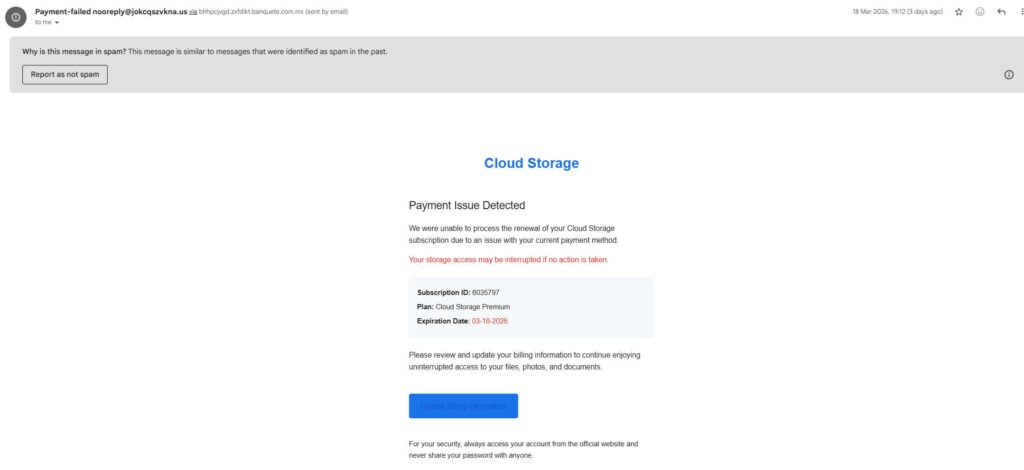
It may claim that your cloud subscription is expiring, your payment failed, your storage has reached its limit, or your backups have stopped working. Some messages say your photos, videos, contacts, and private files are at risk. Others claim that your account will be restricted unless you update billing information immediately.
That starting point matters.
A lot of scams fail because the story sounds absurd right away. This one often sounds plausible. People know cloud services have storage limits. People know subscriptions can expire. People know billing problems happen. So when the message says there is an issue with storage or payment, it does not automatically sound fake.
That is the trap.
The scam uses a real-world concept to create trust, then uses aggressive scare tactics to override common sense. Instead of leading you to a legitimate account portal, it sends you into a fake funnel designed to make money in dishonest ways.
In many cases, the scam starts from one of these sources:
A spam email that pretends to be a cloud provider
A social media ad promoting a “special storage upgrade”
A pop-up that appears while browsing
A malicious redirect from a low-quality website
A fake page opened after clicking a misleading ad
A browser notification from a shady site you accidentally allowed earlier
Once the victim clicks, the scam page often tries to look official.
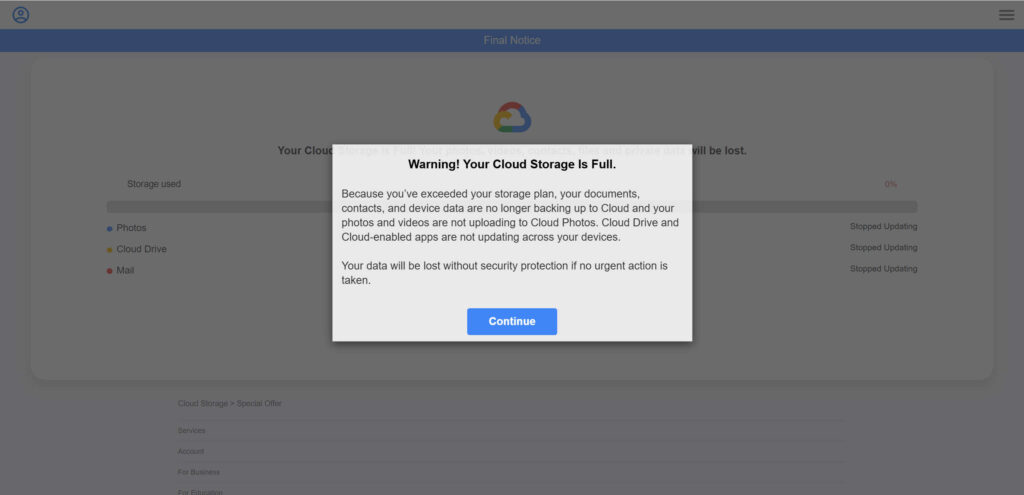
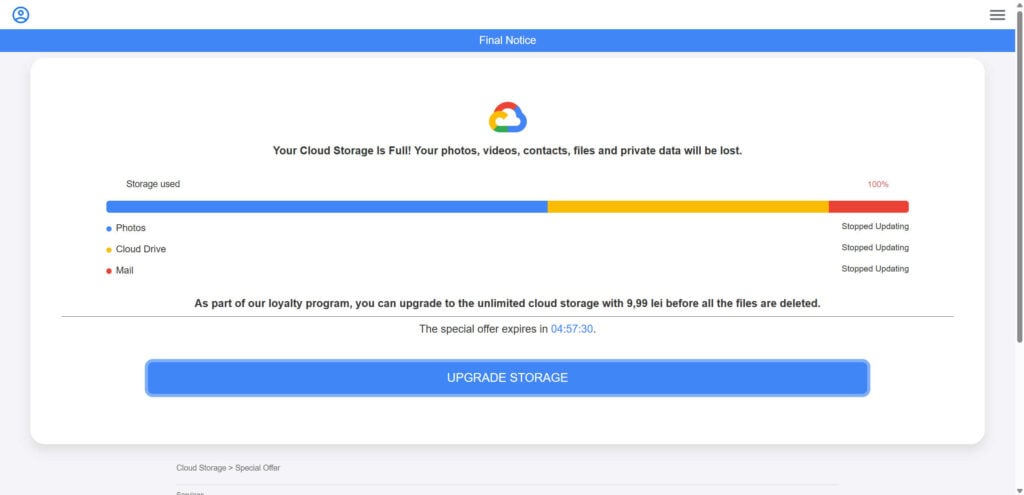
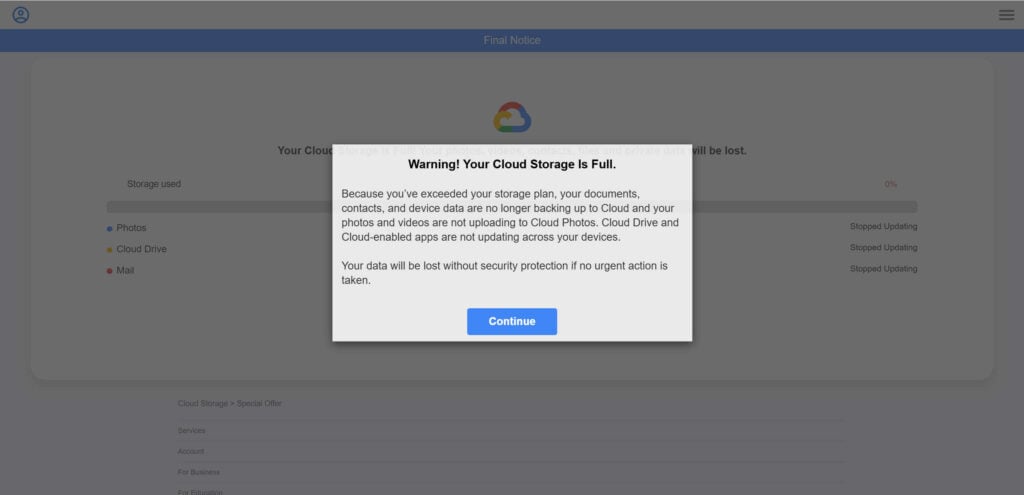
You might see a cloud icon, a clean layout, a storage usage bar, categories such as Photos, Cloud Drive, or Mail, and alarming text like “Your Cloud Storage Is Full” or “Final Notice.” The page may say your updates have stopped and your data could be lost unless you act right away.
This is where the emotional manipulation begins.
The scam is not just asking you to buy something. It is threatening something valuable. That changes how people think. When a person believes family photos, personal files, or important documents may disappear, they are more likely to act quickly. The scammer knows that.
A common version of the page includes a fake progress bar showing that your storage is nearly full or completely full. It may display 100%, 40%, or another number that looks serious. Sometimes those numbers are inconsistent from page to page. That inconsistency is an important clue because it shows the page is not actually connected to your real account.
Legitimate services pull real account data.
Scam pages use generic templates. They are built to look convincing for a few minutes, not to provide accurate account information. That is why one page may say your storage is 100% full while another version of the same scam may display 40% or even 0% while still insisting you must pay immediately.
Another major warning sign is the dramatic language.
Real service providers usually communicate account issues in a clear, factual, and measured way. Scammers do the opposite. They use phrases such as:
Final Notice
Payment Issue Detected
Your data will be lost
Stopped Updating
Critical Alert
Protection Expired
Final Attempt
Last Chance
Limited-Time Offer
That style is not accidental.
It is meant to create stress and suppress skepticism. When a user feels under pressure, they are less likely to examine the sender address, check the domain name, or log in to the real provider account separately.
Many versions of this scam also shift topics halfway through.
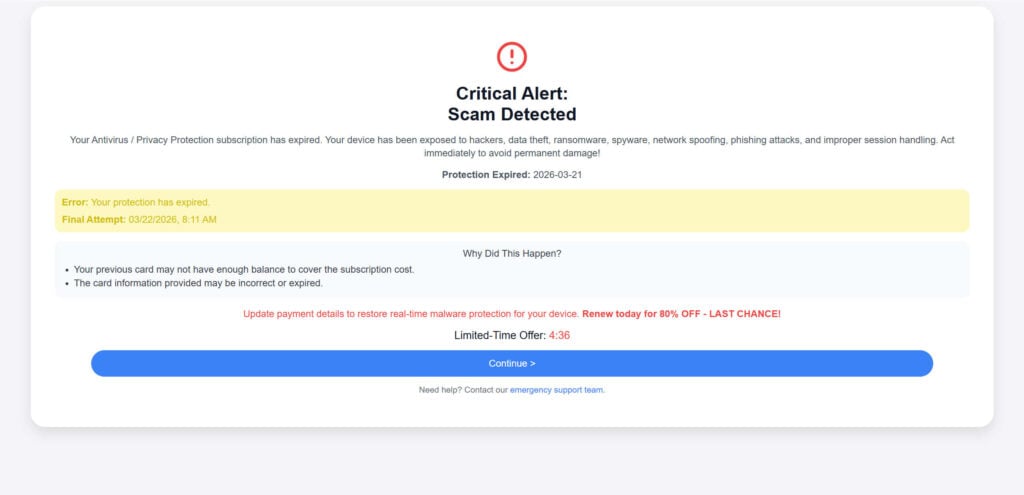
The first page may claim your cloud storage is full. But after a click or two, the next screen suddenly says there is a critical security problem. It may claim your antivirus subscription expired, your device is exposed to hackers, or your privacy protection has lapsed.
That shift is one of the clearest red flags.
Cloud storage and antivirus subscriptions are separate products. A real storage provider does not usually redirect customers from a billing issue into a generic scare page about malware, ransomware, spyware, and network attacks. When that happens, you are no longer looking at a legitimate account warning. You are inside a scam funnel.
This is where the scheme often becomes more aggressive.
The fake page may add countdown timers, pop-up overlays, and urgent “Continue” or “Upgrade” buttons. It may say a special discount expires in a few minutes. It may show a fake verification step with a circle or loading animation to make the page seem active and trustworthy.
These design tricks are there for one reason: to keep you moving.
Scammers understand that hesitation is dangerous for them. The moment a person stops and opens the official provider app, the scam usually falls apart. So the pages are designed to keep the victim emotionally engaged and moving from one step to the next.
Eventually, the victim may reach a payment page.
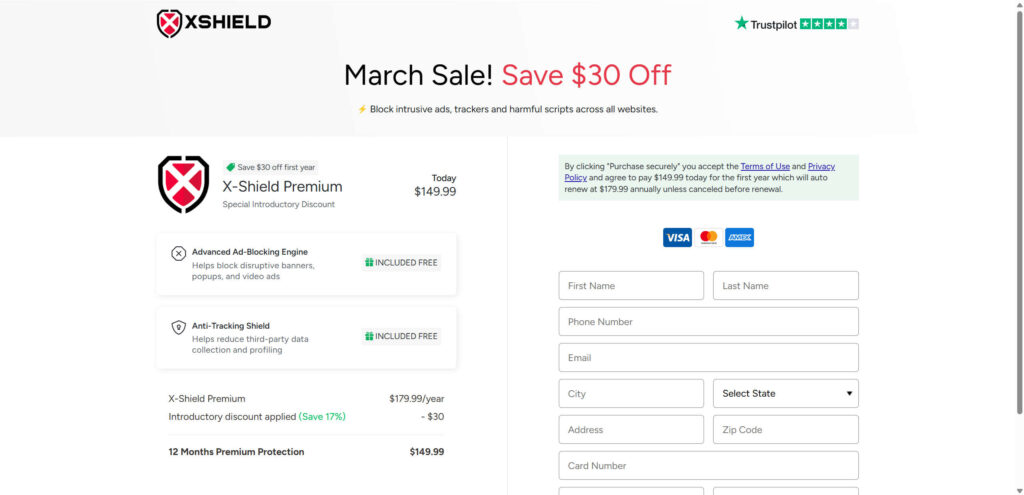
This page often promotes some kind of “premium protection,” “privacy shield,” “storage upgrade,” or “security plan.” It may look polished. It may show payment logos, legal disclaimers, promotional pricing, and even fake review badges. Sometimes it offers a deeply discounted first year, then hides an expensive auto-renewal in smaller text.
At this stage, several different outcomes are possible.
The scam may steal credit card information
The most obvious risk is direct payment fraud.
The victim may enter full card details, billing address, phone number, and email on a page that has nothing to do with a legitimate cloud storage provider. That information can be used for unauthorized charges, recurring billing, or later fraud.
The scam may push a recurring subscription
Some versions are set up to enroll victims in recurring plans. The user thinks they are paying a small fee to restore storage access, but in reality they are signing up for a subscription that renews at a much higher price.
This often happens through deceptive wording.
The page may highlight a discounted price in large text while hiding the actual ongoing billing terms in smaller print. Many victims do not realize what they agreed to until charges begin appearing later.
The scam may route victims into affiliate offers
Not every scammer needs to process the card directly to profit.
Some of these campaigns redirect victims into affiliate landing pages for software, privacy tools, browser products, or system utilities. The scammer earns money when the victim buys the product, signs up for a trial, or installs a promoted app.
Even if the final product is technically real, the sales path is still fraudulent.
The victim was deceived into the funnel by a fake storage emergency. That makes the whole experience dishonest from the start.
The scam may push malicious or unwanted downloads
In some cases, the victim is urged to install software to “restore protection,” “fix the problem,” or “protect backups.” This download may be adware, a potentially unwanted program, a fake security tool, or something more dangerous.
Some scareware does not infect the system in a classic way.
Instead, it floods the user with warnings, pressure, paid upgrade prompts, browser alerts, and fake cleanup claims. The goal is not always technical sabotage. Sometimes it is relentless monetization.
The scam may collect personal data for future attacks
Even if the victim does not complete a payment, the page may still collect valuable information:
Full name
Email address
Phone number
Home address
ZIP code
Device type
IP address
Browser details
That information can be used for later phishing campaigns, spam, fake support calls, and other scams.
This is one reason victims often notice more suspicious messages after interacting with one of these pages.
Once your information enters a scam pipeline, you may be targeted again.
Why this scam works so well
This scam succeeds because it combines several psychological triggers in one flow:
Fear of losing personal files
Fear of account interruption
Fear of being hacked
Relief that there appears to be a simple fix
Time pressure through countdowns and “final notice” wording
Trust signals like payment logos and professional-looking design
That combination is powerful.
A victim starts by worrying about storage. Then they worry about security. Then they are offered a quick solution at a low price. It feels easier to pay than to stop, verify everything, and risk losing something important.
Scammers count on that.
They also count on the fact that many people do not regularly inspect sender addresses, domain names, or billing pages. If the page looks clean and the message sounds urgent, that is often enough to get a click.
Common red flags of the “Your Cloud Storage Is Full” scam
These warning signs show up again and again:
The email comes from a strange or unrelated address
The message uses dramatic, high-pressure language
The page is reached through an ad, redirect, or spam email
The storage numbers do not make sense or change between pages
The warning suddenly shifts from storage to antivirus or malware
The page includes countdown timers or “last chance” offers
The site asks for card details on a page you were not expecting
The final product has little to do with cloud storage
The design imitates trust but feels generic
The site offers a “special price” that seems too convenient
A legitimate provider wants you to manage your real account.
A scam wants you to panic and pay somewhere else.
That is the single most important distinction to understand. If a message about storage issues sends you into a chain of unrelated security alerts, promotional offers, and payment pages, it is not solving a real account problem. It is exploiting fear for profit.
How The Scam Works
The “Your Cloud Storage Is Full” scam usually follows a predictable pattern. It may look different from one campaign to another, but the structure is often the same.
Below is the step-by-step breakdown.
Step 1: The bait arrives through email, ads, pop-ups, or redirects
The scam starts with a message that creates concern.
This may be a spam email saying your storage renewal failed. It may be a social media ad claiming you qualify for an upgrade. It may be a pop-up while browsing that warns your account is out of space. It may even be a browser redirect from a sketchy website.
The goal at this stage is simple: get the click.
The message often includes just enough detail to seem real. You might see a plan name, an expiration date, or a warning that service will stop if no action is taken. The wording is usually short, direct, and urgent.
Some examples include:
Payment Issue Detected
Update Billing Information
Your storage access may be interrupted
Subscription expires today
Final notice before deletion
These phrases are carefully chosen.
They sound administrative, not theatrical. That helps the scam get past your first layer of skepticism.
Step 2: The victim lands on a fake cloud storage page
After clicking, the victim is taken to a landing page that looks like a storage dashboard or warning screen.
This page may show:
A cloud icon or generic branding
A bar labeled “Storage used”
Categories like Photos, Cloud Drive, and Mail
A message saying updates have stopped
A warning that files or backups may be lost
A button such as “Upgrade Storage” or “Continue”
This page is designed to look familiar.
It does not need perfect branding. It only needs enough visual cues to make the user think, “This might be real.” Once that happens, fear does the rest.
The fake storage bar is one of the most common tricks.
The page may claim your account is full and your data is in danger. But there is no real connection to your account. The number is just part of the design. It is there to create urgency, not to show actual usage.
Step 3: The scam adds pressure with fake deadlines and low-cost offers
Once the user is engaged, the page introduces urgency.
It may say a special offer expires in a few minutes. It may describe the deal as a loyalty reward, a one-time upgrade, or a final chance to protect your files. The fee is often small enough to feel reasonable.
This is a deliberate strategy.
A small price reduces resistance. It feels easier to pay $9.99 or another modest amount than to risk losing years of photos and personal files. The victim thinks, “I will just fix this quickly.”
That is exactly what the scammer wants.
The pressure tactics may include:
Countdown timers
Final attempt language
Limited-time discounts
Bright warning colors
Repeated references to deletion or interruption
These features are not there to inform you. They are there to speed you up.
Step 4: The story changes from storage trouble to security panic
In many versions, the scam takes a sharp turn.
After clicking a button related to storage, the victim is shown a completely different warning. Suddenly the issue is no longer just cloud capacity. Now the page says there is a critical security problem.
The page may claim:
Your privacy protection has expired
Your antivirus subscription ended
Your device is exposed to malware
Hackers can now access your system
Real-time protection is no longer active
This switch is one of the most revealing parts of the scam.
A legitimate storage issue does not suddenly become a generic cybersecurity emergency. That jump shows the page is not part of a real account system. It is a fear funnel.
The scam is expanding the threat.
At first, you are worried about losing files. Now you are worried about identity theft, phishing, ransomware, and hackers. The more threats they pile on, the more likely you are to accept the next “solution.”
Step 5: Pop-ups, overlays, and fake scans keep the victim moving
At this stage, the scam often adds motion and noise.
You may see:
A pop-up warning that storage is full
A fake scan screen
A loading circle labeled “Securing Payment Environment”
A step counter or progress meter
A large “Continue” button
These elements create the illusion of a real process.
The user feels like the site is diagnosing, confirming, or resolving the problem. In reality, these are just scripted pages. They do not scan your system. They do not check your account. They do not secure anything.
They exist to create momentum.
Once a user has clicked through several steps, they are more likely to keep going. That is basic scam psychology. Every click increases commitment.
Step 6: The victim is redirected to a payment page or software offer
The next page is where the scam becomes profitable.
The victim may now see a full checkout page for a “premium” service. It may be framed as security software, privacy protection, ad blocking, anti-tracking, or some other safety product. The page often looks polished enough to lower suspicion.
It may include:
Promotional pricing
A bold discount
Payment logos
Name and billing fields
Small legal text
Auto-renewal language
Terms and privacy links
Trust-style badges or ratings
At this point, the victim may believe they are completing the final step to protect their account.
But they are often entering a completely different transaction than they expected.
Some payment pages are purely fraudulent and exist to steal card details. Others are linked to questionable subscription products. Others are affiliate offers where the scammer earns a commission when the victim signs up.
No matter which version is used, the journey was built on deception.
Step 7: Personal and financial data is collected
If the user completes the form, the scam can now capture valuable information.
That may include:
Full name
Address
Email
Phone number
Credit card number
Expiration date
Security code
ZIP code
State and city
This is far more than a simple “storage update.”
With enough details, scammers can attempt charges, create recurring billing, build future phishing campaigns, or sell the data to other fraud operations.
Even if the victim abandons the form halfway through, some information may already be captured.
That is why partial interaction can still carry risk.
Step 8: The victim may be redirected through more offers
Some scam funnels do not stop at one payment page.
After entering details or clicking continue, the user may be sent to:
Another protection product
A software download page
A browser extension page
A “thank you” page with upsells
A support page with a phone number
Additional ads or affiliate offers
This is especially common in affiliate-driven schemes.
The scammers want to extract as much value as possible from each visitor. If they cannot get card information, they may still make money from downloads, trials, leads, or ad interactions.
That is why the scam can feel messy or inconsistent.
It is not built around helping the user. It is built around monetizing the click in whatever way works best.
Step 9: The real consequences happen after the site is closed
Many victims think the danger ends once they realize the page was fake.
Sometimes it does. But often the real damage starts afterward.
If you submitted your card, you may face unauthorized charges or recurring billing. If you downloaded software, your device may begin showing pop-ups, browser changes, or more fake warnings. If you gave away contact details, you may receive more spam, phishing emails, or scam calls later.
This is one reason the scam is so effective.
It creates multiple layers of risk, not just one.
A person may lose money, compromise a device, expose personal data, and become a future target all from a single click path.
Step 10: Why people fall for it
People do not fall for this scam because they are careless.
They fall for it because the scam is designed around believable fears and familiar habits. Most people have storage accounts. Most people rely on cloud backups. Most people have seen legitimate billing emails before. When those real-world patterns are copied well enough, even cautious people can be caught off guard.
The scam also preys on urgency.
When a message suggests your family photos may stop backing up or your files may be deleted, that hits a personal nerve. People act fast because the risk feels immediate and emotional.
That human reaction is exactly what the scammers exploit.
What To Do If You Have Fallen Victim to This Scam
If you clicked one of these alerts, entered personal information, typed in card details, or downloaded something, do not panic. Focus on containment.
Take the following steps in order.
1. Stop using the scam page immediately
Close the tab or browser window.
Do not continue clicking through the steps. Do not trust any additional warnings, offers, or support numbers shown on the page. Do not attempt to “fix” the problem through the same site.
Once you suspect fraud, leave the page.
2. Check your real cloud account through the official website or app
Open your real provider account by typing the official website yourself or using the official app already installed on your device.
Do not use links from the email or scam page.
Once logged in, review:
Actual storage usage
Subscription status
Billing details
Recent notices
Security settings
In many cases, you will find that your real account is perfectly normal.
3. If you entered card details, call your bank or card issuer right away
This step is critical.
Tell your bank that you may have entered card details on a scam or phishing website. Ask them to:
Freeze or replace the card
Review recent activity
Block recurring charges
Monitor for fraud
Help dispute unauthorized transactions
Do this even if you have not seen a charge yet.
Fraudulent charges may appear later, and early reporting gives you a better chance of limiting damage.
4. Review your statements carefully
Check your:
Bank account
Credit card statement
Mobile wallet history
Email inbox for receipts
Subscription accounts
Look for unfamiliar merchant names, trial charges, or recurring payments.
Do not assume a small charge is harmless. Scam funnels often start with a low amount and bill more later.
5. Change important passwords
If you entered login details anywhere after clicking the scam, or if you reused passwords across services, change them now.
Start with:
Your email account
Your cloud storage account
Banking and payment accounts
Any account that uses the same password
Use strong, unique passwords for each one.
6. Turn on two-factor authentication
Enable two-factor authentication on your most important accounts.
Prioritize:
Email
Cloud storage
Banking
Social media
Shopping accounts
Work accounts
Email is especially important because control of your email can lead to control of many other services.
7. Scan your device with a trusted security tool
If you downloaded anything during the scam, run a full scan using a reputable security product from an official source.
Do not download “recommended” tools from the scam page.
Check for:
Malware
Adware
Potentially unwanted programs
Browser hijackers
Suspicious installers
If your system still behaves strangely after scanning, consider getting help from a trusted technician or security forum.
8. Remove suspicious browser extensions and apps
Scam pages often push downloads or browser permissions.
Check your browser for:
New extensions
Unknown search engine changes
Homepage changes
Push notification permissions
Strange pop-ups
On mobile devices, review recently installed apps and remove anything suspicious.
9. Revoke browser notification permissions from unknown sites
Some scam pages trick users into allowing notifications. After that, the user starts receiving fake warnings directly through the browser.
Open your browser settings and remove permission for sites you do not recognize.
This is an easy step that many victims miss.
10. Watch for follow-up scams
After interacting with one scam, you may be targeted again.
Be cautious of:
Emails offering refunds
Calls from “support”
More storage alerts
“Fraud department” messages
Account verification requests
Subscription cancellation offers
A second scam often pretends to help fix the first one.
11. Report the scam
Reporting will not always get your money back, but it can help protect others and support investigations.
Report the scam to:
Your email provider
The social media platform where you saw the ad
Your real cloud provider
Your bank or card issuer
Your national cybercrime or consumer protection authority
If possible, save the email, screenshots, URLs, and any receipts before deleting anything.
12. Keep records of what happened
Save:
Screenshots of the scam pages
Email headers if possible
Payment confirmation emails
Card charge screenshots
URLs and timestamps
This can help when working with your bank, disputing charges, or filing reports.
13. Be patient but proactive
Many victims feel embarrassed after falling for a scam like this. Do not let that delay action.
These campaigns are designed to manipulate normal human reactions. The faster you respond, the better your chances of limiting the damage.
Focus on the next practical step, not on blaming yourself.
Is Your Device Infected? Run a Free Malware Scan
Slow performance, constant pop-ups, or strange behavior? These are classic signs of a malware infection. The fastest way to find out is to scan your device with Malwarebytes Anti-Malware Free — one of the most trusted malware removal tools available.
The free version detects and removes the most common threats, including:
Adware — the cause of those annoying pop-ups
Browser hijackers — unwanted redirects and changed homepages
Trojans and spyware — hidden programs stealing your data
Potentially unwanted programs (PUPs) — software you never asked for
👉 Select your device below — Windows, Mac, or Android — then follow the simple steps to download Malwarebytes, scan your system, and remove any threats it finds. The whole process takes about 5 minutes.
Malwarebytes for WindowsMalwarebytes for MacMalwarebytes for Android
Run a Malware Scan with Malwarebytes for Windows
Malwarebytes is one of the most popular and trusted anti-malware tools for Windows — and it’s completely free for removing infections. It catches threats that many antivirus programs miss, including adware, browser hijackers, and trojans. Follow the steps below to scan and clean your PC in just a few minutes.
Download Malwarebytes
Click the button below to download the latest version of Malwarebytes for Windows from the official source. The free version is all you need — it will scan your computer and remove adware, browser hijackers, and other malicious software at no cost.
(The link opens in a new page where your download will start)
Install Malwarebytes
When the download finishes, open your Downloads folder and double-click the MBSetup file. If Windows shows a User Account Control pop-up, click “Yes” to allow the installation.
Follow the On-Screen Prompts to Install Malwarebytes
The setup wizard will walk you through a few quick screens:
Choose where you’re installing the program — “Personal Computer” or “Work Computer” — then click Next.
Malwarebytes will now install on your device. This usually takes under a minute.
When installation is complete, the “Welcome to Malwarebytes” screen will open automatically.
On the final screen, click Open Malwarebytes to launch the program.
Enable “Scan for Rootkits”
Before scanning, turn on rootkit detection so Malwarebytes can find even the most hidden threats. Click the Settings gear icon on the left side of the screen.
In the settings menu, find “Scan for rootkits” and click the toggle so it turns blue.
Done? Click “Dashboard” in the left pane to return to the main screen.
Start the Scan
Click the blue Scan button. Malwarebytes will automatically update its virus database and start checking your computer for malware.
Wait for the Scan to Finish
The scan checks your entire system for browser hijackers and other malicious programs, so it can take several minutes. Feel free to do something else — just check back occasionally to see the progress.
Quarantine the Detected Threats
When the scan is done, you’ll see a list of everything Malwarebytes found — malware, adware, and potentially unwanted programs. Click the “Quarantine” button to remove all of them at once.
Malwarebytes will now remove the malicious files and registry entries and move them safely into quarantine.
Restart Your Computer
Some threats can only be fully removed after a reboot. If Malwarebytes asks you to restart, click Yes. Once you’re logged back in, your PC is clean and you can continue with the next steps in this guide.
When the scan finishes, click Quarantine to remove everything Malwarebytes found. That’s it — your Windows PC is now clean of trojans, adware, and other malware, and should be back to running smoothly.
If your current antivirus allowed this malicious program on your computer, you may want to consider purchasing Malwarebytes Premium to protect against these types of threats in the future. If you are still having problems with your computer after completing these instructions, then please follow one of the steps:
Malwarebytes for Mac is a free on-demand scanner that removes the malware other security software tends to miss — adware, browser hijackers, and unwanted programs included. Cleaning an infected Mac with Malwarebytes has always been completely free, and it’s our go-to recommendation. Follow the steps below to scan and clean your Mac in just a few minutes.
Download Malwarebytes for Mac
Click the button below to download the latest version of Malwarebytes for Mac.
When the download finishes, open your Downloads folder and double-click the setup file to begin the installation.
Follow the On-Screen Prompts to Install Malwarebytes
The Malwarebytes for Mac Installer will guide you through a few quick screens. Click “Continue” and keep following the prompts until the installation completes.
When the installation is complete, Malwarebytes opens to the Welcome to Malwarebytes screen. Click “Get started“.
Select “Personal Computer” or “Work Computer”
Malwarebytes will ask what type of computer you’re installing it on. Click either Personal Computer or Work Computer, whichever applies.
Start the Scan
Click the “Scan” button. Malwarebytes will automatically update its detection database and begin checking your Mac for malware.
Wait for the Scan to Finish
Malwarebytes will scan your Mac for adware, browser hijackers, and other malicious programs. This can take a few minutes, so feel free to do something else — just check back occasionally to see the progress.
Quarantine the Detected Threats
When the scan is done, you’ll see a list of everything Malwarebytes found. Click the “Quarantine” button to remove all the threats at once.
Restart Your Mac
Malwarebytes will now remove all the malicious files it found. Some threats can only be fully removed after a reboot — if Malwarebytes asks you to restart, allow it. Once you’re logged back in, your Mac is clean.
Once the scan is done, remove every threat it detected. Your Mac is now free of adware, rogue browser extensions, and other potentially harmful software.
If your current antivirus allowed a malicious program on your computer, you might want to consider purchasing the full-featured version of Malwarebytes Anti-Malware to protect against these types of threats in the future. If you are still experiencing problems while trying to remove a malicious program from your computer, please ask for help in our Mac Malware Removal Help & Support forum.
Run a Malware Scan with Malwarebytes for Android
Malwarebytes for Android automatically detects and removes dangerous threats like malware and ransomware so you don’t have to worry about your most-used device being compromised. Aggressive detection of adware and potentially unwanted programs keeps your Android phone or tablet running smooth.
Download Malwarebytes for Android.
You can download Malwarebytes for Android by clicking the link below.
In the Google Play Store, tap “Install” to install Malwarebytes for Android on your device.
When the installation process has finished, tap “Open” to begin using Malwarebytes for Android. You can also open Malwarebytes by tapping on its icon in your phone menu or home screen.
Follow the on-screen prompts to complete the setup process
When Malwarebytes will open, you will see the Malwarebytes Setup Wizard which will guide you through a series of permissions and other setup options. This is the first of two screens that explain the difference between the Premium and Free versions. Swipe this screen to continue. Tap on “Got it” to proceed to the next step. Malwarebytes for Android will now ask for a set of permissions that are required to scan your device and protect it from malware. Tap on “Give permission” to continue. Tap on “Allow” to permit Malwarebytes to access the files on your phone.
Update database and run a scan with Malwarebytes for Android
You will now be prompted to update the Malwarebytes database and run a full system scan.
Click on “Update database” to update the Malwarebytes for Android definitions to the latest version, then click on “Run full scan” to perform a system scan.
Wait for the Malwarebytes scan to complete.
Malwarebytes will now start scanning your phone for adware and other malicious apps. This process can take a few minutes, so we suggest you do something else and periodically check on the status of the scan to see when it is finished.
Click on “Remove Selected”.
When the scan has been completed, you will be presented with a screen showing the malware infections that Malwarebytes for Android has detected. To remove the malicious apps that Malwarebytes has found, tap on the “Remove Selected” button.
Restart your phone.
Malwarebytes for Android will now remove all the malicious apps that it has found. To complete the malware removal process, Malwarebytes may ask you to restart your device.
After the scan, tap Remove Selected to delete all detected threats. Your Android phone is now clean — no more malicious apps, adware, or browser redirects.
If your current antivirus allowed a malicious app on your phone, you may want to consider purchasing the full-featured version of Malwarebytes to protect against these types of threats in the future. If you are still having problems with your phone after completing these instructions, then please follow one of the steps:
Restore your phone to factory settings by going to Settings > General management > Reset > Factory data reset.
Now that your device is clean, keep it that way. Most infections start with a malicious ad or a fake download button — so blocking them at the source is your best defense.
We recommend AdGuard, which blocks malicious ads, phishing pages, and dangerous redirects before they can reach you.
The “Your Cloud Storage Is Full” scam is a polished, pressure-driven fraud scheme that pretends to solve an urgent storage problem while leading victims into fake warnings, scareware, deceptive subscriptions, shady software, and payment traps.
It works because the first claim sounds believable. Cloud storage issues do happen. Billing issues happen. That small seed of truth gives the scam enough credibility to get the click. From there, the pages pile on fear, confusion, countdowns, and false solutions.
If a message about cloud storage sends you to a site that suddenly talks about malware, expired protection, limited-time offers, or unrelated security products, you are not dealing with a real provider. You are dealing with a scam.
The safest move is always the same: ignore the link, open your real provider through its official site or app, and check your account there.
If you already interacted with the scam, move quickly. Secure your accounts, contact your bank, scan your device, and monitor for further fraud.
A legitimate service gives you information. A scam tries to rush you before you can verify anything.
FAQ
What is the “Your Cloud Storage Is Full” scam?
It is a scam that uses fake warnings about cloud storage, billing problems, or expiring subscriptions to frighten people into clicking links, entering payment information, downloading software, or signing up for shady offers.
The message may appear in an email, pop-up, browser redirect, or social media ad.
Is the “Your Cloud Storage Is Full” message ever legitimate?
Real cloud providers can send storage or billing notices, but scammers imitate those alerts all the time.
The safest approach is to never trust the link in the message. Open your cloud account directly through the official website or app and check your storage and billing there.
How does this scam usually start?
It often starts with:
A spam email
A social media ad
A fake pop-up
A browser redirect
A suspicious notification from a shady site
The message usually claims your storage is full, your payment failed, or your files are at risk unless you act immediately.
Why is this scam so convincing?
It works because the topic feels believable.
Many people really do use cloud storage for photos, documents, and backups. A message about limited storage or payment problems sounds possible, which makes people more likely to click before they stop and verify it.
What happens after you click?
After clicking, victims are often taken to fake pages that look official. These pages may show:
Storage bars
Warning messages
Countdown timers
“Final notice” language
Buttons such as “Upgrade Storage” or “Continue”
From there, the scam may lead to fake payment forms, scareware pages, affiliate offers, or malicious downloads.
Can this scam steal credit card information?
Yes.
Some versions ask for your full billing and card details under the excuse of restoring storage access or renewing a subscription. If you enter that information, scammers may use it for unauthorized charges or recurring billing.
Can this scam install malware on my device?
It can.
Some versions push software downloads, browser extensions, or fake security tools. Even when the download is not classic malware, it may still be unwanted software that causes pop-ups, redirects, tracking, or more scam warnings.
What are the biggest red flags?
Common warning signs include:
A strange sender address
Urgent language like “Final Notice” or “Last Chance”
Threats that your files will be lost immediately
Countdown timers
A page that suddenly switches from storage issues to security alerts
Requests for payment on a site you do not recognize
Generic branding that does not match your real provider
What should I do if I clicked the link?
First, stop using the page.
Then log in to your real cloud account through the official website or app and check whether there is actually a storage or billing issue. Do not rely on anything shown on the scam page.
What should I do if I entered my credit card details?
Contact your bank or card issuer right away.
Tell them you may have entered your card details on a scam website. Ask them to review recent activity, block unauthorized charges, and replace the card if necessary.
What if I downloaded something from the scam page?
Run a full security scan using a trusted antivirus or anti-malware tool from an official source.
You should also check your browser extensions, notification permissions, and installed apps for anything unfamiliar.
Can scammers target me again after this?
Yes.
Once you click or submit information, you may receive more phishing emails, scam calls, fake refund offers, or follow-up warnings. Scammers often try to reuse or resell victim data.
Will a real cloud provider threaten to delete everything right away?
Usually not in the dramatic way scam pages do.
Legitimate providers typically notify users through official account channels and give them a clear way to review storage usage, billing status, and account options. Scam pages rely on panic, extreme language, and rushed decisions.
How can I protect myself from this scam in the future?
Use these habits:
Do not click links in unexpected storage or billing emails
Check the sender address carefully
Log in through the official app or website instead
Avoid downloading software from warning pages
Use strong passwords and enable two-factor authentication
Monitor your bank statements regularly
Is this scam only about cloud storage?
No.
Cloud storage is often just the hook. Many versions quickly redirect victims into fake antivirus warnings, scareware pages, subscription traps, or affiliate offers that have little to do with storage at all.
What is the safest rule to remember?
If a message says your cloud storage is full, do not click the link.
Go directly to your real provider and verify the claim there. That one habit can prevent most of these scams.
10 Rules to Avoid Online Scams
Here are 10 practical safety rules to help you avoid malware, online shopping scams, crypto scams, and other online fraud. Each tip includes a quick “if you already got hit” action.
Stop and verify before you click, log in, download, or pay.
Most scams win by creating urgency. Verify using a trusted method: type the website address yourself, use the official app, or call a known number (not the one in the message).
If you already clicked: close the page, do not enter passwords, and run a malware scan.
Keep your operating system, browser, and apps updated.
Updates patch security holes used by malware and malicious ads. Turn on automatic updates where possible.
If you saw a scary “update now” pop-up: close it and update only through your device settings or the official app store.
Use layered protection: antivirus plus an ad blocker.
Antivirus helps block malware. An ad blocker reduces scam redirects, phishing pages, and malvertising.
If your browser is acting weird: remove unknown extensions, reset the browser, then run a full scan.
Install apps, software, and extensions only from official sources.
Avoid cracked software, “keygens,” and random downloads. During installs, choose Custom/Advanced and decline bundled offers you do not recognize.
If you already installed something suspicious: uninstall it, restart, and scan again.
Treat links and attachments as untrusted by default.
Phishing often impersonates delivery services, banks, and popular brands. If it is unexpected, do not open attachments or log in through the message.
If you entered credentials: change the password immediately and enable 2FA.
Shop safely: research the store, then pay with protection.
Be cautious with brand-new stores, “closing sale” stories, and prices that make no sense. Prefer credit cards or PayPal for dispute options. Avoid wire transfers, gift cards, and crypto payments.
If you already paid: contact your card issuer or PayPal quickly to dispute the transaction.
Crypto rule: never pay a “fee” to withdraw or recover money.
Common patterns include fake profits, then “tax,” “gas,” or “verification” fees. Another is a “recovery agent” who demands upfront crypto.
If you already sent crypto: stop paying, save evidence (wallet addresses, TXIDs, chats), and report the scam to the platform used.
Secure your accounts with unique passwords and 2FA (start with email).
Use a password manager and unique passwords for every account. Enable 2FA using an authenticator app when possible.
If you suspect an account takeover: change passwords, sign out of all devices, and review recent logins and recovery settings.
Back up important files and keep one backup offline.
Backups protect you from ransomware and device failure. Keep at least one backup on an external drive that is not always connected.
If you suspect infection: do not connect backup drives until the system is clean.
If you think you are a victim: stop losses, document evidence, and escalate fast.
Move quickly. Speed matters for disputes, account recovery, and limiting damage.
Stop payments and contact: do not send more money or respond to the scammer.
Call your bank or card issuer: block transactions, replace the card if needed, and start a dispute or chargeback.
Secure your email first: change the email password, enable 2FA, and remove unfamiliar recovery options.
Secure other accounts: change passwords, enable 2FA, and log out of all sessions.
Scan your device: remove suspicious apps or extensions, then run a full malware scan.
Save evidence: screenshots, emails, order pages, tracking pages, wallet addresses, TXIDs, and chat logs.
Report it: to the payment provider, marketplace, social platform, exchange, or wallet service involved.
These rules are intentionally simple. Most online losses happen when decisions are rushed. Slow down, verify independently, and use payment methods and account controls that give you recourse.
Thomas is an expert at uncovering scams and providing in-depth reporting on cyber threats and online fraud. As an editor, he is dedicated to keeping readers informed on the latest developments in cybersecurity and tech.