

Fake “Spotify Rewards Program” websites are spreading quickly across ads, social media, and pop-up redirects.
They promise free subscriptions, premium upgrades, or high-value gift cards in exchange for completing a few simple steps. The pages look clean, familiar, and often carry Spotify branding that feels legitimate at first glance.
But behind that polished surface is a system designed to extract data, push users into paid offers, and rarely deliver what was promised.
This guide breaks down exactly how the Spotify Rewards scam works, why it’s so effective, and what you should do if you’ve already interacted with one of these sites.
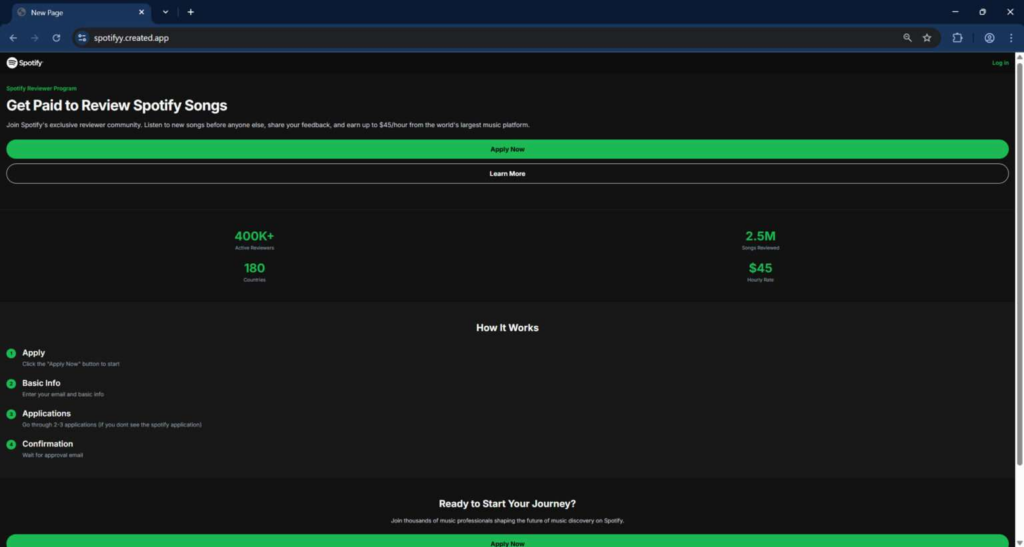
Scam Overview
What the Spotify Rewards Program claims to offer
At first glance, these scam sites feel convincing.
They typically promote offers like:
- Free Spotify Premium for 6 or 12 months
- A $100 to $750 Spotify or “music rewards” gift card
- Access to an “exclusive Spotify rewards program”
- Early access to premium features or partner perks
The messaging is simple and attractive.
“Complete a few steps and unlock your reward.”
That simplicity is intentional.
It lowers resistance and makes the process feel like a standard promotional campaign rather than something that needs scrutiny.
Why these pages feel legitimate
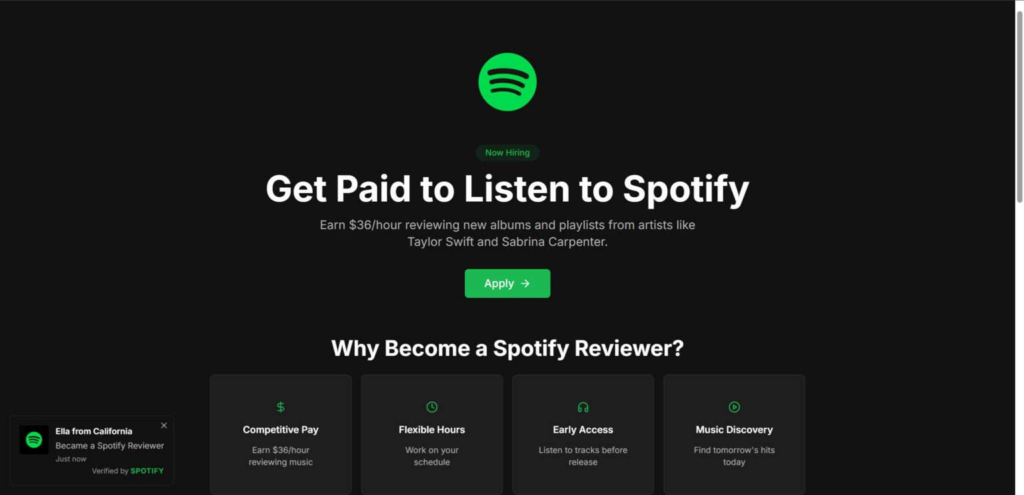
These scam pages are designed to look like official Spotify campaigns.
Common design elements include:
- Green and black color schemes similar to Spotify branding
- Clean layouts with modern fonts
- Short bullet-point instructions
- Fake testimonials or “recent rewards claimed” notifications
- Timers suggesting limited-time availability
They often include phrases like:
- “Spotify Rewards Program 2026”
- “Exclusive for Spotify users”
- “Limited-time premium access”
- “Only available today”
The goal is to create urgency and familiarity at the same time.
When users feel like something is both legitimate and time-sensitive, they are far more likely to act quickly.
The core red flag: rewards tied to “offers” or “deals”
The biggest warning sign appears in the instructions.
Instead of simply redeeming a reward, users are told to:
- Complete a survey
- Enter basic information
- Finish multiple “deals” or “offers”
- Download apps or sign up for trials
This is the defining characteristic of the scam.
Legitimate Spotify promotions do not require users to complete multiple third-party offers to receive a reward.
Once “deals” enter the process, the reward is no longer the product. You are.
What “deals” actually mean
The word “deals” sounds harmless.
In reality, it usually refers to actions such as:
- Signing up for free trials that convert into paid subscriptions
- Downloading apps that collect data or push in-app purchases
- Completing surveys that lead to more survey chains
- Entering personal information into multiple marketing funnels
Each of these actions has value.
Not for you, but for the operators behind the site.
They are paid when you complete these actions. That is the real business model.
Why the reward is rarely delivere
Most users never receive the promised Spotify reward.
Here’s why:
- The requirements are vague and flexible
- “Completion” is often defined by hidden criteria
- Tracking issues are used as an excuse
- Users are told to complete more offers
- Rewards remain “pending” indefinitely
The system is designed to keep you engaged without ever closing the loop.
It creates the illusion that you are close to receiving the reward, which encourages continued participation.
Why Spotify branding is used
Spotify is one of the most recognizable digital platforms in the world.
That makes it a powerful tool for scammers.
Using Spotify branding creates instant trust.
Users assume:
- The page is connected to Spotify
- The reward is part of a promotion
- The process is safe
None of those assumptions are verified. And that is where the risk begins.
The psychology behind the scam
These scams are not random.
They rely on predictable human behavior.
Key psychological triggers include:
1. High-value reward
A free subscription or gift card feels valuable but believable.
2. Low entry effort
“Just click and start” removes hesitation.
3. Progress illusion
Each step completed makes users feel closer to success.
4. Sunk cost effect
After investing time, users are less likely to quit.
5. Urgency pressure
Timers and “limited spots” push faster decisions.
These elements work together to keep users moving forward, even when something feels slightly off.
Why these scams keep coming back
Even when one site disappears, another appears.
That is because the structure is reusable.
The scammers can:
- Change the domain name
- Swap branding from Spotify to Netflix or Apple
- Adjust reward amounts
- Relaunch the same funnel
The mechanics stay the same. Only the surface changes.
How The Scam Works
Step 1: You encounter the offer
Most users do not search for these sites.
They arrive through:
- Social media ads
- Pop-up redirects
- Fake “you’ve been selected” messages
- Email spam campaigns
- Links in comment sections
The message is always similar.
“You qualify for a Spotify reward.”
That single line is enough to trigger curiosity.
Step 2: The landing page builds trust
Once you land on the page, everything is designed to feel safe.
You see:
- Familiar colors
- Clean design
- Simple instructions
- A large call-to-action button
The page avoids complexity.
It does not want you thinking deeply.
It wants you clicking.
Step 3: You click “Start Now” or “Claim Reward”
This is a key moment.
Once you click, you are no longer just browsing.
You are participating.
That small action increases commitment and makes you more likely to continue.
Step 4: You enter basic information
You are asked for:
- Email address
- Name
- Sometimes phone number
This step seems harmless.
But it serves two purposes:
- It captures your data
- It prepares you for further steps
Even if you stop here, your information may already be used for spam or future targeting.
Step 5: The survey stage
Next comes a short survey.
Questions may include:
- Music preferences
- Streaming habits
- Device usage
This stage is important psychologically.
It makes the process feel legitimate.
Surveys are common in real promotions, so this step lowers suspicion.
Step 6: The “deal wall” appears
After the survey, the real system activates.
You are told to complete several offers.
Usually:
- 3 to 5 deals minimum
- Sometimes more
Each deal is presented as quick and easy.
But this is where the monetization begins.
Step 7: You complete the first offers
Early offers are simple.
They may include:
- Downloading an app
- Signing up for a free account
- Completing another survey
These small wins create momentum.
You feel like you are making progress.
Step 8: Higher commitment offers follow
Later offers become more demanding.
Examples include:
- Free trials requiring credit card details
- Subscription services
- Product trials with shipping fees
- “Premium access” signups
At this stage, users are more likely to comply.
They have already invested time.
They believe they are close to the reward.
Step 9: Tracking and “pending” issues begin
Even after completing multiple deals, users often encounter issues.
Common messages include:
- “Offer not completed correctly”
- “Pending verification”
- “Incomplete steps detected”
This creates confusion.
Users may try to redo steps or complete additional offers.
Step 10: The reward never arrive
In most cases, the reward is never delivered.
Instead, users experience:
- Endless loops of requirements
- Requests for more actions
- Delayed or missing confirmation
The system is not designed to pay out.
It is designed to extract value.
Step 11: After-effects begin
After leaving the site, users may notice:
- Increased spam emails
- More scam offers
- Subscription charges
- Retargeting ads
This is the long tail of the scam.
Even after you stop engaging, your data continues to circulate.
What To Do If You Have Fallen Victim to This Scam
- Stop immediately
Do not complete additional offers. The reward is unlikely to be real. - List every action you took
Write down every app, service, or site you interacted with. - Cancel subscriptions and trials
Check all services you signed up for and cancel them right away. - Check your bank and card statements
Look for unknown charges, even small ones. - Contact your bank if needed
Report suspicious transactions and ask about chargebacks. - Secure your email account
Change your password and enable 2-factor authentication. - Remove suspicious apps
Uninstall anything you downloaded during the process. - Clear browser data
Delete cookies and saved site data to reduce tracking. - Watch for follow-up scams
Ignore emails claiming your reward is “almost ready.” - Report the scam
Report the site to consumer protection agencies and relevant platforms.
Is Your Device Infected? Run a Free Malware Scan
Slow performance, constant pop-ups, or strange behavior? These are classic signs of a malware infection. The fastest way to find out is to scan your device with Malwarebytes Free — one of the most trusted malware removal tools available.
The free version detects and removes the most common threats, including:
- Adware — the cause of those annoying pop-ups
- Browser hijackers — unwanted redirects and changed homepages
- Trojans and spyware — hidden programs stealing your data
- Potentially unwanted programs (PUPs) — software you never asked for
👉 Select your device below — Windows, Mac, or Android — then follow the simple steps to download Malwarebytes, scan your system, and remove any threats it finds. The scan usually takes 5 to 20 minutes.
Run a Malware Scan with Malwarebytes for Windows
Malwarebytes is one of the most popular and trusted anti-malware tools for Windows — and it’s completely free for removing infections. It catches threats that many antivirus programs miss, including adware, browser hijackers, and trojans. Follow the steps below to scan and clean your PC in just a few minutes.
Download Malwarebytes
Click the button below to download the latest version of Malwarebytes for Windows from the official source. The free version is all you need — it will scan your computer and remove adware, browser hijackers, and other malicious software at no cost.
Download MalwarebytesOfficial installer for Windows 11 and 10. Your download starts right away.Want real-time protection? See Malwarebytes Premium Malwarebytes Free for WindowsScans and removes malware at no cost
-
Install Malwarebytes
When the download finishes, open your Downloads folder and double-click the MBSetup file. If Windows shows a User Account Control pop-up, click “Yes” to allow the installation.

Follow the On-Screen Prompts to Install Malwarebytes
The setup wizard will walk you through a few quick screens:
-
Choose where you’re installing the program — “Personal Computer” or “Work Computer” — then click Next.

-
Malwarebytes will now install on your device. This usually takes under a minute.

-
When installation is complete, the “Welcome to Malwarebytes” screen will open automatically.

-
On the final screen, click Open Malwarebytes to launch the program.

-
Enable “Scan for Rootkits”
Before scanning, turn on rootkit detection so Malwarebytes can find even the most hidden threats. Click the Settings gear icon on the left side of the screen.

In the settings menu, find “Scan for rootkits” and click the toggle so it turns blue.

Done? Click “Dashboard” in the left pane to return to the main screen.
Start the Scan
Click the blue Scan button. Malwarebytes will automatically update its virus database and start checking your computer for malware.

-
Wait for the Scan to Finish
The scan checks your entire system for browser hijackers and other malicious programs, so it can take 5 to 20 minutes depending on your computer. Feel free to do something else — just check back occasionally to see the progress.

-
Quarantine the Detected Threats
When the scan is done, you’ll see a list of everything Malwarebytes found — malware, adware, and potentially unwanted programs. Click the “Quarantine” button to remove all of them at once.

Malwarebytes will now remove the malicious files and registry entries and move them safely into quarantine.

-
Restart Your Computer
Some threats can only be fully removed after a reboot. If Malwarebytes asks you to restart, click Yes. Once you’re logged back in, Malwarebytes has finished removing the threats it found.

That’s it — your Windows PC is now clean of trojans, adware, and other malware, and should be back to running smoothly.
If you are still having problems with your computer after completing these instructions, then please follow one of the steps:
- Run a computer scan with ESET Online Scanner
- Ask for help in our Windows Malware Removal Help & Support forum.
Run a Malware Scan with Malwarebytes for Mac
Malwarebytes for Mac is a free on-demand scanner that removes the malware other security software tends to miss — adware, browser hijackers, and unwanted programs included. Cleaning an infected Mac with Malwarebytes has always been completely free, and it’s our go-to recommendation. Follow the steps below to scan and clean your Mac in just a few minutes.
-
Download Malwarebytes for Mac
Click the button below to download the latest version of Malwarebytes for Mac.
Download MalwarebytesOfficial installer for macOS. Your download starts right away.Want real-time protection? See Malwarebytes PremiumMalwarebytes Free for MacScans and removes malware at no cost -
Open the Malwarebytes setup file
When the download finishes, open your Downloads folder and double-click the setup file to begin the installation.

-
Follow the On-Screen Prompts to Install Malwarebytes
The Malwarebytes for Mac Installer will guide you through a few quick screens. Click “Continue” and keep following the prompts until the installation completes.



When the installation is complete, Malwarebytes opens to the Welcome to Malwarebytes screen. Click “Get started“.
-
Select “Personal Computer” or “Work Computer”
Malwarebytes will ask what type of computer you’re installing it on. Click either Personal Computer or Work Computer, whichever applies.

-
Start the Scan
Click the “Scan” button. Malwarebytes will automatically update its detection database and begin checking your Mac for malware.

-
Wait for the Scan to Finish
Malwarebytes will scan your Mac for adware, browser hijackers, and other malicious programs. This can take a few minutes, so feel free to do something else — just check back occasionally to see the progress.

-
Quarantine the Detected Threats
When the scan is done, you’ll see a list of everything Malwarebytes found. Click the “Quarantine” button to remove all the threats at once.

-
Restart Your Mac
Malwarebytes will now remove all the malicious files it found. Some threats can only be fully removed after a reboot — if Malwarebytes asks you to restart, allow it. Once you’re logged back in, your Mac is clean.

That’s it — your Mac is now free of adware, rogue browser extensions, and other potentially harmful software.
If you are still experiencing problems while trying to remove a malicious program from your computer, please ask for help in our Mac Malware Removal Help & Support forum.
Run a Malware Scan with Malwarebytes for Android
Malwarebytes for Android automatically detects and removes dangerous threats like malware and ransomware so you don’t have to worry about your most-used device being compromised. Aggressive detection of adware and potentially unwanted programs keeps your Android phone or tablet running smooth.
-
Download Malwarebytes for Android.
You can download Malwarebytes for Android by clicking the link below.
Get Malwarebytes for AndroidOpens Google Play in a new tab.Want real-time protection? See Malwarebytes Premium for AndroidMalwarebytes for AndroidScans your phone and removes malware at no cost -
Install Malwarebytes for Android on your phone.
In the Google Play Store, tap “Install” to install Malwarebytes for Android on your device.

When the installation process has finished, tap “Open” to begin using Malwarebytes for Android. You can also open Malwarebytes by tapping on its icon in your phone menu or home screen.

-
Follow the on-screen prompts to complete the setup process
When Malwarebytes will open, you will see the Malwarebytes Setup Wizard which will guide you through a series of permissions and other setup options.
This is the first of two screens that explain the difference between the Premium and Free versions. Swipe this screen to continue.
Tap on “Got it” to proceed to the next step.
Malwarebytes for Android will now ask for a set of permissions that are required to scan your device and protect it from malware. Tap on “Give permission” to continue.
Tap on “Allow” to permit Malwarebytes to access the files on your phone.
-
Update database and run a scan with Malwarebytes for Android
You will now be prompted to update the Malwarebytes database and run a full system scan.

Click on “Update database” to update the Malwarebytes for Android definitions to the latest version, then click on “Run full scan” to perform a system scan.

-
Wait for the Malwarebytes scan to complete.
Malwarebytes will now start scanning your phone for adware and other malicious apps. This process can take a few minutes, so we suggest you do something else and periodically check on the status of the scan to see when it is finished.

-
Click on “Remove Selected”.
When the scan has been completed, you will be presented with a screen showing the malware infections that Malwarebytes for Android has detected. To remove the malicious apps that Malwarebytes has found, tap on the “Remove Selected” button.

-
Restart your phone.
Malwarebytes for Android will now remove all the malicious apps that it has found. To complete the malware removal process, Malwarebytes may ask you to restart your device.
That’s it — your Android phone is now clean — no more malicious apps, adware, or browser redirects.
If you are still having problems with your phone after completing these instructions, then please follow one of the steps:
- Restore your phone to factory settings by going to Settings > General management > Reset > Factory data reset.
- Ask for help in our Mobile Malware Removal Help & Support forum.
Stay Protected: Block Ads and Malicious Sites
Now that your device is clean, keep it that way. Most infections start with a malicious ad or a fake download button — so blocking them at the source is your best defense.
We recommend AdGuard, which blocks malicious ads, phishing pages, and dangerous redirects before they can reach you.
👉 Download AdGuard and browse safely
The Bottom Line
The so-called Spotify Rewards Program is not a legitimate promotion.
It is a structured funnel designed to collect data, push users into paid offers, and generate revenue through third-party actions.
The promise of a free Spotify reward is the hook.
The real goal is engagement, data, and conversions.
If you encounter a page that offers Spotify rewards in exchange for completing surveys or multiple deals, treat it as high risk.
And if you have already interacted with one, focus on cleanup quickly.
Cancel subscriptions, secure your accounts, and avoid any follow-up messages tied to the same offer. That is how you stop the damage early.
FAQ
Is the Spotify Rewards Program real?
In most cases, no. Websites claiming to offer a special “Spotify Rewards Program” with free Premium access, gift cards, or exclusive perks are usually not official Spotify promotions.
Does Spotify really give away gift cards or Premium rewards through random websites?
Not like this. If a site says you must complete surveys, app installs, or third-party offers to unlock a Spotify reward, that is a major red flag.
What is the biggest warning sign of a Spotify rewards scam?
The biggest red flag is being asked to complete multiple “deals,” “offers,” or “partner tasks” before getting the reward. That is a common sign of an affiliate scam funnel.
Why do these sites ask for my email and personal information?
Because your data has value. These sites can use it for lead generation, marketing lists, follow-up scams, or to track your participation through third-party offers.
What kind of “offers” do these fake Spotify sites usually include?
They often include:
- Free trials that require a credit card
- App downloads
- Survey chains
- Subscription signups
- Product trials with shipping fees
Will I actually receive the promised Spotify reward?
Most users do not. Many people get stuck in “pending,” “verification,” or “incomplete offer” loops and never receive the promised reward.
Can these fake Spotify rewards sites lead to charges on my card?
Yes. Some offers involve trial subscriptions or services that can turn into recurring monthly charges if you do not cancel in time.
I only entered my email. Is that still a problem?
It can be. You may start getting more spam emails, scam promotions, fake prize claims, or follow-up messages trying to draw you back into similar scams.
I entered my phone number too. What should I expect?
You may receive scam texts, robocalls, or marketing calls. Be cautious with any follow-up message claiming your reward is pending or asking you to verify your identity.
What should I do if I entered payment details?
Act quickly:
- Cancel any trials or subscriptions you started
- Check your bank and card statements for suspicious charges
- Contact your card issuer if needed
- Consider replacing your card if you used it on multiple offers
How can I tell if a Spotify reward page is fake?
Look for these red flags:
- The domain is not an official Spotify website
- The page promises a reward for completing outside offers
- The site uses countdown timers or “limited-time” pressure
- The reward stays vague or pending
- There are no clear official terms or direct Spotify support links
Where should I report a fake Spotify rewards site?
You can report it to:
- The platform where you found the ad or link
- Your browser’s phishing or deceptive site reporting feature
- Your email provider or mobile carrier if it came through spam
- The FTC if you are in the United States
- Spotify support to report brand impersonation








