

A work email sends you to a familiar sign-in page. You enter your password, approve the security prompt, and carry on with your day.
The BigBear phishing scam makes that ordinary moment worth a closer look. What appears in your browser is only part of the story.
Overview
A counterfeit sign-in can involve the real Microsoft service
BigBear 2.0 is a phishing operation aimed at Microsoft 365 accounts. The deception concerns a criminal login route, not Microsoft selling a fraudulent service.
Its danger goes beyond collecting a password. A successful attack can capture the session that tells a service you have already signed in.
That distinction matters when someone remembers approving a genuine authentication request. A real security prompt does not automatically make the webpage that triggered it trustworthy.
The useful question is not simply whether Microsoft recognized your password. It is whether you reached Microsoft through a route controlled by someone else.
The evidence points to an international campaign
CloudSEK’s September 7, 2026 investigation describes access to BigBear’s criminal dashboard and targeting across more than 40 countries.
The researchers identified 461 targeted organizations. That is a targeting count, not proof that every organization lost an account or suffered a financial loss.
The report documents stolen credentials and session data. It supports a confirmed phishing mechanism, rather than a conclusion drawn from one suspicious email.
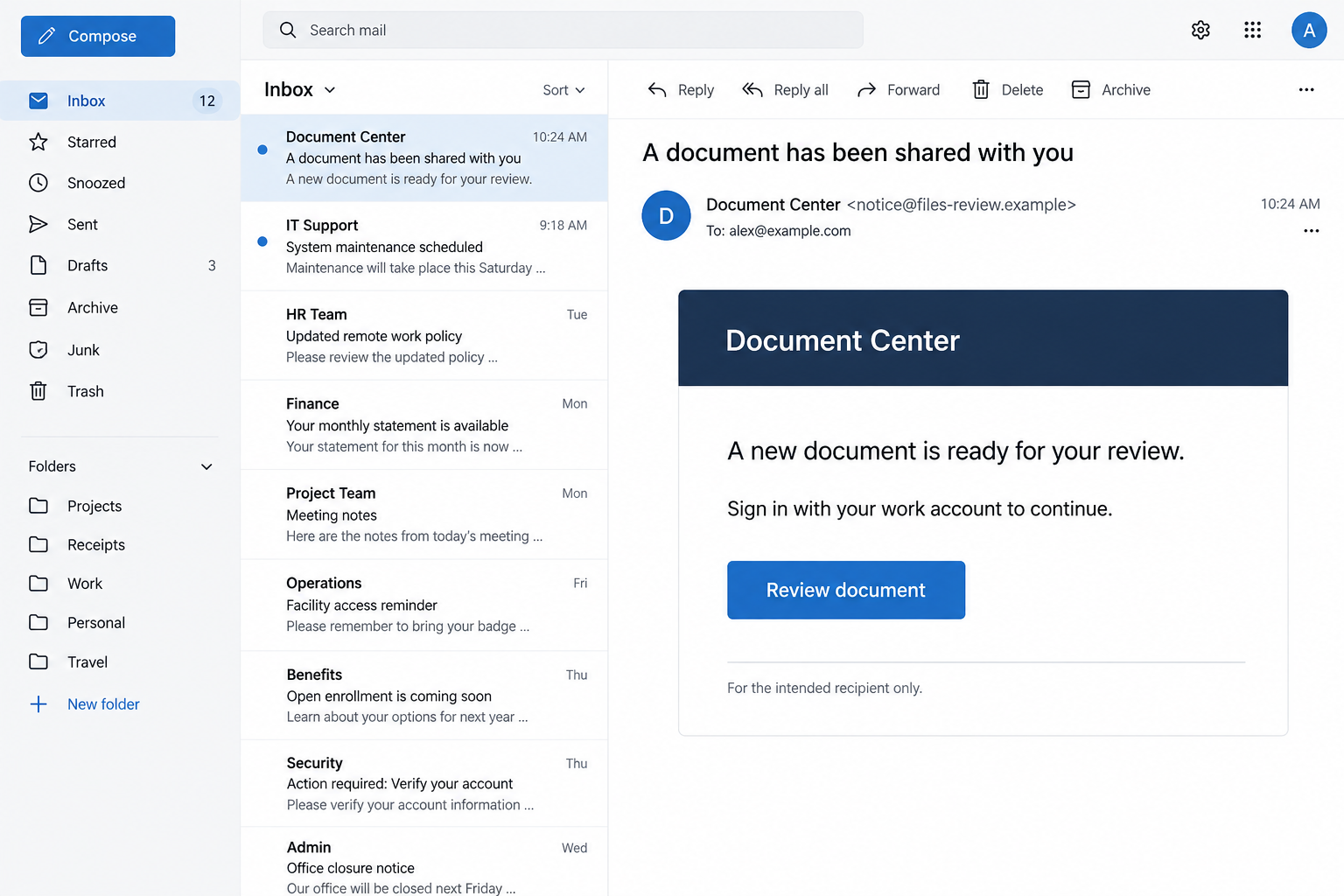
Our illustrations show the general login trap using fictional addresses. They are not original BigBear messages, and affiliates need not use identical wording.
What this means for someone receiving a link
You do not need to recognize the kit’s name. Nothing requires an attacker to display “BigBear” in the email, page title, or login form.
- A familiar document-sharing request can lead to an unfamiliar sign-in address.
- A working password prompt is not evidence that the surrounding website is legitimate.
- An authentication code can be intercepted or relayed during a fraudulent login.
- A password reset may need to be accompanied by session revocation and account review.
- Your employer’s security team should handle a potentially compromised work account.
Receiving a message alone does not mean your account was breached. What you clicked, entered, approved, or downloaded determines the next action.
Why “I Approved It Myself” Does Not Settle the Question
Think about how often a workday interrupts you with authentication. You move between email, documents, meetings, and dashboards, sometimes signing in several times.
That repetition makes a new prompt feel routine. When a page follows a believable request, it is easy to treat authentication as an administrative hurdle.
A password and a session serve different purposes. The password helps prove identity; the session lets the service recognize an authenticated visit afterward.
Without sessions, you would need to sign in again whenever you opened another message or navigated to another page. They make normal browsing practical.
An attacker who obtains usable session material may not need to repeat the entire login immediately. Whether it works depends on the service and security controls.
Microsoft explains this distinction in its token theft investigation guidance. Account recovery therefore involves more than choosing a different password.
This does not make multifactor authentication pointless. It means some authentication methods resist phishing better than others, and the path to the login still matters.
For a reader, the practical lesson is straightforward: a prompt you approved can still be part of an action you never intended to authorize.
How the BigBear Phishing Scam Works
Step 1: A link gives you a reason to sign in
The journey starts with a reason to visit a page. It might resemble an ordinary workplace request, but the exact pretext can vary between operators.
A shared-file illustration is useful because it shows a familiar decision: you expect a document, see a sign-in requirement, and want to finish the task.
Do not treat that illustration as a list of mandatory campaign features. A message without a document attachment can still lead to the same credential trap.
Before opening an unexpected request, contact the apparent sender through an existing conversation. Ask what they sent, rather than asking whether their account is “safe.”
That specific question is easier to answer. A colleague can confirm a particular file or meeting without needing to understand a phishing investigation.
Step 2: A lookalike page sits between you and the service
The documented attack uses an adversary-in-the-middle approach. In plain language, the criminal places an intermediary in the sign-in conversation.
The page can resemble the service you expected while the browser is visiting an attacker-controlled address. Appearance and ownership are separate checks.
A copied logo is easy to notice and easy to trust. A changed address is less visually prominent, particularly on a narrow screen.
The illustration below deliberately uses a reserved example domain. It demonstrates the mismatch to look for, not a destination anyone should visit.
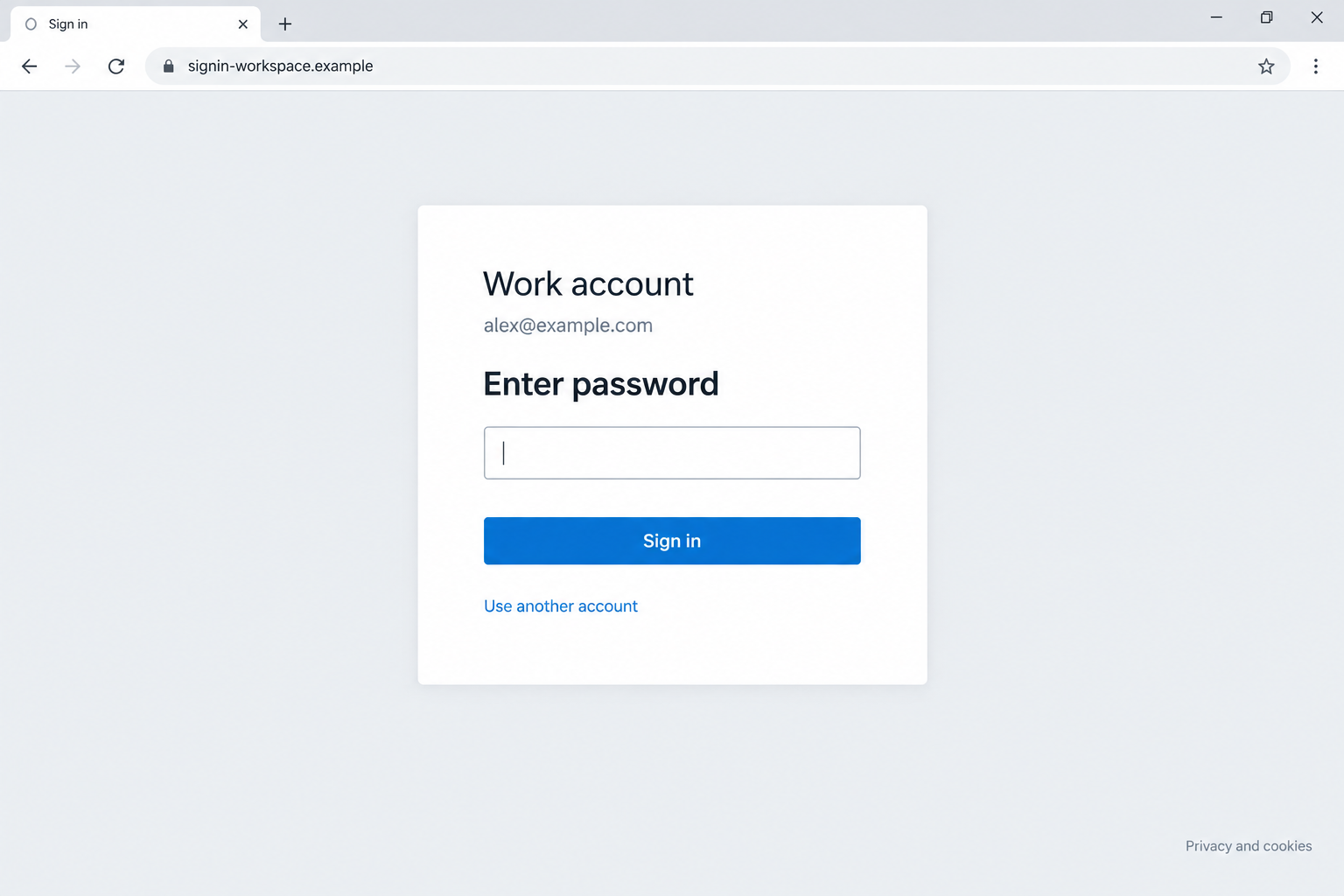
If the address does not fit your organization’s known sign-in process, stop. Open the work service from a saved bookmark or ask IT for help.
Step 3: Your real authentication is relayed
The criminal route can relay your interaction with the legitimate service. That is why the process may feel more convincing than a broken imitation form.
You may receive a code or an approval request at the moment you expect one. Timing makes it tempting to assume everything is in order.
However, authentication confirms something about the login taking place. It does not independently confirm the honesty of the email that led you there.
Do not enter codes into a page simply because your authenticator generated them. First establish that you intentionally opened the correct service.
Likewise, reject unexplained approval requests. Repeated requests are a reason to investigate, not a reason to approve one just to stop the interruptions.
Step 4: The attacker tries to reuse the authenticated session
The BigBear investigation describes collection of session cookies alongside credentials. The intended payoff is access that outlasts the moment you typed your password.
Possible consequences depend on account permissions. An exposed work mailbox could contain customer conversations, password-reset messages, invoices, or confidential attachments.
Those are risks, not a claim that every account in the research suffered each outcome. An administrator must investigate the specific account.
A later message sent from that mailbox might also appear more convincing to coworkers. A familiar sender is helpful context, but not a permanent guarantee.
If anything feels wrong after signing in, report it immediately. Waiting for money to disappear or files to change can delay useful containment.
What to Check Before Trusting a Work Login
Read the address, not just the account name
A displayed work email can be copied into a fake form. Seeing your own address does not prove the webpage belongs to your employer.
Our plain-language phishing guide explains the basic impersonation tactic. Session theft adds another reason to verify the login route.
Similarly, a company name inside a long URL may be a label chosen by the attacker. It is not necessarily the domain owner.
On unfamiliar authentication pages, avoid guessing from one recognizable word. Use the organization’s established route, especially when the page follows an unsolicited message.
A browser’s encrypted-connection indicator is also limited. Encryption protects traffic to the address you visited; it does not make that address the correct destination.
Check the request through a different route
Suppose an email says a manager shared a budget document. Open the usual document workspace independently and look for the expected file there.
If nothing appears, ask the manager through your normal chat or phone contact. Do not rely on a reply address supplied by the suspicious message.
This example is a checking method, not an account of a particular BigBear victim. The goal is to separate verification from the questionable link.
Forwarding the message to IT through the company’s reporting process is preferable to circulating its clickable link in a busy group conversation.
Do not confuse a fallback method with a broken passkey
CloudSEK describes attempts to steer users away from WebAuthn options toward weaker authentication. That is not evidence that phishing-resistant passkeys were cryptographically defeated.
If your normal security-key or passkey route unexpectedly disappears, do not automatically accept a less familiar alternative. Ask why the login experience changed.
Your organization’s IT team can explain which methods are approved. Avoid changing work-account security settings in response to instructions on the questionable page.
What to Do if You Have Fallen Victim to This Scam
- Tell your security team what happened, in order.
Use a trusted contact route. State when you opened the message, which account you entered, and whether you supplied a password or approved authentication.
You do not need to diagnose the attack. “I signed in through this unexpected link” is enough to start an investigation.
Include whether the account belongs to your employer, a client, or a school. Different administrators may need to coordinate the response.
- Stop using the questionable session.
Close the phishing page and stop responding to related prompts. Do not revisit it to check whether the same password still works.
Use another trusted device or your normal work portal for recovery. On a managed computer, follow your IT team’s instructions about connectivity and evidence.
- Arrange a password reset and session review.
Ask the administrator to assess session revocation, suspicious access, and authentication changes. A new password alone should not be treated as the entire cleanup.
Microsoft’s compromised email account guidance covers administrative recovery steps, including reviewing account changes and mailbox behavior.
Revocation behavior can differ between applications and token types. Let the administrator verify containment instead of assuming every open session ended instantly.
- Look for changes that could keep the attacker involved.
Have IT inspect forwarding rules, delegated access, unfamiliar authentication methods, and suspicious app permissions. These checks are especially important if the mailbox was accessed.
Also review sent messages with the team. Fraudulent correspondence may require a warning to recipients even when no obvious local file was changed.
If payment instructions were sent, involve the finance team quickly. Contact any affected bank through established channels rather than through details in the suspect conversation.
- Save useful evidence without spreading the trap.
Keep the original message, timestamps, and screenshots of the address. A screenshot of the logo alone gives investigators much less to work with.
Do not paste passwords, authentication codes, or session cookies into a report. Your support team should never need those secrets in plain text.
Record what you remember while it is fresh. An approximate time and clear sequence are more helpful than repeatedly reopening the page for certainty.
- Match device cleanup to what actually happened.
If you installed a file on a personal computer, Malwarebytes can help check for unwanted software. Obtain it from its official website.
On an employer-managed device, let the security team choose the scanner and cleanup process. Unapproved cleanup can remove evidence they need.
A clean scan does not recover a stolen cloud session. Account containment remains necessary even when no malware is found on the computer.
AdGuard’s available phishing and malicious-site protections can add a preventive layer when browsing. They cannot reverse an approval or guarantee detection of a new domain.
- Watch for follow-up instructions claiming to fix the incident.
Someone who knows you reported phishing may pose as technical support. Verify any unexpected call using your organization’s existing directory.
Do not pay an outside “recovery expert” to unlock a work account. The responsible administrator, not a stranger in your inbox, controls that process.
How to Explain the Incident Without Blaming the Person
These attacks exploit familiar workflows. Telling a colleague they should have noticed the logo or grammar misses why the login felt routine.
A better discussion asks where the request arrived, how the address was checked, and whether staff have a quick way to verify unexpected documents.
Make the reporting route easy to find. People should not need to search a suspect email for instructions on reporting that same email.
Likewise, do not demand certainty before someone reports a possible mistake. Early reporting can happen while the facts are still incomplete.
For small organizations without dedicated IT staff, contact the administrator or managed provider responsible for Microsoft 365. Ask for account containment, not just a password change.
Keep recovery instructions separate from general awareness messages. The affected person needs specific next steps, while coworkers need a concise warning about the questionable request.
Finally, verify completion. A reported incident, an opened support ticket, and a contained account are different milestones, even when everyone responds promptly.
Frequently Asked Questions
Is BigBear a Microsoft product?
No. In this investigation, BigBear names criminal phishing infrastructure. Microsoft 365 is the legitimate service whose sign-in process the attackers abuse.
Can the scam work after I approve multifactor authentication?
Yes, some phishing routes can steal session material during authentication. Approval does not prove you started from a legitimate website.
Does this mean passkeys are useless?
No. Phishing-resistant authentication is different from relayed codes or approval prompts. Attempts to push a weaker fallback do not demonstrate a passkey cryptographic failure.
Am I compromised if I only received the email?
Receipt alone does not establish compromise. Report the message and describe any interaction accurately, particularly credentials entered, approvals made, or software installed.
Should I reset my password and consider the issue closed?
Not automatically. A work-account administrator should assess active sessions, account changes, and mailbox access before confirming recovery.
Are the email and login images original BigBear screenshots?
No. They are illustrative reconstructions with fictional addresses. The campaign evidence comes from the linked research, not from those generated examples.
The Bottom Line
The BigBear phishing scam exploits a dangerous assumption: a familiar login and a successful security prompt must mean the whole journey was safe.
Check unexpected requests through your normal work tools. If you already signed in, involve IT promptly and address the session, not only the password.

Join the discussion
0 commentsShare your experience or ask a question about this article.
Discussion
Start the conversation
Have a question or something useful to share? Add the first comment.