

Your phone buzzes.
A text pops up that looks official, urgent, and oddly specific: “Your Binance verification code is 874515… If you did not request this reach Support…”
If you use crypto, that message hits a nerve. Verification codes usually mean one thing: someone is trying to get into an account that matters.
But in this scam, that “alert” is the trap.
These Binance verification code scam texts are designed to push you into calling a fake support number. On the other end is not Binance. It is a tech support style scam operation that uses fear, confusion, and fast talking “security steps” to get remote access to your device. Once they are in, the goal is simple: steal money, steal account access, and pressure you into irreversible payments like gift cards.
This article breaks down exactly how it works, what the red flags look like, and what to do if you already interacted with it.

Scam Overview
At first glance, a “Binance verification code” text seems like a straightforward security notification.
It includes the brand name, a short numeric code, and language that suggests account protection. Sometimes it even mentions well-known crypto tools like Ledger Live to sound more credible.
That’s exactly why this scam works so well.
The scam is not really about the code. It is about the panic the code creates.
When a person receives a verification code they did not request, the brain fills in the worst-case scenario: “Someone has my password.” “My funds are about to be drained.” “I need to stop this right now.”
Scammers build their entire funnel around that emotional moment.
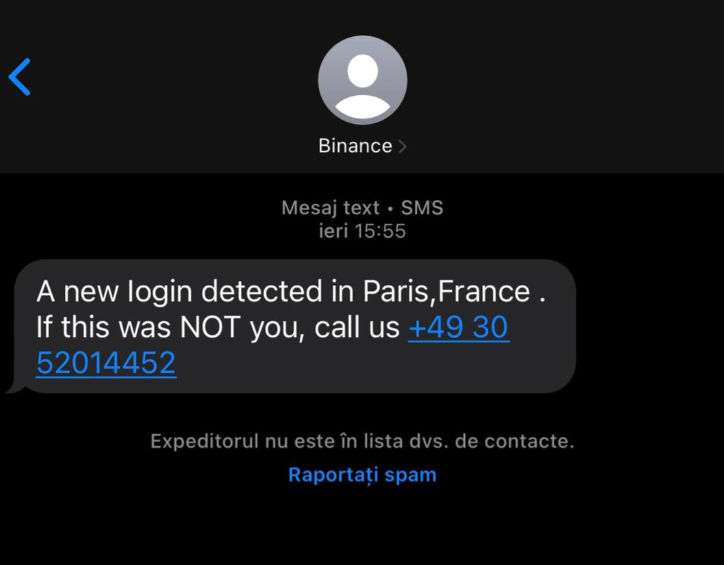
What the message often looks like
One common version of the text looks like this (paraphrased from a real example):
- “Your Binance verification code is 874515.”
- “To connect Ledger Live…”
- “If you did not request this reach Support on [phone number].”
- “ref: BI2808” (or another reference number)
Those little details matter.
The code makes it feel like a real automated system.
The reference number makes it feel like a real case.
The “support” phone number offers a fast exit from fear.
And the mention of Ledger Live is a clever psychological add-on. It targets people who are security-conscious, the exact type of person who would take action quickly.
Why this is a tech support scam, not a normal phishing text
Many people hear “Binance scam text” and think of a fake login link.
This one is different.
Instead of sending you to a website, the text pushes you into a phone call. That call is where the scam happens. The scammers want a live conversation because:
- They can react to your fear in real time.
- They can keep you on the phone while guiding your actions.
- They can persuade you to install remote access software.
- They can talk you into irreversible payments.
It is the same basic playbook used in classic “computer virus” support scams, just updated for crypto.
How scammers make the text look believable
Scammers use a mix of tactics to make these messages blend in with legitimate alerts:
- Brand impersonation: They use “Binance” and security language that sounds like a real alert.
- Spoofed sender names or threads: In some cases, scam texts appear in the same conversation thread as legitimate messages from other services, making them feel “verified.”
- Reference numbers and formal formatting: “ref: BI2808” or similar tags give the illusion of a case file.
- Short, urgent phrasing: The message is not long. It is built to trigger action, not to explain.
- A phone number that looks official: Often a local-looking number, sometimes formatted like a business helpline.
The goal is not perfection. The goal is credibility for 20 seconds, just long enough for you to call.
The psychological trap: “If you did not request this…”
That line is the hook.
Legitimate security alerts often include “If this wasn’t you…” language, so scammers copy it. But in scam texts, the next step is the giveaway: they steer you to an unofficial phone number.
In real account security situations, the safest move is almost never “call the number inside the text.” The safe move is to open the official app or type the official website yourself, then check account activity.
Scammers do not want you to do that, because it breaks the spell.
What happens when victims call
Once you call, the scam shifts from “alert” to “emergency response.”
The person who answers may claim they are:
- Binance Support
- Binance Security Team
- Account Protection Department
- Ledger Support (if the text mentions Ledger Live)
They may sound confident and professional. Sometimes there is background noise like a call center. Sometimes they use scripts that mimic real customer service.
Then they apply pressure.
They may claim:
- Your Binance account has been accessed from another location.
- A withdrawal request is pending.
- Your device is infected, and that is how the attacker got in.
- Your identity is being used to open accounts.
- Your funds are “at risk” unless you complete “security steps” immediately.
The details vary, but the emotional target is the same: urgency plus fear.
The real objective: remote access and money extraction
In this scam, remote access is the turning point.
The scammers often ask you to install a remote access tool such as AnyDesk or a similar app. They frame it as a way to:
- “Secure” your account
- “Reverse” unauthorized activity
- “Verify” your device
- “Help you with a refund”
- “Remove malware”
Once remote access is established, they can do far more than “help.”
They may:
- Watch you log into banking apps and copy details.
- Guide you into making transfers while pretending it is a security process.
- Access email to reset passwords.
- Change settings that lock you out later.
- Capture one-time passcodes if they can keep you on the phone.
- Push you into buying gift cards and reading the codes aloud.
Gift cards are a favorite because they are hard to reverse. Once a gift card code is given to a scammer and redeemed, it is usually gone.
Why the “verification code” still matters
Sometimes the scam is purely a lure to get you to call.
Other times, the scammers are actively trying to log into an account and need you to provide the code. They may ask for it during the call, phrasing it like a routine verification step:
- “To confirm you are the owner, read the code you received.”
- “We need the code to cancel the unauthorized login attempt.”
That is the moment many victims unintentionally hand over the keys.
A real verification code is not proof that support is helping you. It is proof that someone is attempting an action. Sharing it with an unknown caller can complete the takeover.
Who is targeted most often
This scam tends to hit:
- People who have used Binance before, even casually.
- People with crypto curiosity who recognize the name.
- People who use hardware wallets or apps like Ledger Live.
- People who have a balance in an exchange account, or think they might.
- People who are not used to crypto support norms and panic quickly.
It can also hit people who do not even use Binance.
That is not a mistake. Scammers send huge volumes of texts and rely on probability. If only a small percentage of recipients use Binance or hold crypto, the scam is still profitable.
The damage can spread beyond crypto
A key reason this scam is dangerous is that it often moves beyond Binance entirely.
Once scammers have remote access, they may pivot to whatever is most valuable on your device:
- Banking and card apps
- Email accounts
- Password managers
- PayPal or payment services
- Photos of IDs, documents, or saved credentials
Even if you do not keep funds on Binance, the scammers can still find ways to profit if they get inside your device.
That is why these texts should be treated as more than “just spam.” They are a doorway into a full-scale account takeover attempt.
How The Scam Works
Below is the typical flow of the Binance verification code scam texts, step by step.
Scammers adjust the script depending on your answers, but the structure stays remarkably consistent.
Step 1: You receive a scary “verification code” text
The message arrives out of nowhere.
It looks like a routine security SMS, often containing:
- A 6-digit verification code
- The word “Binance”
- Instructions for what to do if you did not request it
- A phone number for “Support”
- Sometimes a “ref” or “case” number
- Sometimes a mention of Ledger Live
The goal is to create instant concern.
Even if you are calm, the message forces a question: “Why would I get a Binance code?”
And if you have ever used Binance, the message feels personal.
Step 2: Your brain fills in the missing story
The text does not explain much, and that is intentional.
A short message lets your imagination do the work:
- “Someone has my password.”
- “My account is being hacked.”
- “My phone number is compromised.”
- “I need to stop this immediately.”
This is the emotional doorway scammers rely on.
If you are even slightly worried, the easiest action is the one they offer: call support.
Step 3: You call the number in the text
This is the most important step for the scammer.
If you call, you have entered their world.
The person who answers may:
- Introduce themselves with a name and badge number
- Use a script that sounds like a security team
- Ask how they can “help with the unauthorized login”
- Reassure you that they will “secure your account”
They may also ask questions that feel like customer service, such as your name or phone number.
This is not to help you. It is to build trust and gather data.
Step 4: They escalate urgency and pressure
Once they feel you are engaged, they intensify the threat.
Common lines include:
- “We can see the login attempt from another country.”
- “A withdrawal request is pending.”
- “Your account is flagged for suspicious activity.”
- “Your device may be infected.”
- “If we don’t act now, the transfer may complete.”
They may also warn you not to hang up, claiming that disconnecting will “cancel the security process.”
This is classic control behavior. They want to keep you from thinking clearly or checking official channels.
Step 5: They introduce a “security procedure” that requires remote access
Next comes the technical trap.
They claim they need to walk you through steps on your device. Then they introduce remote access software.
They might say:
- “Install AnyDesk so we can secure the account.”
- “We need to run a scan to remove the infection.”
- “We’ll help you reverse the unauthorized activity.”
- “We need to verify your device and IP address.”
They will guide you to download the app and give them the session code.
At that point, they can see your screen and sometimes control it.
This is where a scary text becomes a real breach.
Step 6: They use remote access to harvest access, not to fix anything
Once connected, scammers can move fast.
What they often do next depends on what they see on your device.
Common actions include:
- Opening your email to look for exchange or banking messages
- Asking you to log into your bank “to verify transactions”
- Redirecting you to a “security portal” that is actually a scam page
- Searching for saved passwords or autofill data
- Trying to capture one-time passcodes while keeping you distracted
They may pretend to “check logs” while actually scanning your apps and accounts for value.
If you hesitate, they may increase fear to keep you compliant.
Step 7: They push you into moving money “for safety”
Many victims report a turning point where the scammer tells them to move money.
The framing varies:
- “Move funds to a safe wallet.”
- “Transfer to a secure holding account.”
- “We need to verify your balance to cancel fraud.”
- “This is a temporary protection step.”
In reality, any “safe wallet” or “secure account” they provide is controlled by the scammer.
Once you send crypto, it is typically irreversible.
If they focus on bank transfers, they may guide you to send money through methods that are hard to reverse, such as wire transfers or certain payment services.
Step 8: If direct transfers fail, they pivot to gift cards
Gift cards are the backup plan and sometimes the primary plan.
If you cannot transfer crypto or if your bank blocks suspicious activity, scammers often switch tactics:
- “Buy gift cards to verify your identity.”
- “This is a temporary security deposit.”
- “You will be refunded once the case is closed.”
- “This is required to unlock the account.”
They may tell you exactly which stores to visit and how much to spend.
Then they instruct you to read the gift card codes aloud or type them into a form.
Once they have those codes, they redeem them quickly.
Common gift card types include major retail brands, general-use prepaid cards, or digital voucher systems.
Step 9: They try to lock you out and cover tracks
If scammers gain access to important accounts, they may attempt to secure their control:
- Changing passwords
- Changing recovery email or phone settings
- Adding new authentication methods
- Creating forwarding rules in email
- Deleting alerts or messages
- Removing transaction notifications where possible
They may also instruct you to ignore security warnings, claiming they are “false positives.”
If the victim starts to suspect the scam, the scammers may become aggressive or try to reframe it:
- “If you hang up, your funds will be lost.”
- “You are speaking with the fraud department.”
- “We are recording this call.”
All of that is theater meant to keep you from taking back control.
Step 10: Follow-up attacks and repeat calls
Even after the first call ends, many victims get follow-up attempts.
Once scammers know a number is active and a person is responsive, they may:
- Call again pretending to be a higher-level supervisor
- Send additional texts with new “verification codes”
- Claim there is a new threat that requires action
- Pretend the first agent made an error and needs to “finish securing” the account
This is why it is important to fully close the loop: remove remote access, change passwords, and contact banks and official support channels promptly.
Variations you might see
While the core scam stays consistent, the entry text can vary. Common variants include:
- “Binance verification code” plus a phone number
- “Suspicious login detected” plus a phone number
- “Withdrawal request pending” plus a phone number
- “Connect Ledger Live” language to target hardware wallet users
- “Case reference” numbers to look official
In all cases, the universal red flag is the same: the text tries to route you to an unofficial contact method controlled by the scammer.
Variants of the Binance Verification Code Scam and How to Spot It Fast
Scammers constantly tweak these texts to stay ahead of spam filters and to match whatever is trending in crypto. The branding may change, the wording may change, and the phone number will definitely change.
But the structure of the scam stays the same: an alarming message that pushes you to call a “support” number, then a fake agent tries to get remote access or money.
Common text message variants you may see
These are some of the most frequent formats victims report, with small wording changes from one campaign to another:
- “Your Binance verification code is ######”
Followed by: “If you didn’t request this call support on [number].” - “Suspicious login attempt detected”
Often includes a location: “New login from London” or “New device detected.” - “Withdrawal pending” or “Withdrawal requested”
Designed to spike panic: “Withdrawal of $2,450 pending. Call now to cancel.” - “Your account has been locked / flagged”
Pushes urgency: “Security hold. Contact support immediately.” - Ledger Live bait
“To connect Ledger Live…” or “Ledger Live pairing attempt detected…”
This targets people who are more security-minded and more likely to act fast. - Mixed-brand confusion
Some scams mention Binance plus another trusted name, like a wallet brand or “security team,” to feel more legitimate. - Reference numbers and “case IDs”
“ref: BI2808” or “Case #BN-49210”
This is theater. It exists to make the message feel internal and official.
How to spot the scam quickly
You do not need to analyze every detail. A few core red flags are enough.
1. Any text that tells you to call a number is the biggest tell
Binance and legitimate services will typically direct you to the app or official site, not to a random “support” number inside an SMS.
2. The message creates urgency but gives you only one action
Scams push “call now,” “act immediately,” “last chance,” or “before it completes.”
Real security alerts usually give neutral info and let you verify safely.
3. The number is not from an official channel you already trust
Even if the number looks local or “customer-service style,” it means nothing.
Scammers rely on the fact that most people do not know official support numbers by memory.
4. The text is vague on purpose
It rarely includes details you can verify inside your account, like partial device identifiers or a specific security event that you can see in the app. Vague fear is a scammer’s best tool.
5. They mention remote access tools or “device cleaning”
The moment anyone claiming to be Binance suggests AnyDesk, TeamViewer, or “remote help,” treat it as a scam. Legitimate exchange support does not need remote control of your phone to secure your account.
6. They ask for your code, password, seed phrase, or recovery words
No legitimate support agent needs:
- Your verification code
- Your password
- Your 2FA codes
- Your seed phrase or wallet recovery words
If they ask, it is not support. It is theft.
7. They push gift cards or “verification payments”
Any request to pay via gift cards is 100% scam behavior. No real security process requires gift card codes.
Quick “safe check” method (30 seconds)
If you ever get one of these messages and feel unsure, do this instead of calling:
- Open the official Binance app (or type the official site yourself)
- Check security alerts / login history
- Change your password if you suspect exposure
- Enable stronger authentication (authenticator app, not SMS)
If there is no alert inside your real account, the text was just bait.
The one rule that catches almost every variant
If an unexpected “verification code” text includes a phone number or tries to route you to “support” outside the official app, treat it as malicious and ignore it.
What To Do If You Have Fallen Victim to This Scam
If you called the number, installed remote access software, shared a code, or sent money, take a breath.
You are not alone, and you can still take meaningful steps right now to limit the damage.
Below is a calm, practical checklist. Start at the top and work downward.
- Stop contact immediately
Hang up. Do not continue the conversation, even if they threaten you. If they call back, do not answer. - Disconnect your device from the internet
Turn on airplane mode or disable WiFi and mobile data. This can interrupt an active remote session and buy you time. - Remove any remote access apps and revoke permissions
Uninstall AnyDesk, TeamViewer, or any other remote tool you installed.
Also check your device settings for unusual permissions, especially Accessibility permissions and Device Admin privileges, and remove anything you do not recognize. - Change your most important passwords from a clean device
Use a different device if possible, like a laptop or a trusted phone that was not involved.
Start with:- Your primary email account
- Your Binance account (or any exchange account you use)
- Your bank and payment apps
- Your Apple ID or Google account
- Any password manager you use
- Turn on stronger account security
Where available, enable multi-factor authentication using an authenticator app, not SMS.
Review account recovery settings and remove unknown devices and sessions. - Secure your Binance account through official channels
Log in by typing the official address yourself or using the official app.
Then:- Review recent login activity
- Check withdrawal addresses and whitelists
- Review any linked devices
- Look for new API keys or suspicious settings
If anything looks off, contact Binance support using the official help options inside the app or the official website.
- Contact your bank or card provider immediately
Tell them you may have been targeted by a remote access scam. Ask them to:- Freeze or secure accounts if needed
- Block suspicious transfers
- Replace cards if card details may be exposed
- Open fraud claims for unauthorized transactions
If you sent money intentionally under scammer instructions, still report it. Banks sometimes have options depending on the transfer type and timing.
- If you bought gift cards, act fast
Contact the gift card issuer’s support and explain that you were scammed.
Provide receipts and any evidence. Some issuers can freeze remaining balances if the codes have not been redeemed yet. - Check for email takeover signs
In your email settings, look for:- Auto-forwarding rules you did not set
- New recovery emails or phone numbers
- New devices logged in
- Deleted security alerts
Undo anything suspicious and change your password again.
- Scan your device and consider a factory reset
Run a reputable security scan. Update your operating system.
If remote access was active and you are not confident everything is clean, back up essential files and consider a full factory reset. It is often the surest way to remove persistent access. - Warn family members if you share accounts or devices
If you share an email, tablet, or computer, let others know.
A scam that starts as “Binance support” can turn into broader account theft. - Report the scam text and phone number
Reporting helps carriers and fraud teams identify patterns.
You can report the message to your mobile provider, your national anti-fraud agency, and relevant consumer protection channels. Even if the number changes later, reports help build the case. - Monitor everything for the next few weeks
Watch for:
- New login alerts
- Password reset emails you did not request
- Small “test” charges on cards
- New payees or transfer attempts
- Calls from “support” numbers repeating the same story
If you see anything suspicious, act quickly.
If you only received the text and did nothing
If you did not call and did not share the code, you are likely fine.
Still, it is smart to do a quick security check:
- Log into your Binance account from the official app or site you type yourself
- Change your password if you reused it elsewhere
- Enable stronger authentication
- Review login history
And most importantly, do not call any number included in unexpected security texts.
The Bottom Line
Binance verification code scam texts are built to hijack your attention in a single moment.
They use a convincing security alert, a fake support number, and a high-pressure phone script to pull you into a tech support scam. From there, the path often leads to remote access, account takeover attempts, and financial theft through transfers or gift cards.
If you got one of these texts, treat it as untrusted by default. Do not call the number. Do not engage. Instead, check your account through official channels you access independently.
If you already interacted with the scammers, act quickly but calmly. Cutting off access, securing accounts, and contacting your bank right away can make a real difference.
How to Remove Unwanted Apps and Malware
If a pop-up scam tricked you into downloading an unwanted program — or you suspect your device is infected — follow the free, step-by-step removal guide below to clean it completely.
Please follow the steps in order. If you get stuck or have doubts at any point, stop and ask for help in our free support forum — our team will guide you personally.
 Remove Unwanted Apps and Malware from Windows
-
 Remove Unwanted Apps and Malware from Mac
  Remove Unwanted Apps and Malware from Android
- Remove Unwanted Apps and Malware from iPhone and iPad
Remove Unwanted Apps and Malware from Windows
- STEP 1: Uninstall malicious programs from Windows
- STEP 2: Reset browsers back to default settings
- STEP 3: Use Malwarebytes Anti-Malware to remove malware and unwanted programs
- STEP 4: Use HitmanPro to scan your computer for badware
- STEP 5: Use AdwCleaner to remove adware and malicious browser policies
STEP 1: Uninstall malicious programs from Windows
In this first step, we will manually check if any unknown or malicious programs are installed on the computer. Sometimes adware and browser hijackers can have a usable Uninstall entry that can be used to remove them.
-
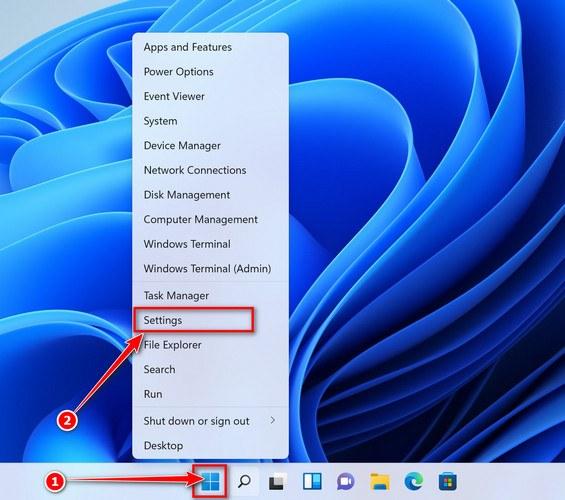
Open the Settings app
Press Windows + I on your keyboard to open Settings. Alternatively, right-click the Start button and select “Settings” from the menu.
-
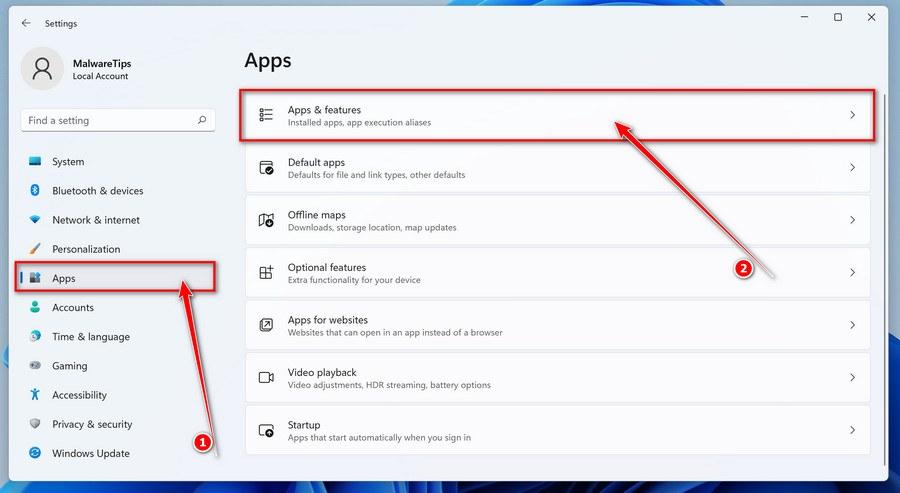
Go to “Apps & Features”
In the Settings window, click “Apps” in the sidebar, then select “Apps & Features“.
-
Find and uninstall the malicious program
Scroll through the list of installed apps and look for anything suspicious — a program you don’t remember installing, or one with a strange or generic name.
Quick tip: click “Sort by” and choose “Install date“. Malware is usually one of the most recently installed programs, so it will appear near the top.
When you find the malicious program, click the three dots next to it and select “Uninstall“.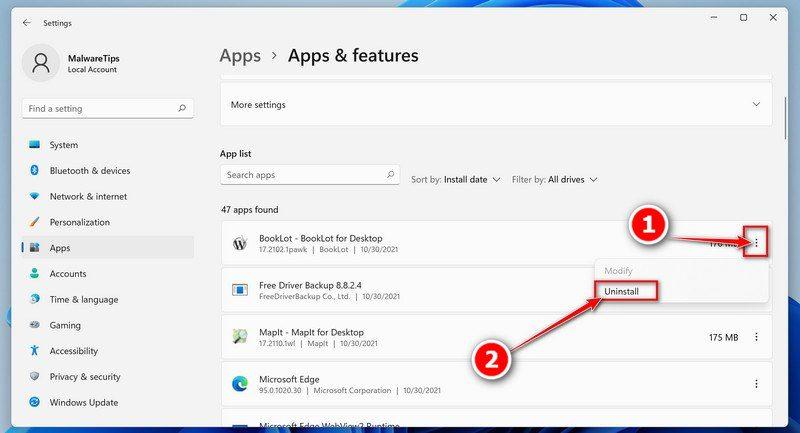 Didn’t find any suspicious programs? That’s fine — not all infections install visible apps. Just continue with the next step in this guide.
 -
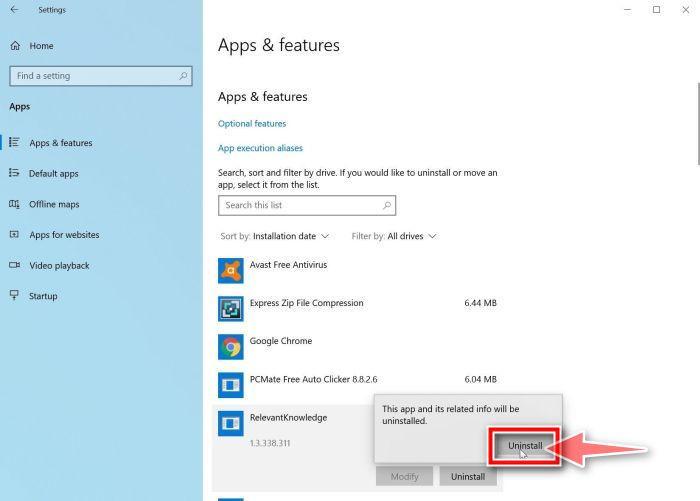
Complete the uninstall
Confirm by clicking Uninstall in the message box, then follow the remaining prompts.
Read each prompt carefully — some malicious programs use confusing wording or pre-ticked boxes hoping you’ll click through without looking.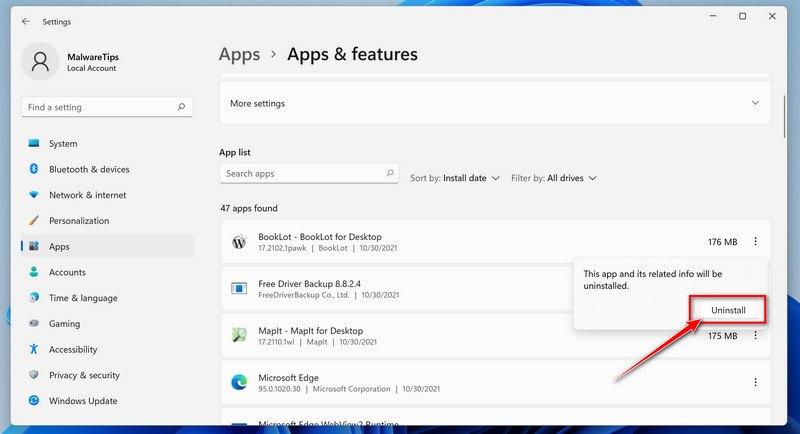
-
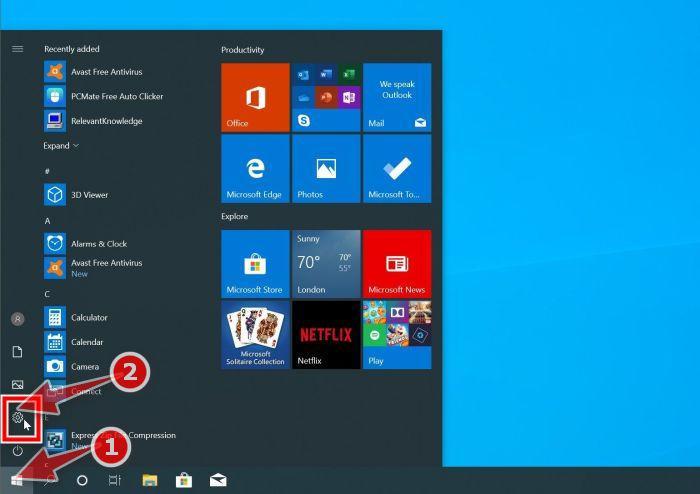
Open the Settings app
Press Windows + I on your keyboard to open Settings. Alternatively, click the Start button on the taskbar and select “Settings” (the gear icon).
-
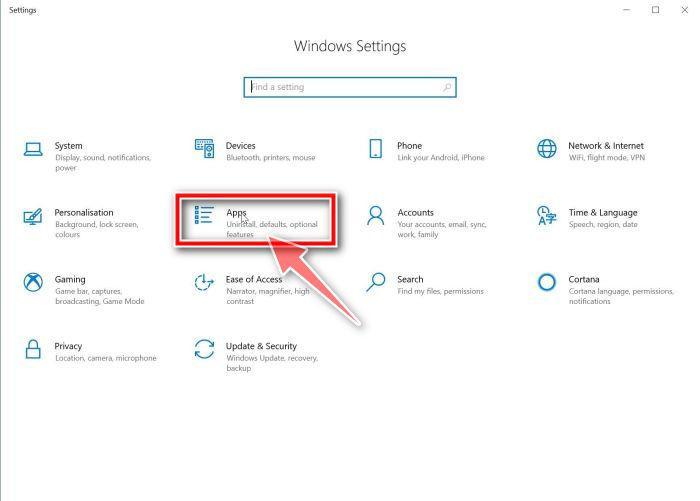
Click on “Apps”
In the “Windows Settings” window, click “Apps“. The “Apps & Features” section should open by default — if it doesn’t, select it from the list on the left.
-
Find and uninstall the malicious program
Scroll through the list of installed apps and look for anything suspicious — a program you don’t remember installing, or one with a strange or generic name.
Quick tip: click “Sort by” and choose “Install date“. Malware is usually one of the most recently installed programs, so it will appear near the top.
When you find the malicious program, click on it and select “Uninstall“.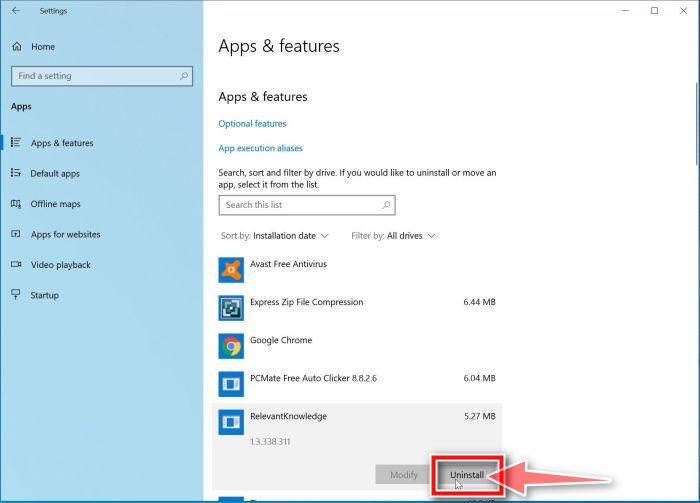 Didn’t find any suspicious programs? That’s fine — not all infections install visible apps. Just continue with the next step in this guide.
 -
Complete the uninstall
Confirm by clicking Uninstall in the message box, then follow the remaining prompts.
Read each prompt carefully — some malicious programs use confusing wording or pre-ticked boxes hoping you’ll click through without looking.
-
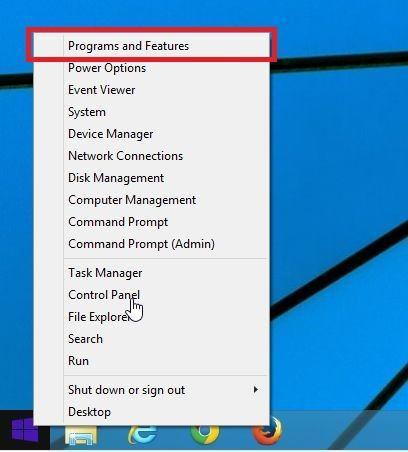
Open “Programs and Features”
Right-click the Start button in the taskbar, then select “Programs and Features“. This takes you straight to the list of installed programs.
-
Find and uninstall the malicious program
Scroll through the list of installed programs and look for anything suspicious — a program you don’t remember installing, or one with a strange or generic name. Click to highlight it, then click the “Uninstall” button.
Didn’t find any suspicious programs? That’s fine — not all infections install visible apps. Just continue with the next step in this guide.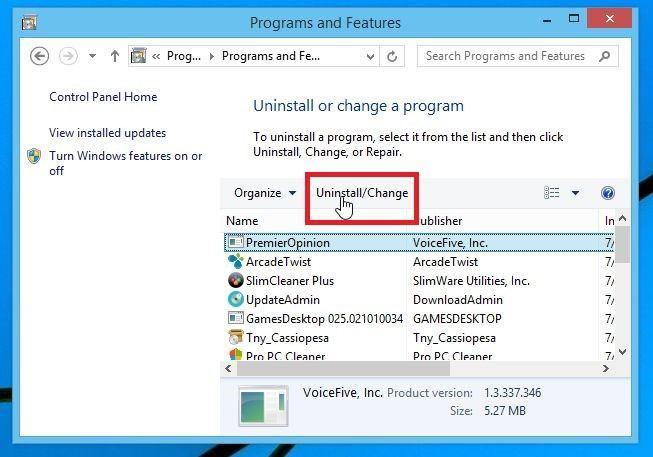
-
Complete the uninstall
Confirm by clicking Yes in the message box, then follow the remaining prompts. Read each prompt carefully — some malicious programs use confusing wording or pre-ticked boxes hoping you’ll click through without looking.
-
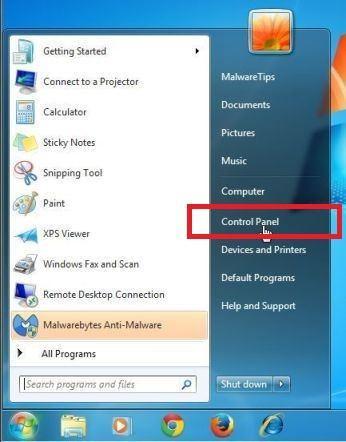
Open the Control Panel
Click the “Start” button, then click “Control Panel“.
-
Click on “Uninstall a Program”
In the Control Panel, click “Uninstall a Program” under the Programs category.
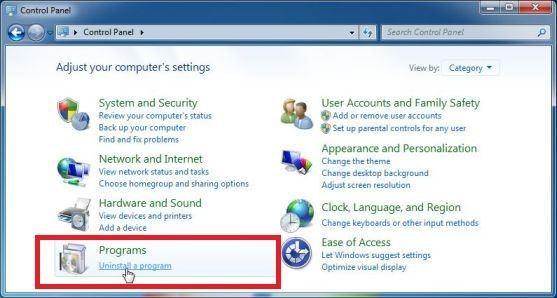
-
Find and uninstall the malicious program
Scroll through the list of installed programs and look for anything suspicious — a program you don’t remember installing, or one with a strange or generic name. Click to highlight it, then click the “Uninstall” button.
Didn’t find any suspicious programs? That’s fine — not all infections install visible apps. Just continue with the next step in this guide.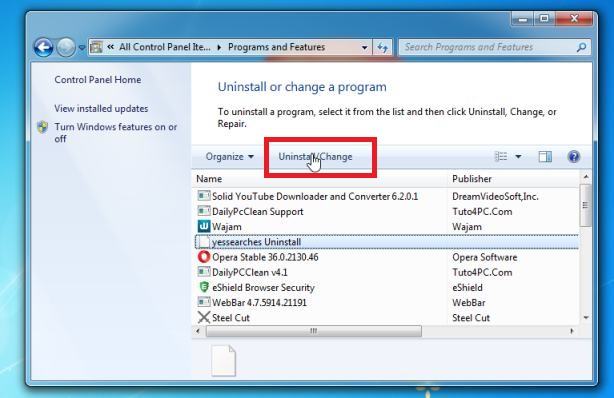
-
Complete the uninstall
Confirm by clicking Yes in the message box, then follow the remaining prompts. Read each prompt carefully — some malicious programs use confusing wording or pre-ticked boxes hoping you’ll click through without looking.
With the malicious programs removed, you’re ready for the next step in this guide.
STEP 2: Reset browsers back to default settings
In this step, we will remove spam notifications, malicious extensions, and change to default any settings that might have been changed by malware.
Please note that this method will remove all extensions, toolbars, and other customizations but will leave your bookmarks and favorites intact. For each browser that you have installed on your computer, please click on the browsers tab below and follow the displayed steps to reset that browser.
Reset Chrome for Windows to default settings
We will now reset your Chrome browser settings to their original defaults. This will reset your startup page, new tab page, search engine, and pinned tabs. It will also disable all extensions and clear temporary data like cookies. Your favorites, history, and saved passwords will not be cleared.
Open the Chrome menu
Open Google Chrome and click the three-dot (⋮) icon in the top-right corner.
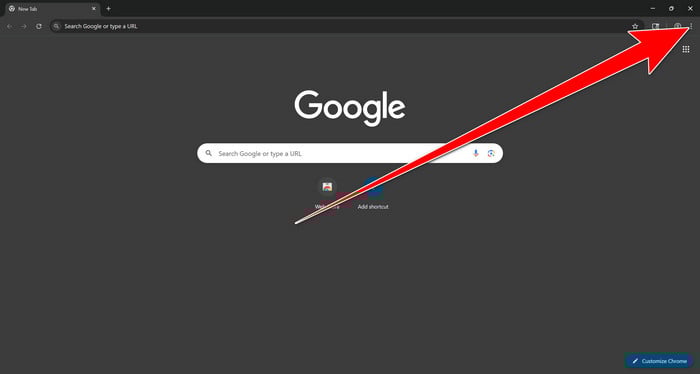
Open Chrome Settings
Select Settings from the Chrome menu.
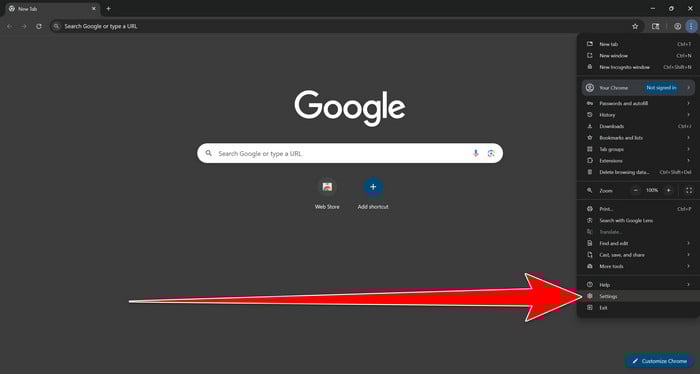
Select “Reset settings”
Look at the menu on the left side of the Settings page. Scroll down and click Reset settings.
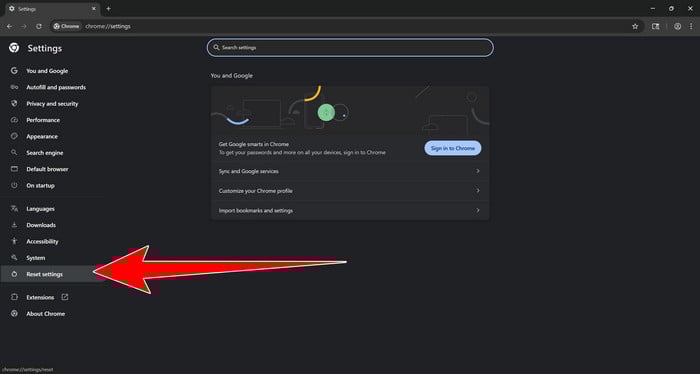
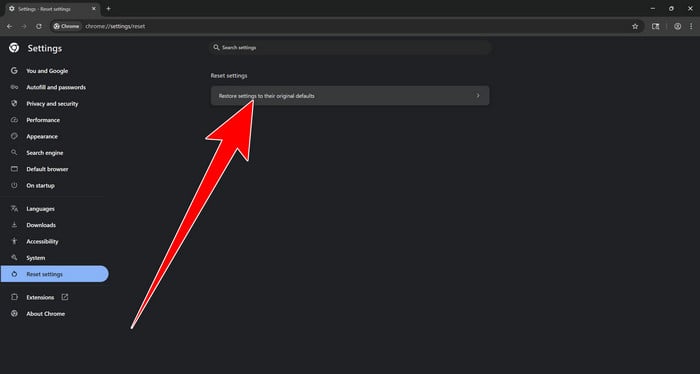
Restore Chrome’s original settings
Click Restore settings to their original defaults.
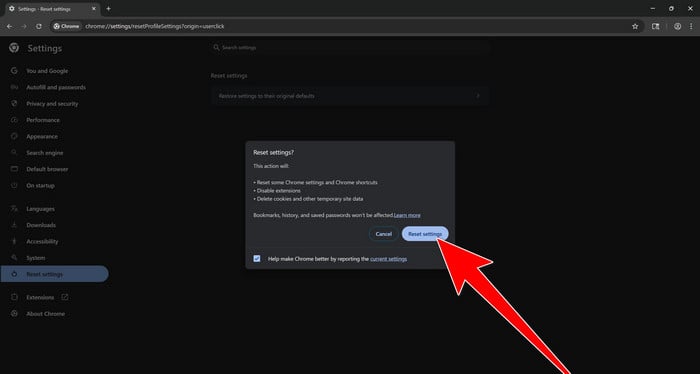
Confirm the Chrome reset
A confirmation window will appear. Click Reset settings.
This will:
- Restore the default search engine, homepage, and new tab page
- Reset startup pages and pinned tabs
- Disable installed extensions
- Clear temporary cookies and website data
Don’t worry: Chrome will not delete your bookmarks, browsing history, or saved passwords.
Restart Chrome and perform a test search. If your searches now open normally in Google, you can stop here.
If searches are still redirected through shady domains complete the additional step below.
Remove persistent search hijacker data
Only complete this step if the redirect continues after resetting Chrome.
Some browser hijackers hide inside Chrome’s local search-engine database. A standard Chrome reset may not remove this database, which is why searches can continue to pass through shady sites.
The following procedure creates a backup of the affected database and allows Chrome to build a new, clean version. This is safer and less disruptive than deleting the entire Chrome profile.
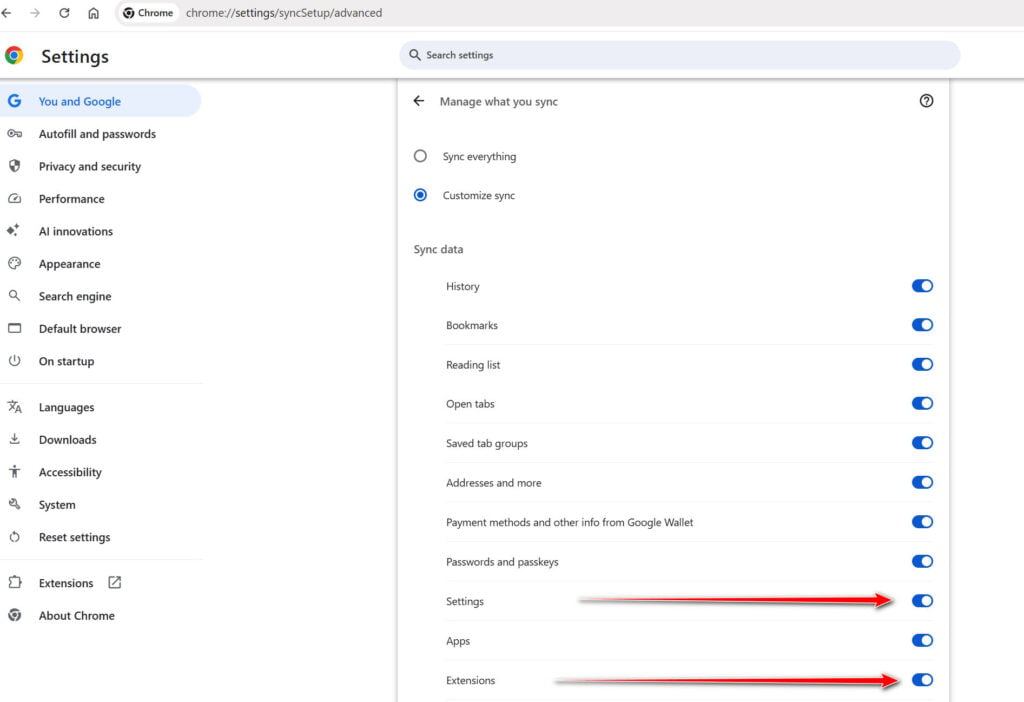
First, prevent Chrome Sync from restoring the hijacked settings:
- Open a new Chrome tab.
- Copy the following address, paste it into Chrome’s address bar, and press Enter:
chrome://settings/syncSetup/advanced - Under Manage what you sync, select Customize sync.
- Turn off Settings and Extensions.
- You can leave Bookmarks and Passwords enabled so your important data remains synchronized.
Note: Some newer Chrome versions may automatically redirect this address to the Google Account settings page. If that happens, locate the list of synchronized Chrome data and turn off Settings and Extensions there.
Now save anything you are working on and close every Chrome window.
Run the cleanup command:
- Press the Windows key on your keyboard.
- Type PowerShell.
- Open Windows PowerShell. Administrator access is not required.
- Copy the entire command shown below.
- Right-click inside the PowerShell window to paste the command, then press Enter.
- If Windows warns you about pasting multiple lines, select the option to continue.
$stamp = Get-Date -Format "yyyyMMdd-HHmmss"

Get-Process chrome -ErrorAction SilentlyContinue |
 Stop-Process -Force

$root = "$env:LOCALAPPDATA\Google\Chrome\User Data"

if (Test-Path $root) {
 $profiles = Get-ChildItem $root -Directory |
 Where-Object {
 $_.Name -eq "Default" -or
 $_.Name -match "^Profile \d+$"
 }

 foreach ($profile in $profiles) {
 foreach ($name in @(
 "Web Data",
 "Web Data-journal",
 "Web Data-wal",
 "Web Data-shm"
 )) {
 $file = Join-Path $profile.FullName $name

 if (Test-Path $file) {
 $backup = "$file.search-hijacker-backup-$stamp"
 Move-Item -LiteralPath $file -Destination $backup
 Write-Host "Backup created: $backup"
 }
 }
 }
}

Write-Host ""
Write-Host "Chrome search data has been cleaned."
Write-Host "You can now reopen Chrome."
Wait until PowerShell displays the following message:
Chrome search data has been cleaned.
You can now reopen Chrome.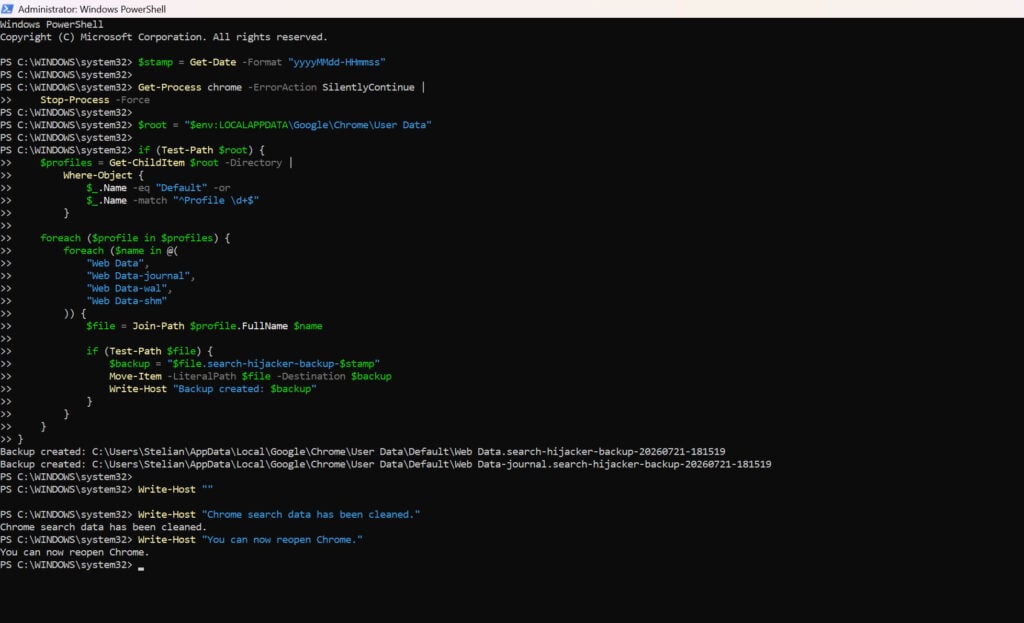
Close PowerShell and reopen Google Chrome. Chrome will automatically create a clean search database for every local profile.
Next, copy the following address, paste it into Chrome’s address bar, and press Enter:
chrome://settings/searchEnginesMake sure Google is selected as the default search engine. Test several searches from the address bar and confirm that they no longer pass through shady search engines.
Your important Chrome data is protected: the PowerShell cleanup does not remove bookmarks, saved passwords, browsing history, cookies, or installed extensions. However, it may reset locally stored Autofill addresses and form suggestions.
The original search database is not deleted. PowerShell renames it and adds
search-hijacker-backupto its filename so it can be recovered if necessary.Keep Settings and Extensions synchronization disabled while testing Chrome. Do not enable every extension at once. Enable only the extensions you recognize, one at a time, and test Chrome after each one.
If the redirect returns after enabling a particular extension, remove that extension immediately.
Reset Firefox for Windows to default settings
We will now reset your Firefox browser settings to their default. The reset feature fixes many issues by restoring Firefox to its factory default state while saving your essential information like bookmarks, passwords, web form auto-fill information, browsing history, and open tabs.
-
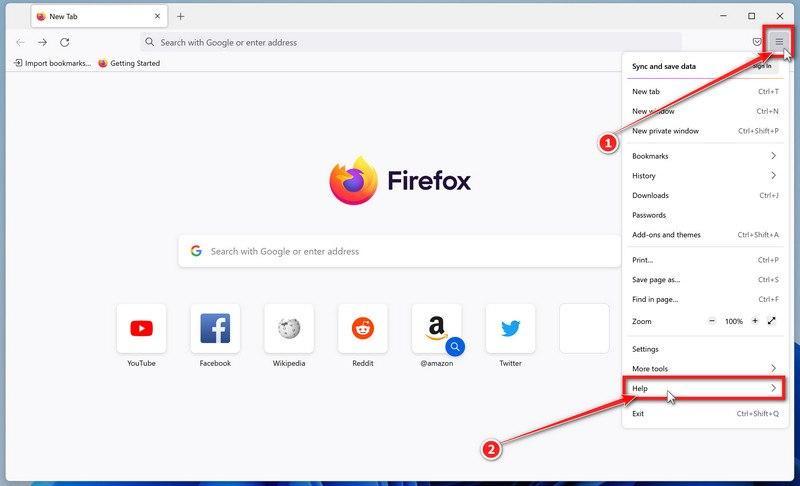
Open the Firefox menu and click “Help”
Click the three horizontal lines in the top-right corner of Firefox to open the main menu, then select “Help“.
-
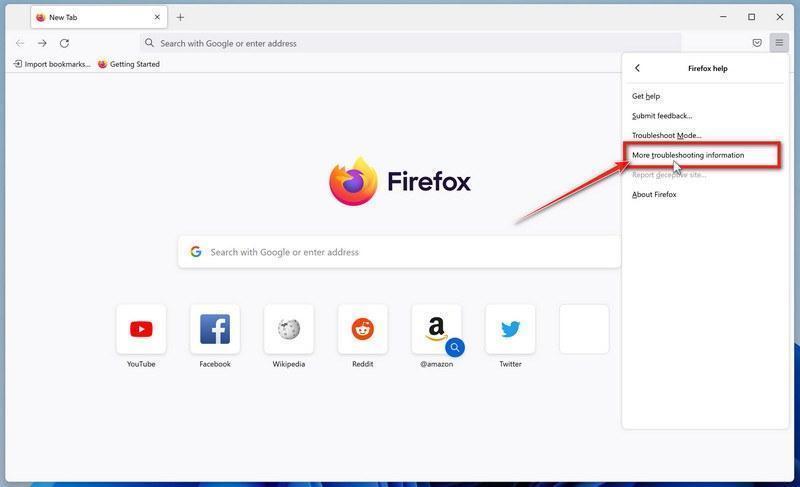
Click “More troubleshooting information”
In the Help menu, click “More troubleshooting information“.
-
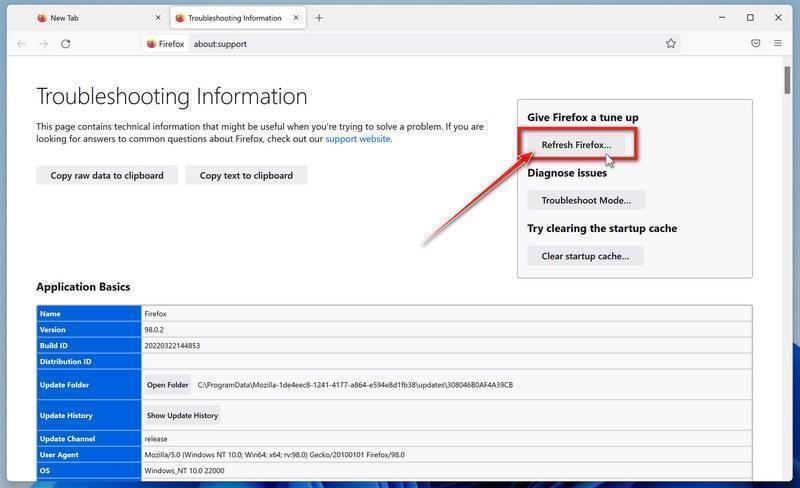
Click “Refresh Firefox”
On the “Troubleshooting Information” page, click the “Refresh Firefox” button in the top-right area of the page.
-
Confirm the refresh
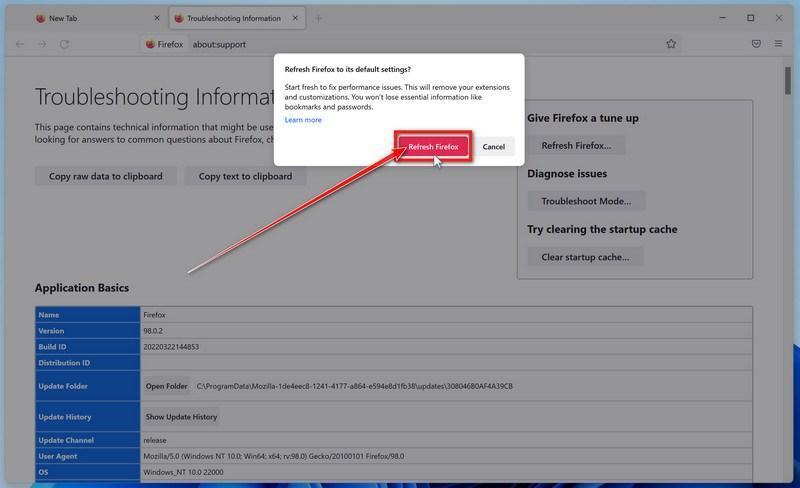
In the confirmation window, click “Refresh Firefox” again. This removes extensions, themes, and customized settings — the usual hiding places for browser hijackers — while keeping your bookmarks, history, and saved passwords safe.
-
Click “Finish”
Firefox will close, reset itself to default settings, and reopen with a window listing the information that was restored. Click “Finish” — your Firefox is now clean.
About the “Old Firefox Data” folder: Firefox saves a copy of your old profile on your desktop. If something you need is missing after the reset, you can recover it from this folder. Otherwise, delete the folder — it contains sensitive data like passwords and cookies, and may also still hold the malicious files you just removed.
Reset Microsoft Edge to default settings
We will now reset your Microsoft Edge browser settings to their default. This will reset your startup page, new tab page, search engine, and pinned tabs. It will also disable all extensions and clear temporary data like cookies. Your favorites, history, and saved passwords will not be cleared.
Updated for Microsoft Edge on Windows 10 and Windows 11 — July 2026.
-
Open the Edge menu and click “Settings”
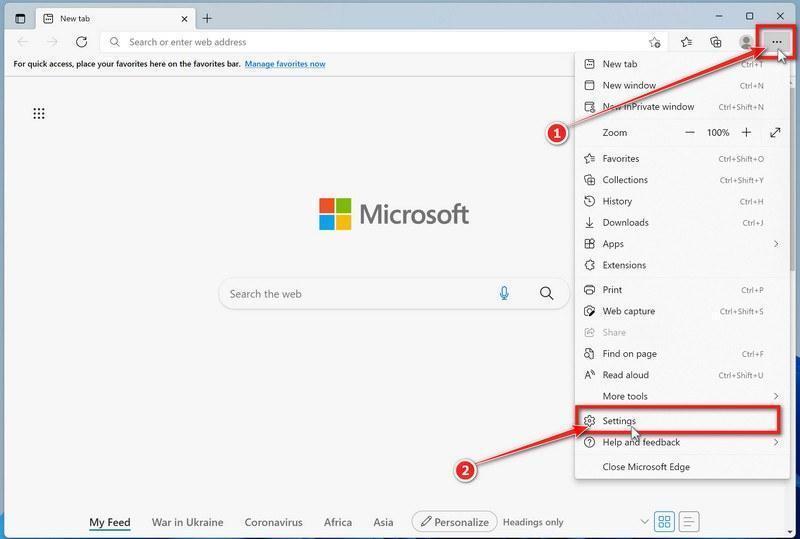
Open Microsoft Edge. In the top-right corner, click the three-dot (…) icon, then click Settings.
-
Prevent the unwanted settings from returning through Edge Sync
If you are signed in to Microsoft Edge, a bad setting or extension may be stored in your Microsoft account and return after the reset.
Copy the following address, paste it into the Edge address bar, and press Enter:
edge://settings/profiles/syncOn the Sync page, turn off these two options:
- Settings
- Extensions
You can leave Favorites and Passwords turned on.
If Edge says that sync is already off, simply continue to the next step.
Important: Edge Sync settings are separate for each profile. If you use more than one Edge profile, switch to each affected profile and repeat this step.
You do not need to sign out of your Microsoft account or delete the Edge profile.
-
Open “Reset settings”
In the left sidebar, click Reset settings.
You can also open the reset page directly. Copy the following address, paste it into the Edge address bar, and press Enter:
edge://settings/reset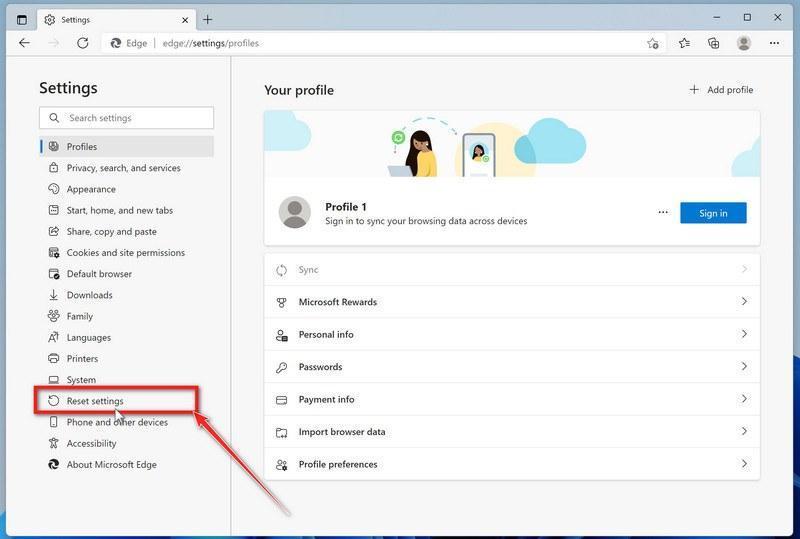
-
Click “Restore settings to their default values”
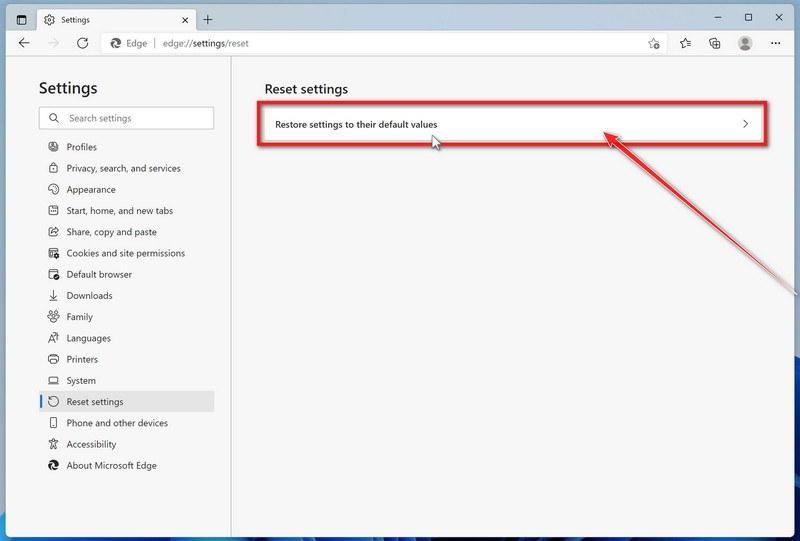
Click Restore settings to their default values.
-
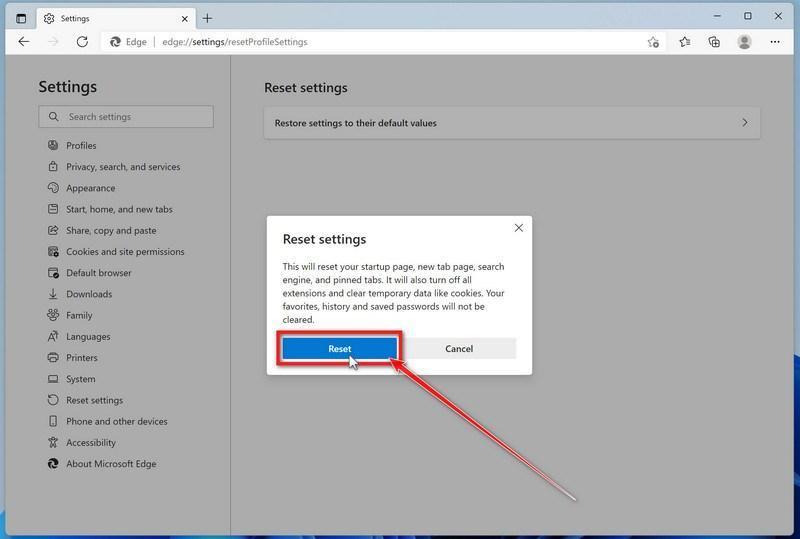
Confirm the reset
In the confirmation dialog, click Reset.
This resets the startup page, new tab page, search engine, and pinned tabs. It also disables all extensions and clears temporary site data, such as cookies.
Don’t worry: your favorites, browsing history, and saved passwords will not be deleted.
-
Check your extensions before turning them back on
Copy the following address, paste it into the Edge address bar, and press Enter:
edge://extensionsRemove any extension you do not recognize or no longer use. Pay particular attention to extensions related to search, coupons, shopping, PDF conversion, browser protection, new tabs, or video downloading.
Do not turn all extensions back on at the same time. Enable only the extensions you recognize and trust.
-
Select a trusted search engine
Copy the following address, paste it into the Edge address bar, and press Enter:
edge://settings/searchEnginesSelect Bing, Google, DuckDuckGo, or another search provider you trust and make it the default.
Remove any unknown search engines, especially providers with strange names or addresses that you did not add yourself.
Restart Edge and perform a search from the address bar. If searches are no longer redirected, you can stop here.
-
If the redirect remains, clean the corrupted search data without deleting the Edge profile
Use this additional step only if Edge continues to redirect searches after the normal reset.
This command cleans the search-engine database from every local Edge profile while keeping your favorites, saved passwords, browsing history, cookies, and profiles.
Before continuing: save anything you are working on because the command will close Microsoft Edge.
- Open the Windows Start menu.
- Type PowerShell.
- Open Windows PowerShell. Administrator access is not required.
- Copy the entire command below.
- Paste it into PowerShell and press Enter.
$stamp = Get-Date -Format "yyyyMMdd-HHmmss"
$root = Join-Path $env:LOCALAPPDATA "Microsoft\Edge\User Data"

Get-Process -Name msedge -ErrorAction SilentlyContinue |
    Stop-Process -Force -ErrorAction SilentlyContinue

Start-Sleep -Seconds 2

if (-not (Test-Path -LiteralPath $root)) {
    Write-Host "The Microsoft Edge profile folder was not found:"
    Write-Host $root
    return
}

$profiles = Get-ChildItem -LiteralPath $root -Directory |
    Where-Object {
        $_.Name -eq "Default" -or
        $_.Name -match "^Profile \d+$"
    }

$movedFiles = 0

foreach ($profile in $profiles) {
    foreach ($name in @(
        "Web Data",
        "Web Data-journal",
        "Web Data-wal",
        "Web Data-shm"
    )) {
        $file = Join-Path $profile.FullName $name

        if (Test-Path -LiteralPath $file) {
            $backup = "$file.search-reset-backup-$stamp"

            try {
                Move-Item -LiteralPath $file -Destination $backup -ErrorAction Stop
                Write-Host "Cleaned: $($profile.Name)\$name"
                $movedFiles++
            }
            catch {
                Write-Warning "Could not clean: $file"
            }
        }
    }
}

Write-Host ""

if ($movedFiles -gt 0) {
    Write-Host "Microsoft Edge search data has been cleaned." -ForegroundColor Green
    Write-Host "You can now reopen Microsoft Edge."
}
else {
    Write-Host "No Edge search database files were found." -ForegroundColor Yellow
}
The command does not permanently delete the original files. It renames them as backup files, and Edge creates a clean search database when it starts again.
Note: this additional cleanup may also reset saved form-fill suggestions, saved addresses, and manually added search engines. It does not delete favorites, passwords, or browsing history.
-
Reopen Edge and test the browser
Open Microsoft Edge again, visit edge://settings/searchEngines, and select your preferred search engine.
Perform several searches from the address bar to confirm that the redirect is gone.
Keep synchronization for Settings and Extensions turned off until you are certain that the computer and extensions are clean. If you enable them again, turn them on one at a time and test Edge after each change.
-
If Edge still redirects your searches
Open edge://policy. If this is your personal computer and Edge displays unknown policies such as ExtensionInstallForcelist or DefaultSearchProvider, the hijacker may be installed outside the browser profile.
In that situation, continue with the next malware-removal steps and run a complete antivirus scan. If the computer belongs to a company or school, contact its IT administrator before changing any policies.
Reset Internet Explorer to default settings
We will now reset your Internet Explorer browser settings to their default. You can reset Internet Explorer settings to return them to the state they were in when Internet Explorer was first installed on your computer.
-
Go to “Internet Options”.
Open Internet Explorer, click on the gear icon in the upper-right part of your browser, then select “Internet Options“.
-
Select the “Advanced” tab, then click “Reset”
In the “Internet Options” dialog box, select the “Advanced” tab, then click on the “Reset” button.
-
Click on “Reset”.
In the “Reset Internet Explorer settings” section, select the “Delete personal settings” checkbox, then click on the “Reset” button.
-
Click on “Close”.
When Internet Explorer has completed its task, click on the “Close” button in the confirmation dialogue box.
Close your browser and then you can open Internet Explorer again.
STEP 3: Use Malwarebytes Anti-Malware to remove malware and unwanted programs
In this third step, we will install Malwarebytes to scan and remove any infections, adware, or potentially unwanted programs that may be present on your computer.
Malwarebytes is one of the most popular and trusted anti-malware tools for Windows — and it’s completely free for removing infections. It catches threats that many antivirus programs miss, including adware, browser hijackers, and trojans. Follow the steps below to scan and clean your PC in just a few minutes.
Download Malwarebytes
Click the button below to download the latest version of Malwarebytes for Windows from the official source. The free version is all you need — it will scan your computer and remove adware, browser hijackers, and other malicious software at no cost.
Download MalwarebytesOfficial installer for Windows 11 and 10. Your download starts right away.Want real-time protection? See Malwarebytes Premium Malwarebytes Free for WindowsScans and removes malware at no cost
-
Install Malwarebytes
When the download finishes, open your Downloads folder and double-click the MBSetup file. If Windows shows a User Account Control pop-up, click “Yes” to allow the installation.

Follow the On-Screen Prompts to Install Malwarebytes
The setup wizard will walk you through a few quick screens:
-
Choose where you’re installing the program — “Personal Computer” or “Work Computer” — then click Next.

-
Malwarebytes will now install on your device. This usually takes under a minute.

-
When installation is complete, the “Welcome to Malwarebytes” screen will open automatically.

-
On the final screen, click Open Malwarebytes to launch the program.

-
Enable “Scan for Rootkits”
Before scanning, turn on rootkit detection so Malwarebytes can find even the most hidden threats. Click the Settings gear icon on the left side of the screen.

In the settings menu, find “Scan for rootkits” and click the toggle so it turns blue.

Done? Click “Dashboard” in the left pane to return to the main screen.
Start the Scan
Click the blue Scan button. Malwarebytes will automatically update its virus database and start checking your computer for malware.

-
Wait for the Scan to Finish
The scan checks your entire system for browser hijackers and other malicious programs, so it can take 5 to 20 minutes depending on your computer. Feel free to do something else — just check back occasionally to see the progress.

-
Quarantine the Detected Threats
When the scan is done, you’ll see a list of everything Malwarebytes found — malware, adware, and potentially unwanted programs. Click the “Quarantine” button to remove all of them at once.

Malwarebytes will now remove the malicious files and registry entries and move them safely into quarantine.

-
Restart Your Computer
Some threats can only be fully removed after a reboot. If Malwarebytes asks you to restart, click Yes. Once you’re logged back in, Malwarebytes has finished removing the threats it found.

STEP 4: Use HitmanPro to scan your computer for badware
In this next step, we will scan the computer with HitmanPro to ensure that no other malicious programs are installed on your device.
HitmanPro is a second-opinion scanner — it’s designed to catch what your main antivirus might have missed. Instead of relying on a single detection engine, it checks the behavior of files in the locations where malware usually hides. Anything suspicious gets sent to the cloud, where it’s analyzed by two of the best antivirus engines available: Bitdefender and Kaspersky.
Good news: scanning is completely free, with no limits. You only need a license when it’s time to remove what was found — and even then, you can activate a free one-time 30-day trial to clean your PC at no cost. (A full license is $24.95 per year for 1 PC.)
-
Download HitmanPro
Click the button below to download HitmanPro. Remember — the scan is free, so you have nothing to lose by checking your PC.
Download HitmanProFree scan. Removing threats needs the free 30-day trial. Opens the official HitmanPro page in a new tab. HitmanProSecond-opinion malware scanner from Sophos
 -
Install HitmanPro
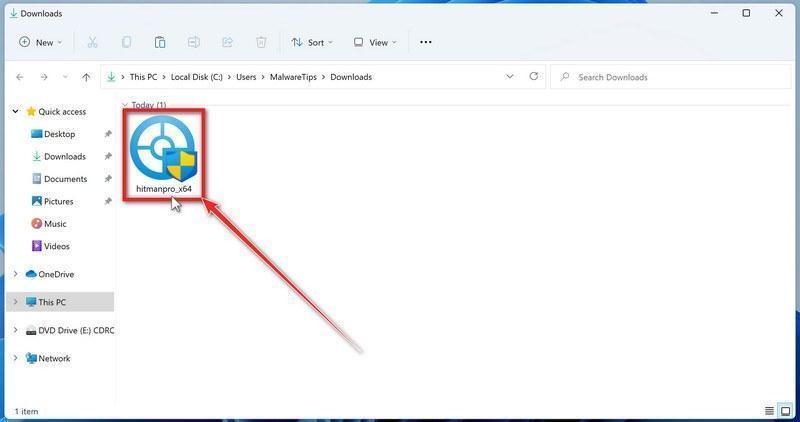
When the download finishes, open your Downloads folder and double-click the file: “hitmanpro.exe” on 32-bit Windows, or “hitmanpro_x64.exe” on 64-bit Windows.
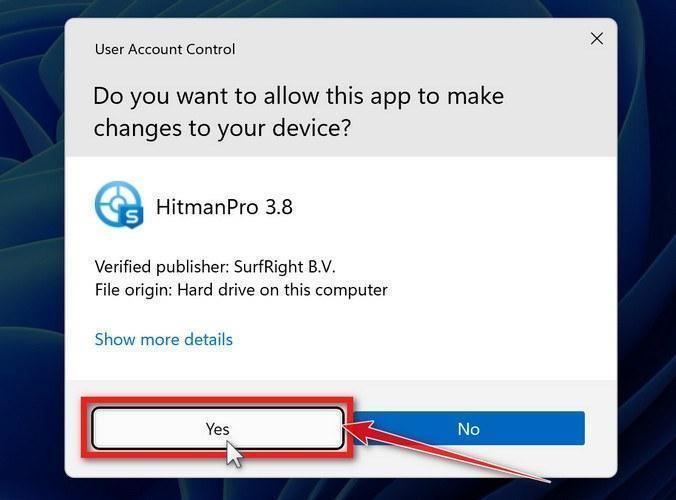
If a User Account Control pop-up asks whether HitmanPro can make changes to your device, click “Yes” to continue.
-
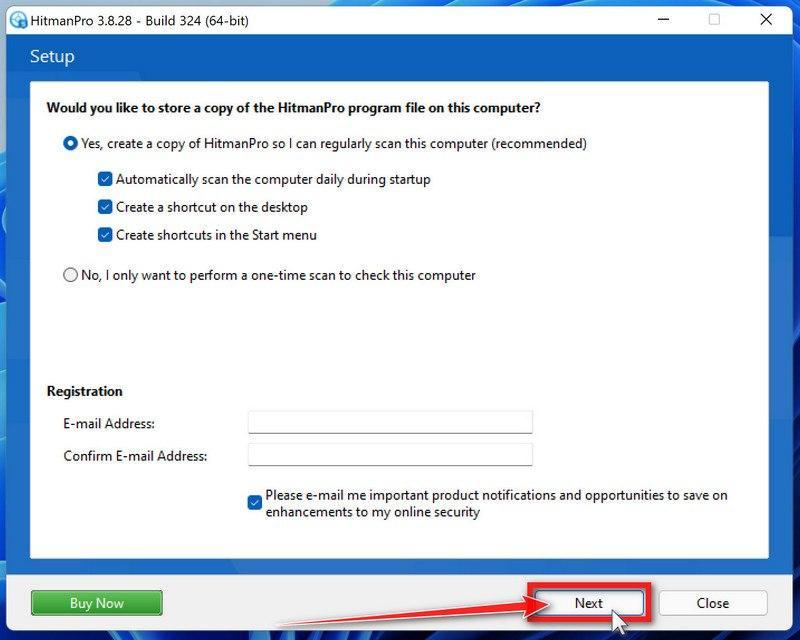
Follow the On-Screen Prompts
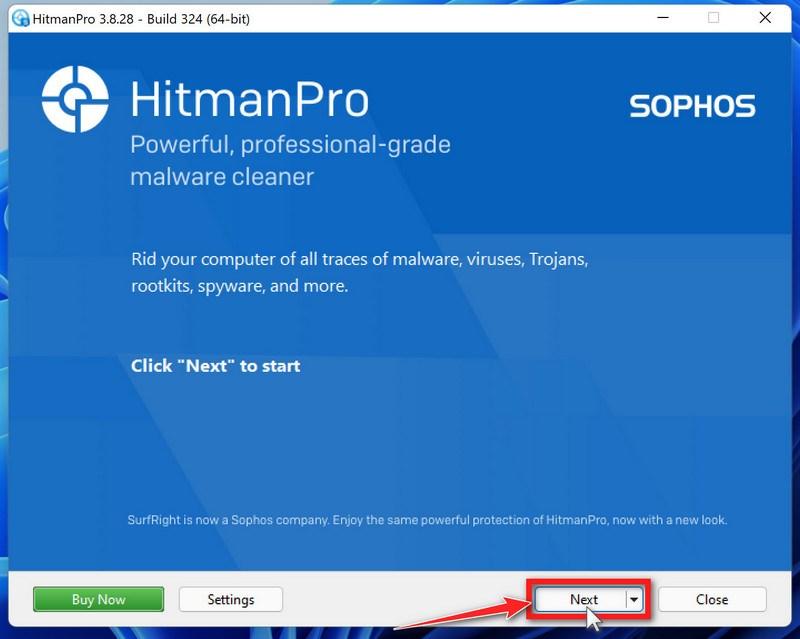
On the HitmanPro start screen, click “Next” to begin the system scan. No lengthy setup required — it goes straight to work.
-
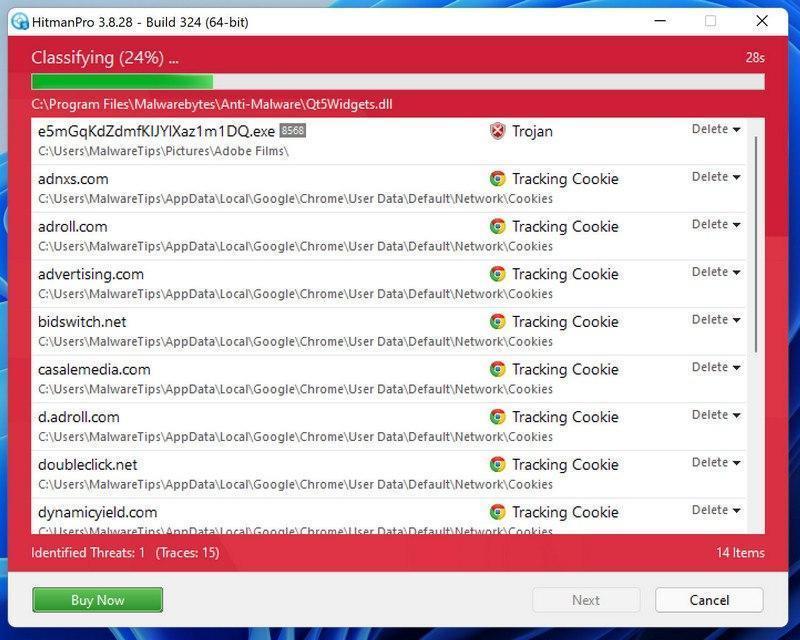
Wait for the Scan to Finish
HitmanPro will now check your computer for malicious programs. This usually takes just a few minutes thanks to its cloud-based scanning.
-
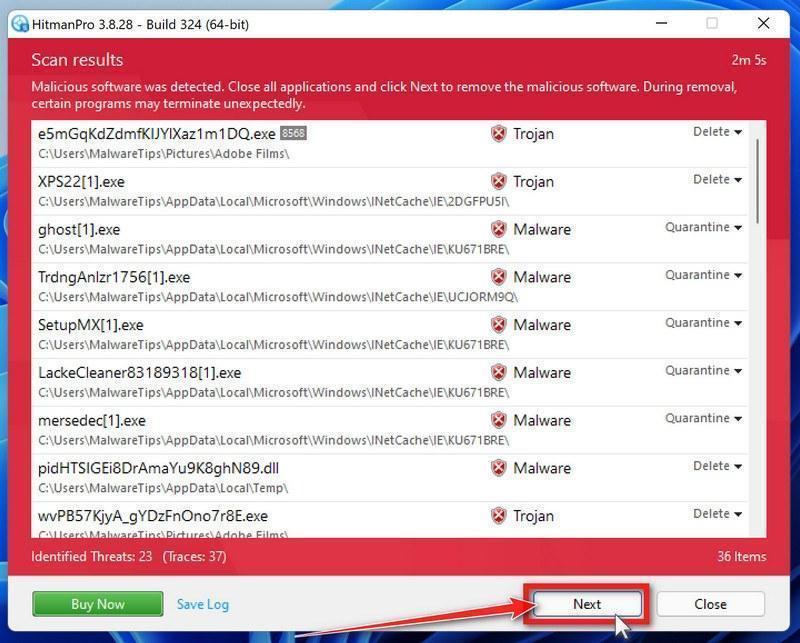
Review the Results and Click “Next”
When the scan is done, HitmanPro will show you everything it found. Click “Next” to remove the detected threats.
-
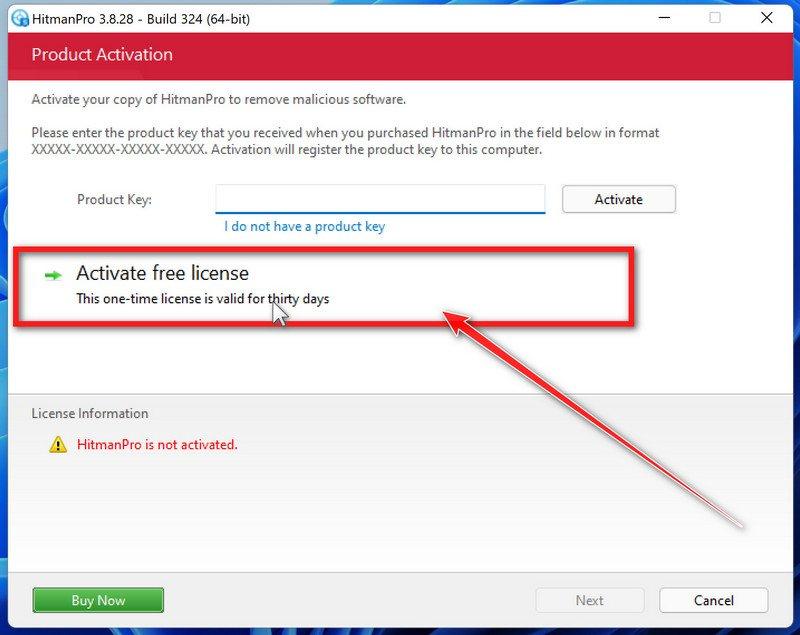
Click “Activate Free License”
To remove the malicious files, click the “Activate free license” button. This starts your free 30-day trial — no payment details needed — and unlocks the full cleanup.
When the removal is complete, HitmanPro will show a summary of everything it cleaned. Click Next, then click Reboot if prompted. If there’s no reboot prompt, just click Close — your PC is clean.
STEP 5: Use AdwCleaner to remove adware and malicious browser policies
In this final step, we will use AdwCleaner to remove the malicious browser policies that were set by browser hijackers on your computer and delete malicious browser extensions.
AdwCleaner is a free on-demand scanner that specializes in adware, browser hijackers, and unwanted toolbars — the exact threats that mainstream antivirus programs often miss. It also includes tools that repair the damage malware leaves behind, like hijacked browser settings and malicious policies. It’s a quick scan that’s well worth running.
-
Download AdwCleaner
Click the button below to download AdwCleaner — it’s free, portable, and requires no installation.
Download AdwCleanerOpens the official download page in a new tab. Malwarebytes AdwCleanerRemoves adware and unwanted programs at no cost
 -
Run AdwCleaner
Open your Downloads folder and double-click the file named “adwcleaner.exe“. There’s no installation — the program starts right away.
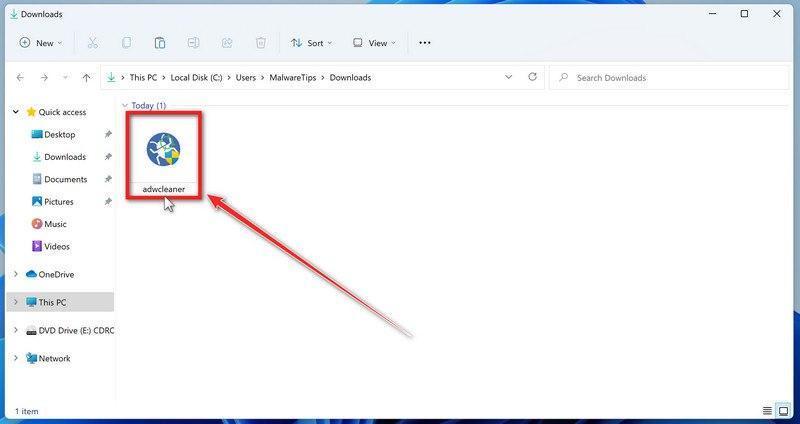
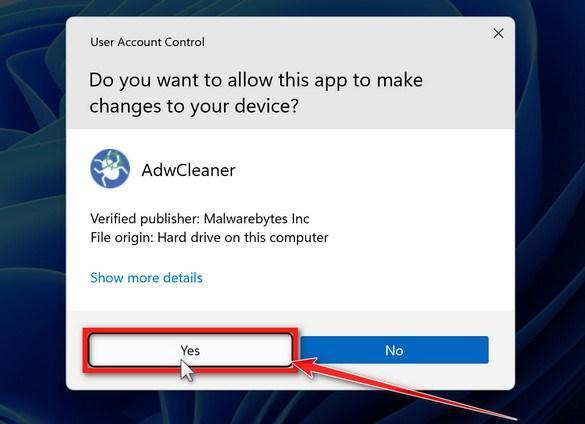
If Windows asks whether you want to allow AdwCleaner to run, click “Yes“. When the license agreement appears, click I agree to continue.
-
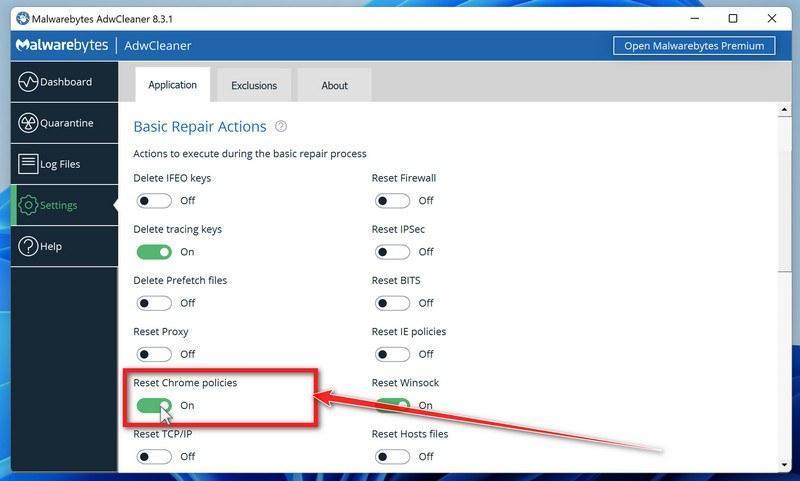
Enable “Reset Chrome policies”
This setting removes malicious browser policies — a trick malware uses to lock your browser settings so you can’t change them back. Click “Settings” on the left side of the window, then turn on “Reset Chrome policies“.
-
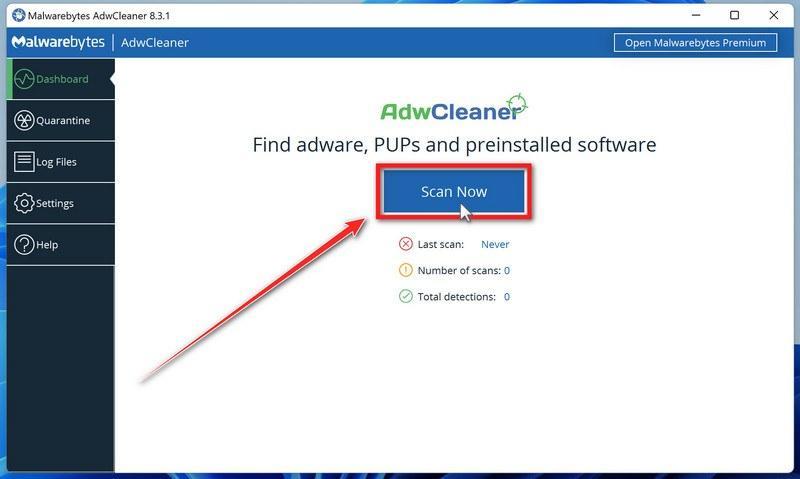
Start the Scan
Click “Dashboard” on the left side of the window, then click the “Scan” button.
-
Wait for the Scan to Finish
AdwCleaner will now check your computer for adware and other malware. This usually takes only a few minutes — it’s one of the fastest scanners around.
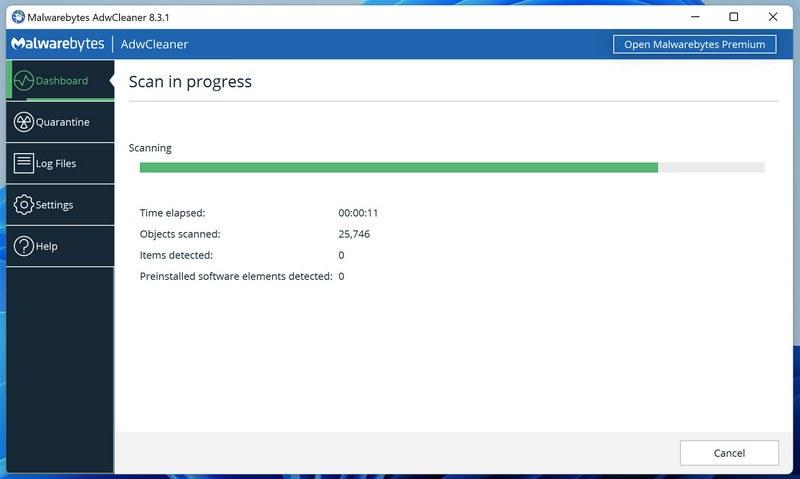
-
Quarantine the Detected Threats
When the scan finishes, AdwCleaner will list everything it found. Click the “Quarantine” button to remove all the malicious items at once.
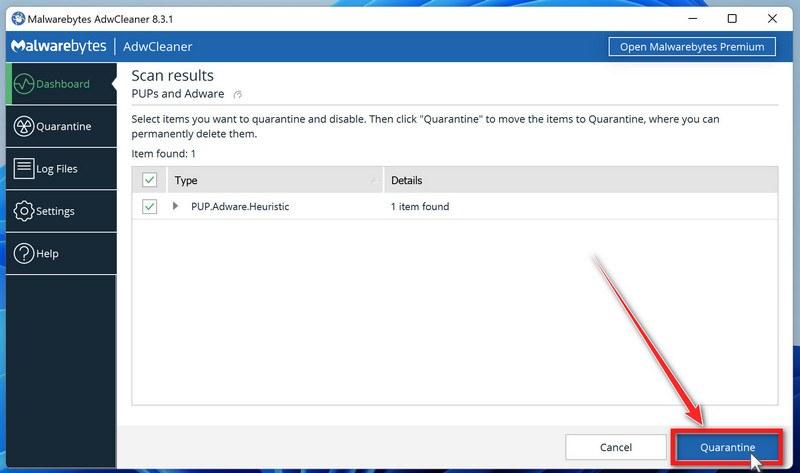
-
Click “Continue” to Finish the Cleanup
Save any open work first — AdwCleaner needs to close your open programs before it can clean. When you’re ready, click the “Continue” button.
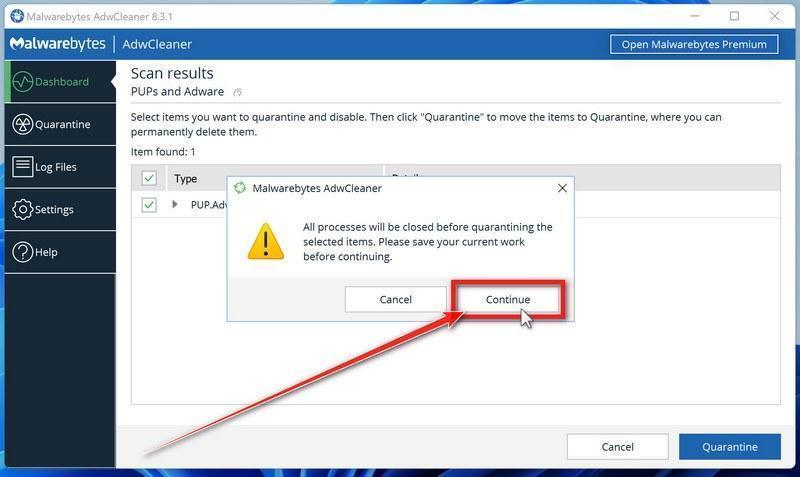
AdwCleaner will now delete all detected malware from your computer. If it asks you to restart your PC, allow it — your computer will be clean when you log back in.
That’s it — your Windows computer is now clean. The unwanted apps, adware, and any other malware have been removed.
If you are still having problems with your computer after completing these instructions, then please follow one of the steps:
- Run a computer scan with ESET Online Scanner
- Ask for help in our Windows Malware Removal Help & Support forum.
Remove Unwanted Apps and Malware from Mac
- STEP 1: Remove malicious profiles
- STEP 2: Delete malicious apps
- STEP 3: Reset browsers back to default settings
- STEP 4: Run a scan with Malwarebytes for Mac to remove malware
STEP 1: Remove malicious profiles
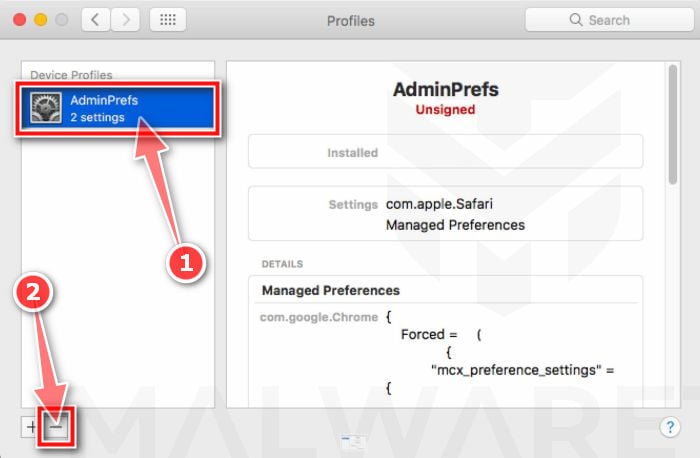
Profiles are used by IT admins in businesses to control the behavior of their Macs. These profiles can configure a Mac to do many different things, some of which are not otherwise possible.
When it comes to home users, adware and browser hijackers are using the configuration profile to prevent users from removing malicious programs from the computer. This also prevents the user from changing that behavior in the browser’s settings.
In this first step, we will check your computer to see if any configuration profiles are installed. To do this, follow the below steps:
-
Open “System Settings”
From the Apple menu () in the top-left corner of the screen, select System Settings. (On macOS Monterey and earlier, this is called System Preferences.)
-
Look for “Profiles”
In the System Settings window, search for Profiles — on newer macOS versions you’ll find it under Privacy & Security, or you can type “Profiles” in the search box.
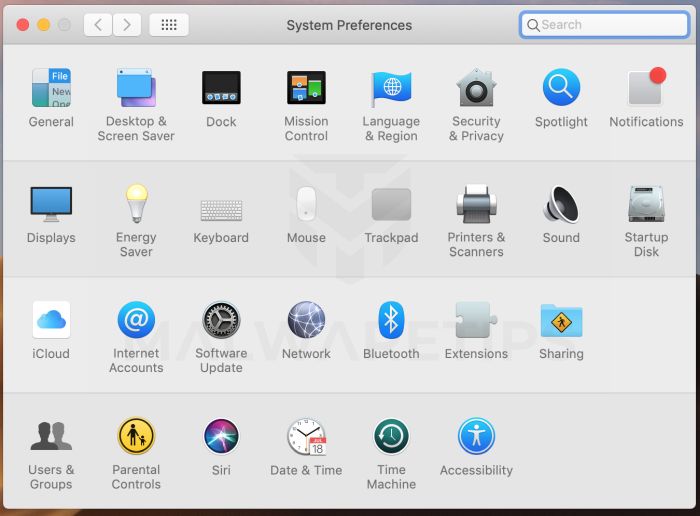 No Profiles section? Good news — that means no profiles are installed on your Mac, which is completely normal. Skip ahead to the next step of this guide.
 -
Remove the malicious profiles
Malware uses configuration profiles to lock your browser settings — forcing a fake search engine or homepage on you and preventing you from changing it back. If you see a profile you don’t recognize (and your Mac isn’t managed by your workplace or school), select it, press the − (minus) button, and click Remove to confirm.
STEP 2: Delete malicious apps
In this second step, we will try to identify and remove any malicious apps and files that might be installed on your computer. Sometimes redirects or adware programs can have usable Uninstall entries that can be used to remove these programs.
-
Quit the malicious programs
Check the Apple menu bar in the top-right corner of your screen. If you see an icon you don’t recognize, click it and select Quit. This stops the malware from running so it can’t interfere while we remove it.
-
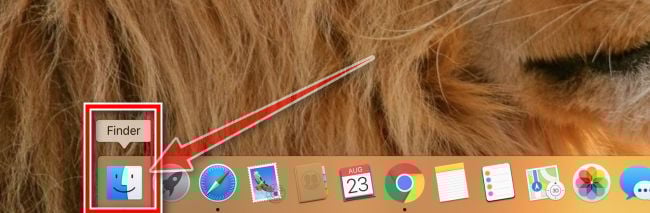
Open “Finder”
Click the Finder icon in your dock.
-
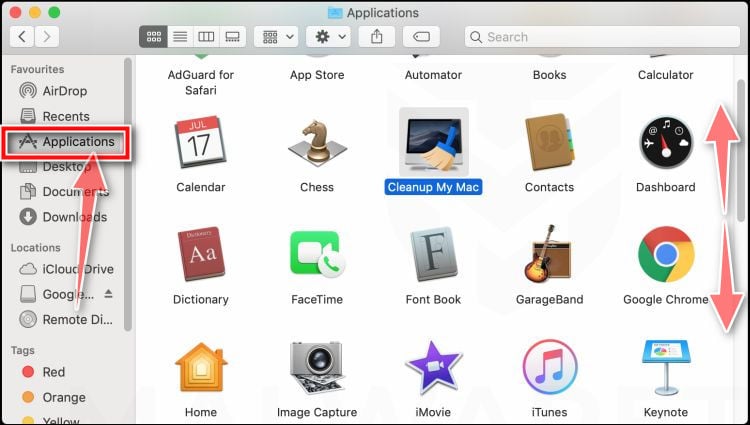
Click on “Applications”
In the Finder sidebar, click “Applications“.
-
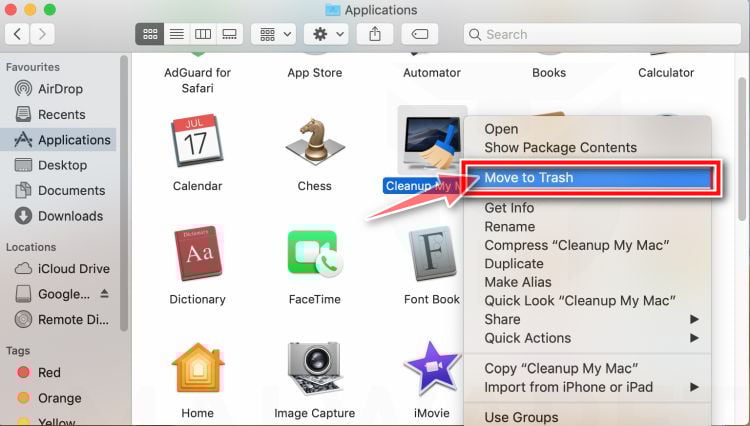
Find and remove the malicious app
Scroll through the list of installed apps and look for anything suspicious — an app you don’t remember installing, or one with a strange or generic name. When you find it, right-click it and select “Move to Trash“.
Some known malicious programs to look for: SearchMine, TakeFresh, TopResults, FeedBack, ApplicationEvents, GeneralOpen, PowerLog, MessengerNow, ImagePrime, GeneralNetSearch, Reading Cursors, GlobalTechSearch, PDFOnline-express, See Scenic Elf, MatchKnowledge, Easy Speedtest, and WebDiscover. The names change constantly, though — so treat any app you can’t account for as suspect.
-
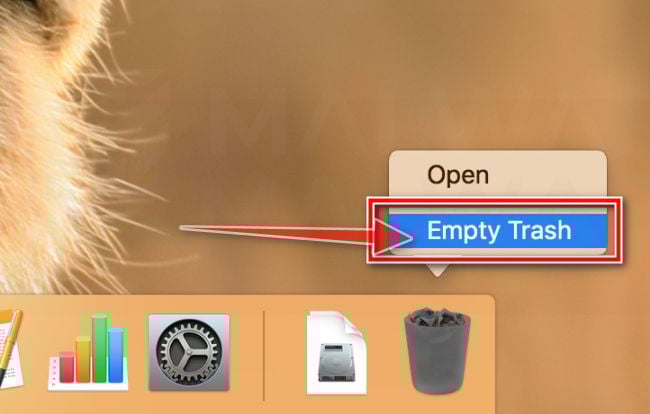
Empty the Trash
Right-click the Trash icon in your dock and select “Empty Trash“. This permanently deletes the malicious app you just removed — until you do this, the malware is still on your Mac.
Find and remove the malicious files
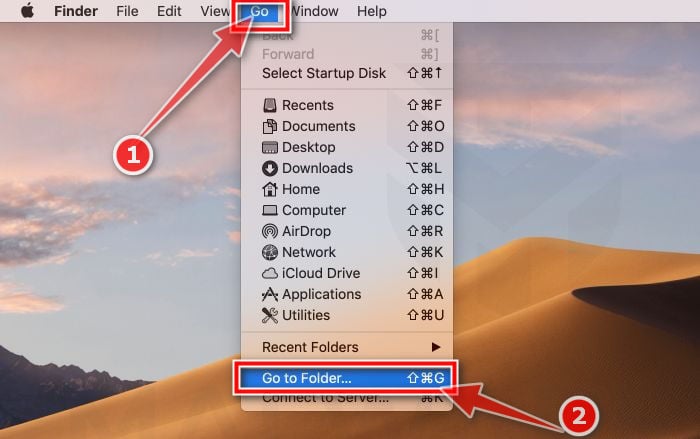
Malware on Mac uses launch agents and launch daemons — small files that automatically restart the malware every time you boot your Mac. We’ll check the four folders where they hide:
- Click the desktop to make sure you’re in Finder, then open the “Go” menu and click “Go to Folder“.
- Copy and paste each of the paths below into the window, one at a time, and click Go after each:
- /Library/LaunchAgents
- ~/Library/LaunchAgents
- /Library/Application Support
- /Library/LaunchDaemons
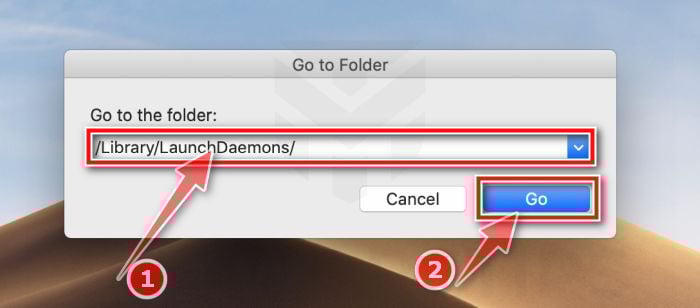
- In each folder, look for suspicious .plist files — typically named after the malware or with odd, random-looking names. Some known examples: “com.adobe.fpsaud.plist”, “installmac.AppRemoval.plist”, “myppes.download.plist”, “mykotlerino.ltvbit.plist”, and “com.myppes.net-preferences.plist”. When you find a malicious file, move it to the Trash — then empty the Trash again when you’re done.
Be careful: these folders also contain files belonging to legitimate apps — especially /Library/Application Support, where programs like Adobe, Google, and Microsoft store their data. Only delete files you’re confident are malicious. If you’re unsure about a file, search its exact name online first — or skip it; the Malwarebytes scan in the next step will catch what you miss.
- Click the desktop to make sure you’re in Finder, then open the “Go” menu and click “Go to Folder“.
STEP 3: Reset browsers back to default settings
In this third step, we will remove spam push notifications and malicious extensions, and change to default any settings that might have been changed by malware.
For each browser that you have installed on your computer, please click on the tab below and follow the displayed steps to reset that browser.
Remove malicious extensions and settings from Safari
To remove malware from Safari we will check if there are any malicious extensions installed on your browser and what settings have been changed by this malicious program.
-
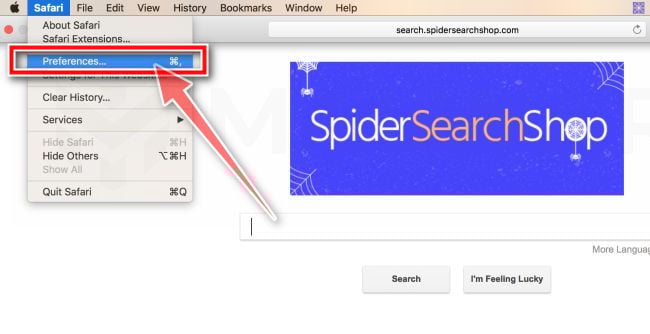
Go to Safari’s “Preferences”.
On the menu bar, click the “Safari” menu and select “Preferences”.
-
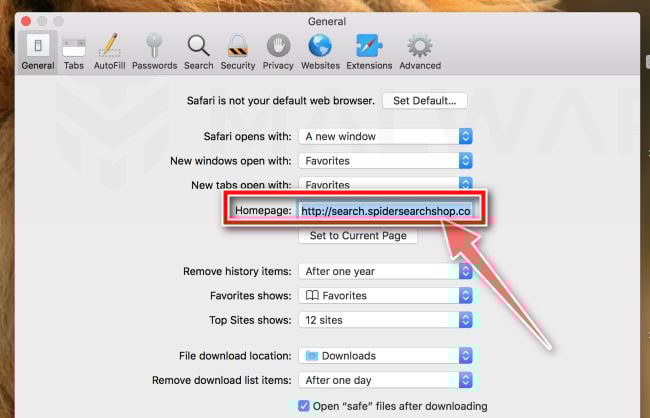
Check Homepage.
This will open a new window with your Safari preferences, opened to the “General” tab. Some browser hijackers may change your default homepage, so in the Homepage field make sure it’s a web page you want to use as your start-up page.
-
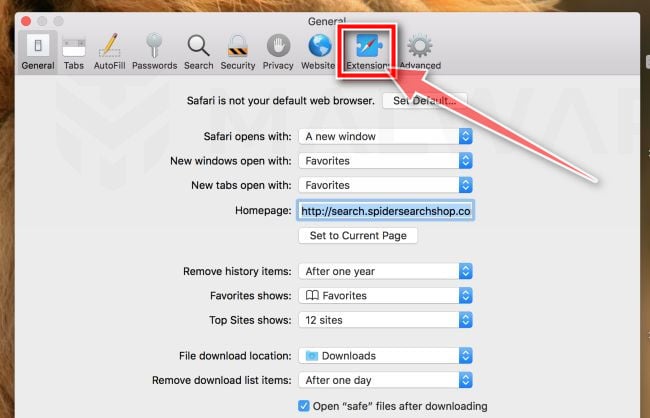
Click “Extensions”
Next, click on the “Extensions” tab.
-
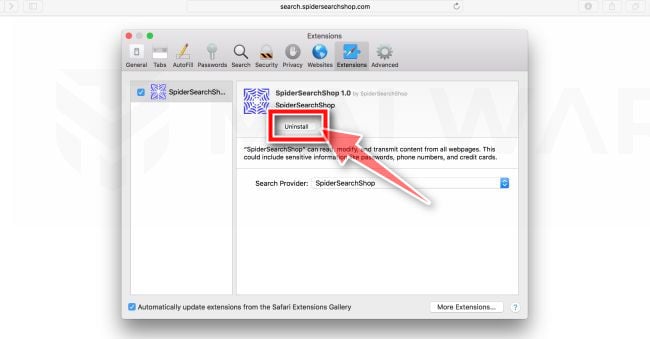
Find and uninstall malicious extensions.
The “Extensions” screen will be displayed with a list of all the extensions installed on Safari. Look out for any suspicious browser extension that could be behind all the drama – anything you don’t remember downloading or that doesn’t sound like a genuine extension. By default, there are no extensions installed on Safari so it’s safe to remove an extension
-
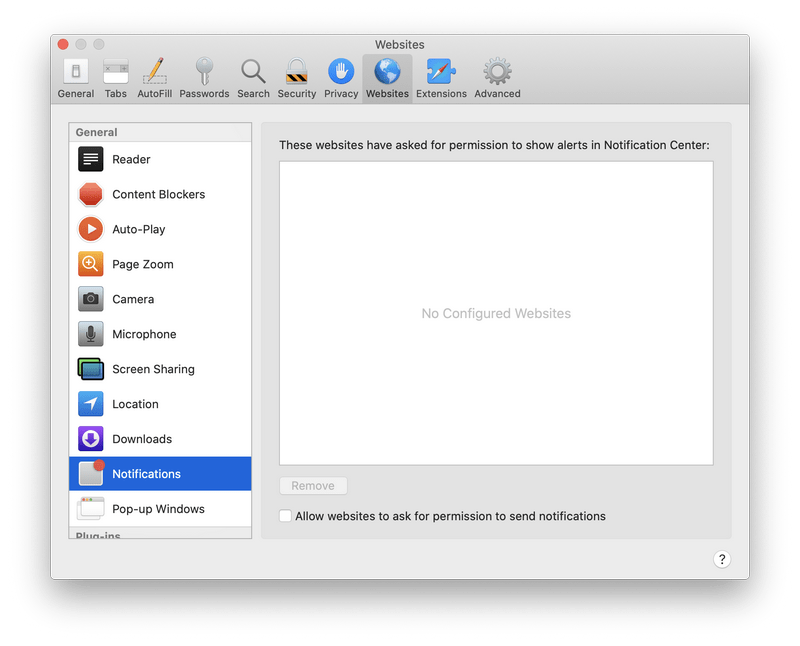
Remove spam notifications ads
Click Preferences, click Websites, then click Notifications. Deselect “Allow websites to ask for permission to send push notifications”.
-
Remove all data stored by websites on your computer.
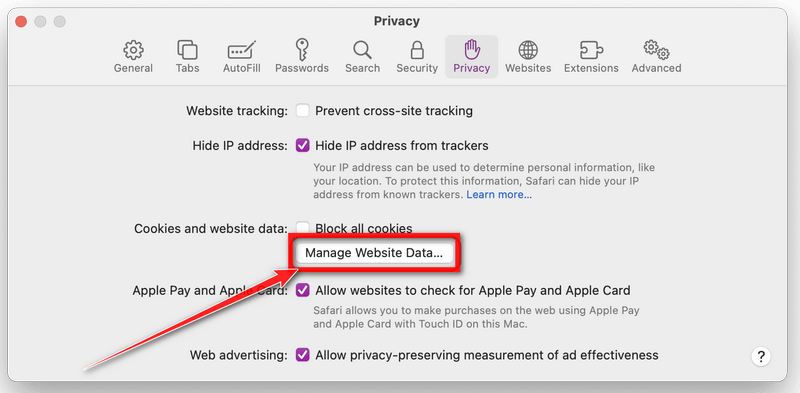
In the Safari menu, choose “Preferences…”, select “Privacy” at the top of the new window that appears, and then click the “Manage Website Data” button.
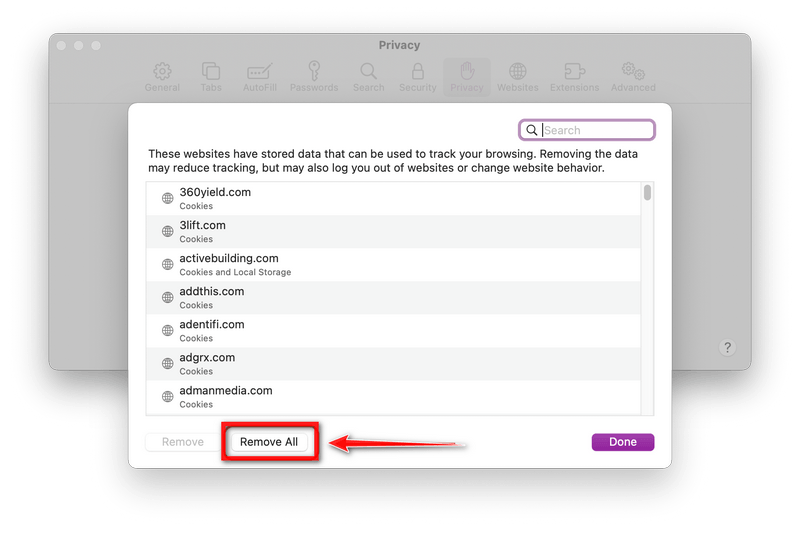
In the next dialog box, click “Remove All“. It will ask you if you are sure you want to remove all data stored by websites on your computer. Select “Remove Now” to clear data that could be used to track your browsing.
-
Empty Safari Caches.
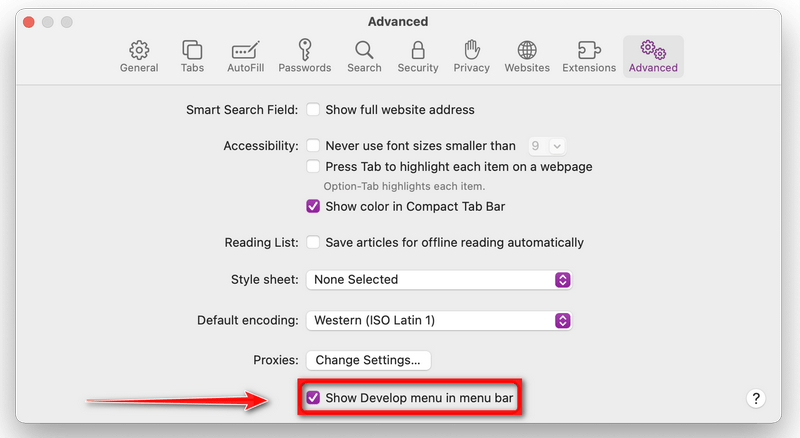
From your Safari menu bar, click Safari and select Preferences, then select the Advanced tab. Enable the checkbox to “Show Develop menu in menu bar“.
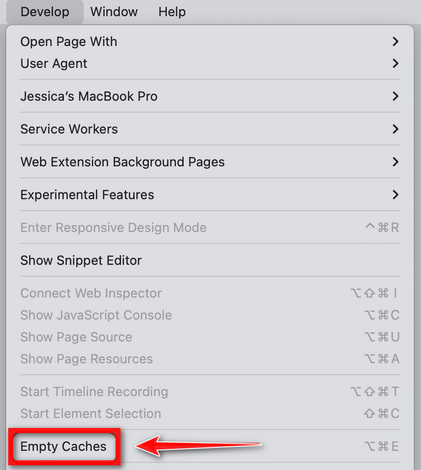
From the menu bar select Develop, then click on Empty Caches as seen in the image below.
Remove malware from Chrome for Mac
To remove malware from Chrome for Mac we will reset the browser settings to their default. Doing these steps will erase all configuration information from Chrome such as your home page, tab settings, saved form information, browsing history, and cookies. This process will also disable any installed extensions. All of your bookmarks, though, will be preserved.
-
Click on the three dots at the top right and go to Settings.
Click on Chrome’s main menu button, represented by three dots at the top right corner. Now click on the menu option labeled Settings as shown by the arrow in the picture below, which will open the basic settings screen.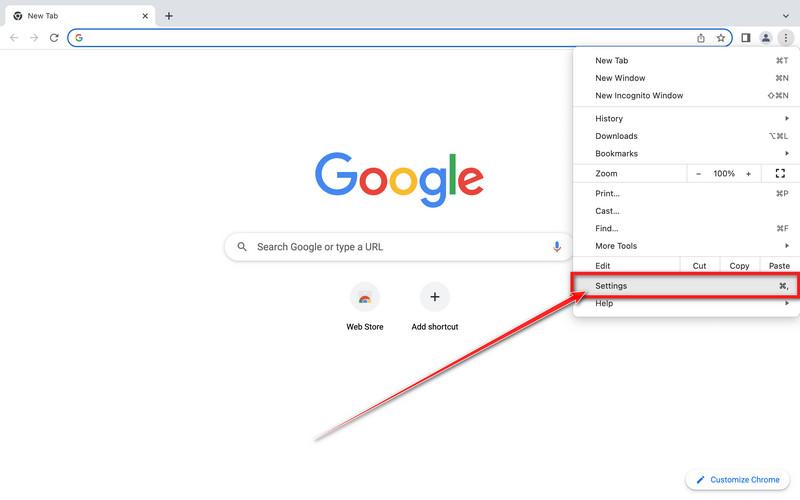
-
In the left sidebar, click on the “Reset and Cleanup” option.
In the left sidebar, click on “Reset and clean up“.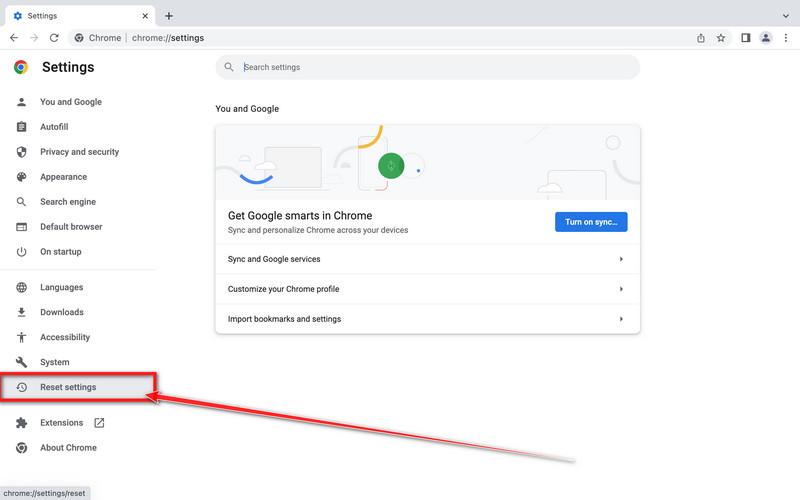
-
Click “Reset settings to their original defaults”.
Now click on the “Reset settings to their original defaults”. link as shown in the image below.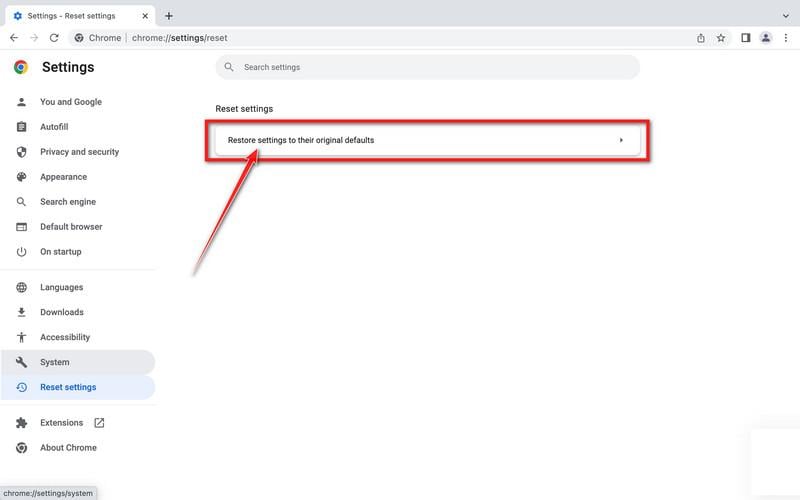
-
Click “Reset Settings” button.
A confirmation dialog should now be displayed, detailing the components that will be restored to their default state should you continue with the reset process. To complete the restoration process, click on the “Reset Settings” button.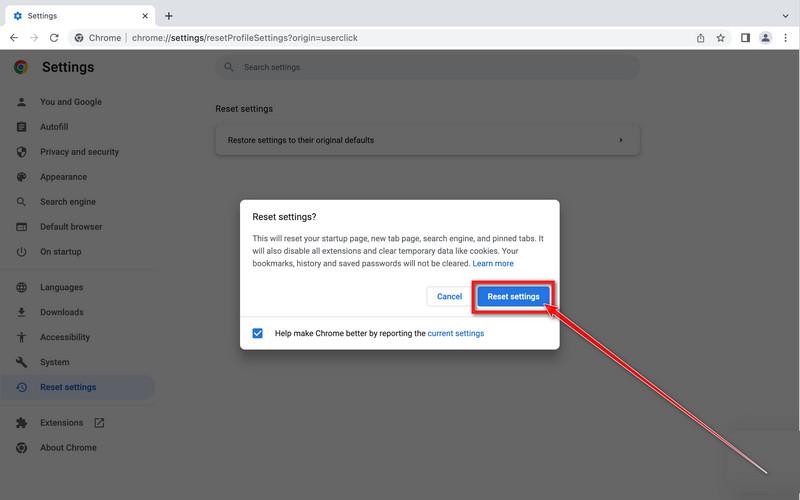
-
(Optional) Reset Chrome Data Sync.
In case a malicious extension reinstalls itself even after performing a browser reset, you have an additional option to reset the data sync for your browser. To do this, navigate to chrome.google.com/sync and click on the Clear Data button.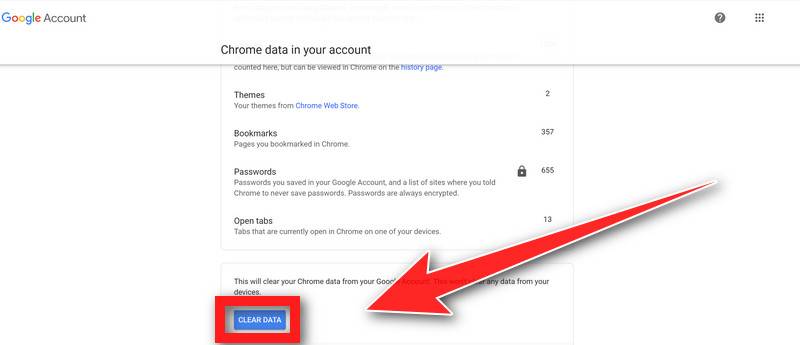
Remove malware from Firefox for Mac
To remove malware from Firefox for Mac we will reset the browser settings to its default. The reset feature fixes many issues by restoring Firefox to its factory default state while saving your essential information like bookmarks, passwords, web form auto-fill information, browsing history, and open tabs.
-
Go to the “Help” menu.
Click on Firefox’s main menu button, represented by three horizontal lines. When the drop-down menu appears, select the option labeled “Help“.
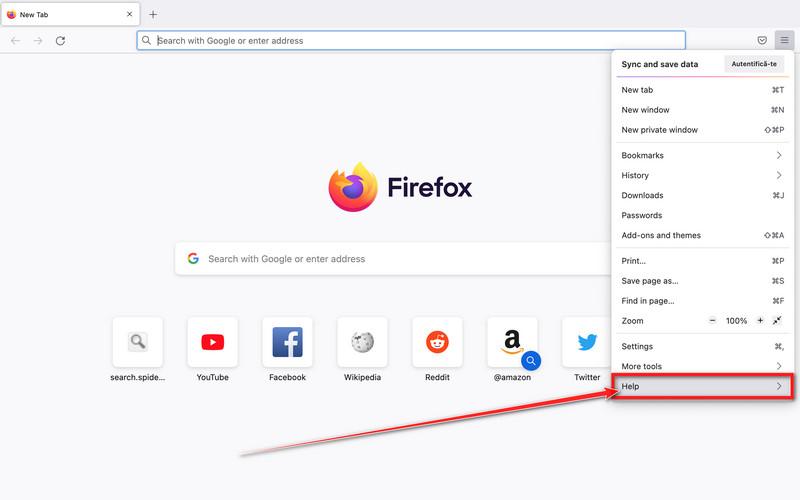
-
Click “Troubleshooting Information”.
Next click on the “Troubleshooting Information” option as indicated by the arrow in the image below. This will bring you to a Troubleshooting page.
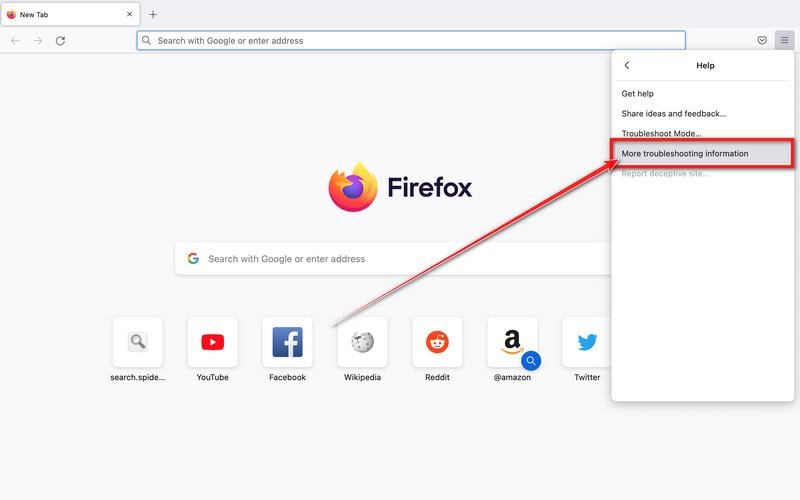
-
Click on “Refresh Firefox”
Click the “Refresh Firefox” button in the upper-right corner of the “Troubleshooting Information” page.
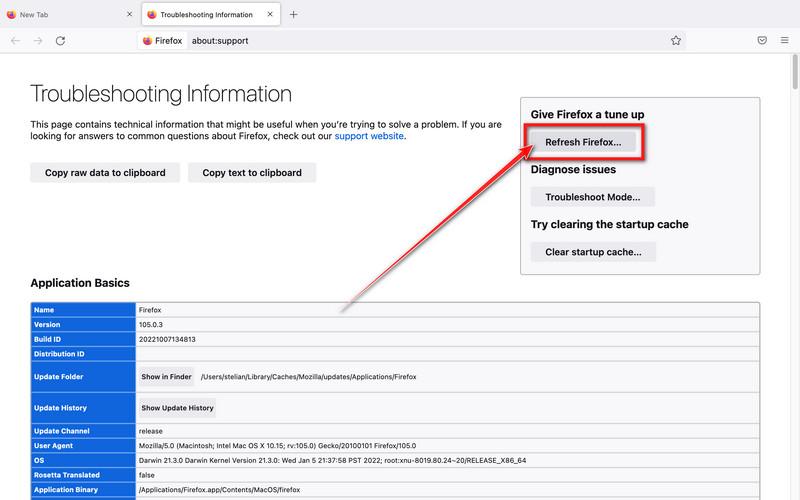
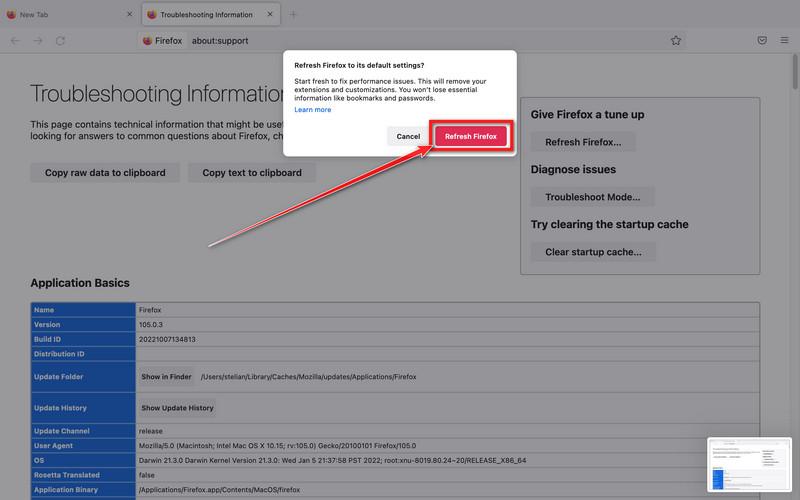
-
Confirm.
To continue, click on the “Refresh Firefox” button in the new confirmation window that opens.
-
Click on “Finish”.
Firefox will close itself and will revert to its default settings. When it’s done, a window will list the information that was imported. Click on the “Finish“.
STEP 4: Run a scan with Malwarebytes for Mac to remove malware
In this final step, we will scan the computer with Malwarebytes for Mac to find and remove any malicious programs that might be installed on your Mac.
Malwarebytes for Mac is a free on-demand scanner that removes the malware other security software tends to miss — adware, browser hijackers, and unwanted programs included. Cleaning an infected Mac with Malwarebytes has always been completely free, and it’s our go-to recommendation. Follow the steps below to scan and clean your Mac in just a few minutes.
-
Download Malwarebytes for Mac
Click the button below to download the latest version of Malwarebytes for Mac.
Download MalwarebytesOfficial installer for macOS. Your download starts right away.Want real-time protection? See Malwarebytes PremiumMalwarebytes Free for MacScans and removes malware at no cost -
Open the Malwarebytes setup file
When the download finishes, open your Downloads folder and double-click the setup file to begin the installation.

-
Follow the On-Screen Prompts to Install Malwarebytes
The Malwarebytes for Mac Installer will guide you through a few quick screens. Click “Continue” and keep following the prompts until the installation completes.



When the installation is complete, Malwarebytes opens to the Welcome to Malwarebytes screen. Click “Get started“.
-
Select “Personal Computer” or “Work Computer”
Malwarebytes will ask what type of computer you’re installing it on. Click either Personal Computer or Work Computer, whichever applies.

-
Start the Scan
Click the “Scan” button. Malwarebytes will automatically update its detection database and begin checking your Mac for malware.

-
Wait for the Scan to Finish
Malwarebytes will scan your Mac for adware, browser hijackers, and other malicious programs. This can take a few minutes, so feel free to do something else — just check back occasionally to see the progress.

-
Quarantine the Detected Threats
When the scan is done, you’ll see a list of everything Malwarebytes found. Click the “Quarantine” button to remove all the threats at once.

-
Restart Your Mac
Malwarebytes will now remove all the malicious files it found. Some threats can only be fully removed after a reboot — if Malwarebytes asks you to restart, allow it. Once you’re logged back in, your Mac is clean.

That’s it — your Mac is now clean. The unwanted apps, adware, and any other malware have been removed.
If you are still experiencing problems while trying to remove a malicious program from your computer, please ask for help in our Mac Malware Removal Help & Support forum.
Remove Unwanted Apps and Malware from Android
- STEP 1: Uninstall malicious apps
- STEP 2: Reset browsers back to default settings
- STEP 3: Use Malwarebytes for Android to remove malicious apps
STEP 1: Uninstall malicious apps
In this first step, we will check if any malicious apps are installed on your phone. Sometimes browser hijackers or adware apps can have usable Uninstall entries that can be used to remove these apps.
-
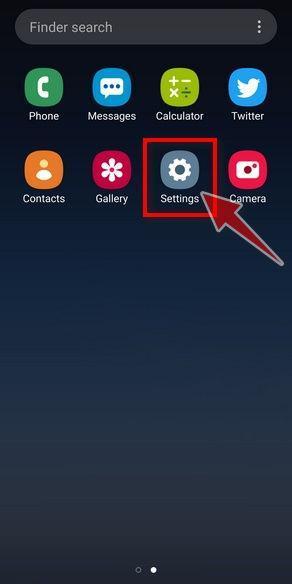
Open the “Settings” menu.
Tap on the “Settings” app from your phone menu or home screen.
-
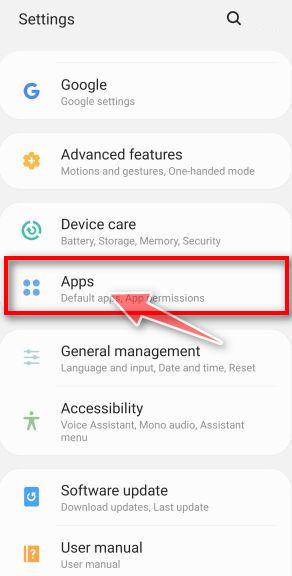
Tap on “Apps”.
When the “Settings” menu opens, tap on “Apps” (or “App Manager”) to see all the installed applications on your phone.
-
Find the malicious app.
The “Apps” screen will be displayed with a list of all the applications that are installed on your phone. Scroll through the list and look out for any suspicious app that could be behind all the drama – anything you don’t remember downloading or that doesn’t sound like a genuine program.
Most often, cyber criminals hide malware inside video or photo editing apps, weather apps, and camera apps.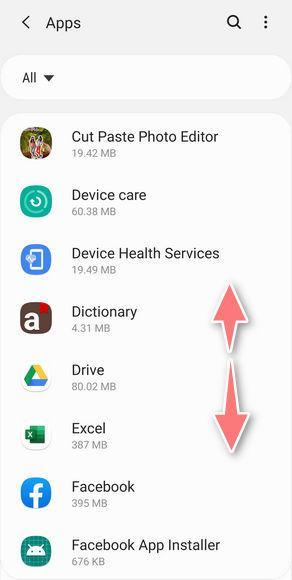
-
Uninstall the malicious app
When you find a suspicious or malicious app, tap on it to uninstall it. This won’t start the app but will open up the app details screen. If the app is currently running press the “Force stop” button, then tap on “Uninstall”.
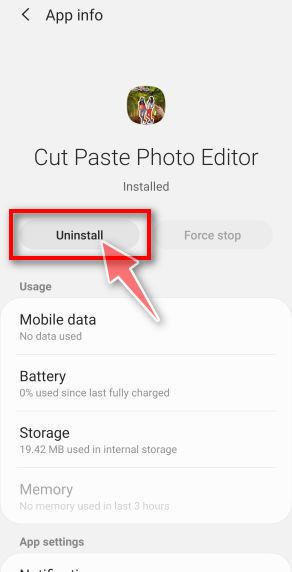
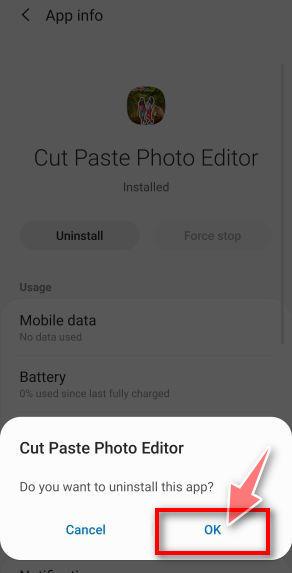
A confirmation dialog should be displayed to confirm you want to uninstall the app, tap on “OK” to remove the malicious app from your phone.
STEP 2: Reset browsers back to default settings
In this second step, we will reset your browser to its default settings to remove spam notifications, unwated search redirects, and restore its factory settings
Resetting the browser settings to their default it’s an easy task on Windows or Mac computers; however, when it comes to Android, this can’t be done directly because it’s not an option built-in into the browser settings. Restoring the browser settings on Android can be done by clearing the application data. This will remove all the cookies, cache, and other site settings that may have been saved. So let’s see how we can restore your browser to its factory settings.
Remove malware from Chrome for Android
To reset Chrome for Android to its default settings, follow the below steps:
-
Open the “Settings” menu.
Tap on the “Settings” app from your phone menu or home screen.
-
Tap on “Apps”.
When the “Settings” menu opens, tap on “Apps” (or “App Manager”) to see all the installed applications on your phone.
-
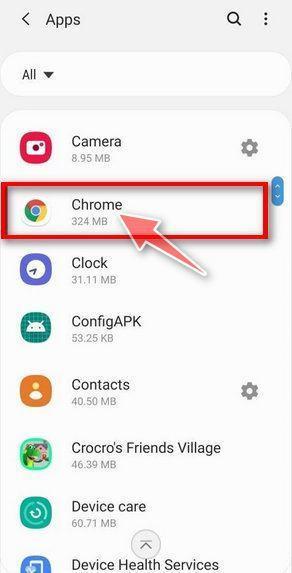
Find and tap on Chrome.
The “Apps” screen will be displayed with a list of all the apps installed on your phone. Scroll through the list until you find the Chrome app, then tap on it to open the app’s details.
-
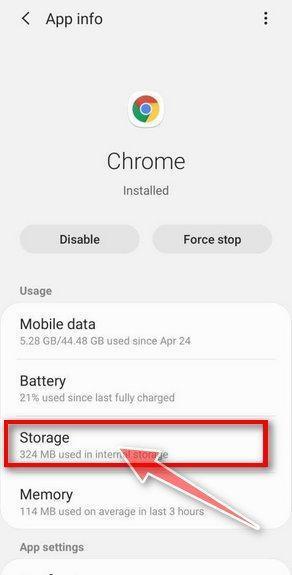
Tap “Storage”.
When Chrome’s app info menu is displayed, tap on “Storage“.
-
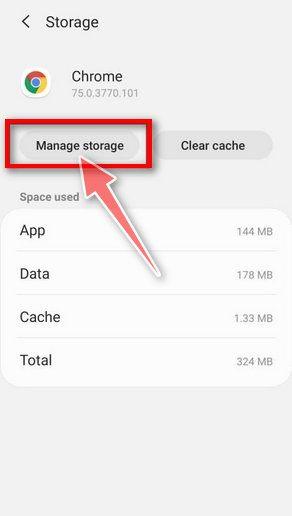
Tap “Manage Space”.
Under the storage settings, you will get two options — Manage Space and Clear Cache. Tap on “Manage Space“.
-
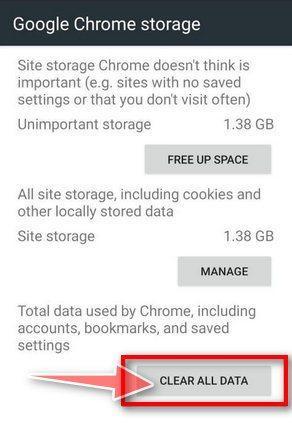
Tap “Clear all data”.
Tap “Clear all data” to delete all Chrome’s data including accounts, bookmarks, and your settings to reset the default settings.
-
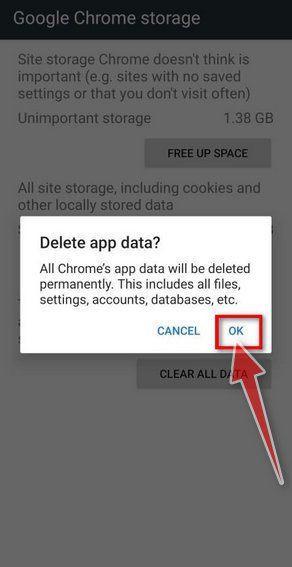
Confirm by tapping “Ok”.
A confirmation dialog should now be displayed, detailing the components that will be restored to their default state should you continue with the reset process. To complete the restoration process, tap “Ok“.
Remove malware from Firefox for Android
To reset Firefox for Android to its default settings, follow the below steps:
-
Open the “Settings” menu.
Tap on the “Settings” app from your phone menu or home screen.
-
Tap on “Apps”.
When the “Settings” menu opens, tap on “Apps” (or “App Manager”) to see all the installed applications on your phone.
-
Find and tap on Firefox.
The “Apps” screen will be displayed with a list of all the apps installed on your phone. Scroll through the list until you find the Firefox app, then tap on it to open the app’s details.
-
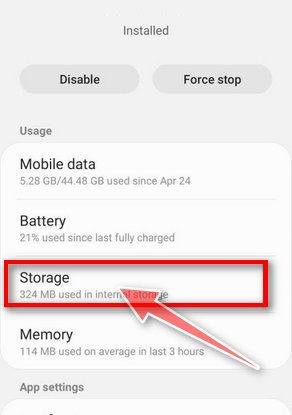
Tap “Storage”.
When Firefox’s app info menu is displayed, tap on “Storage“.
-
Tap “Manage Space”.
Under the storage settings, you will get two options — Manage Space and Clear Cache. Tap on “Manage Space“.
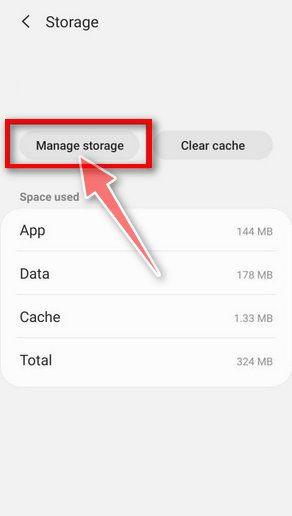
-
Tap “Clear all data”.
Tap “Clear all data” to delete all Firefox data including accounts, bookmarks, and your settings to reset the default settings.

-
Confirm by tapping “Ok”.
A confirmation dialog should now be displayed, detailing the components that will be restored to their default state should you continue with the reset process. To complete the restoration process, tap “Ok“.
Remove malware from the Opera browser
To reset the Opera browser to its default settings, follow the below steps:
-
Open the “Settings” menu.
Tap on the “Settings” app from your phone menu or home screen.
-
Tap on “Apps”.
When the “Settings” menu opens, tap on “Apps” (or “App Manager”) to see all the installed applications on your phone.
-
Find and tap on Opera.
The “Apps” screen will be displayed with a list of all the apps installed on your phone. Scroll through the list until you find the Opera app, then tap on it to open the app’s details.
-
Tap “Storage”.
When Opera’s app info menu is displayed, tap on “Storage“.
-
Tap “Manage Space”.
Under the storage settings, you will get two options — Manage Space and Clear Cache. Tap on “Manage Space“.
-
Tap “Clear all data”.
Tap “Clear all data” to delete all Opera’s data including accounts, bookmarks, and your settings to reset the default settings.
-
Confirm by tapping “Ok”.
A confirmation dialog should now be displayed, detailing the components that will be restored to their default state should you continue with the reset process. To complete the restoration process, tap “Ok“.
Remove malware from Samsung Internet Browser
To reset the Samsung Internet Browser to its default settings, follow the below steps:
-
Open the “Settings” menu.
Tap on the “Settings” app from your phone menu or home screen.
-
Tap on “Apps”.
When the “Settings” menu opens, tap on “Apps” (or “App Manager”) to see all the installed applications on your phone.
-
Find and tap on Samsung Internet Browser.
The “Apps” screen will be displayed with a list of all the apps installed on your phone. Scroll through the list until you find the Samsung Internet Browser app, then tap on it to open the app’s details.
-
Tap “Storage”.
When the Samsung Internet Browser’s app info menu is displayed, tap on “Storage“.
-
Tap “Manage Space”.
Under the storage settings, you will get two options — Manage Space and Clear Cache. Tap on “Manage Space“.
-
Tap “Clear all data”.
Tap “Clear all data” to delete all Samsung Internet Browser’s data including accounts, bookmarks, and your settings to reset the default settings.
-
Confirm by tapping “Ok”.
A confirmation dialog should now be displayed, detailing the components that will be restored to their default state should you continue with the reset process. To complete the restoration process, tap “Ok“.
Remove malware from Microsoft Edge for Android
To reset the Microsoft Edge for Android to its default settings, follow the below steps:
-
Open the “Settings” menu.
Tap on the “Settings” app from your phone menu or home screen.
-
Tap on “Apps”.
When the “Settings” menu opens, tap on “Apps” (or “App Manager”) to see all the installed applications on your phone.
-
Find and tap on Microsoft Edge.
The “Apps” screen will be displayed with a list of all the apps installed on your phone. Scroll through the list until you find the Microsoft Edge app, then tap on it to open the app’s details.
-
Tap “Storage”.
When the Microsoft Edge’s app info menu is displayed, tap on “Storage“.
-
Tap “Manage Space”.
Under the storage settings, you will get two options — Manage Space and Clear Cache. Tap on “Manage Space“.
-
Tap “Clear all data”.
Tap “Clear all data” to delete all Microsoft Edge’s data including accounts, bookmarks, and your settings to reset the default settings.
-
Confirm by tapping “Ok”.
A confirmation dialog should now be displayed, detailing the components that will be restored to their default state should you continue with the reset process. To complete the restoration process, tap “Ok“.
STEP 3: Use Malwarebytes for Android to remove malicious apps
In this final step, we will install Malwarebytes for Android to scan and remove malicious apps from your phone or tablet.
Malwarebytes for Android automatically detects and removes dangerous threats like malware and ransomware so you don’t have to worry about your most-used device being compromised. Aggressive detection of adware and potentially unwanted programs keeps your Android phone or tablet running smooth.
-
Download Malwarebytes for Android.
You can download Malwarebytes for Android by clicking the link below.
Get Malwarebytes for AndroidOpens Google Play in a new tab.Want real-time protection? See Malwarebytes Premium for AndroidMalwarebytes for AndroidScans your phone and removes malware at no cost -
Install Malwarebytes for Android on your phone.
In the Google Play Store, tap “Install” to install Malwarebytes for Android on your device.

When the installation process has finished, tap “Open” to begin using Malwarebytes for Android. You can also open Malwarebytes by tapping on its icon in your phone menu or home screen.

-
Follow the on-screen prompts to complete the setup process
When Malwarebytes will open, you will see the Malwarebytes Setup Wizard which will guide you through a series of permissions and other setup options.
This is the first of two screens that explain the difference between the Premium and Free versions. Swipe this screen to continue.
Tap on “Got it” to proceed to the next step.
Malwarebytes for Android will now ask for a set of permissions that are required to scan your device and protect it from malware. Tap on “Give permission” to continue.
Tap on “Allow” to permit Malwarebytes to access the files on your phone.
-
Update database and run a scan with Malwarebytes for Android
You will now be prompted to update the Malwarebytes database and run a full system scan.

Click on “Update database” to update the Malwarebytes for Android definitions to the latest version, then click on “Run full scan” to perform a system scan.

-
Wait for the Malwarebytes scan to complete.
Malwarebytes will now start scanning your phone for adware and other malicious apps. This process can take a few minutes, so we suggest you do something else and periodically check on the status of the scan to see when it is finished.

-
Click on “Remove Selected”.
When the scan has been completed, you will be presented with a screen showing the malware infections that Malwarebytes for Android has detected. To remove the malicious apps that Malwarebytes has found, tap on the “Remove Selected” button.

-
Restart your phone.
Malwarebytes for Android will now remove all the malicious apps that it has found. To complete the malware removal process, Malwarebytes may ask you to restart your device.
That’s it — your Android device is now clean. The malicious apps, adware, and browser redirects have been removed.
If you are still having problems with your phone after completing these instructions, then please follow one of the steps:
- Restore your phone to factory settings by going to Settings > General management > Reset > Factory data reset.
- Ask for help in our Mobile Malware Removal Help & Support forum.
Remove Unwanted Apps and Malware from iPhone and iPad
STEP 1: Clean your browser
First, we’ll clean Safari using the built-in “Clear History and Website Data” feature. This removes your browsing history, cookies, and cached data — including the stored data that scam sites use to keep showing you pop-ups and redirects. Don’t worry: this won’t delete your photos, apps, or saved passwords.
- Don’t tap anything inside the scam page or pop-up — the buttons are designed to trick you. Instead, tap the tabs icon in the lower-right corner of Safari, as shown below.
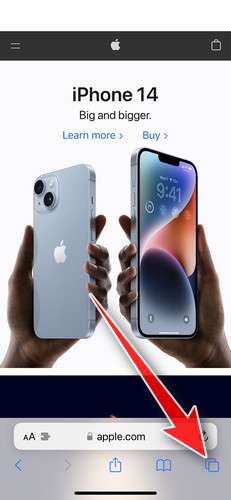
- Tap the X on the malicious tab (or swipe it up) to close it safely.
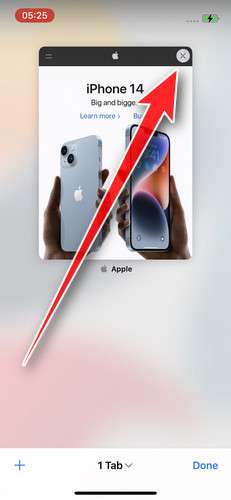
- Open the Settings app.
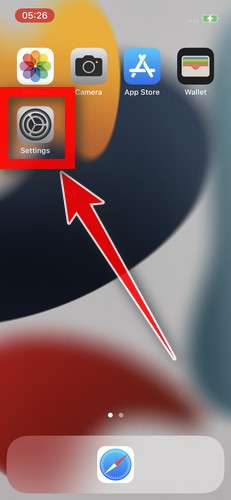
- Turn on Airplane Mode. This temporarily disconnects your iPhone from the internet, so the scam site can’t load anything while we clean up. We’ll turn it back off at the end.
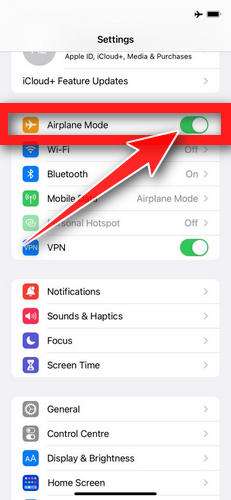
- Scroll down and tap Safari.
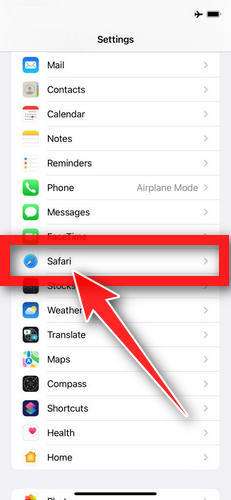
- Tap Clear History and Website Data.
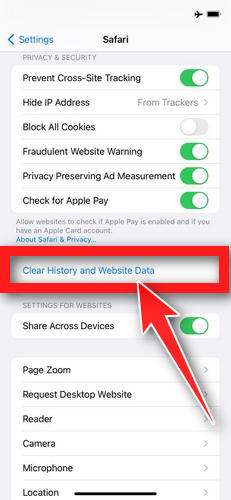
- Confirm by tapping “Clear History and Data” in the pop-up.
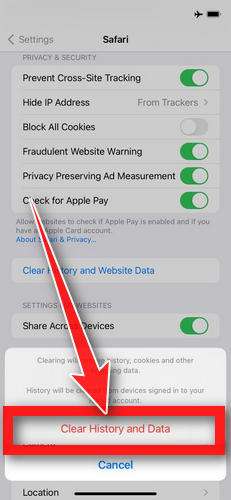
- While you’re still in Safari settings, turn on Block Pop-ups and Fraudulent Website Warning. These two switches stop most scam pages before they can even load.
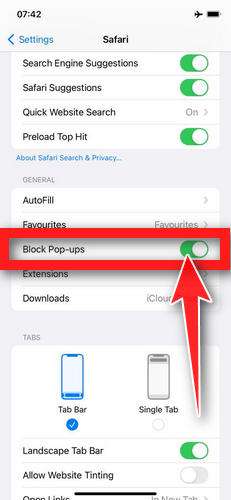
- Tap Settings in the upper-left corner to return to the main Settings menu.
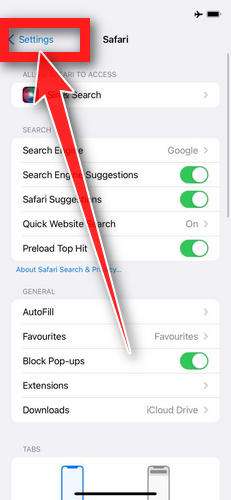
- Turn Airplane Mode back off to reconnect your iPhone to the internet.
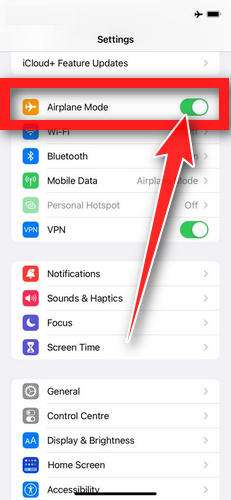
STEP 2: Delete unwanted apps
Next, we’ll remove any suspicious apps from your iPhone. If a shady website redirected you to the App Store and you installed an app — or you spot an app you don’t remember downloading — delete it now:
-
On the home screen, tap and hold the unwanted app’s icon until the icons start to wiggle.
-
Tap the minus (–) badge in the corner of the app icon, then tap Delete App. (On older iOS versions, this badge appears as an “X”.)
-
Confirm by tapping “Delete“.
That’s it — your iPhone is now clean and safe to use.
To stop these scam pages from coming back, we recommend installing an ad blocker like AdGuard. It blocks the malicious ads and redirects that cause these pop-ups in the first place.
Still having issues after completing these steps? Try one of the following:
- Run a scan with Malwarebytes for iOS
- Ask for help in our free Mobile Malware Removal Help & Support forum — our team will assist you personally.
That’s it — your iPhone or iPad is now clean.
FAQ: Binance Verification Code Scam Texts
Are these “Binance verification code” texts real?
Most of the ones that include a random “support” number are not real. They are designed to scare you into calling a fake support center. Binance does not want you calling a number from an unsolicited SMS to “secure” your account.
I received a Binance verification code, but I did not request it. Does that mean I am hacked?
Not necessarily. It can mean someone is trying to log in, someone mistyped a phone number, or scammers are sending bait messages to many people. The safest move is to open the official Binance app or type the official site yourself and check your security activity.
Should I call the phone number in the text to stop the login attempt?
No. That is exactly what scammers want. If you are worried, do not use any number or link in the text. Go directly to the official Binance app or website and review login activity and security settings there.
What is the scammer trying to do if I call?
They typically run a tech support scam. They will claim your account or device is compromised, then try to get you to install remote access software (like AnyDesk). Once they have access, they attempt to steal money, credentials, or push you into paying via gift cards.
Can scammers really steal money just by connecting remotely?
Yes, if they can see your screen and guide your actions, they can trick you into sending transfers, approving withdrawals, or revealing codes. Remote access also gives them opportunities to capture sensitive information and take over accounts.
Why do they mention Ledger Live in some messages?
It is a credibility boost. Mentioning Ledger Live targets people who are crypto-aware and more likely to react quickly. It also helps the scammer steer the conversation toward “wallet security” and remote “help,” which is the trap.
Is it safe to share the verification code with “support” to confirm my identity?
No. A verification code is often the last piece needed to complete a login or account change. Legitimate support will not ask you to read out codes from your phone. Treat any request for a code as a major red flag.
I do not even have a Binance account. Why did I get the text?
Scammers send these messages in bulk. They rely on volume and probability. Even if only a small percentage of recipients use Binance or hold crypto, the scam can still be profitable.
What if the text appears in the same thread as real messages from other services?
That can happen due to sender spoofing or how message threads are grouped on your phone. It does not prove legitimacy. Always verify inside the official app or website, not inside the text thread.
How can I tell the difference between a real Binance security alert and a scam?
A practical rule: do not trust instructions inside an unsolicited SMS. Real security events will be visible inside your account when you log in through official channels. Scam messages often include a phone number, urgency, and instructions to call.
What should I do if I called and installed AnyDesk or another remote access app?
Disconnect from the internet, uninstall the remote access app, and change passwords from a clean device. Then review your email, Binance account security, and banking activity. If money was sent or accounts were accessed, contact your bank or exchange support through official channels immediately.
I paid with gift cards. Can I get my money back?
Sometimes, but it depends on whether the gift card codes were redeemed. Contact the gift card issuer right away with your receipts and explain you were scammed. The faster you act, the better the chance of freezing remaining balance.
Can Binance recover stolen crypto if it was transferred out?
Often, no. Crypto transfers are usually irreversible once confirmed. That is why prevention and fast response matter so much. If you believe funds were moved, report it immediately to Binance through official support and document everything.
What should I do if I only received the text and did nothing?
You can safely ignore it. If you want extra peace of mind, log into Binance through the official app, change your password if you are concerned, enable stronger authentication, and review login history.
Will blocking the number stop the scam?
It helps reduce repeat attempts from that specific number, but scammers rotate numbers constantly. Blocking is useful, but the bigger protection is knowing the pattern and refusing to call or engage.
What is the single biggest red flag with these messages?
The presence of a “support” phone number inside an unexpected verification code text. That is the classic entry point into the fake tech support and remote access scam.








