The ‘Boa Tarde, Amigo Ingénuo’ Email Scam Explained
Written by: Thomas Orsolya
Published on:
The “Boa tarde, amigo ingénuo” email scam is a concerning new threat targeting Portuguese speakers. This coercive scheme aims to extort money from victims by threatening to publicly expose private images and information.
Overview of the ‘Boa tarde, amigo ingénuo’ Sextortion Scam
This scam email is a Portuguese-language variant of a wider global extortion campaign. The emails claim the sender has compromising images and/or videos of the recipient, along with access to their device.
The sender threatens to share this sensitive material unless paid a ransom in Bitcoin within 48 hours. The email states they work for a Russian hacking group and have been monitoring the recipient’s online activity.
Origins and Prevalence
This scam email template first emerged in mid-late 2022, though sextortion scams have existed for years. Many report receiving the “Boa tarde, amigo ingénuo” email in Brazil, though it may target Portuguese speakers worldwide.
By preying on victims’ fears of public shaming, these schemes have defrauded individuals out of millions globally. Their prevalence continues to grow, as does their sophistication.
Tactics and Implications
The email subject line is often vague, such as “Notice” or “Attention Required,” to avoid raising suspicions. The text contains shocking claims intended to create fear and urgency.
Though often untrue, the threats can deeply unsettle victims. The potential public exposure of intimate material leverages psychological coercion for financial gain.
This scheme represents a concerning new evolution of cyber extortion. While early sextortion scams were often unsophisticated, current variants leverage more advanced social engineering and distribution tactics.
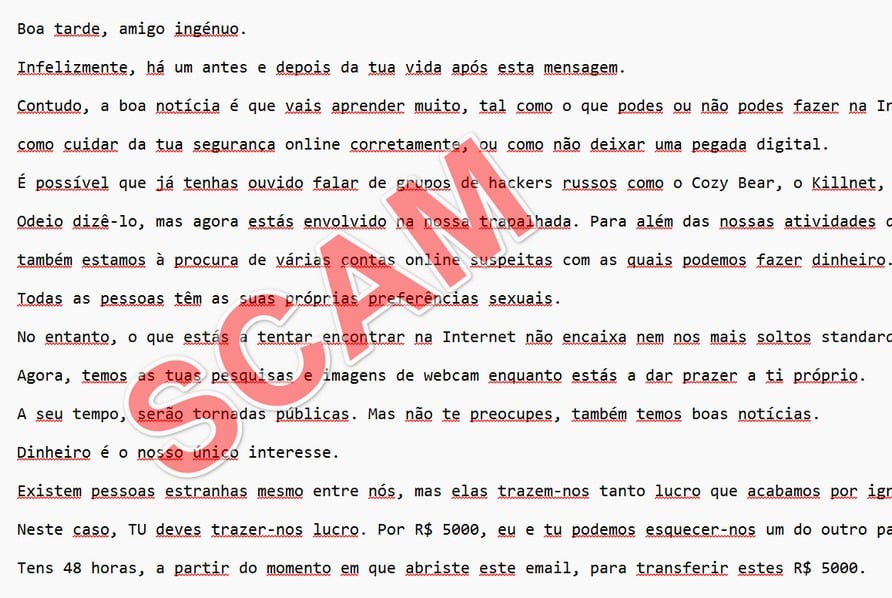
Here is how the scam email look:
Boa tarde, amigo ingénuo.
Infelizmente, há um antes e depois da tua vida após esta mensagem.
Contudo, a boa notícia é que vais aprender muito, tal como o que podes ou não podes fazer na Internet,
como cuidar da tua segurança online corretamente, ou como não deixar uma pegada digital.
É possível que já tenhas ouvido falar de grupos de hackers russos como o Cozy Bear, o Killnet, e outros. Bem, nós trabalhamos para eles.
Odeio dizê-lo, mas agora estás envolvido na nossa trapalhada. Para além das nossas atividades de hacking,
também estamos à procura de várias contas online suspeitas com as quais podemos fazer dinheiro. Talvez estejas a começar a compreender como te encontrámos.
Todas as pessoas têm as suas próprias preferências sexuais.
No entanto, o que estás a tentar encontrar na Internet não encaixa nem nos mais soltos standards de moralidade.
Agora, temos as tuas pesquisas e imagens de webcam enquanto estás a dar prazer a ti próprio.
A seu tempo, serão tornadas públicas. Mas não te preocupes, também temos boas notícias.
Dinheiro é o nosso único interesse.
Existem pessoas estranhas mesmo entre nós, mas elas trazem-nos tanto lucro que acabamos por ignorar os seus desvios morais.
Neste caso, TU deves trazer-nos lucro. Por R$ 5000, eu e tu podemos esquecer-nos um do outro para sempre.
Tens 48 horas, a partir do momento em que abriste este email, para transferir estes R$ 5000.
Seremos notificados assim que leres esta mensagem.
Este é o endereço da carteira de Bitcoin que deves usar para o pagamento: 1M69iG8DsFwLuSyu18CJGJm8LGUgH6wGF8
A contagem decrescente começou, por isso não nos deixes à espera.
Caso contrário, todos os teus amigos e familiares receberão uma cópia dos teus registos, incluindo o histórico de pesquisa, vídeos webcam, e até mensagens pessoais.
Não envies esta mensagem a ninguém, nem mesmo à polícia.
Se o fizeres, a informação que temos acerca de ti será automaticamente partilhada.
Estamos a monitorizar tudo o que fazes.
Não respondas a esta mensagem. Foi enviada a partir de uma conta de email descartável, sem possibilidade de resposta, e completamente indetetável.
Se nunca usaste crypto antes, é bastante simples: basta fazer uma pesquisa no Google.
Este é o final da nossa mensagem. Como se diz, esperamos uma colaboração frutífera no futuro. Caso contrário, isto ainda vai acabar mal para ti.
Adeus, e esperemos que esta seja a nossa última interação.
P.S. No futuro, lembra-te de que a Internet não é uma espécie de Velho Oeste em que podes fazer tudo o que desejas.
Na verdade, é um arrepiante conjunto de tubarões famintos à procura de pessoas irresponsáveis como tu.
How the ‘Boa tarde, amigo ingénuo’ Scam Works
The criminals behind this scam are masters of manipulation. By understanding their tactics, we can recognize and resist their deceit. Here is how the scam unfold in 5 stages:
1. Recipients Receive the Malicious Email
The initial email arrives in the target’s inbox unprompted. Most report receiving it out of the blue, with no prior contact from the sender. The message may end up in the spam folder due to its suspicious nature.
The sender name and address are usually random strings of letters and numbers. This makes the email untraceable, a key tactic of cybercriminals.
2. The Email Makes Bold Claims and Threats
The message presents shocking, often false, claims about hacking the recipient’s device and accessing illicit content. This creates feelings of violation and anxiety, which the scammer leverages.
Threats follow to share the supposedly compromising material with the target’s contacts if payment isn’t received promptly. The email often states they are being monitored to heighten unease.
3. A Ransom Demand is Made
A Bitcoin wallet address is provided for the ransom payment, along with a deadline of usually 24-48 hours. The amount demanded varies across scam variants, from hundreds to thousands of dollars.
Bitcoin is requested due to its pseudonymous nature. Payments are difficult to reverse or trace, ideal for criminal activity. The short deadline spurs urgency to pay.
4. The Majority Don’t Pay the Ransom
Security experts overwhelmingly advise against paying sextortion scammers. There is no guarantee your information won’t still be misused. Payment also enables and encourages more scam attempts.
Most victims don’t pay, though a concerning minority do. In many cases, the scammers’ threats are false with no compromising material in their possession. Paying is counterproductive.
5. Scammers Disappear After the Deadline
The vast majority of sextortion scams prove hollow, with no actual hacked content. Once the payment deadline passes, the criminals typically move on having extracted whatever funds they could.
For unwitting victims, the threats in these emails can cause serious distress. But understanding their false nature is key to overcoming fears of extortion and refusing payment.
What to Do if You’re Targeted by This Scam
Discovering you’re the target of an online extortion scheme is alarming. But there are steps you can take to protect yourself and report these criminal imposters:
Don’t panic – Easier said than done, but succumbing to fear is what scammers want. Take a breath and carefully consider your response.
Don’t pay the ransom – This only enables cybercrime while offering no guarantees. Chances are your data is safe.
Secure your accounts – Change passwords just in case. Enable two-factor authentication wherever possible.
Collect evidence – Keep a copy of the scam email with sender details. Screenshot any communication.
Contact authorities – Report the scam attempt to local law enforcement and cybercrime divisions.
Warn contacts – Advise friends and family in case the scammers target them next. Share awareness.
Watch for repeat attempts – Scammers may send follow-up threats if no payment received. Maintain vigilance.
Seek support if distressed – Talk to someone you trust and don’t hesitate to contact a counselor if severely impacted.
Scammers bank on their victims’ shame and fear. But by responding calmly and strategically, we can disrupt their ploys and even help bring them to justice.
Is Your Device Infected? Run a Free Malware Scan
Slow performance, constant pop-ups, or strange behavior? These are classic signs of a malware infection. The fastest way to find out is to scan your device with Malwarebytes Anti-Malware Free — one of the most trusted malware removal tools available.
The free version detects and removes the most common threats, including:
Adware — the cause of those annoying pop-ups
Browser hijackers — unwanted redirects and changed homepages
Trojans and spyware — hidden programs stealing your data
Potentially unwanted programs (PUPs) — software you never asked for
👉 Select your device below — Windows, Mac, or Android — then follow the simple steps to download Malwarebytes, scan your system, and remove any threats it finds. The whole process takes about 5 minutes.
Malwarebytes for WindowsMalwarebytes for MacMalwarebytes for Android
Run a Malware Scan with Malwarebytes for Windows
Malwarebytes is one of the most popular and trusted anti-malware tools for Windows — and it’s completely free for removing infections. It catches threats that many antivirus programs miss, including adware, browser hijackers, and trojans. Follow the steps below to scan and clean your PC in just a few minutes.
Download Malwarebytes
Click the button below to download the latest version of Malwarebytes for Windows from the official source. The free version is all you need — it will scan your computer and remove adware, browser hijackers, and other malicious software at no cost.
(The link opens in a new page where your download will start)
Install Malwarebytes
When the download finishes, open your Downloads folder and double-click the MBSetup file. If Windows shows a User Account Control pop-up, click “Yes” to allow the installation.
Follow the On-Screen Prompts to Install Malwarebytes
The setup wizard will walk you through a few quick screens:
Choose where you’re installing the program — “Personal Computer” or “Work Computer” — then click Next.
Malwarebytes will now install on your device. This usually takes under a minute.
When installation is complete, the “Welcome to Malwarebytes” screen will open automatically.
On the final screen, click Open Malwarebytes to launch the program.
Enable “Scan for Rootkits”
Before scanning, turn on rootkit detection so Malwarebytes can find even the most hidden threats. Click the Settings gear icon on the left side of the screen.
In the settings menu, find “Scan for rootkits” and click the toggle so it turns blue.
Done? Click “Dashboard” in the left pane to return to the main screen.
Start the Scan
Click the blue Scan button. Malwarebytes will automatically update its virus database and start checking your computer for malware.
Wait for the Scan to Finish
The scan checks your entire system for browser hijackers and other malicious programs, so it can take several minutes. Feel free to do something else — just check back occasionally to see the progress.
Quarantine the Detected Threats
When the scan is done, you’ll see a list of everything Malwarebytes found — malware, adware, and potentially unwanted programs. Click the “Quarantine” button to remove all of them at once.
Malwarebytes will now remove the malicious files and registry entries and move them safely into quarantine.
Restart Your Computer
Some threats can only be fully removed after a reboot. If Malwarebytes asks you to restart, click Yes. Once you’re logged back in, your PC is clean and you can continue with the next steps in this guide.
When the scan finishes, click Quarantine to remove everything Malwarebytes found. That’s it — your Windows PC is now clean of trojans, adware, and other malware, and should be back to running smoothly.
If your current antivirus allowed this malicious program on your computer, you may want to consider purchasing Malwarebytes Premium to protect against these types of threats in the future. If you are still having problems with your computer after completing these instructions, then please follow one of the steps:
Malwarebytes for Mac is a free on-demand scanner that removes the malware other security software tends to miss — adware, browser hijackers, and unwanted programs included. Cleaning an infected Mac with Malwarebytes has always been completely free, and it’s our go-to recommendation. Follow the steps below to scan and clean your Mac in just a few minutes.
Download Malwarebytes for Mac
Click the button below to download the latest version of Malwarebytes for Mac.
When the download finishes, open your Downloads folder and double-click the setup file to begin the installation.
Follow the On-Screen Prompts to Install Malwarebytes
The Malwarebytes for Mac Installer will guide you through a few quick screens. Click “Continue” and keep following the prompts until the installation completes.
When the installation is complete, Malwarebytes opens to the Welcome to Malwarebytes screen. Click “Get started“.
Select “Personal Computer” or “Work Computer”
Malwarebytes will ask what type of computer you’re installing it on. Click either Personal Computer or Work Computer, whichever applies.
Start the Scan
Click the “Scan” button. Malwarebytes will automatically update its detection database and begin checking your Mac for malware.
Wait for the Scan to Finish
Malwarebytes will scan your Mac for adware, browser hijackers, and other malicious programs. This can take a few minutes, so feel free to do something else — just check back occasionally to see the progress.
Quarantine the Detected Threats
When the scan is done, you’ll see a list of everything Malwarebytes found. Click the “Quarantine” button to remove all the threats at once.
Restart Your Mac
Malwarebytes will now remove all the malicious files it found. Some threats can only be fully removed after a reboot — if Malwarebytes asks you to restart, allow it. Once you’re logged back in, your Mac is clean.
Once the scan is done, remove every threat it detected. Your Mac is now free of adware, rogue browser extensions, and other potentially harmful software.
If your current antivirus allowed a malicious program on your computer, you might want to consider purchasing the full-featured version of Malwarebytes Anti-Malware to protect against these types of threats in the future. If you are still experiencing problems while trying to remove a malicious program from your computer, please ask for help in our Mac Malware Removal Help & Support forum.
Run a Malware Scan with Malwarebytes for Android
Malwarebytes for Android automatically detects and removes dangerous threats like malware and ransomware so you don’t have to worry about your most-used device being compromised. Aggressive detection of adware and potentially unwanted programs keeps your Android phone or tablet running smooth.
Download Malwarebytes for Android.
You can download Malwarebytes for Android by clicking the link below.
In the Google Play Store, tap “Install” to install Malwarebytes for Android on your device.
When the installation process has finished, tap “Open” to begin using Malwarebytes for Android. You can also open Malwarebytes by tapping on its icon in your phone menu or home screen.
Follow the on-screen prompts to complete the setup process
When Malwarebytes will open, you will see the Malwarebytes Setup Wizard which will guide you through a series of permissions and other setup options. This is the first of two screens that explain the difference between the Premium and Free versions. Swipe this screen to continue. Tap on “Got it” to proceed to the next step. Malwarebytes for Android will now ask for a set of permissions that are required to scan your device and protect it from malware. Tap on “Give permission” to continue. Tap on “Allow” to permit Malwarebytes to access the files on your phone.
Update database and run a scan with Malwarebytes for Android
You will now be prompted to update the Malwarebytes database and run a full system scan.
Click on “Update database” to update the Malwarebytes for Android definitions to the latest version, then click on “Run full scan” to perform a system scan.
Wait for the Malwarebytes scan to complete.
Malwarebytes will now start scanning your phone for adware and other malicious apps. This process can take a few minutes, so we suggest you do something else and periodically check on the status of the scan to see when it is finished.
Click on “Remove Selected”.
When the scan has been completed, you will be presented with a screen showing the malware infections that Malwarebytes for Android has detected. To remove the malicious apps that Malwarebytes has found, tap on the “Remove Selected” button.
Restart your phone.
Malwarebytes for Android will now remove all the malicious apps that it has found. To complete the malware removal process, Malwarebytes may ask you to restart your device.
After the scan, tap Remove Selected to delete all detected threats. Your Android phone is now clean — no more malicious apps, adware, or browser redirects.
If your current antivirus allowed a malicious app on your phone, you may want to consider purchasing the full-featured version of Malwarebytes to protect against these types of threats in the future. If you are still having problems with your phone after completing these instructions, then please follow one of the steps:
Restore your phone to factory settings by going to Settings > General management > Reset > Factory data reset.
Now that your device is clean, keep it that way. Most infections start with a malicious ad or a fake download button — so blocking them at the source is your best defense.
We recommend AdGuard, which blocks malicious ads, phishing pages, and dangerous redirects before they can reach you.
Frequently Asked Questions about the “Boa tarde, amigo ingénuo” Sextortion Scam
1. What is the “Boa tarde, amigo ingénuo” sextortion scam?
The “Boa tarde, amigo ingénuo” scam is a extortion email targeting Portuguese speakers. It threatens to share supposedly compromising photos, videos or other information publicly if the recipient doesn’t pay a ransom in Bitcoin. The email claims the sender hacked the victim’s device to obtain illicit material. In reality, it’s just a deceitful ploy to coerce funds.
2. How do criminals carry out this scam?
The scammers send an unsolicited email containing threats to expose intimate content. The message states they work for a Russian hacking group and have been spying on the recipient’s online activity. A Bitcoin wallet is provided to pay the ransom within 24-48 hours. The email leverages fear and urgency to trick victims into immediate payment.
3. Is there really compromising material they can share?
In most cases, no. The claims of hacking someone’s device and accessing illicit content are bogus. The scammers are counting on victims assuming the worst and paying up out of fear. There have been rare cases where actual compromised data was used, but this is not typical.
4. How much money do they try to extort with this scam?
The ransom demands vary across scam variants, ranging from a few hundred to thousands of dollars. The amounts are sized to extract maximum funds while still seeming somewhat plausible. The scammers want to wring out whatever they can from each target.
5. Why do they want payment in Bitcoin?
Bitcoin allows semi-anonymous transfers ideal for criminal activity like this. Payments can’t be reversed, letting scammers easily cash out. Standard bank transfers could allow tracing the recipient, so cryptocurrency helps them avoid identification.
6. What should I do if I receive the “Boa tarde, amigo ingénuo” email?
First, don’t panic. The scammers want you anxious and compliant. Don’t pay anything – this will likely just lead to further extortion attempts. Secure your online accounts by changing passwords and enabling two-factor authentication. Save the scam email as evidence and report the incident to local authorities.
7. Could this really ruin my reputation if I don’t pay?
It’s unlikely. In most cases, the scammers’ threats are completely empty with nothing to expose. Even in rare cases with actual compromised content, giving in to extortionists’ demands is risky and unwise. Avoid allowing fear or embarrassment to cloud your judgment if targeted.
8. Who is behind these types of sextortion scams?
Experts believe various global cybercriminal groups are behind the recent rise in sextortion scams. They operate online across international borders, making them difficult to trace. The scams’ sophistication continues to grow, but so does public awareness and resilience against them.
9. How can I protect myself from this scam?
Be wary of any unsolicited, threatening emails demanding immediate payment. Secure your devices and accounts by using strong, unique passwords and multi-factor authentication everywhere possible. Maintain vigilant security habits online and never send compromising content electronically.
10. What should I do if a loved one is targeted by this scam?
Provide non-judgmental support if a friend or family member is impacted. Advise them not to act rashly out of fear by paying the scammers. Help them report the incident to authorities and reassure them these criminals prey on many vulnerable victims. With compassion and resilience, we diminish their power.
The Bottom Line
The “Boa tarde, amigo ingénuo” sextortion scam is a deceitful scheme attempting to monetize victims’ anxieties. Psychological coercion underpins threats to share intimate material if payment isn’t received.
However, awareness of the scam’s workings makes one far less vulnerable. These criminals rely on fear and urgency to profit. But by keeping calm, securing accounts and refusing payment, their power is diminished.
Online extortion using sensitive personal data will likely persist as a cybercrime tactic. But an informed public aware of the schemes can play a vital role in preventing harm and mitigating damage.
Stay vigilant about cyber scams by learning the warning signs. Seek help if targeted, but avoid enabling extortionists by meeting their demands. With caution, knowledge and collective action, we can stand resilient against malicious threats.
10 Rules to Avoid Online Scams
Here are 10 practical safety rules to help you avoid malware, online shopping scams, crypto scams, and other online fraud. Each tip includes a quick “if you already got hit” action.
Stop and verify before you click, log in, download, or pay.
Most scams win by creating urgency. Verify using a trusted method: type the website address yourself, use the official app, or call a known number (not the one in the message).
If you already clicked: close the page, do not enter passwords, and run a malware scan.
Keep your operating system, browser, and apps updated.
Updates patch security holes used by malware and malicious ads. Turn on automatic updates where possible.
If you saw a scary “update now” pop-up: close it and update only through your device settings or the official app store.
Use layered protection: antivirus plus an ad blocker.
Antivirus helps block malware. An ad blocker reduces scam redirects, phishing pages, and malvertising.
If your browser is acting weird: remove unknown extensions, reset the browser, then run a full scan.
Install apps, software, and extensions only from official sources.
Avoid cracked software, “keygens,” and random downloads. During installs, choose Custom/Advanced and decline bundled offers you do not recognize.
If you already installed something suspicious: uninstall it, restart, and scan again.
Treat links and attachments as untrusted by default.
Phishing often impersonates delivery services, banks, and popular brands. If it is unexpected, do not open attachments or log in through the message.
If you entered credentials: change the password immediately and enable 2FA.
Shop safely: research the store, then pay with protection.
Be cautious with brand-new stores, “closing sale” stories, and prices that make no sense. Prefer credit cards or PayPal for dispute options. Avoid wire transfers, gift cards, and crypto payments.
If you already paid: contact your card issuer or PayPal quickly to dispute the transaction.
Crypto rule: never pay a “fee” to withdraw or recover money.
Common patterns include fake profits, then “tax,” “gas,” or “verification” fees. Another is a “recovery agent” who demands upfront crypto.
If you already sent crypto: stop paying, save evidence (wallet addresses, TXIDs, chats), and report the scam to the platform used.
Secure your accounts with unique passwords and 2FA (start with email).
Use a password manager and unique passwords for every account. Enable 2FA using an authenticator app when possible.
If you suspect an account takeover: change passwords, sign out of all devices, and review recent logins and recovery settings.
Back up important files and keep one backup offline.
Backups protect you from ransomware and device failure. Keep at least one backup on an external drive that is not always connected.
If you suspect infection: do not connect backup drives until the system is clean.
If you think you are a victim: stop losses, document evidence, and escalate fast.
Move quickly. Speed matters for disputes, account recovery, and limiting damage.
Stop payments and contact: do not send more money or respond to the scammer.
Call your bank or card issuer: block transactions, replace the card if needed, and start a dispute or chargeback.
Secure your email first: change the email password, enable 2FA, and remove unfamiliar recovery options.
Secure other accounts: change passwords, enable 2FA, and log out of all sessions.
Scan your device: remove suspicious apps or extensions, then run a full malware scan.
Save evidence: screenshots, emails, order pages, tracking pages, wallet addresses, TXIDs, and chat logs.
Report it: to the payment provider, marketplace, social platform, exchange, or wallet service involved.
These rules are intentionally simple. Most online losses happen when decisions are rushed. Slow down, verify independently, and use payment methods and account controls that give you recourse.
Thomas is an expert at uncovering scams and providing in-depth reporting on cyber threats and online fraud. As an editor, he is dedicated to keeping readers informed on the latest developments in cybersecurity and tech.