


The invitation arrives through LinkedIn, WhatsApp, Telegram, email, or a polished online advertisement. A confident “capital markets adviser” offers private research, institutional access, or a carefully timed trade that ordinary investors have not yet discovered.
The presentation may look sophisticated enough to make the first small deposit feel like due diligence rather than a gamble.

Overview
The title sounds professional but proves nothing
A capital markets advisory scam uses financial language and professional imagery to impersonate an investment banker, broker, analyst, adviser, or consulting firm. The person may use the real name of a licensed professional or invent an impressive background.
“Capital markets advisory” is a broad description, not a guarantee that the person is registered, supervised, or acting for the company shown in a profile. Scammers rely on the audience assuming that a formal title has already been verified.
The pitch can involve stocks, pre-IPO shares, cryptocurrency, foreign exchange, private placements, artificial intelligence trading, or recovery of earlier investment losses. The product changes, but the trust-building structure remains similar.
Impersonation can survive a quick online search
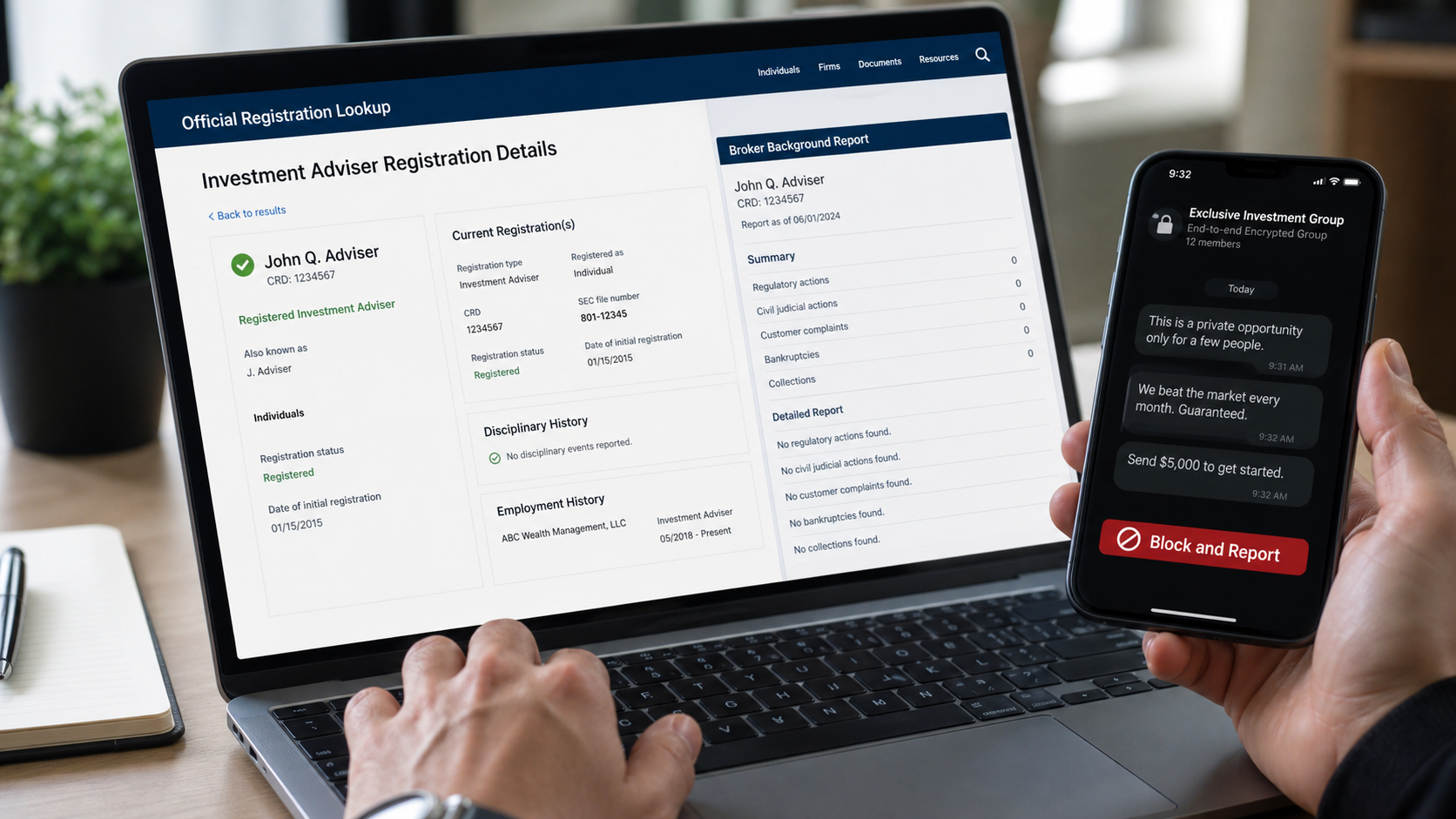
Fraudsters may copy a real professional’s name, registration number, employment history, photographs, and firm biography. They can create a lookalike website and encourage targets to search the stolen identity.
Typical warning signs include:
- An unsolicited investment approach through social media or messaging apps
- Guaranteed, risk-free, or unusually consistent returns
- A private group with testimonials and winning trade screenshots
- Pressure to act before an allocation or market move disappears
- Payments to an individual, unrelated company, or crypto wallet
- A professional who avoids the firm’s published contact channels
- Withdrawal fees, taxes, or deposits demanded after apparent profits
The fake platform turns deposits into imaginary profits
Victims may receive access to a convincing trading dashboard. Small gains appear quickly, customer-service agents answer questions, and an early withdrawal may even be allowed to build confidence.
Larger deposits are followed by larger on-screen balances. The numbers are controlled by the scammers and do not prove that securities, crypto assets, or foreign currency were purchased.
When the investor tries to withdraw, the platform demands a tax, margin payment, compliance deposit, insurance charge, or account upgrade. Paying one fee produces another until the victim stops.
Why These Investment Pitches Can Look Legitimate
A good impersonation borrows credibility from a real financial firm. The fake website may copy the logo, office address, legal disclosures, staff biographies, and links from the legitimate organization.
The SEC and FBI have warned that impostors can reproduce actual registration numbers and employment histories. They may also use spoofed telephone numbers, AI-generated writing, cloned voices, altered images, or deepfake video.
Private chat groups create social proof. Dozens of accounts celebrate profitable trades, thank the adviser, and post withdrawal screenshots. Those members may be bots, controlled personas, paid promoters, or other victims seeing the same fabricated results.
The scammers may start with accurate public market commentary. Correct observations about interest rates or a well-known stock do not verify the identity of the adviser or the safety of the account receiving money.
How the Capital Markets Advisory Scam Works
Step 1: A professional-looking profile makes contact
The target receives a connection request, direct message, email, advertisement, or invitation to an investment group. The sender presents himself as an analyst, adviser, banker, professor, or assistant to a successful market expert.
The opening may offer a free report rather than ask for money. This low-pressure beginning makes the conversation seem educational and gives the scammer time to learn the target’s financial interests.
Step 2: Public information is used to establish authority
The profile links to a real firm, professional biography, media appearance, or registration record. A reverse search may confirm that the name belongs to someone in finance.
The missing question is whether the person sending the message controls that identity. The scammer may have copied everything except the real professional’s official email address and telephone number.
Step 3: The target enters a private advisory group
Communication moves to WhatsApp, Telegram, or another encrypted platform. An assistant manages membership, posts schedules, answers beginner questions, and directs attention toward the adviser’s recommendations.
Group members report remarkable gains and encourage hesitant investors. Losses and critical questions are removed, so the visible conversation becomes a carefully staged advertisement.
Step 4: A small successful trade lowers resistance
The victim is invited to make a modest deposit on a recommended platform. The dashboard soon shows a profit, and the user may be allowed to withdraw a small amount.
That early payment can come from other victims’ deposits. Its purpose is to prove that the system works and make a much larger transfer feel safer.
Step 5: Urgency pushes the investor toward a larger position
The adviser announces an institutional trade, private allocation, recovery opportunity, or market event available for only a short time. The victim is urged to use savings, retirement money, credit, or borrowed funds.
Promises become more specific as the deposit grows. The scammer may guarantee principal protection, a fixed return, or personal reimbursement if the trade fails.
Step 6: The platform displays profits that do not exist
Account values rise according to numbers entered by the operator. Fake order histories, charts, confirmations, and account managers create the appearance of an operating brokerage.
No independently regulated custodian confirms ownership of the assets. The money may have gone directly to personal accounts, shell companies, money mules, or cryptocurrency wallets.
Step 7: Withdrawal attempts trigger invented fees
When the victim requests money, the platform claims that taxes, anti-money-laundering checks, margin deficits, commissions, or insurance charges must be paid first. The fee cannot be taken from the displayed balance.
Each payment creates another requirement. Eventually the website disappears, the account is frozen, or the victim is removed from the group.
Step 8: Recovery impostors approach the victim
The same criminals or a separate group may claim to be lawyers, regulators, blockchain investigators, or recovery specialists. They know the lost amount and destination details, which makes the approach feel informed.
The promised recovery requires an advance retainer, tax, wallet fee, or identity document. This is a second opportunity to steal from someone already under financial and emotional pressure.
How to Verify an Investment Professional Correctly
Start at Investor.gov and search for the individual and firm. Review the registration status, employment, Form CRS, disciplinary information, and official contact details.
FINRA BrokerCheck provides another route for brokerage professionals and firms. A record that exists confirms that a real person or firm has a history, not that the stranger messaging you is that person.
Contact the professional using the telephone number or website shown in the regulatory record. Do not use the number, link, QR code, or email address supplied in the pitch, even if it differs by only one character.
Ask whether the specific website, group, assistant, product, and payment instructions are authorized. A real firm may reveal that its employee’s identity has been stolen.
Why Testimonials and Video Calls Are Weak Evidence
Testimonials show what the promoter wants a new investor to see. Screenshots can be edited, group accounts can be controlled by one person, and withdrawal videos can be staged.
A video call is stronger evidence that someone exists, but not that the caller is licensed or controls the biography being shown. AI tools can alter faces and voices, while ordinary impostors can simply choose a different stolen identity.
Real verification connects the person to an independently obtained firm channel and regulatory record. It also confirms where customer assets are held and which legal entity receives them.
Do not allow the adviser to supervise your verification. Someone who remains on the call, dictates search terms, or sends every link controls the evidence you are reviewing.
How Fake Advisory Groups Manipulate the Conversation
A private group may appear active around the clock, but activity is not the same as independent participation. Administrators can schedule posts, recycle market news, and operate several member accounts from one team.
Winning trades are highlighted after the result is known, while losing calls disappear or are explained away. New members see a clean history that could not have existed in real time.
Questions about licensing, custody, or withdrawals may receive friendly reassurance in public and pressure in private. The goal is to keep doubt away from other members while isolating the person asking.
Some groups assign status levels based on deposits. Higher tiers supposedly unlock research, larger allocations, or direct access to the expert, turning additional payments into a sign of belonging.
Why a Real Company Name Does Not Protect the Payment
The firm named in the pitch may be a genuine registered business with no connection to the messages. Impostors benefit when a target finds a clean regulatory history and stops checking.
Verification must connect three elements: the person, the official firm channel, and the account receiving money. If one element does not match, the registration belongs to someone else’s business.
Call the number listed in Form CRS or another official record and ask the firm to confirm the exact domain, representative, product, and payment beneficiary. Do not accept a return call arranged by the promoter.
Company, Address, and Fulfillment Checks
The firm’s official record must match the pitch
Compare the legal name, registration, website, telephone number, and business address with Investor.gov and FINRA records. Small inconsistencies can reveal an impersonation.
The website history should fit the claimed business
A recently registered domain is difficult to reconcile with decades of claimed experience. Lookalike spelling, hidden ownership, and copied legal pages are additional warning signs.
The payment beneficiary must make sense
Stop if an investment payment goes to an individual, unrelated merchant, foreign account, payment app, or personal crypto wallet. Ask the verified firm to confirm custody arrangements in writing.
The withdrawal process should not require fresh money
Legitimate taxes and fees are documented and normally handled through regulated account procedures. Repeated demands for outside deposits to unlock a displayed balance strongly indicate fraud.
Questions to Ask Before Sending Any Money
- Is the individual currently licensed for this activity?
- Did I contact the firm through an independently verified channel?
- Who legally holds the assets and customer cash?
- Why is communication restricted to a private messaging app?
- Does the payment recipient match the regulated entity?
- Are the promised returns realistic and accompanied by risk disclosures?
- Can I review documents with an independent lawyer or adviser?
- Can I withdraw without sending additional money first?
A legitimate professional should welcome informed questions and time for review. Anger, secrecy, guarantees, and expiring opportunities are pressure tactics, not signs of exclusivity.
What to Do if You Have Fallen Victim to This Scam
- Stop sending money immediately. Do not pay a withdrawal tax, compliance fee, recovery charge, or final deposit. Do not borrow more to rescue the displayed balance.
- Contact the sending institution. Tell the bank, card issuer, payment app, or crypto exchange that the transaction resulted from investment fraud. Ask about recalls, disputes, recipient freezes, and preservation of records.
- Preserve the entire investment trail. Save advertisements, profiles, group chats, phone numbers, domains, contracts, dashboard screenshots, bank details, wallet addresses, transaction hashes, and withdrawal demands.
- Contact the real professional or firm. Use regulatory contact information to report the impersonation. The firm may help confirm which profiles, domains, or accounts are fraudulent.
- Secure exposed accounts and identity data. Change passwords, protect email first, enable strong two-factor authentication, revoke unknown sessions, and freeze credit if sensitive identity documents were disclosed.
- Remove remote tools and scan your devices. Disconnect any device the “adviser” controlled, uninstall remote-access software, and run a full Malwarebytes scan for spyware and credential-stealing malware.
- Reduce future phishing exposure. AdGuard can help block known fraudulent domains, malicious ads, and redirect chains. Continue verifying every recovery contact independently.
- Report securities fraud. Submit information through SEC.gov/tcr, file at IC3.gov and ReportFraud.ftc.gov, and contact your state securities regulator and local police.
- Reject advance-fee recovery offers. Do not give a recovery service remote access, wallet keys, or more money. Discuss large losses with a licensed attorney reached through an independent referral.
Is Your Device Infected? Run a Free Malware Scan
Slow performance, constant pop-ups, or strange behavior? These are classic signs of a malware infection. A quick way to check is to scan your device with Malwarebytes Free, one of the most trusted malware removal tools available. If you only visited a scam page and didn’t download or install anything, this scan is optional.
The free version detects and removes the most common threats, including:
- Adware — the cause of those annoying pop-ups
- Browser hijackers — unwanted redirects and changed homepages
- Trojans and spyware — hidden programs stealing your data
- Potentially unwanted programs (PUPs) — software you never asked for
👉 Select your device below — Windows, Mac, or Android — then follow the simple steps to download Malwarebytes, scan your system, and remove any threats it finds. The scan usually takes 5 to 20 minutes.
Run a Malware Scan with Malwarebytes for Windows
Malwarebytes is one of the most popular and trusted anti-malware tools for Windows — and it’s completely free for removing infections. It catches threats that many antivirus programs miss, including adware, browser hijackers, and trojans. Follow the steps below to scan your PC and remove what Malwarebytes finds.
Download Malwarebytes
Click the button below to download the latest version of Malwarebytes for Windows from the official source. The free version is all you need — it will scan your computer and remove adware, browser hijackers, and other malicious software at no cost.
Download MalwarebytesOfficial installer for Windows 11 and 10. Your download starts right away.Want real-time protection? See Malwarebytes Premium Malwarebytes Free for WindowsScans and removes malware at no cost
-
Install Malwarebytes
When the download finishes, open your Downloads folder and double-click the MBSetup file. If Windows shows a User Account Control pop-up, click “Yes” to allow the installation.

Follow the On-Screen Prompts to Install Malwarebytes
The setup wizard will walk you through a few quick screens:
-
Choose where you’re installing the program — “Personal Computer” or “Work Computer” — then click Next.

-
Malwarebytes will now install on your device. This usually takes under a minute.

-
When installation is complete, the “Welcome to Malwarebytes” screen will open automatically.

-
On the final screen, click Open Malwarebytes to launch the program.

-
Optional: Check for rootkits with a Custom Scan
You don’t need to change any settings for a normal scan. The standard Threat Scan in the next step is enough for most problems, so you can go straight to it.
If you also want to check for rootkits, use a Custom Scan. In current versions of Malwarebytes, rootkit scanning is only available there:
- On the Scanner tile, click the three-dot menu and select Advanced Scan.
- Choose Custom Scan. In its options, check Scan for rootkits.
- Select your system drive (usually C:\) as the location to scan, then start the scan. It takes longer than a Threat Scan.
- When it finishes, review and quarantine the results as described in the steps below.
Rootkit scanning isn’t available on Windows devices with ARM processors.
Start the Scan
Click the blue Scan button. Malwarebytes will automatically update its virus database and start checking your computer for malware.

-
Wait for the Scan to Finish
The scan checks your entire system for browser hijackers and other malicious programs, so it can take 5 to 20 minutes depending on your computer. Feel free to do something else — just check back occasionally to see the progress.

-
Quarantine the Detected Threats
When the scan is done, you’ll see a list of everything Malwarebytes found — malware, adware, and potentially unwanted programs. Click the “Quarantine” button to remove all of them at once.

Malwarebytes will now remove the malicious files and registry entries and move them safely into quarantine.

-
Restart Your Computer
Some threats can only be fully removed after a reboot. If Malwarebytes asks you to restart, click Yes. Once you’re logged back in, Malwarebytes has finished removing the threats it found.

When the scan is done, check whether the problems you noticed have stopped. If they continue, see the options below.
If you are still having problems with your computer after completing these instructions, then please follow one of the steps:
- Run a computer scan with ESET Online Scanner
- Ask for help in our Windows Malware Removal Help & Support forum.
Run a Malware Scan with Malwarebytes for Mac
Malwarebytes for Mac is a free on-demand scanner that removes the malware other security software tends to miss — adware, browser hijackers, and unwanted programs included. Cleaning an infected Mac with Malwarebytes has always been completely free, and it’s our go-to recommendation. Follow the steps below to scan your Mac and remove what Malwarebytes finds.
-
Download Malwarebytes for Mac
Click the button below to download the latest version of Malwarebytes for Mac.
Download MalwarebytesOfficial installer for macOS. Your download starts right away.Want real-time protection? See Malwarebytes PremiumMalwarebytes Free for MacScans and removes malware at no cost -
Open the Malwarebytes setup file
When the download finishes, open your Downloads folder and double-click the setup file to begin the installation.

-
Follow the On-Screen Prompts to Install Malwarebytes
The Malwarebytes for Mac Installer will guide you through a few quick screens. Click “Continue” and keep following the prompts until the installation completes.



When the installation is complete, Malwarebytes opens to the Welcome to Malwarebytes screen. Click “Get started“.
Malwarebytes needs Full Disk Access to check your whole Mac. When it asks, open System Settings > Privacy & Security > Full Disk Access, turn on Malwarebytes (it may be listed as Malwarebytes Protection), and confirm with your password or Touch ID. Then return to Malwarebytes. On macOS Monterey and earlier, this setting is in System Preferences > Security & Privacy > Privacy.
-
Select “Personal Computer” or “Work Computer”
Malwarebytes will ask what type of computer you’re installing it on. Click either Personal Computer or Work Computer, whichever applies.

-
Start the Scan
Click the “Scan” button. Malwarebytes will automatically update its detection database and begin checking your Mac for malware.

-
Wait for the Scan to Finish
Malwarebytes will scan your Mac for adware, browser hijackers, and other malicious programs. This can take a few minutes, so feel free to do something else — just check back occasionally to see the progress.

-
Quarantine the Detected Threats
When the scan is done, you’ll see a list of everything Malwarebytes found. Click the “Quarantine” button to remove all the threats at once.

-
Restart Your Mac
Malwarebytes will now remove all the malicious files it found. Some threats can only be fully removed after a reboot — if Malwarebytes asks you to restart, allow it. Once you’re logged back in, check whether the problems you noticed have stopped. If they come back, save the scan report and ask for help in our forum.

If the problems you noticed continue after the scan, see the options below.
If you are still experiencing problems while trying to remove a malicious program from your computer, please ask for help in our Mac Malware Removal Help & Support forum.
Run a Malware Scan with Malwarebytes for Android
Malwarebytes for Android scans your phone or tablet for malware, adware, and potentially unwanted apps. The free version scans only when you start a scan. Real-time protection, which checks apps automatically, is part of the paid Premium version.
-
Download Malwarebytes for Android.
You can download Malwarebytes for Android by clicking the link below.
Get Malwarebytes for AndroidOpens Google Play in a new tab.Want real-time protection? See Malwarebytes Premium for AndroidMalwarebytes for AndroidScans your phone and removes malware at no cost -
Install Malwarebytes for Android on your phone.
In the Google Play Store, tap “Install” to install Malwarebytes for Android on your device.

When the installation process has finished, tap “Open” to begin using Malwarebytes for Android. You can also open Malwarebytes by tapping on its icon in your phone menu or home screen.

-
Follow the on-screen prompts to complete the setup process
When Malwarebytes opens, it walks you through a short setup. Tap Get started and follow the prompts. If you see an offer for a trial or a paid plan, read it before you accept. You can skip it and keep using the free scanner.
Malwarebytes will ask for permission to access the files on your phone so it can scan them. Tap Allow, or turn on the permission in the Android screen that opens, then return to Malwarebytes.
-
Run a scan with Malwarebytes for Android
On the main screen, tap Scan now. In some versions, you open the menu, tap Scanner, and then tap Run a scan.
-
Wait for the Malwarebytes scan to complete.
Malwarebytes will now start scanning your phone for adware and other malicious apps. This process can take a few minutes, so we suggest you do something else and periodically check on the status of the scan to see when it is finished.

-
Remove the detected apps.
When the scan has been completed, you will see a list of the threats that Malwarebytes for Android has detected. Next to each detected item, tap the menu icon (three dots), then choose to uninstall the app or delete the file. Android then asks you to confirm. Tap OK or Uninstall to remove the app.
-
Restart your phone.
When the detected apps are removed, restart your phone if Malwarebytes asks you to. Then check whether the problems you noticed have stopped.
If the problems you noticed continue after the scan, see the options below.
If you are still having problems with your phone after completing these instructions, then please follow one of the steps:
- Ask for help in our Mobile Malware Removal Help & Support forum.
- Only as a last resort, reset your phone to factory settings. Read the warning below first.
- Back up your photos, videos, files, and messages, for example to your Google account or a computer.
- Make sure you know your Google account email and password. The phone asks for them after the reset. If you changed the password recently, Google recommends waiting 24 hours before you reset.
- On a Samsung phone, also make sure you know your Samsung account password.
- If you use an authenticator app for two-step verification, move your accounts to another device or save your backup codes first.
Stay Protected: Block Ads and Malicious Sites
No scan can prove a device is completely clean, so it helps to block threats before they reach you. Most infections start with a malicious ad or a fake download button — so blocking them at the source is your best defense.
We recommend AdGuard, which blocks malicious ads, phishing pages, and dangerous redirects before they can reach you.
👉 Download AdGuard and browse safely
Frequently Asked Questions
Is “capital markets adviser” an official license?
The phrase alone does not prove a license or registration. Verify the individual and firm through Investor.gov, FINRA BrokerCheck, and the appropriate state regulator.
Can a scammer use a real adviser’s registration number?
Yes. Impostors copy genuine names, numbers, biographies, and employment histories. Contact the firm using details from the official regulatory record.
Are private WhatsApp or Telegram investment groups always scams?
Not every group is fraudulent, but unsolicited groups, guaranteed gains, staged testimonials, and payment instructions outside a regulated firm are serious warning signs.
Does a successful small withdrawal prove the platform is real?
No. Scammers may allow an early withdrawal to build confidence before requesting a much larger deposit. Confirm the custodian and registration independently.
Should I pay a tax to release my investment profits?
Do not send fresh money to an unknown platform to unlock a balance. Contact a licensed tax professional and the verified financial institution before paying anything.
Where should I report a fake investment professional?
Report possible securities fraud to the SEC, FINRA, your state securities regulator, the FBI’s IC3, and local police. Also notify the real person or firm being impersonated.
The Bottom Line
A capital markets advisory scam can borrow a real professional’s identity, surround the pitch with fake social proof, and display profits on a platform the criminals completely control.
Verify the person through official regulatory records and contact the firm independently. If the recipient account, website, or communication channel does not match, do not send money.

Join the discussion
0 commentsShare your experience or ask a question about this article.
Discussion
Start the conversation
Have a question or something useful to share? Add the first comment.