


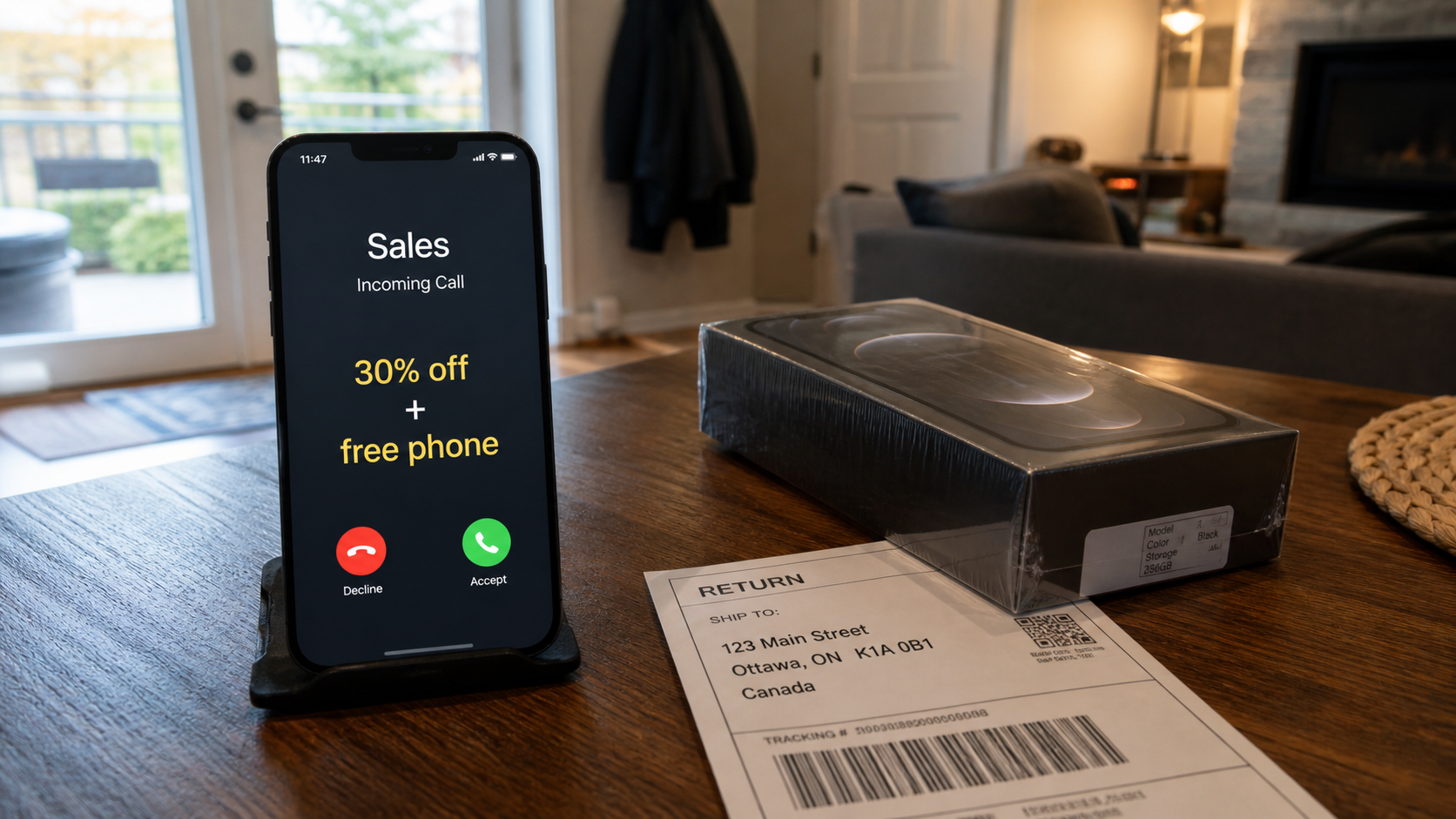
The offer sounds unusually generous: a free premium phone, a lower monthly bill, or 30% off for being a loyal customer. The caller already seems to know enough about your service to make the promotion feel personal.
Days later, a real device arrives at your real address. That delivery can make the caller’s story seem completely legitimate, just before the most important part of the scam begins.
Overview
The scam begins with an unsolicited promotion
The Rogers and Fido phone scam targets Canadian mobile customers with unexpected calls, texts, or emails. The person claims to represent a carrier and offers a discounted plan, free phone, tablet, or other electronic device.
The caller may promise 30% off, describe a loyalty reward, or claim to work for a retention or win-back team. Caller ID can display a familiar carrier name or local number, but that information can be spoofed.
South Simcoe Police warned in August 2026 that reports involving impersonated telecommunications companies were increasing. The public notice specifically described callers claiming to represent companies such as Rogers or Fido.
A real delivery makes the false offer convincing
This scam is more complicated than a caller taking a card number and disappearing. Criminals may use personal details and security codes to access a legitimate mobile account or open service in the victim’s name.
They then arrange for a real phone or tablet to be shipped to the victim’s home. Because the package comes through a genuine carrier process, the recipient may believe the promotion was authentic.
Warning signs include:
- An unexpected offer for a free or heavily discounted device
- Pressure to decide before the call ends
- A request for an account password, PIN, or verification code
- Instructions to log in while the caller stays on the line
- A device arriving that you did not independently order
- A caller arranging a private courier pickup
- A return label or address supplied outside the carrier’s official process
The fake return is where the device is stolen
After delivery, the caller says the wrong model was sent, the order contains an error, or activation cannot be completed. The victim is told to ship the device to a supplied address or hand it to a courier.
The package does not return to the carrier. It goes to the criminal or an intermediary, while the financing agreement and unauthorized charges remain attached to the victim’s account.
The victim has now lost physical possession of the strongest evidence and may still owe for the device. Personal information collected during the call can also support identity theft or further account takeover.
What Police and the Canadian Anti-Fraud Centre Warn About
South Simcoe Police described unsolicited promotions followed by devices delivered to homes. Fraudsters then claimed there was a problem and instructed recipients to return the items or allow someone to collect them.
The warning says victims may later find unauthorized charges while no longer possessing the devices. It also stresses that a legitimate-looking caller ID does not establish that a call is genuine.
The Canadian Anti-Fraud Centre describes the same pattern. Criminals pose as cellphone providers, offer discounts or upgrades, request credentials or identity documents, and direct delivered devices to a different address.
Both sources recommend ending the unexpected contact and reaching the service provider through the number on a bill, account, or official website. A device you did not order should remain in your possession until the real carrier confirms its return process.
How the Rogers and Fido Phone Scam Works
Step 1: The caller offers an exclusive carrier promotion
The target receives a call from someone claiming to represent Rogers, Fido, a partner, or a retention team. The offer may combine a lower plan price with a new high-end phone.
The discount is designed to be attractive without sounding impossible. References to loyalty, account age, or a recent plan search can make the promotion feel tailored.
Step 2: Personal details are collected as an “eligibility check”
The caller asks for a name, address, date of birth, account number, email address, payment-card information, or identification. Each request is presented as necessary to confirm eligibility and ship the device.
Some information may already be known from earlier breaches or public sources. Revealing accurate details is a trust-building tactic, not proof that the caller can see the carrier’s internal system.
Step 3: A security code opens the genuine account
The scammer attempts to sign in or contacts the carrier while impersonating the customer. A real one-time code may arrive from Rogers or Fido, and the caller asks the victim to read it aloud.
The code is genuine, but the explanation is false. Sharing it may let the criminal reset credentials, change the account, add a line, or place a financed device order.
Step 4: A real phone is shipped to the victim
The order uses the victim’s legitimate carrier account or stolen identity, so the provider ships the device to the address on file. Confirmation emails and tracking information may also come from genuine systems.
These real messages do not validate the unsolicited caller. They may instead be evidence that someone used the account without authorization.
Step 5: The caller announces a convenient mistake
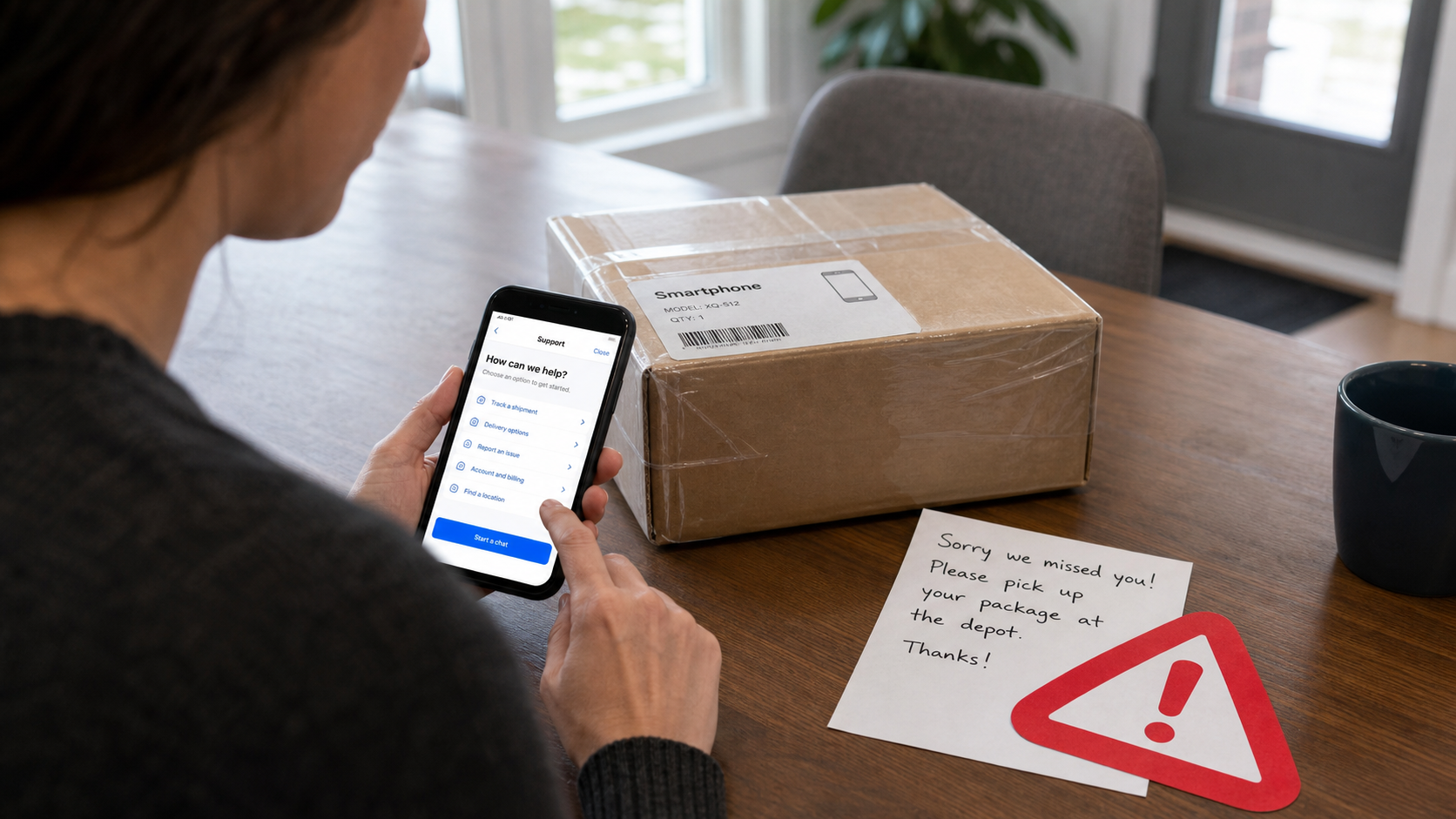
When tracking shows delivery, the scammer calls again. The box supposedly contains the wrong color, model, storage size, or phone, or the order must be returned before the promised discount can be activated.
The mistake is deliberate. It creates a reason for the valuable device to leave the victim’s home without attracting suspicion.
Step 6: A false return label or courier redirects the package
The victim receives a shipping label, street address, or pickup appointment from the caller. A person may arrive at the door claiming to be an authorized courier.
The address is not the carrier’s verified return destination. Once the package is handed over, the criminal can resell the sealed device while the victim remains connected to the account charges.
Step 7: The victim discovers the financing and identity damage
The promised plan discount never appears. Instead, the next bill may show a new line, device financing, activation fees, or other changes that the customer did not knowingly authorize.
Resolving the account is harder because the phone is gone. The identity information disclosed during the scheme may also be used to open other telecommunications or credit accounts.
What to Do if an Unexpected Device Arrives
Do not open, activate, reship, sell, or hand the device to anyone who contacts you unexpectedly. Keep the box, shipping label, order paperwork, and delivery record together as evidence.
Contact Rogers or Fido through the official app, your normal account portal, *611 from the connected mobile service, or a verified number on your bill. Explain that the order may have been placed through impersonation.
Ask the carrier to confirm the order date, line changes, financing, account notes, contact details, and correct return instructions. Write down the official case number and the name or employee reference of the representative.
If a courier arrives before the matter is resolved, refuse the pickup. A stranger at the door does not become authorized because the earlier caller knew the tracking number.
How to Verify a Phone Promotion Safely
End the sales call and find the offer inside your official carrier account. If the promotion is genuine, the carrier should be able to explain it after you reconnect through a trusted channel.
Ask for the full plan price, device financing term, monthly credits, activation fees, return period, and total cost. A large discount may be spread across many months and depend on keeping an eligible plan.
Never provide a one-time code to an unsolicited caller. A message that says not to share the code means exactly that, even when someone claims the code is needed to activate a discount.
Do not use a link or callback number supplied during the sales pitch. Search results can also contain fraudulent advertisements, so begin with the carrier app, printed bill, or address you already know.
Why the Caller May Know Your Account Details
A caller who knows your name, carrier, address, or current plan can feel impossible to dismiss. That information may come from a breached database, a stolen bill, social-media research, an earlier phishing response, or access to an email account.
The criminal may also learn details during the conversation. Questions phrased as confirmation, such as “You still have the 40 GB plan, correct?” encourage the customer to correct the caller and reveal the real information.
In some cases, the scammer may already be inside the carrier account. Knowing an order number or delivery date then indicates an account compromise, not that the person calling is an employee.
Treat knowledge and authority as separate things. Only the carrier, reached independently, can confirm whether a promotion, order, or account change was authorized.
How the Scam Can Affect More Than One Account
The personal information collected for the supposed promotion can support credit applications, SIM swaps, email resets, and additional mobile accounts. A copied driver’s licence may circulate long after the phone is resold.
Email access is particularly valuable because order confirmations and password-reset messages arrive there. Review mailbox forwarding rules, recovery addresses, filters, and recent sessions instead of changing only the carrier password.
A fraudulent new line can also receive verification texts. Ask the carrier to list every number and SIM attached to the account, not just the device shown on the latest bill.
Company, Address, and Fulfillment Checks
The caller’s company name must be independently confirmed
Ask the real carrier whether the promotion and representative exist after ending the call. Do not let the original caller transfer you to a supposed verification department.
The account should show every change
Review new lines, device balances, plan changes, addresses, authorized users, and contact details. Confirmation emails should match what the official account displays.
The return address must come from the real carrier
Do not use a label sent by the promoter. Confirm the return destination and procedure during a separate support session that you initiated through the carrier’s official channel.
The pickup company needs a verified authorization
An unexpected driver, rideshare vehicle, or ordinary courier can be part of the theft. Keep the device until the carrier confirms in writing how and by whom it will be collected.
What to Do if You Have Fallen Victim to This Scam
- Contact the real carrier immediately. Report account takeover, unauthorized orders, and every line or device involved. Ask for the fraud department and obtain a case number.
- Do not surrender any device still in your possession. Keep it sealed when possible and follow only the return procedure confirmed through an official carrier channel.
- Report a device already shipped or collected. Give the carrier and police the tracking number, return label, destination address, courier details, pickup time, and any doorbell footage.
- Secure the carrier and email accounts. Change unique passwords, update the account PIN, remove unknown users and devices, restore correct contact details, and enable stronger authentication.
- Call the bank or card issuer. Replace any card disclosed during the call, dispute unauthorized charges, and monitor for small test payments followed by larger transactions.
- Scan devices used during the scam. Remove any remote-access or configuration app requested by the caller, then use Malwarebytes to check for spyware, credential theft, and unwanted software.
- Block malicious links and advertising. AdGuard can help prevent access to known phishing domains and deceptive ads. It does not replace account recovery with the provider.
- Protect your identity. If you shared a driver’s licence, SIN, or other identity document, consider fraud alerts or credit monitoring and check for unauthorized telecom and credit accounts.
- Report the fraud. File a report with local police and the Canadian Anti-Fraud Centre. Preserve the promotional message, call logs, account emails, packaging, bills, and payment records.
Is Your Device Infected? Run a Free Malware Scan
Slow performance, constant pop-ups, or strange behavior? These are classic signs of a malware infection. A quick way to check is to scan your device with Malwarebytes Free, one of the most trusted malware removal tools available. If you only visited a scam page and didn’t download or install anything, this scan is optional.
The free version detects and removes the most common threats, including:
- Adware — the cause of those annoying pop-ups
- Browser hijackers — unwanted redirects and changed homepages
- Trojans and spyware — hidden programs stealing your data
- Potentially unwanted programs (PUPs) — software you never asked for
👉 Select your device below — Windows, Mac, or Android — then follow the simple steps to download Malwarebytes, scan your system, and remove any threats it finds. The scan usually takes 5 to 20 minutes.
Run a Malware Scan with Malwarebytes for Windows
Malwarebytes is one of the most popular and trusted anti-malware tools for Windows — and it’s completely free for removing infections. It catches threats that many antivirus programs miss, including adware, browser hijackers, and trojans. Follow the steps below to scan your PC and remove what Malwarebytes finds.
Download Malwarebytes
Click the button below to download the latest version of Malwarebytes for Windows from the official source. The free version is all you need — it will scan your computer and remove adware, browser hijackers, and other malicious software at no cost.
Download MalwarebytesOfficial installer for Windows 11 and 10. Your download starts right away.Want real-time protection? See Malwarebytes Premium Malwarebytes Free for WindowsScans and removes malware at no cost
-
Install Malwarebytes
When the download finishes, open your Downloads folder and double-click the MBSetup file. If Windows shows a User Account Control pop-up, click “Yes” to allow the installation.

Follow the On-Screen Prompts to Install Malwarebytes
The setup wizard will walk you through a few quick screens:
-
Choose where you’re installing the program — “Personal Computer” or “Work Computer” — then click Next.

-
Malwarebytes will now install on your device. This usually takes under a minute.

-
When installation is complete, the “Welcome to Malwarebytes” screen will open automatically.

-
On the final screen, click Open Malwarebytes to launch the program.

-
Optional: Check for rootkits with a Custom Scan
You don’t need to change any settings for a normal scan. The standard Threat Scan in the next step is enough for most problems, so you can go straight to it.
If you also want to check for rootkits, use a Custom Scan. In current versions of Malwarebytes, rootkit scanning is only available there:
- On the Scanner tile, click the three-dot menu and select Advanced Scan.
- Choose Custom Scan. In its options, check Scan for rootkits.
- Select your system drive (usually C:\) as the location to scan, then start the scan. It takes longer than a Threat Scan.
- When it finishes, review and quarantine the results as described in the steps below.
Rootkit scanning isn’t available on Windows devices with ARM processors.
Start the Scan
Click the blue Scan button. Malwarebytes will automatically update its virus database and start checking your computer for malware.

-
Wait for the Scan to Finish
The scan checks your entire system for browser hijackers and other malicious programs, so it can take 5 to 20 minutes depending on your computer. Feel free to do something else — just check back occasionally to see the progress.

-
Quarantine the Detected Threats
When the scan is done, you’ll see a list of everything Malwarebytes found — malware, adware, and potentially unwanted programs. Click the “Quarantine” button to remove all of them at once.

Malwarebytes will now remove the malicious files and registry entries and move them safely into quarantine.

-
Restart Your Computer
Some threats can only be fully removed after a reboot. If Malwarebytes asks you to restart, click Yes. Once you’re logged back in, Malwarebytes has finished removing the threats it found.

When the scan is done, check whether the problems you noticed have stopped. If they continue, see the options below.
If you are still having problems with your computer after completing these instructions, then please follow one of the steps:
- Run a computer scan with ESET Online Scanner
- Ask for help in our Windows Malware Removal Help & Support forum.
Run a Malware Scan with Malwarebytes for Mac
Malwarebytes for Mac is a free on-demand scanner that removes the malware other security software tends to miss — adware, browser hijackers, and unwanted programs included. Cleaning an infected Mac with Malwarebytes has always been completely free, and it’s our go-to recommendation. Follow the steps below to scan your Mac and remove what Malwarebytes finds.
-
Download Malwarebytes for Mac
Click the button below to download the latest version of Malwarebytes for Mac.
Download MalwarebytesOfficial installer for macOS. Your download starts right away.Want real-time protection? See Malwarebytes PremiumMalwarebytes Free for MacScans and removes malware at no cost -
Open the Malwarebytes setup file
When the download finishes, open your Downloads folder and double-click the setup file to begin the installation.

-
Follow the On-Screen Prompts to Install Malwarebytes
The Malwarebytes for Mac Installer will guide you through a few quick screens. Click “Continue” and keep following the prompts until the installation completes.



When the installation is complete, Malwarebytes opens to the Welcome to Malwarebytes screen. Click “Get started“.
Malwarebytes needs Full Disk Access to check your whole Mac. When it asks, open System Settings > Privacy & Security > Full Disk Access, turn on Malwarebytes (it may be listed as Malwarebytes Protection), and confirm with your password or Touch ID. Then return to Malwarebytes. On macOS Monterey and earlier, this setting is in System Preferences > Security & Privacy > Privacy.
-
Select “Personal Computer” or “Work Computer”
Malwarebytes will ask what type of computer you’re installing it on. Click either Personal Computer or Work Computer, whichever applies.

-
Start the Scan
Click the “Scan” button. Malwarebytes will automatically update its detection database and begin checking your Mac for malware.

-
Wait for the Scan to Finish
Malwarebytes will scan your Mac for adware, browser hijackers, and other malicious programs. This can take a few minutes, so feel free to do something else — just check back occasionally to see the progress.

-
Quarantine the Detected Threats
When the scan is done, you’ll see a list of everything Malwarebytes found. Click the “Quarantine” button to remove all the threats at once.

-
Restart Your Mac
Malwarebytes will now remove all the malicious files it found. Some threats can only be fully removed after a reboot — if Malwarebytes asks you to restart, allow it. Once you’re logged back in, check whether the problems you noticed have stopped. If they come back, save the scan report and ask for help in our forum.

If the problems you noticed continue after the scan, see the options below.
If you are still experiencing problems while trying to remove a malicious program from your computer, please ask for help in our Mac Malware Removal Help & Support forum.
Run a Malware Scan with Malwarebytes for Android
Malwarebytes for Android scans your phone or tablet for malware, adware, and potentially unwanted apps. The free version scans only when you start a scan. Real-time protection, which checks apps automatically, is part of the paid Premium version.
-
Download Malwarebytes for Android.
You can download Malwarebytes for Android by clicking the link below.
Get Malwarebytes for AndroidOpens Google Play in a new tab.Want real-time protection? See Malwarebytes Premium for AndroidMalwarebytes for AndroidScans your phone and removes malware at no cost -
Install Malwarebytes for Android on your phone.
In the Google Play Store, tap “Install” to install Malwarebytes for Android on your device.

When the installation process has finished, tap “Open” to begin using Malwarebytes for Android. You can also open Malwarebytes by tapping on its icon in your phone menu or home screen.

-
Follow the on-screen prompts to complete the setup process
When Malwarebytes opens, it walks you through a short setup. Tap Get started and follow the prompts. If you see an offer for a trial or a paid plan, read it before you accept. You can skip it and keep using the free scanner.
Malwarebytes will ask for permission to access the files on your phone so it can scan them. Tap Allow, or turn on the permission in the Android screen that opens, then return to Malwarebytes.
-
Run a scan with Malwarebytes for Android
On the main screen, tap Scan now. In some versions, you open the menu, tap Scanner, and then tap Run a scan.
-
Wait for the Malwarebytes scan to complete.
Malwarebytes will now start scanning your phone for adware and other malicious apps. This process can take a few minutes, so we suggest you do something else and periodically check on the status of the scan to see when it is finished.

-
Remove the detected apps.
When the scan has been completed, you will see a list of the threats that Malwarebytes for Android has detected. Next to each detected item, tap the menu icon (three dots), then choose to uninstall the app or delete the file. Android then asks you to confirm. Tap OK or Uninstall to remove the app.
-
Restart your phone.
When the detected apps are removed, restart your phone if Malwarebytes asks you to. Then check whether the problems you noticed have stopped.
If the problems you noticed continue after the scan, see the options below.
If you are still having problems with your phone after completing these instructions, then please follow one of the steps:
- Ask for help in our Mobile Malware Removal Help & Support forum.
- Only as a last resort, reset your phone to factory settings. Read the warning below first.
- Back up your photos, videos, files, and messages, for example to your Google account or a computer.
- Make sure you know your Google account email and password. The phone asks for them after the reset. If you changed the password recently, Google recommends waiting 24 hours before you reset.
- On a Samsung phone, also make sure you know your Samsung account password.
- If you use an authenticator app for two-step verification, move your accounts to another device or save your backup codes first.
Stay Protected: Block Ads and Malicious Sites
No scan can prove a device is completely clean, so it helps to block threats before they reach you. Most infections start with a malicious ad or a fake download button — so blocking them at the source is your best defense.
We recommend AdGuard, which blocks malicious ads, phishing pages, and dangerous redirects before they can reach you.
👉 Download AdGuard and browse safely
Frequently Asked Questions
Can a scammer really send a genuine Rogers or Fido phone?
Yes. Criminals may use a victim’s real account or identity to place an unauthorized order. A genuine delivery can be part of the scam rather than proof of a legitimate promotion.
Why would the phone be delivered to my address?
Carriers normally ship to an address associated with the account. The scammer plans to redirect the device after delivery through a false return label or pickup.
Should I give the package to a courier sent by the caller?
No. Keep the device and confirm the return directly with the carrier through its official app, bill, or website. Refuse an unverified pickup.
What if the verification code came from the real carrier?
The code may be real because the scammer initiated a real login or order. Never read it aloud. Contact the carrier immediately if you already shared it.
Will I have to pay for the stolen device?
Report the fraud promptly and provide evidence. The carrier determines account corrections after investigation, so obtain a case number and keep following up until the financing is addressed.
Where can Canadian victims report the scam?
Report it to the affected carrier, local police, and the Canadian Anti-Fraud Centre. If identity documents were exposed, contact the relevant credit bureaus as well.
The Bottom Line
The Rogers and Fido phone scam can deliver a real device through a real account, then steal it through a fake return. That physical package is what makes the story so persuasive.
Keep any unexpected device, contact the carrier yourself, and follow only its verified return process. Never share a security code or hand valuable electronics to a courier arranged by an unsolicited caller.

Join the discussion
0 commentsShare your experience or ask a question about this article.
Discussion
Start the conversation
Have a question or something useful to share? Add the first comment.