


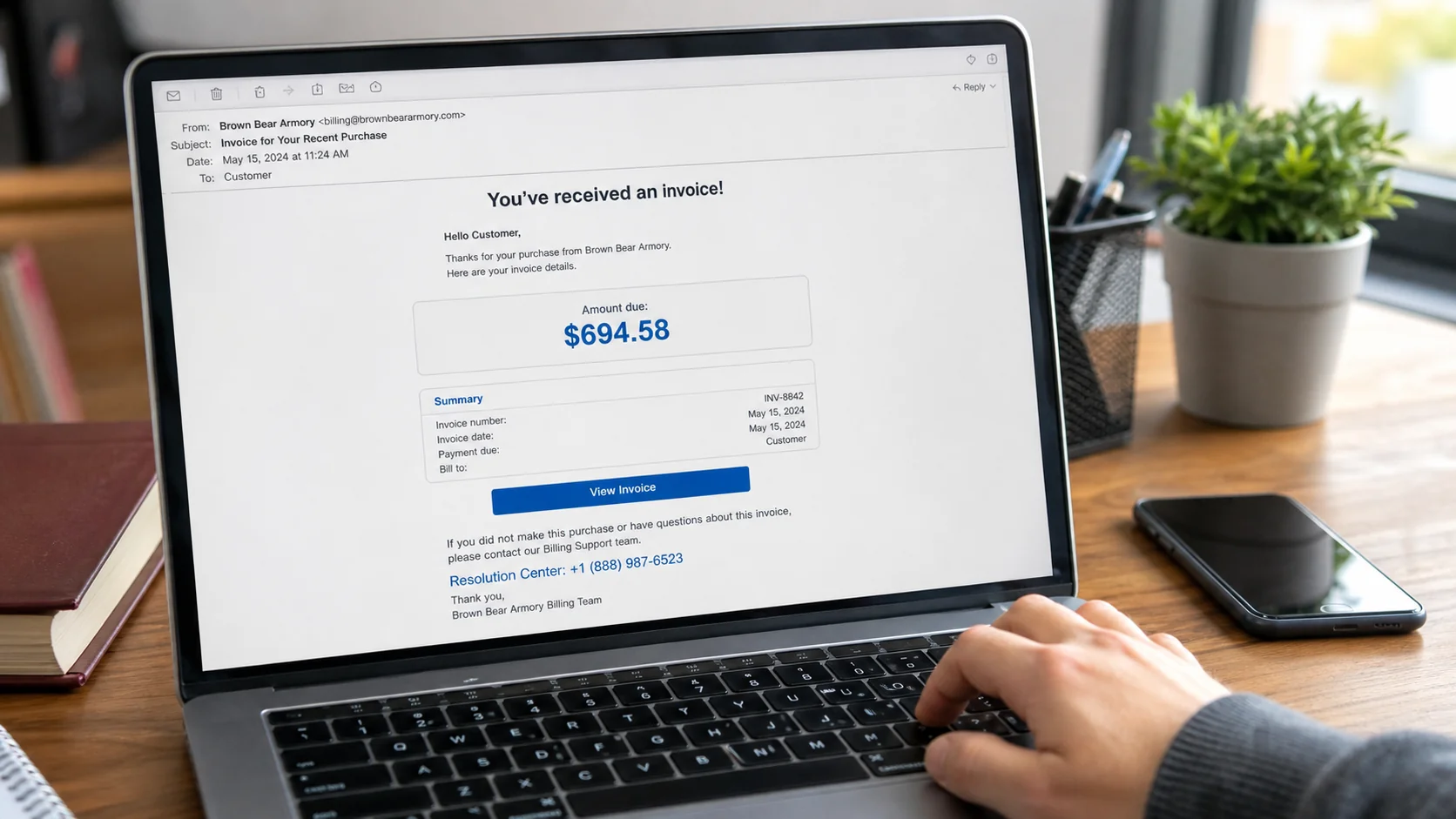
An email says a $694.58 order from Brown Bear Armory was submitted through PayPal. You do not recognize the purchase, and a toll-free “resolution department” number is placed exactly where a worried customer will see it.
The invoice is designed to make you call. The charge itself may not exist at all.
Overview
The invoice uses an alarming purchase to provoke a phone call
The Brown Bear Armory PayPal scam is a fake invoice or money-request scheme that claims the recipient bought an expensive firearm-related product. Reported versions have shown amounts around $694.58 and urged recipients to call 1-877-694-0180 or other rotating numbers.
The named merchant and number can change. The central tactic is an unfamiliar, emotionally charged purchase paired with a fake customer-support route controlled by scammers.
Some messages are completely fabricated emails. Others may misuse a real PayPal invoice or money-request feature, meaning the request appears in a legitimate account even though no purchase was made and no debt is owed.
An invoice is not proof that money left your account
An invoice asks for payment. Criminals can place alarming text, phone numbers, cryptocurrency instructions, or fake support warnings in the note field.
Common warning signs include:
- A firearm or subscription purchase you never made
- A prominent phone number telling you to dispute immediately
- A generic greeting or an unrelated sender address
- Grammar, address, or merchant inconsistencies
- A threat that the charge will post within 24 hours
- A claim that the subscription renews unless you call
- A support agent requesting remote computer access
The phone conversation creates the real danger
The recipient calls expecting PayPal support. The person answering may request a password, card, one-time code, identity details, or remote-access software.
The scam can then become account takeover, unauthorized payment, fake refund fraud, or bank theft. Panic about the invoice gives the caller a reason to follow instructions they would normally reject.
PayPal’s official invoice scam guidance says not to pay unfamiliar requests, call numbers inside invoice notes, or open suspicious URLs.
Why the Brown Bear Armory Name Is Effective Bait
A firearm-related purchase is unusual enough to demand attention. Recipients may fear identity theft, legal trouble, delivery of a weapon, or a large card charge.
The unusual merchant name also discourages people from dismissing the message as a routine subscription email. They call quickly to make clear that they did not authorize the order.
Scammers may vary the name slightly, including Brown Bear, Black Bear, an armory, electronics seller, antivirus service, or cryptocurrency merchant. The merchant is a prop, not necessarily a participant.
Do not accuse a real business based only on a fake invoice. Verify the payment account first and treat the support number as untrusted.
A Real PayPal Invoice Versus a Fake Charge
A legitimate PayPal invoice is a request for payment. It may describe goods or services, show a seller, and provide a button that lets the recipient pay. Receiving one does not automatically mean the recipient ordered anything or that PayPal has taken money.
That distinction is the heart of this scam. The message encourages the recipient to treat a request as a completed purchase, then offers a telephone number for stopping it. In reality, calling the number opens the door to a second and more dangerous stage.
Check the transaction status, not the email headline
A genuine completed payment should be visible in PayPal Activity with an understandable status. It may also appear as pending or posted at the bank or card issuer that funded the account.
If the only evidence is an email, a PDF, or an unpaid request, there may be nothing to reverse. Scammers rely on victims acting before they make this simple comparison.
Do not trust contact details written by the requester
Invoice notes are not an authenticated support directory. A dishonest requester can type a phone number and label it “PayPal Support,” “Fraud Department,” or “Cancellation Desk.” The professional title is just user-supplied text.
The same rule applies to email footers, case numbers, and supposed employee names. Start a fresh visit to PayPal and use the contact options published inside the official app or website.
An urgent deadline does not change how payments work
Fake invoices commonly claim that the charge will become final in a few hours. Some warn that a firearm will be shipped unless the recipient cancels immediately.
A deadline written in a message cannot force you to call an unverified number. Take time to inspect the real account and contact the payment provider independently.
What Happens During the Fake Support Call
The first person who answers may sound calm and helpful. They can quote the recipient’s name, invoice number, merchant, and amount because those details came from the invoice the scammer created.
The agent may say that a cancellation form is required or that the account must be “secured” before the charge can be removed. Each instruction is designed to collect information or gain control of the victim’s device.
The caller is moved from reassurance to verification
At first, the scammer may ask harmless questions to build confidence. The requests then become more sensitive: an email address, card digits, bank name, account balance, password, or one-time security code.
A real support agent should not ask for a password or a code that approves a login. If a text message says not to share the code, that warning applies even when the caller claims to work for PayPal.
Remote access turns a phone scam into device compromise
The victim may be told to install a legitimate remote-support application. The software itself can have lawful uses, but it becomes dangerous when access is given to a stranger who initiated contact through a suspicious invoice.
Once connected, the criminal can watch the screen, guide the victim into banking sites, copy personal information, or hide actions by darkening the display. They may also leave unattended-access settings enabled for a later return.
The fake refund creates a reason to send real money
Some operators pretend to issue a refund and then claim they accidentally returned too much. They may alter browser text, move funds between the victim’s own accounts, or use a fake page to display an inflated balance.
The victim is pressured to “repay” the difference through gift cards, cryptocurrency, wire transfer, or cash. Those payments are real, while the excess refund is an illusion.
No legitimate payment company fixes an invoice error by asking a customer to buy gift cards or transfer money to a private wallet. End the conversation as soon as that request appears.
How the Scam Works
Step 1: A fake invoice reaches the victim
The email resembles a PayPal receipt or invoice and claims an order was submitted successfully. It may include a date, invoice ID, merchant address, item description, and renewal warning.
The formatting supplies detail, but details can be copied. The message’s purpose is to create a believable problem with an easy phone solution.
Step 2: A large unfamiliar charge creates panic
The recipient sees $694.58 or another amount and worries that waiting will make the transaction permanent. A short deadline encourages action before checking PayPal or the bank directly.
Weapon-related wording adds urgency. The victim may believe calling is safer than ignoring the message.
Step 3: The victim calls the number in the invoice
A fake resolution agent answers with a professional script. The invoice ID and amount are already known because the criminal created them.
Repeating those details does not prove access to PayPal. It only demonstrates knowledge of the bait.
Step 4: The agent requests verification or remote access
The victim may be asked for a PayPal login, card number, bank balance, Social Security number, or code. Another version directs the caller to install a screen-sharing tool.
Remote access lets the scammer watch passwords, operate the browser, and manipulate what appears on screen.
Step 5: A fake cancellation or refund process begins
The agent may claim the invoice was cancelled, then pretend an excessive refund reached the bank. Browser text can be edited or money moved between the victim’s own accounts to create a false balance.
The victim is told to return the difference through gift cards, cryptocurrency, cash, or a transfer. No external refund was made.
Step 6: Accounts and payment methods are exploited
Stolen credentials can be used to access PayPal, email, banking, or mobile accounts. A code shared over the phone may authorize the attacker’s real login.
If a test payment succeeds, larger attempts or new impersonation calls can follow.
Step 7: Numbers and merchant names rotate
Phone numbers reported with this invoice have changed over time. A number can also be spoofed, disconnected, or reassigned, so the current owner should not be judged solely from an old report.
Focus on the behavior: an unexpected invoice that pushes you to call its own support number is unsafe regardless of the digits shown.
Company, Address, and Fulfillment Checks
The invoice merchant is not automatically the sender
Criminals can insert a real or invented merchant name into a fake email. Check whether a corresponding transaction exists before contacting any seller.
Use PayPal Activity and your card statement, not the invoice’s description, as the starting point.
The listed address can be copied or internally inconsistent
Search the address independently and compare city, state, ZIP code, and business records. An impressive footer does not authenticate the message.
Never mail documents or products to an invoice address without verifying a real transaction.
Support must come through PayPal’s official channel
Open PayPal’s app or type its site address yourself, then use its Help or Resolution Center. Do not call the number embedded in the request.
A real PayPal representative does not need gift cards, cryptocurrency, remote access, or your one-time code.
The order and delivery must exist independently
Check actual order history, payment settlement, shipping, and merchant correspondence. An invoice ID created by a scammer cannot be verified by calling that scammer.
If no payment appears, do not create one by following the message’s instructions.
How to Check the Invoice Without Calling
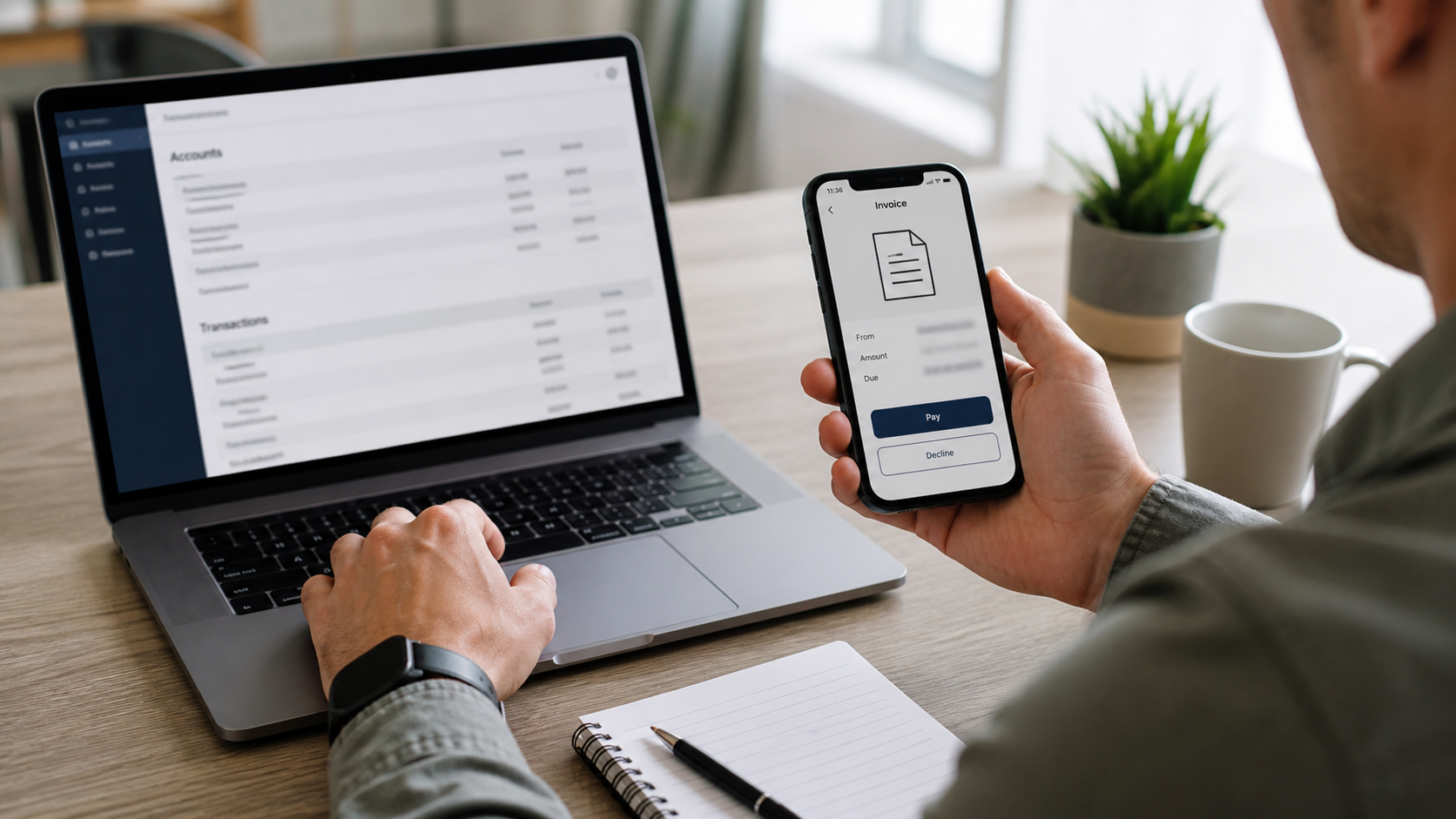
Open the official PayPal app and review Activity. If an unfamiliar invoice or money request exists, do not pay it; use the platform’s report or decline controls.
Check the bank or card account separately for posted and pending transactions. The email’s statement that a charge will appear is not the same as a transaction.
Forward suspicious PayPal emails to `phishing@paypal.com`, then delete them. Do not reply, download attachments, or use the sender’s links.
If the request is real but unauthorized, report it through PayPal. If there is no activity, preserve the email as evidence and avoid the included number.
Also review automatic payments and authorized merchants, because a fake invoice can arrive at the same time as an unrelated legitimate renewal. Match every unfamiliar entry by date, amount, and merchant instead of assuming the alarming email explains it.
What to Do if You Have Fallen Victim to This Scam
- End the call and disconnect remote access. Take the affected device offline and do not accept a transfer to another supposed support department.
- Contact PayPal through the official app or site. Change the password, review Activity, report suspicious invoices, remove unknown devices, and inspect security settings.
- Call your bank or card issuer. Report credentials, codes, and payments shared. Request freezes, replacements, disputes, or transfer recalls.
- Secure the connected email account. Change its password, enable multifactor authentication, and review sessions, forwarding rules, and recovery information.
- Preserve the invoice and call evidence. Save headers, files, numbers, names, remote-software details, wallet addresses, and receipts.
- Scan the computer. Remove remote-control tools and run Malwarebytes to find credential stealers, backdoors, or unwanted programs.
- Block malicious invoice links. AdGuard can help stop known phishing domains and redirects, though it does not replace financial recovery.
- Report and reject recovery scams. Notify PayPal, the FTC, and police when appropriate. Do not pay anyone promising guaranteed recovery.
Is Your Device Infected? Run a Free Malware Scan
Slow performance, constant pop-ups, or strange behavior? These are classic signs of a malware infection. A quick way to check is to scan your device with Malwarebytes Free, one of the most trusted malware removal tools available. If you only visited a scam page and didn’t download or install anything, this scan is optional.
The free version detects and removes the most common threats, including:
- Adware — the cause of those annoying pop-ups
- Browser hijackers — unwanted redirects and changed homepages
- Trojans and spyware — hidden programs stealing your data
- Potentially unwanted programs (PUPs) — software you never asked for
👉 Select your device below — Windows, Mac, or Android — then follow the simple steps to download Malwarebytes, scan your system, and remove any threats it finds. The scan usually takes 5 to 20 minutes.
Run a Malware Scan with Malwarebytes for Windows
Malwarebytes is one of the most popular and trusted anti-malware tools for Windows — and it’s completely free for removing infections. It catches threats that many antivirus programs miss, including adware, browser hijackers, and trojans. Follow the steps below to scan your PC and remove what Malwarebytes finds.
Download Malwarebytes
Click the button below to download the latest version of Malwarebytes for Windows from the official source. The free version is all you need — it will scan your computer and remove adware, browser hijackers, and other malicious software at no cost.
Download MalwarebytesOfficial installer for Windows 11 and 10. Your download starts right away.Want real-time protection? See Malwarebytes Premium Malwarebytes Free for WindowsScans and removes malware at no cost
-
Install Malwarebytes
When the download finishes, open your Downloads folder and double-click the MBSetup file. If Windows shows a User Account Control pop-up, click “Yes” to allow the installation.

Follow the On-Screen Prompts to Install Malwarebytes
The setup wizard will walk you through a few quick screens:
-
Choose where you’re installing the program — “Personal Computer” or “Work Computer” — then click Next.

-
Malwarebytes will now install on your device. This usually takes under a minute.

-
When installation is complete, the “Welcome to Malwarebytes” screen will open automatically.

-
On the final screen, click Open Malwarebytes to launch the program.

-
Optional: Check for rootkits with a Custom Scan
You don’t need to change any settings for a normal scan. The standard Threat Scan in the next step is enough for most problems, so you can go straight to it.
If you also want to check for rootkits, use a Custom Scan. In current versions of Malwarebytes, rootkit scanning is only available there:
- On the Scanner tile, click the three-dot menu and select Advanced Scan.
- Choose Custom Scan. In its options, check Scan for rootkits.
- Select your system drive (usually C:\) as the location to scan, then start the scan. It takes longer than a Threat Scan.
- When it finishes, review and quarantine the results as described in the steps below.
Rootkit scanning isn’t available on Windows devices with ARM processors.
Start the Scan
Click the blue Scan button. Malwarebytes will automatically update its virus database and start checking your computer for malware.

-
Wait for the Scan to Finish
The scan checks your entire system for browser hijackers and other malicious programs, so it can take 5 to 20 minutes depending on your computer. Feel free to do something else — just check back occasionally to see the progress.

-
Quarantine the Detected Threats
When the scan is done, you’ll see a list of everything Malwarebytes found — malware, adware, and potentially unwanted programs. Click the “Quarantine” button to remove all of them at once.

Malwarebytes will now remove the malicious files and registry entries and move them safely into quarantine.

-
Restart Your Computer
Some threats can only be fully removed after a reboot. If Malwarebytes asks you to restart, click Yes. Once you’re logged back in, Malwarebytes has finished removing the threats it found.

When the scan is done, check whether the problems you noticed have stopped. If they continue, see the options below.
If you are still having problems with your computer after completing these instructions, then please follow one of the steps:
- Run a computer scan with ESET Online Scanner
- Ask for help in our Windows Malware Removal Help & Support forum.
Run a Malware Scan with Malwarebytes for Mac
Malwarebytes for Mac is a free on-demand scanner that removes the malware other security software tends to miss — adware, browser hijackers, and unwanted programs included. Cleaning an infected Mac with Malwarebytes has always been completely free, and it’s our go-to recommendation. Follow the steps below to scan your Mac and remove what Malwarebytes finds.
-
Download Malwarebytes for Mac
Click the button below to download the latest version of Malwarebytes for Mac.
Download MalwarebytesOfficial installer for macOS. Your download starts right away.Want real-time protection? See Malwarebytes PremiumMalwarebytes Free for MacScans and removes malware at no cost -
Open the Malwarebytes setup file
When the download finishes, open your Downloads folder and double-click the setup file to begin the installation.

-
Follow the On-Screen Prompts to Install Malwarebytes
The Malwarebytes for Mac Installer will guide you through a few quick screens. Click “Continue” and keep following the prompts until the installation completes.



When the installation is complete, Malwarebytes opens to the Welcome to Malwarebytes screen. Click “Get started“.
Malwarebytes needs Full Disk Access to check your whole Mac. When it asks, open System Settings > Privacy & Security > Full Disk Access, turn on Malwarebytes (it may be listed as Malwarebytes Protection), and confirm with your password or Touch ID. Then return to Malwarebytes. On macOS Monterey and earlier, this setting is in System Preferences > Security & Privacy > Privacy.
-
Select “Personal Computer” or “Work Computer”
Malwarebytes will ask what type of computer you’re installing it on. Click either Personal Computer or Work Computer, whichever applies.

-
Start the Scan
Click the “Scan” button. Malwarebytes will automatically update its detection database and begin checking your Mac for malware.

-
Wait for the Scan to Finish
Malwarebytes will scan your Mac for adware, browser hijackers, and other malicious programs. This can take a few minutes, so feel free to do something else — just check back occasionally to see the progress.

-
Quarantine the Detected Threats
When the scan is done, you’ll see a list of everything Malwarebytes found. Click the “Quarantine” button to remove all the threats at once.

-
Restart Your Mac
Malwarebytes will now remove all the malicious files it found. Some threats can only be fully removed after a reboot — if Malwarebytes asks you to restart, allow it. Once you’re logged back in, check whether the problems you noticed have stopped. If they come back, save the scan report and ask for help in our forum.

If the problems you noticed continue after the scan, see the options below.
If you are still experiencing problems while trying to remove a malicious program from your computer, please ask for help in our Mac Malware Removal Help & Support forum.
Run a Malware Scan with Malwarebytes for Android
Malwarebytes for Android scans your phone or tablet for malware, adware, and potentially unwanted apps. The free version scans only when you start a scan. Real-time protection, which checks apps automatically, is part of the paid Premium version.
-
Download Malwarebytes for Android.
You can download Malwarebytes for Android by clicking the link below.
Get Malwarebytes for AndroidOpens Google Play in a new tab.Want real-time protection? See Malwarebytes Premium for AndroidMalwarebytes for AndroidScans your phone and removes malware at no cost -
Install Malwarebytes for Android on your phone.
In the Google Play Store, tap “Install” to install Malwarebytes for Android on your device.

When the installation process has finished, tap “Open” to begin using Malwarebytes for Android. You can also open Malwarebytes by tapping on its icon in your phone menu or home screen.

-
Follow the on-screen prompts to complete the setup process
When Malwarebytes opens, it walks you through a short setup. Tap Get started and follow the prompts. If you see an offer for a trial or a paid plan, read it before you accept. You can skip it and keep using the free scanner.
Malwarebytes will ask for permission to access the files on your phone so it can scan them. Tap Allow, or turn on the permission in the Android screen that opens, then return to Malwarebytes.
-
Run a scan with Malwarebytes for Android
On the main screen, tap Scan now. In some versions, you open the menu, tap Scanner, and then tap Run a scan.
-
Wait for the Malwarebytes scan to complete.
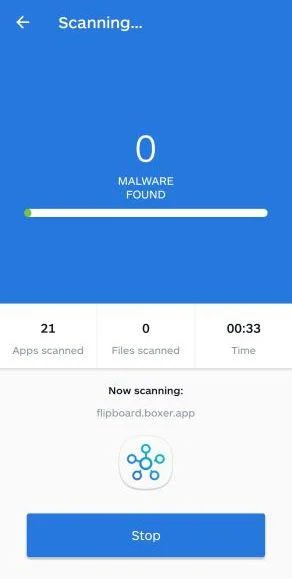
Malwarebytes will now start scanning your phone for adware and other malicious apps. This process can take a few minutes, so we suggest you do something else and periodically check on the status of the scan to see when it is finished.
-
Remove the detected apps.
When the scan has been completed, you will see a list of the threats that Malwarebytes for Android has detected. Next to each detected item, tap the menu icon (three dots), then choose to uninstall the app or delete the file. Android then asks you to confirm. Tap OK or Uninstall to remove the app.
-
Restart your phone.
When the detected apps are removed, restart your phone if Malwarebytes asks you to. Then check whether the problems you noticed have stopped.
If the problems you noticed continue after the scan, see the options below.
If you are still having problems with your phone after completing these instructions, then please follow one of the steps:
- Ask for help in our Mobile Malware Removal Help & Support forum.
- Only as a last resort, reset your phone to factory settings. Read the warning below first.
- Back up your photos, videos, files, and messages, for example to your Google account or a computer.
- Make sure you know your Google account email and password. The phone asks for them after the reset. If you changed the password recently, Google recommends waiting 24 hours before you reset.
- On a Samsung phone, also make sure you know your Samsung account password.
- If you use an authenticator app for two-step verification, move your accounts to another device or save your backup codes first.
Stay Protected: Block Ads and Malicious Sites
No scan can prove a device is completely clean, so it helps to block threats before they reach you. Most infections start with a malicious ad or a fake download button — so blocking them at the source is your best defense.
We recommend AdGuard, which blocks malicious ads, phishing pages, and dangerous redirects before they can reach you.
👉 Download AdGuard and browse safely
Frequently Asked Questions
Was I charged because I received the invoice?
Not necessarily. An invoice or money request is not proof of a completed payment. Check PayPal Activity and your financial account directly.
Should I call 1-877-694-0180?
Do not use a number supplied by a suspicious invoice. Phone numbers rotate and can be reassigned; contact PayPal through its official Help Center.
Is Brown Bear Armory involved in the scam?
The merchant name may be used without permission. A fake invoice alone does not prove involvement by any real similarly named business.
Can a genuine PayPal invoice still be malicious?
Yes. A criminal can misuse an invoice or money request and place a fake support number in the note.
What if I gave the caller a verification code?
Secure PayPal and email immediately, remove unknown sessions, and contact PayPal and your bank. The code may have authorized account access.
Can PayPal cancel the fake invoice?
You can decline or report an unfamiliar request through PayPal. If a payment was actually sent, use the Resolution Center and contact the funding source promptly.
The Bottom Line
The Brown Bear Armory PayPal invoice is built to make an alarming $694.58 purchase feel urgent enough to call a fraudulent support number.
Do not call, click, or pay. Check PayPal and your bank independently, and report the request through official channels.

Join the discussion
0 commentsShare your experience or ask a question about this article.
Discussion
Start the conversation
Have a question or something useful to share? Add the first comment.