


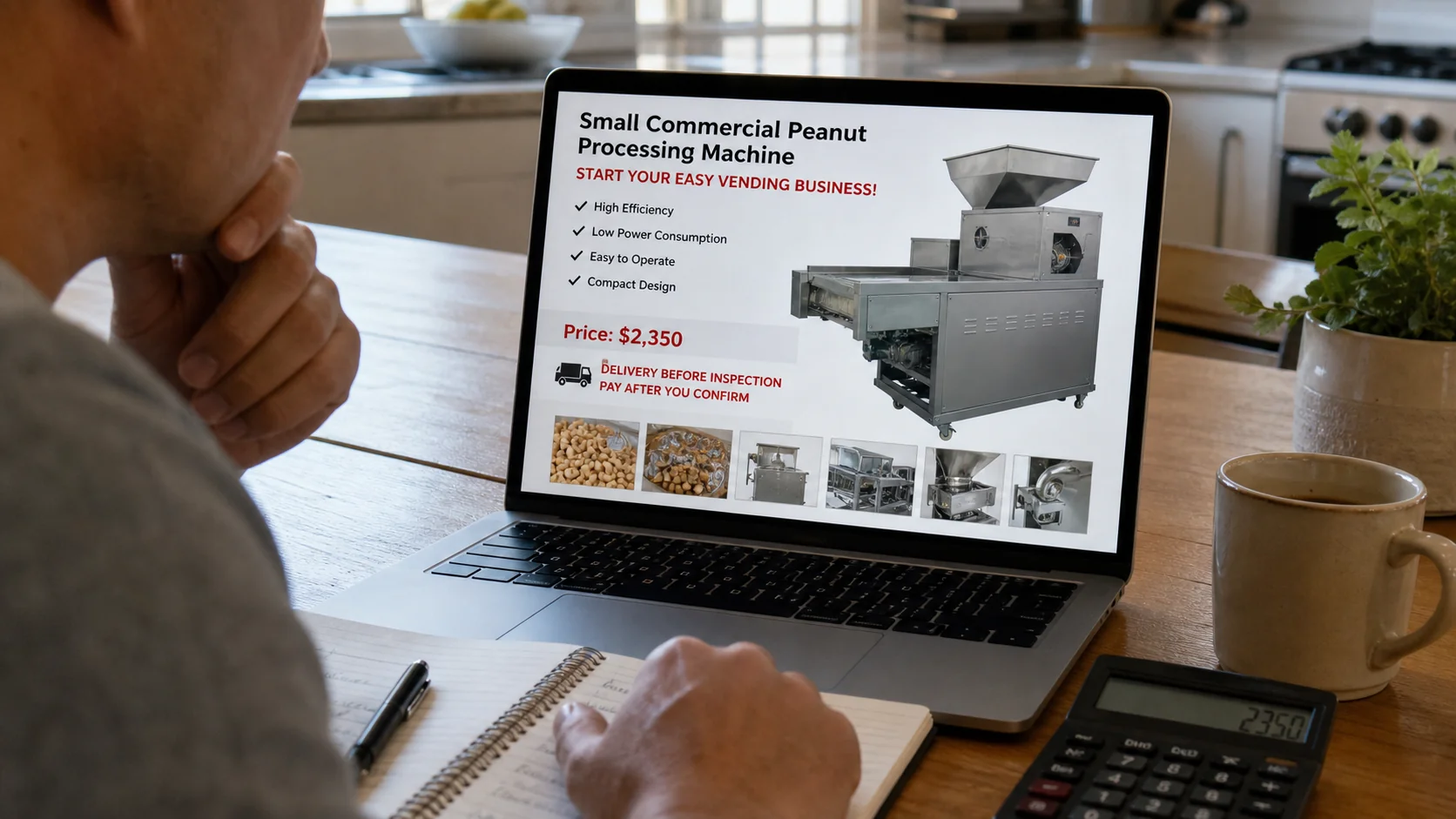
The video shows a stainless-steel peanut coating machine turning a small batch into a polished, sale-ready product. The seller promises delivery, a profitable side business, and a price far below established equipment dealers.
By the time the buyer is allowed to open the wrapped shipment, the seller may already have the only thing that mattered: an irreversible payment.
Overview
“Peanut machine scam” can describe two related traps
The peanut machine scam most often refers to fraudulent sales of peanut coating, roasting, grinding, or processing equipment advertised through social media and online marketplaces. A second variation sells peanut or bulk-candy vending machines as a guaranteed passive-income business.
These are not one registered company or a single standardized operation. Different sellers can reuse stolen videos, product photos, transport documents, and profit claims while changing names, phone numbers, and payment accounts.
The shared pattern is an expensive purchase that cannot be properly inspected before payment. Buyers may receive nothing, a junk-filled package, an inferior machine, or equipment with no promised locations or income.
The offer removes the buyer’s normal safeguards
A machinery seller may promise “payment on delivery,” but the courier or transport depot allegedly requires full payment before the package can be unwrapped. That turns delivery into a visual prop rather than a real inspection.
Warning signs include:
- A price dramatically below comparable commercial equipment
- Stolen videos with no live demonstration of the exact machine
- Payment to a personal account, crypto wallet, or transfer app
- A wrapped object that cannot be opened until after payment
- No serial number, manufacturer plate, warranty, or manual
- Guaranteed vending income or guaranteed high-traffic locations
- Pressure to reserve the last machine or route immediately
A real machine does not automatically make the deal honest
Some buyers receive hardware, but it may be undersized, unsafe, used, incomplete, or incompatible with local power. A delivered object does not prove the capacity, food-contact materials, certifications, warranty, or profit claims.
Vending opportunities can similarly include physical machines while misrepresenting expected sales, placement rights, service costs, and location quality. The scam can be in the earnings promise rather than the existence of the equipment.
Why Small-Business Buyers Are Targeted
Processing videos make production look simple and immediate. A buyer can imagine turning a familiar food into branded inventory without seeing the sanitation, packaging, maintenance, licensing, and distribution work behind the business.
Social sellers emphasize scarcity and rising prices. The buyer is encouraged to secure the machine before requesting a live test, commercial invoice, technical specifications, or references.
First-time entrepreneurs may not know normal equipment terms such as inspection, commissioning, spare-parts support, voltage, throughput, food-grade contact surfaces, and freight insurance.
In a vending variation, “passive income” language hides restocking, spoilage, commissions, theft, repairs, permits, and the difficulty of obtaining profitable locations.
How Stolen Equipment Videos Mislead Buyers
A product video can be genuine footage of a machine while the person posting it has no connection to the manufacturer or inventory. Downloading and reposting a demonstration takes only minutes.
Reverse-search several clear frames and product photographs. Matching content on an older manufacturer page, overseas marketplace, or unrelated dealer can reveal that the seller borrowed the material.
Ask for a live demonstration containing a challenge you choose, such as showing the date beside the model plate and moving continuously from the seller’s sign to the exact machine.
Pre-recorded “live” clips often avoid spontaneous questions. A seller who repeatedly blames poor connection, factory rules, or time zones may be preventing proof of possession.
Request raw technical documents and compare them with the machine. Copied brochures sometimes describe a different motor, capacity, voltage, or physical size than the unit shown.
References should be contacted independently. A list of satisfied customers supplied by the seller may lead to accomplices who repeat prepared success stories.
The Economics of a Vending Route Need Real Numbers
Gross revenue is not profit. Estimate product cost, location commission, payment fees, travel, restocking labor, spoilage, maintenance, insurance, permits, taxes, and machine depreciation.
Ask for sales records from the specific locations being offered, not national averages or screenshots from the best machine. Compare several months and account for seasonal changes.
Verify that each property owner approved placement and that the agreement can transfer to you. A hallway photograph or verbal promise does not create a location contract.
Inspect foot traffic at different times. A “high-traffic” site can have few suitable customers, strong competition, restricted hours, or a plan to remove the machine soon.
The FTC requires covered business-opportunity sellers to provide specific disclosures. When earnings claims are made, buyers should receive written substantiation rather than lifestyle photographs and testimonials.
Speak with current and former operators who were not selected only by the seller. Ask what they spent, how many locations failed, how refunds worked, and how long it took to break even.
Do not borrow against a home or retirement account because a salesperson guarantees passive income. The machine’s resale value may be far below the package price if the route collapses.
A sound opportunity remains understandable after commissions and expenses are written down. If the seller prevents calculation and returns to urgency, stop the purchase.
Payment and Shipping Safeguards for Equipment Buyers
Machinery purchases should use a written contract that identifies the exact unit, specifications, accessories, condition, serial number, delivery terms, inspection rights, warranty, and remedy if the equipment does not match the description.
A generic invoice with a product photo is not enough. Ask for a live video call in which the seller shows the machine operating, displays the serial plate, and follows a simple request made during the call. This makes prerecorded footage harder to reuse.
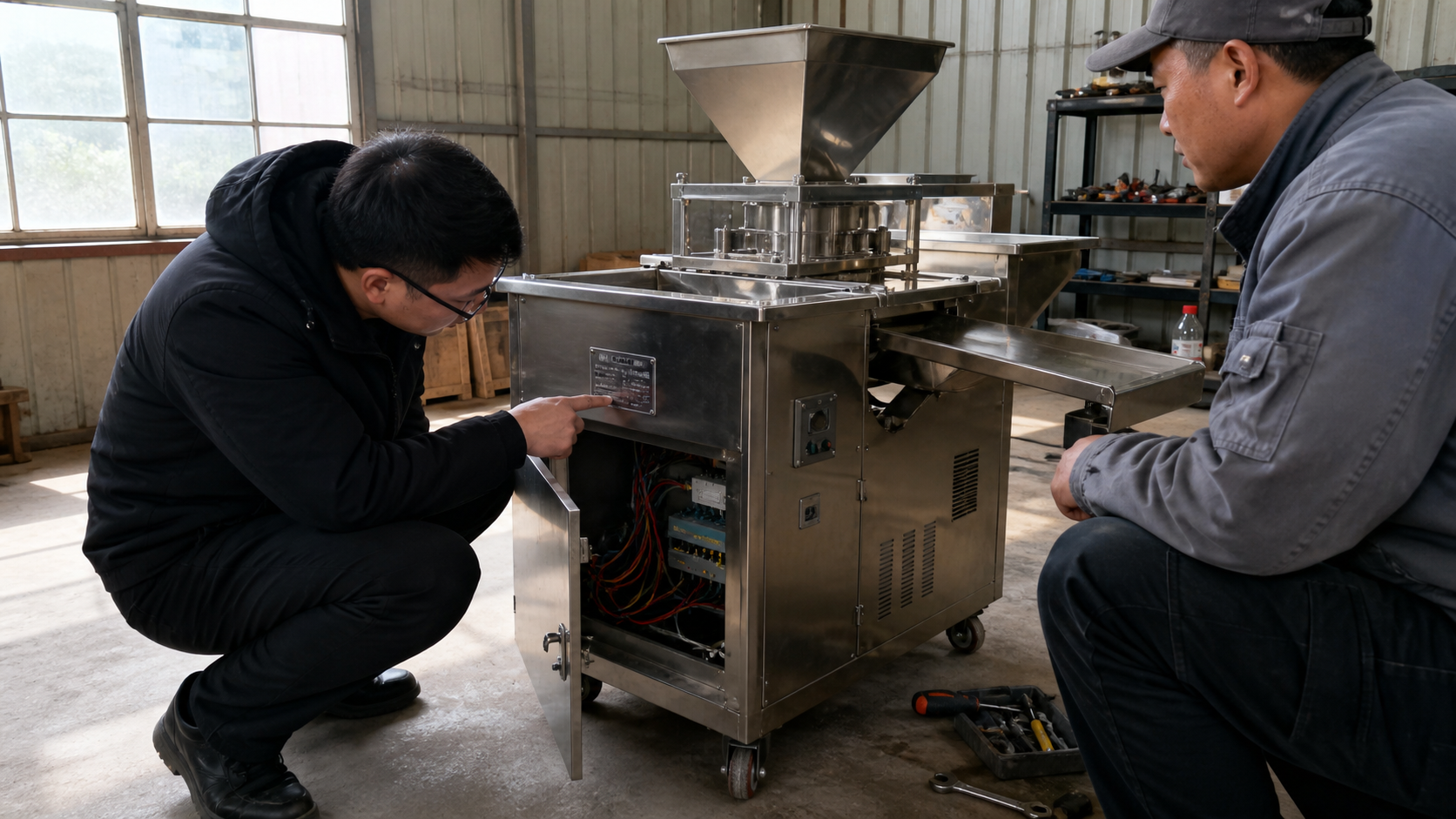
For a high-value purchase, consider an independent inspection at the seller’s location. A qualified technician can check electrical requirements, food-contact surfaces, moving parts, safety guards, output capacity, and signs that the machine was assembled from mismatched components.
Payment should preserve a meaningful dispute path. A bank transfer, cryptocurrency payment, cash handoff, or friends-and-family transfer can leave the buyer with little practical protection after the seller disappears.
Payment on delivery is not sufficient when the driver will not allow inspection. A sealed crate can contain a cheaper machine, damaged parts, scrap metal, or a unit that cannot run on the buyer’s electrical supply.
Confirm who owns the shipment and when risk transfers to the buyer. Freight documents should match the seller, buyer, unit description, weight, and origin. Tracking only proves that something is moving, not that the promised equipment is inside.
Do not let storage fees or a waiting driver rush the inspection. Fraudulent sellers exploit the pressure of a delivery already at the door to make the buyer release payment before discovering the problem.
How the Scam Works
Step 1: Stolen machine videos appear in targeted ads
The advertisement shows industrial equipment operating smoothly and producing coated peanuts or other snacks. The footage may belong to a real manufacturer located elsewhere.
The account claims a clearance, factory-direct import, cancelled order, or limited promotion. Comments praising the seller may come from newly created or controlled profiles.
Step 2: The seller moves the buyer into private messages
WhatsApp, Messenger, or Telegram becomes the sales office. The seller asks about location, production plans, and budget while avoiding a platform checkout with buyer protection.
Professional-looking invoices and transport quotes can be produced quickly. The legal company behind the sale may remain unclear.
Step 3: A low deposit or payment-on-delivery promise builds trust
The seller may request a small reservation payment or promise that the balance is due only when the machine arrives. Both approaches lower the buyer’s resistance.
Payment on delivery sounds safe only if inspection and rejection are genuinely permitted. A sealed package that must be paid for first is not meaningful protection.
Step 4: A shipment photo creates the appearance of fulfillment
The buyer receives photos of a crate, wrapped metal shape, delivery receipt, or vehicle. The tracking may be genuine for a package that does not contain the advertised machine.
At collection, a driver or depot says policy prevents opening before payment. The buyer is pressured by storage fees, closing time, or the threat that the shipment will be returned.
Step 5: Payment is released before a functional test
The victim transfers the balance. The package may contain scrap, an empty frame, low-value material, a much smaller machine, or equipment that cannot operate as advertised.
If the transaction used a personal transfer or cash, recovery can be difficult. The seller blames the courier, warehouse, importer, or buyer.
Step 6: Warranty and support disappear
Numbers stop answering, profiles are renamed, and the buyer is told to pay return freight or a technician fee. Replacement parts and manuals never arrive.
A new “logistics manager” may offer to solve the problem for another payment, extending the same scheme.
Step 7: The vending version fails after the investment
In a business-opportunity variation, machines arrive but promised locations are poor, unapproved, or nonexistent. Earnings projections do not match real sales.
The seller may charge for location services, inventory, training, or upgrades while refusing refunds. The FTC warns that business opportunities promising easy, high income deserve careful investigation and documented earnings support.
Company, Address, and Fulfillment Checks
The social profile is not the legal equipment seller
Request the registered company name, tax or registration number, commercial invoice, website, and authorized representative. Confirm them in official records.
Compare the payee name with the seller. A personal account or unrelated company creates an accountability gap.
The address must show a real equipment operation
Check whether the location is a factory, established dealer, warehouse, mailbox, residence, or unrelated shop. Ask for a live video call that begins outside and shows the exact machine and serial plate.
A freight depot is not the manufacturer’s headquarters and does not validate the contents.
Support must exist before the sale
Call technical support, request manuals, ask about parts, and test whether warranty questions receive specific answers. Generic assurances are not a service network.
Get inspection, rejection, return freight, and refund terms in writing before paying.
The machine and supply chain must be traceable
Verify manufacturer, model, serial number, capacity, voltage, power, dimensions, food-contact materials, certifications, and included accessories.
Country of manufacture alone is not a quality verdict. Traceability, accurate specifications, testing, import compliance, and after-sales support matter more.
How to Inspect a Peanut Machine Before Paying
Arrange an in-person test or hire an independent inspection company near the seller. The inspection should identify the exact unit and record its serial plate continuously.
Run the machine with an appropriate load. Check motor sound, temperature, controls, guards, emergency stop, output consistency, and whether food-contact surfaces match the specification.
Confirm voltage and plug requirements for your location. Importing the wrong electrical configuration can make an otherwise real machine unusable or unsafe.
Use a payment method with documented buyer protection and a contract that makes final payment conditional on inspection. Do not let the seller choose an irreversible method simply because it is faster.
What to Do if You Have Fallen Victim to This Scam
- Preserve the entire sale record. Save ads, profiles, chats, invoices, videos, transport documents, package photos, serial plates, receipts, and the unboxing recording.
- Contact the payment provider immediately. Request a recall, dispute, account freeze, or fraud investigation and provide evidence that the goods were missing or materially misrepresented.
- Do not operate unsafe equipment. Disconnect suspect machinery and have a qualified technician inspect electrical, mechanical, guarding, and food-contact risks.
- Notify the marketplace, courier, and impersonated manufacturer. Ask them to preserve account, shipment, and communication records.
- Report the seller and business opportunity. File with the FTC, local consumer protection agencies, police, and relevant commercial or import authorities.
- Check devices used for files or remote demonstrations. Run Malwarebytes if you installed viewing software or opened suspicious attachments.
- Block the advertising funnel. AdGuard can reduce exposure to known malicious ads and scam pages, though it cannot replace payment disputes or physical inspection.
- Ignore recovery and replacement-fee offers. Do not send more money to a new agent promising customs release, a technician, or guaranteed recovery.
Is Your Device Infected? Run a Free Malware Scan
Slow performance, constant pop-ups, or strange behavior? These are classic signs of a malware infection. A quick way to check is to scan your device with Malwarebytes Free, one of the most trusted malware removal tools available. If you only visited a scam page and didn’t download or install anything, this scan is optional.
The free version detects and removes the most common threats, including:
- Adware — the cause of those annoying pop-ups
- Browser hijackers — unwanted redirects and changed homepages
- Trojans and spyware — hidden programs stealing your data
- Potentially unwanted programs (PUPs) — software you never asked for
👉 Select your device below — Windows, Mac, or Android — then follow the simple steps to download Malwarebytes, scan your system, and remove any threats it finds. The scan usually takes 5 to 20 minutes.
Run a Malware Scan with Malwarebytes for Windows
Malwarebytes is one of the most popular and trusted anti-malware tools for Windows — and it’s completely free for removing infections. It catches threats that many antivirus programs miss, including adware, browser hijackers, and trojans. Follow the steps below to scan your PC and remove what Malwarebytes finds.
Download Malwarebytes
Click the button below to download the latest version of Malwarebytes for Windows from the official source. The free version is all you need — it will scan your computer and remove adware, browser hijackers, and other malicious software at no cost.
Download MalwarebytesOfficial installer for Windows 11 and 10. Your download starts right away.Want real-time protection? See Malwarebytes Premium Malwarebytes Free for WindowsScans and removes malware at no cost
-
Install Malwarebytes
When the download finishes, open your Downloads folder and double-click the MBSetup file. If Windows shows a User Account Control pop-up, click “Yes” to allow the installation.

Follow the On-Screen Prompts to Install Malwarebytes
The setup wizard will walk you through a few quick screens:
-
Choose where you’re installing the program — “Personal Computer” or “Work Computer” — then click Next.

-
Malwarebytes will now install on your device. This usually takes under a minute.

-
When installation is complete, the “Welcome to Malwarebytes” screen will open automatically.

-
On the final screen, click Open Malwarebytes to launch the program.

-
Optional: Check for rootkits with a Custom Scan
You don’t need to change any settings for a normal scan. The standard Threat Scan in the next step is enough for most problems, so you can go straight to it.
If you also want to check for rootkits, use a Custom Scan. In current versions of Malwarebytes, rootkit scanning is only available there:
- On the Scanner tile, click the three-dot menu and select Advanced Scan.
- Choose Custom Scan. In its options, check Scan for rootkits.
- Select your system drive (usually C:\) as the location to scan, then start the scan. It takes longer than a Threat Scan.
- When it finishes, review and quarantine the results as described in the steps below.
Rootkit scanning isn’t available on Windows devices with ARM processors.
Start the Scan
Click the blue Scan button. Malwarebytes will automatically update its virus database and start checking your computer for malware.

-
Wait for the Scan to Finish
The scan checks your entire system for browser hijackers and other malicious programs, so it can take 5 to 20 minutes depending on your computer. Feel free to do something else — just check back occasionally to see the progress.

-
Quarantine the Detected Threats
When the scan is done, you’ll see a list of everything Malwarebytes found — malware, adware, and potentially unwanted programs. Click the “Quarantine” button to remove all of them at once.

Malwarebytes will now remove the malicious files and registry entries and move them safely into quarantine.

-
Restart Your Computer
Some threats can only be fully removed after a reboot. If Malwarebytes asks you to restart, click Yes. Once you’re logged back in, Malwarebytes has finished removing the threats it found.

When the scan is done, check whether the problems you noticed have stopped. If they continue, see the options below.
If you are still having problems with your computer after completing these instructions, then please follow one of the steps:
- Run a computer scan with ESET Online Scanner
- Ask for help in our Windows Malware Removal Help & Support forum.
Run a Malware Scan with Malwarebytes for Mac
Malwarebytes for Mac is a free on-demand scanner that removes the malware other security software tends to miss — adware, browser hijackers, and unwanted programs included. Cleaning an infected Mac with Malwarebytes has always been completely free, and it’s our go-to recommendation. Follow the steps below to scan your Mac and remove what Malwarebytes finds.
-
Download Malwarebytes for Mac
Click the button below to download the latest version of Malwarebytes for Mac.
Download MalwarebytesOfficial installer for macOS. Your download starts right away.Want real-time protection? See Malwarebytes PremiumMalwarebytes Free for MacScans and removes malware at no cost -
Open the Malwarebytes setup file
When the download finishes, open your Downloads folder and double-click the setup file to begin the installation.

-
Follow the On-Screen Prompts to Install Malwarebytes
The Malwarebytes for Mac Installer will guide you through a few quick screens. Click “Continue” and keep following the prompts until the installation completes.



When the installation is complete, Malwarebytes opens to the Welcome to Malwarebytes screen. Click “Get started“.
Malwarebytes needs Full Disk Access to check your whole Mac. When it asks, open System Settings > Privacy & Security > Full Disk Access, turn on Malwarebytes (it may be listed as Malwarebytes Protection), and confirm with your password or Touch ID. Then return to Malwarebytes. On macOS Monterey and earlier, this setting is in System Preferences > Security & Privacy > Privacy.
-
Select “Personal Computer” or “Work Computer”
Malwarebytes will ask what type of computer you’re installing it on. Click either Personal Computer or Work Computer, whichever applies.

-
Start the Scan
Click the “Scan” button. Malwarebytes will automatically update its detection database and begin checking your Mac for malware.

-
Wait for the Scan to Finish
Malwarebytes will scan your Mac for adware, browser hijackers, and other malicious programs. This can take a few minutes, so feel free to do something else — just check back occasionally to see the progress.

-
Quarantine the Detected Threats
When the scan is done, you’ll see a list of everything Malwarebytes found. Click the “Quarantine” button to remove all the threats at once.

-
Restart Your Mac
Malwarebytes will now remove all the malicious files it found. Some threats can only be fully removed after a reboot — if Malwarebytes asks you to restart, allow it. Once you’re logged back in, check whether the problems you noticed have stopped. If they come back, save the scan report and ask for help in our forum.

If the problems you noticed continue after the scan, see the options below.
If you are still experiencing problems while trying to remove a malicious program from your computer, please ask for help in our Mac Malware Removal Help & Support forum.
Run a Malware Scan with Malwarebytes for Android
Malwarebytes for Android scans your phone or tablet for malware, adware, and potentially unwanted apps. The free version scans only when you start a scan. Real-time protection, which checks apps automatically, is part of the paid Premium version.
-
Download Malwarebytes for Android.
You can download Malwarebytes for Android by clicking the link below.
Get Malwarebytes for AndroidOpens Google Play in a new tab.Want real-time protection? See Malwarebytes Premium for AndroidMalwarebytes for AndroidScans your phone and removes malware at no cost -
Install Malwarebytes for Android on your phone.
In the Google Play Store, tap “Install” to install Malwarebytes for Android on your device.

When the installation process has finished, tap “Open” to begin using Malwarebytes for Android. You can also open Malwarebytes by tapping on its icon in your phone menu or home screen.

-
Follow the on-screen prompts to complete the setup process
When Malwarebytes opens, it walks you through a short setup. Tap Get started and follow the prompts. If you see an offer for a trial or a paid plan, read it before you accept. You can skip it and keep using the free scanner.
Malwarebytes will ask for permission to access the files on your phone so it can scan them. Tap Allow, or turn on the permission in the Android screen that opens, then return to Malwarebytes.
-
Run a scan with Malwarebytes for Android
On the main screen, tap Scan now. In some versions, you open the menu, tap Scanner, and then tap Run a scan.
-
Wait for the Malwarebytes scan to complete.
Malwarebytes will now start scanning your phone for adware and other malicious apps. This process can take a few minutes, so we suggest you do something else and periodically check on the status of the scan to see when it is finished.

-
Remove the detected apps.
When the scan has been completed, you will see a list of the threats that Malwarebytes for Android has detected. Next to each detected item, tap the menu icon (three dots), then choose to uninstall the app or delete the file. Android then asks you to confirm. Tap OK or Uninstall to remove the app.
-
Restart your phone.
When the detected apps are removed, restart your phone if Malwarebytes asks you to. Then check whether the problems you noticed have stopped.
If the problems you noticed continue after the scan, see the options below.
If you are still having problems with your phone after completing these instructions, then please follow one of the steps:
- Ask for help in our Mobile Malware Removal Help & Support forum.
- Only as a last resort, reset your phone to factory settings. Read the warning below first.
- Back up your photos, videos, files, and messages, for example to your Google account or a computer.
- Make sure you know your Google account email and password. The phone asks for them after the reset. If you changed the password recently, Google recommends waiting 24 hours before you reset.
- On a Samsung phone, also make sure you know your Samsung account password.
- If you use an authenticator app for two-step verification, move your accounts to another device or save your backup codes first.
Stay Protected: Block Ads and Malicious Sites
No scan can prove a device is completely clean, so it helps to block threats before they reach you. Most infections start with a malicious ad or a fake download button — so blocking them at the source is your best defense.
We recommend AdGuard, which blocks malicious ads, phishing pages, and dangerous redirects before they can reach you.
👉 Download AdGuard and browse safely
Frequently Asked Questions
Is every peanut machine advertised on social media a scam?
No. The warning concerns sellers that cannot verify identity, equipment, inspection rights, and payment protection. Evaluate the exact transaction.
Is payment on delivery safe?
Only when you can open, inspect, test, and reject the machine before payment. A sealed package requiring prepayment removes the protection.
Can a real tracking number still be used in a scam?
Yes. Tracking proves that something moved, not that the package contains the machine shown in the advertisement.
What should a machinery invoice include?
It should identify the legal seller, exact model, specifications, serial information where available, included equipment, price, shipping, inspection, warranty, and return terms.
Are vending machine income guarantees reliable?
No business income is guaranteed. Demand written earnings substantiation, location contracts, expense data, and the legally required disclosures where applicable.
Should I pay another fee to recover the machine?
Not to an unsolicited agent. Verify any customs, depot, or legal charge directly with the relevant organization through independently located contact details.
The Bottom Line
The peanut machine scam replaces a functional inspection with videos, wrapped cargo, and promises. Never release payment because a package merely has the right shape.
Verify the legal seller, test the exact machine, document every specification, and treat guaranteed vending income as a claim that requires hard evidence.

Join the discussion
0 commentsShare your experience or ask a question about this article.
Discussion
Start the conversation
Have a question or something useful to share? Add the first comment.