

A banking app can look completely normal while something else watches the taps beneath your finger. That is the unsettling detail behind a recent Android investigation.
The useful question is not whether every unfamiliar app is dangerous. It is which permissions turn an ordinary-looking install into a serious account risk.
Overview
What Manic is
Manic is an Android banking trojan with spyware and remote-control capabilities. Researchers traced associated infrastructure to early 2026 and documented an evolving operation.
Its observed target list includes 169 application package IDs across banks, payment services, cryptocurrency wallets, identity services, messaging, browsers, and email.
That count describes the analyzed sample’s target list. It does not mean 169 apps were breached or that every user of those apps was infected.
The strongest concentration is in Ukraine, with additional targets in other European countries and global financial services. Geography is context, not a guarantee of safety elsewhere.
Why its permissions matter
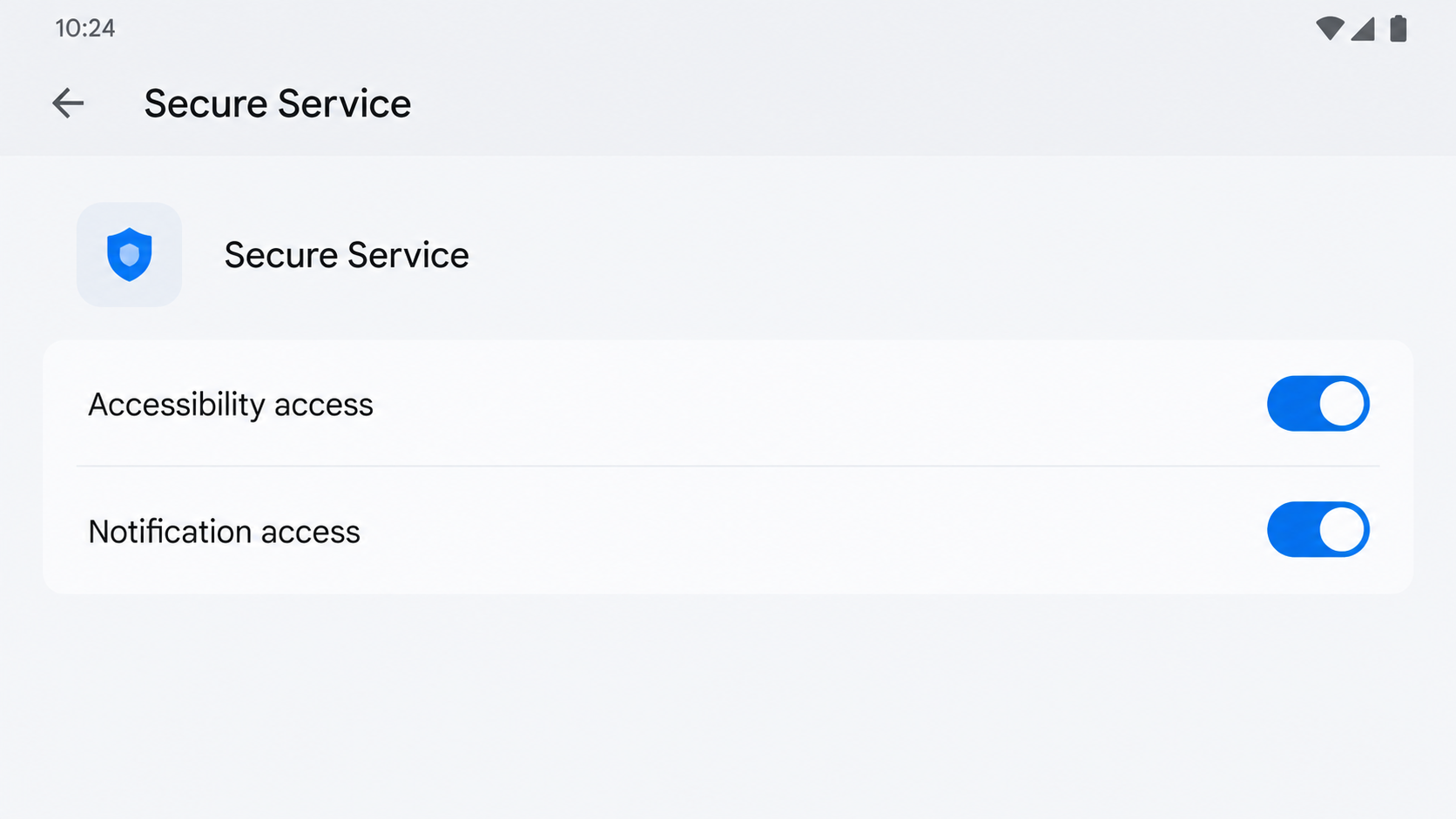
Manic seeks Android Accessibility and notification access. Those permissions can let it observe interface events, read alerts, and interact with the device.
Accessibility is valuable for legitimate assistive tools. The danger comes when an unknown app gains powerful access it cannot justify.
Researchers found that Manic can record input in targeted apps, capture one-time codes, watch the screen, and support operator-driven actions.
A permission prompt may seem like a routine setup step. In this case, granting it can change the risk far beyond that one app.
What makes this strain unusual
- It can intercept taps on a real banking keypad without replacing the whole banking screen.
- It classifies captured text into categories such as passwords, codes, and recovery phrases.
- It can hide activity behind black or fake screens during remote control.
- It can queue stolen data and relay it through nearby infected devices when direct internet access is unavailable.
The relay feature is documented behavior, not evidence that every infection used a nearby peer. Its practical importance is that disconnecting data alone may not end exposure.
The permissions image is a reconstruction showing the kind of access readers should check. It does not depict a recovered Manic installer.
Why the Real Banking Screen Can Still Be Unsafe
Many phishing warnings teach people to look for a fake banking page. Manic can work differently.
In a targeted banking app, it may place a transparent touch layer over a numeric keypad. The user still sees the genuine app underneath.
When the user taps a digit, the malware records the position and forwards the tap to the real control. The payment or login flow can continue normally.
That smooth experience is part of the deception. There may be no strange logo, broken page, or obvious text mistake to notice.
Manic also uses Accessibility as a user-interface keylogger. It can associate captured text with the app where it was entered.
This is more targeted than blindly storing every character. The collected material can include passwords, short codes, email logins, and possible wallet recovery phrases.
Notification access adds another path to one-time codes and account alerts. That matters because a criminal can combine stolen credentials with fresh verification messages.
None of this means the bank’s genuine app is fraudulent. The threat is the separate malicious app operating with excessive permission on the same device.
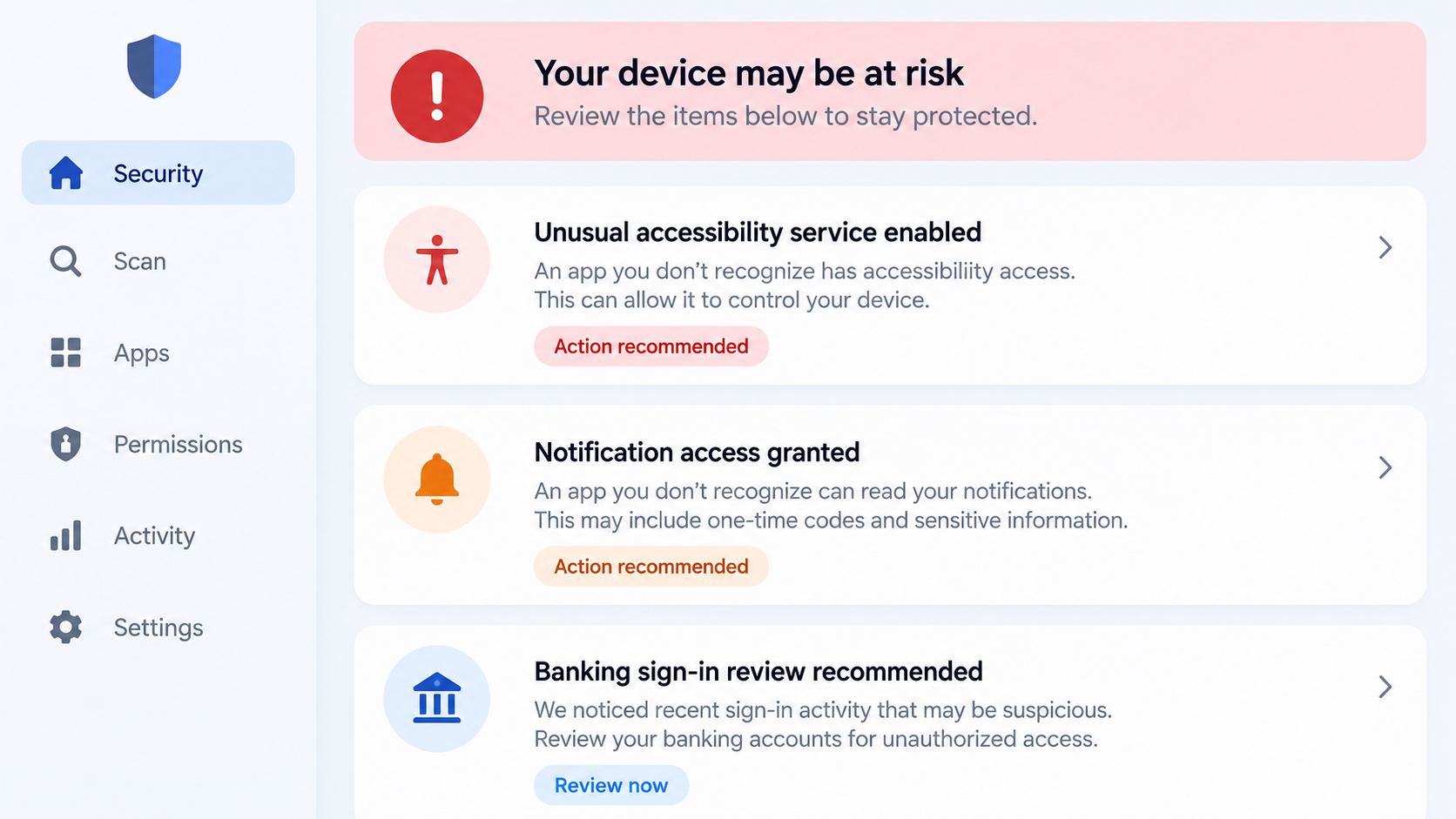
The second illustration shows the type of permission and sign-in review that can help after a suspected infection. It is a conceptual safety screen.
Warning Signs Worth Checking, and Their Limits
A sudden Accessibility request from an app that previously worked without it deserves scrutiny. So does a new notification listener with no clear purpose.
These signs are not proof of Manic specifically. Many Android threats misuse the same permissions, and some legitimate tools use them responsibly.
Look at the whole pattern. Did the request arrive after installing an APK from a message? Did the app’s name or icon change?
Check whether your bank recorded a sign-in, payment, or device enrollment you did not authorize. Unexpected one-time codes can indicate an attempted takeover.
Unusual battery use or a warm phone may be worth noting, but neither is a reliable malware test. Normal updates cause similar symptoms.
A black screen during a financial session is more concerning when paired with unfamiliar privileged access. Do not dismiss it as a harmless glitch.
Take a photo of the screen with another device if it may document suspicious behavior. Avoid entering further credentials just to reproduce the issue.
Also remember what you cannot see. Silent collection may leave no obvious notification, and a normal banking screen does not establish a clean phone.
That is why account review and device review belong together. Investigating only the fraudulent transaction leaves the potential collection tool in place.
If the phone is shared, ask who installed recent apps before accusing anyone. A malicious package can be promoted as a benign update or utility.
Keep the investigation practical: identify unknown apps, inspect their privileges, document transactions, and move sensitive recovery work to another device.
How the Manic Android Infection Works
Step 1: A malicious app reaches the device
The exact lure can differ across campaigns. Do not assume a particular app name or download page is the only route.
Android malware often arrives through deceptive downloads, third-party packages, messages, or supposed updates. What matters here is that an untrusted app is installed.
Check the installation source and recent app history if you suspect a problem. An official-looking icon does not establish who built the package.
Some malware hides its launcher icon later. An app missing from the home screen can still appear in system settings.
Step 2: The app asks for elevated access
Manic’s operation depends heavily on permissions. Accessibility and notification access are particularly consequential because they expose what appears on screen and in alerts.
A setup flow may explain these requests as needed for protection, convenience, or an update. Judge the request against the app’s actual purpose.
A flashlight, document viewer, or generic helper has no normal reason to read bank keypad interactions or all notifications.
Once granted, these rights can support surveillance, interaction, and persistence. Removing the app later may require first disabling its privileged access.
Step 3: It watches targeted apps and sensitive input
Researchers identified a target list covering financial, identity, communication, and authentication services. The malware recognizes when one of those apps is active.
It can then record interface text and classify it. Categories include lock-screen input, short verification codes, passwords, and recovery-phrase candidates.
This explains why a user might notice no visible interruption. The criminal does not need to replace the whole screen to learn something valuable.
A bank app opening normally therefore does not rule out a device-level compromise. Check the permissions of other installed apps.
Step 4: It can capture keypad taps on the genuine app
Manic’s keypad technique focuses on the area containing digits. A transparent layer detects touch positions and then passes the interaction through.
Because the real app still receives the tap, the user may complete the transaction without seeing an error.
This does not prove every banking PIN entered on an infected device was captured. It describes a capability observed in analyzed samples.
If you entered sensitive codes while the suspicious app had Accessibility access, tell your bank that the device itself may be compromised.
Step 5: An operator may observe or control the session
The malware supports remote interaction and screen viewing. It can conceal certain activity behind an update-like or dark screen.
A screen that suddenly goes black or shows a strange maintenance notice is not conclusive by itself. Combined with an unknown Accessibility service, it is concerning.
Remote control can make a fraudulent action appear to originate from the customer’s own device. That can complicate later fraud review.
Preserve timestamps and bank notifications. Those details help the bank investigate whether an unauthorized transfer occurred.
Step 6: Data can wait for a route out
Manic can queue collected material locally. If direct internet access is unavailable, it may seek a nearby infected peer using local wireless connections.
The observed design supports Wi-Fi Direct and Bluetooth paths, including a limited multi-hop relay. The feature is unusual but should not be exaggerated.
Ordinary nearby phones cannot automatically receive this data. The relay requires compatible infected peers, which may not be present.
Still, switching off mobile data alone is not a complete containment plan. Turn off Wi-Fi and Bluetooth as well while arranging a safe response.
Step 7: Updates make simple checks less reliable
Researchers observed changes between earlier and later builds, including stronger anti-analysis behavior and in-memory loading of components.
That means a single clean-looking file scan or missing launcher icon should not be treated as proof the device is healthy.
Malwarebytes for Android or another reputable mobile scanner can help, but a device with suspected remote control may need a clean reset.
Do not restore a full backup containing the same suspicious app after resetting. Reinstall known apps from trusted stores and review permissions afresh.
Permissions, App, Bank, and Wireless Checks
Inspect Accessibility services
Open Android settings and list apps with Accessibility access. Investigate any service you did not deliberately enable.
Do not disable a genuine assistive tool solely because it appears there. Confirm its developer, installation source, and reason for access.
Review notification listeners
An unknown notification listener may read one-time codes and private previews. Compare the list with your installed security and accessibility apps.
Take screenshots of suspicious settings before changing them if you may need to report financial fraud.
Check financial sessions
From another trusted device, review banking, payment, wallet, and email activity. Ask providers to revoke sessions or block transfers where appropriate.
Tell support that Android device takeover is suspected. A simple password reset may not address a compromised device.
Consider local wireless routes
When isolating a suspected phone, disable Wi-Fi, Bluetooth, and mobile data. A data-only disconnect can leave other radio paths active.
This is a precaution, not a claim that every infected phone has nearby peers. The goal is to preserve options while you get help.
What to Do if You Suspect Manic on Your Android Device
Stop using the device for banking or sensitive messages. Turn off mobile data, Wi-Fi, and Bluetooth while you arrange help.
Do not attempt a new login on a phone that may be under remote control. Use another trusted device instead.
Contact your bank or payment provider using its official app on a clean device, or the number printed on your card.
Explain that malicious Android software may have captured PINs and authentication codes. Ask about transaction holds and session revocation.
Inspect Android Accessibility and notification access. Record any unfamiliar app, then disable those privileges before attempting removal.
Menu names vary by Android version. If the app fights removal, ask a trusted technician instead of granting it more permissions.
Run a reputable mobile security scan, such as Malwarebytes for Android, and follow its findings. Reboot and scan again after cleanup.
AdGuard can reduce harmful ads, but it cannot undo captured codes or replace a full mobile-malware response.
From a clean device, change exposed passwords, revoke active sessions, and replace compromised recovery methods or wallet secrets.
Prioritize email, banking, payment, and cryptocurrency accounts. Do not type a recovery phrase into a page offered by someone claiming to help.
If there is strong evidence of infection or remote control, preserve important photos and documents, then consider a factory reset.
Reinstall apps individually from trusted sources. Avoid restoring an untrusted APK or the exact app that caused the problem.
Keep bank alerts, app details, and suspicious messages. Report unauthorized transactions promptly and continue checking account activity afterward.
If the device belongs to an employer, involve its security team before resetting or discarding evidence.
Is Your Device Infected? Run a Free Malware Scan
Slow performance, constant pop-ups, or strange behavior? These are classic signs of a malware infection. The fastest way to find out is to scan your device with Malwarebytes Free — one of the most trusted malware removal tools available.
The free version detects and removes the most common threats, including:
- Adware — the cause of those annoying pop-ups
- Browser hijackers — unwanted redirects and changed homepages
- Trojans and spyware — hidden programs stealing your data
- Potentially unwanted programs (PUPs) — software you never asked for
👉 Select your device below — Windows, Mac, or Android — then follow the simple steps to download Malwarebytes, scan your system, and remove any threats it finds. The scan usually takes 5 to 20 minutes.
Run a Malware Scan with Malwarebytes for Windows
Malwarebytes is one of the most popular and trusted anti-malware tools for Windows — and it’s completely free for removing infections. It catches threats that many antivirus programs miss, including adware, browser hijackers, and trojans. Follow the steps below to scan and clean your PC in just a few minutes.
Download Malwarebytes
Click the button below to download the latest version of Malwarebytes for Windows from the official source. The free version is all you need — it will scan your computer and remove adware, browser hijackers, and other malicious software at no cost.
Download MalwarebytesOfficial installer for Windows 11 and 10. Your download starts right away.Want real-time protection? See Malwarebytes Premium Malwarebytes Free for WindowsScans and removes malware at no cost
-
Install Malwarebytes
When the download finishes, open your Downloads folder and double-click the MBSetup file. If Windows shows a User Account Control pop-up, click “Yes” to allow the installation.

Follow the On-Screen Prompts to Install Malwarebytes
The setup wizard will walk you through a few quick screens:
-
Choose where you’re installing the program — “Personal Computer” or “Work Computer” — then click Next.

-
Malwarebytes will now install on your device. This usually takes under a minute.

-
When installation is complete, the “Welcome to Malwarebytes” screen will open automatically.

-
On the final screen, click Open Malwarebytes to launch the program.

-
Enable “Scan for Rootkits”
Before scanning, turn on rootkit detection so Malwarebytes can find even the most hidden threats. Click the Settings gear icon on the left side of the screen.

In the settings menu, find “Scan for rootkits” and click the toggle so it turns blue.

Done? Click “Dashboard” in the left pane to return to the main screen.
Start the Scan
Click the blue Scan button. Malwarebytes will automatically update its virus database and start checking your computer for malware.

-
Wait for the Scan to Finish
The scan checks your entire system for browser hijackers and other malicious programs, so it can take 5 to 20 minutes depending on your computer. Feel free to do something else — just check back occasionally to see the progress.

-
Quarantine the Detected Threats
When the scan is done, you’ll see a list of everything Malwarebytes found — malware, adware, and potentially unwanted programs. Click the “Quarantine” button to remove all of them at once.

Malwarebytes will now remove the malicious files and registry entries and move them safely into quarantine.

-
Restart Your Computer
Some threats can only be fully removed after a reboot. If Malwarebytes asks you to restart, click Yes. Once you’re logged back in, Malwarebytes has finished removing the threats it found.

That’s it — your Windows PC is now clean of trojans, adware, and other malware, and should be back to running smoothly.
If you are still having problems with your computer after completing these instructions, then please follow one of the steps:
- Run a computer scan with ESET Online Scanner
- Ask for help in our Windows Malware Removal Help & Support forum.
Run a Malware Scan with Malwarebytes for Mac
Malwarebytes for Mac is a free on-demand scanner that removes the malware other security software tends to miss — adware, browser hijackers, and unwanted programs included. Cleaning an infected Mac with Malwarebytes has always been completely free, and it’s our go-to recommendation. Follow the steps below to scan and clean your Mac in just a few minutes.
-
Download Malwarebytes for Mac
Click the button below to download the latest version of Malwarebytes for Mac.
Download MalwarebytesOfficial installer for macOS. Your download starts right away.Want real-time protection? See Malwarebytes PremiumMalwarebytes Free for MacScans and removes malware at no cost -
Open the Malwarebytes setup file
When the download finishes, open your Downloads folder and double-click the setup file to begin the installation.

-
Follow the On-Screen Prompts to Install Malwarebytes
The Malwarebytes for Mac Installer will guide you through a few quick screens. Click “Continue” and keep following the prompts until the installation completes.



When the installation is complete, Malwarebytes opens to the Welcome to Malwarebytes screen. Click “Get started“.
-
Select “Personal Computer” or “Work Computer”
Malwarebytes will ask what type of computer you’re installing it on. Click either Personal Computer or Work Computer, whichever applies.

-
Start the Scan
Click the “Scan” button. Malwarebytes will automatically update its detection database and begin checking your Mac for malware.

-
Wait for the Scan to Finish
Malwarebytes will scan your Mac for adware, browser hijackers, and other malicious programs. This can take a few minutes, so feel free to do something else — just check back occasionally to see the progress.

-
Quarantine the Detected Threats
When the scan is done, you’ll see a list of everything Malwarebytes found. Click the “Quarantine” button to remove all the threats at once.

-
Restart Your Mac
Malwarebytes will now remove all the malicious files it found. Some threats can only be fully removed after a reboot — if Malwarebytes asks you to restart, allow it. Once you’re logged back in, your Mac is clean.

That’s it — your Mac is now free of adware, rogue browser extensions, and other potentially harmful software.
If you are still experiencing problems while trying to remove a malicious program from your computer, please ask for help in our Mac Malware Removal Help & Support forum.
Run a Malware Scan with Malwarebytes for Android
Malwarebytes for Android automatically detects and removes dangerous threats like malware and ransomware so you don’t have to worry about your most-used device being compromised. Aggressive detection of adware and potentially unwanted programs keeps your Android phone or tablet running smooth.
-
Download Malwarebytes for Android.
You can download Malwarebytes for Android by clicking the link below.
Get Malwarebytes for AndroidOpens Google Play in a new tab.Want real-time protection? See Malwarebytes Premium for AndroidMalwarebytes for AndroidScans your phone and removes malware at no cost -
Install Malwarebytes for Android on your phone.
In the Google Play Store, tap “Install” to install Malwarebytes for Android on your device.

When the installation process has finished, tap “Open” to begin using Malwarebytes for Android. You can also open Malwarebytes by tapping on its icon in your phone menu or home screen.

-
Follow the on-screen prompts to complete the setup process
When Malwarebytes will open, you will see the Malwarebytes Setup Wizard which will guide you through a series of permissions and other setup options.
This is the first of two screens that explain the difference between the Premium and Free versions. Swipe this screen to continue.
Tap on “Got it” to proceed to the next step.
Malwarebytes for Android will now ask for a set of permissions that are required to scan your device and protect it from malware. Tap on “Give permission” to continue.
Tap on “Allow” to permit Malwarebytes to access the files on your phone.
-
Update database and run a scan with Malwarebytes for Android
You will now be prompted to update the Malwarebytes database and run a full system scan.

Click on “Update database” to update the Malwarebytes for Android definitions to the latest version, then click on “Run full scan” to perform a system scan.

-
Wait for the Malwarebytes scan to complete.
Malwarebytes will now start scanning your phone for adware and other malicious apps. This process can take a few minutes, so we suggest you do something else and periodically check on the status of the scan to see when it is finished.

-
Click on “Remove Selected”.
When the scan has been completed, you will be presented with a screen showing the malware infections that Malwarebytes for Android has detected. To remove the malicious apps that Malwarebytes has found, tap on the “Remove Selected” button.

-
Restart your phone.
Malwarebytes for Android will now remove all the malicious apps that it has found. To complete the malware removal process, Malwarebytes may ask you to restart your device.
That’s it — your Android phone is now clean — no more malicious apps, adware, or browser redirects.
If you are still having problems with your phone after completing these instructions, then please follow one of the steps:
- Restore your phone to factory settings by going to Settings > General management > Reset > Factory data reset.
- Ask for help in our Mobile Malware Removal Help & Support forum.
Stay Protected: Block Ads and Malicious Sites
Now that your device is clean, keep it that way. Most infections start with a malicious ad or a fake download button — so blocking them at the source is your best defense.
We recommend AdGuard, which blocks malicious ads, phishing pages, and dangerous redirects before they can reach you.
👉 Download AdGuard and browse safely
Frequently Asked Questions
Is Manic a fake banking app?
Not necessarily. It is a separate Android trojan that can monitor and interact with genuine apps after obtaining powerful permissions.
Can it read a PIN entered on the real banking keypad?
Researchers documented a transparent interception technique that records taps while passing them to the legitimate app. Not every observed infection used every capability.
Does turning off mobile data stop Manic?
It limits one route, but the malware has a documented nearby-device relay design. Disable Wi-Fi and Bluetooth too while isolating the device.
Are all Android users equally targeted?
No. The analyzed target list leans strongly toward Ukraine and includes other regions and global services. Any user who installs a malicious package can face risk.
Will a scanner always find it?
No scanner is perfect, especially against an evolving threat. A full scan is useful, but persistent signs or suspected remote control may justify a reset.
Should I change my banking password on the affected device?
No. Use a separate trusted device, and ask the bank to review sessions, transfers, and any compromised authentication methods.
The Bottom Line
Manic turns ordinary-looking Android permissions into visibility over financial activity, messages, and authentication, sometimes without altering the app the victim sees.
Contain the device, alert your bank, and recover accounts from a clean device. Treat the phone itself as part of the incident, not merely the password.

Join the discussion
0 commentsShare your experience or ask a question about this article.
Discussion
Start the conversation
Have a question or something useful to share? Add the first comment.