

A download may open exactly the program you expected and still leave something else behind. That possibility matters when the same computer holds email, game, and wallet sessions.
Vanta is a useful case study because the valuable items are not always passwords. Sometimes the small files that keep you signed in matter even more.
Overview
What the Vanta Stealer is
Vanta is an information-stealing malware family analyzed in 2026. The examined program was built with Python, packaged as an executable, and protected with obfuscation.
It is designed to collect material from a Windows computer and send an archive to an attacker-controlled destination.
The analyzed sample targeted browser data, communication apps, gaming accounts, cryptocurrency wallets, documents, and information about the computer itself.
That broad collection does not mean every person infected has all those apps. Vanta checks what is available and tries to take what it can find.
Why a saved session is valuable
A browser cookie or app token can sometimes let an attacker act as a signed-in user without knowing the password at that moment.
That is why changing one password on the same infected PC may not solve the problem. The malware may still read the new session.
Researchers also documented attempts to collect wallet-related files and application data. If a recovery phrase or private key was exposed, password changes cannot secure it.
The right response depends on what was present on the computer, not just whether a security tool displayed an alert.
What has and has not been established
- Vanta has documented collection modules for browser, chat, gaming, wallet, and selected VPN-related data.
- The analyzed program can capture screenshots and webcam images, then bundle collected material for transfer.
- The public analysis describes the malware’s behavior, but does not prove one universal download page or advertising campaign.
- A detection name identifies a threat, not a complete account of what was stolen from your particular computer.
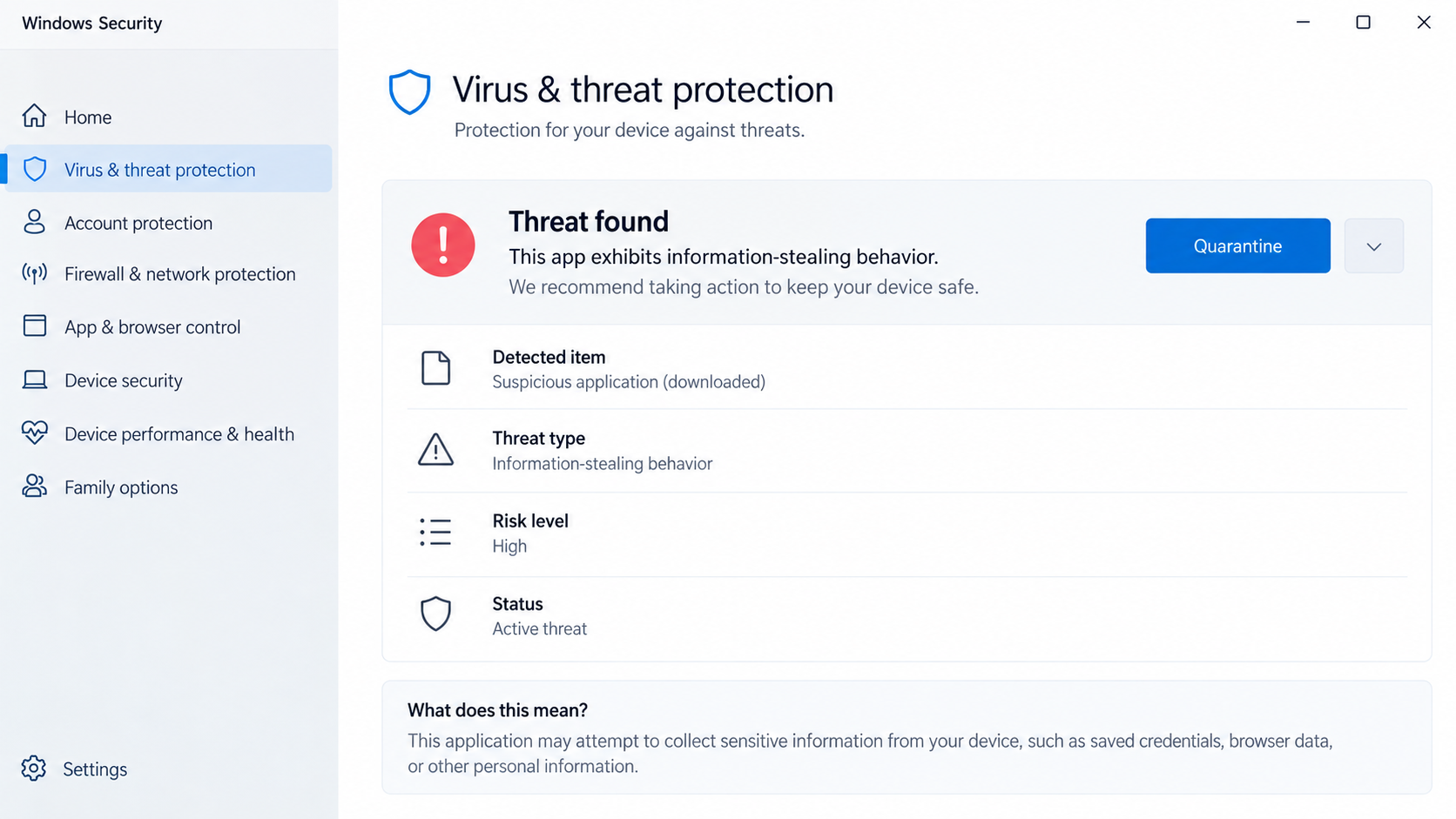
The image above is a clean illustration of the type of warning a user might see. It is not a screenshot from a victim’s machine.
What Vanta Looks For on a Computer
The easiest mistake is to think an infostealer only searches for a document named passwords. Modern accounts leave many useful traces.
Browsers may hold saved logins, cookies, payment details, and autofill information. Even where passwords are encrypted, malware running in a user’s session may reach accessible data.
Chat clients can store tokens that maintain a login. Gaming platforms may contain valuable inventory, linked payment methods, or accounts that can be resold.
Crypto wallets create a different risk. A copied seed phrase or private key can allow irreversible transfers, while a stolen browser session can expose exchange accounts.
Researchers reported collection targeting Discord, Telegram, Steam, Riot, Roblox, Minecraft, and several wallet types. Those names describe observed targets, not confirmed victims.
The malware can also gather selected files, make screenshots, and request webcam images. That widens the concern beyond account access to privacy.
One screenshot may expose a document title or an open inbox. A document search can find invoices, tax files, or recovery notes left on the desktop.
Vanta’s packaging and obfuscation are meant to complicate inspection. They do not make the program invisible, but they can slow simple detection.
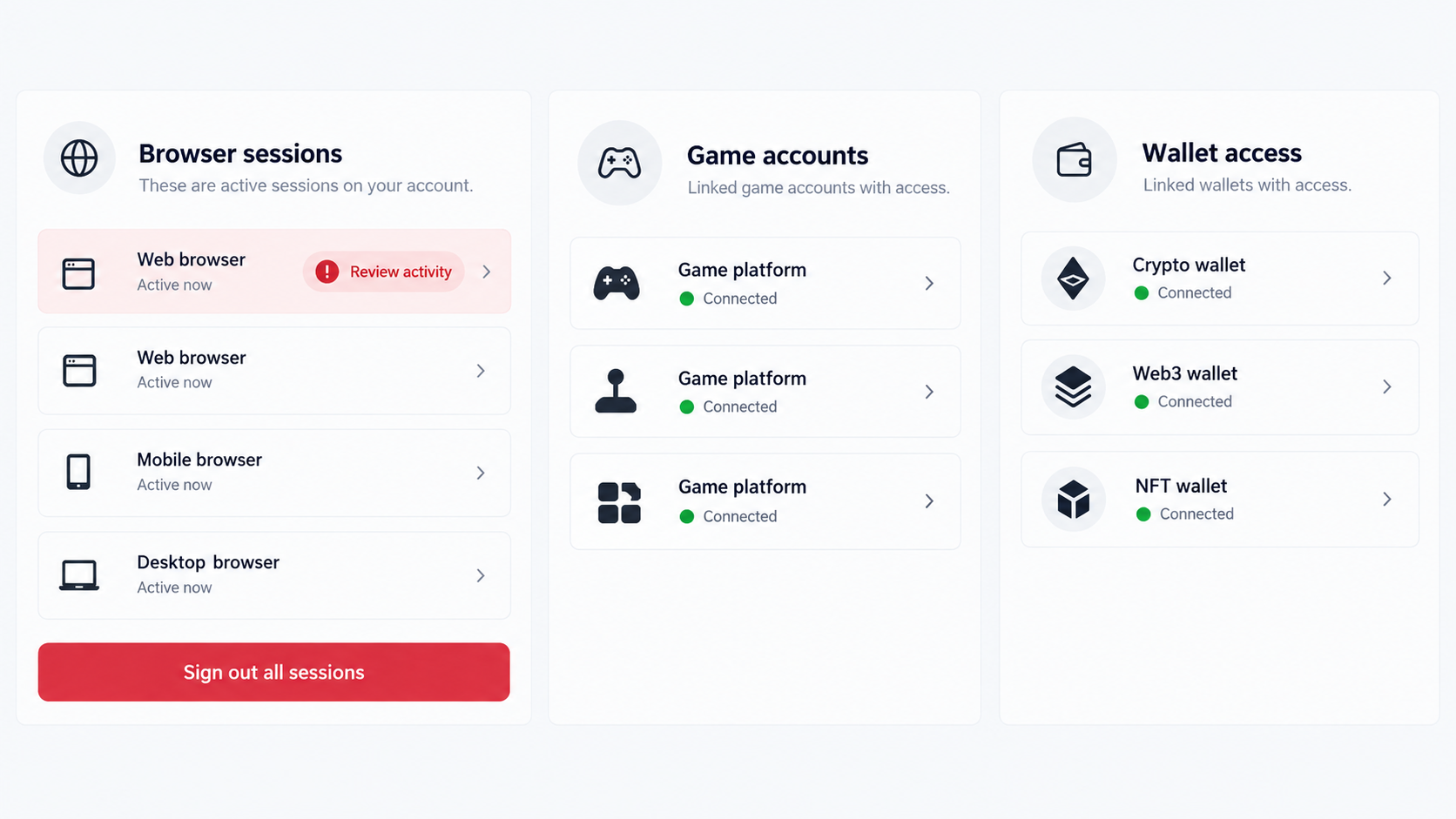
The second illustration shows why reviewing sessions from a separate device matters. It is a conceptual account-security screen, not a captured Vanta panel.
Why the First Security Alert Is Only the Beginning
A detection result tells you something suspicious was found. It rarely gives a complete, reliable list of data that left the computer.
Consider the timeline. If a scanner blocked the file before execution, the likely exposure differs from an alert raised after several minutes of activity.
Even then, timing can be uncertain. Programs can start background work before showing a window, and security products can log events after the fact.
Check the alert’s path and action. Was the executable quarantined, merely flagged, or allowed to run? Did another process start from the same folder?
Review browser and account histories from a clean device. An unfamiliar session, altered recovery option, or suspicious message is stronger evidence than speculation about one file.
For a work computer, do not run multiple cleanup tools before notifying your administrator. That can remove evidence needed to identify other affected systems.
For a personal computer, copy only essential documents before rebuilding. Scan those backups, and avoid carrying executable files into the clean installation.
Also think about the browser profile you may restore. Importing settings can bring back unsafe extensions or old sessions, even after the operating system is fresh.
Start with a new browser profile and add only extensions you recognize. Sign in again after changing passwords and revoking old sessions.
If you receive a demand for payment claiming your webcam was accessed, do not assume the sender has footage. Verify independently and do not engage through the threat message.
The goal is proportionate action: treat plausible account exposure seriously, but do not turn every advertised Vanta capability into a claimed event on your machine.
How a Vanta Stealer Incident Can Unfold
Step 1: An untrusted program is opened
The exact delivery route for the analyzed Vanta sample has not been established publicly. Be cautious with anyone claiming every infection starts from one specific ad.
Infostealers commonly arrive as counterfeit installers, game tools, cracks, attachments, or downloads promoted in messages. Those are plausible routes, not proven Vanta-only facts.
A file may display an expected interface or an error while code runs in the background. Apparent normal behavior is not evidence the package was safe.
Preserve the download URL or message if available. It can help investigators identify the entry point without asking you to run the file again.
Step 2: The executable unpacks protected code
Researchers found that the analyzed program used packaging and obfuscation around its Python components. This makes casual inspection harder.
Obfuscation is not itself proof of wrongdoing; legitimate software can protect code. Here it appears alongside extensive credential and token collection.
The malware also checks its environment. Such checks can affect whether a sample behaves the same way in a security lab and on a real computer.
Do not rely on a single online scan or a brief look at a file icon. Evaluate the source, signature, behavior, and security alerts together.
Step 3: It inventories accessible apps and files
Vanta searches for browser profiles and application data. It also looks for files that may contain valuable personal or account information.
The collection scope matters. Someone using only one affected browser still faces risk, but a PC with multiple wallets and chat apps offers more targets.
A stolen browser profile may hold active sessions even when saved passwords are turned off. Turning off password storage alone is not enough.
List the accounts open on the PC during the suspected infection. That inventory will guide the recovery order later.
Step 4: It captures tokens, wallet data, and visual context
The analyzed malware tried to collect tokens from communication and gaming services, plus wallet-related data. Some variants also capture screenshots or webcam material.
A token may remain useful until a service revokes it. Closing a browser tab does not necessarily invalidate the session server-side.
If a wallet secret was stored in a plain text file, treat it as exposed. Moving funds to a newly created wallet is safer than changing a website password.
A photo or screenshot is not automatically evidence of blackmail. It is still personal data that can be misused or combined with other information.
Step 5: It packages the findings for transfer
Researchers observed Vanta organizing collected material into an archive and attempting to send it out. The archive format makes many small items easier to move.
Network restrictions can sometimes block a transfer, but a blocked connection should not be assumed without logs. Local collection may already have occurred.
An antivirus alert may stop one executable after it started. The time of detection and any network events help determine whether data exposure is possible.
Keep security logs and alert details. They can be more useful than an unsupported claim that every target on Vanta’s list was definitely stolen.
Step 6: Stolen sessions are used elsewhere
The malware’s creator and whoever later uses the data may be different people. Stolen archives can be passed or sold after the initial infection.
Account abuse may appear as an unfamiliar login, a changed recovery email, a new device, a wallet transfer, or messages sent to contacts.
Some services do not show every token use as a normal login. A clean-looking sign-in history is reassuring, but not conclusive.
Revoke sessions from a trusted device and then check for changed security settings. Do not wait for a visible financial loss.
Step 7: Weak cleanup leaves accounts exposed
Deleting the suspicious installer does not prove the running code or its persistence mechanisms are gone. Nor does it revoke a copied cookie.
Changing passwords on the infected machine may create fresh credentials and sessions for malware to read. Move that work to another trusted device.
After scanning or rebuilding the PC, reinstall software from verified publishers. A saved copy of the same cracked tool can restart the incident.
Then monitor important accounts for several weeks. Delayed use of stolen data is common enough to justify follow-up.
Browser, Wallet, Gaming, and Device Checks
Start with email and browser sessions
Email controls resets for many other services. From a clean device, change its password, enable strong multifactor authentication, and sign out of other sessions.
Review forwarding rules, recovery addresses, and connected apps. A criminal may leave a quieter way back in after the password changes.
Separate exchange accounts from wallet keys
For an exchange, change credentials, revoke API keys, review withdrawals, and contact support if there is activity you did not authorize.
For a noncustodial wallet, a copied seed phrase cannot be made secret again. Create a new wallet on a trusted device and move assets carefully.
Review chat and gaming accounts
Discord, Telegram, Steam, Riot, and similar services may hold sessions or payment links. Revoke devices and check messages, trades, and account changes.
Warn contacts if your account sent suspicious links. Do not forward the original malicious file while explaining what happened.
Investigate the computer itself
Run a full scan and examine recent downloads, scheduled tasks, and unexpected programs. For workplace PCs, involve the security team before altering evidence.
If compromise is confirmed or cannot be contained confidently, a clean reinstall is often more dependable than trying to remove one detected file.
What to Do if Vanta May Have Run on Your PC
Disconnect the computer from the internet and stop entering passwords. Record the security alert and approximate time the suspicious file ran.
Do not delete every log in a rush. The details can help establish which accounts and files were exposed.
Use a different, trusted device to secure your primary email. Change its password, revoke sessions, and inspect recovery settings and forwarding rules.
Then work through banking, shopping, work, communication, and gaming accounts in order of importance.
Tell financial providers about possible credential theft. Ask them to review transactions, linked devices, withdrawal settings, and recent changes.
If you used a wallet or exchange, revoke API access and treat stored recovery phrases as compromised.
Run a complete malware scan with Malwarebytes or another reputable tool. Check the full results, not only the final green status message.
AdGuard can reduce malicious ads in future browsing, but it cannot revoke stolen sessions or repair an infected operating system.
Consider a clean operating-system reinstall if the infection is confirmed, privileged, or difficult to explain. Back up personal documents cautiously.
Do not restore unknown executables, browser extensions, or the download that started the problem.
From a trusted device, review session lists and security notifications. Sign out all devices where a service offers that option.
Enable app-based or hardware-key multifactor authentication. Save recovery codes somewhere the affected PC cannot read.
Monitor accounts and tell affected contacts or your employer when appropriate. Keep a timeline of alerts, support cases, and unauthorized actions.
If identity documents were stored on the PC, consider the additional identity-protection steps relevant to your country.
Is Your Device Infected? Run a Free Malware Scan
Slow performance, constant pop-ups, or strange behavior? These are classic signs of a malware infection. The fastest way to find out is to scan your device with Malwarebytes Free — one of the most trusted malware removal tools available.
The free version detects and removes the most common threats, including:
- Adware — the cause of those annoying pop-ups
- Browser hijackers — unwanted redirects and changed homepages
- Trojans and spyware — hidden programs stealing your data
- Potentially unwanted programs (PUPs) — software you never asked for
👉 Select your device below — Windows, Mac, or Android — then follow the simple steps to download Malwarebytes, scan your system, and remove any threats it finds. The scan usually takes 5 to 20 minutes.
Run a Malware Scan with Malwarebytes for Windows
Malwarebytes is one of the most popular and trusted anti-malware tools for Windows — and it’s completely free for removing infections. It catches threats that many antivirus programs miss, including adware, browser hijackers, and trojans. Follow the steps below to scan and clean your PC in just a few minutes.
Download Malwarebytes
Click the button below to download the latest version of Malwarebytes for Windows from the official source. The free version is all you need — it will scan your computer and remove adware, browser hijackers, and other malicious software at no cost.
Download MalwarebytesOfficial installer for Windows 11 and 10. Your download starts right away.Want real-time protection? See Malwarebytes Premium Malwarebytes Free for WindowsScans and removes malware at no cost
-
Install Malwarebytes
When the download finishes, open your Downloads folder and double-click the MBSetup file. If Windows shows a User Account Control pop-up, click “Yes” to allow the installation.

Follow the On-Screen Prompts to Install Malwarebytes
The setup wizard will walk you through a few quick screens:
-
Choose where you’re installing the program — “Personal Computer” or “Work Computer” — then click Next.

-
Malwarebytes will now install on your device. This usually takes under a minute.

-
When installation is complete, the “Welcome to Malwarebytes” screen will open automatically.

-
On the final screen, click Open Malwarebytes to launch the program.

-
Enable “Scan for Rootkits”
Before scanning, turn on rootkit detection so Malwarebytes can find even the most hidden threats. Click the Settings gear icon on the left side of the screen.

In the settings menu, find “Scan for rootkits” and click the toggle so it turns blue.

Done? Click “Dashboard” in the left pane to return to the main screen.
Start the Scan
Click the blue Scan button. Malwarebytes will automatically update its virus database and start checking your computer for malware.

-
Wait for the Scan to Finish
The scan checks your entire system for browser hijackers and other malicious programs, so it can take 5 to 20 minutes depending on your computer. Feel free to do something else — just check back occasionally to see the progress.

-
Quarantine the Detected Threats
When the scan is done, you’ll see a list of everything Malwarebytes found — malware, adware, and potentially unwanted programs. Click the “Quarantine” button to remove all of them at once.

Malwarebytes will now remove the malicious files and registry entries and move them safely into quarantine.

-
Restart Your Computer
Some threats can only be fully removed after a reboot. If Malwarebytes asks you to restart, click Yes. Once you’re logged back in, Malwarebytes has finished removing the threats it found.

That’s it — your Windows PC is now clean of trojans, adware, and other malware, and should be back to running smoothly.
If you are still having problems with your computer after completing these instructions, then please follow one of the steps:
- Run a computer scan with ESET Online Scanner
- Ask for help in our Windows Malware Removal Help & Support forum.
Run a Malware Scan with Malwarebytes for Mac
Malwarebytes for Mac is a free on-demand scanner that removes the malware other security software tends to miss — adware, browser hijackers, and unwanted programs included. Cleaning an infected Mac with Malwarebytes has always been completely free, and it’s our go-to recommendation. Follow the steps below to scan and clean your Mac in just a few minutes.
-
Download Malwarebytes for Mac
Click the button below to download the latest version of Malwarebytes for Mac.
Download MalwarebytesOfficial installer for macOS. Your download starts right away.Want real-time protection? See Malwarebytes PremiumMalwarebytes Free for MacScans and removes malware at no cost -
Open the Malwarebytes setup file
When the download finishes, open your Downloads folder and double-click the setup file to begin the installation.

-
Follow the On-Screen Prompts to Install Malwarebytes
The Malwarebytes for Mac Installer will guide you through a few quick screens. Click “Continue” and keep following the prompts until the installation completes.



When the installation is complete, Malwarebytes opens to the Welcome to Malwarebytes screen. Click “Get started“.
-
Select “Personal Computer” or “Work Computer”
Malwarebytes will ask what type of computer you’re installing it on. Click either Personal Computer or Work Computer, whichever applies.

-
Start the Scan
Click the “Scan” button. Malwarebytes will automatically update its detection database and begin checking your Mac for malware.

-
Wait for the Scan to Finish
Malwarebytes will scan your Mac for adware, browser hijackers, and other malicious programs. This can take a few minutes, so feel free to do something else — just check back occasionally to see the progress.

-
Quarantine the Detected Threats
When the scan is done, you’ll see a list of everything Malwarebytes found. Click the “Quarantine” button to remove all the threats at once.

-
Restart Your Mac
Malwarebytes will now remove all the malicious files it found. Some threats can only be fully removed after a reboot — if Malwarebytes asks you to restart, allow it. Once you’re logged back in, your Mac is clean.

That’s it — your Mac is now free of adware, rogue browser extensions, and other potentially harmful software.
If you are still experiencing problems while trying to remove a malicious program from your computer, please ask for help in our Mac Malware Removal Help & Support forum.
Run a Malware Scan with Malwarebytes for Android
Malwarebytes for Android automatically detects and removes dangerous threats like malware and ransomware so you don’t have to worry about your most-used device being compromised. Aggressive detection of adware and potentially unwanted programs keeps your Android phone or tablet running smooth.
-
Download Malwarebytes for Android.
You can download Malwarebytes for Android by clicking the link below.
Get Malwarebytes for AndroidOpens Google Play in a new tab.Want real-time protection? See Malwarebytes Premium for AndroidMalwarebytes for AndroidScans your phone and removes malware at no cost -
Install Malwarebytes for Android on your phone.
In the Google Play Store, tap “Install” to install Malwarebytes for Android on your device.

When the installation process has finished, tap “Open” to begin using Malwarebytes for Android. You can also open Malwarebytes by tapping on its icon in your phone menu or home screen.

-
Follow the on-screen prompts to complete the setup process
When Malwarebytes will open, you will see the Malwarebytes Setup Wizard which will guide you through a series of permissions and other setup options.
This is the first of two screens that explain the difference between the Premium and Free versions. Swipe this screen to continue.
Tap on “Got it” to proceed to the next step.
Malwarebytes for Android will now ask for a set of permissions that are required to scan your device and protect it from malware. Tap on “Give permission” to continue.
Tap on “Allow” to permit Malwarebytes to access the files on your phone.
-
Update database and run a scan with Malwarebytes for Android
You will now be prompted to update the Malwarebytes database and run a full system scan.

Click on “Update database” to update the Malwarebytes for Android definitions to the latest version, then click on “Run full scan” to perform a system scan.

-
Wait for the Malwarebytes scan to complete.
Malwarebytes will now start scanning your phone for adware and other malicious apps. This process can take a few minutes, so we suggest you do something else and periodically check on the status of the scan to see when it is finished.

-
Click on “Remove Selected”.
When the scan has been completed, you will be presented with a screen showing the malware infections that Malwarebytes for Android has detected. To remove the malicious apps that Malwarebytes has found, tap on the “Remove Selected” button.

-
Restart your phone.
Malwarebytes for Android will now remove all the malicious apps that it has found. To complete the malware removal process, Malwarebytes may ask you to restart your device.
That’s it — your Android phone is now clean — no more malicious apps, adware, or browser redirects.
If you are still having problems with your phone after completing these instructions, then please follow one of the steps:
- Restore your phone to factory settings by going to Settings > General management > Reset > Factory data reset.
- Ask for help in our Mobile Malware Removal Help & Support forum.
Stay Protected: Block Ads and Malicious Sites
Now that your device is clean, keep it that way. Most infections start with a malicious ad or a fake download button — so blocking them at the source is your best defense.
We recommend AdGuard, which blocks malicious ads, phishing pages, and dangerous redirects before they can reach you.
👉 Download AdGuard and browse safely
Frequently Asked Questions
Does a Vanta detection mean every password was stolen?
No. It means the threat has that capability. Actual exposure depends on execution, timing, available apps, security controls, and whether transfer succeeded.
Can a password change alone fix the problem?
No. Copied sessions may remain active, and malware on the same PC may collect the new password. Revoke sessions and clean the device.
Are gaming accounts really worth protecting?
Yes. Games can contain valuable items, saved payments, linked identities, and contact lists. Attackers can also use stolen accounts to spread malicious links.
What if my wallet recovery phrase was stored on the PC?
Treat it as exposed if Vanta may have run. Create a fresh wallet on a trusted device and transfer assets after checking the address carefully.
Did Vanta come from a particular website?
Public technical analysis does not establish a single universal delivery site. Preserve your own download history, and avoid claims based only on a matching name.
Should I reinstall Windows immediately?
A clean reinstall is sensible for confirmed or uncertain deep compromise. Preserve needed evidence and personal files first, especially on a managed work computer.
The Bottom Line
Vanta tries to turn one untrusted program into access to many parts of a digital life, including sessions that survive a simple password change.
Isolate the PC, recover accounts from another device, and handle wallet secrets separately. Cleaning the file matters, but closing every stolen door matters more.

Join the discussion
0 commentsShare your experience or ask a question about this article.
Discussion
Start the conversation
Have a question or something useful to share? Add the first comment.