


Your phone rings with a warning about a $250.45 Apple Store purchase. The recording sounds polished, names Wells Fargo, and gives you a simple way to stop the charge before it goes through.
That short moment of relief is where the real danger begins.
Overview
The call invents an Apple Store purchase
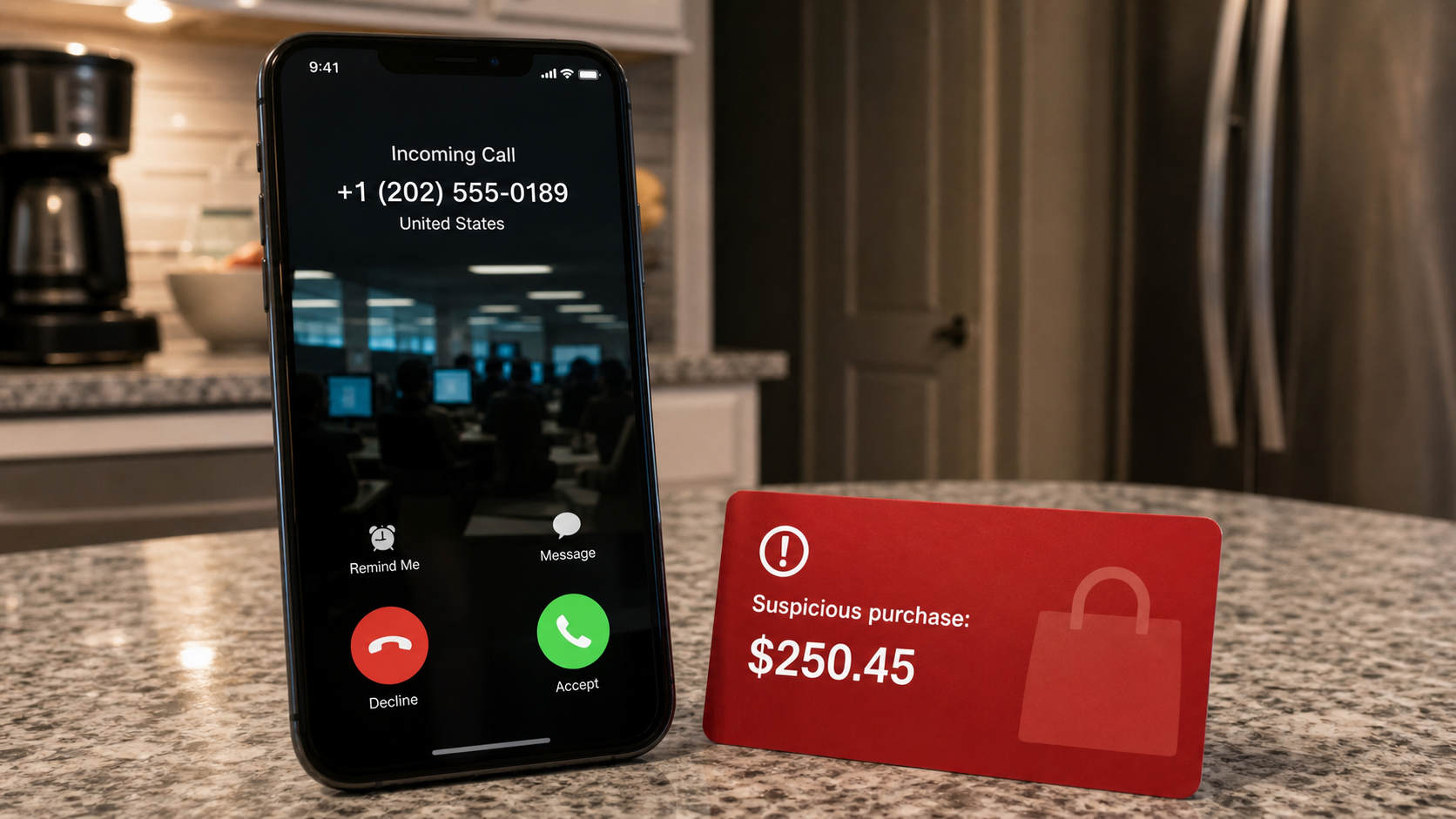
The Wells Fargo Apple Store scam call is a bank impersonation campaign built around a purchase the recipient does not recognize. A recorded voice may say that a $250.45 payment at an Apple Store in Sacramento was declined, blocked, or placed under review.
The exact amount and city can change. Those details are included to make the warning feel like it came from a real transaction-monitoring system rather than from an unknown caller.
The message may tell the listener to press 1, say “yes,” or call 1-866-672-0001 to speak with the supposed fraud department. That number should not be treated as a verified Wells Fargo or Apple contact simply because the recording presents it that way.
The callback starts the real scam
The robocall is only the opening. Its purpose is to move a worried person into a live conversation where an operator can request account details, security codes, card information, remote access, or a transfer.
Common warning signs include:
- An unexpected call about a purchase you never made
- A precise amount and location designed to sound credible
- Instructions to press a key or call a number immediately
- A request for a password, PIN, card number, or one-time code
- Pressure to transfer money into a “safe” account
- A demand to keep the conversation secret
The caller ID cannot prove who is calling
A name such as Wells Fargo may appear on the screen, or the call may come from a number with a familiar area code. Neither detail authenticates the caller because telephone numbers and caller names can be spoofed.
The safest response is to end the call and check the account independently. Open the banking app you normally use or call the number printed on the back of your physical card.
If there is no matching purchase or fraud alert in the account, the call did not document a real transaction. Even if a suspicious charge exists, the incoming caller still should not be trusted with security information.
Why the $250.45 Apple Purchase Story Feels Believable
Banks genuinely do contact customers about unusual purchases, and Apple products are expensive enough to make a fraud warning plausible. Scammers combine those familiar ideas so the listener reacts before asking how the caller obtained the information.
A specific amount such as $250.45 sounds as though it came from a transaction record. The reference to Sacramento adds another layer of apparent precision, especially for someone who lives elsewhere and immediately assumes a card was cloned.
The recording may also use normal banking language such as “declined,” “pending review,” or “fraud prevention.” Professionally recorded audio, hold music, extension numbers, and a case ID can make the operation feel organized.
None of those details establishes that the call is legitimate. A scammer can read a script, buy a toll-free number, and copy terminology from public banking websites with very little effort.
How the Wells Fargo Apple Store Scam Call Works
Step 1: An automated warning creates immediate concern
The target receives an unsolicited robocall claiming to come from Wells Fargo. The message says a $250.45 Apple Store purchase in Sacramento was declined or flagged as suspicious.
Many calls are made in bulk, so the criminals may not know whether the recipient banks with Wells Fargo. They depend on chance, brand recognition, and the possibility that the listener has recently purchased an Apple product.
Step 2: The recording offers a quick way to stop the charge
The listener is told to press 1, say “yes,” or call 1-866-672-0001. Giving the person a clear action reduces the time available to think and makes compliance feel like responsible account protection.
Pressing a key may connect directly to an operator and also confirm that the telephone number is active. Calling back does the same while giving the criminal an incoming caller who is already worried.
Step 3: A fake fraud specialist builds credibility
The operator introduces himself as a Wells Fargo security employee and repeats the amount, store, and city. He may provide a fabricated employee number or case reference, then ask whether the listener authorized the purchase.
When the answer is no, the operator agrees that the card may be compromised. This apparent confirmation makes the scammer seem helpful while moving the conversation toward an “identity verification” process.
Step 4: The victim is asked to verify sensitive details
The supposed specialist may request the card number, expiration date, online banking username, account balance, ZIP code, or Social Security number. Each question is framed as a normal security check.
A real bank may verify identity when a customer calls an official number, but an unexpected caller should never receive credentials or full payment-card details. Information already known by the caller may have come from a data breach rather than a bank system.
Step 5: A real one-time code is turned against the victim
The scammer may attempt a login or password reset while speaking to the victim. That action triggers a genuine Wells Fargo security code, which can make the conversation suddenly seem authentic.
The code is meant to protect the account from the person on the phone. Reading it aloud may approve a new device, reset a password, add a recipient, or authorize a transfer.
Step 6: The story changes to protecting the remaining money
After gaining trust or account access, the operator may claim that additional transactions are pending. The victim is told to move savings into a “secure” or “temporary” account before criminals can take it.
That destination belongs to the scammer or a money mule. Other versions request gift cards, cryptocurrency, a wire, or remote access to the victim’s device under the pretense of reversing the Apple charge.
Step 7: Follow-up calls keep the pressure alive
If the first attempt does not produce money, another caller may pose as an Apple representative, Wells Fargo supervisor, police officer, or fraud investigator. The second voice makes the story appear to involve several independent organizations.
The criminals may refer to information disclosed during the first call. That knowledge is used as proof that the follow-up is official, even though both callers are part of the same operation.
What to Do When You Receive This Call
Hang up without pressing a number or debating with the recording. Do not call 1-866-672-0001, and do not trust a callback from someone claiming to continue the same investigation.
Open the Wells Fargo app through its normal icon or type the bank’s known address into your browser. Review card activity, account alerts, pending transfers, linked devices, and contact details.
You can also call the telephone number printed on the back of the card. Tell the representative that you received an impersonation call and ask whether a $250.45 Apple Store transaction or fraud case actually exists.
The Federal Trade Commission advises people to end unexpected calls and verify the story through an official app, website, statement, or card number. It also warns against sharing account information or verification codes.
Why You Should Not Say “Yes” or Press 1
A single spoken word does not magically authorize every financial transaction. The more immediate risk is that responding confirms a real person answered and transfers the call to an operator trained to apply pressure.
Interaction can also help scammers classify the number. A person who responds to a bank alert may receive more robocalls about cards, taxes, subscriptions, deliveries, or investment accounts.
If you accidentally pressed 1 but shared nothing, simply hang up, block the number, and monitor your accounts. Do not continue out of politeness, and do not assume the operator is legitimate because the call became personal.
How to Handle Repeated Calls
Blocking the reported number may stop one route, but criminals can rotate lines or spoof a different caller ID. Let unfamiliar calls go to voicemail and avoid returning a number simply because the recording sounds urgent.
Use your phone carrier’s spam-reporting controls when available. A call filter can reduce interruptions, but it cannot decide whether every displayed bank number is authentic.
Tell family members who share the account about the attempt. A second caller may target another cardholder with the same Apple purchase story and claim that the first person already approved an investigation.
Company, Address, and Fulfillment Checks
The caller must not choose the verification channel
A scammer controls every number and menu offered during the call. Independent verification means ending that connection and reaching the bank through contact information you already trust.
The Apple Store location proves nothing
Naming Sacramento or another city creates realism, but store locations are public information. Check the transaction record inside the bank account rather than asking the caller to repeat the location.
The toll-free number is not a credential
A number beginning with 1-866 can be registered by an ordinary business or criminal operation. Its toll-free format does not connect it to Wells Fargo, Apple, or a regulated fraud department.
A genuine transaction leaves independent evidence
A card purchase should appear as pending, declined, or posted activity in the bank’s own system. A spoken claim with no matching account record is not proof that a purchase occurred.
Information the Fake Agent May Request
The script can change according to what the caller reveals. These requests are especially dangerous during an unexpected conversation:
- Your full debit or credit card number
- Your online banking username or password
- A one-time passcode sent by text or email
- Your Social Security number or date of birth
- Your current account balance or recent transactions
- Remote access to your phone or computer
- A transfer to a newly supplied “safe” account
- Gift cards, cryptocurrency, cash, or a payment-app transfer
End the call if any of these requests appear. An urgent tone does not turn unsafe instructions into a legitimate fraud investigation.
What to Do if You Have Fallen Victim to This Scam
- End every conversation with the callers. Hang up, block the numbers, and ignore follow-up messages. Do not warn the operator about the recovery steps you plan to take.
- Contact Wells Fargo through a trusted channel. Use the app or number printed on your card. Explain exactly what you disclosed or approved and ask the fraud team to secure the account.
- Report unauthorized transfers immediately. Ask whether a card payment, wire, Zelle transfer, or other transaction can be stopped, recalled, or disputed. Speed can affect the available options.
- Change exposed credentials. Secure your email account first, then banking and Apple accounts. Use unique passwords, review recovery details, sign out unknown sessions, and replace compromised cards.
- Revoke unknown devices and payment recipients. Remove unfamiliar trusted devices, digital-wallet cards, transfer recipients, telephone numbers, and email addresses from affected accounts.
- Remove remote-access software and scan the device. Disconnect it from the internet, uninstall any tool the caller requested, and run a full Malwarebytes scan for remote-control programs, credential stealers, or other malware.
- Reduce exposure to malicious pages. AdGuard can help block known phishing domains, deceptive redirects, and malicious ads. It adds protection but cannot reverse information already shared.
- Protect your identity. If you disclosed a Social Security number or extensive personal information, place a fraud alert or credit freeze and monitor credit reports for unfamiliar accounts.
- Save evidence and file reports. Keep call logs, voicemails, numbers, receipts, account alerts, and transfer details. Report the scam at ReportFraud.ftc.gov and contact local police when money or identity documents were taken.
Is Your Device Infected? Run a Free Malware Scan
Slow performance, constant pop-ups, or strange behavior? These are classic signs of a malware infection. A quick way to check is to scan your device with Malwarebytes Free, one of the most trusted malware removal tools available. If you only visited a scam page and didn’t download or install anything, this scan is optional.
The free version detects and removes the most common threats, including:
- Adware — the cause of those annoying pop-ups
- Browser hijackers — unwanted redirects and changed homepages
- Trojans and spyware — hidden programs stealing your data
- Potentially unwanted programs (PUPs) — software you never asked for
👉 Select your device below — Windows, Mac, or Android — then follow the simple steps to download Malwarebytes, scan your system, and remove any threats it finds. The scan usually takes 5 to 20 minutes.
Run a Malware Scan with Malwarebytes for Windows
Malwarebytes is one of the most popular and trusted anti-malware tools for Windows — and it’s completely free for removing infections. It catches threats that many antivirus programs miss, including adware, browser hijackers, and trojans. Follow the steps below to scan your PC and remove what Malwarebytes finds.
Download Malwarebytes
Click the button below to download the latest version of Malwarebytes for Windows from the official source. The free version is all you need — it will scan your computer and remove adware, browser hijackers, and other malicious software at no cost.
Download MalwarebytesOfficial installer for Windows 11 and 10. Your download starts right away.Want real-time protection? See Malwarebytes Premium Malwarebytes Free for WindowsScans and removes malware at no cost
-
Install Malwarebytes
When the download finishes, open your Downloads folder and double-click the MBSetup file. If Windows shows a User Account Control pop-up, click “Yes” to allow the installation.

Follow the On-Screen Prompts to Install Malwarebytes
The setup wizard will walk you through a few quick screens:
-
Choose where you’re installing the program — “Personal Computer” or “Work Computer” — then click Next.

-
Malwarebytes will now install on your device. This usually takes under a minute.

-
When installation is complete, the “Welcome to Malwarebytes” screen will open automatically.

-
On the final screen, click Open Malwarebytes to launch the program.

-
Optional: Check for rootkits with a Custom Scan
You don’t need to change any settings for a normal scan. The standard Threat Scan in the next step is enough for most problems, so you can go straight to it.
If you also want to check for rootkits, use a Custom Scan. In current versions of Malwarebytes, rootkit scanning is only available there:
- On the Scanner tile, click the three-dot menu and select Advanced Scan.
- Choose Custom Scan. In its options, check Scan for rootkits.
- Select your system drive (usually C:\) as the location to scan, then start the scan. It takes longer than a Threat Scan.
- When it finishes, review and quarantine the results as described in the steps below.
Rootkit scanning isn’t available on Windows devices with ARM processors.
Start the Scan
Click the blue Scan button. Malwarebytes will automatically update its virus database and start checking your computer for malware.

-
Wait for the Scan to Finish
The scan checks your entire system for browser hijackers and other malicious programs, so it can take 5 to 20 minutes depending on your computer. Feel free to do something else — just check back occasionally to see the progress.

-
Quarantine the Detected Threats
When the scan is done, you’ll see a list of everything Malwarebytes found — malware, adware, and potentially unwanted programs. Click the “Quarantine” button to remove all of them at once.

Malwarebytes will now remove the malicious files and registry entries and move them safely into quarantine.

-
Restart Your Computer
Some threats can only be fully removed after a reboot. If Malwarebytes asks you to restart, click Yes. Once you’re logged back in, Malwarebytes has finished removing the threats it found.

When the scan is done, check whether the problems you noticed have stopped. If they continue, see the options below.
If you are still having problems with your computer after completing these instructions, then please follow one of the steps:
- Run a computer scan with ESET Online Scanner
- Ask for help in our Windows Malware Removal Help & Support forum.
Run a Malware Scan with Malwarebytes for Mac
Malwarebytes for Mac is a free on-demand scanner that removes the malware other security software tends to miss — adware, browser hijackers, and unwanted programs included. Cleaning an infected Mac with Malwarebytes has always been completely free, and it’s our go-to recommendation. Follow the steps below to scan your Mac and remove what Malwarebytes finds.
-
Download Malwarebytes for Mac
Click the button below to download the latest version of Malwarebytes for Mac.
Download MalwarebytesOfficial installer for macOS. Your download starts right away.Want real-time protection? See Malwarebytes PremiumMalwarebytes Free for MacScans and removes malware at no cost -
Open the Malwarebytes setup file
When the download finishes, open your Downloads folder and double-click the setup file to begin the installation.

-
Follow the On-Screen Prompts to Install Malwarebytes
The Malwarebytes for Mac Installer will guide you through a few quick screens. Click “Continue” and keep following the prompts until the installation completes.



When the installation is complete, Malwarebytes opens to the Welcome to Malwarebytes screen. Click “Get started“.
Malwarebytes needs Full Disk Access to check your whole Mac. When it asks, open System Settings > Privacy & Security > Full Disk Access, turn on Malwarebytes (it may be listed as Malwarebytes Protection), and confirm with your password or Touch ID. Then return to Malwarebytes. On macOS Monterey and earlier, this setting is in System Preferences > Security & Privacy > Privacy.
-
Select “Personal Computer” or “Work Computer”
Malwarebytes will ask what type of computer you’re installing it on. Click either Personal Computer or Work Computer, whichever applies.

-
Start the Scan
Click the “Scan” button. Malwarebytes will automatically update its detection database and begin checking your Mac for malware.

-
Wait for the Scan to Finish
Malwarebytes will scan your Mac for adware, browser hijackers, and other malicious programs. This can take a few minutes, so feel free to do something else — just check back occasionally to see the progress.

-
Quarantine the Detected Threats
When the scan is done, you’ll see a list of everything Malwarebytes found. Click the “Quarantine” button to remove all the threats at once.

-
Restart Your Mac
Malwarebytes will now remove all the malicious files it found. Some threats can only be fully removed after a reboot — if Malwarebytes asks you to restart, allow it. Once you’re logged back in, check whether the problems you noticed have stopped. If they come back, save the scan report and ask for help in our forum.

If the problems you noticed continue after the scan, see the options below.
If you are still experiencing problems while trying to remove a malicious program from your computer, please ask for help in our Mac Malware Removal Help & Support forum.
Run a Malware Scan with Malwarebytes for Android
Malwarebytes for Android scans your phone or tablet for malware, adware, and potentially unwanted apps. The free version scans only when you start a scan. Real-time protection, which checks apps automatically, is part of the paid Premium version.
-
Download Malwarebytes for Android.
You can download Malwarebytes for Android by clicking the link below.
Get Malwarebytes for AndroidOpens Google Play in a new tab.Want real-time protection? See Malwarebytes Premium for AndroidMalwarebytes for AndroidScans your phone and removes malware at no cost -
Install Malwarebytes for Android on your phone.
In the Google Play Store, tap “Install” to install Malwarebytes for Android on your device.

When the installation process has finished, tap “Open” to begin using Malwarebytes for Android. You can also open Malwarebytes by tapping on its icon in your phone menu or home screen.

-
Follow the on-screen prompts to complete the setup process
When Malwarebytes opens, it walks you through a short setup. Tap Get started and follow the prompts. If you see an offer for a trial or a paid plan, read it before you accept. You can skip it and keep using the free scanner.
Malwarebytes will ask for permission to access the files on your phone so it can scan them. Tap Allow, or turn on the permission in the Android screen that opens, then return to Malwarebytes.
-
Run a scan with Malwarebytes for Android
On the main screen, tap Scan now. In some versions, you open the menu, tap Scanner, and then tap Run a scan.
-
Wait for the Malwarebytes scan to complete.
Malwarebytes will now start scanning your phone for adware and other malicious apps. This process can take a few minutes, so we suggest you do something else and periodically check on the status of the scan to see when it is finished.

-
Remove the detected apps.
When the scan has been completed, you will see a list of the threats that Malwarebytes for Android has detected. Next to each detected item, tap the menu icon (three dots), then choose to uninstall the app or delete the file. Android then asks you to confirm. Tap OK or Uninstall to remove the app.
-
Restart your phone.
When the detected apps are removed, restart your phone if Malwarebytes asks you to. Then check whether the problems you noticed have stopped.
If the problems you noticed continue after the scan, see the options below.
If you are still having problems with your phone after completing these instructions, then please follow one of the steps:
- Ask for help in our Mobile Malware Removal Help & Support forum.
- Only as a last resort, reset your phone to factory settings. Read the warning below first.
- Back up your photos, videos, files, and messages, for example to your Google account or a computer.
- Make sure you know your Google account email and password. The phone asks for them after the reset. If you changed the password recently, Google recommends waiting 24 hours before you reset.
- On a Samsung phone, also make sure you know your Samsung account password.
- If you use an authenticator app for two-step verification, move your accounts to another device or save your backup codes first.
Stay Protected: Block Ads and Malicious Sites
No scan can prove a device is completely clean, so it helps to block threats before they reach you. Most infections start with a malicious ad or a fake download button — so blocking them at the source is your best defense.
We recommend AdGuard, which blocks malicious ads, phishing pages, and dangerous redirects before they can reach you.
👉 Download AdGuard and browse safely
Frequently Asked Questions
Is 1-866-672-0001 a verified Wells Fargo number?
Do not treat it as verified because a robocall says it belongs to the bank. End the call and use the number printed on your Wells Fargo card or the contact option inside the official app.
Was there really a $250.45 Apple Store purchase?
Only your independently opened bank account can answer that question. Check pending, declined, and posted activity. The recording itself is not a transaction record.
Can Wells Fargo appear on caller ID when the call is fake?
Yes. Caller ID names and numbers can be spoofed. A familiar display should never replace independent verification through the bank’s official channel.
What if I pressed 1 but did not share information?
Hang up, block the number, and watch for more targeted calls. Check your account for reassurance, but pressing a key alone normally does not give the operator access to your bank account.
What if I read a security code to the caller?
Contact the bank immediately and explain what happened. Change the password, review devices and transactions, and ask whether the code approved a login, reset, recipient, or payment.
Should I call Apple about the supposed purchase?
Start with the card issuer because the call claims to concern a bank transaction. If an Apple order also appears in your real Apple account, contact Apple through its official support page.
The Bottom Line
The Wells Fargo Apple Store scam call uses a precise $250.45 purchase and the number 1-866-672-0001 to create urgency. The details sound official, but the caller has not earned your trust.
Hang up, check the account yourself, and call the number on your card. Never share a security code or move money because an unexpected caller says your savings are at risk.

Join the discussion
0 commentsShare your experience or ask a question about this article.
Discussion
Start the conversation
Have a question or something useful to share? Add the first comment.