


You blocked one website on your child’s iPad, but now a school link opens to a restriction screen. You want the protective setting without making homework harder.
Apple’s Screen Time has a narrow block list and a stricter approved-sites mode. The difference matters when a school page sends a student to another site to finish signing in.
Overview
Screen Time controls access, not just what Safari displays
Apple’s parental controls instructions place Web Content under Content & Privacy Restrictions. That’s a different control from Safari’s pop-up preferences or your choice of search engine.
For a child you manage through Family Sharing, select that child’s account under Screen Time. Making the change on your own profile won’t necessarily change their device.
Choose a rule based on your goal. Blocking one address is different from allowing only a short list of websites on a child’s tablet.
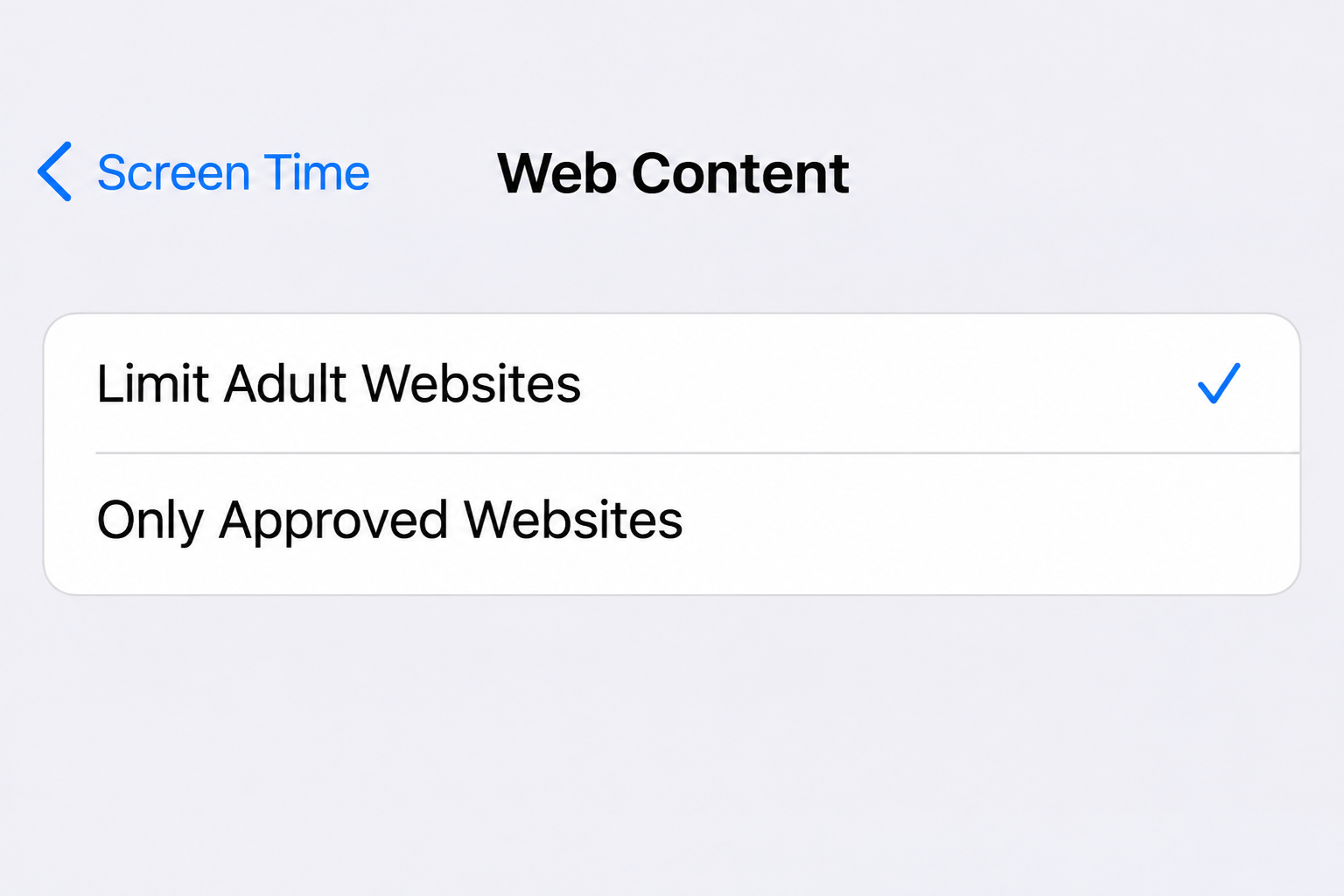
Limit Adult Websites includes a manual block list
Apple’s iPhone web restrictions guide describes using Limit Adult Websites and adding a website under Never Allow. That mode combines filtering with site-specific rules.
It isn’t just an isolated switch for the single site you typed. When you choose it, expect the broader adult-content filter to apply too.
If an otherwise useful page gets blocked, identify the exact address displayed. A school login or resource provider may use a different domain from the homepage you originally checked.
Only Approved Websites starts from a narrower list
This stricter mode is useful when most browsing should happen on a few known sites. It can also interrupt normal tasks when a lesson links to another service.
Plan for those dependencies before switching. The point is to approve the parts needed for the activity, not to clear restrictions for the entire device whenever one link fails.
- Use Never Allow when the aim is to block a specific site alongside Apple’s adult-content filter.
- Use Only Approved Websites for a deliberate, short list of allowed sites.
- Verify the account and device before applying any rule.
- Check the full school or family workflow afterward without opening material you want to avoid.
What to Do to Configure Screen Time Web Content
- On the device you manage, open Settings, then Screen Time. For Family Sharing, select the child under Family before touching that account’s restrictions.
- Open Content & Privacy Restrictions and turn it on if it isn’t active. Unlock the settings through the authorized Screen Time passcode if asked.
- Find App Store, Media, Web & Games, then Web Content. Read the current mode before choosing Limit Adult Websites or Only Approved Websites.
- Add the specific block or permitted site for your goal. Copy a known address from an official source rather than using an unverified link a stranger sent.
- Return to the intended child’s device and check a harmless allowed site and a known restricted result. Recheck login pages that the child actually needs for school.
Start with one account and one question
If your family uses several Apple devices, write down which account is active on each. The iPad someone borrows may not be the device you managed from the adult account.
For Family Sharing, use the parent or guardian’s own device to select the child. Apple documents using separate Apple Accounts, not signing everybody into one account to make settings sync.
A school-issued device can have its own management rules. Ask the school’s administrator which settings apply rather than trying to override policy to open a link.
If you only want to avoid a distraction on a device you own, use your own Screen Time controls. Family restrictions are for devices and accounts you’re authorized to manage.
Choose the block list for a specific site
In Limit Adult Websites, add the intended address in Never Allow. Use an address you can identify confidently instead of copying what looks like a related name.
Check the result from the normal way the family uses the device. A bookmark, search result, and link inside another app can lead to different destinations.
If a site you expected to block still opens, compare the actual address and account with the entry. Don’t assume every lookalike address was included when you entered one.
The filter won’t recognize every harmful page. Decide what the child can do when something worrying appears, even if a control didn’t block the site.
Prepare the approved list for a younger child’s device
Before you pick Only Approved Websites, list the sites used for school, reading, or activities. Include the official login and resource locations you can verify.
After adding a known site, test the activity from start to finish. A homepage loading successfully doesn’t tell you whether sign-in or a lesson’s resource page will open.
If an extra page is required, verify it with the school or the official service. Add the smallest sensible exception rather than approving unrelated sites with a similar name.
For a younger child, explain that a blocked page is a reason to ask a trusted adult. The setting creates a boundary rather than a substitute for that conversation.
Keep web restrictions separate from time limits
A rule can let a particular page through while a time limit prevents opening Safari. Look at whether the restriction names the site, the app, or a time allowance.
If the child can open Safari but not a link, start with Web Content. If Safari itself is unavailable, look separately at app access, the daily allowance or Downtime.
An approved website does not give a student more app time. If homework routinely overlaps with a limit, adjust the authorized schedule rather than approving more domains.
Review each control one at a time. If you make both changes together, you won’t know whether the fix was a web exception or a schedule change.
When Homework or a Legitimate Page Gets Blocked
Record the point where the task stopped
Ask which action produced the restriction: opening the main page, submitting a school login, or following a teacher’s resource link. Each may involve a different address.
Use the page address only to understand the problem. Don’t approve a login on an unfamiliar site just because a lesson links there.
When the child can open the homepage but not a classroom tool, ask the teacher or school IT team which address the tool uses. Check it against the blocked page.
Keep a short note of what you approved and why. A former class may stop using a site, leaving an exception that no longer serves anyone.
Confirm that Screen Time caused the error
A browser error or a website outage can look like access trouble to someone in a hurry. Check the actual message before opening restrictions for an entire account.
If the message says the server can’t be reached, check with the provider or teacher first. Adjusting the approved list may do nothing when the site is offline.
If an app itself won’t open, check whether app limits or separate app restrictions are responsible. Web Content isn’t the only Screen Time feature that can interrupt a task.
Some content appears inside an app rather than a normal web page. Review the app’s settings and parental controls too if the issue is what the app displays.
Test the actual homework workflow
Use the original assignment link from the usual school portal when you can. The address from the school’s public website may stop before sign-in or go to another service.
Confirm external resources with the teacher or school IT team. Don’t enter a student’s password on an unfamiliar page just to test the filter.
Once you know which site is required, test one complete path. Open the assignment, view a sample resource, and return to the classroom page without changing unrelated settings.
If a download, video or quiz still fails, record that step separately. The school can tell you whether it uses a different provider, a permission change, or a broken link.
A student can explain what they need without sharing a password. Keep any screenshots you send to support free of grades and other children’s names.
Keep the Rule Working as Devices and Routines Change
Apple’s family controls guide recommends checking software compatibility across the family. Set up and verify restrictions on the devices the child actually uses.
If a new iPad behaves differently, confirm which Apple Account and rule are active. Update both devices where appropriate before treating the difference as a failed restriction.
A separate Screen Time passcode protects changes to the settings. It is not necessarily the same passcode that unlocks the device in normal use.
If an authorized parent or guardian forgets the code, use Apple’s Screen Time passcode instructions. Family-managed recovery goes through the authorized adult’s device, not an improvised reset.
Don’t erase an iPad to solve a single unexpected block. Verify the rule and account with an authorized adult or administrator before taking any action that could remove data.
Review the list when a class changes, a child gets a new device, or the original reason for a restriction passes. A small list is easier to keep accurate.
If another caregiver helps with homework, tell them how to ask for a review. You can explain what is approved without sharing an Apple Account password or restriction passcode.
Try a known allowed task again after any exception. If it works, leave the other rules alone rather than changing several settings and guessing which one made the difference.
Take old exceptions off the list when they’re no longer needed
Add the date and reason when approving an address for a class. Review that entry when the course ends rather than making it the permanent default.
When two adults manage a child’s devices, agree on the purpose of each addition. That keeps one adult from undoing a deliberate change the other made for a lesson.
If the child uses one iPad at school and another at home, check each appropriately. A family setting on a home device doesn’t amend the school’s rules.
When you’re only blocking a distracting site, check that the narrower setting still fits. Moving to an approved-only list because one site poses a problem can create unnecessary work.
For an older child, review the rule alongside how they use the web. Agree when to ask before opening a new site as the settings change.
If the problem affects a site allowed last week, check whether its address or sign-in provider changed. Ask the teacher to confirm the new destination before approving it.
If the problem appears on one device only, include the device type when asking for help. The school may have different instructions for a browser and its own app.
You can prepare an alternative way to finish a time-sensitive assignment. An approved device, a downloaded reading supplied by the school, or teacher support may avoid an unnecessary exception.
Frequently Asked Questions
Can I block one site without allowing only a short list?
Apple documents putting a site under Never Allow in Limit Adult Websites. This is different from selecting Only Approved Websites, where access starts from an approved list.
The first choice also enables the broader content filter. Check the sites your family needs after changing it.
Why is the school homepage allowed but the actual lesson blocked?
A lesson can open content or a sign-in screen on a different site. Check the displayed address and verify it with the school before adding an exception.
Try the intended task again after the change. Approving one address isn’t evidence the entire workflow will work.
Will toggling Safari pop-up blocking restrict a website?
A pop-up preference controls pop-up behavior, not whether a particular site belongs on your child’s list. Use Screen Time’s web settings for the address restriction.
If a specific app shows inappropriate material, check app-level controls as well. One Safari preference can’t tell you what every app will show.
Why doesn’t my setting appear on the child’s other iPad?
Check the Apple Account on both devices, verify the child selected under Family, and review software compatibility. Don’t assume the adult’s settings apply to every device.
Check the intended behavior on the other iPad before depending on it. If it’s managed by school, ask the administrator which controls apply.
Can a parent recover a forgotten Screen Time passcode?
Apple documents an authorized recovery route. For a child managed through Family Sharing, use the authorized adult’s device to follow the current instructions.
Start with Apple’s guide rather than downloading a tool that claims to remove the code. Avoid unnecessary resets or changes to unrelated family accounts.
Is Only Approved Websites a guarantee that all allowed content is safe?
The setting controls which sites are available, not everything an approved site may show. Check the activities the child actually uses and revisit exceptions when those activities change.
Keep an open way for the child to ask for help if something unexpected appears. A content setting can’t answer that concern on its own.
The Bottom Line
Choose the Screen Time mode that matches what you intend to restrict, then verify it on the device that matters. Test known homework and login tasks before relying on it.
If a legitimate site gets blocked, confirm its exact purpose and address with the provider. Fix the narrow rule instead of switching off protections for every activity.

Join the discussion
0 commentsShare your experience or ask a question about this article.
Your progress
Did these steps help?
Let us know how the guide worked for you.
Describe what you see and the step you reached. Keep passwords and other private information out.
Discussion
Start the conversation
Have a question or something useful to share? Add the first comment.