


You open a newsletter and wonder whether the sender can tell you read it. The little images in an email can do more than decorate the message.
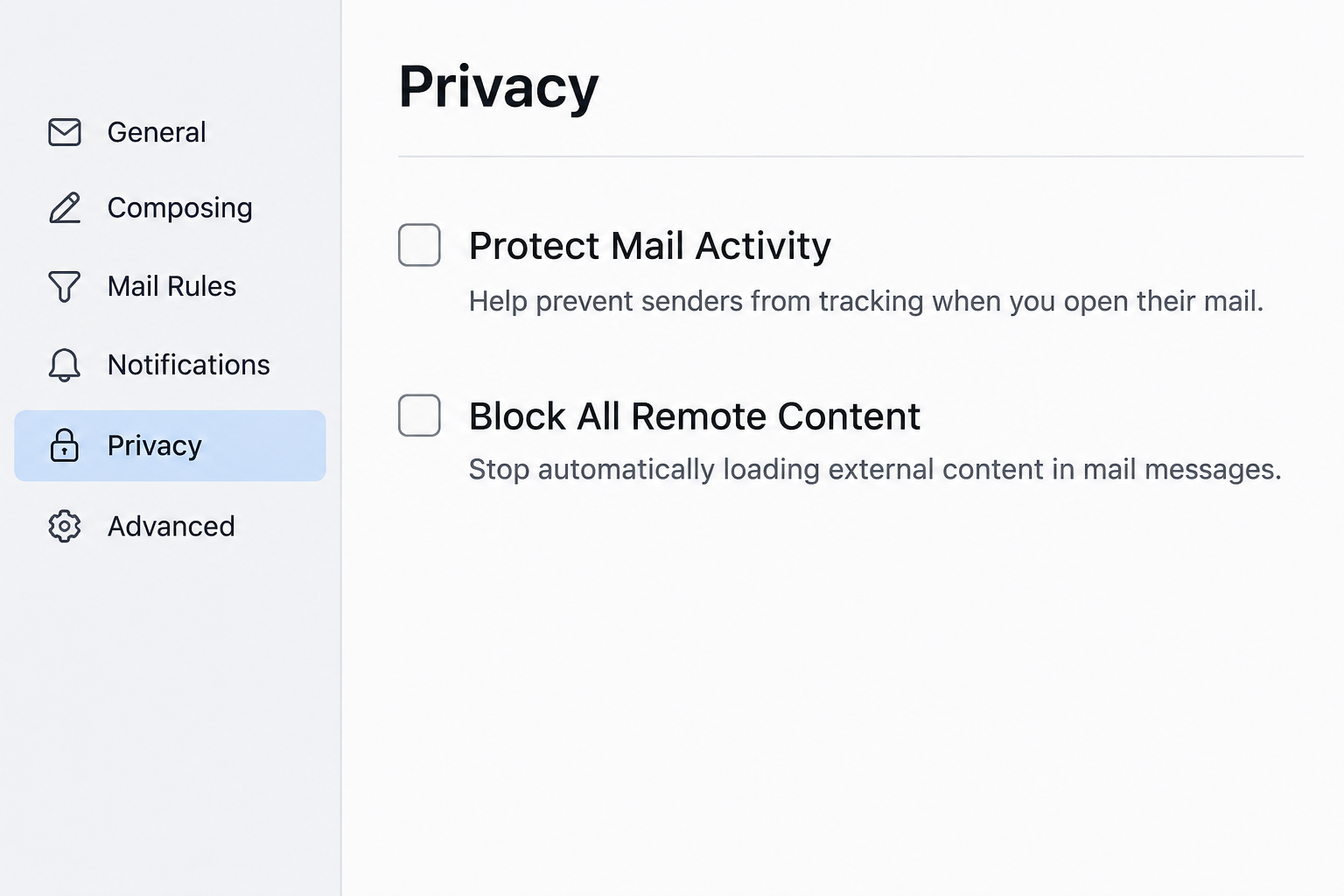
Apple Mail offers two different approaches to remote content. One privately loads it in the background; the other lets you decide whether it loads at all on your Mac.
Overview
A message can ask a server for an image
Remote content is stored outside the message and retrieved when the mail software needs it. That can be a logo, a large product photo, or a tiny tracking image.
If the image address identifies a particular delivery, the server can associate a request with that message. A request isn’t automatically evidence that a specific person read the text.
An image included as part of the message is different from one requested from a remote server. Seeing a picture in an email doesn’t tell you which kind it is.
Protect Mail Activity is not an image blocker
Apple’s Mac guide says Protect Mail Activity hides your IP address from senders and privately downloads remote content in the background, independent of when you open a message.
This can preserve the look of legitimate newsletters while making a loaded image a poor signal for when you read them. It doesn’t mean no remote request ever occurs.
If your priority is not loading remote material in the first place, the Mac has a different setting. Don’t switch it off accidentally while trying to hide your address.
Blocking remote content can make messages look incomplete
The Block All Remote Content option lets you leave external images unloaded until you decide otherwise. A trusted receipt or itinerary may look plain without its banner or embedded graphics.
A blank image box is not a verdict about the sender. The same option can leave pictures missing from legitimate messages because it controls how the content loads.
- Use Protect Mail Activity for ordinary display with privacy protections against open tracking.
- Consider blocking remote content when you want to choose which messages fetch external images.
- Check the controls in the app where you actually read the mail.
- Handle any links, replies, or files separately from these settings.
What to Do to Check Apple Mail Privacy Protection
- Confirm you’re using Apple’s Mail app, not another provider’s browser tab or app. Changing Apple Mail does not automatically update the other ways you read the same inbox.
- On a Mac, open Mail, then Settings, then Privacy. Review the status of Protect Mail Activity before deciding how you want remote content handled.
- If you prefer to prevent automatic fetching on Mac, deselect Protect Mail Activity and review Block All Remote Content and Hide IP Address as separate choices.
- On iPhone, check Settings, then Apps, then Mail, then Privacy Protection. Turn on Protect Mail Activity if you want the protection Apple describes.
- Review Limit IP Address Tracking for the network when applicable. Verify your choice with a known message rather than loading an unknown sender’s images to run a test.
Choose a setting before you inspect suspicious mail
A delivered message can be rendered without having to use any links in it. Check your normal privacy preferences rather than reopening a suspicious thread and loading its pictures.
The Mac guide describes separate options when the combined protection is off. If you want to choose which images load, block remote content and consider keeping Hide IP Address selected.
When you choose to load a message’s remote content after blocking automatic display, that choice matters. Don’t use the loading button to find out whether a sender is real.
If an invoice lacks its logo, check the account named on the invoice independently. A logo that appears after loading tells you little about whether the bill is genuine.
Check the network setting, not just the Mail toggle
Apple’s iPhone Mail privacy instructions say Mail Privacy Protection requires Limit IP Address Tracking. On Wi-Fi, check it in the information screen for the network.
Apple also warns that disabling the option for a connected Wi-Fi or Ethernet network on Mac affects whether your IP is hidden from senders on that network.
If a company manages the device or network, ask what its policy requires before changing a network preference. Don’t work around it to make a Mail option appear to work.
A change on your home Wi-Fi doesn’t tell you how another network is configured. Review the connection you actually use if you depend on the feature in several places.
Check other apps that open your mail
You may use Apple Mail on Mac and another app on iPhone. Check remote-image preferences in each app rather than assuming one setting follows the mailbox.
Mail Privacy Protection is not a setting that tells every mail program how to display messages. A webmail tab can have its own image and security options.
If you check mail on a shared workstation, its browser or app may also behave differently. Avoid using a shared inbox session to test what your personal device is doing.
If you want one consistent choice across devices, make a brief inventory of the clients you actually open. Review each rather than starting with the number of addresses you own.
Make a safe before-and-after comparison
Pick a familiar newsletter that you recognize from prior issues. Check whether its ordinary text is readable with external images off before deciding if you prefer blocking them.
If an issue contains a picture that’s already part of the message, it may still display. That alone doesn’t show your app fetched anything from the sender’s server.
If the missing graphic is a receipt barcode or boarding pass, see whether the issuer provides it in your account. There’s no need to experiment with an unexpected message.
Don’t evaluate the setting by comparing emails from unrelated senders. They may format their messages differently even when making the same kind of announcement.
What an Email Sender Can and Cannot Learn From an Image Request
A remote request is not a security alert
The server that supplies an image can record that somebody or something asked for it. Private loading, caching, and automated processing can make that event different from a human reading.
A marketer may label such a request an open in a report. That label isn’t a reliable receipt confirming the time you saw the message or how long you read.
If a stranger tells you that an email open proves control of your device, don’t accept that conclusion. A tracking request is not equivalent to account access.
A tracking image need not be visible to you to be requested. Turning pictures off can change that behavior, but does not make the original sender trustworthy.
A message may still include a dangerous action
Apple says Mail Privacy Protection does not cover links or attachments. If you use a link, the website you visit has its own privacy and security behavior.
A document attached to the message is separate from a remote banner. Don’t open an unexpected attachment merely because the Mail privacy settings looked right.
If a message says an account needs immediate attention, open the service through its own app or existing bookmark. Use the message’s story to identify what to check, not where.
Avoid replying to an unfamiliar sender simply to ask if the message is real. A reply can disclose a working address and more than you intended to share.
Treat follow-up messages as fresh claims
A second email may confidently say you opened the first. That doesn’t authenticate the sender or tell you whether both messages came from the same person.
If a company shows an activity history after you sign in through its own site, that’s a separate record. Check it for relevant account changes.
A claimed open is different from a claimed payment, password reset or upload. Each has its own record, and a request for a picture doesn’t establish any of them.
If a sender threatens to release personal material and includes a detail you recognize, preserve the message. Don’t pay or share new details to find out what they know.
Match Your Response to What You Actually Opened
If you viewed the message and did nothing else
Don’t assume an open alone means someone stole your password. Close the message, report junk or phishing as appropriate, and check the remote content choice for next time.
If you notice an unusual sign-in or a real transaction, check that separately. A suspicious email and an account event might be connected, but a tracking pixel doesn’t prove it.
In work mail, use the organization’s reporting button or support channel. Preserve what its security team asks for without opening the message’s links again.
If you clicked or shared information
If you entered credentials or approved a login, secure the account through its actual provider. Explain to support exactly what you entered or approved.
If you entered payment information, reach the payment provider through its usual verified route. Keep the time and transaction details privately for follow-up.
If you opened a suspicious attachment or ran software, follow your organization’s security procedure or get qualified help. Changing remote-image settings won’t reverse something a file did.
If the message sent you to a page but you didn’t submit anything, note any downloads, prompts, or changes you accepted. They matter more than simply seeing the page.
Use Remote-Image Settings Without Missing Important Information
For tickets and receipts that rely on external images, use the issuer’s app or account if possible. A trusted original often gives you the details without reloading a questionable message.
Test a legitimate newsletter if you choose to block images. Check that key text remains readable and identify when you actually need to retrieve something.
You can leave unnecessary images blocked even after verifying a sender. The purpose is to choose what the mail app requests, not to display every part of a message.
If a notification looks entirely blank with images off, don’t assume the message has no content or is safe. Check the relevant service independently before acting on it.
Keep mail software updated as a separate precaution. Remote-image settings are not a replacement for software security updates, whatever display option you choose.
Keep essential mail readable without making blanket exceptions
If you decide to load remote images in a legitimate message, do it for a specific reason. You don’t have to change your usual preference permanently.
Ask whether the message was expected and whether the graphic is necessary. A store logo doesn’t help when all you need is a visible order number.
If another person manages a shared device, check who controls Mail preferences. Don’t change the organization’s settings to load a graphic in one message.
Frequently Asked Questions
Does Protect Mail Activity stop remote images from loading?
It changes how Apple Mail loads them rather than blocking every image. Apple says it privately downloads remote content in the background instead of when you read the message.
On a Mac, consider Block All Remote Content if you want to decide whether external material loads. Read the separate hide-address option too.
Can a tracking pixel prove I read the email?
An image request shows that the remote content was requested. Background fetching and other automatic processing can occur without the act of reading the message.
If somebody claims precise timing based only on the image request, treat that timing with caution. It doesn’t establish who looked at the text.
Can I see the text while leaving external pictures off?
Often, yes, if the sender provided usable message text. Some emails rely heavily on pictures, which can leave the layout incomplete until those images are fetched.
Check trusted information through the sender’s known site or app if you need it. You don’t have to load missing images to read an account notice elsewhere.
Will this protect the same address in another mail app?
Apple’s setting applies to how the Mail app handles content. If you open the same mailbox elsewhere, that client can apply a different remote-image policy.
Review the actual webmail or app you use. Don’t assume its protection follows a setting switched on in Apple Mail.
Will Mail Privacy Protection stop phishing links or attachments?
Apple expressly excludes links and attachments from this protection. Don’t follow unexpected sign-in links or treat an unknown file as safe because a privacy setting is enabled.
Use the provider’s official website or app when a message claims action is needed. If you already submitted information, respond to that specific exposure.
Can I take back a remote image request that already happened?
Changing the preference affects future handling. It doesn’t erase records a server already stored or undo information you entered on a separate webpage.
Decide how you want future mail displayed, then address any real account or payment issue separately. You don’t need to repeat the action to diagnose it.
The Bottom Line
Choose Protect Mail Activity if you want Apple’s private background loading, or use the Mac’s blocking option if you want to leave remote items unloaded until you choose.
If you only saw the email, don’t turn an image request into a diagnosis of compromise. Report it when appropriate, and act separately on anything you shared or approved.

Join the discussion
0 commentsShare your experience or ask a question about this article.
Community experiences
Did this happen to you?
Your experience could help someone recognize the same scam. Submit a private report for our team to review.
I experienced this tooReports are reviewed before publication. Sharing publicly is always your choice.
Discussion
Start the conversation
Have a question or something useful to share? Add the first comment.