

Have you ever encountered an error message on your Windows computer that mentions a file called “D3dx10_34.dll”? If so, you’re not alone. This article will explain what D3dx10_34.dll is, why it is important, and how to fix any errors related to it.
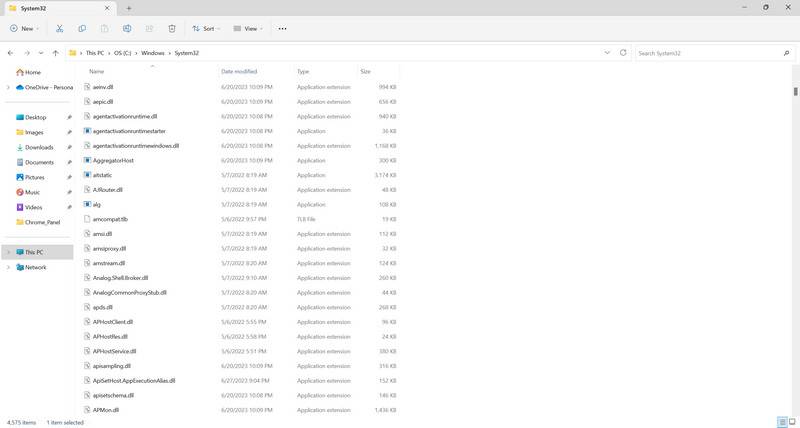
Understanding D3dx10_34.dll
D3dx10_34.dll is a dynamic link library file that is part of the DirectX software development kit (SDK) provided by Microsoft. DirectX is a collection of application programming interfaces (APIs) that allow software developers to create multimedia applications, especially games, for the Windows platform.
The D3dx10_34.dll file specifically belongs to the DirectX 10 version, which was released alongside Windows Vista. It contains functions and resources that are necessary for running certain graphics-intensive applications and games that utilize DirectX 10 features.
Common Error Messages
If there is an issue with the D3dx10_34.dll file or its associated dependencies, you may encounter error messages such as:
- “The file D3dx10_34.dll is missing.”
- “D3dx10_34.dll not found.”
- “D3dx10_34.dll is corrupted.”
- “Cannot start [application name]. A required component is missing: D3dx10_34.dll.”
These error messages typically occur when you try to launch a game or application that relies on DirectX 10. The absence or corruption of the D3dx10_34.dll file prevents the program from running properly.
Causes of D3dx10_34.dll Errors
There are several potential causes for D3dx10_34.dll errors:
- Missing or corrupted file: The D3dx10_34.dll file may be missing or corrupted due to various reasons, such as accidental deletion, malware infection, or software conflicts.
- Outdated DirectX version: If your computer has an outdated version of DirectX installed, it may not include the necessary files, including D3dx10_34.dll, required by newer games and applications.
- Hardware issues: In some cases, D3dx10_34.dll errors can be caused by faulty hardware, such as a malfunctioning graphics card or insufficient system memory.
How To Fix D3dx10_34.dll Errors
Now that we understand the importance of the D3dx10_34.dll file and the potential causes of errors, let’s explore some solutions to fix these issues:
Solution 1: Reinstall DirectX
The first step in resolving D3dx10_34.dll errors is to reinstall DirectX. Follow these steps:
- Visit the official Microsoft website and download the latest version of DirectX compatible with your operating system.
- Run the downloaded installer and follow the on-screen instructions to complete the installation.
- Restart your computer to apply the changes.
After reinstalling DirectX, try launching the game or application again to see if the error persists.
Solution 2: Update Graphics Drivers
Outdated or incompatible graphics drivers can also cause D3dx10_34.dll errors. To update your graphics drivers, follow these steps:
- Open the Device Manager by pressing the Windows key + X and selecting “Device Manager” from the menu.
- Expand the “Display adapters” category.
- Right-click on your graphics card and select “Update driver.”
- Choose the option to search automatically for updated driver software.
- Follow the on-screen instructions to complete the driver update process.
- Restart your computer to apply the changes.
After updating the graphics drivers, try running the game or application again to check if the error is resolved.
Solution 3: Scan for Malware
Malware infections can also cause D3dx10_34.dll errors. It is recommended to scan your computer for malware using a reliable antivirus program. We recommend using Malwarebytes Free, a popular and effective antivirus software.
Install Malwarebytes Free, perform a full system scan, and follow the instructions to remove any detected threats. After the scan and removal process, restart your computer and check if the error persists.
Summary
D3dx10_34.dll is an important file associated with DirectX 10, which is used by many games and applications on the Windows platform. If you encounter errors related to this file, it is likely due to missing or corrupted files, outdated DirectX version, or hardware issues.
To fix D3dx10_34.dll errors, you can try reinstalling DirectX, updating your graphics drivers, and scanning for malware. Following these steps should help resolve the issue and allow you to run your desired games and applications smoothly.

Join the discussion
0 commentsShare your experience or ask a question about this article.
Your progress
Did these steps help?
Let us know how the guide worked for you.
Describe what you see and the step you reached. Keep passwords and other private information out.
Discussion
Start the conversation
Have a question or something useful to share? Add the first comment.