

An invoice arrives, but opening it leads to another download. Soon you’re looking at a program where you expected a document, and something no longer fits.
That change is worth taking seriously. Understanding where the file came from helps determine whether to close a page or begin a proper incident response.
Overview
Dark Caracal names an operation, not one removable app
Dark Caracal malware refers to tools used in espionage activity associated with a threat group. It isn’t a normal application with one predictable uninstall entry.
Arctic Wolf linked a Venezuelan intrusion to the group with medium confidence. Its report describes GoCaracal working alongside Bandook, rather than proving every related detection has one origin.
That attribution is an analyst assessment. For an affected computer, the immediate priority is containing unauthorized access, regardless of who ultimately operated the malware.
A financial document can become a software delivery path
The reported activity uses document-themed delivery, including SVG content and redirects leading toward archives and executable payloads. The original email from that intrusion was not recovered.
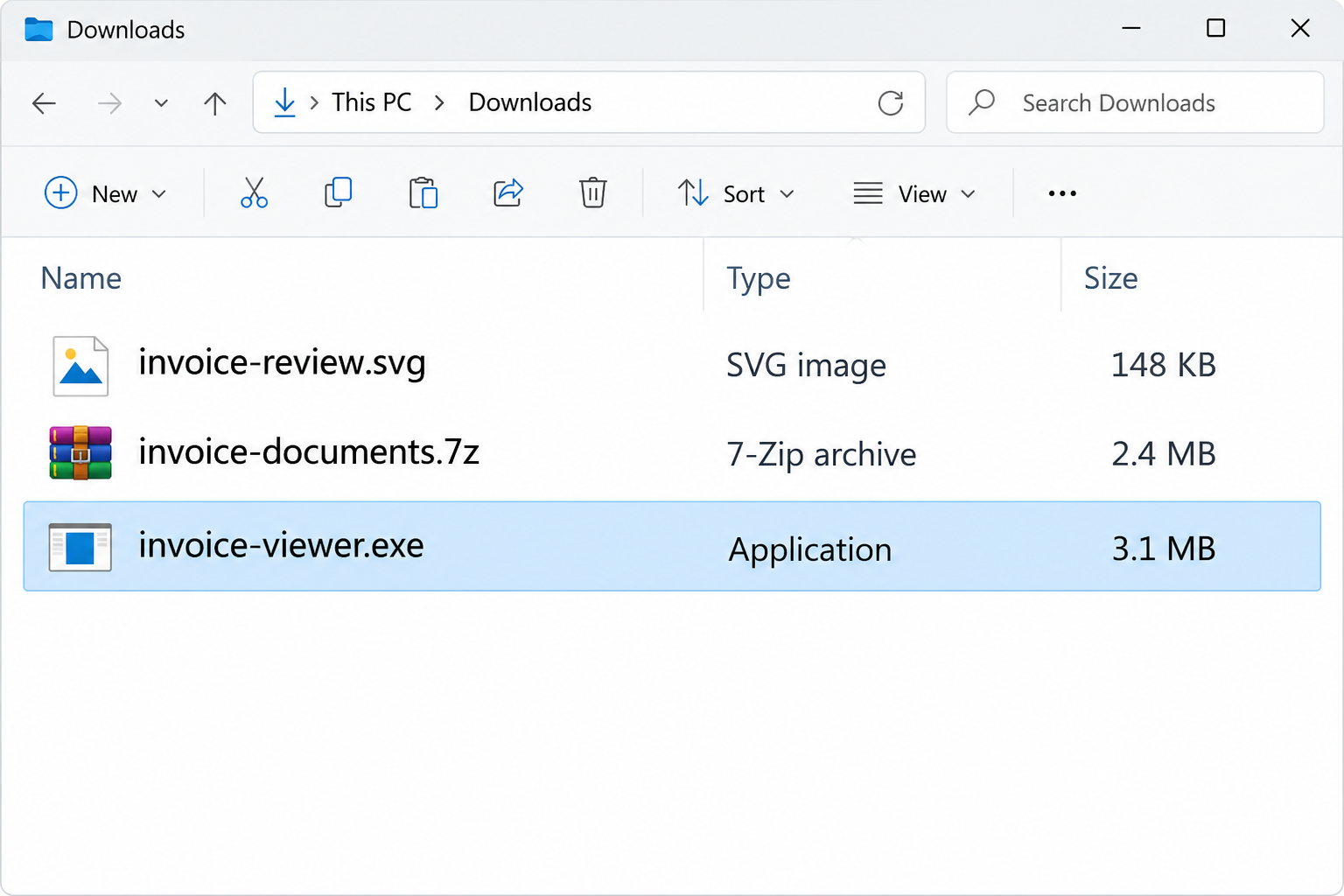
A file’s invoice-related name doesn’t change its type. Opening a business document should not require running an unknown Windows application or disabling protection.
The illustration above uses invented filenames to show that change in file types. It isn’t a screenshot from an infected computer or a diagnostic result.
Containment and account recovery belong together
Remote-access malware can expose more than the downloaded file. A proper response considers the computer, the identities used on it, and any reachable business systems.
A detection is a starting point, not a complete incident history. Save its name, path, timestamp, and report before deciding how far the investigation needs to go.
- If you only received a message, don’t assume the computer is infected.
- If an unfamiliar program ran, stop using that machine for sensitive activity.
- For a work device, involve the security team before erasing or repairing anything.
- Removing malware does not automatically cancel sessions or restore stolen credentials.
What GoCaracal and Bandook Mean for a Computer
Arctic Wolf describes lighter GoCaracal builds used for access and delivery, and extended builds with broader collection and remote-control capabilities. Bandook is a separate remote-access tool.
The public findings include browser-data collection, keylogging, and interactive control. An extended configuration can retrieve replacement command infrastructure using Ethereum, rather than requiring a cryptocurrency wallet.
These are reported capabilities, not a claim that every feature ran on every machine. The investigation report is available from Arctic Wolf Labs.
A remote-access Trojan gives an intruder a way to issue instructions without sitting at the keyboard. The visible desktop may continue behaving normally during unauthorized activity.
That is why apparent speed or stability is a poor clearance test. A quiet system can still require investigation after a credible malware alert.
Conversely, a slow browser or unexpected fan noise does not identify this threat. Those symptoms have many causes and should not become a confident malware diagnosis.
Use actual security findings and the history of the suspicious file. Don’t select a removal procedure merely because a search result names a sophisticated espionage group.
How the Dark Caracal Infection Chain Works
Step 1: A work-related document creates a reason to engage
Invoices and financial records are plausible attachments for many organizations. Employees may feel responsible for opening them, particularly when a message appears connected to outstanding work.
A document lure exploits that responsibility. The question shifts from whether the message was expected to whether the employee can quickly resolve the apparent task.
Verify unfamiliar invoices with the supplier through an existing contact record. A recognizable company name is insufficient when the message itself supplies all the supporting details.
Do not open an attachment again to show a colleague what happened. Preserve it through your organization’s reporting process without making another person repeat the exposure.
Step 2: The file takes the reader away from an ordinary document
Some formats can contain active content or links. A file categorized as an image is not automatically equivalent to a simple photograph opened in a viewer.
Watch for the task changing. If reading an invoice suddenly requires visiting a download page, installing a viewer, or extracting an archive, pause before continuing.
A redirect can separate the initial attachment from the eventual program. That distance makes the download feel like a necessary support step instead of a new trust decision.
Don’t decide safety from an icon alone. Show file extensions where possible, and ask IT to assess an unfamiliar file without executing it.
Step 3: Running a program gives the attack a foothold
A downloaded archive and an executed application are different exposure levels. Record whether you extracted files, double-clicked a program, approved a prompt, or stopped before execution.
An executable presented as an invoice is not a document viewer you should automatically trust. Its name can be chosen to match the message’s story.
If protection blocks it, do not restore or allow it just because the sender says that business files trigger false alarms. Seek an independent assessment.
Administrative permission is another boundary, but declining it is not proof that nothing happened. Some software can operate within the access already available to a user.
Step 4: Additional access changes the scope of recovery
A foothold can support further payloads or commands. Cleaning the first file alone may not explain everything that happened after it ran.
Investigators therefore consider related processes, startup behavior, account activity, and network records. The goal is to understand the incident, not merely remove a matching filename.
A blocked connection can reduce current communication without proving the host is clean. Infrastructure may change, and malware may remain installed while temporarily unable to reach its operator.
For a business, this calls for coordinated endpoint and identity work. An employee shouldn’t attempt to settle the whole incident by deleting unfamiliar registry entries.
What to Do If You Suspect Dark Caracal Malware
Stop sensitive work on the affected computer. Don’t open banking, administrative, email, or password-management sessions there while the incident is unresolved.
If it is a company device, contact IT from another device and follow their isolation instructions. Disconnecting the network can interrupt active communication without deleting evidence.
Describe the exposure clearly. Include the attachment name, download source, actions taken, security alerts, and approximate times. Distinguish a blocked file from an executed one.
Don’t send passwords or confidential documents into a public help thread. Keep original messages and logs in the channel your security team designates.
Secure exposed identities from a different, trusted device. Prioritize accounts used after the suspicious program ran, especially email, administrator access, and financial services.
Ask the account administrator about revoking sessions and reviewing access changes. A replacement password doesn’t necessarily explain or remove every authorization created during compromise.
Use proportionate device cleanup. Malwarebytes can help examine a personal Windows machine. Managed devices may require forensic collection or rebuilding instead of user-directed scanning.
AdGuard may help reduce malicious-ad encounters after recovery. It is not a treatment for an established remote-access Trojan or an alternative to incident containment.
Evaluate business and financial consequences separately. If payment instructions, customer messages, or sensitive records may have been exposed, involve the appropriate finance or security contact.
A computer scan cannot recover a bank transfer or determine whether copied information was used. Those questions require their own evidence and response.
Plan how to return to trusted use. Agree on the clearance criteria before reconnecting a work machine. Save scan reports and note whether detections return after restart.
If continuing compromise cannot be ruled out, a clean rebuild may be appropriate. Preserve necessary evidence and verify backups before any action that removes data.
Is Your Device Infected? Run a Free Malware Scan
Slow performance, constant pop-ups, or strange behavior? These are classic signs of a malware infection. The fastest way to find out is to scan your device with Malwarebytes Free — one of the most trusted malware removal tools available.
The free version detects and removes the most common threats, including:
- Adware — the cause of those annoying pop-ups
- Browser hijackers — unwanted redirects and changed homepages
- Trojans and spyware — hidden programs stealing your data
- Potentially unwanted programs (PUPs) — software you never asked for
👉 Select your device below — Windows, Mac, or Android — then follow the simple steps to download Malwarebytes, scan your system, and remove any threats it finds. The scan usually takes 5 to 20 minutes.
Run a Malware Scan with Malwarebytes for Windows
Malwarebytes is one of the most popular and trusted anti-malware tools for Windows — and it’s completely free for removing infections. It catches threats that many antivirus programs miss, including adware, browser hijackers, and trojans. Follow the steps below to scan and clean your PC in just a few minutes.
Download Malwarebytes
Click the button below to download the latest version of Malwarebytes for Windows from the official source. The free version is all you need — it will scan your computer and remove adware, browser hijackers, and other malicious software at no cost.
Download MalwarebytesOfficial installer for Windows 11 and 10. Your download starts right away.Want real-time protection? See Malwarebytes Premium Malwarebytes Free for WindowsScans and removes malware at no cost
-
Install Malwarebytes
When the download finishes, open your Downloads folder and double-click the MBSetup file. If Windows shows a User Account Control pop-up, click “Yes” to allow the installation.

Follow the On-Screen Prompts to Install Malwarebytes
The setup wizard will walk you through a few quick screens:
-
Choose where you’re installing the program — “Personal Computer” or “Work Computer” — then click Next.

-
Malwarebytes will now install on your device. This usually takes under a minute.

-
When installation is complete, the “Welcome to Malwarebytes” screen will open automatically.

-
On the final screen, click Open Malwarebytes to launch the program.

-
Enable “Scan for Rootkits”
Before scanning, turn on rootkit detection so Malwarebytes can find even the most hidden threats. Click the Settings gear icon on the left side of the screen.

In the settings menu, find “Scan for rootkits” and click the toggle so it turns blue.

Done? Click “Dashboard” in the left pane to return to the main screen.
Start the Scan
Click the blue Scan button. Malwarebytes will automatically update its virus database and start checking your computer for malware.

-
Wait for the Scan to Finish
The scan checks your entire system for browser hijackers and other malicious programs, so it can take 5 to 20 minutes depending on your computer. Feel free to do something else — just check back occasionally to see the progress.

-
Quarantine the Detected Threats
When the scan is done, you’ll see a list of everything Malwarebytes found — malware, adware, and potentially unwanted programs. Click the “Quarantine” button to remove all of them at once.

Malwarebytes will now remove the malicious files and registry entries and move them safely into quarantine.

-
Restart Your Computer
Some threats can only be fully removed after a reboot. If Malwarebytes asks you to restart, click Yes. Once you’re logged back in, Malwarebytes has finished removing the threats it found.

That’s it — your Windows PC is now clean of trojans, adware, and other malware, and should be back to running smoothly.
If you are still having problems with your computer after completing these instructions, then please follow one of the steps:
- Run a computer scan with ESET Online Scanner
- Ask for help in our Windows Malware Removal Help & Support forum.
Run a Malware Scan with Malwarebytes for Mac
Malwarebytes for Mac is a free on-demand scanner that removes the malware other security software tends to miss — adware, browser hijackers, and unwanted programs included. Cleaning an infected Mac with Malwarebytes has always been completely free, and it’s our go-to recommendation. Follow the steps below to scan and clean your Mac in just a few minutes.
-
Download Malwarebytes for Mac
Click the button below to download the latest version of Malwarebytes for Mac.
Download MalwarebytesOfficial installer for macOS. Your download starts right away.Want real-time protection? See Malwarebytes PremiumMalwarebytes Free for MacScans and removes malware at no cost -
Open the Malwarebytes setup file
When the download finishes, open your Downloads folder and double-click the setup file to begin the installation.

-
Follow the On-Screen Prompts to Install Malwarebytes
The Malwarebytes for Mac Installer will guide you through a few quick screens. Click “Continue” and keep following the prompts until the installation completes.



When the installation is complete, Malwarebytes opens to the Welcome to Malwarebytes screen. Click “Get started“.
-
Select “Personal Computer” or “Work Computer”
Malwarebytes will ask what type of computer you’re installing it on. Click either Personal Computer or Work Computer, whichever applies.

-
Start the Scan
Click the “Scan” button. Malwarebytes will automatically update its detection database and begin checking your Mac for malware.

-
Wait for the Scan to Finish
Malwarebytes will scan your Mac for adware, browser hijackers, and other malicious programs. This can take a few minutes, so feel free to do something else — just check back occasionally to see the progress.

-
Quarantine the Detected Threats
When the scan is done, you’ll see a list of everything Malwarebytes found. Click the “Quarantine” button to remove all the threats at once.

-
Restart Your Mac
Malwarebytes will now remove all the malicious files it found. Some threats can only be fully removed after a reboot — if Malwarebytes asks you to restart, allow it. Once you’re logged back in, your Mac is clean.

That’s it — your Mac is now free of adware, rogue browser extensions, and other potentially harmful software.
If you are still experiencing problems while trying to remove a malicious program from your computer, please ask for help in our Mac Malware Removal Help & Support forum.
Run a Malware Scan with Malwarebytes for Android
Malwarebytes for Android automatically detects and removes dangerous threats like malware and ransomware so you don’t have to worry about your most-used device being compromised. Aggressive detection of adware and potentially unwanted programs keeps your Android phone or tablet running smooth.
-
Download Malwarebytes for Android.
You can download Malwarebytes for Android by clicking the link below.
Get Malwarebytes for AndroidOpens Google Play in a new tab.Want real-time protection? See Malwarebytes Premium for AndroidMalwarebytes for AndroidScans your phone and removes malware at no cost -
Install Malwarebytes for Android on your phone.
In the Google Play Store, tap “Install” to install Malwarebytes for Android on your device.

When the installation process has finished, tap “Open” to begin using Malwarebytes for Android. You can also open Malwarebytes by tapping on its icon in your phone menu or home screen.

-
Follow the on-screen prompts to complete the setup process
When Malwarebytes will open, you will see the Malwarebytes Setup Wizard which will guide you through a series of permissions and other setup options.
This is the first of two screens that explain the difference between the Premium and Free versions. Swipe this screen to continue.
Tap on “Got it” to proceed to the next step.
Malwarebytes for Android will now ask for a set of permissions that are required to scan your device and protect it from malware. Tap on “Give permission” to continue.
Tap on “Allow” to permit Malwarebytes to access the files on your phone.
-
Update database and run a scan with Malwarebytes for Android
You will now be prompted to update the Malwarebytes database and run a full system scan.

Click on “Update database” to update the Malwarebytes for Android definitions to the latest version, then click on “Run full scan” to perform a system scan.

-
Wait for the Malwarebytes scan to complete.
Malwarebytes will now start scanning your phone for adware and other malicious apps. This process can take a few minutes, so we suggest you do something else and periodically check on the status of the scan to see when it is finished.

-
Click on “Remove Selected”.
When the scan has been completed, you will be presented with a screen showing the malware infections that Malwarebytes for Android has detected. To remove the malicious apps that Malwarebytes has found, tap on the “Remove Selected” button.

-
Restart your phone.
Malwarebytes for Android will now remove all the malicious apps that it has found. To complete the malware removal process, Malwarebytes may ask you to restart your device.
That’s it — your Android phone is now clean — no more malicious apps, adware, or browser redirects.
If you are still having problems with your phone after completing these instructions, then please follow one of the steps:
- Restore your phone to factory settings by going to Settings > General management > Reset > Factory data reset.
- Ask for help in our Mobile Malware Removal Help & Support forum.
Stay Protected: Block Ads and Malicious Sites
Now that your device is clean, keep it that way. Most infections start with a malicious ad or a fake download button — so blocking them at the source is your best defense.
We recommend AdGuard, which blocks malicious ads, phishing pages, and dangerous redirects before they can reach you.
👉 Download AdGuard and browse safely
How to Remove Suspected Malware From a Personal Windows PC
The sequence below is for a personally managed computer. If the machine belongs to an employer or may contain evidence of targeted intrusion, obtain help before changing it.
Start from the exposure, not the threat’s name alone. A credible detection or executed suspicious file calls for more than the routine deletion of an unwanted email.
Step 1: Preserve the essentials and separate the computer
Write down alert details and the suspicious filename. Keep the original message if possible, but don’t forward its attachment to friends or reopen it.
Disconnect Wi-Fi or Ethernet to interrupt ongoing remote communication. Use a second trusted device for account recovery and obtaining help.
Avoid blindly powering off a work system or running cleanup scripts. An investigator may need information that disappears when processes stop or files are removed.
Step 2: Prepare a trusted scanner without using the lure
Use the established MalwareTips Malwarebytes installer route, not a viewer offered by the suspicious document page. Transfer it safely if the computer remains isolated.
Follow the installer’s current prompts. Optional trials and paid protection are separate from the immediate goal of checking the system; read the choices before accepting them.
Manual scanning and quarantine are available in Malwarebytes Free for Windows. Ongoing real-time protection is a separate product feature, not proof that a scan found every threat.
If you want to compare paid protection later, the site’s Malwarebytes Premium link is separate from the installer. Don’t buy under pressure from a fake alert.
Step 3: Scan, review findings, and quarantine appropriately
Update the scanner’s detection information through a trusted connection when appropriate, then run a scan. Use the current application’s controls rather than searching for an old screenshot.
Review detections and keep the report. Quarantine confirmed threats; if a business-critical file is disputed, seek help before allowing it or permanently deleting evidence.
Restart if removal requires it. A completed scan means that examination finished, not that every consequence of a possible intrusion has been repaired.
Do not disable Windows protections to make a detection disappear. Repeated alerts or blocked cleanup are reasons to escalate, not reasons to trust the suspicious file.
Step 4: Use an offline check when persistent malware is suspected
Microsoft Defender offers an offline scan that restarts the PC and checks outside the normal Windows session. Save work before choosing it.
Open Windows Security, select Virus & threat protection, and review Scan options. Choose the offline option when available and follow Microsoft’s restart instructions.
Microsoft describes these choices in its Windows Security scan guidance. Availability can vary when another security product or organization manages protection.
Afterward, inspect the results rather than assuming that a restart means success. If threats recur, stop normal use and ask a qualified professional to investigate.
Step 5: Restore trust before restoring normal work
Update Windows and applications through their genuine update channels. Review suspicious browser extensions and permissions, but don’t delete unfamiliar system components based only on their names.
Do account recovery from the trusted device, including session and recovery-method checks. If a keylogger or browser-data theft is suspected, prioritize identities used during the exposure.
For unresolved remote access, consider a clean installation with professional guidance. Confirm what will be erased, preserve recovery keys, and use verified backups without restoring suspicious programs.
A backup is useful only if it can be restored safely. Keep a known-good copy separate from the affected computer while deciding what files to recover.
When Scanning Isn’t Enough
A targeted intrusion may require more than consumer cleanup tools. Shared drives, business mailboxes, privileged accounts, and other devices can extend the investigation beyond one endpoint.
Microsoft’s compromised-account guidance addresses sessions, authentication changes, app permissions, and forwarding rules. These checks are separate from removing an executable.
Do not assume that changing a Wi-Fi password repairs stolen cloud access. Match each action to the authority the attacker may have obtained.
Similarly, deleting every unfamiliar startup entry can damage legitimate software without proving containment. Preserve findings and let a qualified responder interpret them.
For a personal computer that continues to show detections or unexplained access, the MalwareTips malware-removal assistance forum provides a place to seek guided help.
Keep the original detection report even after quarantine. It can help establish whether a later warning concerns the same file, another component, or a different problem.
If a professional rebuilds the machine, ask which data was preserved and which accounts still need attention. A fresh desktop alone doesn’t close the identity side of recovery.
Review the route that brought the file in before resuming that workflow. Suppliers can resend legitimate invoices through an agreed method without requiring you to reopen the suspect archive.
Frequently Asked Questions
Is Dark Caracal the name of one virus file?
No. It refers to an operation and associated tooling. A detection should be assessed using its exact name, file path, behavior, and incident context.
Does opening an SVG always install malware?
No. SVG is a legitimate format. Risk depends on its content, how it is handled, and any subsequent actions. Don’t equate every SVG with this campaign.
Does the Ethereum connection mean my wallet is infected?
No. The reported fallback concerns command-infrastructure discovery. It does not establish that an affected person used cryptocurrency or that their wallet was the infection source.
Can I fix this by deleting the downloaded archive?
Not if a payload already ran. Removing the source archive doesn’t remove every installed component, revoke stolen sessions, or assess information that may have been copied.
Should I wipe a company computer immediately?
Contact your security team first. Erasing the device can destroy useful evidence. They can decide how to preserve information, contain access, and restore a trusted system.
Does a clean scan guarantee the incident is over?
No. A scan is one piece of evidence. Account review, recurrence checks, and the organization’s investigation determine whether additional containment or rebuilding is needed.
The Bottom Line
Do not run an unknown application to read an invoice. If a credible Dark Caracal-related detection or suspicious execution occurred, stop sensitive activity and contain the computer.
Get the appropriate security help, examine exposed accounts from a trusted device, and use a documented cleanup or rebuild plan. Treat restored access as something to verify.

Join the discussion
0 commentsShare your experience or ask a question about this article.
Your progress
Did these steps help?
Let us know how the guide worked for you.
Describe what you see and the step you reached. Keep passwords and other private information out.
Discussion
Start the conversation
Have a question or something useful to share? Add the first comment.