


You double-click a spreadsheet that worked yesterday. Now Windows can’t open it, and the name ends in a string you’ve never seen before.
Then you spot a new text file in the same folder. Before you open anything else, it helps to know what those two changes can tell you.
Overview
Start with the extra characters at the end
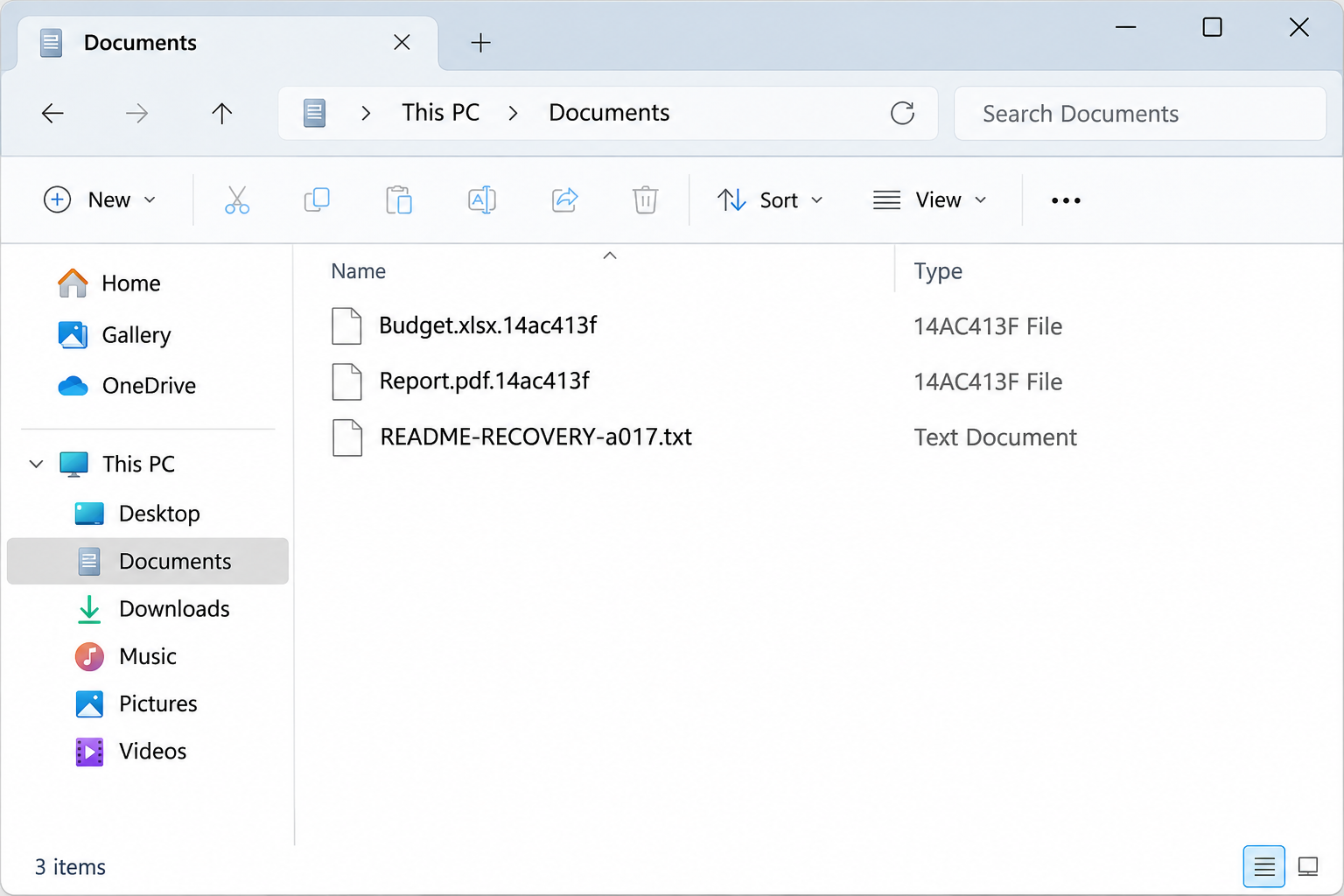
Dark Project ransomware has been observed leaving an extra eight-character suffix on encrypted files. The characters can include letters and numbers, and the suffix isn’t a fixed brand name.
A file can still look like your old report in a folder listing.
Its original extension may be visible in the middle of the new name, ahead of the added suffix.
That matters because the report didn’t simply lose its association with Word or Excel.
Changing which app opens it won’t reverse encryption, and renaming the only copy risks losing useful evidence.
Windows may hide recognized extensions. If you can examine a listing without disturbing the affected machine, look for the complete names rather than relying on a file icon.
Read the note name, not the operator’s instructions
The documented sample left a text note whose name starts with README-RECOVERY-. The rest of the filename can vary.
A copy of the note and several affected filenames help responders compare cases.
In the note, the people demanding payment claim they copied company data as well as locking files. They threaten to publish it if the business refuses to engage.
The claim is worth investigating, but it isn’t proof that every document listed in the note left your network. Compare it with logs and actual account activity.
The flip side matters too: a backup that restores documents cannot pull back a stolen copy.
A business may need a separate investigation even after staff can open their files again.
The name matters less than the first containment decision
You can disconnect an affected computer before you know which ransomware you’re dealing with. You don’t need a verified family name to protect reachable backups and shared folders.
Note these clues without making changes to original files:
- Full names of two or three affected files, including their original and added extensions.
- The name and location of the recovery note, with the time someone first found it.
- Which users could no longer open files and whether those files were local, shared, or synced.
- The last time someone opened a known-good copy of a document.
The lead image depicts how the filename change can look. It isn’t a capture from an affected machine and doesn’t imply that your files will show the same suffix.
Why the First Hour Matters
Shared folders change the scope
A laptop might be where someone notices the first unreadable spreadsheet. If the file lives on a shared drive, the laptop might not be where encryption started.
Record the storage location and the computer that displayed the error separately. Ask your team whether anyone can still access the same file from an unaffected system.
Don’t ask another employee to open the ransom note or browse the suspicious machine on your behalf.
The IT team can check storage and endpoint logs without spreading the material around.
Sync can make a bad change look like a routine upload. Pause affected clients through the organization’s response process until IT can distinguish good cloud versions from recently overwritten copies.
Don’t turn the backup into the next affected drive
The worst time to find out a backup was writable from an infected account is during your first restore.
Don’t connect your only offline drive to the system showing the note.
Administrators should protect backup credentials and isolate the backup control plane where practical. Preserve logs of backup failures, deletions, and unusual sign-ins rather than assuming the scheduled job succeeded.
Check whether your backup can restore files to a separate location. A test restore tells you much more than a green indicator next to yesterday’s job.
Keep two timelines
Write down the first obvious encryption event. Separately capture earlier login alerts, unexpected administrator changes, and unusual transfers if your tools recorded them.
The day someone finds a ransom note may be later than the first suspicious sign-in. A useful restore point needs to precede the compromise, not just the visible file damage.
Don’t assign an entry method from the note. A security team can review network, cloud, identity, and endpoint data, then decide which systems and accounts need containment.
What to Do if You Found a Dark Project Ransom Note
-
Isolate affected systems. Disconnect Ethernet or Wi-Fi on affected endpoints if you can do so safely. For servers, involve the incident lead before interrupting critical services.
If a device cannot be disconnected any other way, follow your response team’s advice. Abrupt shutdown can lose useful live evidence.
-
Tell IT how you discovered it. Report the device name, approximate time, affected folder, and note name using an unaffected phone or computer.
If the same note appears in several places, include those paths. Don’t email copies of confidential files to everyone trying to troubleshoot.
-
Keep backups away from the incident. Leave offline media disconnected and stop compromised accounts from reaching backup consoles. Ask who can verify the latest usable restore point.
-
Preserve the note and encrypted copies. Have responders retain them privately along with relevant logs. If recovery work can wait, keep original media unchanged until responders advise otherwise.
-
Involve the right people before spending or restoring. Route extortion and possible disclosure through incident leadership, counsel, your insurer when applicable, and appropriate authorities.
Neither paying nor restoring a folder verifies whether information left the network.
How to Remove Dark Project Ransomware From Windows
Step 1: Decide whether you should touch the computer
On a work system, stop here unless the incident team clears the device for cleanup. Scans and restarts can change files, logs, or memory investigators still need.
Business-impacting ransomware often warrants a clean rebuild. A scanner may remove known components from one host, but it can’t tell you everything an intruder changed across an organization.
For a personal Windows PC, retain important encrypted files and the note before repair if that’s safe.
An experienced technician can help preserve the drive when these are your only copies.
Make sure your recovery key is available before a procedure that needs a restart or recovery mode.
Don’t collect it on a compromised computer or post it in a help thread.
Step 2: Obtain the Windows scanner from a trusted device
Use the MalwareTips Windows download below on a device you trust. Don’t put the installer on the same drive that holds the only intact copy of your backup.
Open the verified installer when you’re cleared to proceed. Approve the Windows permission prompt only for the installer you intentionally opened and whose publisher you recognize.

Choose the personal setup on a personal computer if prompted. Read any optional offers or trial terms. A basic manual scan doesn’t require signing up for paid protection.
If the installer cannot complete while isolated, don’t reconnect a work host to production to get it running. Use your organization’s approved process or skip to a planned rebuild.
Step 3: Scan, review detections, and check the result
Open Malwarebytes and choose Scan on its dashboard. Make sure Windows and the scanner are supported and that the tool has current protection data through an approved path.
Let the scan finish. Record its completion time and copy or export the report for your records, following your incident policy if this device belongs to work.

Read the detected items before choosing Quarantine. If a detection concerns something your business needs, bring the report to your administrator rather than creating an exclusion to get around it.
Choose Quarantine for confirmed unwanted detections, then follow the tool’s restart prompt if you’re cleared to reboot. Keep the computer isolated until the result has been checked.

Review the report again after restart and scan again if directed. A recurring detection or disabled protection is a reason to escalate, not a reason to keep retrying indefinitely.
Step 4: Escalate or rebuild before you reconnect
If the scanner repeatedly fails, detections return, or you can’t account for earlier access, don’t treat a quiet desktop as clearance. Get trusted help or reinstall from verified media.
Microsoft’s Windows Security guidance explains how to find current threats and use its offline scan option when appropriate. Save work first; that option restarts the computer.
For a business, a new image isn’t the whole recovery. Your team needs to address the actual entry point, review privileged accounts, and rotate affected credentials through clean administration systems.
Keep production shares and sync disconnected until the restoration plan permits them. If the network isn’t trusted yet, a freshly rebuilt machine can be exposed again.
Recover Files Without Experimenting on the Originals
Test an older backup in a separate folder
Pick a restore point from before known suspicious activity if you can.
Start with a small set that includes everyday documents, a large file, and something your team needs to validate.
Restore to a separate location and open the restored copies on a clean system. Check that the contents, dates, permissions, and any important application data are what you expected.
Keep both the source backup and the preserved encrypted copy unchanged. If the date was too recent, you can try an older snapshot without undoing a potentially useful restore.
For database-backed applications, ask whoever owns the app to validate its data and dependencies. One readable exported PDF doesn’t tell you whether the underlying application is consistent.
Use version history before a full cloud rollback
From a clean device, check OneDrive version history or the equivalent in your storage service. Compare one older document to the current version before changing a whole library.
Open a representative file’s version history, identify the last known-good version, and verify its date. Follow your organization’s preservation rules before restoring over a current version.
Restore your OneDrive describes a broader rollback for eligible accounts. It affects legitimate edits made after the selected point, so review the activity list before committing.
Where File History already existed, use the original folder’s previous-version controls on a clean system. Choose a separate restore destination where possible rather than replacing the current folder.
Treat undelete software as a separate, limited option
File recovery can sometimes find an older deleted copy. It cannot turn the encrypted contents of a Dark Project file back into the original document.
If a specialist recommends checking for deleted originals, stop writing to the source drive. Don’t install the recovery software on that drive or recover files back onto it.
The MalwareTips recovery utility page is an optional route for that narrow scenario. Skip it if you have a verified backup or your incident team needs the untouched disk.
In an approved recovery session, select the affected storage or its working image, scan for deleted items, and preview a small file before copying anything out.
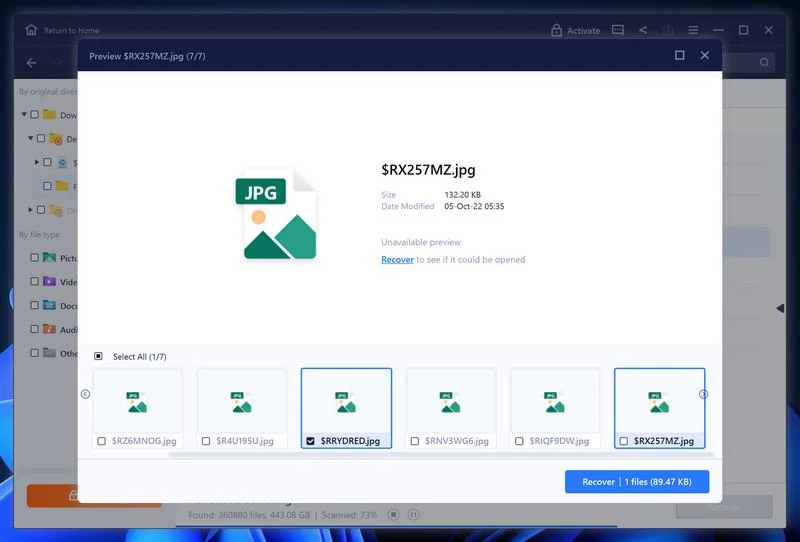
Save recoverable copies to a different drive. Validate the result before relying on it. A preview, a familiar file name, or a paid upgrade isn’t a guarantee of successful recovery.
Rule out the wrong decryptor
There is no verified Dark Project decryptor identified here. Use the No More Ransom catalogue or an incident responder to check for an exact match.
If a reputable tool becomes available, read its instructions and test it on copies only. A similar note title, eight-character extension, or dark-themed logo isn’t enough to choose one.
Don’t upload payroll records, legal files, or patient information to an unknown recovery site. Even for a legitimate identification service, ask whether you may share the file.
Keep notes on which backups and recovery methods you tried. If help becomes available later, that history saves time and keeps another technician from repeating risky work.
Frequently Asked Questions
Is every eight-character suffix evidence of Dark Project ransomware?
No. Look at the change across several previously usable files and the accompanying note. Other ransomware and ordinary applications can also produce unfamiliar extensions.
Can I remove the extra extension to get my spreadsheet back?
No. Renaming doesn’t decrypt the file. Leave original affected copies untouched so a responder can identify the changes and test recovery on duplicates.
Does a clean Malwarebytes scan mean the incident is over?
No. A scan can find and remove known threats on that machine. It doesn’t establish whether someone abused credentials, copied information, or changed other computers.
Should I open the links in the ransom note?
No. Keep the note as evidence. If an organization needs to evaluate the extortion demand, its incident team can handle it without exposing staff to those destinations.
Can a backup tell us whether data was stolen?
No. Restoring files addresses availability. Your ability to establish data theft depends on other evidence, such as sign-in history, file access records, or network telemetry.
Where can I get help if I’m not comfortable cleaning a personal PC?
Use the MalwareTips malware removal help forum or a trusted technician. Share symptoms and times without posting personal files or information from the ransom note.
The Bottom Line
If you find locked files alongside a README-RECOVERY note, isolate the affected device and preserve the original evidence. Don’t put your only clean backup in reach of it.
Remove or rebuild before reconnecting, then test recovery from a clean system. If the note claims company data was stolen, investigate that separately from getting your files back.

Join the discussion
0 commentsShare your experience or ask a question about this article.
Your progress
Did these steps help?
Let us know how the guide worked for you.
Describe what you see and the step you reached. Keep passwords and other private information out.
Discussion
Start the conversation
Have a question or something useful to share? Add the first comment.