

When it comes to personal computers, Dell is a well-known and trusted brand. Their products are known for their reliability, performance, and user-friendly features. One such feature that comes pre-installed on many Dell computers is the Dell Dock. In this article, we will explore what the Dell Dock is, its purpose, and whether or not you should remove it from your system.
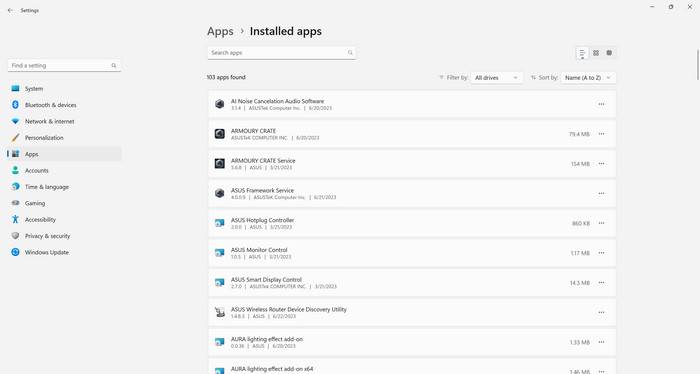
What is the Dell Dock?
The Dell Dock is a software application that provides a convenient way to access frequently used applications, files, and folders on your Dell computer. It is a customizable toolbar that sits at the top, bottom, or sides of your screen, depending on your preference. The Dell Dock allows you to organize and access your favorite applications with just a single click, eliminating the need to search through menus or cluttered desktops.
The Dell Dock comes pre-installed on many Dell computers and is available for download on the Dell website for those who don’t have it pre-installed. It is compatible with various versions of Windows, including Windows 7, 8, and 10.
Features and Benefits of the Dell Dock
The Dell Dock offers several features and benefits that can enhance your computing experience:
- Quick Access: The Dell Dock provides quick access to your most frequently used applications, files, and folders. This can save you time and improve productivity.
- Customization: You can customize the Dell Dock to suit your preferences. You can add or remove shortcuts, change the position of the dock, and adjust its appearance to match your desktop theme.
- Organizational Tool: The Dell Dock acts as an organizational tool, allowing you to keep your desktop clutter-free. You can group similar applications together and create folders for easy access.
- Multi-Monitor Support: If you have multiple monitors, the Dell Dock can be extended across all screens, providing easy access to your favorite applications regardless of which monitor you are working on.
Should I Remove the Dell Dock?
While the Dell Dock offers several benefits, whether or not you should remove it depends on your personal preferences and usage patterns. Here are a few factors to consider:
1. Personal Preference
If you find the Dell Dock useful and it enhances your workflow, there is no need to remove it. Its customizable features and quick access to frequently used applications can be a time-saver for many users.
2. Performance Impact
Some users may be concerned about the impact of the Dell Dock on system performance. While the Dell Dock is a lightweight application and generally does not consume significant system resources, it may still have a minor impact on older or low-spec systems. If you notice any performance issues, you can consider removing the Dell Dock.
3. Alternative Solutions
If you prefer a different method of organizing and accessing your applications, there are alternative solutions available. Windows itself provides a taskbar and a start menu that can serve similar purposes. Additionally, there are third-party software applications available that offer similar features to the Dell Dock.
How to Remove the Dell Dock
If you have decided to remove the Dell Dock from your system, there are a few methods you can use:
1. Uninstall via Control Panel
The most straightforward method is to uninstall the Dell Dock through the Control Panel. Here’s how:
- Open the Control Panel by searching for it in the Windows search bar.
- Click on “Programs” or “Programs and Features” depending on your version of Windows.
- Locate the Dell Dock in the list of installed programs.
- Click on the Dell Dock and select “Uninstall” or “Remove”.
- Follow the on-screen instructions to complete the uninstallation process.
2. Use a Third-Party Uninstaller
If you prefer a more thorough uninstallation process, you can use a third-party uninstaller tool like Revo Uninstaller Free. These tools can help remove any leftover files or registry entries associated with the Dell Dock, ensuring a clean uninstallation.
Conclusion
The Dell Dock is a useful software application that provides quick access to frequently used applications, files, and folders on your Dell computer. Whether or not you should remove it depends on your personal preferences and usage patterns. If you find the Dell Dock enhances your workflow and you are satisfied with its performance, there is no need to remove it. However, if you prefer alternative methods of organizing and accessing your applications or experience any performance issues, you can consider removing the Dell Dock. Use the methods mentioned in this article to uninstall the Dell Dock from your system, and consider using a third-party uninstaller tool for a more thorough removal process.

Join the discussion
0 commentsShare your experience or ask a question about this article.
Discussion
Start the conversation
Have a question or something useful to share? Add the first comment.