

The United States Department of Justice MoneyPak Ransom is a computer virus, which will display a bogus notification, that pretends to be from Department of Justice and states that your computer has been blocked due to it being involved with the distribution of pornographic material, SPAM and copyrighted content.
The United States Department of Justice virus will lock you out of your computer and applications, so whenever you’ll try to log on into your Windows operating system or Safe Mode with Networking, it will display instead a lock screen asking you to pay $300 in the form of a MoneyPak code.
Furthermore, to make its alert seem more authentic, this virus also has the ability to access your installed webcam ,so that the bogus The United States Department of Justice shows what is happening in the room.
If your computer is infected with The United States Department of Justice virus,then you are seeing the below notification:
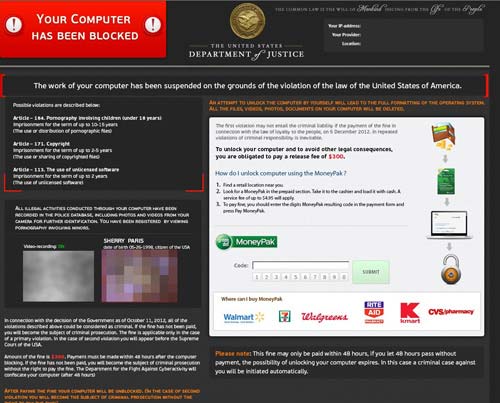
The United States Department of Justice Ransom will display the following bogus notification:
Your computer has been blocked
The work of your computer has been suspended on the grounds of the violation of the law of the United States of America.Article 274 – Copyright
A fine or imprisonment for the term of up to 4 years. (The use or shanng of copyrighted files-movies, software)
Article 183 – Pornography
A fine or imprisonment for the term of up to 2 years (The use or distribution of pornographic Nes)
Article 184- Pornography involving children (under 18 years)
Imprisonment for the term of up to 15 years (The use or distribution of pornographic files)
Article 104- Promoting Terrorism
Imprisonment for the term of up to 15 years (You have visited websites of terrorist organization)
Article 297 – Neglect computer use, entailing serious consequences
A fine or imprisonment for the term of up to 2 years (Your computer has been infected with a virus, which, in turn, Infected other computers)
In connection with the decision of the Government as of August 12, all of the violations described above could be considered as conditional in case of payment of a fine.
Amount of the fine is $200. Payment must be made within 24 hours after the discovery of the violation. If the fine has not been paid, you will become the subject of criminal prosecution.
After paying the fine your computer will be unblocked
The The United States Department of Justice Ransom is a scam and you should ignore any alert that this malicious software might generate and remove this trojan ransomware from your computer.
Under no circumstance should you send any money to this cyber criminals,as this could lead to identity theft,and if you have, you should contact your credit card company and dispute the charge stating that the program is a scam and a computer virus.
The United States Department of Justice MoneyPak Ransomware – Virus Removal Guide
This page is a comprehensive guide, which will remove the Department of Justice infection from your your computer. Please perform all the steps in the correct order. If you have any questions or doubt at any point STOP and ask for our assistance.
The Department of Justice will start automatically when you login to your computer and display its screen locker so that you are unable to access your computer, therefore we will need to remove this infection by using one of the below methods:
OPTION 1: Remove Department of Justice lock screen virus with System Restore
OPTION 2: Remove Department of Justice virus with with HitmanPro Kickstart
OPTION 3: Remove Department of Justice virus with Kaspersky Rescue Disk
OPTION 1: Remove Department of Justice lock screen virus with System Restore
System Restore helps you restore your computer’s system files to an earlier point in time. It’s a way to undo system changes to your computer without affecting your personal files, such as e‑mail, documents, or photos.
Because the Department of Justice virus will not allow you to start the computer in Windows regular mode, we will need to start System Restore from the Safe Mode with Command Prompt mode.
STEP 1: Restore Windows to a previous state using System Restore
- Reboot your computer into Safe Mode with Command Prompt. To do this, turn your computer off and then back on and immediately when you see anything on the screen, start tapping the F8 key on your keyboard.
![[Image: F8 key]](data:image/gif;base64,R0lGODlhAQABAAAAACH5BAEKAAEALAAAAAABAAEAAAICTAEAOw== "Windows F8 key")
If you are using Windows 8, the trick is to hold the Shift button and gently tap the F8 key repeatedly, this will sometimes boot you into the new advanced “recovery mode”, where you can choose to see advanced repair options. On the next screen, you will need to click on the Troubleshoot option, then select Advanced Options and select Windows Startup Settings. Click on the Restart button, and you should now be able to see the Advanced Boot Options screen. - Using the arrow keys on your keyboard, select Safe Mode with Command Prompt and press Enter on your keyboard.
- At the command prompt, type rstrui.exe, and then press ENTER.
Alternatively, if you are using Windows Vista, 7 and 8, you can type: C:\windows\system32\rstrui.exe , and press Enter. And if you are a Windows XP user, type C:\windows\system32\restore\rstrui.exe, then press Enter. - System Restore should start, and you will display also a list of restore points. Try using a restore point created just before the date and time the Department of Justice lock screen virus has infected your computer.
- When System Restore has completed its task, start your computer in Windows regular mode, and perform a scan with Malwarebytes Anti-Malware and HitmanPro, as seen in the next step.
![[Image: F8 key]](http://malwaretips.com/blogs/wp-content/uploads/2013/06/F8-key.jpg.png "Windows F8 key")
![[Image: Starting computer in Safe Mode with Command Prompt]](http://malwaretips.com/blogs/wp-content/uploads/2013/06/Safe-Mode-with-Command-Prompt.jpg "Advanced Boot Options screen")
![[Image: Start System Restore to remove lock screen virus]](http://malwaretips.com/blogs/wp-content/uploads/2013/06/system-restore-command.jpg "rstrui.exe command in Safe Mode with Command Prompt")
![[Image: Restore settings to remove ransomware]](http://malwaretips.com/blogs/wp-content/uploads/2013/06/system-restore.jpg "Restore your computer's system files to an earlier point in time")
STEP 2: Remove Department of Justice malicious files with Malwarebytes Anti-Malware Free
Even after using System Restore,
- You can download Malwarebytes Anti-Malware Free from the below link, then double-click on the icon named mbam-setup.exe to install this program.
MALWAREBYTES ANTI-MALWARE DOWNLOAD LINK(This link will open a download page in a new window from where you can download Malwarebytes Anti-Malware Free) - When the installation begins, keep following the prompts in order to continue with the setup process, then at the last screen click on the Finish button.
- On the Scanner tab, select Perform quick scan, and then click on the Scan button to start searching for the Department of Justice malicious files.
- Malwarebytes’ Anti-Malware will now start scanning your computer for Department of Justice virus as shown below.
- When the Malwarebytes Anti-Malware scan has finished, click on the Show Results button.
- You will now be presented with a screen showing you the computer infections that Malwarebytes Anti-Malware has detected. Make sure that everything is Checked (ticked), then click on the Remove Selected button.
![[Image: Malwarebytes Anti-Malware final installation screen]](http://malwaretips.com/blogs/wp-content/uploads/2013/01/malwarebytes-installation.jpg "Malwarebytes Anti-Malware installation screen")
![[Image: Malwarebytes Anti-Malware Quick Scan]](http://malwaretips.com/blogs/wp-content/uploads/2013/01/malwarebytes-quick-scan.jpg "Run a Quick Scan with Malwarebytes Anti-Malware")
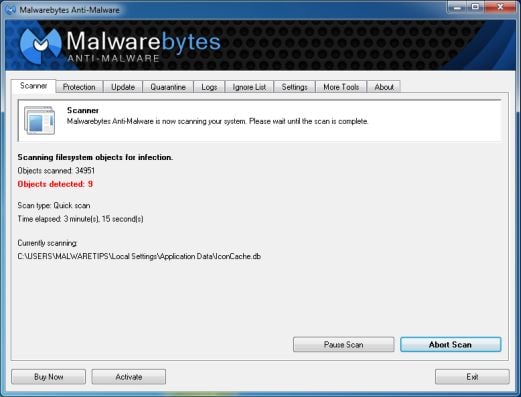
![[Image: Malwarebytes Anti-Malware scan results]](http://malwaretips.com/blogs/wp-content/uploads/2013/01/malwarebytes-scan-results.jpg "Malwarebytes when the system scan has completed")
![[Image: Malwarebytes Anti-Malwar removing Department of Justice virus]](http://malwaretips.com/blogs/wp-content/uploads/2013/01/malwarebytes-virus-removal.jpg "Malwarebytes Anti-Malwar removing Department of Justice virus")
STEP 3: Double-check for the Department of Justice virus with HitmanPro
- You can download HitmanPro from the below link:
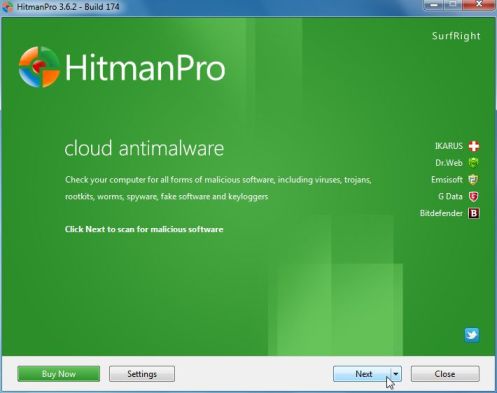
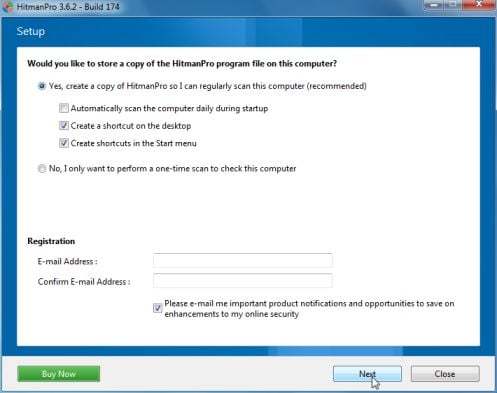
HITMANPRO DOWNLOAD LINK (This link will open a web page from where you can download HitmanPro) - Double-click on the file named HitmanPro.exe (for 32-bit versions of Windows) or HitmanPro_x64.exe (for 64-bit versions of Windows). When the program starts you will be presented with the start screen as shown below.
Click on the Next button, to install HitmanPro on your computer.
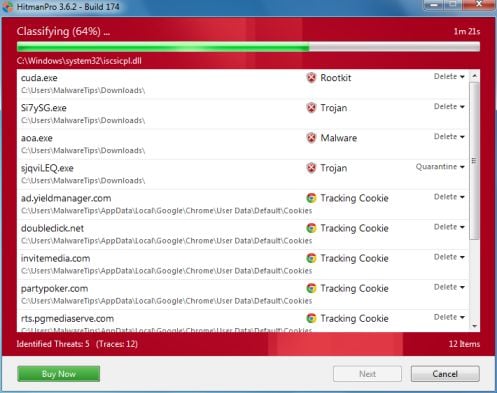
- HitmanPro will now begin to scan your computer for Department of Justice malicious files.
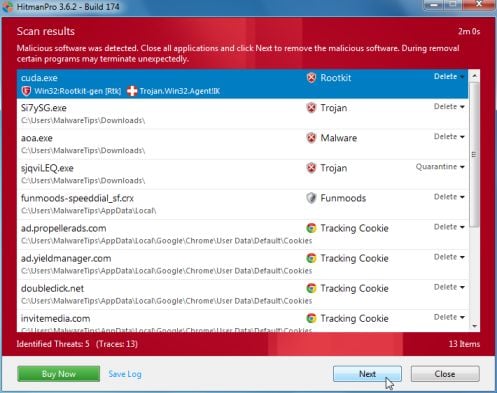
- When it has finished it will display a list of all the malware that the program found as shown in the image below. Click on the Next button, to remove Department of Justice virus.
- Click on the Activate free license button to begin the free 30 days trial, and remove all the malicious files from your computer.
![[Image: HitmanPro 30 days activation button]](http://malwaretips.com/blogs/wp-content/uploads/2012/11/hitmanpro-activation.jpg "HitmanPro free 30 days trial")
OPTION 2: Remove Department of Justice virus with with HitmanPro Kickstart
If you cannot start your computer into Safe Mode with Command Prompt mode, we can use the HitmanPro Kickstart program to bypass Department of Justice lock screen.
As the Department of Justice ransomware infection locks you out of your computer, you will need to create a bootable USB drive that contains the HitmanPro Kickstart program.
We will then boot your computer using this bootable USB drive and use it to clean the infection so that you are able to access Windows normally again.
You will also need a USB drive, which will have all of its data erased and will then be formatted. Therefore, only use a USB drive that does not contain any important data.
- Using a “clean” (non-infected) computer, please download HitmanPro Kickstart from the below link.
HITMANPRO DOWNLOAD LINK (This link will open a download page in a new web page from where you can download HitmanPro Kickstart) - Once HitmanPro has been downloaded, please insert the USB flash drive that you would like to erase and use for the installation of HitmanPro Kickstart. Then double-click on the file named HitmanPro.exe (for 32-bit versions of Windows) or HitmanPro_x64.exe (for 64-bit versions of Windows).
To create a bootable HitmanPro USB drive, please follow the instructions from this video:
- Now, remove the HitmanPro Kickstart USB drive and insert it into the Department of Justice infected computer.
- Once you have inserted the HitmanPro Kickstart USB drive, turn off the infected computer and then turn it on. As soon as you power it on, look for text on the screen that tells you how to access the boot menu.
The keys that are commonly associated with enabling the boot menu are F10, F11 or F12. - Once you determine the proper key (usually the F11 key) that you need to press to access the Boot Menu, restart your computer again and start immediately tapping that key. Next, please perform a scan with HitmanPro Kickstart as shown in the video below.
- HitmanPro will now reboot your computer and Windows should start normally. Then please Malwarebytes Anti-Malware and HitmanPro, and scan your computer for any left over infections.
![[Image: Windows Boot Menu screens]](http://malwaretips.com/blogs/wp-content/uploads/2013/06/windows-boot-manager.jpg "Windows Boot Menu screens")
OPTION 3: Remove Department of Justice virus with Kaspersky Rescue Disk
If any of the above methods did not clean your infected computer, we can use a Kaspersky Rescue Disk Bootable to clean the Windows registry and to perform a system scan to remove the Department of Justice virus.
To create a bootable Kaspersky Rescue Disk, we will need the following items:
- A clean (non-infected) computer with Internet access
- A blank DVD or CD
- A computer with a DVD or CD burner
STEP 1: Download and create a bootable Kaspersky Rescue Disk CD
- You can download Kaspersky Rescue Disk utility from link below:
KASPERSKY RESCUE DISK DOWNLOAD LINK (This link will automatically download Kaspersky Rescue Disk (kav_rescue_10.iso) on your computer.) - To create the bootable rescue disk, we will need to use the ImgBurn program. You can download ImgBurn from the below link, then install this program.
IMGBURN DOWNLOAD LINK (This link will open a new page from where you can download the ImgBurn program) - Insert your blank DVD or CD in your burner, then start ImgBurn and click on the Write image file to disc button.
- Under Source click on the Browse for file button, then navigate to the location where you previously saved the Kaspersky Rescue Disk utility (kav_rescue_10.iso), then click on the Write button.
That’s it, ImgBurn will now begin writing your bootable Kaspersky Rescue Disk.
![[Image: Bootable Kaspersky Rescue CD]](http://malwaretips.com/blogs/wp-content/uploads/2013/06/creating-bootable-kaspersky-rescue-disk.jpg "Creating Kaspersky Rescue Disk bootable CD")
STEP 2: Start your computer using the Kaspersky Rescue Disk
- Once you’ve got the Kasperky Rescue Disk in hand, insert it into the infected computer, and turn off and then turn it on again.
- As soon as you power it on, you will see a screen that tells you to press any key to enter the menu, so please tap any key to boot your machine from the Kaspersky Rescue Disk.
- In the next screen, you will need to chose a language, then you click on Kaspersky Rescue Disk. Graphic Mode and press ENTER, to start the Kaspersky Rescue Disk.
![[Image: Starting infected computer from Kaspersky Rescue Disk]](http://malwaretips.com/blogs/wp-content/uploads/2013/06/Kaspersky-Rescue-Disk-boot.png "Starting infected computer from Kaspersky Rescue Disk")
![[Image: Kaspersky Rescue Disk Graphic Mode screen]](http://malwaretips.com/blogs/wp-content/uploads/2013/06/Kaspersky-Rescue-Disk-graphic-mode.png "Kaspersky Rescue Disk Graphic Mode screen")
STEP 3: Scan your system with Kaspersky Rescue Disk
- Within a few short seconds you should see the full working environment, with the Kaspersky Rescue Disk screen front and center as shown below.
- Switch tabs over to the My Update Center, and then click the Start update button to load the latest anti-virus definitions. Please be patience while this process its completed.
- Switch back over to the Objects Scan tab, select the drives you want to scan, and then click the Start Objects Scan button.
- When Kaspersky Antivirus will detect the Department of Justice virus, you’ll be prompted to select an action. When this happens, please select Quarantine or Delete to remove this infection from your computer.
- When the antivirus scan has completed, you can restart back into Windows regular mode, by clicking on the Kaspersky Start button (lower left corner), and selecting Restart.
Once your computer will start in Windows regular more, download Malwarebytes Anti-Malware and HitmanPro, and scan your computer for any left over infections.
![[Image: Kaspersky Rescue Disk scanner]](http://malwaretips.com/blogs/wp-content/uploads/2013/06/Kaspersky-Rescue-Disk.jpg "Kaspersky Rescue Disk scanner")
![[Image: Updating Kaspersky Rescue Disk antivirus definitions]](http://malwaretips.com/blogs/wp-content/uploads/2013/06/Kaspersky-Rescue-Disk-update.jpg "Updating Kaspersky Rescue Disk antivirus definitions")
![[Image: Kaspersky Rescue Disk scan]](http://malwaretips.com/blogs/wp-content/uploads/2013/06/Kaspersky-Rescue-Disk-scan.jpg "Kaspersky Rescue Disk scan")
![[Image: Kaspersky Rescue Disk prompt]](http://malwaretips.com/blogs/wp-content/uploads/2013/06/Kaspersky-Rescue-Disk-alarm.png "Kaspersky Rescue Disk when detecting malware")
![[Image: Kaspersky Rescue Disk Restart button]](http://malwaretips.com/blogs/wp-content/uploads/2013/06/Kaspersky-Rescue-Disk-restart.jpg "Kaspersky Rescue Disk Restart button") (lower left corner), and selecting Restart.
(lower left corner), and selecting Restart.Your computer should now be free of the Department of Justice infection. If your current anti-virus solution let this infection through, you may want to consider purchasing the PRO version of Malwarebytes Anti-Malware to protect against these types of threats in the future, and perform regular computer scans with HitmanPro.
If you are still experiencing problems while trying to remove Department of Justice Moneypak virus from your machine, please start a new thread in our Malware Removal Assistance forum.









Hi I followed the direction unfortunatel Y cannot even get into safe mode. as soon as I hit safe mode with comnad or any other, it takes me to a blue screen with a a message stating a problem has been detected and windows has been shut down to prevent damage, I have started all over again many times and still the same. Is there any other way to get rid of this? Thanks
Jesus
I used the sys restore method. Worked like a charm.
Thank you so much for posting this Stelian! I booted up in safe mode and tried system restore and an apparently outdated version of Malwarebytes A-M to no avail, and found your site using my other computer. Method 1 worked like a charm. So glad you posted this as I had a lot of stuff for a photography class I’m taking on this computer that would have been a pain to pull off, reinstall, etc….
Hey buddy, thank you so much. I just followed the method 1 and it worked perfectly as you said in 10 min the computer was working. You save the day!!
good
with Hitmanpro work for me. Thanks
I followed this system and removed the virus in less than ten minutes.
I just got the department of justice virus yesterday and none of the things you had mentioned worked. I even tried to download hitman pro on a USB drive on my other laptop but when I insert the USB drive into my infected dell laptop which has windows 7 the Ctrl + F11 feature does not work when the laptop starts. I don’t want to take it somewhere and pay a fortune but nothing works. What do I do??
Hello Chris,
Please try one more time to boot from the HitmanPro USB,pay attention at the booting part and click F11 once your computer starts.
If it still doesn’t work,you’ll need to create a Kaspersky Rescue CD as seen HERE: http://malwaretips.com/blogs/anonymous-virus/ , on Method 2.
If everything fails, then you’ll need to create an account on our forums and a member of the staff will help you (with more advanced tools) to remove this nasty virus: http://malwaretips.com/Forum-Malware-Removal-Assistance
Good Luck!
Thanks for the awesome step by step process of eliminating this virus. I went through step 2 and malwarebyes ate this sh-t up so fast it was unbelievable. Great info and everything looked just like your screenshots. Thanks again.
Thank you so much! People like you restore my faith in humanity!! You saved the day….
Thanks
Thank you a lot your the best
Thanks so much! I really thought my computer was toast, but the easy to follow instructions helped me get rid of this nasty virus in less than 15 minutes!
Went to the Moneypak website in hopes of getting my 300 back,,keeps saying insufficient funds,account balance 0…so think i’m basically screwed out of the 300 bucks
I have tried using both command prompts .My computer starts off with C:\Documents and Settings\Owner> I get a pop up saying system restore has been turned off and cannot be turned on in safe mode. To turn on system restore, restart in normal mode and then run system restore.
The msconfig gives me a response that it is not recognized as an internal or external command, operable program or batch file. Is there another way the commands can be entered?
Hellp Patty,
Try to type: Start msconfig in the Command prompt if your using Windows Vista, 7 or 8.
In Windows XP and Server 2003 type: C:\WINDOWS\PCHEALTH\HELPCTR\BINARIES\MSCONFIG
And press Enter, MSCONFIG should load now, then just uncheck those malicious startup programs.
Alternatively, you can type explorer.exe in the Command prompt, and transfer via a USB stick Malwarebytes to perform a scan.
I too had the problem where it wouldn’t give me a plain C prompt. I typed explorer.exe and it got me to a safe mode where I could get to the system restore. THANK YOU SO VERY MUCH!!!!!
Method 2 worked like a charm but when I ran Malwarebytes program it didn’t pick up anything. Could the virus have been eradicated by simply post dating the computer under this method? I’ truly a computer idiot and really thank you for this post.
Hey thank you for telling me to go to the Forms I found a way to clear the computer thanks to your advice, I’m using a rescue disk since nothing else was working thank you for the help
You Guys are the F-ing BOMB ! Fan-F-ing-Tastic !
Thank You SO Much , I had to go all the way to method 4 .
The New version of the DOJ Trojan/Virus is not removable just with safe mode….methods
For all of you out there Hitman kickstart is now probably your only choice !!!!
I have an older computer so it may differ a little for you.
When you bring up the F11 Boot menu on power up,( with the kick start flash in your USB), and tab arrow over to the boot priority tab, then arrow down to the hard drive/USB priority choice ,You will need to use the + or – key on your numbers key pad to change the priority .
This took me a while to figure out.
I was trying to use the + , – keys above the letters of my keyboard.
Hope this helps…
Lets all go kick the @#%&- out of the A-holes the launched this crap on all of us.
Hitman Kickstart is the SHIT!
Got rid of this before but somehow this
was was much harder.
Thanks!
Thank you so much. Only used Method 1. I have Trend PC protection and it obviously did not block this new trojan worm. Shame on them.
When my 18-yr old son told me that his computer was getting a weird message about paying $300, I took his laptop to Best Buy to use the $179.00 service plan I bought. I learned that that plan only covered HW related problems–not virus. The virus package was going to cost $200 more! On a $349.00 Computer! I was pissed. I told them ‘no thanks’, did some googling and found this site. Awesome! I used Method 1 and got into Safe Mode with Networking, loaded the Malware app, did the quick scan (about 20-25 minutes), re-booted, did the full scan (about an hour and 15 mins), rebooted — and everything works great!!! I told my son he can pay me the $200… Thanks for providing this site and the crystal clear instructions for non-geeks like me.
thank you method 4 worked like a charm
I got the virus this morning and got me really worried. Unfotunely, I paid the $300, but then I thought of the possibility of being a scam, and found this website after searching info about the virus.
I just want to say thank you so much for your help. I was able to unlock my computer in less than an hour using method 1 and using malwarebytes free edition. You are truly a great person to have the initiative to distribuite this information so well put together for everyone to understand. You sir, are a hero. Again, thank you and take care.
Hello Jorge,
Try to submit a refund request at MoneyPak, maybe you can take your money back : https://www.moneypak.com/RefundRequest.aspx