

Disk Antivirus Professional 3.7.25 is a computer virus, which pretends to be a legitimate antivirus program and claims that malware has been detected on your computer, then inform you that you need to pay money to register the software to remove these non-existent threats.
![[Image: Disk Antivirus Professional]](https://malwaretips.com/blogs/wp-content/uploads/mwt-media/d6/d6de5f2db87f5018f3f48d4e8fc535bf0fdd7863a81ee919002c72295141f1fd/740b0457ce1c14100db85e20bd875879f326ba6e5059fc15235dd22ef76afaf1-752.webp "Disk Antivirus Professional")
Disk Antivirus Professional is distributed through hacked or infected websites, which will promt you with a fake pop-up window indicate that your computer is infected or your computer requires a software update. Alternatively, your computer may be infected with Disk Antivirus Professional from an infected email attachment or drive-by-downloads which will exploit a vulnerability in older versions of Java or Adobe software.
Once installed, Disk Antivirus Professional will be add a a random file name in a random folder under C:\Documents and Settings\All Users\Application Data\, in XP, or C:\ProgramData, in Windows Vista, Windows 7, and Windows 8. Disk Antivirus Professional will then be configured to start automatically when you login to your computer.
Disk Antivirus Professional will display fake security alerts that are designed to think that your data is at risk or that your computer is severely infected.These messages include:
Security Monitor: WARNING!
Attention! System detected a potential hazard (TrojanSPM/LX) on your computer that may infect executable files. Your private information and PC safety is at risk.
To get rid of unwanted spyware and keep your computer safe your need to update your current security software.
Click Yes to download official intrusion detection system (IDS software).Disk Antivirus Professional Warning
Your PC is still infected with dangerous viruses. Activate antivirus protection to prevent data loss and avoid theft of your credit card details.Disk Antivirus Professional Warning
Intercepting programs that may compromise your privacy and harm your system have been detected on your PC.
Click here to remove them immediately with Disk Antivirus Professional.
In reality, none of the reported issues are real, and are only used to scare you into buying Disk Antivirus Professional and stealing your personal financial information.
As part of its self-defense mechanism,Disk Antivirus Professional has disabled the Windows system utilities, including the Windows Task Manager and Registry Editor, and will block you from running certain programs that could lead to its removal.
Disk Antivirus Professional will prevent you from launching any application by terminating its process and displaying a message that falsely claims that the process is infected. This rogue antivirus will monitor all running processes, and will terminate any new process as it is launched. Upon doing so, it displays a message such as the following:
Warning!
Application cannot be executed. The file taskmgr.exe infected.
Please activate your antivirus software.
If your computer is infected with Disk Antivirus Professional virus, then you are seeing the following screens:
![[Image: Disk Antivirus Professional virus]](https://malwaretips.com/blogs/wp-content/uploads/mwt-media/5c/5c2a8049338f0baf18ef868143f8bf335768c1c8ba41b2bbf6a62eae3423ed2a/9501897e7a46e4fb362d738dccac4952fa67f88ca84dfaa324767ae29cfaf0bf-752.webp "Disk Antivirus Professional virus")
![[Image: Disk Antivirus Professional alert]](https://malwaretips.com/blogs/wp-content/uploads/mwt-media/e1/e1e09fab7bbba9a08d4ed3295aa509e8ce9db283c64f3c000fbd14523db5a0e9/f2b9fae456c051369bf188d7c699a3eb71d4e257b068addb67a4a3d61e1c79aa-497.webp "Disk Antivirus Professional Alert")
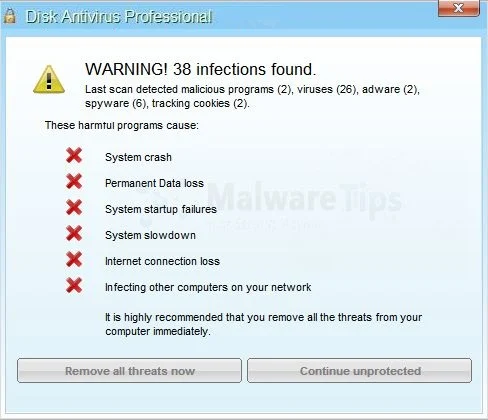
Disk Antivirus Professional is a scam, and you should ignore any alerts that this malicious software might generate.
Under no circumstance should you buy Disk Antivirus Professional as this could lead to identity theft, and if you have, you should contact your bank and dispute the charge stating that the program is a scam and a computer virus.
Registration codes for Disk Antivirus Professional 3.7.25
As an optional step,you can use any of the following license keys to register Disk Antivirus Professional and stop the fake alerts.
Disk Antivirus Professional 3.7.25 activation code: AA39754E-715219CE
Please keep in mind that entering the above registration code will NOT remove Disk Antivirus Professional from your computer , instead it will just stop the fake alerts so that you’ll be able to complete our removal guide more easily.
Disk Antivirus Professional 3.7.25 – Virus Removal Guide
STEP 1: Remove Disk Antivirus Professional malicious files with Malwarebytes Anti-Malware
Malwarebytes Chameleon technologies will allow us to install and run a Malwarebytes Anti-Malware scan without being blocked by Disk Antivirus Professional.
- Download Malwarebytes Chameleon from the below link, and extract it to a folder in a convenient location.
Download Malwarebytes ChameleonOpens the download page in a new tab.
![[Image: Extract Malwarebytes Chameleon utility]](https://malwaretips.com/blogs/wp-content/uploads/mwt-media/b2/b265e12a96e5ac88c372b34158e04f937bacfee747f63c719f50a4771b7048e8/9809c2be34df15eae377a9982d27eae3d60d2cc1b556e7f1f9fa6be62f380051-374.webp "Extract Malwarebytes Chameleon utility")
- Make certain that your infected computer is connected to the internet and then open the Malwarebytes Chameleon folder, and double-click on the svchost.exe file.
![[Image: Double click on svchost.exe]](https://malwaretips.com/blogs/wp-content/uploads/mwt-media/d6/d67768b1c785b16a82c92c81bcce063bb5b8ad9c8f1e7edb48a80040f7e803a3/b05e0bf111c8d18f1c641cfb91f746b45de4454ba605ef516ccfa0ed7cdc5c99-662.webp "Double click on svchost.exe")
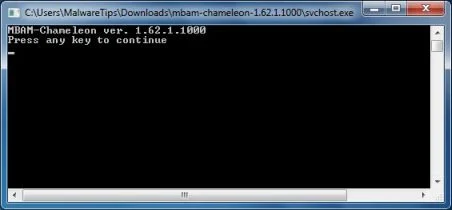
IF Malwarebytes Anti-Malware will not start, double-click on the other renamed files until you find one will work, which will be indicated by a black DOS/command prompt window. - Follow the onscreen instructions to press a key to continue and Chameleon will proceed to download and install Malwarebytes Anti-Malware for you.
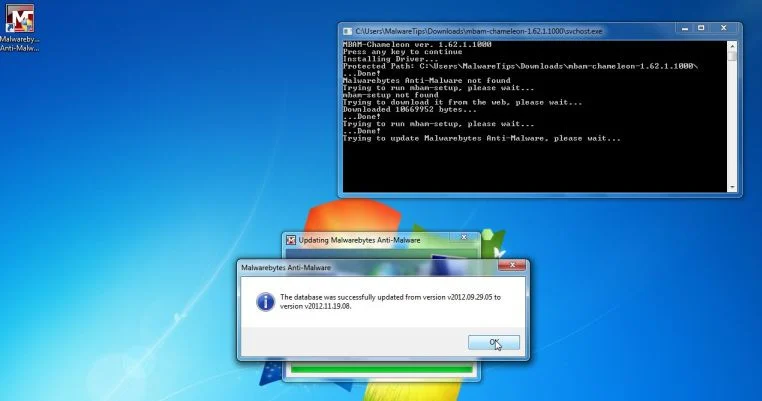
- Once it has done this, it will update Malwarebytes Anti-Malware, and you’ll need to click OK when it says that the database was updated successfully.
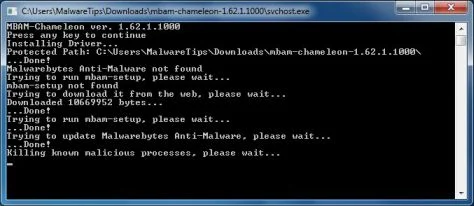
- Malwarebytes Anti-Malware will now attempt to kill all the malicious process associated with Disk Antivirus Professional.Please keep in mind that this process can take up to 10 minutes, so please be patient.
- Next, Malwarebytes Anti-Malware will automatically open and perform a Quick scan for Disk Antivirus Professional malicious files as shown below.
![[Image: Malwarebytes Anti-Malware scanning for Disk Antivirus Professional]](https://malwaretips.com/blogs/wp-content/uploads/mwt-media/f6/f6ecfba43df64204df40586070483f260cb91fa07d5cc90cb4c3a588d159ff30/5b6b2687853201a40d29fe27e142cc66b0852745bbad3900a21030a10399cb4c-521.webp "Malwarebytes Anti-Malware scanning for Disk Antivirus Professional")
- Upon completion of the scan, click on Show Result
![[Image: Malwarebytes Anti-Malware scan results]](https://malwaretips.com/blogs/wp-content/uploads/mwt-media/84/84c62dd46289424dbc686abc53672cb0810111920c8c0bbd69e973844d0a9ab0/a4c04aa700e641f47afec9965f79ff346740668e5952955ccbe5b4c3658b5897-521.webp "Malwarebytes when the system scan has completed")
- You will now be presented with a screen showing you the malware infections that Malwarebytes Anti-Malware has detected.
Make sure that everything is Checked (ticked),then click on the Remove Selected button.
![[Image:Malwarebytes removing virus]](https://malwaretips.com/blogs/wp-content/uploads/mwt-media/d8/d86b6a8bac0e4ece9fd2d259a83db71487943f6b04b567edb0e9adcc3200f492/4eb94651b0e34cc99689c56dc71cd0a49444498ed05c5803ea55fda1cfee1b1f-521.webp "Click on Remove Selected to get rid of Disk Antivirus Professional")
- After your computer restarts, open Malwarebytes Anti-Malware and perform a Full System scan to verify that there are no remaining threats
STEP 2: Remove Disk Antivirus Professional rootkit with HitmanPro
In some cases,Disk Antivirus Professional will also install a rootkit on victims computer.To remove this rootkit we will use HitmanPro.
- Download HitmanPro from the below link,then double-click on it to start this program.
Download HitmanProOfficial Sophos download. Free scan, free 30-day trial to remove threats.
IF you are experiencing problems while trying to start HitmanPro, you can use the Force Breach mode.To start HitmanPro in Force Breach mode, hold down the left CTRL key when you start HitmanPro and all non-essential processes are terminated, including the malware process. (How to start HitmanPro in Force Breach mode – Video) - HitmanPro will start and you’ll need to follow the prompts (by clicking on the Next button) to start a system scan with this program.
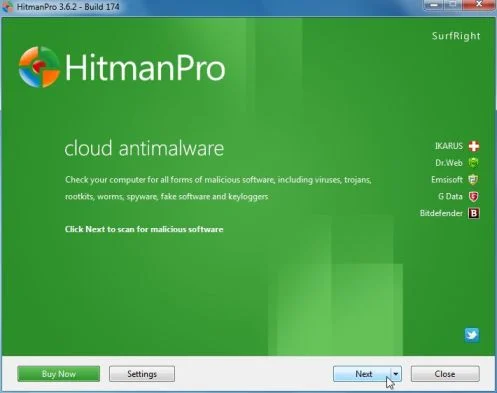
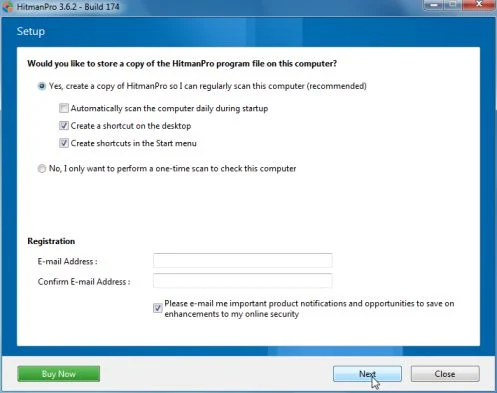
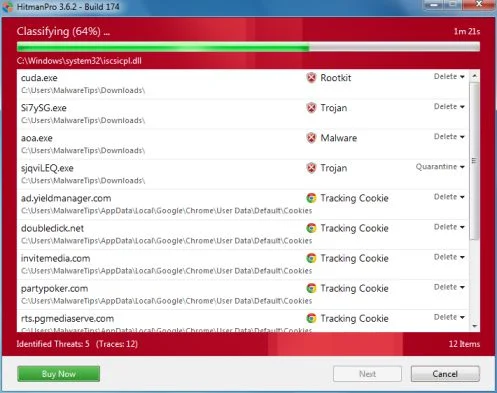
- HitmanPro will start scanning your computer for Disk Antivirus Professional malicious files as seen in the image below.
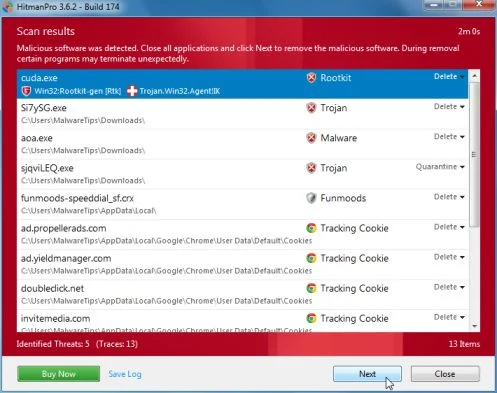
- Once the scan is complete,you’ll see a screen which will display all the infected files that this utility has detected, and you’ll need to click on Next to remove this malicious files.
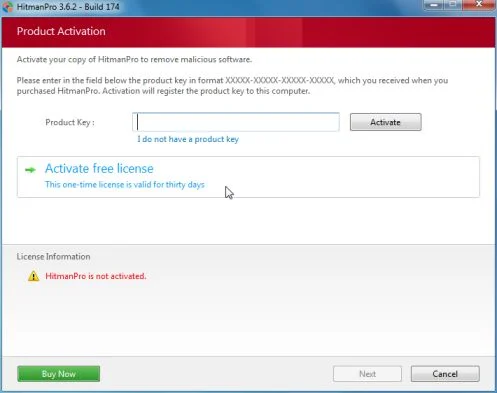
- Click Activate free license to start the free 30 days trial and remove all the malicious files from your computer.

Join the discussion
32 commentsShare your experience or ask a question about this article.
Your progress
Did these steps help?
Let us know how the guide worked for you.
Describe what you see and the step you reached. Keep passwords and other private information out.
Discussion
Perfect fix, daughter was ready to trash her laptop and in fact bought another. Brought it back with no bumps or bruises and it was as easy as pie. Thank you!
Took it off fantasticly, thanks sooooooo much.
You’re a lifesaver! I was skeptical at first, but I’m so glad I tried your advice. Trend Micro wanted $80 to fix the problem (that I probably wouldn’t have had in the first place if their product actually worked). Thanks!!!
Thanks dude. I was about reset my pc to its factory settings. But lucky i didnt. Fixed the bug thanks to you. Cheers
thank you thank you thank you thank you!!!!!!
Great job and thanks for the help. Step by step instructions so easy to follow.
Hi Stelian,
Just had to remove this from my Mum’s laptop (she was very distraught!). Thanks so much for your clear instructions, it’s worked a treat. Thanks again.
David
Your advice helped me to remove disk antivirus professional from my PC.
Thank you very much for saving my data and me.
I need one more help. I’m based in Mumbai, India. I don’t have licensed anti virus software in my computer. I’m using windows 7 ultimate 64 bit. We do browse internet, down songs & email. Please advise me which an anti virus software which is easy to remove after a month / expiry and again re-install. As per my exprience, it is easy to install first time such free antivirus sofrware but unable to remove completely and re-install again and even some times doesn’t allow other antivirus software to load in PC. Such free anti virus software do create problems to operating system and make PC slow and ultimately one has to re-install an opearting system. Please advise me. Regards, -Bhavin
In reply to Bhavin Kadakia
Hello,
Avast 8 Free Antivirus and COMODO Internet Security Free are both great free programs!
I do recommend that you read this guide >> http://malwaretips.com/blogs/how-to-easily-avoid-pc-infections/ < < so that you'll learn how to avoid future infections!
Really just repeat what has been said above many thanks for your advice, I’ve had a similar bug to this one before and before I could fix it the hard drive stopped working so when it happened again I was just totally freaking out. It’s running the malware bytes scan at the mo and I can see its already found some of the little blighters which are causing the problems so thank you so so much. I did the full scan, I seem to think the quick scan option is sufficient so maybe consider adding that to your advice above. Cheers. Steve.
With some trepidation, using my uninfected smartphone to access your instructions, I plodded along until my computer’s screen said “killing malware”, which gave me great relief. Thanks for showing me how to remove “Disk Antivirus Professional”.
Awesome!! Thanks for saving my work!!
Thank you very much guys…
Awesome ! Totally fixed my machine … THANKS !
The Hitman software also found a couple of other “things” I didn’t know were in my machine.
Thanks a lot !
Your solution was very well describe and solve completely the problem.
You are a life saver !!
Regards !
What do I do if the disc antivirus thing won’t allow me to download the malware bytes software??
In reply to Laura
Hello Laura,
Please start your computer in Safe Mode with Networking, and then download this tool:
THANK YOU !
Worked like a charm …. and Hitman found some other junk in my machine that shouldn’t have been there.
Thank’s you for your site,, Merci beaucoup pour votre aide, lien très utile , encore merci : )
thanxx man it’s hellp my so much whith this hitman pro antivirus thanxx
We use Windows XP. I was suspicious of this [app] when it wanted money to run; then I found your article. The bugger actually blocked Malwarebytes when I tried to download it. But my wife and I have separate user logins, and it had only infected mine. I was able to use hers to clean everything out.
Thank you.
Worked great—-many many thanks for the help