

TextOpener.com is a scam website that falsely claims it can spy on someone’s text messages simply by entering their phone number. The site tricks users into believing it can access private text conversations, when in reality it has no such capability.
This fraudulent website is designed to deceive victims into visiting affiliated spam and survey sites which earn commissions for the scam operators. TextOpener exploits the common desire to view other people’s texts, playing on human curiosity. However, it is completely fake and provides no actual service beyond generating traffic and potential victims.
In this comprehensive guide, we will uncover exactly how the TextOpener scam operates, including:
- A detailed overview explaining the various deceitful techniques used on the site
- A step-by-step walkthrough of the scam process
- Insight into how the site profits from its unethical tactics
- Guidance on what to do if you fall prey and submit personal information
By understanding the inner workings of this deceptive scheme, internet users can avoid being manipulated and protect their data. Awareness is key to not falling for online scams like TextOpener that offer services too good to be true.
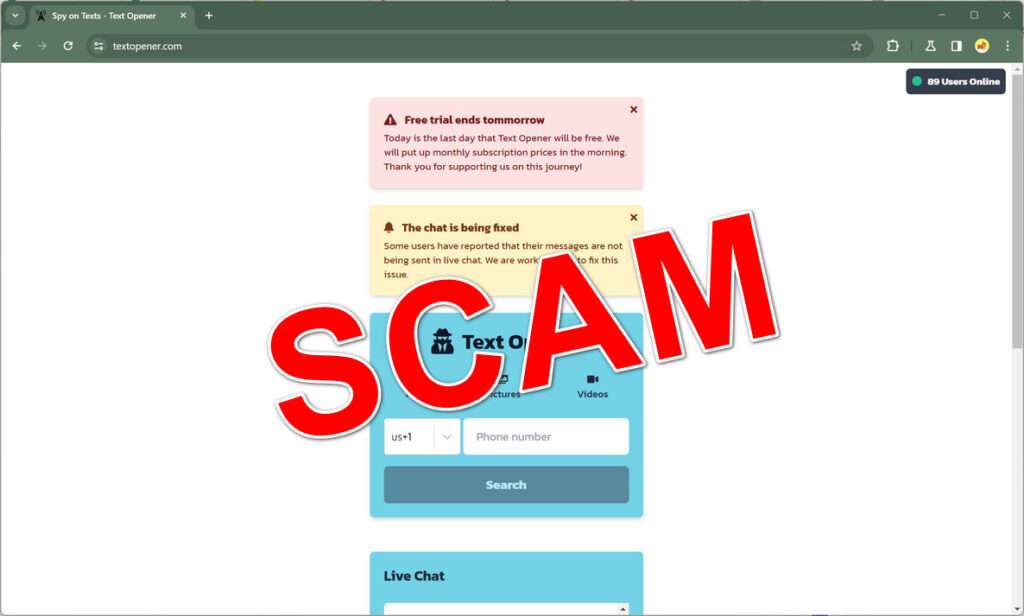
Scam Overview: How TextOpener Exploits Users
TextOpener utilizes a variety of misleading and unscrupulous methods to dupe visitors, including:
Falsely Claiming To Access Text Messages
The site’s homepage states “Enter a phone number to spy on it’s text messages.” This promise is completely fabricated. TextOpener has no capability to view the private texts for a number submitted to their site. Their claim of being able to access text conversations for any phone is patently false.
Generating False Verification Steps
After entering a phone number, the site displays the provider and location for the number. This gives the illusion they possess special insight, when in fact this basic data is available publicly. The site then pretends to be “retrieving text messages” before prompting users to “verify you are human.” This is purely a tactic to send visitors to external sites.
Sending Visitors To Affiliate Websites
The “human verification” process redirects users to third-party offers and surveys, which qualify as spam. These affiliate sites generate revenue for TextOpener when users sign up or complete an offer. The scam ring profits from fabricating a service and exploiting human curiosity.
Bombarding With Spam Texts
In some cases, TextOpener may send recurrent spam messages to numbers entered on their site. This occurs if the number is flagged as “active” after being added to an SMS spam database. Users may receive unwanted texts sent by the scam operators or sold to third-parties.
Spreading Malware
The external sites users are redirected to often contain malware distributed by the scammers. Downloading files or entering sensitive information can lead to viruses, identity theft, and device compromise. Deceptive downloads are a common technique among scammer rings to infect victims’ machines.
Stealing Personal Information
TextOpener and its partner sites gather users’ personal data such as names, numbers, and email addresses. This information can be used for phishing scams, identity theft, and other cybercriminal activities. Users’ details are sold to shady third parties involved in the scam network.
As is evident from these methods, TextOpener relies on outright lies, redirection, spam texts, malware, and info theft to profit from unaware victims. Their false claims and unethical tactics highlight the fraudulent nature of their supposed “text spying” services. Avoid submitting any details to this deceitful site.
Step-By-Step: How The TextOpener Scam Actually Works
Now that we have exposed the misleading techniques involved with this scam, let’s break down step-by-step how a user interacts with the site and where things go wrong:
Step 1 – Visit TextOpener.com
The scam starts with an innocent web search leading to TextOpener.com. Their homepage claims “Spy on any phone simply by using number” next to an image of texts between two people. This immediately sets false expectations.
Step 2 – Enter A Phone Number
Tempted by the opportunity to apparently view someone’s texts, the user enters a 10-digit US phone number into the search box. The “Start Search” button leads to the next step.
Step 3 – See Basic Number Details
A loading icon appears while the site pretends to gather texts. After a few seconds, the phone number’s service provider and location display instead. This gives the impression special access was granted.
Step 4 – Prompted To “Verify You Are Human”
A notice then pops up stating “Due to increased spam we need to verify you are human before proceeding.” A large button says “Verify Me Now” and a timer creates urgency.
Step 5 – Redirected To Affiliate Offers
Clicking the verify button opens an external site offering free gift cards, personality tests, and similar content. To get their “reward”, users must sign up or complete a partner offer.
Step 6 – Personal Info Is Compromised
To finish an offer, personal details like names, email addresses, and physical addresses are collected. The data gets sold to third parties involved in the scam operation.
Step 7 – Potentially Bombarded With Spam
Active phone numbers get added to SMS spam lists. The user may subsequently receive a barrage of unwanted text messages from shady advertisers.
The Truth: No Text Messages Retrieved
At no point in the process does TextOpener access or display any actual text messages. The entire experience after the phone number submission is fabricated to generate affiliate traffic and leads. Users receive zero text visibility in return.
As demonstrated above, the site’s promises are completely empty and fabricated. Let’s examine why they go to such unscrupulous lengths to profit from false claims.
How The TextOpener Scam Profits From Deception
It is essential to follow the money and understand why scammers operate sites like TextOpener. Here are the major ways they generate revenue from their unethical schemes:
Affiliate Commissions
By driving traffic to third-party offers, the site owners earn affiliate commissions. Lead generation is their main objective, not providing any real services. Every person that signs up or completes an offer drives profits.
Selling User Data
Harvesting users’ names, numbers, emails and interests allows the scam ring to sell this data on the black market. Info like birthdates and physical addresses can also be resold for identity theft.
Spreading Malware
External sites the scam redirects to often initiate malware downloads. By infecting victims’ devices, hackers gain access to bank accounts, passwords, and other sensitive information that is financially valuable.
Building Spam Lists
Active phone numbers get added to SMS spam databases managed by the scammers. These lists generate money by selling number access to advertisers looking to send text blasts.
Driving Recurring Visits
If a user falls for the scam once, they may return in hopes of getting the non-existent text details they desire. The site benefits from tricking repeat victims.
Gaining Ad Revenue
The scam site also runs its own advertisements. By attracting vast amounts of traffic, this generates steady revenue from brands paying for impressions and clicks.
As you can see, TextOpener has multiple profit motives driving its deceptive claims and unethical redirection practices. All efforts focus exclusively on taking advantage of users, rather than providing any legitimate services.
Next, let’s explore what you should do if you unfortunately fell prey and submitted information to this scam.
What To Do If You Fall Victim To The TextOpener Scam
If you entered a phone number or other personal data into TextOpener.com, here are important next steps to take in response:
Step 1 – Scan Devices For Malware
Run anti-virus and malware tools to check for infection. The scam’s redirects may have initiated downloads on your machine. Remove anything suspicious found.
Step 2 – Change Online Passwords
Reset passwords for email accounts, financial logins, and other sensitive sites. If malware or spyware got access, it could be stealing passwords typed on your devices.
Step 3 – Monitor Financial Accounts
Watch closely for any fraudulent charges made to your bank, credit card, and online payment accounts. Report any suspicious transactions immediately.
Step 4 – Set Up Transaction Alerts
For an extra layer of monitoring, establish transaction alerts that notify you anytime money is withdrawn or spent from accounts. This lets you respond quicker to fraud.
Step 5 – Place Fraud Alerts
Contact credit reporting agencies to set fraud alerts on your name and SSN. This signals lenders to be extra diligent when any accounts or loans are opened in your name.
Step 6 – Freeze Credit Reports
Take the preventive action of freezing access to your credit reports. This blocks scammers from opening any new credit cards or accounts if they stole your info.
Step 7 – Block Numbers Sending Spam Texts
If you start receiving SMS spam on your phone, report and block the originating numbers. On iPhones, forward texts to 7726 to report to carriers for potential blocking.
Step 8 – Warn Contacts About Scam
Notify your friends and family to avoid the scam site if you shared the link or mentioned it to them previously. Prevent them from falling victim too.
Step 9 – Report Scam To Authorities
File detailed fraud reports with the FTC, FBI, BBB, and cybercrime units of your local law enforcement. The more claims submitted, the likelier action will be taken to shut down the scam.
Responding quickly and proactively is essential if you were deceived by this scam and entered personal data. Do not wait to take these precautions against potential identity theft and financial fraud.
Is Your Device Infected? Run a Free Malware Scan
Slow performance, constant pop-ups, or strange behavior? These are classic signs of a malware infection. The fastest way to find out is to scan your device with Malwarebytes Free — one of the most trusted malware removal tools available.
The free version detects and removes the most common threats, including:
- Adware — the cause of those annoying pop-ups
- Browser hijackers — unwanted redirects and changed homepages
- Trojans and spyware — hidden programs stealing your data
- Potentially unwanted programs (PUPs) — software you never asked for
👉 Select your device below — Windows, Mac, or Android — then follow the simple steps to download Malwarebytes, scan your system, and remove any threats it finds. The scan usually takes 5 to 20 minutes.
Run a Malware Scan with Malwarebytes for Windows
Malwarebytes is one of the most popular and trusted anti-malware tools for Windows — and it’s completely free for removing infections. It catches threats that many antivirus programs miss, including adware, browser hijackers, and trojans. Follow the steps below to scan and clean your PC in just a few minutes.
Download Malwarebytes
Click the button below to download the latest version of Malwarebytes for Windows from the official source. The free version is all you need — it will scan your computer and remove adware, browser hijackers, and other malicious software at no cost.
Download MalwarebytesOfficial installer for Windows 11 and 10. Your download starts right away.Want real-time protection? See Malwarebytes Premium Malwarebytes Free for WindowsScans and removes malware at no cost
-
Install Malwarebytes
When the download finishes, open your Downloads folder and double-click the MBSetup file. If Windows shows a User Account Control pop-up, click “Yes” to allow the installation.

Follow the On-Screen Prompts to Install Malwarebytes
The setup wizard will walk you through a few quick screens:
-
Choose where you’re installing the program — “Personal Computer” or “Work Computer” — then click Next.

-
Malwarebytes will now install on your device. This usually takes under a minute.

-
When installation is complete, the “Welcome to Malwarebytes” screen will open automatically.

-
On the final screen, click Open Malwarebytes to launch the program.

-
Enable “Scan for Rootkits”
Before scanning, turn on rootkit detection so Malwarebytes can find even the most hidden threats. Click the Settings gear icon on the left side of the screen.

In the settings menu, find “Scan for rootkits” and click the toggle so it turns blue.

Done? Click “Dashboard” in the left pane to return to the main screen.
Start the Scan
Click the blue Scan button. Malwarebytes will automatically update its virus database and start checking your computer for malware.

-
Wait for the Scan to Finish
The scan checks your entire system for browser hijackers and other malicious programs, so it can take 5 to 20 minutes depending on your computer. Feel free to do something else — just check back occasionally to see the progress.

-
Quarantine the Detected Threats
When the scan is done, you’ll see a list of everything Malwarebytes found — malware, adware, and potentially unwanted programs. Click the “Quarantine” button to remove all of them at once.

Malwarebytes will now remove the malicious files and registry entries and move them safely into quarantine.

-
Restart Your Computer
Some threats can only be fully removed after a reboot. If Malwarebytes asks you to restart, click Yes. Once you’re logged back in, Malwarebytes has finished removing the threats it found.

That’s it — your Windows PC is now clean of trojans, adware, and other malware, and should be back to running smoothly.
If you are still having problems with your computer after completing these instructions, then please follow one of the steps:
- Run a computer scan with ESET Online Scanner
- Ask for help in our Windows Malware Removal Help & Support forum.
Run a Malware Scan with Malwarebytes for Mac
Malwarebytes for Mac is a free on-demand scanner that removes the malware other security software tends to miss — adware, browser hijackers, and unwanted programs included. Cleaning an infected Mac with Malwarebytes has always been completely free, and it’s our go-to recommendation. Follow the steps below to scan and clean your Mac in just a few minutes.
-
Download Malwarebytes for Mac
Click the button below to download the latest version of Malwarebytes for Mac.
Download MalwarebytesOfficial installer for macOS. Your download starts right away.Want real-time protection? See Malwarebytes PremiumMalwarebytes Free for MacScans and removes malware at no cost -
Open the Malwarebytes setup file
When the download finishes, open your Downloads folder and double-click the setup file to begin the installation.

-
Follow the On-Screen Prompts to Install Malwarebytes
The Malwarebytes for Mac Installer will guide you through a few quick screens. Click “Continue” and keep following the prompts until the installation completes.



When the installation is complete, Malwarebytes opens to the Welcome to Malwarebytes screen. Click “Get started“.
-
Select “Personal Computer” or “Work Computer”
Malwarebytes will ask what type of computer you’re installing it on. Click either Personal Computer or Work Computer, whichever applies.

-
Start the Scan
Click the “Scan” button. Malwarebytes will automatically update its detection database and begin checking your Mac for malware.

-
Wait for the Scan to Finish
Malwarebytes will scan your Mac for adware, browser hijackers, and other malicious programs. This can take a few minutes, so feel free to do something else — just check back occasionally to see the progress.

-
Quarantine the Detected Threats
When the scan is done, you’ll see a list of everything Malwarebytes found. Click the “Quarantine” button to remove all the threats at once.

-
Restart Your Mac
Malwarebytes will now remove all the malicious files it found. Some threats can only be fully removed after a reboot — if Malwarebytes asks you to restart, allow it. Once you’re logged back in, your Mac is clean.

That’s it — your Mac is now free of adware, rogue browser extensions, and other potentially harmful software.
If you are still experiencing problems while trying to remove a malicious program from your computer, please ask for help in our Mac Malware Removal Help & Support forum.
Run a Malware Scan with Malwarebytes for Android
Malwarebytes for Android automatically detects and removes dangerous threats like malware and ransomware so you don’t have to worry about your most-used device being compromised. Aggressive detection of adware and potentially unwanted programs keeps your Android phone or tablet running smooth.
-
Download Malwarebytes for Android.
You can download Malwarebytes for Android by clicking the link below.
Get Malwarebytes for AndroidOpens Google Play in a new tab.Want real-time protection? See Malwarebytes Premium for AndroidMalwarebytes for AndroidScans your phone and removes malware at no cost -
Install Malwarebytes for Android on your phone.
In the Google Play Store, tap “Install” to install Malwarebytes for Android on your device.

When the installation process has finished, tap “Open” to begin using Malwarebytes for Android. You can also open Malwarebytes by tapping on its icon in your phone menu or home screen.

-
Follow the on-screen prompts to complete the setup process
When Malwarebytes will open, you will see the Malwarebytes Setup Wizard which will guide you through a series of permissions and other setup options.
This is the first of two screens that explain the difference between the Premium and Free versions. Swipe this screen to continue.
Tap on “Got it” to proceed to the next step.
Malwarebytes for Android will now ask for a set of permissions that are required to scan your device and protect it from malware. Tap on “Give permission” to continue.
Tap on “Allow” to permit Malwarebytes to access the files on your phone.
-
Update database and run a scan with Malwarebytes for Android
You will now be prompted to update the Malwarebytes database and run a full system scan.

Click on “Update database” to update the Malwarebytes for Android definitions to the latest version, then click on “Run full scan” to perform a system scan.

-
Wait for the Malwarebytes scan to complete.
Malwarebytes will now start scanning your phone for adware and other malicious apps. This process can take a few minutes, so we suggest you do something else and periodically check on the status of the scan to see when it is finished.

-
Click on “Remove Selected”.
When the scan has been completed, you will be presented with a screen showing the malware infections that Malwarebytes for Android has detected. To remove the malicious apps that Malwarebytes has found, tap on the “Remove Selected” button.

-
Restart your phone.
Malwarebytes for Android will now remove all the malicious apps that it has found. To complete the malware removal process, Malwarebytes may ask you to restart your device.
That’s it — your Android phone is now clean — no more malicious apps, adware, or browser redirects.
If you are still having problems with your phone after completing these instructions, then please follow one of the steps:
- Restore your phone to factory settings by going to Settings > General management > Reset > Factory data reset.
- Ask for help in our Mobile Malware Removal Help & Support forum.
Stay Protected: Block Ads and Malicious Sites
Now that your device is clean, keep it that way. Most infections start with a malicious ad or a fake download button — so blocking them at the source is your best defense.
We recommend AdGuard, which blocks malicious ads, phishing pages, and dangerous redirects before they can reach you.
👉 Download AdGuard and browse safely
Frequently Asked Questions About the TextOpener Scam
What exactly is TextOpener.com?
TextOpener is a fraudulent website claiming to allow users to view anyone’s text messages simply by entering their phone number. However, the site has no actual capability to access private texts.
How does the TextOpener scam work?
The site tricks users by displaying basic public info about a number to imply special access. It then redirects victims to affiliate offers under the guise of “human verification” to profit. No real text visibility services are provided.
Is TextOpener legal?
No. The site engages in deceptive marketing, malware distribution, unauthorized data harvesting, SMS spamming and other illegal activities for financial gain.
Can TextOpener actually see my text messages?
Absolutely not. The site has no system to view anyone’s private messages. Its claims to read texts are completely fabricated. No real text access is possible.
Is it safe to use TextOpener?
No, the site is entirely unsafe given its use of malware and involvement in fraud. Users risk device infection, data theft, SMS spamming and identity theft. Avoid visiting the scam website.
What happens if I enter my number on TextOpener?
Your number will get shared with spammers and scammers, resulting in unwanted texts. You may also get redirected to sites containing malware or that steal your private information.
How can I tell if a website like TextOpener is a scam?
Warning signs include claims that are too good to be true, promises of free money, grammar/spelling errors, and links to sketchy third-party sites. Verify site legitimacy before entering info.
What should I do if I already entered my number on TextOpener?
Immediately change key passwords, scan devices for malware, monitor accounts closely for fraud, set up transaction alerts, and report the site to authorities.
How can I report this scam and help get the site shut down?
File detailed complaints with the FTC, FBI, BBB, and IC3. Contact cell providers to block any spam texts. The more claims filed, the better the chances of stopping the scam.
The Bottom Line: Steer Clear of TextOpener
In closing, TextOpener is a fraudulent website that falsely promises the capability to view anyone’s text messages simply by entering their phone number. However, it is merely a front to generate affiliate traffic, steal user data, spread malware and drive SMS spam.
No actual text visibility services are provided. Any number details displayed just utilize publicly available information. The scam profits by deceiving victims multiple ways through unethical redirection techniques.
To avoid being manipulated by this dishonest scheme, exercise caution online and avoid sites offering services that seem too good to be true. Never enter personal data unless certain a site is fully legitimate.
Heed this warning and spread awareness to help prevent others from becoming unsuspecting victims of the TextOpener scam. With vigilance and skepticism, internet users can protect their identities, devices and hard-earned money.

Reviews & discussion
0 commentsShare a firsthand experience, or ask a question.
Community reviews
textopener.com
Moderated reader experiences, not an editorial verdict.
Reviews
Be the first to review
Approved reviews for this site or product will appear here.