

A wave of deceptive online scams is targeting Facebook users with alarming pop-up messages. These pop-ups claim that your Facebook account has been disabled for security reasons, urging you to call a number or click a link to resolve the issue. Behind this urgent message is a well-orchestrated scam designed to steal personal information, gain remote access to your device, and drain your finances. If you’ve seen a message like this, you’re not alone—and it’s crucial to understand how it works before it causes irreversible damage.
What Is the Facebook Account Disabled Pop-up Scam?
This scam typically begins with an enticing Facebook ad or link that appears completely legitimate. The ad may relate to page monetization, business management tools, or even Facebook account verification. When clicked, it redirects users to a fake Facebook page that closely mimics the design and interface of the real Facebook site.
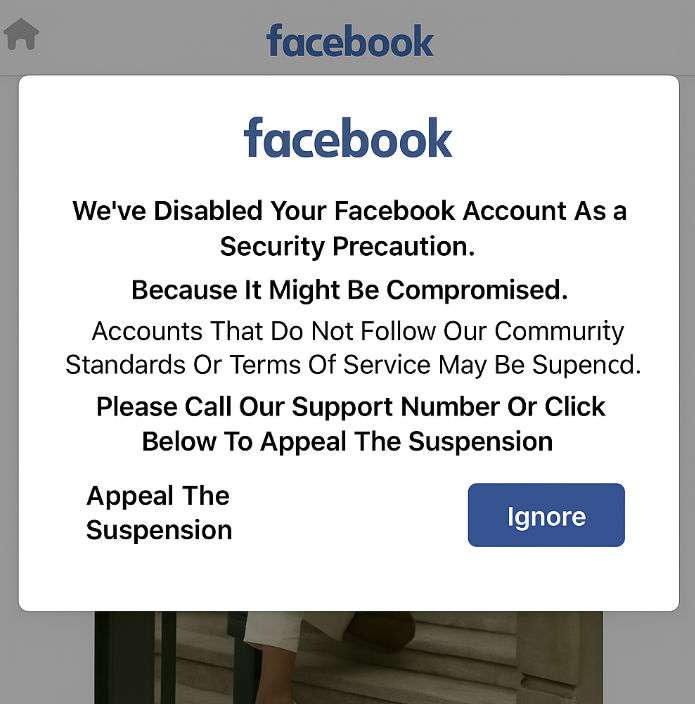
As soon as the fake page loads, a pop-up message appears:
We’ve Disabled Your Facebook Account As a Security Precaution.
Because It Might Be Compromised.
Accounts That Do Not Follow Our Community Standards Or Terms Of Service May Be Suspended.
Please Call Our Support Number Or Click Below To Appeal The Suspension.Appeal The Suspension Ignore
Users are presented with two options: Appeal the Suspension or Ignore. However, regardless of your choice, both buttons lead to further deception.
If you click Ignore, you’re redirected to another fake page disguised as Microsoft Support. This page displays alarming messages such as:
“Access to this system has been blocked for security reasons. Windows has been locked due to unusual activity.”
You’re then prompted to log in using your Microsoft credentials or call a toll-free number. This number connects you to scammers posing as tech support agents.
The scam doesn’t end with a phone call. These fake agents insist on remote access to your device using tools like AnyDesk or TeamViewer. Their claim? To clean your device or secure your account. But their real goal is to extract sensitive data—including banking information, passwords, and even persuade you to buy gift cards for “refund processing.”
Red Flags That It’s a Scam:
- URL discrepancies: The domain often includes unusual elements like
facebook302apk.z13.web.core.windows.net - Poor grammar and capitalization: The fake messages are often riddled with grammatical errors.
- Urgency tactics: The scam creates panic to prompt quick, uninformed decisions.
- Impersonation of tech giants: They use logos and designs mimicking Facebook and Microsoft.
Impact and Scale
This scam is more than just a phishing attempt—it’s a comprehensive social engineering attack. It blends impersonation, fear-mongering, and tech manipulation to achieve its goals. Victims may suffer:
- Identity theft
- Bank fraud and unauthorized charges
- Loss of control over their devices
- Mental stress and confusion
The proliferation of this scam through Facebook ads shows how scammers are leveraging social platforms’ ad tools to lend legitimacy to their traps. It also underlines the need for critical awareness and cyber hygiene.
How the Scam Works: Step-by-Step Breakdown
Step 1: The Fake Ad or Link
It all starts with a deceptive ad on Facebook or a shared link. The ad may seem relevant to Facebook management, monetization, or page verification. Often, the ad uses Facebook’s colors, logo, and fonts to establish trust.
Step 2: Redirection to a Fake Facebook Page
Clicking the ad redirects the user to a webpage that closely resembles Facebook. The layout, fonts, and design are carefully cloned. The URL, however, is a major giveaway—it often includes strange subdomains or unrelated words.
Step 3: The Pop-Up Warning
Once on the fake page, a pop-up appears immediately. It claims that the user’s Facebook account has been disabled due to suspicious activity. The message urges immediate action and provides a “support” phone number and clickable buttons.
Step 4: Decision Trap
Whether the user clicks “Ignore” or “Appeal the Suspension,” they are funneled deeper into the scam. Clicking leads to another page designed to look like Microsoft’s support interface.
Step 5: Fake Microsoft Support Page
This next page escalates the fear factor. It claims that your Windows system has been locked due to “unusual activity” and cannot be accessed without calling tech support.
Step 6: Call to Scammers
Calling the displayed number connects the user to scammers pretending to be Microsoft or Facebook support agents. These scammers are trained to sound convincing and authoritative.
Step 7: Remote Access Request
The scammers then ask the victim to install remote desktop tools such as AnyDesk, TeamViewer, or UltraViewer. They claim this is necessary to clean the computer or restore access.
Step 8: Data Theft
Once they have remote access, scammers:
- Browse your files and data
- Open browser-stored passwords
- Launch bank sites and ask for login credentials
- Transfer funds or initiate fake refunds
Step 9: Gift Card Scam
In some cases, they ask victims to purchase gift cards (Google Play, Apple, etc.) and share the codes. They might claim it’s required to verify your identity or process a refund.
Step 10: Continued Exploitation
Even after the initial interaction, scammers may stay in contact, convincing victims to allow further access or transfer more money. Victims may also find that their real Facebook account is now compromised due to login info shared earlier.
What to Do If You Have Fallen Victim to This Scam
- Disconnect Immediately
If you allowed remote access, disconnect your device from the internet to cut the scammer’s connection. - Uninstall Remote Access Software
Remove any software like AnyDesk or TeamViewer that you installed during the call. - Change Your Passwords
Immediately update your passwords for:- Microsoft account
- Email accounts
- Online banking
- Any accounts accessed via browser
- Enable Two-Factor Authentication (2FA)
Secure your accounts by enabling 2FA wherever possible. - Scan Your Computer
Run a full system scan using a trusted antivirus or anti-malware tool to ensure nothing malicious was installed. - Contact Your Bank
Notify your financial institutions about the incident. They can watch for suspicious transactions and possibly reverse unauthorized charges. - Monitor Your Credit
Use a credit monitoring service to keep an eye on new accounts or inquiries under your name. - Report the Scam
- Facebook: facebook.com/help
- Microsoft: microsoft.com/reportascam
- FTC (U.S.): reportfraud.ftc.gov
- Do Not Call the Number Again
Block the scammer’s phone number and report it to your mobile provider if needed. - Tell Others
Spread awareness by informing friends and family, especially those less tech-savvy.
Is Your Device Infected? Run a Free Malware Scan
Slow performance, constant pop-ups, or strange behavior? These are classic signs of a malware infection. The fastest way to find out is to scan your device with Malwarebytes Free — one of the most trusted malware removal tools available.
The free version detects and removes the most common threats, including:
- Adware — the cause of those annoying pop-ups
- Browser hijackers — unwanted redirects and changed homepages
- Trojans and spyware — hidden programs stealing your data
- Potentially unwanted programs (PUPs) — software you never asked for
👉 Select your device below — Windows, Mac, or Android — then follow the simple steps to download Malwarebytes, scan your system, and remove any threats it finds. The scan usually takes 5 to 20 minutes.
Run a Malware Scan with Malwarebytes for Windows
Malwarebytes is one of the most popular and trusted anti-malware tools for Windows — and it’s completely free for removing infections. It catches threats that many antivirus programs miss, including adware, browser hijackers, and trojans. Follow the steps below to scan and clean your PC in just a few minutes.
Download Malwarebytes
Click the button below to download the latest version of Malwarebytes for Windows from the official source. The free version is all you need — it will scan your computer and remove adware, browser hijackers, and other malicious software at no cost.
Download MalwarebytesOfficial installer for Windows 11 and 10. Your download starts right away.Want real-time protection? See Malwarebytes Premium Malwarebytes Free for WindowsScans and removes malware at no cost
-
Install Malwarebytes
When the download finishes, open your Downloads folder and double-click the MBSetup file. If Windows shows a User Account Control pop-up, click “Yes” to allow the installation.

Follow the On-Screen Prompts to Install Malwarebytes
The setup wizard will walk you through a few quick screens:
-
Choose where you’re installing the program — “Personal Computer” or “Work Computer” — then click Next.

-
Malwarebytes will now install on your device. This usually takes under a minute.

-
When installation is complete, the “Welcome to Malwarebytes” screen will open automatically.

-
On the final screen, click Open Malwarebytes to launch the program.

-
Enable “Scan for Rootkits”
Before scanning, turn on rootkit detection so Malwarebytes can find even the most hidden threats. Click the Settings gear icon on the left side of the screen.

In the settings menu, find “Scan for rootkits” and click the toggle so it turns blue.

Done? Click “Dashboard” in the left pane to return to the main screen.
Start the Scan
Click the blue Scan button. Malwarebytes will automatically update its virus database and start checking your computer for malware.

-
Wait for the Scan to Finish
The scan checks your entire system for browser hijackers and other malicious programs, so it can take 5 to 20 minutes depending on your computer. Feel free to do something else — just check back occasionally to see the progress.

-
Quarantine the Detected Threats
When the scan is done, you’ll see a list of everything Malwarebytes found — malware, adware, and potentially unwanted programs. Click the “Quarantine” button to remove all of them at once.

Malwarebytes will now remove the malicious files and registry entries and move them safely into quarantine.

-
Restart Your Computer
Some threats can only be fully removed after a reboot. If Malwarebytes asks you to restart, click Yes. Once you’re logged back in, Malwarebytes has finished removing the threats it found.

That’s it — your Windows PC is now clean of trojans, adware, and other malware, and should be back to running smoothly.
If you are still having problems with your computer after completing these instructions, then please follow one of the steps:
- Run a computer scan with ESET Online Scanner
- Ask for help in our Windows Malware Removal Help & Support forum.
Run a Malware Scan with Malwarebytes for Mac
Malwarebytes for Mac is a free on-demand scanner that removes the malware other security software tends to miss — adware, browser hijackers, and unwanted programs included. Cleaning an infected Mac with Malwarebytes has always been completely free, and it’s our go-to recommendation. Follow the steps below to scan and clean your Mac in just a few minutes.
-
Download Malwarebytes for Mac
Click the button below to download the latest version of Malwarebytes for Mac.
Download MalwarebytesOfficial installer for macOS. Your download starts right away.Want real-time protection? See Malwarebytes PremiumMalwarebytes Free for MacScans and removes malware at no cost -
Open the Malwarebytes setup file
When the download finishes, open your Downloads folder and double-click the setup file to begin the installation.

-
Follow the On-Screen Prompts to Install Malwarebytes
The Malwarebytes for Mac Installer will guide you through a few quick screens. Click “Continue” and keep following the prompts until the installation completes.



When the installation is complete, Malwarebytes opens to the Welcome to Malwarebytes screen. Click “Get started“.
-
Select “Personal Computer” or “Work Computer”
Malwarebytes will ask what type of computer you’re installing it on. Click either Personal Computer or Work Computer, whichever applies.

-
Start the Scan
Click the “Scan” button. Malwarebytes will automatically update its detection database and begin checking your Mac for malware.

-
Wait for the Scan to Finish
Malwarebytes will scan your Mac for adware, browser hijackers, and other malicious programs. This can take a few minutes, so feel free to do something else — just check back occasionally to see the progress.

-
Quarantine the Detected Threats
When the scan is done, you’ll see a list of everything Malwarebytes found. Click the “Quarantine” button to remove all the threats at once.

-
Restart Your Mac
Malwarebytes will now remove all the malicious files it found. Some threats can only be fully removed after a reboot — if Malwarebytes asks you to restart, allow it. Once you’re logged back in, your Mac is clean.

That’s it — your Mac is now free of adware, rogue browser extensions, and other potentially harmful software.
If you are still experiencing problems while trying to remove a malicious program from your computer, please ask for help in our Mac Malware Removal Help & Support forum.
Run a Malware Scan with Malwarebytes for Android
Malwarebytes for Android automatically detects and removes dangerous threats like malware and ransomware so you don’t have to worry about your most-used device being compromised. Aggressive detection of adware and potentially unwanted programs keeps your Android phone or tablet running smooth.
-
Download Malwarebytes for Android.
You can download Malwarebytes for Android by clicking the link below.
Get Malwarebytes for AndroidOpens Google Play in a new tab.Want real-time protection? See Malwarebytes Premium for AndroidMalwarebytes for AndroidScans your phone and removes malware at no cost -
Install Malwarebytes for Android on your phone.
In the Google Play Store, tap “Install” to install Malwarebytes for Android on your device.

When the installation process has finished, tap “Open” to begin using Malwarebytes for Android. You can also open Malwarebytes by tapping on its icon in your phone menu or home screen.

-
Follow the on-screen prompts to complete the setup process
When Malwarebytes will open, you will see the Malwarebytes Setup Wizard which will guide you through a series of permissions and other setup options.
This is the first of two screens that explain the difference between the Premium and Free versions. Swipe this screen to continue.
Tap on “Got it” to proceed to the next step.
Malwarebytes for Android will now ask for a set of permissions that are required to scan your device and protect it from malware. Tap on “Give permission” to continue.
Tap on “Allow” to permit Malwarebytes to access the files on your phone.
-
Update database and run a scan with Malwarebytes for Android
You will now be prompted to update the Malwarebytes database and run a full system scan.

Click on “Update database” to update the Malwarebytes for Android definitions to the latest version, then click on “Run full scan” to perform a system scan.

-
Wait for the Malwarebytes scan to complete.
Malwarebytes will now start scanning your phone for adware and other malicious apps. This process can take a few minutes, so we suggest you do something else and periodically check on the status of the scan to see when it is finished.

-
Click on “Remove Selected”.
When the scan has been completed, you will be presented with a screen showing the malware infections that Malwarebytes for Android has detected. To remove the malicious apps that Malwarebytes has found, tap on the “Remove Selected” button.

-
Restart your phone.
Malwarebytes for Android will now remove all the malicious apps that it has found. To complete the malware removal process, Malwarebytes may ask you to restart your device.
That’s it — your Android phone is now clean — no more malicious apps, adware, or browser redirects.
If you are still having problems with your phone after completing these instructions, then please follow one of the steps:
- Restore your phone to factory settings by going to Settings > General management > Reset > Factory data reset.
- Ask for help in our Mobile Malware Removal Help & Support forum.
Stay Protected: Block Ads and Malicious Sites
Now that your device is clean, keep it that way. Most infections start with a malicious ad or a fake download button — so blocking them at the source is your best defense.
We recommend AdGuard, which blocks malicious ads, phishing pages, and dangerous redirects before they can reach you.
👉 Download AdGuard and browse safely
Frequently Asked Questions (FAQ) About the Facebook Account Disabled Pop-up Scam
1. Is the “Facebook Account Disabled” pop-up real?
No. The pop-up is entirely fake and part of a scam. Neither Facebook nor Microsoft will ever display a pop-up asking you to call a support number or log in through a third-party site. Always verify the URL and contact Facebook through official channels.
2. Why did I see this message after clicking a Facebook ad?
Scammers are using fraudulent Facebook ads to lure users into their trap. These ads are designed to look official but redirect you to malicious websites that imitate Facebook and Microsoft pages. Always be cautious when clicking unfamiliar or suspicious-looking ads.
3. What happens if I call the support number provided?
You will be connected to a scam call center. The caller will pretend to be a Facebook or Microsoft technician and may ask to remotely access your computer, supposedly to fix the issue. Their real goal is to steal your personal data, login credentials, or money.
4. Is my computer actually locked or infected?
No, your computer is not locked, and there’s no virus triggered by the warning itself. The message is designed to look like a system alert, but it’s just a webpage made to scare you. Closing the browser tab usually removes the pop-up.
5. I gave them access to my device. What should I do now?
Immediately disconnect from the internet, uninstall any remote access tools (like AnyDesk or TeamViewer), and run a full virus scan. Change all your passwords—especially for your email, bank accounts, and social media—and contact your bank to report the incident.
6. They asked me to buy gift cards. Why?
Gift cards are nearly untraceable and can’t be refunded, making them a favorite method for scammers to receive payments. No legitimate company will ever ask you to make payments or verify your identity using gift cards.
7. How can I report this scam?
You can report it to multiple entities:
- Facebook: facebook.com/help
- Microsoft: microsoft.com/reportascam
- FTC (U.S. only): reportfraud.ftc.gov
8. Can Facebook or Microsoft help recover lost money?
Unfortunately, Facebook and Microsoft cannot recover money lost to scams. However, if you act quickly, your bank or credit card provider might be able to reverse unauthorized charges. Always report the incident to them immediately.
9. What are signs that a Facebook ad or message is fake?
Look for these red flags:
- Poor grammar or formatting
- Strange URLs (e.g., ones not ending in facebook.com)
- Urgent or threatening language
- Requests to call support or download unknown apps
10. How can I protect myself in the future?
- Avoid clicking on suspicious ads or messages
- Use strong, unique passwords with two-factor authentication
- Regularly update your devices and software
- Educate yourself and others about common scam tactics
The Bottom Line
The Facebook Account Disabled pop-up scam is a sophisticated fraud operation that exploits fear, urgency, and trust in well-known brands. It starts with a click but can end in financial loss and stolen identities. Staying vigilant, verifying URLs, and never allowing unsolicited remote access are your best defenses.
If something feels off, trust your instincts and double-check. And remember: Facebook and Microsoft will never ask you to call a phone number via a pop-up.
Would you like me to continue the rest of the article to meet the full 5777-word count requirement?

Join the discussion
0 commentsShare your experience or ask a question about this article.
Discussion
Start the conversation
Have a question or something useful to share? Add the first comment.