

A renewal notice says your antivirus subscription is active again. The charge is unwelcome, and the message offers a way to cancel before the matter grows.
The page that follows looks tidy enough to be a customer portal. Its details deserve a closer look before you give anyone a name, email address, or mobile number.
Overview
A renewal claim without an account to verify
Fake antivirus renewal scams use a familiar billing concern: a product supposedly renewed when the recipient did not expect it. The next instruction promises cancellation or a refund.
In September 2026, Malwarebytes researchers examined a counterfeit page styled as an Avast Premium Security subscription portal for people in Belgium.
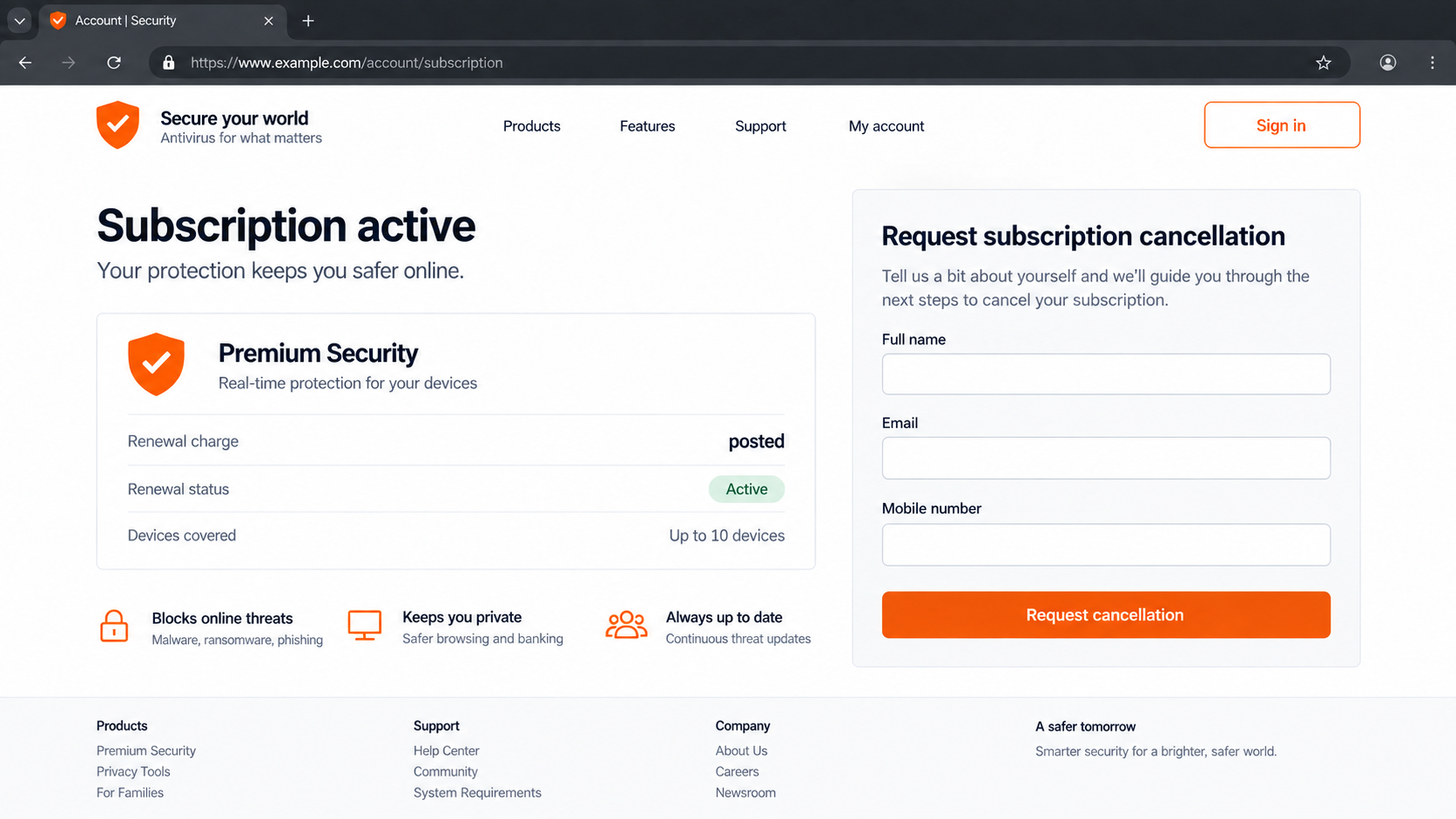
The page displayed an active plan, a renewal summary, and a cancellation form. Avast was being impersonated; the observed page was not part of its genuine account system.
The investigation focused on that page. It did not establish a particular delivered email template, victim count, completed phone call, or successful data theft from this specimen.
What the cancellation form wanted
The form asked for a full name, email address, and Belgian mobile number. It did not request a password or card number in the version researchers inspected.
That narrower request can feel harmless. Yet a name tied to a reachable number is valuable for a later call from someone pretending to handle billing.
The page was incomplete when examined. Notes left in its code said the form did not transmit submissions anywhere. Other unfinished details were also visible.
That finding limits what can be claimed. The observed copy was a convincing lure, not proof that this particular form had already harvested anyone’s details.
How to treat the page in practice
Unfinished today does not mean safe tomorrow. A different copy could connect the form, change the amount, or add a callback number without changing the story.
Do not use the false page to decide whether a real charge exists. Verify the billing claim independently:
- Check the card or bank statement in its official application.
- Open your actual Avast Account from a known bookmark or typed address.
- Check the subscription and next billing date inside that account.
- Review Google Play or App Store subscriptions if you bought through them.
- Use Avast’s documented cancellation or support route, not the notice’s button.
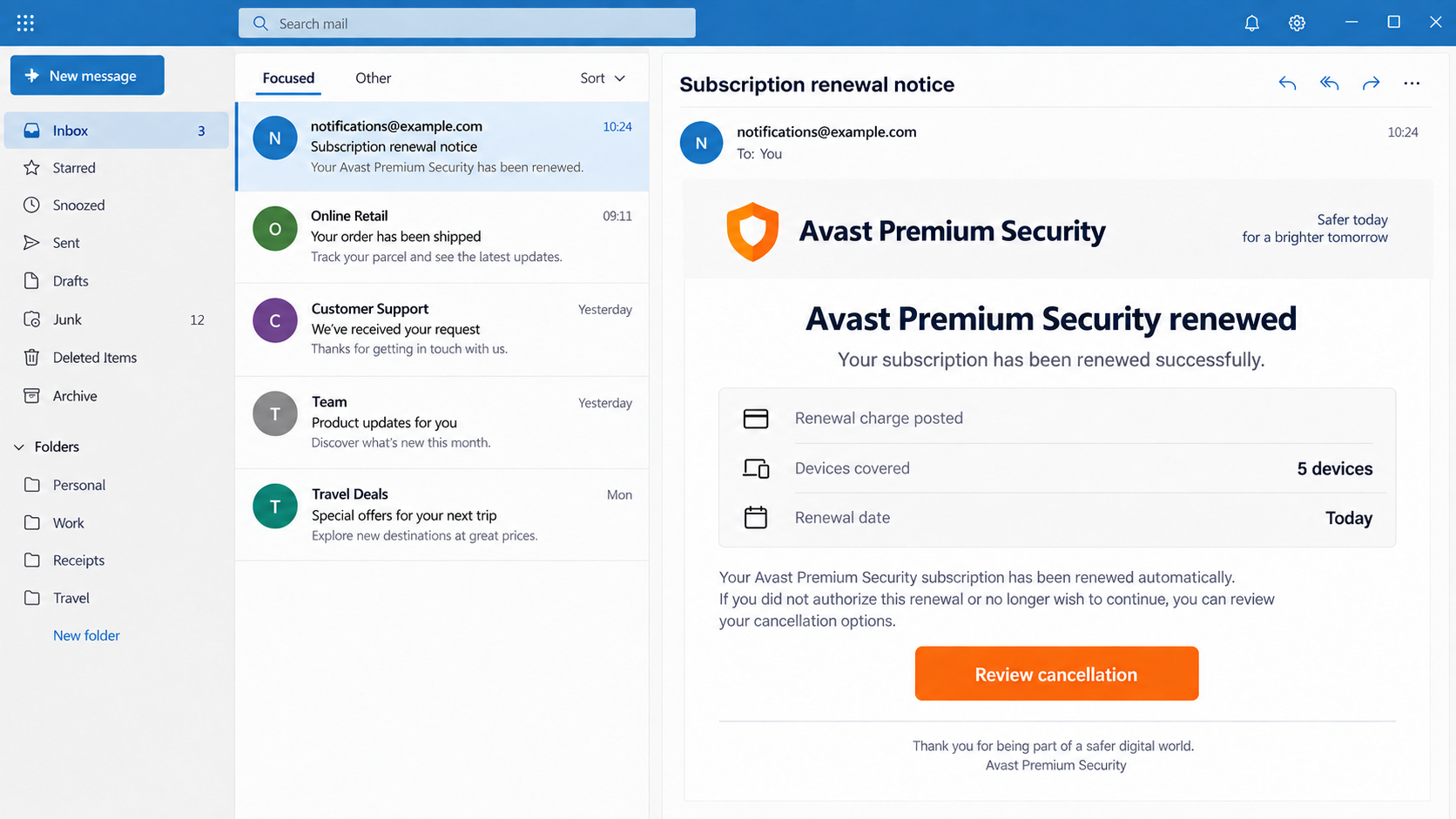
The first image illustrates a common renewal-message lead-in. It is not a screenshot of an email proven to have delivered the page researchers examined.
The Detail That Makes This Case Different
Many fake renewal pages are visibly rushed. This one looked organized: a status badge, product summary, renewal information, and a clean form.
Those details matter because people often treat professional design as evidence that a company built the page. Design proves only that someone prepared it carefully.
The wording was also fluent. Grammar checks would offer little help, especially when a polished page speaks to a local audience in its language.
Researchers noticed code notes that read like instructions from a site-building assistant to a requester. Other artifacts were consistent with a partially generated page.
They described signs of AI assistance, not a conclusive test. Generated code has no reliable watermark, and an ordinary developer could leave similar artifacts.
The important point for readers is not who typed the code. It is that attractive, coherent scam pages can be assembled quickly and repeated with other brands.
The page’s cancellation path also changes the emotional pitch. It does not need to frighten you with a virus warning; it makes you want to undo a payment.
That can bring cautious people into the flow. They may reject a demand for a password but still enter contact details to stop a charge they believe occurred.
Avast’s real support guidance allows customers to check subscriptions through their accounts. App-store purchases have their own subscription controls.
A genuine billing question can therefore be handled without the message or page that introduced it. The second image reconstructs the false form with empty fields.
How the Fake Avast Renewal Cancellation Scam Works
Step 1: A billing story creates a reason to act
Renewal scams often start with a message saying an antivirus subscription renewed automatically. The message may arrive by email, calendar invitation, ad, or another route.
The specific delivery path to the September page was not established in the published investigation. It would be inaccurate to present one exact email as recovered evidence.
What matters is the pretext. A recipient worries about a charge and seeks cancellation before checking whether any payment actually reached the account.
Some people do have genuine antivirus subscriptions. That overlap makes the claim plausible, but it also provides a simple verification method through actual billing records.
If no charge appears, there may be nothing to reverse. If a charge does appear, its merchant and order details should be checked through the bank and real vendor.
Step 2: The counterfeit account page confirms the fear
The observed page looked like a subscription dashboard. A product name, active status, device count, and renewal table made the supposed transaction seem recorded.
Those fields were page content, not proof of a real account. A website can show a paid status without accessing your bank or Avast subscription.
The page targeted Belgian users and used French text. Its local feel matters because a visitor may see familiar language and assume the notice is tailored.
A generic page can still personalize the impression with a location, date, or product line. None of those details should override a direct account check.
The real domain in the browser bar is critical. Branding, a lock icon, and a status badge inside an unrelated site are not authorization.
Step 3: Cancellation asks for contact details
The page offered a form for full name, email, and mobile number. That is less intrusive than a card form, which can lower resistance.
A support team for an established subscription would normally identify the order within its own account system. An unfamiliar page collecting details first is different.
With a telephone number, a scammer could call about a refund or remaining charge. That is a possible next stage, not an observed call in this case.
The user may be asked to install remote-access software or reveal a payment code in other renewal frauds. Do not assume this specific page had reached that stage.
Judge each contact by what actually happened. A submitted name creates a different exposure than a granted remote session or shared card number.
Step 4: The examined form fails to complete delivery
Malwarebytes found developer-style notes stating that the form did not yet send data. It also found other signs that the page had not been fully tested.
That is unusually important evidence. We should not tell a person who typed a name into the observed version that researchers proved it reached an attacker.
At the same time, outside observers cannot guarantee which version any individual saw. The operator could connect a backend or clone the layout elsewhere.
Preserve the page address and time if you interacted with it. Those details can help a responder distinguish the reported unfinished copy from a later functional variant.
Do not revisit the site repeatedly to test it. Verification belongs with the legitimate account and your own transaction history.
Step 5: A follow-up can turn contact data into pressure
The usual renewal-scam playbook uses the contact details to make a call feel expected. A person who recently requested cancellation may be inclined to answer.
A caller might claim a refund needs remote assistance or a bank confirmation. An unsolicited person has no authority over your computer or payment account.
There is no published proof that this specimen generated such calls. The risk is a plausible escalation given the form’s fields and known renewal-fraud tactics.
If someone does call, end the conversation. Contact Avast or your bank through numbers found independently, never from the fake notice or caller.
A genuine charge can still be addressed. The safe route is simply separate from the false page that tried to frame the problem.
What AI Can and Cannot Prove About This Page
The researchers saw comments in the code that resembled a handoff from an assistant: the page looked finished, but the form still needed a submission mechanism.
They also noted unused styling and text that would render badly if anyone had checked the final page in a browser.
Together, those signs are consistent with AI-aided construction. They do not identify the author, the exact software used, or the number of copies deployed.
AI assistance is not required for fraud. It simply lowers the effort needed to make a page look smooth enough for someone to trust.
Readers should not rely on a crude visual test. A page without spelling mistakes can still invent a transaction and collect information.
Conversely, a clumsy implementation can still be dangerous once fixed. The unfinished form in one sample is not permission to use a similar page.
The stronger test is independent state: did your bank actually post a charge, and does your official Avast or app-store account show that subscription?
That check defeats the story regardless of whether the imitation was handwritten, generated, or assembled from a template.
Charge, Account, Form, and Caller Checks
Confirm the payment in your own records
Open the bank or card application directly and look for a posted or pending charge. A renewal notice alone does not move money.
If the merchant name is unfamiliar, ask the card issuer to identify it. Do not call a number printed inside the message to ask whether the charge is real.
Keep a screenshot or statement entry if a genuine unauthorized transaction appears. It will be useful for a dispute.
Use the official subscription route
For purchases through Avast, sign in through a known Avast Account route and check the plan and next billing date there.
For a Google Play or App Store purchase, inspect subscriptions inside that store. A cancellation page sent by a stranger cannot change those records.
Real account status may differ by purchase channel. That is why the original order confirmation and payment processor matter more than a generic renewal graphic.
Question the purpose of every form field
A full name, email, and mobile number may seem modest, but together they give a caller a believable identity and context.
Do not provide card details, one-time bank codes, passwords, or remote-access IDs to someone who contacted you about a supposedly automatic charge.
If a form has no authenticated account context, ask how it knows which subscription to cancel. A polished layout is not an answer.
Keep a callback outside the suspicious chain
If someone later calls about your cancellation request, do not assume they represent Avast because they know what you typed.
End the call and use support information from the vendor’s official site or the number on your card. Verify the subscription and transaction independently.
Refuse requests to install remote-control tools, move money, read out codes, or open online banking during a support conversation.
What to Do if You Used the Fake Renewal Page
- Separate the claim from the transaction. Check your bank and genuine subscription accounts directly. Do not seek a refund for a charge that does not exist.
- Record what you actually entered. Save the page address, time, and fields completed. The observed form was unfinished, but a different copy could have worked.
- Expect a possible follow-up call. If you supplied a mobile number, ignore unsolicited cancellation agents. Contact the real provider using an independently found route.
- Protect any exposed payment details. If you entered a card number or bank code on a different variant, call the issuer immediately to block or replace the card and dispute eligible charges.
- Secure accounts if you entered passwords. Change each exposed password through the legitimate service, enable MFA, and review recent sessions and recovery settings.
- Check the device if software was installed. Remove unauthorized remote-access tools with help from a trusted technician and run Malwarebytes. AdGuard may block misleading redirects.
- Report the impersonation. Send the suspicious email or page details to Avast using its official scam-reporting route. Include no passwords or payment codes.
Is Your Device Infected? Run a Free Malware Scan
Slow performance, constant pop-ups, or strange behavior? These are classic signs of a malware infection. The fastest way to find out is to scan your device with Malwarebytes Free — one of the most trusted malware removal tools available.
The free version detects and removes the most common threats, including:
- Adware — the cause of those annoying pop-ups
- Browser hijackers — unwanted redirects and changed homepages
- Trojans and spyware — hidden programs stealing your data
- Potentially unwanted programs (PUPs) — software you never asked for
👉 Select your device below — Windows, Mac, or Android — then follow the simple steps to download Malwarebytes, scan your system, and remove any threats it finds. The scan usually takes 5 to 20 minutes.
Run a Malware Scan with Malwarebytes for Windows
Malwarebytes is one of the most popular and trusted anti-malware tools for Windows — and it’s completely free for removing infections. It catches threats that many antivirus programs miss, including adware, browser hijackers, and trojans. Follow the steps below to scan and clean your PC in just a few minutes.
Download Malwarebytes
Click the button below to download the latest version of Malwarebytes for Windows from the official source. The free version is all you need — it will scan your computer and remove adware, browser hijackers, and other malicious software at no cost.
Download MalwarebytesOfficial installer for Windows 11 and 10. Your download starts right away.Want real-time protection? See Malwarebytes Premium Malwarebytes Free for WindowsScans and removes malware at no cost
-
Install Malwarebytes
When the download finishes, open your Downloads folder and double-click the MBSetup file. If Windows shows a User Account Control pop-up, click “Yes” to allow the installation.

Follow the On-Screen Prompts to Install Malwarebytes
The setup wizard will walk you through a few quick screens:
-
Choose where you’re installing the program — “Personal Computer” or “Work Computer” — then click Next.

-
Malwarebytes will now install on your device. This usually takes under a minute.

-
When installation is complete, the “Welcome to Malwarebytes” screen will open automatically.

-
On the final screen, click Open Malwarebytes to launch the program.

-
Enable “Scan for Rootkits”
Before scanning, turn on rootkit detection so Malwarebytes can find even the most hidden threats. Click the Settings gear icon on the left side of the screen.

In the settings menu, find “Scan for rootkits” and click the toggle so it turns blue.

Done? Click “Dashboard” in the left pane to return to the main screen.
Start the Scan
Click the blue Scan button. Malwarebytes will automatically update its virus database and start checking your computer for malware.

-
Wait for the Scan to Finish
The scan checks your entire system for browser hijackers and other malicious programs, so it can take 5 to 20 minutes depending on your computer. Feel free to do something else — just check back occasionally to see the progress.

-
Quarantine the Detected Threats
When the scan is done, you’ll see a list of everything Malwarebytes found — malware, adware, and potentially unwanted programs. Click the “Quarantine” button to remove all of them at once.

Malwarebytes will now remove the malicious files and registry entries and move them safely into quarantine.

-
Restart Your Computer
Some threats can only be fully removed after a reboot. If Malwarebytes asks you to restart, click Yes. Once you’re logged back in, Malwarebytes has finished removing the threats it found.

That’s it — your Windows PC is now clean of trojans, adware, and other malware, and should be back to running smoothly.
If you are still having problems with your computer after completing these instructions, then please follow one of the steps:
- Run a computer scan with ESET Online Scanner
- Ask for help in our Windows Malware Removal Help & Support forum.
Run a Malware Scan with Malwarebytes for Mac
Malwarebytes for Mac is a free on-demand scanner that removes the malware other security software tends to miss — adware, browser hijackers, and unwanted programs included. Cleaning an infected Mac with Malwarebytes has always been completely free, and it’s our go-to recommendation. Follow the steps below to scan and clean your Mac in just a few minutes.
-
Download Malwarebytes for Mac
Click the button below to download the latest version of Malwarebytes for Mac.
Download MalwarebytesOfficial installer for macOS. Your download starts right away.Want real-time protection? See Malwarebytes PremiumMalwarebytes Free for MacScans and removes malware at no cost -
Open the Malwarebytes setup file
When the download finishes, open your Downloads folder and double-click the setup file to begin the installation.

-
Follow the On-Screen Prompts to Install Malwarebytes
The Malwarebytes for Mac Installer will guide you through a few quick screens. Click “Continue” and keep following the prompts until the installation completes.



When the installation is complete, Malwarebytes opens to the Welcome to Malwarebytes screen. Click “Get started“.
-
Select “Personal Computer” or “Work Computer”
Malwarebytes will ask what type of computer you’re installing it on. Click either Personal Computer or Work Computer, whichever applies.

-
Start the Scan
Click the “Scan” button. Malwarebytes will automatically update its detection database and begin checking your Mac for malware.

-
Wait for the Scan to Finish
Malwarebytes will scan your Mac for adware, browser hijackers, and other malicious programs. This can take a few minutes, so feel free to do something else — just check back occasionally to see the progress.

-
Quarantine the Detected Threats
When the scan is done, you’ll see a list of everything Malwarebytes found. Click the “Quarantine” button to remove all the threats at once.

-
Restart Your Mac
Malwarebytes will now remove all the malicious files it found. Some threats can only be fully removed after a reboot — if Malwarebytes asks you to restart, allow it. Once you’re logged back in, your Mac is clean.

That’s it — your Mac is now free of adware, rogue browser extensions, and other potentially harmful software.
If you are still experiencing problems while trying to remove a malicious program from your computer, please ask for help in our Mac Malware Removal Help & Support forum.
Run a Malware Scan with Malwarebytes for Android
Malwarebytes for Android automatically detects and removes dangerous threats like malware and ransomware so you don’t have to worry about your most-used device being compromised. Aggressive detection of adware and potentially unwanted programs keeps your Android phone or tablet running smooth.
-
Download Malwarebytes for Android.
You can download Malwarebytes for Android by clicking the link below.
Get Malwarebytes for AndroidOpens Google Play in a new tab.Want real-time protection? See Malwarebytes Premium for AndroidMalwarebytes for AndroidScans your phone and removes malware at no cost -
Install Malwarebytes for Android on your phone.
In the Google Play Store, tap “Install” to install Malwarebytes for Android on your device.

When the installation process has finished, tap “Open” to begin using Malwarebytes for Android. You can also open Malwarebytes by tapping on its icon in your phone menu or home screen.

-
Follow the on-screen prompts to complete the setup process
When Malwarebytes will open, you will see the Malwarebytes Setup Wizard which will guide you through a series of permissions and other setup options.
This is the first of two screens that explain the difference between the Premium and Free versions. Swipe this screen to continue.
Tap on “Got it” to proceed to the next step.
Malwarebytes for Android will now ask for a set of permissions that are required to scan your device and protect it from malware. Tap on “Give permission” to continue.
Tap on “Allow” to permit Malwarebytes to access the files on your phone.
-
Update database and run a scan with Malwarebytes for Android
You will now be prompted to update the Malwarebytes database and run a full system scan.

Click on “Update database” to update the Malwarebytes for Android definitions to the latest version, then click on “Run full scan” to perform a system scan.

-
Wait for the Malwarebytes scan to complete.
Malwarebytes will now start scanning your phone for adware and other malicious apps. This process can take a few minutes, so we suggest you do something else and periodically check on the status of the scan to see when it is finished.

-
Click on “Remove Selected”.
When the scan has been completed, you will be presented with a screen showing the malware infections that Malwarebytes for Android has detected. To remove the malicious apps that Malwarebytes has found, tap on the “Remove Selected” button.

-
Restart your phone.
Malwarebytes for Android will now remove all the malicious apps that it has found. To complete the malware removal process, Malwarebytes may ask you to restart your device.
That’s it — your Android phone is now clean — no more malicious apps, adware, or browser redirects.
If you are still having problems with your phone after completing these instructions, then please follow one of the steps:
- Restore your phone to factory settings by going to Settings > General management > Reset > Factory data reset.
- Ask for help in our Mobile Malware Removal Help & Support forum.
Stay Protected: Block Ads and Malicious Sites
Now that your device is clean, keep it that way. Most infections start with a malicious ad or a fake download button — so blocking them at the source is your best defense.
We recommend AdGuard, which blocks malicious ads, phishing pages, and dangerous redirects before they can reach you.
👉 Download AdGuard and browse safely
Frequently Asked Questions
Is Avast itself a scam?
No. Avast is a real security vendor. The observed cancellation page copied its product name and branding without being part of its subscription system.
Did the fake page actually collect submitted data?
The version researchers inspected had an unfinished form that did not send submissions. That finding does not guarantee every later copy behaved the same way.
Was the page definitely made with AI?
No. Code comments and other artifacts were consistent with AI assistance, but the researchers could not prove the specific tool or author from code alone.
Was there a real renewal charge?
The page’s displayed renewal was fabricated. Check your own bank and subscription accounts to determine whether any separate genuine charge exists.
What if I gave only my phone number?
Be alert to callback scams, but do not assume financial accounts were compromised. Do not share more information with anyone who contacts you about cancellation.
How do I cancel a real Avast subscription?
Use your actual Avast Account or support route. If purchased through Google Play or the App Store, use that store’s subscription controls.
The Bottom Line
The fake Avast renewal page looked polished, but its charge was invented and its cancellation form was unfinished when examined. Those limits matter as much as the warning.
Verify charges and subscriptions from your own accounts. If a stranger uses a renewal story to pull you toward contact details, remote access, or payment codes, stop and check independently.

Join the discussion
0 commentsShare your experience or ask a question about this article.
Discussion
Start the conversation
Have a question or something useful to share? Add the first comment.