

A Postbank email tells you to check your details in BestSign. It even includes advice about avoiding unsafe email links, which makes the notice sound reassuring.
The Postbank BestSign email scam deserves a closer look for exactly that reason. The message sounds security-conscious, but its instructions do not quite add up.
Overview
A security-themed notice contains a contradictory instruction
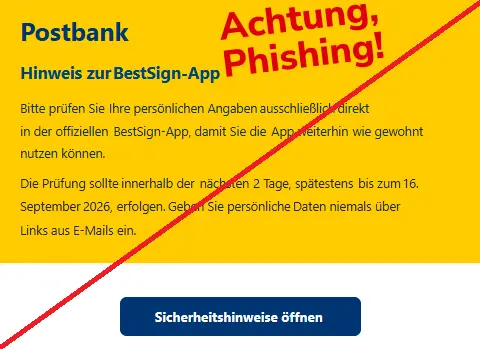
The message claims personal details need checking so BestSign remains available. It presents the task as necessary account maintenance rather than an unusual request.
The notable detail is its own safety advice. It tells readers not to enter personal information through email links, then supplies a button for security information.
That combination can lower a reader’s guard. A sentence that sounds like sensible anti-phishing advice does not authenticate the message containing it.
Postbank is a legitimate bank. The scam is the impersonation email and its deceptive instructions, not the bank or the genuine BestSign service.
The exact email was flagged by a consumer protection service
The Verbraucherzentrale Phishing Radar archive documented this Postbank message on September 15, 2026.
The captured email demanded action within two days, no later than September 16. Its button offered to open security information.
The warning identified the message as phishing. This conclusion is supported by a reviewed campaign example, not an unhappy customer’s complaint about banking service.
We did not independently recover that email’s final destination. The second image illustrates a possible credential request and is not presented as its captured landing page.
The safe response is to leave the email’s route
You can investigate an account notice without using its button. Open your usual banking app or independently enter the bank’s known website.
- Check whether the same issue appears through the banking service you normally use.
- Do not submit credentials merely to read a security notice reached from unsolicited email.
- Do not approve an unexpected BestSign request because a caller says it is protective.
- Use an established bank contact if the notice cannot be verified.
- If you already responded, tell the bank which information or approval was involved.
Reading the email is not the same as giving away account access. Avoid panic, but do not delay reporting a password disclosure or unwanted authorization.
Why the Anti-Phishing Advice Is Part of the Hook
Most people expect a fraudulent email to make an obviously unsafe demand. This example first sounds like someone reminding you to be careful.
That creates a shortcut in your judgment: a message warning about phishing must surely be against phishing. Unfortunately, the warning is just text.
Anyone can copy sensible advice into a dishonest message. The credibility of the advice does not transfer automatically to the sender or the link.
The button’s wording also matters. Opening “security information” sounds less consequential than submitting a password, even if the destination later requests one.
Judge the entire journey, not only the first label. A harmless-sounding button can lead to a request that needs much stronger verification.
The deadline adds pressure without looking like a dramatic threat. Readers may treat the task as something to clear quickly before returning to their day.
That is a reason to slow down. Routine banking maintenance should still be handled through a route you independently trust.
You do not need to prove who wrote the email before declining its link. You only need to recognize that the account issue remains unverified.
How the Postbank BestSign Email Scam Works
Step 1: The notice borrows the bank’s identity and a familiar service
The captured message uses Postbank branding and refers to BestSign. Those recognizable elements make the subject relevant to customers who already use the service.
A brand name can be copied without the brand’s involvement. Do not interpret visual familiarity as confirmation that the bank sent the email.
The absence of an obvious spelling mistake does not clear a message either. A fraudster can write fluent banking language or reuse existing wording.
Check the request as a whole: why did it arrive, what does it want, and can the issue be verified outside the email?
Step 2: A short deadline makes the task feel urgent
The observed example gives a narrow window for checking details. The intended effect is to make postponement feel risky.
It is easy to interpret a deadline as evidence of an official process. In an unsolicited message, it remains an assertion by an unverified sender.
If the date has already passed, do not assume your account must now be blocked. Check the actual account state through your normal banking route.
Likewise, a future version could use a different date. Recognizing the pressure tactic is more durable than memorizing this particular deadline.
Step 3: The security button keeps the reader inside the message’s path
The button promises further security information. It turns the email from something to read into a route the reader is encouraged to follow.
The contradiction is practical: the message discourages risky email-link behavior while offering its own link as the next step.
That does not mean every bank email containing a link is fraudulent. It means this specific warning should not be trusted because of its reassuring phrasing.
Close the message and investigate independently. If there is a genuine account issue, the bank can assess it without requiring this email’s button.
Step 4: Any subsequent credential or approval request raises the stakes
A phishing destination may ask for login details or lead into further social engineering. We cannot claim the exact form fields for this captured email.
The illustrative screen below shows why even a security-information link deserves caution. Its fictional address and fields explain the risk, not an observed endpoint.
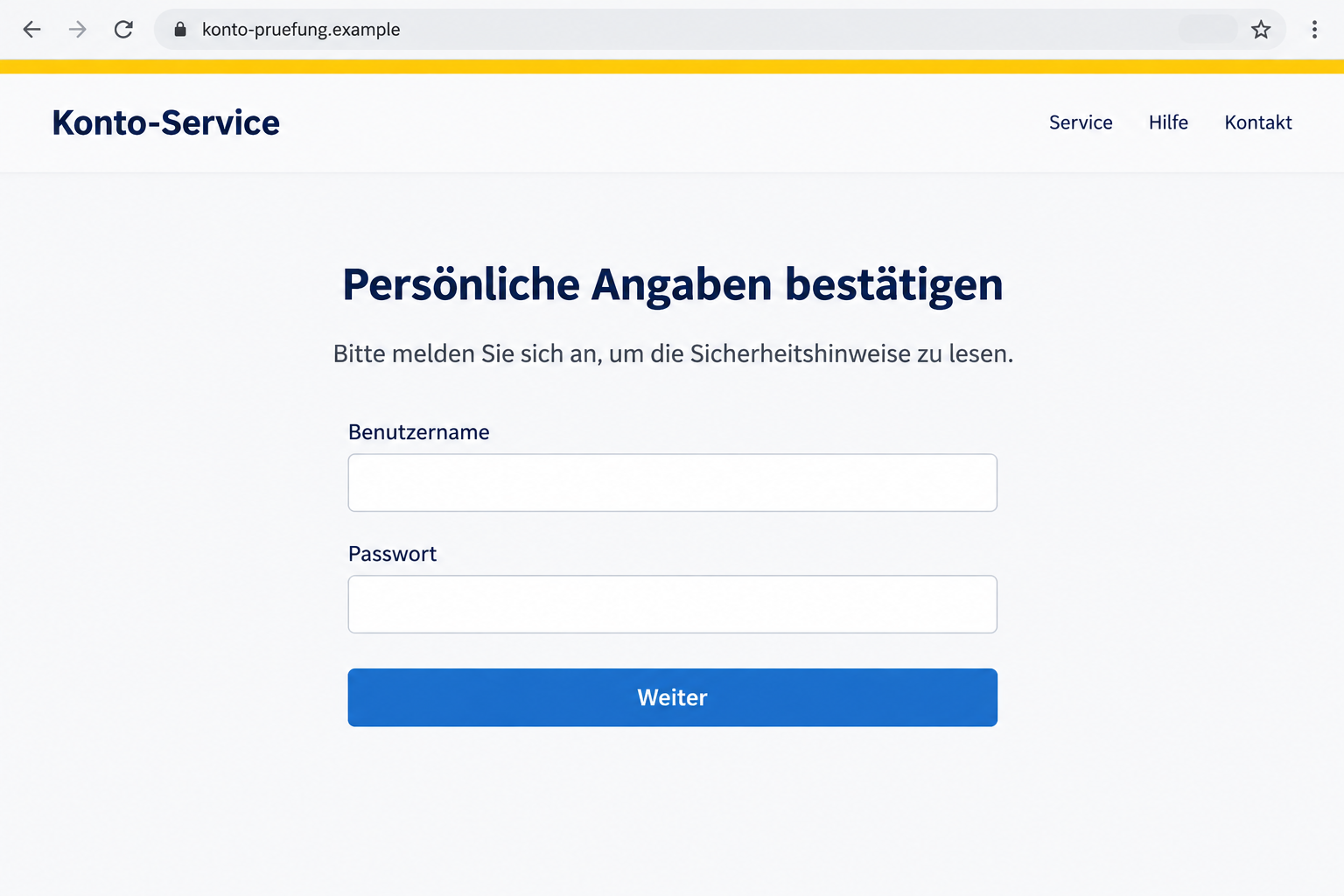
Stop before submitting sensitive information. If a related caller asks you to authorize something in BestSign, inspect the actual action rather than the caller’s explanation.
Postbank’s security notices separately warn about fraudulent calls and misleading approval requests. Those warnings do not prove every email has a telephone stage.
A login, payment, or device-related change needs its own verification. Do not group them together as harmless “security checks.”
How to Check a BestSign Warning Safely
Start from the account, not the inbox
Open the banking app you already use. If you prefer the website, enter the known address yourself or use a bookmark established before this message.
Look for an account notice through that trusted route. If the situation is unclear, contact the bank rather than returning to the email.
Do not let a search advertisement choose your emergency support contact. Use existing bank documentation or a contact route independently confirmed on the official site.
This keeps verification separate from the sender’s instructions. It also avoids needing to decide whether every part of a long link looks convincing.
Expand the sender details, but understand their limits
The short name shown in an inbox is not a verified identity. Inspecting the full sender address may reveal a mismatch immediately.
For the underlying concept, see what phishing means. This BestSign notice adds a security-themed explanation to that familiar impersonation approach.
However, a plausible address is only one clue. It does not remove the need to verify an unexpected request for account information.
A reply-to address can also differ from the displayed sender. Avoid starting a conversation through details supplied by the questionable notice.
If you report the email, keep the original available. Full message information is more useful to investigators than a cropped picture of the logo.
Read BestSign requests literally
Look at the operation shown on your own screen. If payment details are displayed, compare the amount and recipient with the payment you intentionally initiated.
Do not approve an unexplained request because someone says it prevents fraud. Their explanation cannot change what the request actually authorizes.
Postbank’s phishing guidance emphasizes checking the banking context and authorization details rather than trusting an email’s appearance.
If the operation is not yours, refuse it and contact the bank yourself. You can resolve uncertainty without completing the questionable action first.
What to Do if You Have Fallen Victim to This Scam
- Separate a received message from an exposed account.
If you only received or read the email, do not assume your banking access was stolen. Report or delete it without opening its link.
If you visited the page, record whether you entered anything. If you approved a request, record what it said and when it appeared.
Those distinctions help the bank assess the incident. A vague description can hide the most important event, such as an authorization after the initial click.
- Reach the bank through an established channel.
Contact Postbank promptly if you disclosed credentials, supplied sensitive banking information, or approved an unexpected action. Use the official app or independently verified contact details.
Explain that the contact claimed a BestSign security or account-details check. Ask the bank to protect the affected access and review recent activity.
If funds moved, ask about urgent fraud handling and available recovery steps. Do not wait for a supposed security employee to call back.
- Do not authorize a second action to “reverse” the first.
A follow-up caller may frame another approval as cancellation or protection. End that conversation and continue only through the bank contact you initiated.
Do not transfer funds to a “safe” account named by an unsolicited caller. Verify any claimed protective measure directly with the bank.
Keep the caller’s number for reporting, but do not treat caller ID as proof. The displayed name or number can be misleading.
- Change exposed credentials through the legitimate service.
Follow the bank’s instructions for restoring secure access. Do not use the phishing page’s password-reset link, even if it promises to fix the problem.
If the same password was used elsewhere, replace it on those accounts independently. Prioritize the email account used for financial correspondence and recovery.
Ask whether any unfamiliar device registration or authorization needs attention. A password change should not replace investigation of an action already completed.
- Keep a clear evidence file.
Preserve the original email, visible sender information, dates, and screenshots. Save transaction details separately if an unwanted payment occurred.
Never include passwords, PINs, or verification codes in public screenshots. Investigators need the sequence and identifiers, not your secret values.
Write down the bank’s case reference and the actions it recommends. That makes later conversations easier and reduces the chance of contradictory instructions.
- Address software exposure if the contact included a download.
This reviewed email does not establish a software-installation stage. If your own interaction included one, tell the bank and investigate the device separately.
Malwarebytes can help inspect a personal computer for unwanted programs. Obtain it independently, not through a support link supplied by the suspicious sender.
AdGuard’s relevant malicious-site protections can provide another browsing safeguard. Neither tool can cancel a bank transfer or restore a compromised authorization.
On a managed work device, report the download to IT before attempting cleanup. Preserve the incident details while the bank handles the financial side.
- Monitor the outcome and reject paid recovery promises.
Review subsequent account activity through your normal banking access. Keep following the bank’s case rather than assuming the issue ended when the email was deleted.
Be wary of strangers offering guaranteed reimbursement for an upfront fee. A second scam can begin with information about the first incident.
If reporting to local authorities is appropriate, provide the preserved evidence and bank reference. Do not publish sensitive account records to attract help online.
When the Email Looks Professional but Still Feels Wrong
You do not need a dramatic error to justify caution. The mismatch between reassuring advice and an unverified action request is enough to pause.
Think of the message as a claim about your account, not a command. The account itself and the bank’s independently reached support are better places to verify it.
This approach also avoids accusing every genuine bank notice of fraud. You can check a legitimate issue safely without trusting an uncertain email.
For anyone helping an older relative, focus on the next action rather than a lesson about technical terminology. “Open your usual banking app” is concrete.
Do not ask the relative to forward passwords or approve something while you investigate. Assistance should preserve their control over the account.
If several family members received similar messages, that does not make the notice official. A broadly distributed message can create an impression of legitimacy through repetition.
Warn them about the recognizable pretext and the safe verification route. Avoid sharing the active button or turning the scam email into a fresh chain message.
Frequently Asked Questions
Is the September BestSign security email genuine?
The specific message documented by Verbraucherzentrale on September 15, 2026 was classified as phishing. Do not use its button to check your account.
Why does a phishing email include good safety advice?
Reassuring language can make the message seem credible. Correct advice in one sentence does not authenticate the sender, the deadline, or the destination.
Does this mean Postbank or BestSign is fraudulent?
No. The legitimate bank and authentication service are being impersonated. The accusation concerns the deceptive email, not ordinary Postbank services.
What if the deadline in the email has passed?
Check actual account access through your normal app or independently opened website. Do not infer a real restriction from the email’s expired deadline.
Should I confirm a BestSign request to protect my money?
Not on an unsolicited caller’s instructions. Read the actual request and contact the bank independently before authorizing anything you did not initiate.
Is the second image the real phishing destination?
No. It is a nonfunctional illustration of a possible login trap. The exact final destination of the reviewed email was not independently recovered.
The Bottom Line
The Postbank BestSign email scam wraps an unverified request in the language of security. Its anti-phishing advice does not make its button trustworthy.
Check the account outside the email. If you disclosed details or approved an unwanted action, contact the bank promptly through a route you know is genuine.

Join the discussion
0 commentsShare your experience or ask a question about this article.
Discussion
Start the conversation
Have a question or something useful to share? Add the first comment.