


An email says something is wrong with your Philippine National ID. A helpful caller follows up, knows enough about you to sound official, and offers to fix the problem before it affects your government services.
The help is the trap. The caller wants you to install a fake eGovPH app that can watch your screen, steal passwords and one-time codes, and reach the money inside your banking and mobile wallet accounts.
Overview
The scam begins with a believable National ID problem
The fake eGovPH app scam targets Filipinos with an urgent story about National ID verification, registration, or an account update. The first contact can arrive by email, phone, text, or chat, sometimes followed by a longer call from someone posing as a government employee.
The caller may already know the victim’s name, birthday, phone number, or other personal details. That information does not prove the call is genuine. It may come from a data leak, public profile, compromised account, or an earlier phishing campaign.
The download is an APK from a fake government website
The caller does not send the victim to the official Google Play Store, Apple App Store, or Huawei AppGallery listing. Instead, the victim is guided to a lookalike website and told to download an Android package file, commonly called an APK.
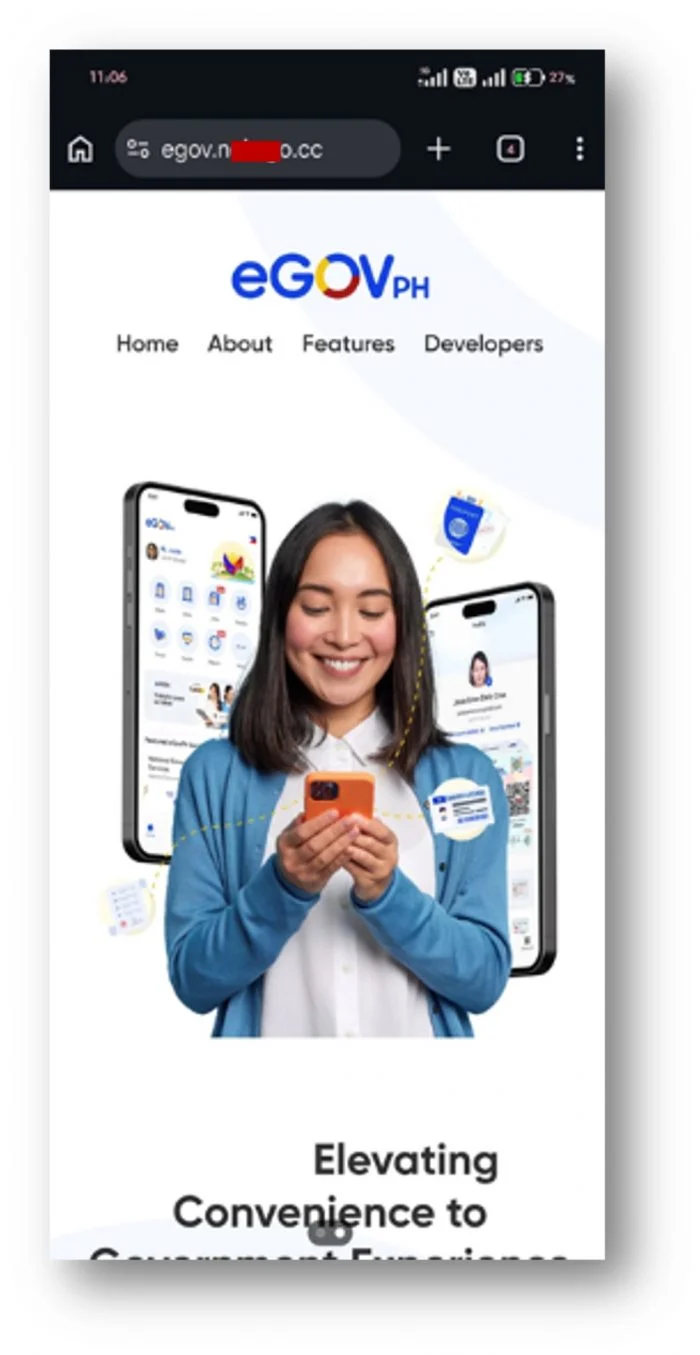
A website can copy the eGovPH name, colors, government imagery, and app screenshots in minutes. None of those visual details prove that the downloaded file was created or approved by the Philippine government.
The fake app is built to steal financial access
Researchers examining this campaign identified a banking trojan disguised as eGovPH. Once granted powerful permissions, it may capture typed information, read text messages, display fake banking login screens, and collect one-time passwords before the victim notices anything unusual.
The official eGovPH service and the Philippine Statistics Authority are being impersonated. They are not responsible for the malicious app or the criminals distributing it.
- An unexpected message claims a National ID or eGovPH problem needs immediate action.
- A caller offers personal assistance and moves the victim to screen sharing or a video call.
- The download comes from a link rather than an official app store.
- The Android phone may warn that the file is from an unknown source.
- The app requests permissions unrelated to a simple identity update.
- Fake overlays can imitate GCash, Maya, and banking login screens.
- Stolen passwords and OTPs may be used to drain accounts or apply for loans.
What Is the Real eGovPH App?
eGovPH is a legitimate Philippine government platform that brings public services and digital identification features into one app. That legitimacy is exactly why criminals borrow its name. A familiar government brand lowers suspicion and makes an unusual installation request feel routine.
The real Android listing identifies the developer as the Department of Information and Communications Technology. It is available through the official Google Play listing, not through an APK attached to an email or hosted on a newly created website.
During an official government briefing, the DICT secretary gave unusually direct advice: a text containing an eGovPH download link should be treated as a scam. Users were told to go to the Apple App Store or Google Play themselves instead of following links in messages.
That distinction matters. A fake website may look almost identical to a government page, but it cannot inherit the identity, signing certificate, update process, and review history of the official store listing.
A government logo does not authenticate an app
Logos are public images. A criminal can copy an eGovPH logo, a PSA seal, a National ID illustration, and genuine promotional screenshots without accessing any government system.
The question is not whether the page looks official. The question is who controls the download, which store hosts it, who signed the app, and why a stranger is directing the installation while watching the victim’s screen.
Legitimate support does not need secret installation steps
A real support process can be confirmed through an agency’s known website and public contact channels. It should not require disabling Play Store protections, turning on unknown-source installation, sharing a screen, or granting a new app access to SMS and accessibility controls.
The Philippine Statistics Authority advisory describes impersonators who claim personal information must be verified, tell people to disable the Play Store, and direct them to a suspicious eGovPH download link. The PSA states that this activity is unauthorized.
The National ID Story Is Carefully Designed
Identity documents create natural anxiety. People depend on them for banking, travel, benefits, employment, and government transactions. A warning that a National ID record may be suspended or incorrect can make a cautious person listen before questioning the caller.
The criminal often presents the call as customer service, not as a threat. The tone can be patient and professional. Instructions may be delivered one at a time so the victim never sees the entire plan until the malware is already installed.
The caller may use real personal information
A name and date of birth can make the conversation feel verified. In reality, the caller is asking the victim to treat information about themselves as proof of the caller’s identity.
That logic is backward. A scammer who obtained leaked records can recite them. Only independent contact through an official channel can establish that the person on the phone represents the agency they claim to serve.
The screen-sharing request gives the scammer a front-row seat
Moving the victim to Google Meet or another video service adds a layer of credibility. It also lets the scammer see warnings, settings, account names, notifications, and every mistake the victim makes while following the script.
If an Android warning blocks the APK, the caller can coach the victim around it. If a security prompt appears, the caller can invent an explanation and insist that each permission is needed for identity verification.
What the Malicious APK Can Do
The exact capabilities can differ between versions, and criminals can change the file without changing the website. In the observed campaign, researchers found dozens of variants designed to resemble the official app while operating as banking malware.
A banking trojan does not need to break a bank’s encryption. It tries to control the victim’s side of the conversation, where passwords are typed, verification messages arrive, and transactions are approved.
It can capture passwords, PINs, and one-time codes
Malicious accessibility access can let an app observe text, clicks, and screen content. SMS permissions can expose one-time passwords. Notification access may reveal codes and account alerts even when the victim does not open the messaging app.
With enough access, the criminal can combine a username, password, PIN, device information, and OTP into a working login attempt. That is far more dangerous than losing a single password.
It can place a fake screen over a real banking app
An overlay attack waits for the victim to open a targeted app, then displays a convincing login form on top. The victim believes they are signing in to their bank or wallet, but the credentials go to the malware operator.
Closing the fake screen may reveal the real app underneath, which makes the brief interruption look like a normal login failure. The victim may try again and provide the same information twice.
It may hide while continuing to run
The fake app icon can disappear, change its name, or become difficult to remove after receiving device administrator or accessibility privileges. It may restart when the phone reboots and wait silently for the victim to open a financial app.
An absent icon does not mean the malware is gone. Review installed apps, special access, device administrator settings, accessibility services, VPN profiles, and notification access from a clean and controlled process.
It can expose more than the bank balance
Contacts, photos, identity documents, camera access, microphone access, and location data can support additional fraud. Criminals may impersonate the victim, target relatives, reset other accounts, or assemble documents for fraudulent credit applications.
A compromised phone should therefore be treated as an identity incident, not merely as a suspicious app that needs uninstalling.
How the Fake eGovPH App Scam Works
Step 1: The victim receives an urgent National ID message
An email or message claims that a National ID update, eGovPH registration, or personal-data confirmation is incomplete. The sender may use a free email account with government words in the address to create a superficial connection to the PSA.
The message encourages a reply or prepares the victim for a call. It does not provide enough time or information for independent verification.
Step 2: A fake representative follows up by phone
The caller introduces themselves as PSA staff, eGovPH support, or another government representative. They may confirm details already collected elsewhere and describe a problem that sounds specific to the victim.
Polite assistance is part of the social engineering. The caller wants the victim to feel guided by an expert instead of targeted by a stranger.
Step 3: The conversation moves to a video or screen-sharing app
The victim is asked to join Google Meet or another platform so the representative can supposedly help with verification. Screen sharing allows the criminal to monitor the device and adapt the script in real time.
A legitimate government worker does not need to watch a citizen enter passwords, open financial apps, or change Android security settings.
Step 4: A lookalike website offers an eGovPH APK
The caller sends a web address that copies the official branding but is not the official government domain or store listing. In reported examples, the sites used unrelated domain endings and hosted an APK directly.
The webpage is not proof of ownership. The person controlling the server also controls the file that visitors receive and can replace it at any moment.
Step 5: The caller talks the victim past Android warnings
Android normally restricts installation from unknown sources. The scammer may tell the victim to allow the browser to install apps, disable a security feature, or ignore a Play Protect warning because the file is a special government update.
Those instructions are the clearest point to stop. Government identity verification should not require removing the protections that block an unreviewed application.
Step 6: The fake app requests dangerous permissions
The app may ask for accessibility control, SMS access, notification access, screen capture, contacts, camera, microphone, or device administrator rights. The caller gives each request an innocent explanation tied to identity verification.
Together, the permissions can create broad control. A fingerprint prompt may appear official while actually authorizing a setting, confirming an action, or collecting a biometric response controlled by the operating system.
Step 7: The trojan waits for banking and wallet activity
After installation, the icon may vanish and the phone may seem normal. The malware can watch for apps such as banks, GCash, or Maya, then capture logins and verification codes when the victim uses them.
The attacker may act immediately or wait for a better moment. Delayed theft makes it harder for the victim to connect the missing money with an earlier government-support call.
Step 8: Stolen access leads to transfers, loans, and follow-up fraud
Once the operator has usable credentials, money can be moved through mule accounts, wallet transfers, or other channels. Stolen identity documents may also support unauthorized loans or account recovery attempts.
The victim may then receive a second call from someone claiming to investigate the first fraud. That can be a recovery scam designed to obtain another payment, more codes, or remote access.
Why This Scam Can Fool Careful People
The campaign combines several small pieces of credibility instead of relying on one perfect fake. A familiar logo, a real public service, a caller who knows personal details, and a guided installation can feel more convincing together than any one piece would alone.
Victims are also kept busy. They are reading instructions, answering identity questions, sharing a screen, changing settings, and watching the caller for approval. That workload leaves little room to step back and ask why the process is happening this way.
The real brand carries the criminal’s trust
eGovPH and the PSA provide genuine services, so the names already mean something to the recipient. The scammer borrows that trust but provides no independent proof of affiliation.
Do not judge an unexpected contact by how accurately it describes a real agency. Judge it by whether the request matches the agency’s official process.
The attacker stays on the line to prevent a second opinion
A long call discourages the victim from contacting a family member, bank, or official support number. If a warning appears, the scammer answers before the victim can research it.
Ending the call breaks that control. A real issue will still exist after five minutes and can be checked through a number or website you locate independently.
Company, Address, and Fulfillment Checks
The logo is real, but the operator behind the download is not
The fake page may display eGovPH, PSA, and bank branding. That does not connect the APK operator to any agency. The legal operator behind the download is usually hidden, and the page may provide no verifiable company registration at all.
The website address exposes the impersonation
Look at the full hostname, not the logo or page title. Criminals use unrelated domains, disposable subdomains, and addresses ending in commercial suffixes that have no government authority. A padlock only encrypts the connection to whoever owns that domain.
The caller’s number and email are disposable
Free email accounts, spoofed caller ID, newly activated SIM cards, and private chat profiles are not official support channels. Replies may stop as soon as money is moved. Calling the displayed number back may reach an innocent person or nothing at all.
There is no legitimate app-store fulfillment trail
A direct APK avoids the official store page, developer identity, update history, reviews, and signing chain users can inspect. The file can be replaced without notice. If support insists that an off-store download is required, treat the entire process as hostile.
Warning Signs You Should Never Ignore
- The contact was unexpected and describes an urgent identity problem.
- The sender uses Gmail or another non-government email service.
- A caller asks to move the conversation to Google Meet or screen sharing.
- You are told to download an APK from a website or chat message.
- The domain does not clearly belong to a Philippine government agency.
- You are asked to disable the Play Store, Play Protect, or unknown-source restrictions.
- The app requests accessibility, SMS, notification, or device administrator access.
- The caller tells you not to use the phone while the app is installing.
- A fingerprint or face prompt appears during an unexplained security-setting change.
- The caller discourages you from contacting PSA, DICT, your bank, or family.
Any single sign is enough to pause. Several appearing in the same conversation make the risk severe, even if the page looks professional and the caller sounds patient.
What to Do if You Have Fallen Victim to This Scam
- Disconnect the phone immediately. Turn on airplane mode, switch off Wi-Fi and Bluetooth, and do not open banking or wallet apps. Disconnecting can interrupt active control and reduce the malware’s ability to send newly captured data.
- Use a different, clean device to call financial providers. Tell every affected bank, GCash, Maya, card issuer, and lender that your Android phone may contain banking malware. Ask them to freeze risky activity, revoke sessions, and monitor or replace credentials.
- Change critical passwords from the clean device. Start with the primary email account, then banking, wallets, government accounts, cloud storage, and social media. Use unique passwords and sign out other sessions. Do not type new passwords on the suspected phone.
- Protect your mobile number. Contact your carrier and explain that SMS messages and OTPs may have been exposed. Ask about a SIM PIN, account PIN, port-out protection, and whether a replacement SIM is appropriate.
- Preserve evidence before resetting. Photograph the fake site, caller details, email headers, chat profile, APK filename, requested permissions, transaction records, and times using another device. Do not send the APK to friends or upload it to a public group.
- Get qualified help removing the malware. A factory reset is often the safest response to a deeply privileged banking trojan. Ask a trusted technician to preserve needed evidence first. Restore only clean personal files, not unknown apps or a complete potentially infected backup.
- Scan accounts and any computer used in the incident. Install Malwarebytes from its official source on clean devices and run a full scan. Use AdGuard to help block known malicious and phishing domains while you recover.
- Check for identity misuse. Review bank, wallet, loan, email, and government account activity. Watch for password resets, new beneficiaries, unfamiliar loans, changed contact details, and messages sent to your contacts.
- Report the incident. The CICC can be reached through hotline 1326 and its official reporting channels. Also notify the PSA or eGovPH through contact details you obtain from official sites, and file a police cybercrime report if money or identity documents were stolen.
- Reject anyone promising guaranteed recovery. Criminals may return as bank investigators, government officers, hackers, or recovery agents. Never pay a fee, share an OTP, or install another app to recover stolen funds.
How to Protect Yourself Before the Call Arrives
Install eGovPH only by searching the official app store yourself. Check the developer, app identifier, reviews, update history, and linked privacy information. Do not treat a search advertisement or a message link as an official shortcut.
Keep Play Protect enabled and review Android’s special-access settings periodically. Remove accessibility services, device administrators, VPNs, notification access, and unknown-source permissions you do not recognize or actively use.
Tell relatives, especially people who rely heavily on government digital services, that official-looking calls can distribute malware. Agree that no one will install an app or share a screen during an unsolicited support call.
Finally, separate verification from the incoming contact. If the story concerns a National ID, hang up and begin a new conversation using contact details found on a known government site.
Frequently Asked Questions
Is the real eGovPH app a scam?
No. eGovPH is a legitimate Philippine government service. The scam uses an unauthorized copy distributed through fake websites and guided calls. The official brand is being impersonated, not accused of operating the malware campaign.
How can I tell whether an eGovPH download is official?
Open your device’s official app store yourself and verify the developer information. Do not install an APK sent by email, text, chat, or a caller. A download link is not authenticated merely because the page displays a government logo.
Why would a fake eGovPH app ask for accessibility access?
Accessibility access can expose screen content and interactions. Malware may abuse it to observe typed information, approve prompts, display overlays, or interfere with removal. Identity verification should not require a stranger to guide you through granting such control.
Can uninstalling the fake app solve the problem?
Not always. The app may hold device administrator rights, hide its icon, install another component, or already have stolen credentials. Disconnect the device, contact financial providers from a clean device, preserve evidence, and obtain professional guidance about a factory reset.
What if I installed the APK but never opened my bank app?
Treat the phone as compromised. The malware may have accessed SMS, notifications, contacts, photos, email sessions, or passwords typed elsewhere. Follow the full recovery process and tell financial providers that OTPs and device information may have been exposed.
Where should I report a fake eGovPH app?
Report it to the Cybercrime Investigation and Coordinating Center through its official channels, including hotline 1326, and notify PSA or eGovPH through contact details found on official government pages. Report financial losses to the relevant bank, wallet, and local law enforcement.
The Bottom Line
The fake eGovPH app scam turns a trusted public-service name into a delivery method for banking malware. The decisive warning is simple: an unexpected caller should never guide you to install a government APK, disable phone security, or share your screen.
Hang up, use an official app store, and verify the story through a contact channel you find yourself. That short pause can protect your National ID information, your phone, and every financial account connected to it.

Join the discussion
0 commentsShare your experience or ask a question about this article.
Discussion
Start the conversation
Have a question or something useful to share? Add the first comment.