


The caller speaks Dutch and the number on your phone looks like Google’s Amsterdam office. They say someone has already gotten into your Gmail.
While they’re on the line, your phone shows a request you never started.
Overview
The caller said the real account would hide the evidence
A recipient in the Netherlands said someone called claiming to be from Google.
The displayed number appeared to match the Amsterdam office. The caller spoke Dutch and named an alleged intrusion.
When the recipient asked why there was no sign of it in their Gmail or security settings, the caller claimed the intruder had deleted the evidence.
The caller then asked for a code as a recovery request appeared to change the Google account’s recovery phone number, according to the recipient. The recipient kept the code private.
The report describes the call, unusual message placement, and recovery request. It does not establish how the caller made the number appear or whether the voice was generated.
A recovery number affects how you get back into the account
It makes sense to pay attention to a recovery number change. The number is one way the service may verify that someone trying to recover an account is its owner.
A legitimate Google alert can arrive while you speak to a caller who has nothing to do with Google. Verify the action through Google directly before you approve anything.
Keep an eye on these separate details:
- What number and label appeared when the caller reached you.
- Whether you personally started a sign-in, recovery, or change to account settings.
- What the alert said the action would do, without revealing the code.
- Whether Google currently lists the recovery numbers and addresses you recognize.
- Whether the account shows any unfamiliar security event, device, or successful session.
A person on the phone may be able to describe one of those events. That ability is no reason to give them a code or approve a request.
The place a text appears can be misleading
The recipient said one text appeared beside earlier Google verification messages on the phone. That made the contact look more connected to the real company.
Use the original account and its official security records to verify the request. The call log and conversation view are evidence of what you saw, but cannot authorize a change.
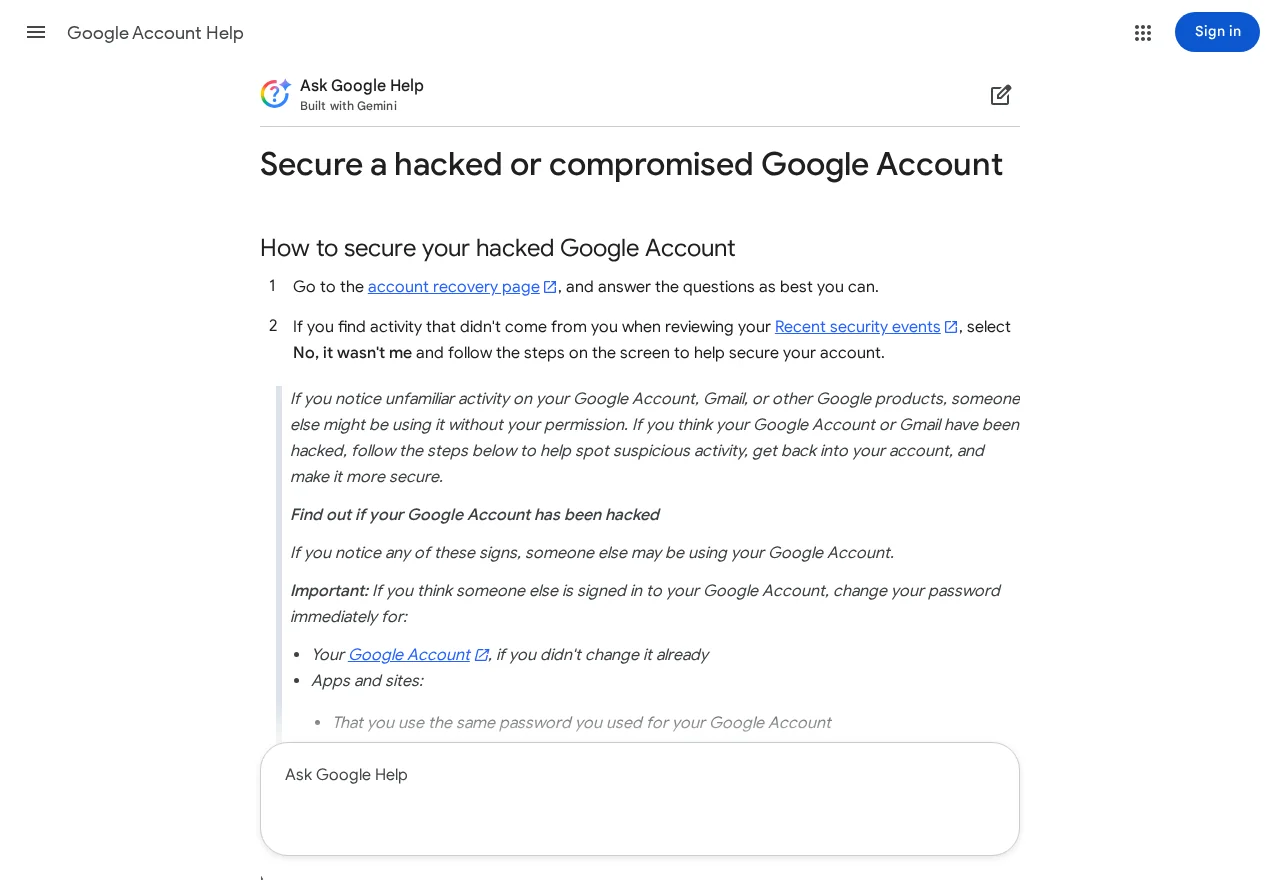
Google’s compromised-account guide explains what to check if your security details have changed or you believe someone used the account.
How the Scam Works
Step 1: A local-looking call raises a familiar account problem
The reported caller claimed somebody had access to the recipient’s Gmail. Using the recipient’s language made it easy to talk through what seemed like a local support call.
You do not have to decide what technology produced the call or its displayed number. Save the time, end the conversation, and check your account yourself.
Be especially careful if the caller asks you to confirm personal details before they explain why they called. The actual account screen is a better starting point.
If you have a genuine reason to believe somebody accessed the account, use the formal recovery process. Delay in speaking to a stranger need not delay your response.
Step 2: The caller answers every objection without giving you a way to verify
The recipient asked where the claimed change should appear. The caller gave an explanation for why nothing could be seen. The answers kept the conversation on the phone.
Open your Google account independently and note anything you can actually find. Seeing no particular alert should not send you back to the caller to obtain permission to check.
If you see a genuine alert, identify exactly which account it names. If you keep several Google accounts, make sure you are checking the one the alert concerns.
A caller who insists that only they can see an event gives you little to verify. Use the service’s security and recovery pages for whatever the account actually shows.
Step 3: A recovery request appears during the conversation
A prompt that asks you to change a recovery number describes an action on your account. Read the event before you respond. Ask yourself whether you started it.
The reported recipient said the caller wanted a code while the recovery change was being requested. Keep any number in the notification to yourself. End the call.
You can review security events without approving the request. If you never asked for the action, use Google’s own controls to reject or investigate it when available.
If the caller says a code is needed to stop an intruder, compare that story with what the prompt actually says.
A request to add or change recovery information has consequences.
Step 4: The next thing to watch for is a real change
In this reported case, the recipient refused. The report did not establish that the contact gained access. A different response is required if you shared a code or approved something.
Check your account’s recovery phone and email. Save details of any change you did not make and follow Google’s official instructions to secure the account.
Look for unfamiliar devices and recent security activity. Review changes to passwords and recovery methods separately. Tell support which ones you saw and when.
If your normal sign-in fails, begin account recovery from a device and location you usually use.
Give Google the information its own form asks for without sending it to the caller.
What to Check in Your Own Google Account
Start with Google Security Checkup. Sign in through your usual route and pay attention to any changes Google asks you to review.
Write down which recovery phone or email belongs to you. If something is unfamiliar, make a private record and use Google’s official instructions to remove or replace it.
Review the devices the account shows and the timing of recent activity.
Your own laptop or phone may show more than one session. Check the details before deciding which is unfamiliar.
If you received an alert about recovery but Gmail still works, use the access you have to check those settings. Don’t wait for another email or a second phone call.
Also check Gmail for forwarding or settings changes you didn’t make. Save anything unusual. A mailbox setting can matter to recovery even if the caller did not mention it.
If a linked recovery email is exposed, secure that email through its own provider too. You need control of the places where Google may send genuine security messages.
Keep a record of action prompts and actual changes
Save the time and description of the prompt you denied. Record an actual settings change separately. Security teams and recovery forms can make use of that distinction.
If multiple accounts appeared in the notification area, label your own notes by account.
You do not need to publish the full address or mobile number in a report to others.
If you recorded a message in an existing text conversation, leave the old messages in place while you save the new one. Avoid publishing any code alongside your warning.
What a Recovery Change Would Affect
A recovery method may be used when you forget a password, are locked out, or need to prove the account is yours. Keep that route under your control.
Review phone and email separately. A familiar phone number does not tell you whether the recovery email changed. Read both entries on Google’s own account page.
If you recently changed phones, distinguish a change you deliberately made from a request that arrived during the call. Note which device you used and when you changed it.
A new recovery entry can coexist with the old information in your memory or in older messages.
Use the settings shown in your account to check what is actually on file.
If an unfamiliar entry is listed, follow Google’s security guidance and confirm the result.
Check that you can still reach the legitimate email account or phone number you intend to use.
If you cannot sign in from the device in your hand
Try your normal browser or a device where you regularly use the account, following Google’s recovery guidance. Avoid instructions coming from the caller or any contact they supplied.
If you use the address for work or school, contact your real administrator through your organization’s directory. Some managed accounts have a different recovery route from a personal Gmail account.
If you can still use an existing session, save the times of unusual events while you review your security settings.
Follow Google’s instructions for securing the account and removing unfamiliar access.
If you use Gmail to reset passwords elsewhere, make a list of the services you depend on most. Open their apps directly and look for changes after securing your email.
If another person forwards a message sent from your account, keep its date and content. You can compare it with your sent mail and share verified details in any report.
If you cannot identify which change a notice refers to, save the description and time. A later recovery or security record may help you see whether any action completed.
What to Do if You Have Fallen Victim to This Scam
End the call and secure the account directly with Google. If you shared a code or accepted a change you didn’t start, begin immediately.
-
Keep the code private. Reject any action you did not initiate through Google’s official controls. Leave the conversation and ignore follow-up requests.
-
Check the account in use. Open the genuine Google Account page or app. Confirm you are investigating the same address named in the security notice.
-
Review recovery methods and activity. Check for an unfamiliar phone number, email address, security event, or device. Follow Google’s instructions for the events you find.
-
Secure access you may have exposed. Change an exposed password and review your other accounts for password reuse. Secure the recovery email too.
-
Recover access through Google. If locked out, use Google’s official recovery process. Keep the usual device and older account details available.
-
Save and report the contact. Keep the call time, alert wording, and any settings changes. Report the impersonation through the appropriate fraud channel.
If you shared a code but your account still works, report the actual action as soon as you can. Find out whether any recovery information was changed.
If the account is linked to services such as financial apps, monitor their activity as well.
Secure a financial account through its own provider if you see activity you did not authorize.
Let friends know through a different channel if your account sends suspicious messages. Ask them to save the message and avoid links or requests for codes.
Frequently Asked Questions
Does a local Google number on caller ID make the call genuine?
No. Treat the display as part of what you received. Check your Google account and security alerts directly, through a route you already know.
You can save the number to describe the impersonation. Do not use the incoming number to decide where to give out a code.
What if the message appears beside my old Google texts?
Look at the action it describes and check your account. A familiar conversation view does not make an unexpected recovery change something you requested.
If the message contains a code, keep it private. If it references your account, compare it with your genuine security records.
Does receiving a recovery prompt mean someone already has my account?
A prompt can reflect an attempted action. Check whether the account also shows an unfamiliar successful sign-in, a changed setting, or another security event.
If you get locked out or find a real change, use Google’s recovery guidance right away. Keep the event times for your case.
Can a code stop somebody who wants to change my recovery number?
Read the exact purpose in the official service. A code tied to recovery or verification should stay with you and the process you began.
If you didn’t start the change, don’t confirm it for someone on the phone. Review your recovery methods yourself.
What if I refused but a new recovery address appears?
Record it and follow Google’s instructions for securing a compromised account. Check devices, passwords, and recovery information while you still have access.
If you can no longer sign in, use the formal recovery process. Do not ask the person who called you to help restore access.
Should I call back if they know details about my Gmail account?
Check with Google through its own support and account pages. The fact that a caller knows your address or can describe an alert does not establish their identity.
If you already gave them details, list what they had before the call and what you shared during it. Use that list when securing your account.
The Bottom Line
If a caller claiming to be Google Amsterdam asks about a recovery-number change you did not start, end the call. Check the account directly with Google.
If you gave a code or approved anything, review the recovery settings and use official account recovery if you lose access. Keep the alert and call details for your report.

Join the discussion
0 commentsShare your experience or ask a question about this article.
Discussion
Start the conversation
Have a question or something useful to share? Add the first comment.