

A $750 BIG W gift card for a few minutes of answering questions sounds like an unusually generous reward. The first page often makes the path look simple: click, qualify, complete a short survey, and claim.
The real path is longer and much less rewarding. FindsForTech uses the familiar retailer and large prize to draw visitors into a third-party marketing funnel where personal data, offer completions, and affiliate commissions matter more than the gift card in the headline.
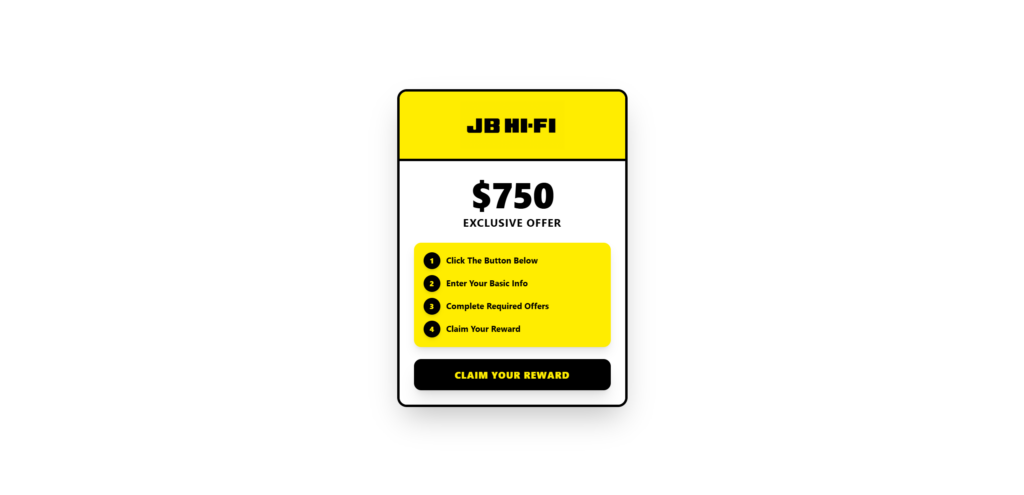
Overview
The FindsForTech scam is a deceptive reward promotion built around the promise of a $750 BIG W gift card. The page is not hosted on BIG W’s official domain and should not be treated as a retailer-operated giveaway.
The promotion may arrive through a social media ad, sponsored post, short video, pop-up, email, or forwarded link. It uses BIG W branding or a gift-card image to create instant familiarity.
Visitors are told that they qualify, have been selected, or can earn the reward by completing a few steps. Early questions are intentionally easy because their purpose is to secure commitment, not to decide whether a person truly deserves $750.
After the initial survey, the visitor may be redirected to other domains. The flow can request an email address, mobile number, name, postcode, date of birth, home address, shopping preferences, or permission to receive marketing.
The most important conditions often appear later or in small print. A participant may need to complete multiple sponsored deals, purchase subscriptions, download apps, apply for services, maintain trials for a specified period, and satisfy detailed eligibility rules.
Completing one survey is not the same as earning a $750 gift card. The large reward is the advertising hook, while the operator and partners can earn money when users submit leads or complete paid actions.
BIG W’s official scam guidance warns that criminals copy its branding in surveys and send people to unrelated sites that request personal and financial information. BIG W says its genuine correspondence will not ask customers to provide sensitive details through an unsolicited message.
The safest conclusion is straightforward: a $750 BIG W offer on FindsForTech is not an official BIG W promotion. Do not enter data or complete deals expecting the retailer to deliver the advertised card.
What the reward page may say
You Qualify for a $750 BIG W Gift Card
Answer a few questions and complete the steps below to claim your reward.
Offer available for a limited time.
Click Continue to begin.
Another page may say the user was selected because of a recent browser visit, device, location, or shopping profile. Those claims are commonly generated automatically for everyone who reaches the page.
Common variations of the reward message
- “Get a $750 BIG W gift card after a short survey”
- “Become a BIG W product reviewer and get paid”
- “You have been selected for our customer reward program”
- “Only five gift cards remain today”
- “Complete recommended deals to qualify”
- “Claim your exclusive $750 shopping reward”
- “Enter your email to reserve the gift card”
- “Continue on your phone to complete verification”
- “Finish the required offers and track your reward status”
- “Pay a small delivery or activation fee”
The retailer, amount, and domain can change. The same funnel can be repackaged with Walmart, Target, Amazon, Woolworths, Coles, Costco, or another well-known brand.
Why the offer looks legitimate
The page may use a professionally rendered gift card, recognizable colors, customer testimonials, progress bars, countdown timers, security icons, and statements that the offer is available in the visitor’s country.
None of those elements proves sponsorship. Brand images can be copied, testimonials can be invented, and timers can restart whenever the page reloads.
The address bar is more useful than the design. BIG W controls its official domain. A promotion hosted on FindsForTech or a chain of unrelated tracking and offer domains is a third-party campaign.
The difference between a giveaway and a reward funnel
A genuine giveaway normally provides clear rules naming the sponsor, eligibility, opening and closing dates, prize quantity, entry method, drawing process, and privacy terms.
A reward funnel often begins with a simple promise but reveals complex qualification conditions only after collecting contact data. It may describe the gift card as a “reward opportunity” rather than a guaranteed prize.
The distinction matters. A visitor can spend money and time on offers without completing every requirement. Some deals may involve credit checks, deposits, subscriptions, shipping fees, or minimum periods before they count.
What happens to the information
Data submitted to a reward funnel may be shared with marketing partners, lead buyers, survey providers, offer sponsors, or service companies under broad consent language.
The immediate result can be more calls, emails, texts, and targeted advertising. The longer-term risk grows when the same phone number, address, date of birth, and shopping interests are combined into a detailed lead profile.
Payment information entered for a “small fee” or trial creates additional risk. A low initial charge may lead to recurring billing if the user misses cancellation terms.
Red flags visible before you continue
- The page promises $750 for minimal effort.
- The domain is unrelated to BIG W.
- The words “qualify,” “opportunity,” and “up to” replace a clear guarantee.
- Full rules are hidden behind links or presented only after data collection.
- A timer says the offer expires within minutes.
- The page asks for a mobile number before explaining every requirement.
- The reward depends on third-party deals or purchases.
- A free gift card requires card details for delivery or verification.
- The browser passes through several unrelated domains.
- Closing one page triggers another offer or notification request.
Why testimonials and payment screenshots prove very little
Reward advertisements often include comments from supposed winners, screenshots of gift-card emails, or videos showing someone shopping. These materials do not establish that the person completed the advertised process or that ordinary participants receive the same result.
An affiliate can create promotional content after receiving a commission, borrow images from another campaign, or display a card obtained through an unrelated purchase. Comments can be filtered so that complaints disappear.
Reliable proof would connect the promotion to official BIG W rules, identify the sponsor, explain the qualification path, and provide a verifiable fulfilment process. A smiling video is marketing, not an audit.
How The Operation Works
1. Social advertising creates the first click
A short video or post claims ordinary people are receiving $750 gift cards. The creator may show a gift-card balance, shopping bags, or a supposed payment email.
The content is designed for sharing and can come from newly created accounts, paid affiliates, stolen profiles, or advertising campaigns that disappear after complaints accumulate.
2. FindsForTech acts as the branded landing page
The visitor reaches a page tailored to a recognized retailer. The design reduces suspicion while the domain remains separate from the brand being promoted.
A large “Claim” or “Get Started” button is positioned before detailed terms. The reward amount dominates the screen, while qualifications are small or absent.
3. Easy questions build momentum
The first survey asks whether the visitor shops at BIG W, how often they shop, or which product category they prefer. Nearly every answer leads to a positive result.
A progress bar and congratulatory message make the user feel close to completion. In reality, the valuable marketing actions have not yet begun.
4. Contact details turn the visitor into a lead
The funnel asks for an email address and mobile number to “send the reward” or “verify eligibility.” It may request consent to receive marketing from a long list of partners.
Submitting the form can have value to the operator even if the user never completes another step. Qualified consumer leads can be monetized.
5. The visitor is redirected to an offer wall
The next page lists sponsored deals such as app downloads, streaming trials, subscriptions, insurance quotes, financial products, games, surveys, or shopping memberships.
Some offers are free only for a limited period. Others require payment, a deposit, an approved application, or continued participation before they qualify.
6. Tracking determines whether the operator earns a commission
Affiliate parameters connect the visitor’s actions to the campaign. When a person installs, subscribes, applies, or purchases, the referring operator may receive a commission.
The consumer’s progress toward the gift card is governed by separate eligibility rules. The commission can be earned even if the consumer never receives the headline reward.
7. The finish line keeps moving
A participant may be told to complete more deals, wait for tracking, verify by email, maintain subscriptions, or provide additional documents. Failed tracking can leave the person without credit for a completed offer.
Support may be difficult to identify because several companies and domains participate in the flow. Each can point to another party’s terms.
8. Follow-up marketing continues
The email address and phone number may receive new reward promotions, loan offers, insurance calls, survey invitations, and unrelated advertising.
A person who responded to one prize offer is also a valuable target for similar campaigns. The next message may use a different retailer but the same mechanics.
How to verify a reward safely
- Open BIG W’s official website or app independently.
- Search for the exact promotion in official announcements and terms.
- Check whether the sponsor named in the rules matches the brand in the headline.
- Read the domain from right to left and identify who actually controls it.
- Find the complete number and type of deals required before providing data.
- Calculate the total cost of every subscription and purchase.
- Reject any reward that requires a payment-card “verification.”
- Take screenshots of terms before participating because pages can change.
What To Do If You Entered Details or Completed Offers
- Stop progressing through the funnel. Do not complete additional deals just because you already spent time on earlier steps. That is a sunk-cost trap.
- List every detail you submitted. Separate basic contact data from passwords, identity numbers, and payment information so you can match the response to the risk.
- Review every offer you joined. Identify trial end dates, recurring prices, cancellation methods, minimum commitments, and the company responsible for billing.
- Cancel unwanted subscriptions directly. Use the official site for each provider, save confirmation emails, and take screenshots showing the cancellation date.
- Monitor payment accounts. Look for small test charges, unfamiliar merchant descriptors, duplicates, and monthly billing. Contact the card issuer promptly about unauthorized charges.
- Change reused passwords. If a password entered anywhere in the flow matches another account, replace it with a unique password and enable multi-factor authentication.
- Expect increased spam. Use spam filters, block aggressive callers, avoid clicking unsubscribe links in obviously malicious messages, and forward scam texts to 7726 where supported.
- Withdraw marketing consent where possible. Use legitimate privacy or opt-out channels listed by identifiable companies, but do not send more identity documents to an unknown operator.
- Scan downloaded apps or files. Remove software you do not trust, review mobile permissions, and run a reputable security scan if a download came from outside an official app store.
- Report the promotion. Report the ad to the platform, notify BIG W through its official scam-reporting channel, and file a report with Scamwatch in Australia or the relevant consumer authority.
If you only opened the page and did not enter information, download anything, or grant notification permission, simply close it. Clear unwanted browser notification permissions if the site asked to send alerts.
Is Your Device Infected? Run a Free Malware Scan
Slow performance, constant pop-ups, or strange behavior? These are classic signs of a malware infection. The fastest way to find out is to scan your device with Malwarebytes Free — one of the most trusted malware removal tools available.
The free version detects and removes the most common threats, including:
- Adware — the cause of those annoying pop-ups
- Browser hijackers — unwanted redirects and changed homepages
- Trojans and spyware — hidden programs stealing your data
- Potentially unwanted programs (PUPs) — software you never asked for
👉 Select your device below — Windows, Mac, or Android — then follow the simple steps to download Malwarebytes, scan your system, and remove any threats it finds. The scan usually takes 5 to 20 minutes.
Run a Malware Scan with Malwarebytes for Windows
Malwarebytes is one of the most popular and trusted anti-malware tools for Windows — and it’s completely free for removing infections. It catches threats that many antivirus programs miss, including adware, browser hijackers, and trojans. Follow the steps below to scan and clean your PC in just a few minutes.
Download Malwarebytes
Click the button below to download the latest version of Malwarebytes for Windows from the official source. The free version is all you need — it will scan your computer and remove adware, browser hijackers, and other malicious software at no cost.
Download MalwarebytesOfficial installer for Windows 11 and 10. Your download starts right away.Want real-time protection? See Malwarebytes Premium Malwarebytes Free for WindowsScans and removes malware at no cost
-
Install Malwarebytes
When the download finishes, open your Downloads folder and double-click the MBSetup file. If Windows shows a User Account Control pop-up, click “Yes” to allow the installation.

Follow the On-Screen Prompts to Install Malwarebytes
The setup wizard will walk you through a few quick screens:
-
Choose where you’re installing the program — “Personal Computer” or “Work Computer” — then click Next.

-
Malwarebytes will now install on your device. This usually takes under a minute.

-
When installation is complete, the “Welcome to Malwarebytes” screen will open automatically.

-
On the final screen, click Open Malwarebytes to launch the program.

-
Enable “Scan for Rootkits”
Before scanning, turn on rootkit detection so Malwarebytes can find even the most hidden threats. Click the Settings gear icon on the left side of the screen.

In the settings menu, find “Scan for rootkits” and click the toggle so it turns blue.

Done? Click “Dashboard” in the left pane to return to the main screen.
Start the Scan
Click the blue Scan button. Malwarebytes will automatically update its virus database and start checking your computer for malware.

-
Wait for the Scan to Finish
The scan checks your entire system for browser hijackers and other malicious programs, so it can take 5 to 20 minutes depending on your computer. Feel free to do something else — just check back occasionally to see the progress.

-
Quarantine the Detected Threats
When the scan is done, you’ll see a list of everything Malwarebytes found — malware, adware, and potentially unwanted programs. Click the “Quarantine” button to remove all of them at once.

Malwarebytes will now remove the malicious files and registry entries and move them safely into quarantine.

-
Restart Your Computer
Some threats can only be fully removed after a reboot. If Malwarebytes asks you to restart, click Yes. Once you’re logged back in, Malwarebytes has finished removing the threats it found.

That’s it — your Windows PC is now clean of trojans, adware, and other malware, and should be back to running smoothly.
If you are still having problems with your computer after completing these instructions, then please follow one of the steps:
- Run a computer scan with ESET Online Scanner
- Ask for help in our Windows Malware Removal Help & Support forum.
Run a Malware Scan with Malwarebytes for Mac
Malwarebytes for Mac is a free on-demand scanner that removes the malware other security software tends to miss — adware, browser hijackers, and unwanted programs included. Cleaning an infected Mac with Malwarebytes has always been completely free, and it’s our go-to recommendation. Follow the steps below to scan and clean your Mac in just a few minutes.
-
Download Malwarebytes for Mac
Click the button below to download the latest version of Malwarebytes for Mac.
Download MalwarebytesOfficial installer for macOS. Your download starts right away.Want real-time protection? See Malwarebytes PremiumMalwarebytes Free for MacScans and removes malware at no cost -
Open the Malwarebytes setup file
When the download finishes, open your Downloads folder and double-click the setup file to begin the installation.

-
Follow the On-Screen Prompts to Install Malwarebytes
The Malwarebytes for Mac Installer will guide you through a few quick screens. Click “Continue” and keep following the prompts until the installation completes.



When the installation is complete, Malwarebytes opens to the Welcome to Malwarebytes screen. Click “Get started“.
-
Select “Personal Computer” or “Work Computer”
Malwarebytes will ask what type of computer you’re installing it on. Click either Personal Computer or Work Computer, whichever applies.

-
Start the Scan
Click the “Scan” button. Malwarebytes will automatically update its detection database and begin checking your Mac for malware.

-
Wait for the Scan to Finish
Malwarebytes will scan your Mac for adware, browser hijackers, and other malicious programs. This can take a few minutes, so feel free to do something else — just check back occasionally to see the progress.

-
Quarantine the Detected Threats
When the scan is done, you’ll see a list of everything Malwarebytes found. Click the “Quarantine” button to remove all the threats at once.

-
Restart Your Mac
Malwarebytes will now remove all the malicious files it found. Some threats can only be fully removed after a reboot — if Malwarebytes asks you to restart, allow it. Once you’re logged back in, your Mac is clean.

That’s it — your Mac is now free of adware, rogue browser extensions, and other potentially harmful software.
If you are still experiencing problems while trying to remove a malicious program from your computer, please ask for help in our Mac Malware Removal Help & Support forum.
Run a Malware Scan with Malwarebytes for Android
Malwarebytes for Android automatically detects and removes dangerous threats like malware and ransomware so you don’t have to worry about your most-used device being compromised. Aggressive detection of adware and potentially unwanted programs keeps your Android phone or tablet running smooth.
-
Download Malwarebytes for Android.
You can download Malwarebytes for Android by clicking the link below.
Get Malwarebytes for AndroidOpens Google Play in a new tab.Want real-time protection? See Malwarebytes Premium for AndroidMalwarebytes for AndroidScans your phone and removes malware at no cost -
Install Malwarebytes for Android on your phone.
In the Google Play Store, tap “Install” to install Malwarebytes for Android on your device.

When the installation process has finished, tap “Open” to begin using Malwarebytes for Android. You can also open Malwarebytes by tapping on its icon in your phone menu or home screen.

-
Follow the on-screen prompts to complete the setup process
When Malwarebytes will open, you will see the Malwarebytes Setup Wizard which will guide you through a series of permissions and other setup options.
This is the first of two screens that explain the difference between the Premium and Free versions. Swipe this screen to continue.
Tap on “Got it” to proceed to the next step.
Malwarebytes for Android will now ask for a set of permissions that are required to scan your device and protect it from malware. Tap on “Give permission” to continue.
Tap on “Allow” to permit Malwarebytes to access the files on your phone.
-
Update database and run a scan with Malwarebytes for Android
You will now be prompted to update the Malwarebytes database and run a full system scan.

Click on “Update database” to update the Malwarebytes for Android definitions to the latest version, then click on “Run full scan” to perform a system scan.

-
Wait for the Malwarebytes scan to complete.
Malwarebytes will now start scanning your phone for adware and other malicious apps. This process can take a few minutes, so we suggest you do something else and periodically check on the status of the scan to see when it is finished.

-
Click on “Remove Selected”.
When the scan has been completed, you will be presented with a screen showing the malware infections that Malwarebytes for Android has detected. To remove the malicious apps that Malwarebytes has found, tap on the “Remove Selected” button.

-
Restart your phone.
Malwarebytes for Android will now remove all the malicious apps that it has found. To complete the malware removal process, Malwarebytes may ask you to restart your device.
That’s it — your Android phone is now clean — no more malicious apps, adware, or browser redirects.
If you are still having problems with your phone after completing these instructions, then please follow one of the steps:
- Restore your phone to factory settings by going to Settings > General management > Reset > Factory data reset.
- Ask for help in our Mobile Malware Removal Help & Support forum.
Stay Protected: Block Ads and Malicious Sites
Now that your device is clean, keep it that way. Most infections start with a malicious ad or a fake download button — so blocking them at the source is your best defense.
We recommend AdGuard, which blocks malicious ads, phishing pages, and dangerous redirects before they can reach you.
👉 Download AdGuard and browse safely
The Bottom Line
FindsForTech is not an official BIG W domain, and its $750 gift-card promotion should be treated as a third-party reward funnel rather than a guaranteed retailer giveaway.
The headline makes the reward look easy. The real operation collects leads and directs visitors into sponsored offers, purchases, trials, and subscriptions governed by complex conditions.
Do not enter personal or payment information expecting BIG W to send the card. Verify promotions through the retailer’s official channels, and remember that a large reward with a tiny entry requirement usually becomes far more demanding after the first click.

Join the discussion
0 commentsShare your experience or ask a question about this article.
Discussion
Start the conversation
Have a question or something useful to share? Add the first comment.