


If you’ve ever searched online for “free Robux,” chances are you’ve come across websites promising to generate thousands of Robux with just your username and a few clicks. Some even claim you can get 50,000 Robux for free—no strings attached. But here’s the harsh truth: these Robux generator sites are scams.
From fake countdown timers and flashy “human verification” steps to phishing attempts and malware downloads, these websites are built to exploit your trust—and your personal data.
In this article, we’ll uncover how Robux generator scams operate, why they’re dangerous, and how to protect yourself and others from falling victim. If you’re a Roblox player—or the parent of one—this guide could save you from losing your account, your money, or worse.
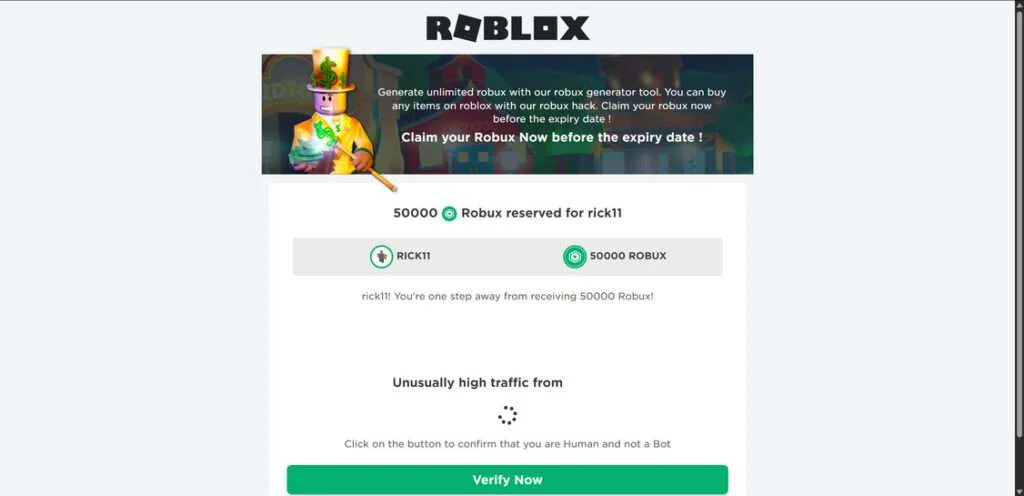
Scam Overview: What Are Robux Generator Sites Really Doing?
Roblox, a platform boasting millions of active users, has become a fertile ground for scammers exploiting players’ desires for free in-game currency. Free Robux generator scams are among the most prevalent, luring users with promises of easy riches.
The Robux Fantasy They Sell
Robux generator scams often look polished, promising rewards like:
- “Generate unlimited Robux with our Robux Generator Tool.”
- “Claim 50,000 Robux now—free until [today’s date]!”
- “Offer ends today—$149.99 Robux pack now FREE!”
These websites present themselves as legitimate tools to “hack” the Roblox system and add Robux directly to your account—simply by typing in your Roblox username. No login needed, they say. No download required. Just click and claim.
But this is nothing more than digital bait.
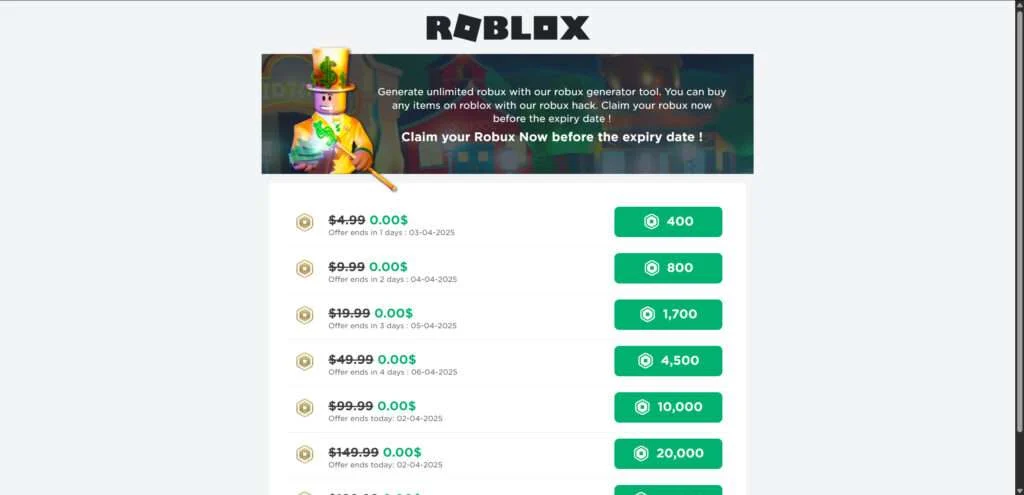
These Offers Are Too Good to Be True
Scam sites usually offer tiered Robux “gifts,” ranging from 5,000 to 100,000 Robux, and even claim to give away premium packages worth $99.99 or more. They include fake countdown timers to add urgency, and claim:
- “This Robux offer expires in 2 hours!”
- “50000 Robux reserved for [username]”
- “Offer ends today: 02-04-2025”
The goal? Trick you into believing there’s a limited-time window—and get you to act fast.
Psychological Tricks at Work
These scams are built to manipulate emotions, especially in children and teens:
- Scarcity and urgency: Fake expiration dates and limited availability.
- Social proof: Fake usernames scrolling by, supposedly “receiving” Robux in real time.
- Authority mimicry: Logos and designs that copy the official Roblox branding.
- Progress illusion: “Processing your Robux” screens, often paired with fake loading bars or spinning icons.
It’s designed to feel just real enough to keep you clicking.
But Here’s What’s Really Happening
Behind the scenes, Robux generator websites operate with one goal: to make money from your attention and data. Here’s how they do it:
- Harvesting usernames and emails: These can be used in future phishing scams.
- Redirecting you to shady “human verification” offers: These are affiliate links that pay scammers for each person who completes them.
- Installing malware: Some sites prompt you to install a “Robux unlocker” or a fake Roblox app—packed with spyware or adware.
- Tricking you into SMS subscriptions: Fake quizzes or “IQ tests” ask for your number, then enroll you in paid services.
- Selling your data: Emails, device info, and IP addresses are often sold to third-party marketers or hackers.
In short, you never get Robux—but scammers might get your identity, money, or access to your device.
How the Scam Works
To fully grasp the deceptive nature of free Robux generator scams, let’s dissect their typical operation:
Step 1: Luring the Victim
Scammers employ various methods to attract users to their fraudulent websites:
- Search Engine Manipulation: Optimizing their sites to appear in search results for queries like “free Robux” or “Robux generator.”
- Social Media Promotion: Sharing links on platforms frequented by Roblox players, often using compromised accounts to lend credibility.
- In-Game Messaging: Sending direct messages within Roblox, inviting users to visit the generator site.
Step 2: Creating a Sense of Legitimacy
Upon visiting the site, users encounter a professional-looking interface with elements designed to mimic official Roblox branding. Features may include:
- Input Fields: Prompting users to enter their Roblox username.
- Robux Amount Selection: Allowing users to choose the desired amount of free Robux.
- Fake Activity Feeds: Displaying recent “transactions” of other users supposedly receiving Robux.
Step 3: The Illusion of Processing
After entering their username and selecting the Robux amount, users witness a simulated processing sequence:
- Fake Loading Bars: Indicating the generator is communicating with Roblox servers.
- Dynamic Text Updates: Messages like “Verifying username…” and “Injecting Robux…” to enhance the illusion.
This stage is purely theatrical, designed to convince users of the generator’s functionality.
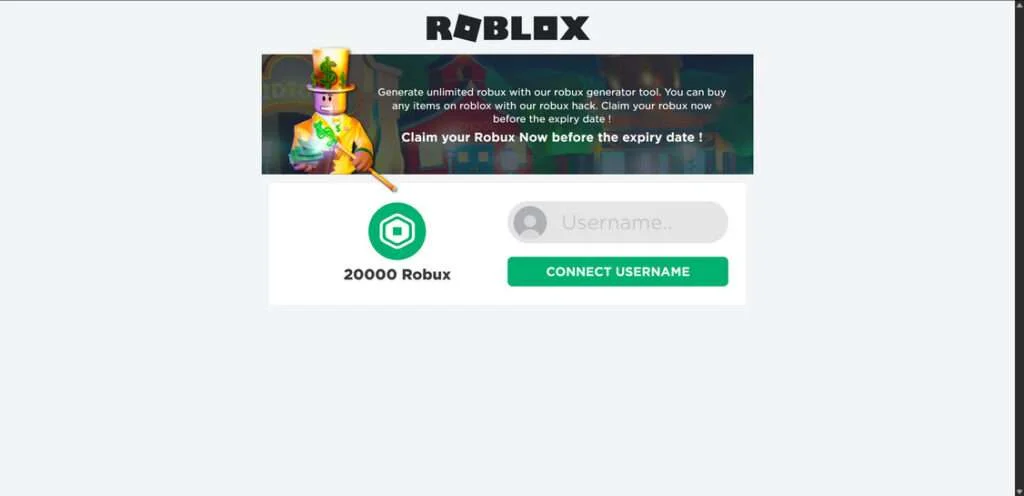
Step 4: The Human Verification Trap
The process halts with a message stating that, due to high traffic or security measures, human verification is required. Users are prompted to complete specific actions to prove they are not bots.
Step 5: Exploiting the Victim
The verification process typically involves:
- Surveys and Quizzes: Collecting personal information under the pretense of market research.
- App Downloads: Instructing users to install applications that may contain malware or adware.
- Subscription Sign-Ups: Tricking users into enrolling in paid services, leading to unexpected charges.
Each completed action generates affiliate revenue for the scammers, while users receive no Robux.
Step 6: Perpetuating the Scam
After completing the so-called verification, users may be redirected back to the generator page, only to be met with further verification requests or errors. This endless loop keeps users engaged, increasing the scammers’ potential earnings.
What to Do If You Have Fallen Victim to This Scam
Whether you entered your Roblox username, downloaded an app, submitted your email, or shared more sensitive information, taking action quickly is critical. Here’s a detailed breakdown of what you should do:
1. Stop All Activity Immediately
- Close the scam website.
- Do not complete any more “verification” offers.
- Avoid clicking any ads or buttons that popped up during the process.
The more time you spend on the site, the more data is being collected about you—and the more money scammers can earn from your clicks and actions.
2. Change Your Roblox Account Settings
If you submitted your Roblox username and especially if you entered your password (some sites falsely prompt for it), take the following steps:
- Change your Roblox password right away.
- Enable two-step verification (2SV) in your account settings to prevent unauthorized access.
- Check your account’s recent activity. Look for strange changes or purchases.
- Unlink any connected apps or browser extensions you didn’t authorize.
3. Run a Full Security Scan on Your Device
Scam sites often prompt users to download “unlock tools” or mobile apps. If you downloaded anything:
- Run a full antivirus and anti-malware scan using trusted software (e.g., Malwarebytes, Bitdefender, Norton).
- Uninstall any suspicious programs or apps that were added around the time of the scam.
- Reset browser settings if you’re experiencing weird redirects, pop-ups, or hijacked homepages.
4. Protect Your Email and Other Accounts
If you entered your email address:
- Change your email password, especially if it’s the same as your Roblox login.
- Be on high alert for phishing emails. These might pretend to be from Roblox, your bank, or a game developer.
- Mark suspicious emails as spam and never click unknown links or download attachments from unverified senders.
5. Contact Roblox Support (If Your Account Was Affected)
If your Roblox account has been hacked, items were purchased or removed, or your profile was changed:
- Go to the Roblox Support Page.
- Submit a ticket explaining the situation.
- Roblox can restore stolen items or reverse transactions in many cases.
Include as much information as possible: your username, what you clicked on, and any suspicious activity you’ve noticed.
6. Monitor Your Financial Accounts
If you entered any credit card information (often part of “human verification” scams), you need to:
- Contact your bank immediately and explain the situation.
- Dispute any unauthorized charges.
- Consider freezing your card and requesting a new one.
Some scam offers disguise themselves as “trial subscriptions” and begin charging you weekly or monthly without clear consent.
7. Report the Scam Website
Reporting the scam helps prevent others from falling into the same trap.
- To Roblox: https://en.help.roblox.com/hc/en-us/requests/new
- To Google Safe Browsing: https://safebrowsing.google.com/safebrowsing/report_phish/
- To the Federal Trade Commission (FTC): https://reportfraud.ftc.gov/
- To your country’s cybercrime agency (such as Action Fraud UK, Cybercrime.gov.au, etc.)
8. Educate Others—Especially Young Gamers
Scam Robux generators primarily target children and teens, who may be more trusting or eager to level up quickly. If you’re a parent or guardian:
- Talk to your child about online scams.
- Set up parental controls to prevent unauthorized downloads or purchases.
- Teach them to never give out their login info or install unknown apps.
Is Your Device Infected? Run a Free Malware Scan
Slow performance, constant pop-ups, or strange behavior? These are classic signs of a malware infection. A quick way to check is to scan your device with Malwarebytes Free, one of the most trusted malware removal tools available. If you only visited a scam page and didn’t download or install anything, this scan is optional.
The free version detects and removes the most common threats, including:
- Adware — the cause of those annoying pop-ups
- Browser hijackers — unwanted redirects and changed homepages
- Trojans and spyware — hidden programs stealing your data
- Potentially unwanted programs (PUPs) — software you never asked for
👉 Select your device below — Windows, Mac, or Android — then follow the simple steps to download Malwarebytes, scan your system, and remove any threats it finds. The scan usually takes 5 to 20 minutes.
Run a Malware Scan with Malwarebytes for Windows
Malwarebytes is one of the most popular and trusted anti-malware tools for Windows — and it’s completely free for removing infections. It catches threats that many antivirus programs miss, including adware, browser hijackers, and trojans. Follow the steps below to scan your PC and remove what Malwarebytes finds.
Download Malwarebytes
Click the button below to download the latest version of Malwarebytes for Windows from the official source. The free version is all you need — it will scan your computer and remove adware, browser hijackers, and other malicious software at no cost.
Download MalwarebytesOfficial installer for Windows 11 and 10. Your download starts right away.Want real-time protection? See Malwarebytes Premium Malwarebytes Free for WindowsScans and removes malware at no cost
-
Install Malwarebytes
When the download finishes, open your Downloads folder and double-click the MBSetup file. If Windows shows a User Account Control pop-up, click “Yes” to allow the installation.

Follow the On-Screen Prompts to Install Malwarebytes
The setup wizard will walk you through a few quick screens:
-
Choose where you’re installing the program — “Personal Computer” or “Work Computer” — then click Next.

-
Malwarebytes will now install on your device. This usually takes under a minute.

-
When installation is complete, the “Welcome to Malwarebytes” screen will open automatically.

-
On the final screen, click Open Malwarebytes to launch the program.

-
Optional: Check for rootkits with a Custom Scan
You don’t need to change any settings for a normal scan. The standard Threat Scan in the next step is enough for most problems, so you can go straight to it.
If you also want to check for rootkits, use a Custom Scan. In current versions of Malwarebytes, rootkit scanning is only available there:
- On the Scanner tile, click the three-dot menu and select Advanced Scan.
- Choose Custom Scan. In its options, check Scan for rootkits.
- Select your system drive (usually C:\) as the location to scan, then start the scan. It takes longer than a Threat Scan.
- When it finishes, review and quarantine the results as described in the steps below.
Rootkit scanning isn’t available on Windows devices with ARM processors.
Start the Scan
Click the blue Scan button. Malwarebytes will automatically update its virus database and start checking your computer for malware.

-
Wait for the Scan to Finish
The scan checks your entire system for browser hijackers and other malicious programs, so it can take 5 to 20 minutes depending on your computer. Feel free to do something else — just check back occasionally to see the progress.

-
Quarantine the Detected Threats
When the scan is done, you’ll see a list of everything Malwarebytes found — malware, adware, and potentially unwanted programs. Click the “Quarantine” button to remove all of them at once.

Malwarebytes will now remove the malicious files and registry entries and move them safely into quarantine.

-
Restart Your Computer
Some threats can only be fully removed after a reboot. If Malwarebytes asks you to restart, click Yes. Once you’re logged back in, Malwarebytes has finished removing the threats it found.

When the scan is done, check whether the problems you noticed have stopped. If they continue, see the options below.
If you are still having problems with your computer after completing these instructions, then please follow one of the steps:
- Run a computer scan with ESET Online Scanner
- Ask for help in our Windows Malware Removal Help & Support forum.
Run a Malware Scan with Malwarebytes for Mac
Malwarebytes for Mac is a free on-demand scanner that removes the malware other security software tends to miss — adware, browser hijackers, and unwanted programs included. Cleaning an infected Mac with Malwarebytes has always been completely free, and it’s our go-to recommendation. Follow the steps below to scan your Mac and remove what Malwarebytes finds.
-
Download Malwarebytes for Mac
Click the button below to download the latest version of Malwarebytes for Mac.
Download MalwarebytesOfficial installer for macOS. Your download starts right away.Want real-time protection? See Malwarebytes PremiumMalwarebytes Free for MacScans and removes malware at no cost -
Open the Malwarebytes setup file
When the download finishes, open your Downloads folder and double-click the setup file to begin the installation.

-
Follow the On-Screen Prompts to Install Malwarebytes
The Malwarebytes for Mac Installer will guide you through a few quick screens. Click “Continue” and keep following the prompts until the installation completes.



When the installation is complete, Malwarebytes opens to the Welcome to Malwarebytes screen. Click “Get started“.
Malwarebytes needs Full Disk Access to check your whole Mac. When it asks, open System Settings > Privacy & Security > Full Disk Access, turn on Malwarebytes (it may be listed as Malwarebytes Protection), and confirm with your password or Touch ID. Then return to Malwarebytes. On macOS Monterey and earlier, this setting is in System Preferences > Security & Privacy > Privacy.
-
Select “Personal Computer” or “Work Computer”
Malwarebytes will ask what type of computer you’re installing it on. Click either Personal Computer or Work Computer, whichever applies.

-
Start the Scan
Click the “Scan” button. Malwarebytes will automatically update its detection database and begin checking your Mac for malware.

-
Wait for the Scan to Finish
Malwarebytes will scan your Mac for adware, browser hijackers, and other malicious programs. This can take a few minutes, so feel free to do something else — just check back occasionally to see the progress.

-
Quarantine the Detected Threats
When the scan is done, you’ll see a list of everything Malwarebytes found. Click the “Quarantine” button to remove all the threats at once.

-
Restart Your Mac
Malwarebytes will now remove all the malicious files it found. Some threats can only be fully removed after a reboot — if Malwarebytes asks you to restart, allow it. Once you’re logged back in, check whether the problems you noticed have stopped. If they come back, save the scan report and ask for help in our forum.

If the problems you noticed continue after the scan, see the options below.
If you are still experiencing problems while trying to remove a malicious program from your computer, please ask for help in our Mac Malware Removal Help & Support forum.
Run a Malware Scan with Malwarebytes for Android
Malwarebytes for Android scans your phone or tablet for malware, adware, and potentially unwanted apps. The free version scans only when you start a scan. Real-time protection, which checks apps automatically, is part of the paid Premium version.
-
Download Malwarebytes for Android.
You can download Malwarebytes for Android by clicking the link below.
Get Malwarebytes for AndroidOpens Google Play in a new tab.Want real-time protection? See Malwarebytes Premium for AndroidMalwarebytes for AndroidScans your phone and removes malware at no cost -
Install Malwarebytes for Android on your phone.
In the Google Play Store, tap “Install” to install Malwarebytes for Android on your device.

When the installation process has finished, tap “Open” to begin using Malwarebytes for Android. You can also open Malwarebytes by tapping on its icon in your phone menu or home screen.

-
Follow the on-screen prompts to complete the setup process
When Malwarebytes opens, it walks you through a short setup. Tap Get started and follow the prompts. If you see an offer for a trial or a paid plan, read it before you accept. You can skip it and keep using the free scanner.
Malwarebytes will ask for permission to access the files on your phone so it can scan them. Tap Allow, or turn on the permission in the Android screen that opens, then return to Malwarebytes.
-
Run a scan with Malwarebytes for Android
On the main screen, tap Scan now. In some versions, you open the menu, tap Scanner, and then tap Run a scan.
-
Wait for the Malwarebytes scan to complete.
Malwarebytes will now start scanning your phone for adware and other malicious apps. This process can take a few minutes, so we suggest you do something else and periodically check on the status of the scan to see when it is finished.

-
Remove the detected apps.
When the scan has been completed, you will see a list of the threats that Malwarebytes for Android has detected. Next to each detected item, tap the menu icon (three dots), then choose to uninstall the app or delete the file. Android then asks you to confirm. Tap OK or Uninstall to remove the app.
-
Restart your phone.
When the detected apps are removed, restart your phone if Malwarebytes asks you to. Then check whether the problems you noticed have stopped.
If the problems you noticed continue after the scan, see the options below.
If you are still having problems with your phone after completing these instructions, then please follow one of the steps:
- Ask for help in our Mobile Malware Removal Help & Support forum.
- Only as a last resort, reset your phone to factory settings. Read the warning below first.
- Back up your photos, videos, files, and messages, for example to your Google account or a computer.
- Make sure you know your Google account email and password. The phone asks for them after the reset. If you changed the password recently, Google recommends waiting 24 hours before you reset.
- On a Samsung phone, also make sure you know your Samsung account password.
- If you use an authenticator app for two-step verification, move your accounts to another device or save your backup codes first.
Stay Protected: Block Ads and Malicious Sites
No scan can prove a device is completely clean, so it helps to block threats before they reach you. Most infections start with a malicious ad or a fake download button — so blocking them at the source is your best defense.
We recommend AdGuard, which blocks malicious ads, phishing pages, and dangerous redirects before they can reach you.
👉 Download AdGuard and browse safely
Frequently Asked Questions (FAQ) About Free Robux Generator Scams
What is a Robux generator?
A Robux generator is a website or app that claims to provide free Robux to Roblox users. These tools usually promise thousands of Robux with no payment required, often just by entering your username. However, these generators are fake and are commonly used to scam users by collecting personal information or pushing them into completing affiliate offers.
Are Robux generators real?
No, Robux generators are not real. There is no legitimate way to generate Robux for free using any tool or website outside of official Roblox channels. Roblox does not allow third-party generators, and all such services violate their terms of use.
How do Robux generator scams work?
These scams trick users into entering their Roblox usernames and then simulate a fake code or Robux generation process. Afterward, users are prompted to complete a “human verification” step, which often involves surveys, app downloads, or submitting personal information. These steps earn the scammer money through affiliate commissions. Users never receive Robux.
Why do these sites ask for my username or email?
Scam sites ask for usernames and emails to:
- Make the site appear more personalized and real
- Target your Roblox account with phishing attempts
- Add your email to spam and scam mailing lists In some cases, scammers try to obtain login credentials to steal accounts.
What happens if I enter my information on a scam site?
If you enter your information, you may experience:
- Phishing emails and scam attempts
- Spam messages or ads
- Unwanted app downloads or browser redirects
- Potential unauthorized charges if you completed any subscriptions
Can I get banned from Roblox for using a Robux generator?
Yes. Attempting to use any unofficial method to gain Robux, even if you were unaware it was a scam, can result in your Roblox account being banned or suspended. Roblox strictly prohibits the use of third-party tools that promise free Robux or game advantages.
What if I downloaded an app or file from one of these sites?
If you downloaded anything:
- Immediately delete the file or app
- Run a full antivirus and anti-malware scan on your device
- Remove any unfamiliar extensions or programs
- Monitor your device for suspicious behavior
How can I get Robux safely?
The only safe and legitimate way to get Robux is through:
- Purchasing Robux directly from Roblox.com or the official Roblox mobile app
- Roblox Premium subscriptions
- Earning Robux through official game development and marketplace features
- Authorized Roblox gift cards from trusted retailers
How do I report a scam Robux generator?
You can report scam sites or accounts through:
- Roblox support: roblox.com/support
- Google Safe Browsing: safebrowsing.google.com
- FTC (US users): reportfraud.ftc.gov
- Your country’s cybercrime or fraud reporting center
What should I tell my kids about these scams?
Educate them that:
- Robux generators are fake and can be dangerous
- No website can legally offer free Robux
- They should never give out usernames, passwords, or download apps from random websites
- If they’re ever unsure, they should ask a trusted adult before clicking or entering information
The Bottom Line
Free Robux generator sites may look like harmless shortcuts to more fun in Roblox—but they’re actually traps designed to exploit your trust. These sites:
- Use psychological tricks to create urgency and legitimacy
- Harvest usernames, emails, and personal data
- Trick users into completing surveys, downloads, or app installs
- Often deliver malware or charge money via hidden subscriptions
- Never actually provide Robux
Despite the promises, no real Robux is ever sent. The only ones getting anything are the scammers behind the scenes—earning money off of each visit, each click, and each victim.
Remember: There is no such thing as a free Robux generator. If it isn’t from Roblox.com or an officially approved partner, it isn’t real.
Always think twice before clicking. Your data, your account, and your security are worth more than a fake promise.

Join the discussion
3 commentsShare your experience or ask a question about this article.
Community experiences
Did this happen to you?
Your experience could help someone recognize the same scam. Submit a private report for our team to review.
I experienced this tooReports are reviewed before publication. Sharing publicly is always your choice.
Discussion
Have robux 1QA
how do i get fre robux
In reply to bux wanter
There isn’t a legit way to get free Robux from a “generator”. Those sites are designed to steal accounts, spread malware, or trick you into surveys. The only safe options are through Roblox itself (buying Robux, gift cards, Premium, or earning Robux by creating items/games). If you typed your password into any site, change it immediately and enable 2-step verification on your Roblox account.