


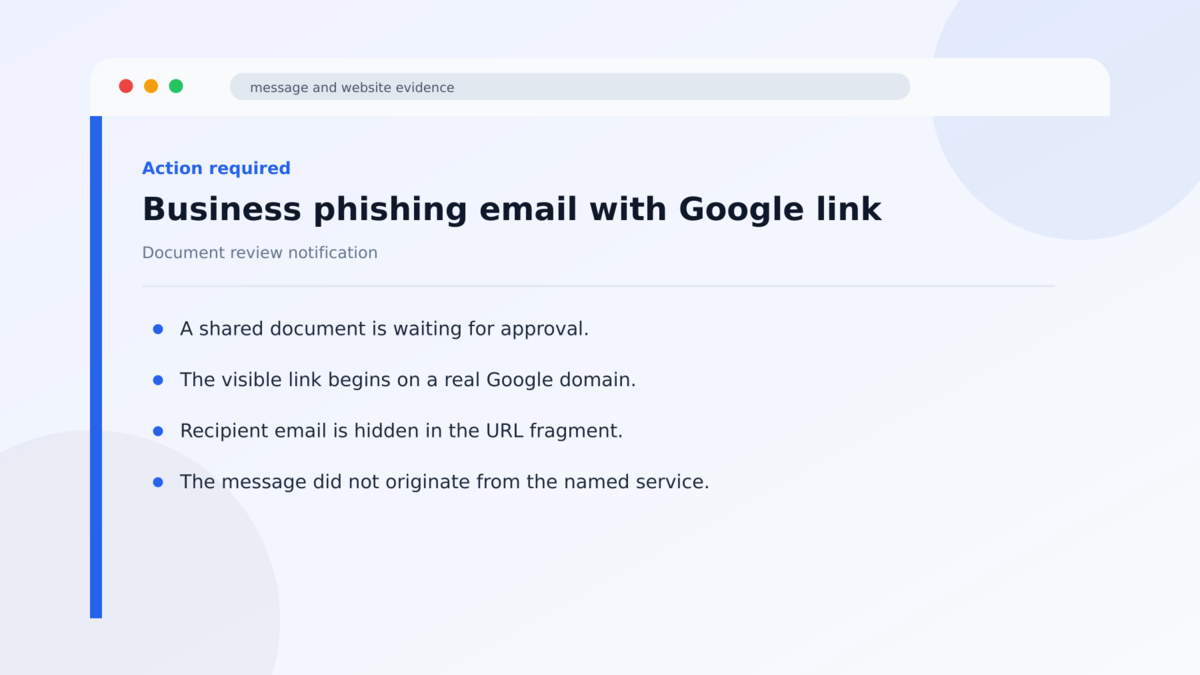
An email says a document needs approval, a mailbox will expire, a package was missed, or a payment is waiting. The embedded link begins on a genuine Google domain, so the usual advice to inspect the address appears to confirm that it is safe.
Several trusted Google services may appear as the browser moves from one page to the next.
The Google addresses are real. The trust created by them is what the phishing campaign is designed to borrow.
Overview
The phishing link deliberately passes through Google infrastructure
KnowBe4 researchers documented an active, wide-scale phishing campaign that routes victims through legitimate Google services before reaching attacker-controlled pages. The operation abused six Google properties across several redirect paths, including Google Meet, Search, DoubleClick, Custom Search, Image Search, Tag Manager, and Analytics-related endpoints.
Google itself is not sending the phishing email or operating the final page. The criminals misuse redirect and tracking functions that normally help users leave meetings, follow search results, measure advertisements, or process analytics traffic. Security products are accustomed to allowing those domains.
The final login page rebuilds itself for each victim
The attack carries the recipient’s email address through the chain, sometimes encoded in the part of the URL after a # symbol. When the final page loads, it extracts the company domain from that address and uses it to create a personalized login experience.
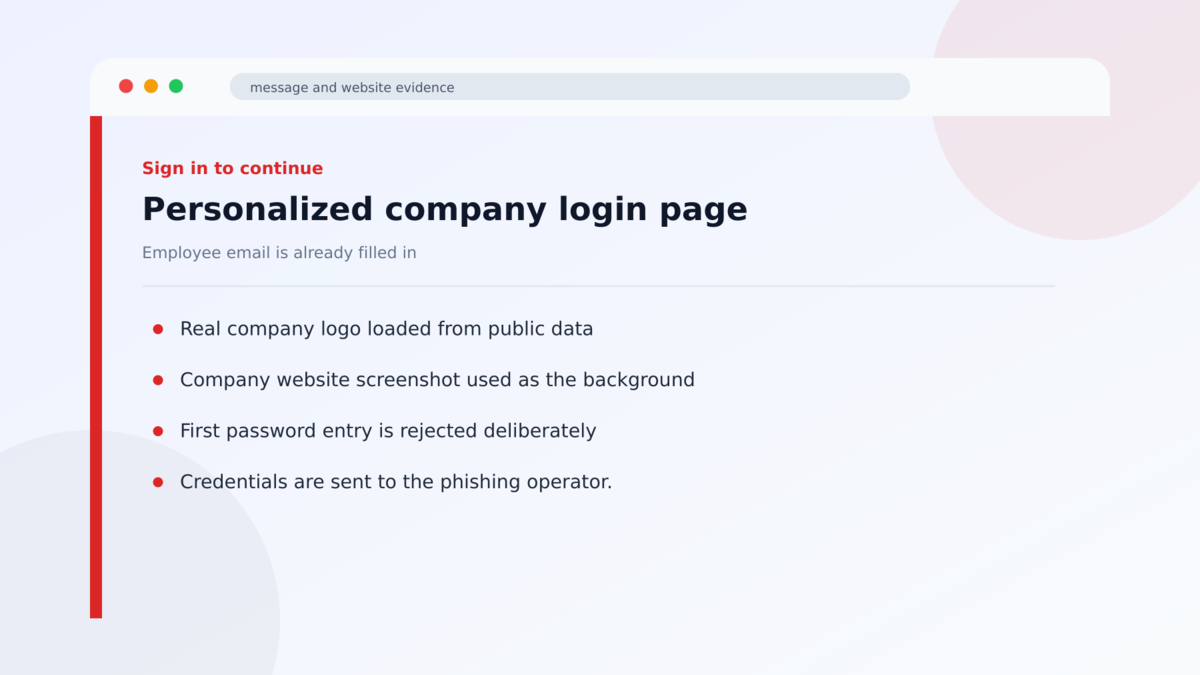
The page can fetch the organization’s real logo, use a current screenshot of its public website as the background, prefill the employee’s email address, and localize the interface into one of 16 languages. The victim sees familiar branding that appears to confirm the email was intended for them.
The campaign steals credentials or installs remote access
One path presents a fake Microsoft or shared-document sign-in and sends the submitted password to the operators. Some versions deliberately reject the first password and collect a second entry before redirecting the victim to the real company website.
Another path displays a false identity-verification request and installs ScreenConnect, a legitimate remote monitoring tool. When installed for the attacker, it can provide persistent access to the computer even after a password is changed.
- The campaign uses several business email themes rather than one fixed message.
- Observed lures include document reviews, mailbox expiry, package delivery, payment notices, government benefits, and voicemail alerts.
- Every observed path uses at least one legitimate Google service as an intermediary.
- The victim’s email can be carried in a URL fragment that many server logs do not record.
- The final page checks whether the email domain has real mail servers before showing the form.
- The victim’s real company logo and website screenshot are loaded dynamically.
- Credentials are sent to the operators through a Telegram bot.
- A second route installs ScreenConnect for persistent remote access.
- Google and the brands shown in the emails are being abused and are not running the scam.
Why Trusted Google Links Help the Email Pass Inspection
Email gateways and employees both look for suspicious domains. A message linking directly to an unknown phishing host is easier to block and easier for a person to question. The campaign avoids that obvious first impression by placing a real Google address at the front.
Redirects are a normal part of the web. Search engines, advertising platforms, analytics tools, and meeting services routinely send visitors to external destinations. Blocking every redirect from a major provider would break legitimate business activity.
The attackers chain these functions together so the link looks clean at multiple inspection points. A scanner may visit the first address, recognize Google, and stop before the final destination becomes active for the intended person.
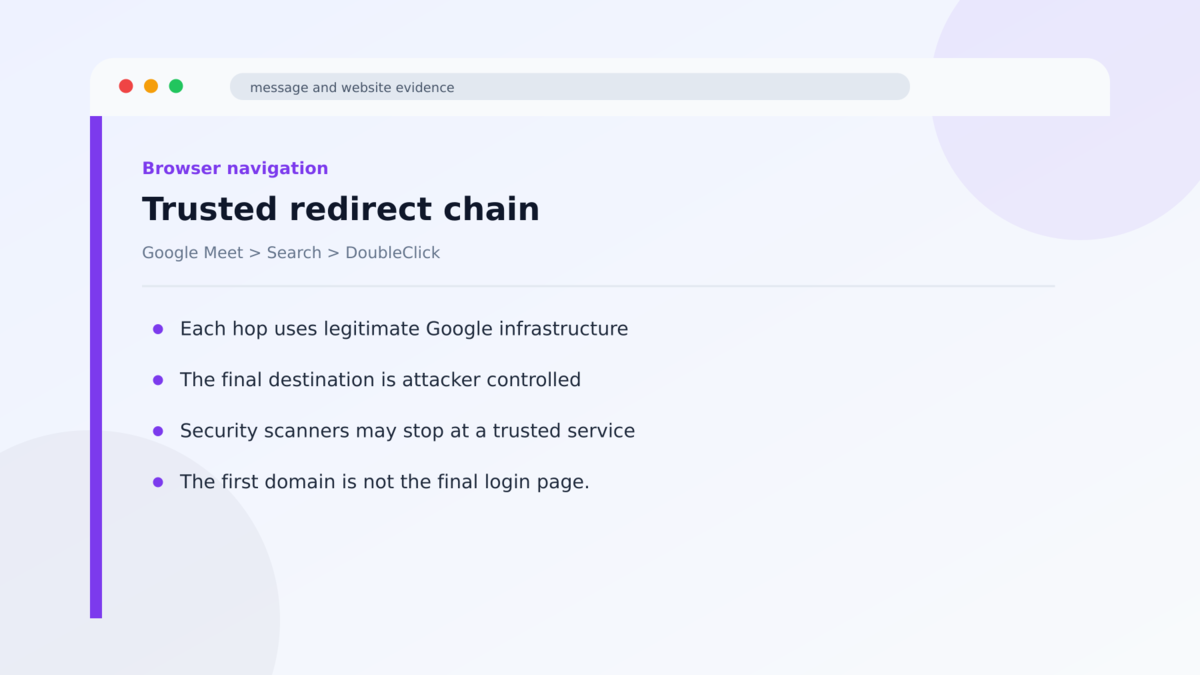
The URL fragment adds another layer. Text after a # symbol is normally processed inside the browser and is not sent to every server along the route. The campaign uses that space to carry a preselected email address to the final page while hiding it from many intermediary logs.
The phishing kit also filters visitors. It can check the IP address, browser, language, and the presence of valid mail records for the submitted company domain. Researchers or automated sandboxes using invented addresses may receive nothing useful.
By the time a genuine employee reaches the login page, it already shows the correct email, organization name, logo, and web background. The personalization is assembled from public information. It does not prove that the employer created the page.
The wide range of lure themes also makes campaign-wide warnings harder. One employee may report a fake package email while another sees a document review or voicemail. The emails look unrelated even though the redirect and credential-harvesting machinery is shared.
That is why the behavior after the click matters more than the subject line. An unexpected message that passes through trusted infrastructure and ends at an unfamiliar authentication page should be reported regardless of the brand used in the email.
What the Link, Personalization, Password Prompt, and Research Reveal
The first domain is not the final destination
A URL can begin with google.com and still contain a parameter that tells the service where to send the browser next. Security decisions must account for the complete redirect chain, not only the first hostname.
Do not approve a sign-in merely because you remember seeing Google earlier. When the form appears, inspect the current address and ask whether that exact domain is the normal login service for the organization.
Browser history can make the chain difficult to reconstruct later because some redirects happen almost instantly. Saving the original email and copying the complete link gives a security team better evidence than a screenshot of only the final form.
The familiar company page is generated from public data
Company logos, favicons, and public website screenshots are easy to retrieve automatically. The phishing kit uses the domain after the @ in the victim’s email address to request those assets.
A personalized page can therefore appear seconds after the click without the attacker having access to the company. The victim’s own email address supplied all the information needed to build it.
The first password always fails on purpose
Some variants show an invalid-password message after the first submission, regardless of whether the password was correct. The victim enters it again carefully, giving the attackers a second version and increasing their confidence that they captured the right credential.
After the second entry, the page redirects to the real company website. That ordinary ending can make the failed sign-in seem like a temporary technical issue.
The campaign has been independently analyzed
KnowBe4 Threat Lab published the redirect chains, phishing code, lure examples, and credential-exfiltration behavior. Researchers also documented the ScreenConnect installation route and the real-time company branding used by the final page.
The endpoint list can change as providers close abused paths and operators register new domains. The lasting warning is a trusted redirect that ends at an unexpected login or identity-verification page outside the normal account workflow.
How the Google Redirect Phishing Scam Works
Step 1: A business-themed email creates a reason to click
The message may imitate DocuSign, SafeSend ONE, Microsoft 365, FedEx, OneDrive, QuickBooks, Social Security, or a voicemail service. Each theme gives the recipient a familiar task with a deadline.
The campaign targets organizations across manufacturing, government, finance, and nonprofit sectors. The subject and body can include the recipient’s name or company domain.
Different themes let the same infrastructure reach people with different responsibilities. A finance employee may respond to a QuickBooks notice, while an administrator may be more likely to open a benefits or shared-document message.
Step 2: The embedded URL points to a real Google service
The visible link uses an allowed Google-owned domain. Behind it, query parameters specify another redirect endpoint or the eventual attacker-controlled destination.
Some paths use several hops, such as Google Meet, Google Search, and DoubleClick. Others use Custom Search, Image Search, Tag Manager, or Analytics-related behavior.
Step 3: The victim’s email travels in the URL
The address may be encoded or placed after a # symbol. This allows the final page to know who clicked while keeping the targeting information out of many server-side request logs.
An email address embedded after # in a link is not automatically malicious, but it is a strong sign that the destination is preparing a personalized session.
Step 4: The final site filters automated visitors
The landing infrastructure can show a short waiting screen or fake human-verification prompt. In the background, it collects browser and location information and checks whether the target company has valid mail records.
Scanners that do not click, wait, or use a real corporate domain can be filtered out. A genuine employee receives the full phishing page.
Step 5: A company-branded login form is assembled
The kit fetches the organization’s real logo and a screenshot of its public website. It fills in the recipient’s email, changes the tab title, and selects a language based on the browser.
The page resembles a custom single sign-on portal even though it was generated by an attacker who knew only the email address.
Step 6: Credentials or remote access are captured
On the credential path, the password and session details are sent to a Telegram bot. A forced failure may collect the password twice before the victim is returned to a real site.
On the remote-access path, a fake identity-verification step installs ScreenConnect. The operator can then interact with the computer, view data, and maintain access independently of the stolen password.
Warning Signs Along the Redirect Chain
- The email creates an unexpected document, mailbox, delivery, payment, benefit, or voicemail task.
- The link contains a long Google URL followed by encoded parameters.
- An email address appears in the link, especially after a # symbol.
- The browser passes through several unrelated Google services before showing a login.
- The final form is not on the organization’s normal identity-provider domain.
- The page already knows the email address and displays the company logo.
- A first password is rejected immediately and the same form asks for it again.
- A document page requests device-code authorization rather than ordinary file access.
- An identity check asks you to download ScreenConnect or another remote-support tool.
- The page uses a fake CAPTCHA or waiting screen before deciding what content to show.
Open the named service independently. If a document, voicemail, payment, or delivery is real, it should be visible after you sign in through a known bookmark or official application.
What to Do if You Have Fallen Victim to This Scam
- Use a clean device and change the affected password immediately. Begin with the corporate or primary email account.
- Revoke active sessions and authentication tokens. A password reset may not close every session or device-code authorization.
- Review multifactor methods and connected applications. Remove unknown devices, phone numbers, passkeys, app passwords, OAuth grants, and recovery addresses.
- Notify the organization’s security team. Provide the original email, complete headers, full link, time of the click, and every page or prompt you saw.
- Check mailbox rules and delegated access. Attackers often create forwarding rules or hidden permissions after gaining entry.
- Disconnect the computer if ScreenConnect was installed. Treat the endpoint as actively compromised and do not use it for further account recovery.
- Remove unauthorized remote-access software through incident response. In a business environment, isolation, forensic collection, and a system rebuild may be necessary.
- Inspect recent cloud activity. Look for unusual downloads, sent messages, new inbox rules, file shares, login locations, and application consent.
- Warn contacts who received messages from the compromised account. Attackers may reuse a real mailbox to continue the campaign internally.
Frequently Asked Questions
Is Google running the phishing campaign?
No. Attackers abuse legitimate redirect and tracking functions on Google infrastructure before sending victims to their own pages.
Can a real google.com link lead to a scam?
Yes. A Google URL can contain a parameter that redirects the browser elsewhere. Check the final domain where a login or download is requested.
Why does the page show my real company logo?
The phishing kit derives the company domain from your email address and fetches public logo and website images automatically.
Why did my first password fail?
Some versions reject the first entry deliberately so the victim submits a second password. Both attempts can be sent to the attacker.
What is the risk of installing ScreenConnect?
ScreenConnect is a legitimate support product, but an attacker-controlled installation can provide persistent remote access to files, applications, and logged-in accounts.
Does multifactor authentication stop this attack?
It helps, but the campaign can abuse device-code flows, steal active sessions, or install remote-access software. Report the incident even if MFA was enabled.
The Bottom Line
This phishing campaign uses real Google domains as stepping stones, not as the final destination. That distinction lets a malicious link inherit trust from infrastructure that users and security systems encounter every day.
The company logo, website background, prefilled email, and correct language are generated from public data. They make the page personal, but they do not make it authentic.
If you entered credentials or installed remote-access software, respond as though the account and computer are compromised. Revoke sessions, notify security, isolate the device, and investigate what the attacker could access.

Join the discussion
0 commentsShare your experience or ask a question about this article.
Discussion
Start the conversation
Have a question or something useful to share? Add the first comment.