

If you’ve received a disturbing email claiming someone has access to your device, recorded an embarrassing video of you, and is threatening to expose it unless you pay in Bitcoin, you’re not alone. These blackmail messages are part of an increasingly common cybercrime tactic known as sextortion scams. One version of this scam begins with the message: “I Captured Some Footage (With Audio) Of You” — and it’s been spreading fast.
The scam uses fear, technical jargon, and fake hacking claims to manipulate victims into paying money quickly, often without questioning the legitimacy of the threat. In this article, we’ll break down exactly how this scam works, how you can spot it, and what to do if you’ve already received one of these emails or, worse, sent money.
What Is the “I Captured Some Footage (With Audio) Of You” Email Scam?
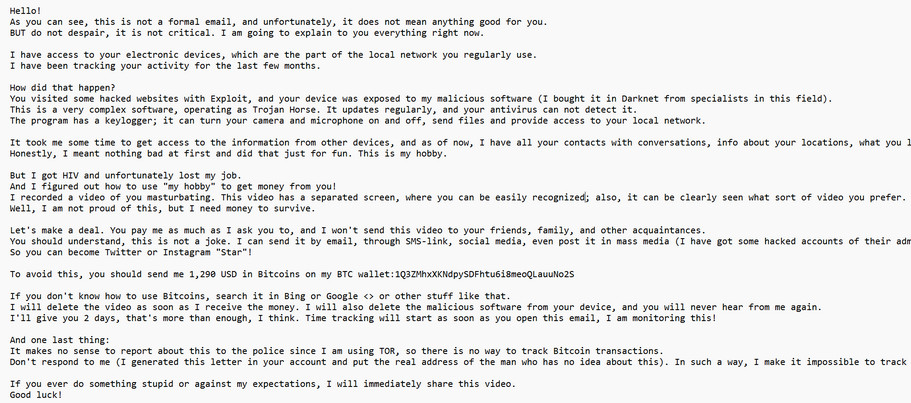
This scam is a textbook case of sextortion phishing, a cyber-extortion scheme designed to scare the recipient into sending cryptocurrency (usually Bitcoin) to a scammer. The attacker claims to have hacked your device, accessed your camera and microphone, and recorded intimate videos of you. The scammer then threatens to release this footage to your contacts, unless you pay a specific ransom — in this case, $1,290 in Bitcoin.
Let’s take a closer look at the email content and how it’s structured to manipulate the reader.
The Email Breakdown
The scam message follows a calculated psychological script:
- Subject Line: Usually vague or curiosity-triggering, such as “Cooperation Offer” or “Your account was compromised”
- Opening Hook: “Hello! This is not a formal email…”
- Fear Induction: Claims of malware, keyloggers, access to your network, camera, microphone, etc.
- Storytelling Element: Mentions personal misfortunes (e.g., the scammer has HIV, lost their job) to manipulate empathy.
- Threat: “I recorded you. I will release the video unless you pay.”
- Call to Action: Clear instructions to send Bitcoin to a specific address.
- Deadline: 48 hours, accompanied by false claims like “I know when you open this email.”
- Intimidation Tactics: Mentions TOR, untraceable payments, hacked admin accounts, social media exposure, and police being unable to help.
The Scam’s Goal
The attacker wants a fast, emotional reaction. The message is designed to bypass logic and create panic, leaving the recipient feeling trapped and desperate to avoid humiliation. Victims who feel fear, shame, or embarrassment may act without verifying the scammer’s claims or considering alternatives.
The attacker uses:
- Technical terms to sound credible (e.g., “Trojan Horse”, “Exploit”, “keylogger”)
- Social engineering to manipulate behavior
- Urgency and isolation to prevent victims from asking for help or reporting the scam
Common Variants of This Scam
This scam has many cousins. Variations include:
- Claims that a password was obtained (often old or leaked from unrelated data breaches)
- Fake “proof” with screenshots or blurred images
- Impersonation of authorities (e.g., FBI, ISP warning)
- Messages that appear to come from your own email address, using spoofing techniques
No matter the version, the goal is always the same: convince the target that something private is about to be exposed and then offer a way out — for a price.
Why These Scams Work
The success of these scams relies on human psychology, not actual hacking. Here’s why they work:
- Fear of exposure: Many people feel alarmed at the thought of private behaviors becoming public, even if no such video exists.
- False authority: Technical language and confident tone create a false sense of credibility.
- Sense of urgency: The “48-hour deadline” encourages impulsive action without due diligence.
- Anonymity of Bitcoin: Makes recovery of money impossible and emboldens scammers.
Real-World Impact
Thousands of people have reported these emails globally, and while most do not pay, a concerning percentage do. For example, studies by cybersecurity firms have shown that 1 in 25 recipients may fall for such scams, especially if they have limited technical knowledge or experience panic and shame.
Even if no money is sent, these scams can cause:
- Emotional distress
- Loss of sleep
- Fear of future exposure
- Embarrassment to confide in others
And worse, responding to or paying the scammer can make you a target for more extortion attempts in the future.
How the Scam Works
To truly understand this scam, it’s important to break it down in fine detail. While the email may appear to describe an elaborate hacking operation, the truth is that this scam is a psychological con, not a technical one. Here’s how it works, from start to finish.
Step 1: Scammers Collect Email Addresses
The first step involves gathering a large list of valid email addresses. Scammers acquire these from:
- Data breaches (many of which are publicly available)
- Email scraping bots
- Leaked contact lists on the dark web
- Phishing websites or shady services
They don’t need to know who you are. They simply need a real, functioning email address to send their threat to.
Step 2: Bulk Email Campaigns
Once they have a list, scammers use email-sending scripts or botnets to deliver thousands of scam messages at once. These campaigns are highly automated.
Email subjects are carefully crafted to sound vague but alarming, such as:
- “Important Information”
- “Security Breach Detected”
- “You have been recorded”
- “Your device is compromised”
The goal is to get you to open the email out of fear or curiosity.
Here is how the emai might look:
Well, hello there Do Not Reply to this email, if you got questions ? email me at: [email] Let’s get straight to the point. We’ve known each other for a while, at least I know. A few months ago, I gained access to your device, including your internet history and webcam. And I captured some footage (with audio) of you doing something you wouldn’t want anyone to see. Let’s just say it involves activities that are far from your usual routine. It’s unlikely that you’d want your family, colleagues, or contacts to see what I have. (we both know what I’m talking about), I also plan to release these data on many websites and expose the real you. At this stage, it will be impossible to undo it. You may ask how did I do that? You allowed my ransomware to your device. After that, I gained remote access to it. After infecting one device, I was able to access all other devices and your WiFi network without any issue. I’ll just lay out a condition for you now. A little payment to save your reputation is a fair deal. Transfer Exactly 1200 USD to my bіtсοіո wallet. WALLET: 1EHyhZnwNymJ8Pr6KQP8rfe2YQjjBSBTS Once the transfer is confirmed, I will remotely remove the virus from your devices, the data will be permanently deleted and you will never hear from me again. Yes, it’s a very tiny amount to pay to avoid ruining your reputation in the eyes of people who believe you to be a good person. You have 48 hours – I’ll be notified as soon as you open this email, and from then on it’s a countdown. If you’ve never dealt with сrурtοсսrrеոсу before, it’s super easy – search for “btс exchanger” “MoonPay” “ΒіtΡау”, or else you can use cash to buy using “ВТᏟ ATM” within your local area.
Step 3: Scare Tactics and Fake Tech Details
Once opened, the email launches into a chilling narrative. It says:
- You visited hacked websites that delivered an exploit.
- A custom Trojan Horse was installed on your system.
- It includes a keylogger, camera/mic controller, and network scanner.
- It has allegedly recorded a video of you masturbating.
This part of the scam is intentionally written to sound highly technical and believable. It uses cybersecurity buzzwords like:
- Exploit
- Keylogger
- Trojan Horse
- Darknet
- TOR
- Antivirus evasion
The truth? None of this actually happened.
Your device wasn’t hacked. There is no malware on your system, no camera access, and no compromising video. It’s all a lie.
Step 4: Social Engineering Twist — The “Human Side”
Midway through the email, the scammer introduces a backstory. They claim:
“Honestly, I meant nothing bad at first and did that just for fun… but I got HIV and lost my job.”
This is deliberate. The scammer is mixing threat with a plea for sympathy. It’s designed to disarm you emotionally and justify their blackmail attempt.
By appearing “human,” the scammer tries to reduce your anger and increase your likelihood of paying to “make the problem go away.”
Step 5: The Ransom Demand
Now comes the real goal of the scam:
“Send me $1,290 in Bitcoin.”
You are given a Bitcoin wallet address and instructed to search Google or Bing for how to send Bitcoin. This serves two purposes:
- To help people unfamiliar with crypto still complete the transaction.
- To suggest that this is a “standard” or legitimate thing to do.
Bitcoin is chosen because it is anonymous and irreversible. Once sent, there is no way to trace or recover the funds.
The email also includes a strict deadline:
“I’ll give you 2 days… Time tracking will start as soon as you open this email.”
This is a psychological trick. It makes the situation feel urgent and discourages you from seeking help or doing research.
Step 6: Fear of Public Exposure
The scammer then escalates the threat by stating they will:
- Email the video to your contacts
- Share it on social media
- Post it on news websites
- Leak it on adult sites
To make this threat seem real, the email may mention:
- “I have your contact list”
- “I know your favorite websites”
- “I can impersonate you using hacked email accounts”
In truth, they have none of this information. It’s all bluff.
Step 7: Warnings Against Police or Reporting
To stop you from taking action or reporting them, the scammer includes another threat:
“It makes no sense to report this to the police since I use TOR.”
They also claim the email was sent from inside your own account or someone else’s compromised inbox, making them “untraceable.” These are lies meant to discourage you from contacting authorities or security experts.
They say not to reply to the email and that any action against them will result in immediate public release of the video.
This is fearmongering, nothing more.
Step 8: Wait and Repeat
Once sent, the scammer simply waits. They track Bitcoin wallets to see if any victims pay. If one does, they move on.
But sometimes they:
- Send follow-up threats if no payment is made
- Increase the ransom
- Claim they already sent the video as punishment
- Send the same message again weeks later
It’s all part of the extortion playbook.
What To Do If You Have Fallen Victim
Whether you’ve simply received the email, panicked and responded, or actually sent money, don’t worry — there are steps you can take. This scam is designed to prey on fear and silence. The most important thing is to act calmly and methodically.
Here’s exactly what you should do:
1. Do Not Pay the Ransom
It’s tempting to pay just to make the problem go away, especially if you’re worried about your reputation or relationships. But paying the ransom:
- Confirms you are a viable target
- Funds criminal activity
- Increases your chances of being targeted again
- Does not guarantee they will stop
Scammers rarely delete anything after being paid. In many cases, they continue to harass victims, demand more money, or share the Bitcoin wallet with other cybercriminals as a “hot lead.”
2. Do Not Respond to the Email
Avoid replying, even if you’re angry or want to threaten legal action. Any response:
- Confirms your email is active
- Opens the door to further manipulation
- May trigger more extortion attempts
These messages are often automated or semi-automated. The more you engage, the more you’re likely to stay on their radar.
3. Mark the Email as Spam or Phishing
If you’re using Gmail, Outlook, Yahoo, or another mainstream provider, mark the email as “Phishing” or “Spam” immediately.
This helps:
- Improve spam filters
- Alert email providers to ongoing threats
- Reduce your chances of receiving follow-up scams
Also consider creating a rule to automatically delete emails from the same sender if they persist.
4. Change Your Passwords If You Use the Same Email for Logins
Although the scam email itself is fake, the attackers may have obtained your email from a data breach, and you might be reusing that password across other services.
Use a site like haveibeenpwned.com to check if your email has been involved in a known breach.
If so, immediately:
- Change your email password
- Enable 2-Factor Authentication (2FA)
- Update credentials for any connected accounts (banking, social media, etc.)
This is preventative, not a reaction to actual malware. The scammers likely have no access to your devices or accounts.
5. Scan Your Devices for Malware
While this scam does not involve real malware, it’s wise to scan your device anyway. This provides peace of mind and helps you rule out unrelated threats.
Use trusted antivirus or anti-malware tools such as:
- Malwarebytes
- Bitdefender
- Kaspersky
- Windows Defender
Run a full system scan and remove anything suspicious.
6. Cover or Disable Your Webcam (Optional)
Although this scam doesn’t involve actual webcam hacking, many people feel uneasy after reading it. To ease that concern, consider:
- Using a sliding webcam cover
- Taping over the camera when not in use
- Disabling it from the Device Manager or system settings
For external cameras, simply unplugging them when not in use is enough.
7. Alert Your Contacts (If You’re Concerned About Spoofing)
Scammers may sometimes spoof your email address and send emails to your friends or family to add credibility to the threat. This doesn’t mean they hacked you. It means they forged the “From” field in the email.
If you’re worried this happened, consider alerting your contacts with a short message like:
“If you receive any strange or threatening messages from my email address, please ignore them. My account has not been hacked, but someone is sending fake emails pretending to be me.”
Don’t overexplain or panic. Just provide a calm heads-up.
8. Report the Scam to Authorities or Cybercrime Agencies
You can help fight back by reporting the scam. This may not lead to an arrest, but it helps:
- Track patterns
- Shut down Bitcoin wallets
- Inform others
- Disrupt criminal networks
Here’s where to report:
- United States: ReportFraud.ftc.gov
- United Kingdom: actionfraud.police.uk
- Australia: cyber.gov.au
- European Union: National CERT or police
- Canada: antifraudcentre-centreantifraude.ca
You can also report phishing and scam emails to:
- Google Gmail: phishing-report@google.com
- Microsoft Outlook: reportphishing@outlook.com
9. Monitor Your Accounts for Suspicious Activity
Even if this scam was fake, other breaches may be real. Regularly monitor:
- Email logins and unusual access
- Social media accounts
- Bank and credit card activity
- Cloud storage (Google Drive, iCloud, Dropbox)
Use a password manager like 1Password or Bitwarden to keep track of your credentials and generate strong, unique passwords for every account.
10. Stay Informed and Educate Others
Scammers thrive in secrecy. Talk to friends, family, or coworkers — especially those who might fall for such threats. Help them recognize these red flags:
- Threats of exposure
- Demands for cryptocurrency
- Fake hacking stories
- Urgent deadlines
- Emotional manipulation
The more we all share information, the less power scammers have.
Is Your Device Infected? Run a Free Malware Scan
Slow performance, constant pop-ups, or strange behavior? These are classic signs of a malware infection. The fastest way to find out is to scan your device with Malwarebytes Free — one of the most trusted malware removal tools available.
The free version detects and removes the most common threats, including:
- Adware — the cause of those annoying pop-ups
- Browser hijackers — unwanted redirects and changed homepages
- Trojans and spyware — hidden programs stealing your data
- Potentially unwanted programs (PUPs) — software you never asked for
👉 Select your device below — Windows, Mac, or Android — then follow the simple steps to download Malwarebytes, scan your system, and remove any threats it finds. The scan usually takes 5 to 20 minutes.
Run a Malware Scan with Malwarebytes for Windows
Malwarebytes is one of the most popular and trusted anti-malware tools for Windows — and it’s completely free for removing infections. It catches threats that many antivirus programs miss, including adware, browser hijackers, and trojans. Follow the steps below to scan and clean your PC in just a few minutes.
Download Malwarebytes
Click the button below to download the latest version of Malwarebytes for Windows from the official source. The free version is all you need — it will scan your computer and remove adware, browser hijackers, and other malicious software at no cost.
Download MalwarebytesOfficial installer for Windows 11 and 10. Your download starts right away.Want real-time protection? See Malwarebytes Premium Malwarebytes Free for WindowsScans and removes malware at no cost
-
Install Malwarebytes
When the download finishes, open your Downloads folder and double-click the MBSetup file. If Windows shows a User Account Control pop-up, click “Yes” to allow the installation.

Follow the On-Screen Prompts to Install Malwarebytes
The setup wizard will walk you through a few quick screens:
-
Choose where you’re installing the program — “Personal Computer” or “Work Computer” — then click Next.

-
Malwarebytes will now install on your device. This usually takes under a minute.

-
When installation is complete, the “Welcome to Malwarebytes” screen will open automatically.

-
On the final screen, click Open Malwarebytes to launch the program.

-
Enable “Scan for Rootkits”
Before scanning, turn on rootkit detection so Malwarebytes can find even the most hidden threats. Click the Settings gear icon on the left side of the screen.

In the settings menu, find “Scan for rootkits” and click the toggle so it turns blue.

Done? Click “Dashboard” in the left pane to return to the main screen.
Start the Scan
Click the blue Scan button. Malwarebytes will automatically update its virus database and start checking your computer for malware.

-
Wait for the Scan to Finish
The scan checks your entire system for browser hijackers and other malicious programs, so it can take 5 to 20 minutes depending on your computer. Feel free to do something else — just check back occasionally to see the progress.

-
Quarantine the Detected Threats
When the scan is done, you’ll see a list of everything Malwarebytes found — malware, adware, and potentially unwanted programs. Click the “Quarantine” button to remove all of them at once.

Malwarebytes will now remove the malicious files and registry entries and move them safely into quarantine.

-
Restart Your Computer
Some threats can only be fully removed after a reboot. If Malwarebytes asks you to restart, click Yes. Once you’re logged back in, Malwarebytes has finished removing the threats it found.

That’s it — your Windows PC is now clean of trojans, adware, and other malware, and should be back to running smoothly.
If you are still having problems with your computer after completing these instructions, then please follow one of the steps:
- Run a computer scan with ESET Online Scanner
- Ask for help in our Windows Malware Removal Help & Support forum.
Run a Malware Scan with Malwarebytes for Mac
Malwarebytes for Mac is a free on-demand scanner that removes the malware other security software tends to miss — adware, browser hijackers, and unwanted programs included. Cleaning an infected Mac with Malwarebytes has always been completely free, and it’s our go-to recommendation. Follow the steps below to scan and clean your Mac in just a few minutes.
-
Download Malwarebytes for Mac
Click the button below to download the latest version of Malwarebytes for Mac.
Download MalwarebytesOfficial installer for macOS. Your download starts right away.Want real-time protection? See Malwarebytes PremiumMalwarebytes Free for MacScans and removes malware at no cost -
Open the Malwarebytes setup file
When the download finishes, open your Downloads folder and double-click the setup file to begin the installation.

-
Follow the On-Screen Prompts to Install Malwarebytes
The Malwarebytes for Mac Installer will guide you through a few quick screens. Click “Continue” and keep following the prompts until the installation completes.



When the installation is complete, Malwarebytes opens to the Welcome to Malwarebytes screen. Click “Get started“.
-
Select “Personal Computer” or “Work Computer”
Malwarebytes will ask what type of computer you’re installing it on. Click either Personal Computer or Work Computer, whichever applies.

-
Start the Scan
Click the “Scan” button. Malwarebytes will automatically update its detection database and begin checking your Mac for malware.

-
Wait for the Scan to Finish
Malwarebytes will scan your Mac for adware, browser hijackers, and other malicious programs. This can take a few minutes, so feel free to do something else — just check back occasionally to see the progress.

-
Quarantine the Detected Threats
When the scan is done, you’ll see a list of everything Malwarebytes found. Click the “Quarantine” button to remove all the threats at once.

-
Restart Your Mac
Malwarebytes will now remove all the malicious files it found. Some threats can only be fully removed after a reboot — if Malwarebytes asks you to restart, allow it. Once you’re logged back in, your Mac is clean.

That’s it — your Mac is now free of adware, rogue browser extensions, and other potentially harmful software.
If you are still experiencing problems while trying to remove a malicious program from your computer, please ask for help in our Mac Malware Removal Help & Support forum.
Run a Malware Scan with Malwarebytes for Android
Malwarebytes for Android automatically detects and removes dangerous threats like malware and ransomware so you don’t have to worry about your most-used device being compromised. Aggressive detection of adware and potentially unwanted programs keeps your Android phone or tablet running smooth.
-
Download Malwarebytes for Android.
You can download Malwarebytes for Android by clicking the link below.
Get Malwarebytes for AndroidOpens Google Play in a new tab.Want real-time protection? See Malwarebytes Premium for AndroidMalwarebytes for AndroidScans your phone and removes malware at no cost -
Install Malwarebytes for Android on your phone.
In the Google Play Store, tap “Install” to install Malwarebytes for Android on your device.

When the installation process has finished, tap “Open” to begin using Malwarebytes for Android. You can also open Malwarebytes by tapping on its icon in your phone menu or home screen.

-
Follow the on-screen prompts to complete the setup process
When Malwarebytes will open, you will see the Malwarebytes Setup Wizard which will guide you through a series of permissions and other setup options.
This is the first of two screens that explain the difference between the Premium and Free versions. Swipe this screen to continue.
Tap on “Got it” to proceed to the next step.
Malwarebytes for Android will now ask for a set of permissions that are required to scan your device and protect it from malware. Tap on “Give permission” to continue.
Tap on “Allow” to permit Malwarebytes to access the files on your phone.
-
Update database and run a scan with Malwarebytes for Android
You will now be prompted to update the Malwarebytes database and run a full system scan.

Click on “Update database” to update the Malwarebytes for Android definitions to the latest version, then click on “Run full scan” to perform a system scan.

-
Wait for the Malwarebytes scan to complete.
Malwarebytes will now start scanning your phone for adware and other malicious apps. This process can take a few minutes, so we suggest you do something else and periodically check on the status of the scan to see when it is finished.

-
Click on “Remove Selected”.
When the scan has been completed, you will be presented with a screen showing the malware infections that Malwarebytes for Android has detected. To remove the malicious apps that Malwarebytes has found, tap on the “Remove Selected” button.

-
Restart your phone.
Malwarebytes for Android will now remove all the malicious apps that it has found. To complete the malware removal process, Malwarebytes may ask you to restart your device.
That’s it — your Android phone is now clean — no more malicious apps, adware, or browser redirects.
If you are still having problems with your phone after completing these instructions, then please follow one of the steps:
- Restore your phone to factory settings by going to Settings > General management > Reset > Factory data reset.
- Ask for help in our Mobile Malware Removal Help & Support forum.
Stay Protected: Block Ads and Malicious Sites
Now that your device is clean, keep it that way. Most infections start with a malicious ad or a fake download button — so blocking them at the source is your best defense.
We recommend AdGuard, which blocks malicious ads, phishing pages, and dangerous redirects before they can reach you.
👉 Download AdGuard and browse safely
The Bottom Line
The “I Captured Some Footage (With Audio) Of You” email scam is nothing more than a cleverly worded hoax designed to exploit fear, shame, and panic. These scammers don’t have access to your webcam. They haven’t installed malware. And they definitely haven’t recorded any compromising video.
Their strength lies not in hacking skills, but in social engineering. They craft believable lies, hide behind anonymity, and pressure victims into making impulsive, emotional decisions. But once you understand their tactics, their power vanishes.
If you receive a message like this:
- Do not panic
- Do not pay
- Do not respond
Instead, treat it like what it is — a mass-produced scam built to steal from as many people as possible. Protect yourself by strengthening your passwords, enabling two-factor authentication, scanning for malware, and staying informed.
And most importantly, talk about it. These scams thrive in silence and shame. The more people know the truth, the less likely they are to fall victim.
You’re not alone, and you’re not helpless. With the right knowledge and tools, you can protect your digital life from these manipulative tactics — and help others do the same.
Frequently Asked Questions
What is the “I Captured Some Footage (With Audio) Of You” email scam?
This scam is a type of sextortion phishing email that falsely claims the sender hacked your device after you visited a hacked website. The scammer pretends to have gained control over your camera and microphone, allegedly recording a compromising video of you. They demand a ransom in Bitcoin, threatening to release the video to your contacts if you don’t pay. In reality, there is no malware, no hacked device, and no video.
Is the email saying I was recorded visiting adult websites real?
No, this email is completely fake. It’s designed to scare you into believing your privacy has been violated. Scammers use generic threats, technical jargon, and emotional manipulation to push victims into paying quickly. There is no actual recording or video of you, and your device was not compromised just by receiving or reading the email.
Did I really get hacked by visiting a website?
No. The claim that you visited a “hacked website with an exploit” is false and misleading. These emails are sent in bulk and do not target you specifically. They are part of a mass scam campaign. Unless you downloaded and ran malicious software, or visited a phishing page and entered sensitive data, you were not hacked.
Should I pay the $1,290 ransom in Bitcoin?
Never pay the ransom. Paying not only rewards criminal behavior, but it also puts you at greater risk. Victims who pay often become repeat targets, as scammers now know they can be manipulated. There is no guarantee that the scammer will stop contacting you or delete any so-called “evidence.”
What happens if I pay the scammer?
If you send the money, several things may happen:
- The scammer may demand more money later.
- Your email may be added to a “sucker list” shared among cybercriminals.
- You may experience further harassment or threats.
- You’ll never recover the money, as Bitcoin payments are irreversible.
Is my computer infected with a Trojan or malware?
It’s highly unlikely. These scams are based on lies and psychological tricks, not real malware. However, for peace of mind, you should run a full antivirus and anti-malware scan using reputable tools like Malwarebytes, Bitdefender, or Windows Defender. This ensures your device is clean and gives you confidence moving forward.
How do scammers make the email look so convincing?
Scammers use several tactics:
- Stolen email addresses from past data breaches
- Spoofed email headers to make it appear as though the message came from your own account
- Technical language to simulate hacking
- Emotional storytelling to gain sympathy
- Urgency and threats to discourage rational thinking
These are all forms of social engineering, not proof of any real intrusion.
Why does the email say the countdown started when I opened it?
This is a bluff. The email claims that a timer starts once you read the message, but standard emails cannot track when they are opened, unless they include tracking pixels (which this type of scam rarely does). Even if they did, they would not be able to trigger a countdown or monitor your activity as claimed.
What should I do if I opened the scam email?
Opening the email does not infect your device. Scam emails like this are only dangerous if you:
- Click on links to malicious websites
- Download and run attachments
- Share sensitive information
Simply reading the message is safe. Still, it’s wise to mark the email as spam or phishing and delete it.
How do I report the “I Captured Some Footage (With Audio) Of You” scam?
You can report the scam to help stop the spread and alert authorities. Here’s how:
- United States: reportfraud.ftc.gov
- UK: actionfraud.police.uk
- Canada: antifraudcentre-centreantifraude.ca
- Australia: cyber.gov.au
You can also forward the email to:
- Google (Gmail): phishing-report@google.com
- Microsoft (Outlook): reportphishing@outlook.com
Should I change my passwords after receiving this scam?
If you’re reusing passwords or suspect your email was involved in a data breach, yes — you should change your email and other account passwords immediately. Also, enable two-factor authentication (2FA) to strengthen your account security.
Use a tool like haveibeenpwned.com to check if your email was exposed in a known breach.
Can the scammer really access my webcam or microphone?
No. The claim that they turned on your webcam or microphone remotely using malware is completely fake. Without you installing malicious software or explicitly granting permissions, external access to your camera is not possible. Most devices have hardware-level controls or notification lights that show when the camera is active.
Why do scammers say not to go to the police?
Scammers include warnings against contacting the police to isolate the victim. They falsely claim they are untraceable because they use TOR or fake return addresses. This is meant to intimidate and prevent you from seeking help. You should always feel free to contact law enforcement or cybercrime authorities, especially if you’re feeling harassed or threatened.
Can I ignore the email and move on?
Yes, in most cases, simply ignoring and deleting the email is enough. But it’s still a good idea to:
- Change important passwords
- Enable 2FA
- Run a malware scan
- Inform others so they don’t fall for the same scam
Remaining calm and informed is the best protection against email extortion scams.

Join the discussion
0 commentsShare your experience or ask a question about this article.
Discussion
Start the conversation
Have a question or something useful to share? Add the first comment.