


The “I Have Some Rather Somber News” email ominously popping up in inboxes across the country has users on edge. Is this a credible threat or something more sinister? This alarming message claims to have compromised your device and obtained access to your most private information. Threatening to expose embarrassing materials unless their ransom is paid, the email has all the hallmarks of an extortion scam. But could it actually be real?
In this comprehensive investigation, we’ll uncover the truth about this viral scam and equip you with the knowledge needed to protect yourself. You’ll learn how to spot the tell-tale signs that this “hacked device” email is a fraudulent deception.
Overview of the Scam
The “I Have Some Rather Somber News” is the latest example of an extortion scam making the rounds through spam emails. This fraudulent scam message claims to have hacked your device in order to access personal information, recordings through your camera or microphone, browsing history, and other sensitive data.
The “I Have Some Rather Somber News” email then threatens to leak or publicly share any embarrassing, inappropriate or compromising materials they’ve allegedly uncovered unless you pay a ransom demand in bitcoin. This is why it is sometimes referred to as a sextortion or hacker extortion scam.
The alarming “I Have Some Rather Somber News” email is crafted to appear credible and make recipients panic, hoping they will pay up out of fear. However, cybersecurity experts confirm this is just a scam attempt and no actual hacking has occurred. The cybercriminals behind it are simply trying to extort money through deception, intimidation, and empty threats.
Anatomy of the “I Have Some Rather Somber News” Scam Email
While specific wording may vary, these fraudulent extortion emails tend to share common elements:
- A subject line stating your device, accounts or operating system was hacked, often citing an exact date. For example: “Your device was hacked on January 1, 2023.”
- Claims of remotely accessing or compromising your device, including gaining control over your camera, microphone, and screen monitoring capabilities.
- Assertions they’ve been tracking your online behaviors and activities for an extended period of time, sometimes weeks or months.
- Threats that they will share or leak edited videos, photos, audio recordings or sensitive information if payment is not received. These materials are often described in an embarrassing or compromising manner.
- A deadline demanding payment within 24-48 hours, sometimes citing they will increase the amount after that timeframe. This creates a sense of urgency.
- Payment instructions directing victims to send funds in bitcoin or other cryptocurrencies to a specific wallet address provided.
- Assurances that they will immediately destroy or delete all of the data, footage and malware after the ransom payment is received.
- Attempts to intimidate the recipient and instill fear that their reputation, relationships or livelihood could be ruined if the materials are leaked.
- Warnings not to go to the police or seek help, as there is “no way to stop the release” once their process begins.
To give it the appearance of a hack, the email may contain the recipient’s username or email address in the message. Some variants even spoof the sender’s email address to look like an official notice from a service provider.
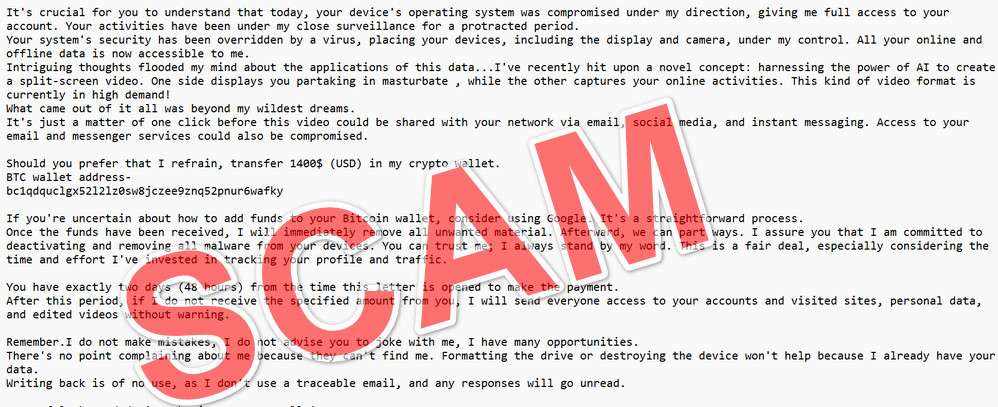
Here is how the “I Have Some Rather Somber News” email may look:
Subject: Access to your device was obtained on [date].
Hey. I regret to inform you that I have some rather somber news.
[date]
It’s crucial for you to understand that today, your device’s operating system was compromised under my direction, giving me full access to your account. Your activities have been under my close surveillance for a protracted period.
Your system’s security has been overridden by a virus, placing your devices, including the display and camera, under my control. All your online and offline data is now accessible to me.
Intriguing thoughts flooded my mind about the applications of this data…I’ve recently hit upon a novel concept: harnessing the power of AI to create a split-screen video. One side displays you partaking in masturbate , while the other captures your online activities. This kind of video format is currently in high demand!
What came out of it all was beyond my wildest dreams.
It’s just a matter of one click before this video could be shared with your network via email, social media, and instant messaging. Access to your email and messenger services could also be compromised.Should you prefer that I refrain, transfer 1400$ (USD) in my crypto wallet.
BTC wallet address-
bc1qdquclgx52l2lz0sw8jczee9znq52pnur6wafkyIf you’re uncertain about how to add funds to your Bitcoin wallet, consider using Google. It’s a straightforward process.
Once the funds have been received, I will immediately remove all unwanted material. Afterward, we can part ways. I assure you that I am committed to deactivating and removing all malware from your devices. You can trust me; I always stand by my word. This is a fair deal, especially considering the time and effort I’ve invested in tracking your profile and traffic.You have exactly two days (48 hours) from the time this letter is opened to make the payment.
After this period, if I do not receive the specified amount from you, I will send everyone access to your accounts and visited sites, personal data, and edited videos without warning.Remember.I do not make mistakes, I do not advise you to joke with me, I have many opportunities.
There’s no point complaining about me because they can’t find me. Formatting the drive or destroying the device won’t help because I already have your data.
Writing back is of no use, as I don’t use a traceable email, and any responses will go unread.Best of luck, and don’t take it too personally!
P.S. I’d suggest for your future online endeavors, always stick to internet safety rules and avoid the murky areas of the web.
Goals and Motives of Scammers
The core goal is to extort money through false threats, deception, and social engineering. Specifically, the scammers aim to:
- Craft an email that appears legitimate and credible on the surface.
- Make alarming claims that private videos or information were obtained through hacking.
- Leverage embarrassment, fear and panic to prevent clear thinking.
- Force quick payment by creating a sense of urgency with a short deadline.
- Demand payment through difficult-to-trace cryptocurrency like bitcoin.
- Scare and manipulate people into paying ransom out of desperation.
- Threaten ruining a person’s reputation or livelihood as extra intimidation.
- Sow enough doubt that victims question whether their device was truly hacked.
- Convince recipients that paying a small ransom is “easier” than dealing with the alleged consequences.
By preying on a victim’s worst fears of embarrassment or reputation destruction, the scammers increase their chances of compliance. Even a very low success rate can prove profitable if millions of emails are sent out.
Who is Vulnerable to the Scam?
In truth, we’re all potentially vulnerable to a well-crafted extortion scam that instills fear. However, the email is designed to specifically target those who:
- Have engaged in private online behaviors they wish to keep secret, such as adult content or infidelity.
- Tend to experience feelings of shame or embarrassment when it comes to their private activities being exposed.
- Would go to great lengths to avoid having their online reputation damaged or relationships harmed.
- Are not technically savvy enough to recognize an obvious scam attempt and email spoofing.
- Are prone to reacting hastily out of emotion instead of thinking rationally.
- Have the available funds on hand to easily pay the ransom amount being demanded.
- Are unwilling to take the small risk that the threats could be carried out.
The scammers know that only a small percentage of recipients likely meet this criteria. But within a massive email blast, a 1% success rate could still amount to thousands of victims and major profits.
Tools and Techniques Used
To carry out this scam on such a wide scale, hackers utilize a range of black hat cybersecurity tools and illicit techniques, including:
- Malware, keyloggers or Remote Access Trojans (RATs) to harvest emails and compile massive distribution lists.
- Botnets rented through black market sites on the dark web which allow sending millions of emails.
- Anonymous encrypted email accounts hosted outside mainstream providers’ domains.
- Services or software to spoof legitimate email headers and sender addresses.
- Bitcoin mixers and tumblers to launder cryptocurrency payments and obfuscate transaction trails.
- Disposable cryptocurrency wallets that can quickly be generated then abandoned after payments are withdrawn.
- Encryption, obfuscation and anonymity tools to avoid tracking or backtracing by authorities.
By covering their tracks and utilizing anonymity tools, the scammers hope to avoid ever getting caught. Law enforcement has found these scams extremely difficult to prosecute due to their global nature and technical sophistication.
How the “I Have Some Rather Somber News” Scam Works
Here is a step-by-step look at how this scam typically operates:
1. Scammers Obtain Massive Email Lists
The first step is compiling a massive list of target email addresses. These are harvested from various sources:
- Hacking databases and contact lists from vulnerable websites and companies.
- Buying emails in bulk on the dark web hacker forums.
- Utilizing malware and spyware to infect devices and steal contacts.
- Phishing for account credentials then logging into accounts to export email contacts.
- Scrapping public sites, social media, and forums for publicly posted email addresses.
The scammers cast an extremely wide net, compiling millions of emails through both legal and illegal means. Quantity is their priority.
2. The Fraudulent Email is Crafted
Next, the scammer designs the scam email to appear credible on the surface. Technical details and personal information are fabricated to make the claims seem plausible.
Examples of false evidence they might include:
- Screenshots that appear to show your desktop or online activities.
- IP address, location, device details, or password hints.
- Names, dates, times, and snippets of any personal data.
- Attachments pretending to contain compromising images or recordings.
In reality, none of this fabricated information comes from real hacking or monitoring. But it plants the seed of doubt that their claims could be true.
3. The Email Blast Commences
Using compromised computers and stolen servers, the scammers distribute the extortion email en masse. Millions of recipients will end up in the spam folders of innocent victims.
Distribution techniques include:
- Botnets – networks of infected devices that distribute spam.
- Hacked websites – inserted code that injects emails into outbound traffic.
- Black market email services – pay for access to millions of spoofed addresses.
- Open relays – insecure mail servers used to mask the origin.
The sheer massive scale of the email blast increases the criminal’s chance of success.
4. Recipients React with Fear or Anger
Upon receiving the alarming claims and threats in their inbox, most recipients will experience either:
- Fear that the threats could be real and not paying could ruin their lives.
- Anger at the scammers for attempting such a brazen extortion scheme.
But these emotional reactions are precisely what the criminals intend. Clear thinking goes out the window when we’re reacting from fear or rage.
5. A Percentage of Victims Pay the Ransom
Despite all the evidence pointing to it being a scam, some small percentage of recipients will give in and pay the ransom demand. This is driven by:
- Panic that the threats could be real.
- Desperation to avoid the threatened consequences.
- Embarrassment and wanting to keep perceived misdeeds secret.
- Lack of technological skills to recognize an obvious scam.
- Having the disposable income to easily make the payment.
- Unwillingness to take even a small risk of being exposed.
Even if only 1% pay, that can equal thousands of payouts and huge profits for scammers.
6. Scammers Withdraw and Launder the Funds
Once cryptocurrency payments come flowing into their falsely generated bitcoin wallet, the scammers quickly withdraw it.
They utilize crypto laundering techniques to cover their tracks:
- Cryptocurrency mixers – tools for swapping between different cryptocurrencies.
- Chain hopping – spreading funds across multiple blockchains.
- Transaction splitting – breaking payments into smaller, harder to trace amounts.
- Obfuscation – providing false sender and receiver information.
Within days, the payments are withdrawn, laundered, and cashed out. The temporary crypto wallets used are then discarded.
7. Recipients Realize it Was Fake
After the time has passed, recipients realize:
- No damaging videos or information was ever released.
- Their accounts and devices were not actually hacked.
- The threats were completely fabricated with no truth behind them.
But for those who paid, it’s too late. The scammers have disappeared with their money.
8. Scammers Repeat the Process
Rinse and repeat. The scammers simply refine the scam emails and send out new batches to more email lists.
Minor tweaks might be made to:
- Update the subject lines, threats, and payment amounts.
- Adjust the technical details and false evidence provided.
- Link to new bitcoin wallets.
Then they blast out millions more emails and count their profits from victims who fall prey to the social engineering and threats.
What to Do If You Get the “I Have Some Rather Somber News” Email
If you receive an email claiming your operating system was hacked under their direction, here are important steps to take:
1. Do Not Panic or Act Rashly
This is easier said than done, but do not let fear or embarrassment push you into paying the ransom. The threats are not real. Take a deep breath and think it through.
2. Do Not Reply to the Email
Replying will confirm your email is active. Instead, delete the email right away to avoid further scam attempts.
3. Check Your Accounts for Suspicious Activity
Log into your email, social media, and bank accounts to look for any signs of actual compromise. But usually there will be no indication of a hack.
4. Run a Security Scan on Your Devices
Run a full system security scan using anti-virus software like Malwarebytes and HitmanPro to check for malware or unauthorized access. But again, it’s unlikely anything will turn up.
5. Change Passwords on Important Accounts
Changing passwords is always smart online security practice. Use unique, complex passwords for each account. Enable two-factor authentication where possible.
6. Report the Email to Your Email Provider
Forward the scam email to spam@uce.gov and your email provider (e.g. Google, Yahoo) so they can block further emails.
7. Contact the FBI Cyber Crime Division (optional)
You can report the scam attempt to the FBI’s Internet Crime Complaint Center at ic3.gov. This helps authorities track cyber crime trends.
8. Educate Yourself on Sextortion Scams
Learn to recognize the signs of a sextortion scam so you won’t fall for it in the future. See the bottom line for more resources.
9. Seek Help if You Already Paid the Scammers
If you did pay the ransom, immediately contact your bank/crypto exchange and cyber crime authorities. There may be ways to stop the transfer or trace the scammers. Don’t be embarrassed – scammers are experts at manipulation.
Is Your Device Infected? Run a Free Malware Scan
Slow performance, constant pop-ups, or strange behavior? These are classic signs of a malware infection. A quick way to check is to scan your device with Malwarebytes Free, one of the most trusted malware removal tools available. If you only visited a scam page and didn’t download or install anything, this scan is optional.
The free version detects and removes the most common threats, including:
- Adware — the cause of those annoying pop-ups
- Browser hijackers — unwanted redirects and changed homepages
- Trojans and spyware — hidden programs stealing your data
- Potentially unwanted programs (PUPs) — software you never asked for
👉 Select your device below — Windows, Mac, or Android — then follow the simple steps to download Malwarebytes, scan your system, and remove any threats it finds. The scan usually takes 5 to 20 minutes.
Run a Malware Scan with Malwarebytes for Windows
Malwarebytes is one of the most popular and trusted anti-malware tools for Windows — and it’s completely free for removing infections. It catches threats that many antivirus programs miss, including adware, browser hijackers, and trojans. Follow the steps below to scan your PC and remove what Malwarebytes finds.
Download Malwarebytes
Click the button below to download the latest version of Malwarebytes for Windows from the official source. The free version is all you need — it will scan your computer and remove adware, browser hijackers, and other malicious software at no cost.
Download MalwarebytesOfficial installer for Windows 11 and 10. Your download starts right away.Want real-time protection? See Malwarebytes Premium Malwarebytes Free for WindowsScans and removes malware at no cost
-
Install Malwarebytes
When the download finishes, open your Downloads folder and double-click the MBSetup file. If Windows shows a User Account Control pop-up, click “Yes” to allow the installation.
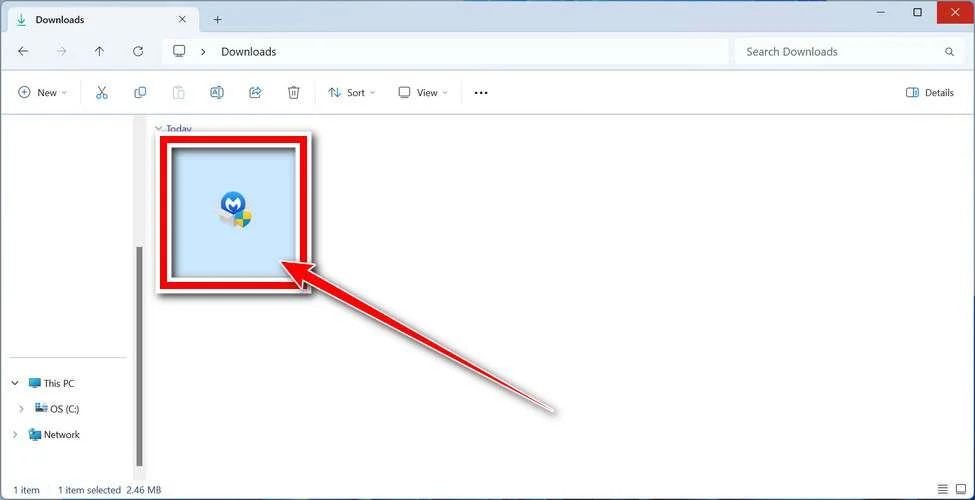
Follow the On-Screen Prompts to Install Malwarebytes
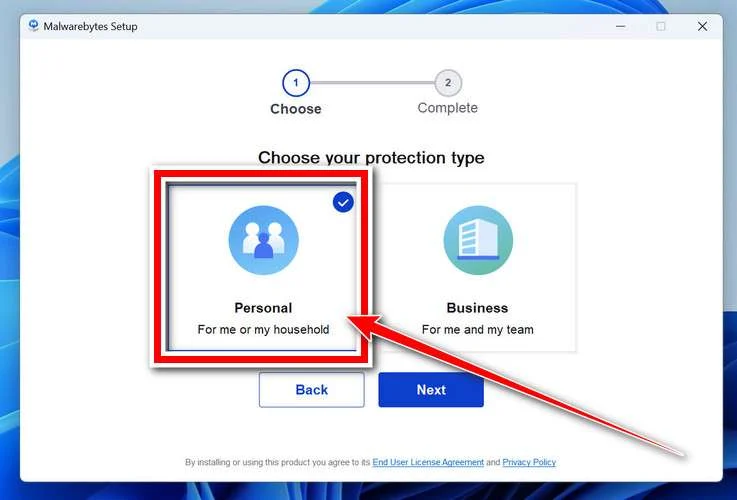
The setup wizard will walk you through a few quick screens:
-
Choose where you’re installing the program — “Personal Computer” or “Work Computer” — then click Next.
-
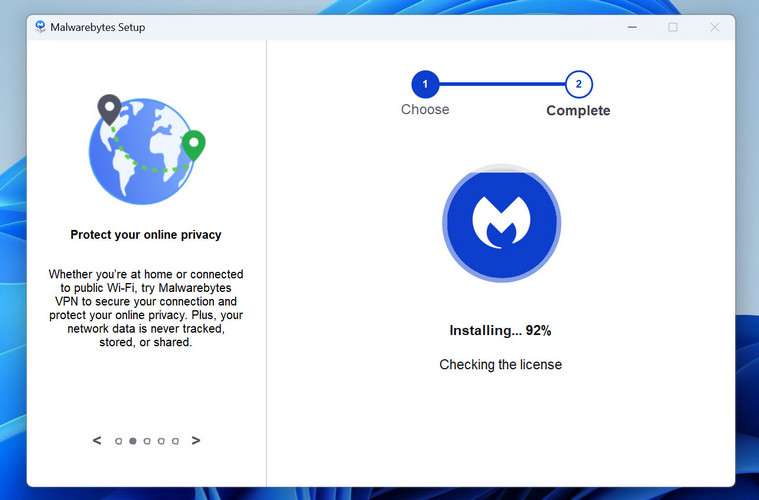
Malwarebytes will now install on your device. This usually takes under a minute.
-
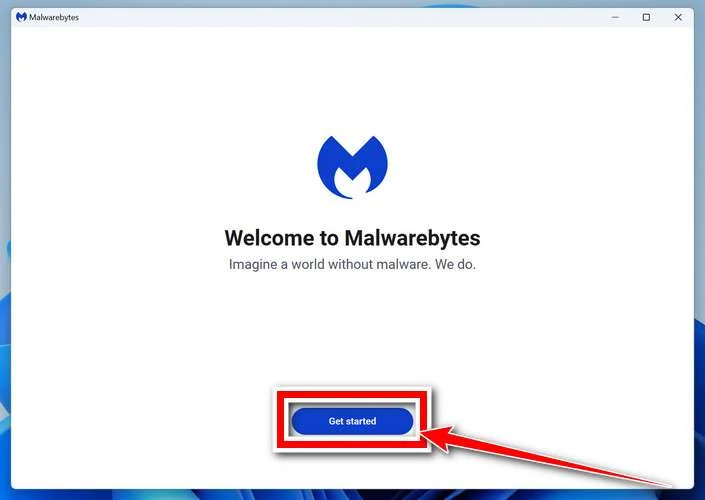
When installation is complete, the “Welcome to Malwarebytes” screen will open automatically.
-
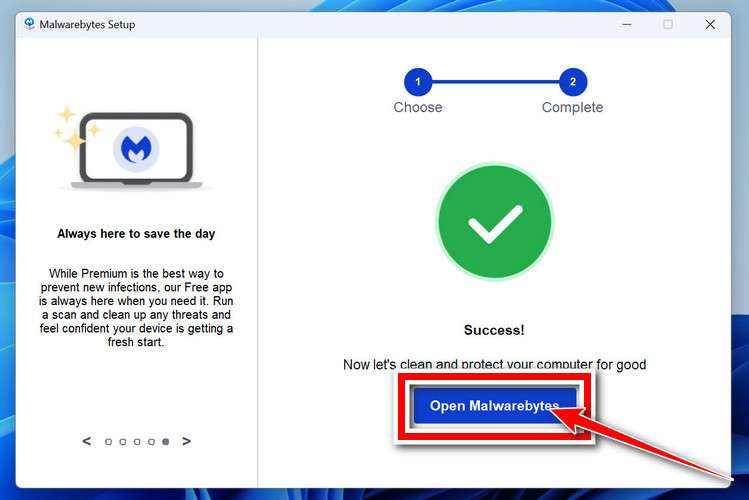
On the final screen, click Open Malwarebytes to launch the program.
-
Optional: Check for rootkits with a Custom Scan
You don’t need to change any settings for a normal scan. The standard Threat Scan in the next step is enough for most problems, so you can go straight to it.
If you also want to check for rootkits, use a Custom Scan. In current versions of Malwarebytes, rootkit scanning is only available there:
- On the Scanner tile, click the three-dot menu and select Advanced Scan.
- Choose Custom Scan. In its options, check Scan for rootkits.
- Select your system drive (usually C:\) as the location to scan, then start the scan. It takes longer than a Threat Scan.
- When it finishes, review and quarantine the results as described in the steps below.
Rootkit scanning isn’t available on Windows devices with ARM processors.
Start the Scan
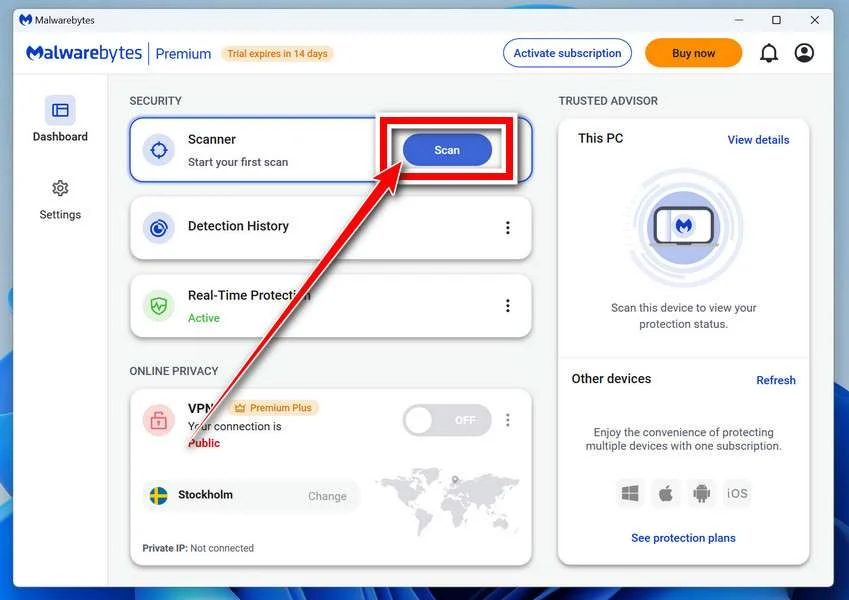
Click the blue Scan button. Malwarebytes will automatically update its virus database and start checking your computer for malware.
-
Wait for the Scan to Finish
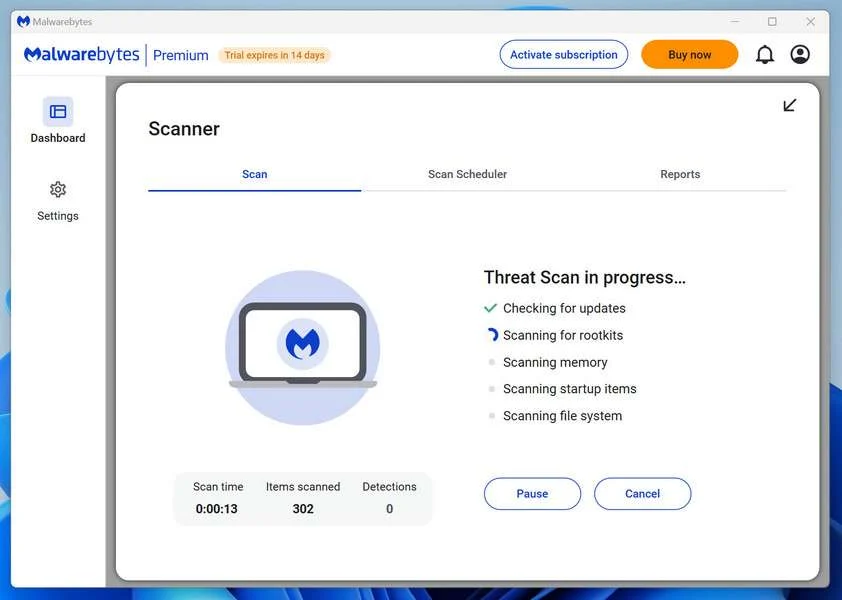
The scan checks your entire system for browser hijackers and other malicious programs, so it can take 5 to 20 minutes depending on your computer. Feel free to do something else — just check back occasionally to see the progress.
-
Quarantine the Detected Threats
When the scan is done, you’ll see a list of everything Malwarebytes found — malware, adware, and potentially unwanted programs. Click the “Quarantine” button to remove all of them at once.
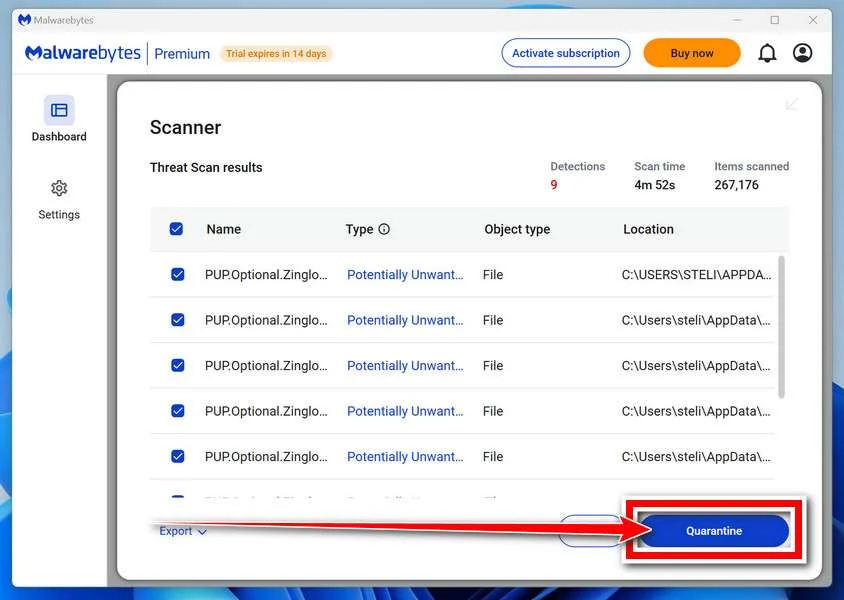
Malwarebytes will now remove the malicious files and registry entries and move them safely into quarantine.
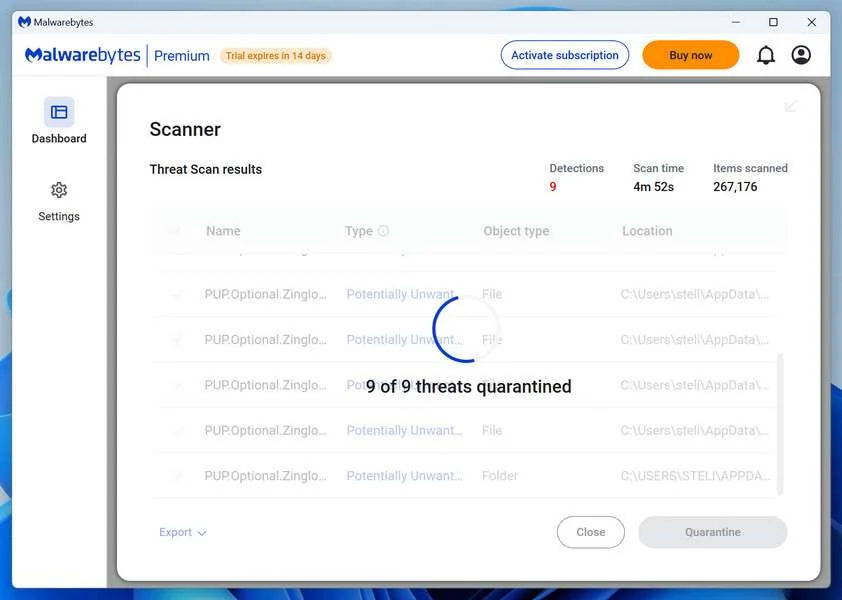
-
Restart Your Computer
Some threats can only be fully removed after a reboot. If Malwarebytes asks you to restart, click Yes. Once you’re logged back in, Malwarebytes has finished removing the threats it found.
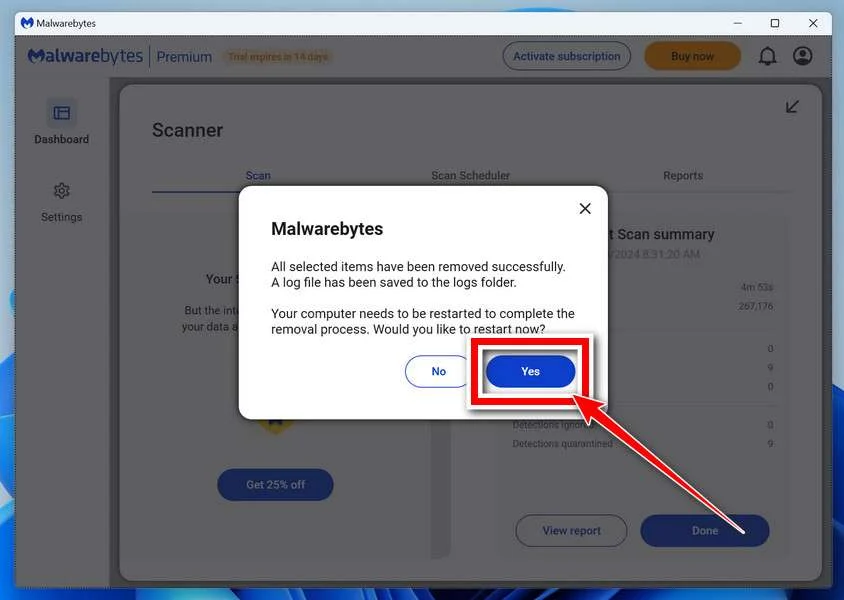
When the scan is done, check whether the problems you noticed have stopped. If they continue, see the options below.
If you are still having problems with your computer after completing these instructions, then please follow one of the steps:
- Run a computer scan with ESET Online Scanner
- Ask for help in our Windows Malware Removal Help & Support forum.
Run a Malware Scan with Malwarebytes for Mac
Malwarebytes for Mac is a free on-demand scanner that removes the malware other security software tends to miss — adware, browser hijackers, and unwanted programs included. Cleaning an infected Mac with Malwarebytes has always been completely free, and it’s our go-to recommendation. Follow the steps below to scan your Mac and remove what Malwarebytes finds.
-
Download Malwarebytes for Mac
Click the button below to download the latest version of Malwarebytes for Mac.
Download MalwarebytesOfficial installer for macOS. Your download starts right away.Want real-time protection? See Malwarebytes PremiumMalwarebytes Free for MacScans and removes malware at no cost -
Open the Malwarebytes setup file
When the download finishes, open your Downloads folder and double-click the setup file to begin the installation.
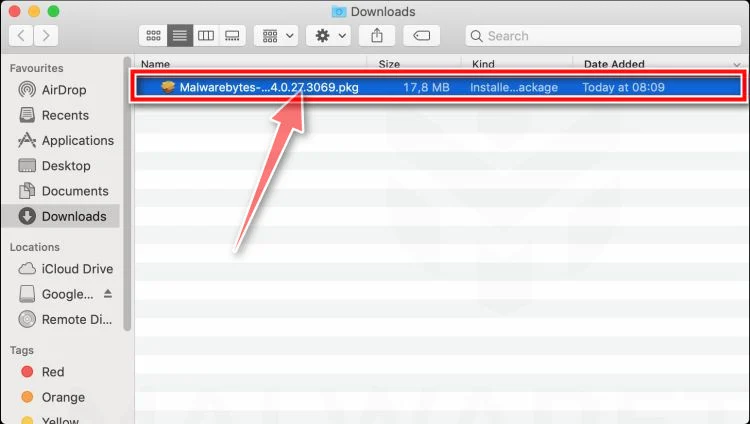
-
Follow the On-Screen Prompts to Install Malwarebytes
The Malwarebytes for Mac Installer will guide you through a few quick screens. Click “Continue” and keep following the prompts until the installation completes.
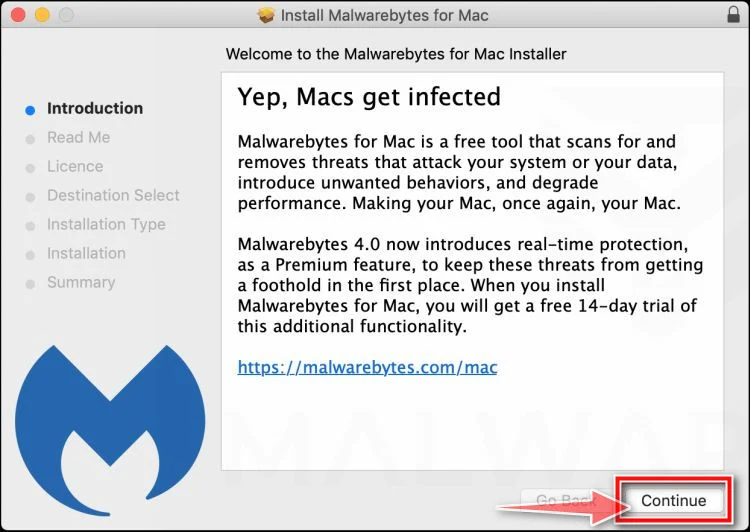
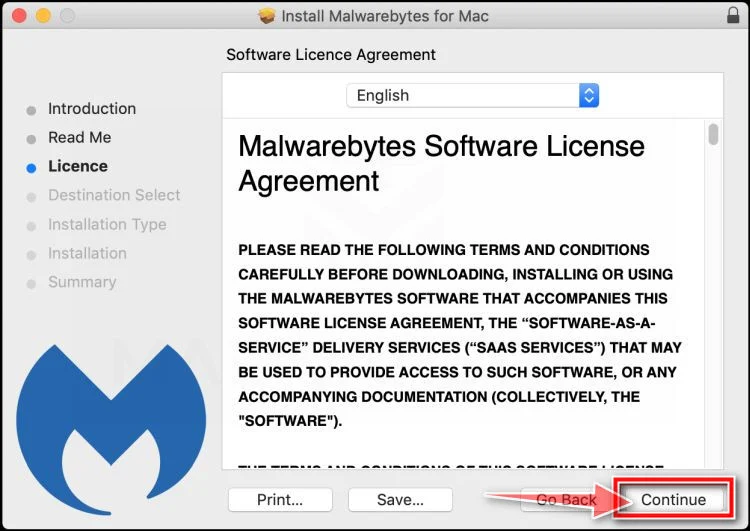
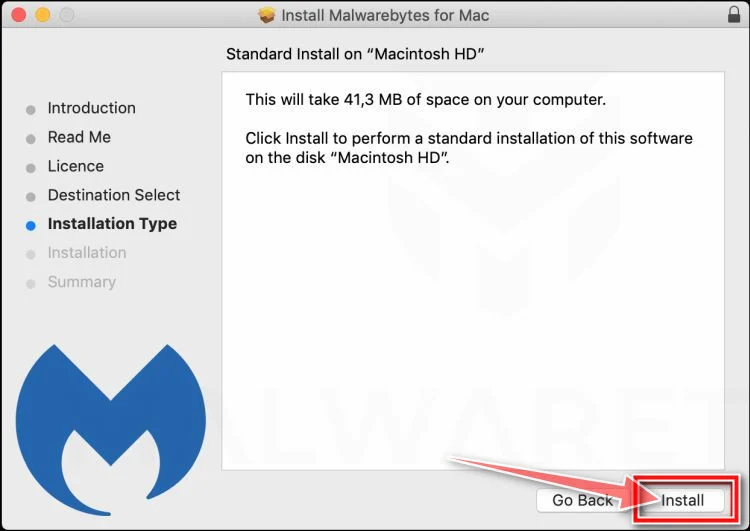
When the installation is complete, Malwarebytes opens to the Welcome to Malwarebytes screen. Click “Get started“.
Malwarebytes needs Full Disk Access to check your whole Mac. When it asks, open System Settings > Privacy & Security > Full Disk Access, turn on Malwarebytes (it may be listed as Malwarebytes Protection), and confirm with your password or Touch ID. Then return to Malwarebytes. On macOS Monterey and earlier, this setting is in System Preferences > Security & Privacy > Privacy.
-
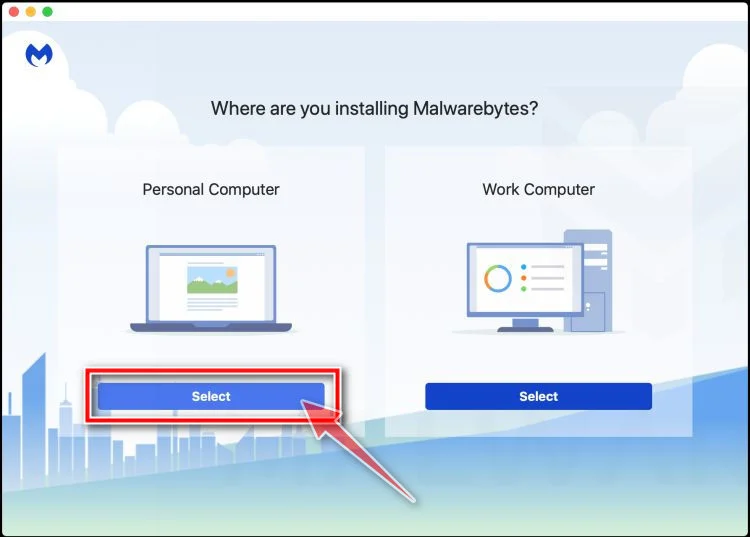
Select “Personal Computer” or “Work Computer”
Malwarebytes will ask what type of computer you’re installing it on. Click either Personal Computer or Work Computer, whichever applies.
-
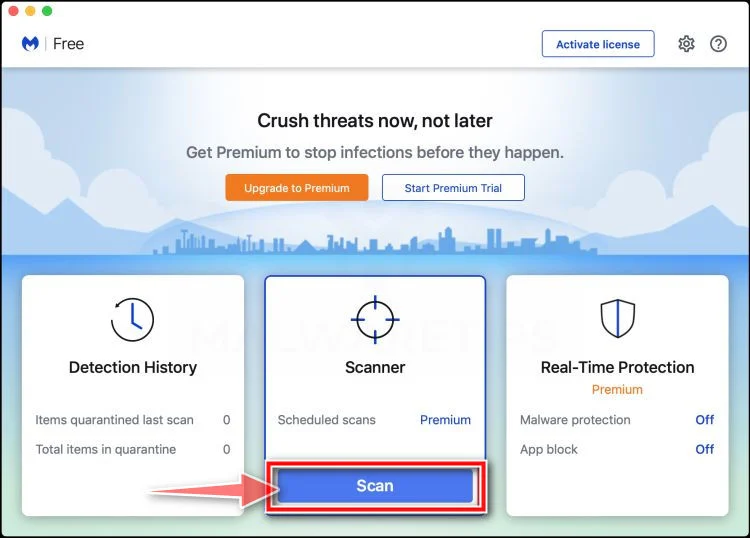
Start the Scan
Click the “Scan” button. Malwarebytes will automatically update its detection database and begin checking your Mac for malware.
-
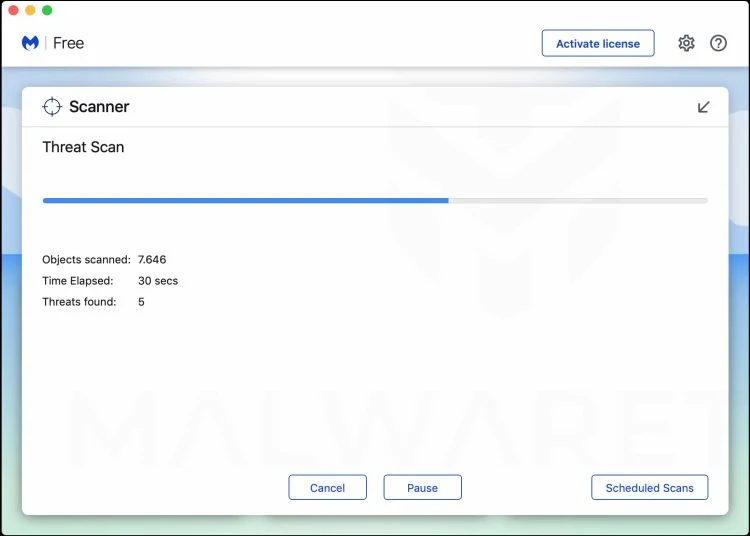
Wait for the Scan to Finish
Malwarebytes will scan your Mac for adware, browser hijackers, and other malicious programs. This can take a few minutes, so feel free to do something else — just check back occasionally to see the progress.
-
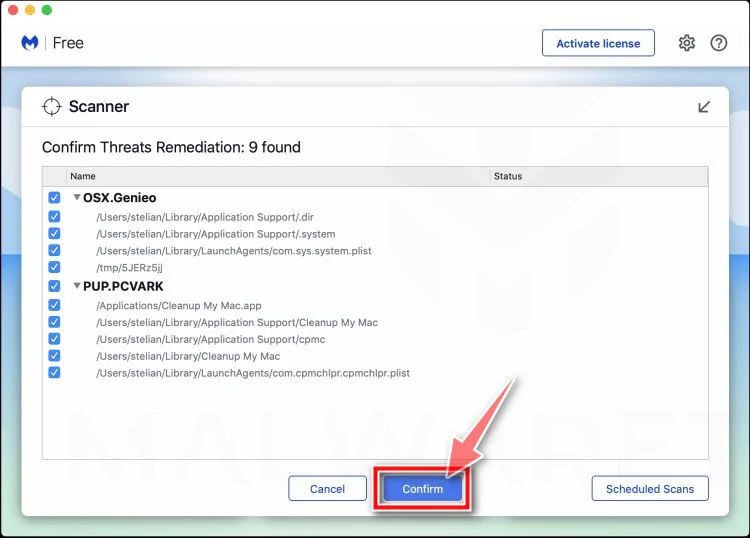
Quarantine the Detected Threats
When the scan is done, you’ll see a list of everything Malwarebytes found. Click the “Quarantine” button to remove all the threats at once.
-
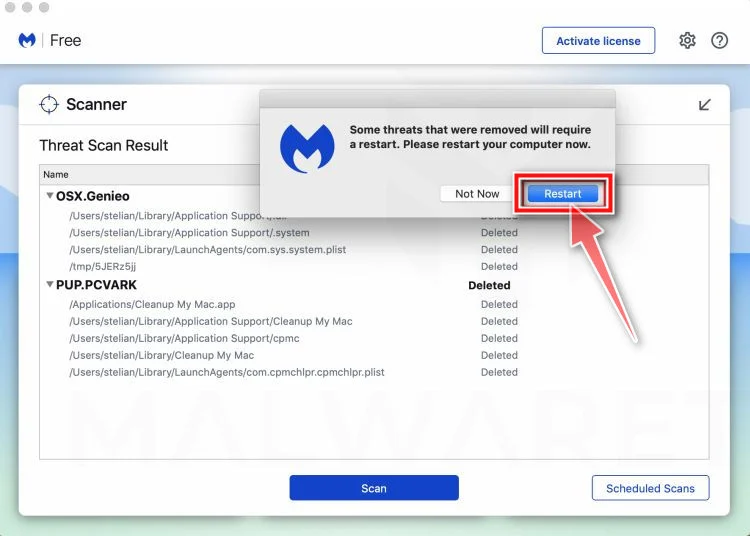
Restart Your Mac
Malwarebytes will now remove all the malicious files it found. Some threats can only be fully removed after a reboot — if Malwarebytes asks you to restart, allow it. Once you’re logged back in, check whether the problems you noticed have stopped. If they come back, save the scan report and ask for help in our forum.
If the problems you noticed continue after the scan, see the options below.
If you are still experiencing problems while trying to remove a malicious program from your computer, please ask for help in our Mac Malware Removal Help & Support forum.
Run a Malware Scan with Malwarebytes for Android
Malwarebytes for Android scans your phone or tablet for malware, adware, and potentially unwanted apps. The free version scans only when you start a scan. Real-time protection, which checks apps automatically, is part of the paid Premium version.
-
Download Malwarebytes for Android.
You can download Malwarebytes for Android by clicking the link below.
Get Malwarebytes for AndroidOpens Google Play in a new tab.Want real-time protection? See Malwarebytes Premium for AndroidMalwarebytes for AndroidScans your phone and removes malware at no cost -
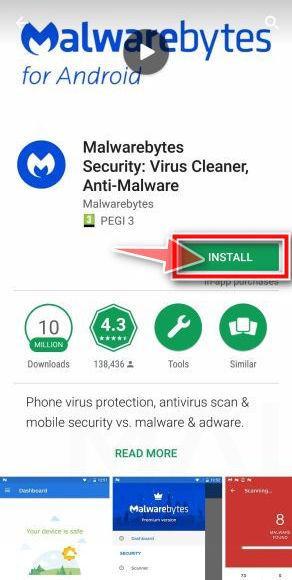
Install Malwarebytes for Android on your phone.
In the Google Play Store, tap “Install” to install Malwarebytes for Android on your device.
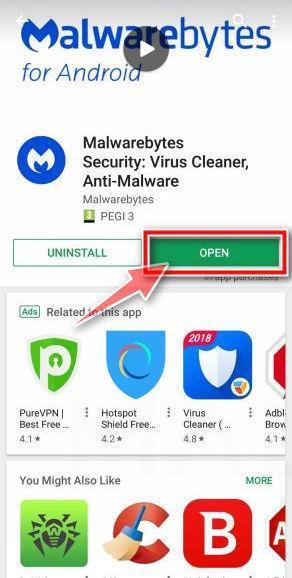
When the installation process has finished, tap “Open” to begin using Malwarebytes for Android. You can also open Malwarebytes by tapping on its icon in your phone menu or home screen.
-
Follow the on-screen prompts to complete the setup process
When Malwarebytes opens, it walks you through a short setup. Tap Get started and follow the prompts. If you see an offer for a trial or a paid plan, read it before you accept. You can skip it and keep using the free scanner.
Malwarebytes will ask for permission to access the files on your phone so it can scan them. Tap Allow, or turn on the permission in the Android screen that opens, then return to Malwarebytes.
-
Run a scan with Malwarebytes for Android
On the main screen, tap Scan now. In some versions, you open the menu, tap Scanner, and then tap Run a scan.
-
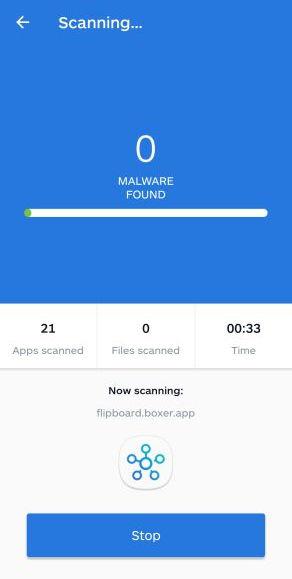
Wait for the Malwarebytes scan to complete.
Malwarebytes will now start scanning your phone for adware and other malicious apps. This process can take a few minutes, so we suggest you do something else and periodically check on the status of the scan to see when it is finished.
-
Remove the detected apps.
When the scan has been completed, you will see a list of the threats that Malwarebytes for Android has detected. Next to each detected item, tap the menu icon (three dots), then choose to uninstall the app or delete the file. Android then asks you to confirm. Tap OK or Uninstall to remove the app.
-
Restart your phone.
When the detected apps are removed, restart your phone if Malwarebytes asks you to. Then check whether the problems you noticed have stopped.
If the problems you noticed continue after the scan, see the options below.
If you are still having problems with your phone after completing these instructions, then please follow one of the steps:
- Ask for help in our Mobile Malware Removal Help & Support forum.
- Only as a last resort, reset your phone to factory settings. Read the warning below first.
- Back up your photos, videos, files, and messages, for example to your Google account or a computer.
- Make sure you know your Google account email and password. The phone asks for them after the reset. If you changed the password recently, Google recommends waiting 24 hours before you reset.
- On a Samsung phone, also make sure you know your Samsung account password.
- If you use an authenticator app for two-step verification, move your accounts to another device or save your backup codes first.
Stay Protected: Block Ads and Malicious Sites
No scan can prove a device is completely clean, so it helps to block threats before they reach you. Most infections start with a malicious ad or a fake download button — so blocking them at the source is your best defense.
We recommend AdGuard, which blocks malicious ads, phishing pages, and dangerous redirects before they can reach you.
👉 Download AdGuard and browse safely
Frequently Asked Questions About the “I Have Some Rather Somber News” Scam Email
1. What is the “I Have Some Rather Somber News” email scam?
The “I Have Some Rather Somber News” scam is a fraudulent extortion email threatening to expose private videos, information or photos unless a ransom is paid in bitcoin. The email claims hackers used malware to access your device and compromise your operating system. However, it is just a scam trying to extort money through fear and deception. No actual hacking occurred.
2. What are some typical claims made in the scam email?
Common claims in the scam email include:
- Hackers remotely accessed your device and operating system.
- They have been monitoring your online activities through your camera and microphone.
- Compromising videos or information were obtained that will be shared if payment is not sent.
- Urgency to pay the ransom in bitcoin within 24-48 hours.
- Promises to delete the data after payment.
- Warnings not to go to the police.
3. What are red flags that indicate it’s a scam?
Red flags include:
- Threats with no evidence. They don’t provide any actual proof of hacking.
- Contradictory claims. Why delete data after payment if the goal is to expose you?
- Requests for unusual payment methods like bitcoin.
- Bluffing with no intention to follow through on threats.
- Emails sent en masse to random people. Real hackers would target individuals.
4. What information do the scammers actually have?
The scammers do not have any actual videos, images or recordings of you. They are simply sending mass emails to frighten people into paying. Any personal details in the email were fabricated.
5. What should I do if I receive this scam email?
If you get this email, report it as spam and do not reply. Check your accounts for unauthorized access. Change passwords and enable two-factor authentication. Do not pay any ransom demands, as this only encourages more scam attempts.
6. What if I already paid the ransom?
If you paid, immediately contact your bank and local authorities about tracing the payments. Provide them with details of the scam email. In future, stay calm when faced with threats and carefully verify claims before paying. Many have fallen victim to this scam out of haste and fear.
7. How do I report this scam?
Forward the scam email to the Anti-Phishing Working Group (reportphishing@antiphishing.org). Report it to the FBI’s IC3 at www.ic3.gov. Notify your email provider and necessary contacts about the scam.
8. How does this scam work technically?
The scammers use botnets and malware to blast out millions of emails. They use technical tricks to hide their identity and launder money. Do not reply – this could infect your device. Simply delete the scam email.
9. How can I improve my online security?
Practice good online security by using unique complex passwords, enabling two-factor authentication, updating software and running antivirus scans. Be cautious of links and attachments from unknown sources. Backup your data regularly.
10. Am I at risk if I don’t pay the ransom?
No, you are not at any real risk if you don’t pay. The scammers are just trying to scare you with empty threats. No evidence will actually be released, so don’t give in to their demands.
The Bottom Line on the “I Have Some Rather Somber News” Scam
This viral scam preys on fear and embarrassment, but don’t let it fool you. Remember:
- The claims are fake – your device was not hacked.
- No compromising videos exist – it’s an empty threat.
- Don’t pay the ransom – you’d just lose money.
- Report the scam email to raise awareness.
- Check your online accounts for real unauthorized access.
- Use unique passwords and enable two-factor authentication.
With vigilance and awareness, we can avoid falling victim to these deceptive online scams. For more help, check out resources like the FTC’s page on sextortion scams or this YouTube video explaining the hacker extortion email scam. Don’t let them intimidate you – knowledge is power against these fraudsters!

Join the discussion
0 commentsShare your experience or ask a question about this article.
Discussion
Start the conversation
Have a question or something useful to share? Add the first comment.