

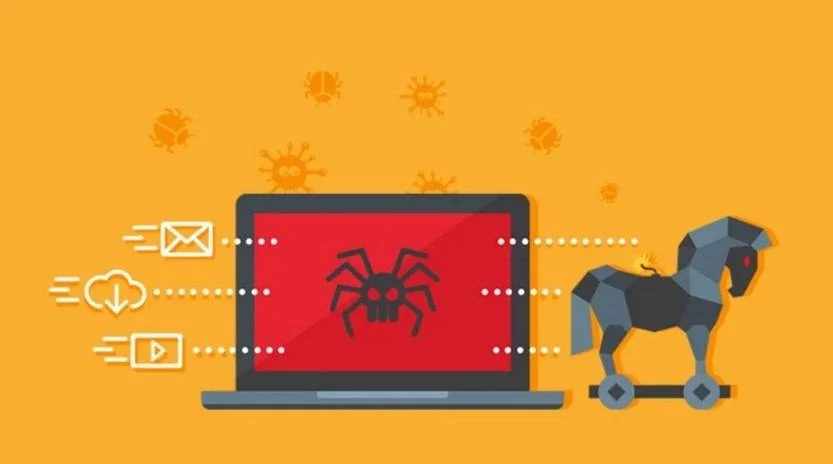
The “Greetings. I Have Some Startling News” email is a scam that tries to trick you into thinking that your computer or phone is infected with malware and then threatens to make your personal data public. Contrary to the claims in the email, you haven’t been hacked (or at least, that’s not what prompted this email) and this is nothing more than a scam that tries to trick you into sending Bitcoins to these scammers. This is merely a new variation on an old scam which is popularly called “sextortion”.
What is the “Greetings. I Have Some Startling News” scam?
The “Greetings. I Have Some Startling News” scam involves an email sent to potential victims, claiming that their devices have been hacked and that compromising material has been found, such as adult content or information that may be illegal in their country. The scammers claim to have access to the victim’s emails, social media accounts, and contact lists, and threaten to release the information to friends, family, and even law enforcement.
To prevent the release of this information, the victim is instructed to pay a ransom in Bitcoin within a short timeframe, often 48 hours. The email typically includes a sense of urgency and a warning that the victim’s actions are being monitored, further pressuring them into making a hasty decision.
This is the text of the “Greetings. I Have Some Startling News” blackmail email, including the grammatical and spelling errors:
Greetings. I have some startling news you might want to sit down for.
[date]
-On this day, I hacked into your device’s operating system and gained full access to your account. I have been closely observing you for a long time.There’s a piece of software I’ve put in your system that permits me to control all your devices.
Thanks to the malware I’ve installed, I now control your device’s crucial components like the microphone, camera, keyboard, and display. I’ve uploaded all your personal and browsing data onto my servers, and have gained access to all your communication channels, including social networks, emails, synced data, chat histories, and contact lists.
It’s fascinating what one can learn about you!
I found myself musing over the potential uses of this data.
I’ve recently come up with a groundbreaking idea: making use of Al for crafting a split-screen video. On one side, you’re seen performing masturbate, and on the other, you’re navigating through a website. Such videos are the talk of the town!I mean, what we ended up with, it’s just… wow.
With a single click, I can distribute this video to all your contacts through email, social networks, and instant messengers. Furthermore, I could expose access to all the emails and messaging apps you use. Additionally, I found a plethora of intriguing materials that I could disseminate online and share with friends.
If you’d rather I didn’t carry this out, send 900 $ (US dollar) in my bitcoin wallet.
BTC wallet address:
bc1qnurm5wx3r7enmvnn087g0e3u9mwepw8jn6d035If you’re unfamiliar with how to fund a Bitcoin wallet, you can always use Google for help. It’s quite straightforward.
As soon as the funds are received, I’ll notice it immediately and remove all the unwanted material. After that, we’ll part ways. I also commit to deactivating and removing all malware from your devices. You can trust me, I stand by my word. It’s a fair deal, especially considering the time I’ve invested in tracking your profile and traffic
You have exactly two days (48 hours) from the time this letter is opened to make the payment.
After this period, if I do not receive the specified amount from you, I will send everyone access to your accounts and visited sites, personal data, and edited videos without warning.
You see, I don’t mess up. It’s not a good idea to try and pull pranks on me because I have plenty of tricks up my sleeve.
There’s no point complaining about me because they can’t find me. Formatting the drive or destroying the device won’t help because I already have your data.
Replying to this message is futile – I didn’t use a personal email to send it and I won’t be checking for responses.
The effectiveness of this scam lies in the psychological tactics employed by the scammers. By targeting the victim’s fear of legal consequences, humiliation, and social rejection, they create a sense of panic that may cause the victim to act impulsively without seeking help or verifying the scammer’s claims.
In reality, the scammers usually do not have access to the victim’s devices or the alleged compromising material. However, the fear and embarrassment generated by the email’s content can be enough to convince some individuals to pay the ransom, making the scam profitable for the scammers.
The “Greetings. I Have Some Startling News” email and anything it states is just a scam to try and scare you into paying the ransom. If you have received the “Greetings. I Have Some Startling News” email, we recommend deleting it and under no circumstances send any money to these cybercriminals.
Is the “Greetings. I Have Some Startling News” email real?
No, and don’t panic. The “Greetings. I Have Some Startling News” email is a scam that tries to trick you into thinking that your device or email has been hacked, then demands payment, or else they will send compromising information -such as images of you captured through your web camera or your pornographic browsing history – to all your friends and family. And in classic ransomware fashion, there’s typically a ticking clock. Giving users a short time limit to deliver the payment is social engineering at its finest.
Threats, intimidation, and high-pressure tactics are classic signs of a scam.
The “Greetings. I Have Some Startling News” extortion email and anything it states is just a scam to try and scare you into paying the ransom.
They have my password! How did they get my password?
To make the threats more credible, scammers may include one of your passwords in this email. The scammers have your password from sites that were hacked, and in this case, likely matched up to a database of emails and stolen passwords and sent this scam out to potentially millions of people. You can check if your email or password was compromised in a data breach on Haveibeenpwned.
If the password emailed to you is one that you still use, in any context whatsoever, stop using it and change it NOW. It’s also recommended that you enable two-factor authentication for your email and online accounts whenever that is an option.
Should I pay the ransom?
You should not pay the ransom. If you pay the ransom, you’re not only losing money but you’re encouraging the scammers to continue phishing other people.
Delete the “Greetings. I Have Some Startling News” email, and under no circumstances pay these cybercriminals a penny/dime/bitcoin.
What should I do now?
If you receive an email similar to the “Greetings. I Have Some Startling News” scam, it is crucial not to respond or send any payment.
We recommend that you ignore the content of the “Greetings. I Have Some Startling News” email and delete it from your Inbox.
If you have downloaded any attachments or clicked on any links from this email, or if you suspect that your computer might be infected with malware, you can follow the below steps to scan your device for malware with Malwarebytes and remove it for free.
Check if you’re device is infected with malware
The “Greetings. I Have Some Startling News” email may contain malware within the attachments or links that appear in the body of the email. By interacting with the malware — for example, opening or downloading an attachment that contains a malicious payload — the user may unknowingly infect their device or network, enabling attackers to gain access to protected applications and data.
To check your computer or phone for Trojans, browser hijackers, or other malware and remove them for free, you run a scan with Malwarebytes Free.
Malwarebytes runs on Windows, Mac, and Android. Click the tab below for the device you want to scan, then follow the steps to remove any malware it finds.
Scan Your Computer with Malwarebytes for Windows
Malwarebytes is one of the most popular and trusted anti-malware tools for Windows — and it’s completely free for removing infections. It catches threats that many antivirus programs miss, including adware, browser hijackers, and trojans. Follow the steps below to scan and clean your PC in just a few minutes.
Download Malwarebytes
Click the button below to download the latest version of Malwarebytes for Windows from the official source. The free version is all you need — it will scan your computer and remove adware, browser hijackers, and other malicious software at no cost.
Download MalwarebytesOfficial installer for Windows 11 and 10. Your download starts right away.Want real-time protection? See Malwarebytes Premium Malwarebytes Free for WindowsScans and removes malware at no cost
-
Install Malwarebytes
When the download finishes, open your Downloads folder and double-click the MBSetup file. If Windows shows a User Account Control pop-up, click “Yes” to allow the installation.

Follow the On-Screen Prompts to Install Malwarebytes
The setup wizard will walk you through a few quick screens:
-
Choose where you’re installing the program — “Personal Computer” or “Work Computer” — then click Next.

-
Malwarebytes will now install on your device. This usually takes under a minute.

-
When installation is complete, the “Welcome to Malwarebytes” screen will open automatically.

-
On the final screen, click Open Malwarebytes to launch the program.

-
Enable “Scan for Rootkits”
Before scanning, turn on rootkit detection so Malwarebytes can find even the most hidden threats. Click the Settings gear icon on the left side of the screen.

In the settings menu, find “Scan for rootkits” and click the toggle so it turns blue.

Done? Click “Dashboard” in the left pane to return to the main screen.
Start the Scan
Click the blue Scan button. Malwarebytes will automatically update its virus database and start checking your computer for malware.

-
Wait for the Scan to Finish
The scan checks your entire system for browser hijackers and other malicious programs, so it can take 5 to 20 minutes depending on your computer. Feel free to do something else — just check back occasionally to see the progress.

-
Quarantine the Detected Threats
When the scan is done, you’ll see a list of everything Malwarebytes found — malware, adware, and potentially unwanted programs. Click the “Quarantine” button to remove all of them at once.

Malwarebytes will now remove the malicious files and registry entries and move them safely into quarantine.

-
Restart Your Computer
Some threats can only be fully removed after a reboot. If Malwarebytes asks you to restart, click Yes. Once you’re logged back in, Malwarebytes has finished removing the threats it found.

That’s it — your Windows computer is now free of trojans, adware, browser hijackers, and other malware.
If you are still having problems with your computer after completing these instructions, then please follow one of the steps:
- Run a computer scan with ESET Online Scanner
- Ask for help in our Windows Malware Removal Help & Support forum.
Scan Your Mac with Malwarebytes for Mac
Malwarebytes for Mac is a free on-demand scanner that removes the malware other security software tends to miss — adware, browser hijackers, and unwanted programs included. Cleaning an infected Mac with Malwarebytes has always been completely free, and it’s our go-to recommendation. Follow the steps below to scan and clean your Mac in just a few minutes.
-
Download Malwarebytes for Mac
Click the button below to download the latest version of Malwarebytes for Mac.
Download MalwarebytesOfficial installer for macOS. Your download starts right away.Want real-time protection? See Malwarebytes PremiumMalwarebytes Free for MacScans and removes malware at no cost -
Open the Malwarebytes setup file
When the download finishes, open your Downloads folder and double-click the setup file to begin the installation.

-
Follow the On-Screen Prompts to Install Malwarebytes
The Malwarebytes for Mac Installer will guide you through a few quick screens. Click “Continue” and keep following the prompts until the installation completes.



When the installation is complete, Malwarebytes opens to the Welcome to Malwarebytes screen. Click “Get started“.
-
Select “Personal Computer” or “Work Computer”
Malwarebytes will ask what type of computer you’re installing it on. Click either Personal Computer or Work Computer, whichever applies.

-
Start the Scan
Click the “Scan” button. Malwarebytes will automatically update its detection database and begin checking your Mac for malware.

-
Wait for the Scan to Finish
Malwarebytes will scan your Mac for adware, browser hijackers, and other malicious programs. This can take a few minutes, so feel free to do something else — just check back occasionally to see the progress.

-
Quarantine the Detected Threats
When the scan is done, you’ll see a list of everything Malwarebytes found. Click the “Quarantine” button to remove all the threats at once.

-
Restart Your Mac
Malwarebytes will now remove all the malicious files it found. Some threats can only be fully removed after a reboot — if Malwarebytes asks you to restart, allow it. Once you’re logged back in, your Mac is clean.

That’s it — your Mac is now free of adware, browser hijackers, and other malware.
If you are still experiencing problems while trying to remove a malicious program from your computer, please ask for help in our Mac Malware Removal Help & Support forum.
Scan Your Phone with Malwarebytes for Android
Malwarebytes for Android automatically detects and removes dangerous threats like malware and ransomware so you don’t have to worry about your most-used device being compromised. Aggressive detection of adware and potentially unwanted programs keeps your Android phone or tablet running smooth.
-
Download Malwarebytes for Android.
You can download Malwarebytes for Android by clicking the link below.
Get Malwarebytes for AndroidOpens Google Play in a new tab.Want real-time protection? See Malwarebytes Premium for AndroidMalwarebytes for AndroidScans your phone and removes malware at no cost -
Install Malwarebytes for Android on your phone.
In the Google Play Store, tap “Install” to install Malwarebytes for Android on your device.

When the installation process has finished, tap “Open” to begin using Malwarebytes for Android. You can also open Malwarebytes by tapping on its icon in your phone menu or home screen.

-
Follow the on-screen prompts to complete the setup process
When Malwarebytes will open, you will see the Malwarebytes Setup Wizard which will guide you through a series of permissions and other setup options.
This is the first of two screens that explain the difference between the Premium and Free versions. Swipe this screen to continue.
Tap on “Got it” to proceed to the next step.
Malwarebytes for Android will now ask for a set of permissions that are required to scan your device and protect it from malware. Tap on “Give permission” to continue.
Tap on “Allow” to permit Malwarebytes to access the files on your phone.
-
Update database and run a scan with Malwarebytes for Android
You will now be prompted to update the Malwarebytes database and run a full system scan.

Click on “Update database” to update the Malwarebytes for Android definitions to the latest version, then click on “Run full scan” to perform a system scan.

-
Wait for the Malwarebytes scan to complete.
Malwarebytes will now start scanning your phone for adware and other malicious apps. This process can take a few minutes, so we suggest you do something else and periodically check on the status of the scan to see when it is finished.

-
Click on “Remove Selected”.
When the scan has been completed, you will be presented with a screen showing the malware infections that Malwarebytes for Android has detected. To remove the malicious apps that Malwarebytes has found, tap on the “Remove Selected” button.

-
Restart your phone.
Malwarebytes for Android will now remove all the malicious apps that it has found. To complete the malware removal process, Malwarebytes may ask you to restart your device.
That’s it — your Android device is now free of malicious apps, adware, and browser redirects.
If you are still having problems with your phone after completing these instructions, then please follow one of the steps:
- Restore your phone to factory settings by going to Settings > General management > Reset > Factory data reset.
- Ask for help in our Mobile Malware Removal Help & Support forum.

Join the discussion
0 commentsShare your experience or ask a question about this article.
Discussion
Start the conversation
Have a question or something useful to share? Add the first comment.