The “I Gained Access To Your Devices” Blackmail Email – Scam Breakdown
Written by: Thomas Orsolya
Published on:
Some emails are designed to scare you instantly. They arrive without warning, claim to have hacked your devices, threaten to expose your private life, and demand money to make it all disappear. The message feels personal, the tone feels urgent, and the fear hits before you have time to think.
One of the most common versions is the “I gained access to the devices you use to browse the internet” email scam. It spreads quickly, shocks millions of people, and relies on fear, shame, and confusion to force victims into paying.
The truth is far simpler than the threat. Nothing in the email is real. But the fear it creates is powerful.
This guide breaks down exactly how the scam works, why the attacker’s claims are impossible, and what you should do the moment this message shows up in your inbox. Keep reading, because understanding the mechanics behind this scam is the key to removing its power completely.
Scam Overview
This scam has been circulating for years and continues to evolve with slightly different wording, but the psychological mechanics behind it always stay the same. The scammers attempt to plant fear, shame, and urgency in the victim’s mind. They know that people sometimes browse content they prefer to keep private. They exploit this emotional vulnerability to amplify the threat. The email tries to shock the reader into believing that their intimate moments have been captured and recorded without their knowledge.
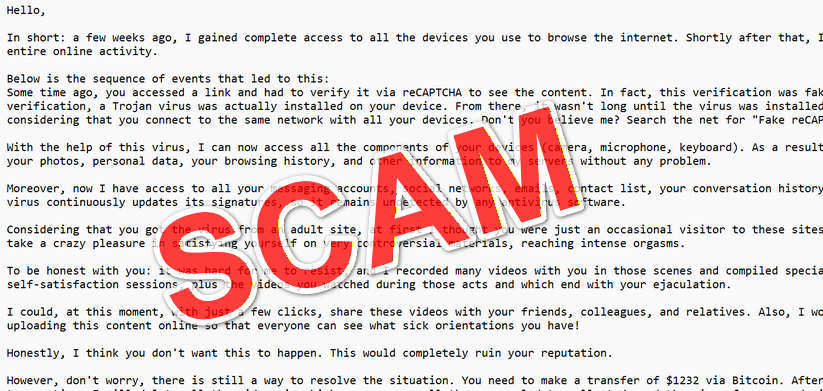
To understand how this scam operates, it helps to look closely at the message itself. Below is the exact email from your prompt, reproduced in full so that readers can analyze its details. As you read it, notice how the scammer attempts to stack claim upon claim, weaving technical jargon with emotional manipulation, all leading toward the final demand for payment.
The Scam Email
Subject: Hi
Hello,
In short: a few weeks ago, I gained complete access to all the devices you use to browse the internet. Shortly after that, I started recording your entire online activity.
Below is the sequence of events that led to this: Some time ago, you accessed a link and had to verify it via reCAPTCHA to see the content. In fact, this verification was fake, and after the verification, a Trojan virus was actually installed on your device. From there, it wasn’t long until the virus was installed on all your devices, considering that you connect to the same network with all your devices. Don’t you believe me? Search the net for “Fake reCAPTCHA” and see for yourself.
With the help of this virus, I can now access all the components of your devices (camera, microphone, keyboard). As a result, I was able to download all your photos, personal data, your browsing history, and other information to my servers without any problem.
Moreover, now I have access to all your messaging accounts, social networks, emails, contact list, your conversation history, absolutely everything. My virus continuously updates its signatures, so it remains undetected by any antivirus software.
Considering that you got the virus from an adult site, at first I thought you were just an occasional visitor to these sites. But then I noticed that you take a crazy pleasure in satisfying yourself on very controversial materials, reaching intense orgasms.
To be honest with you: it was hard for me to resist, and I recorded many videos with you in those scenes and compiled special videos where I expose your self-satisfaction sessions, plus the videos you watched during those acts and which end with your ejaculation.
I could, at this moment, with just a few clicks, share these videos with your friends, colleagues, and relatives. Also, I would have no qualms about uploading this content online so that everyone can see what sick orientations you have!
Honestly, I think you don’t want this to happen. This would completely ruin your reputation.
However, don’t worry, there is still a way to resolve the situation. You need to make a transfer of $1232 via Bitcoin. After you complete the transaction, I will delete all the videos in which you appear, all the personal data collected, and the virus from your devices. Mark my words: I never lie.
This is a great deal at the lowest price, considering that I have wasted a lot of time and effort to record and track all your activities and your deeds. If you have no idea how to buy and transfer Bitcoin, feel free to search the internet for the necessary information.
You can use the wallet address below to make the transfer: bc1qgy0puzkkvkjwpu9xzzezkt322dcukh304l25jp
The address above, as you can see, has a blank space. When you use it to send the money, make sure you remove that space.
You only have 42 hours from now, and the timer started from the moment you opened this email. You have to believe me: there is no point in bothering you anymore after I get the money. Besides, if I really wanted to, all those videos would have been public a long time ago. I think we can still resolve the situation on fair terms.
Why This Email Is Pure Fiction
This message is not written by a hacker. It is not written by someone who has breached your devices. It is not written by anyone who knows anything about you. The email is sent in bulk, often tens of thousands at a time, using automated tools. The attackers do not know your name, your browsing habits, your files, or your private life. They simply rely on the fact that:
The email looks frightening
The accusation touches sensitive topics
Many people panic before thinking
Bitcoin payments cannot be reversed
Everything in the email relies on pressure and fear. There is no technical truth behind the claims. The message uses classic intimidation strategies that security researchers have documented for years. The phrases about cameras, microphones, keyboards, and “virus updates its signatures” are generic boilerplate lines that scammers recycle across many different campaigns.
The threat about adult websites is also generic. It is designed to fit nearly anyone. The scammer does not know what you watch. The scammer does not have videos. The scammer cannot access your camera. They only hope that the accusation is uncomfortable enough that people will quietly pay rather than risk embarrassment.
Another important fact: These emails almost never include your real name. Most of the time, they do not mention any of your actual accounts. They do not contain any real proof. The entire message is psychological manipulation and nothing more.
Technical Claims That Are Impossible or Highly Implausible
To make the message sound more believable, the scammer references things like:
fake reCAPTCHA
Trojan spreading across all devices on a network
remote access to cameras, microphones, and keyboards
antivirus evasion
mass exfiltration of data
None of these claims are realistic in the way they are described. For example:
A fake reCAPTCHA cannot install malware unless you manually download and run a file yourself. Passing a CAPTCHA box cannot infect you.
A virus cannot automatically spread to every device on your home network. Modern operating systems block this type of movement.
Accessing your camera or microphone always triggers an operating system permission prompt. Operating systems do not give silent access.
If a hacker truly had access to everything, they would not warn you. They would simply take money through identity theft or financial fraud.
The scammer wants you to believe they have abilities that are far beyond reality. It is a bluff, designed to spark panic before logic kicks in.
The Bitcoin Wallet Trick
The scammer gives a Bitcoin address and insists you remove the space in it. This trick is intentionally used to bypass spam filters that detect crypto wallet strings. They know email providers block suspicious addresses, so they break them apart to slip through.
The amount they demand, in this case $1232, is chosen because it feels small enough to be “affordable” but large enough to generate profit. When sent to hundreds of thousands of people, even a few victims paying is extremely profitable.
The countdown timer is fake. Nothing tracks when you open the email. It is simply psychological pressure designed to keep you from analyzing the situation.
The Real Goal of the Scam
Everything in the email, from the tone to the graphic descriptions, is meant to push you into one reaction: fear. When someone is frightened, they act quickly. They skip reasoning. They do not question details. The scammer counts on panic to override logic and force the victim to send money.
In reality:
They have nothing
They know nothing
They cannot access your devices
They have not recorded you
They cannot send anything to your contacts
The threat is entirely fabricated.
How The Scam Works
This scam is not a real hacking incident. It is a psychological trap designed to scare you into sending money. The attackers do not have access to your devices, your camera, your microphone, or your private files. They only have your email address.
Step 1: Scammers Collect Large Lists of Email Addresses
The attackers do not choose you specifically. They gather huge lists of email addresses from sources like:
Past data breaches
Old leaked mailing lists
Purchased databases
Public forums and social networks
Malware logs from unrelated infections
They do not know your name or anything about your life. They only know that your email address exists.
Step 2: They Send the Same Email to Thousands of People
The scammer uses automated sending tools to blast the identical message to large numbers of recipients. The subject line and wording rarely change. This is a mass phishing campaign, not a targeted hack.
The email is written to sound personal, but it is simply a template reused for everyone.
Step 3: They Use Intimidating Technical Language to Create Fear
The message mentions:
a fake reCAPTCHA
a Trojan virus
spreading to all devices
access to your camera and microphone
antivirus evasion
full device control
These claims are not technically possible in the way the email describes them.
The scammer uses complicated words for one reason: to confuse the victim and make the scam look advanced.
Step 4: They Introduce a Sexual Accusation to Trigger Panic
This is the emotional core of the scam. The email claims you visited adult sites and recorded yourself during intimate moments. The scammer adds explicit descriptions to increase fear and embarrassment.
This strategy works because:
sexual topics are sensitive
people feel shame even when innocent
victims hesitate to ask anyone for help
fear makes people react without thinking
The scammer relies entirely on the emotional response, not actual evidence.
Step 5: They Claim to Have Recorded You Through Your Webcam
This is the biggest lie in the message.
Facts to keep in mind:
The scammer has not activated your camera
They do not have any videos
Modern operating systems ask for camera permission
Webcam lights cannot be bypassed on most devices
A CAPTCHA cannot install malware
The scammer hopes the victim panics before questioning how realistic this is.
Step 6: They Claim to Have Your Contacts and Personal Files
The email states that the attacker downloaded:
your photos
your browsing history
your conversations
your social media messages
your contact list
None of this is real. There is no virus. There is no access. Everything is fabricated to increase pressure.
The scammer cannot name a single file, contact, or account because they do not have anything.
Step 7: They Threaten to Share the Imaginary Videos
This is where the scammer pushes the victim into fear driven decision making. They claim they can expose your private life to:
family
friends
coworkers
social media followers
But since nothing was recorded, nothing can be shared.
The threat is empty.
Step 8: They Demand Payment in Bitcoin
Bitcoin is used because:
payments cannot be reversed
wallet owners remain anonymous
victims cannot dispute or refund
crypto feels technical and confusing
authorities cannot track every micro transaction
The scammer often chooses strange amounts like $1232 to make it feel calculated or personal.
In reality, the amount is arbitrary.
Step 9: They Add a Fake Timer to Force Quick Decisions
The email says you have 42 hours. This timer is imaginary.
Scammers use deadlines because:
stress prevents clear thinking
victims rush to pay before the time expires
urgency blocks logical analysis
There is no way for the scammer to track when the email was opened. The timer is fake.
Step 10: They Hope You Stay Silent and Isolated
The scam works best when victims feel too ashamed to ask for help. Silence is the attacker’s strongest weapon.
People who talk to friends, IT staff, or family quickly discover the truth:
The scammer has nothing. They were never hacked. The entire message is fantasy.
Step 11: They Wait and See If Anyone Pays
Most victims ignore the email once they realize it is fake. But a few frightened individuals send Bitcoin.
The scammer does not respond. They do not delete anything. They simply move on to the next victim.
This scam is a numbers game. Not a hacking operation.
Step 12: The Process Repeats With New Waves of Emails
A few months later, the same scammers or similar groups send a fresh variation. The wording changes slightly, but the structure stays identical.
This is why so many people receive these emails year after year.
What To Do If You Have Fallen Victim to This Scam
If you received this email or even paid the scammer, you are not alone. Millions of people have encountered the same scam. The following steps will help you stay safe, regain control, and protect your digital life.
1. Do Not Pay Under Any Circumstances
If you have not paid yet, stop here. Do not send money. Do not negotiate. Do not engage in conversation.
Scammers do not delete anything when paid because they never had anything in the first place. Payment only encourages them to target you again.
2. Do Not Reply to the Email
Responding confirms your email is active. This can lead to:
more extortion attempts
more phishing emails
more scam attempts
Simply ignore the message.
3. Change Your Passwords as a Precaution
Even though the scammer has not hacked you, it is a good time to review your account security. Change passwords for:
email
banking
social media
major online services
Use long, unique passwords for each account.
4. Enable Two Factor Authentication Everywhere
Two factor authentication blocks almost all unauthorized access attempts, even if someone steals your password. Turn it on for all important accounts.
5. Run a Full Antivirus Scan
Not because the scammer infected your device, but to reassure yourself. Use a reputable antivirus and ensure your operating system is up to date.
6. Delete the Email
Once you understand the scam, delete the message. This removes the emotional trigger and helps you move on.
7. Report the Email Locally
If your country has a cybercrime reporting office, you can submit the scam email. This helps investigators track large scale extortion campaigns.
8. Do Not Be Embarrassed
You have done nothing wrong. Millions of people receive identical scams. There is no shame in falling for a manipulative tactic. The scammers rely on silence. Breaking that silence removes their power.
9. If You Already Paid, Contact Local Authorities
Although the payment cannot be reversed, reporting it helps authorities link your case to others and possibly identify the scammer group if they ever make mistakes.
10. Educate Others
Friends, family, and colleagues may receive similar emails. Share your knowledge. The more people recognize the scam, the less effective it becomes.
Is Your Device Infected? Run a Free Malware Scan
Slow performance, constant pop-ups, or strange behavior? These are classic signs of a malware infection. The fastest way to find out is to scan your device with Malwarebytes Anti-Malware Free — one of the most trusted malware removal tools available.
The free version detects and removes the most common threats, including:
Adware — the cause of those annoying pop-ups
Browser hijackers — unwanted redirects and changed homepages
Trojans and spyware — hidden programs stealing your data
Potentially unwanted programs (PUPs) — software you never asked for
👉 Select your device below — Windows, Mac, or Android — then follow the simple steps to download Malwarebytes, scan your system, and remove any threats it finds. The whole process takes about 5 minutes.
Malwarebytes for WindowsMalwarebytes for MacMalwarebytes for Android
Run a Malware Scan with Malwarebytes for Windows
Malwarebytes is one of the most popular and trusted anti-malware tools for Windows — and it’s completely free for removing infections. It catches threats that many antivirus programs miss, including adware, browser hijackers, and trojans. Follow the steps below to scan and clean your PC in just a few minutes.
Download Malwarebytes
Click the button below to download the latest version of Malwarebytes for Windows from the official source. The free version is all you need — it will scan your computer and remove adware, browser hijackers, and other malicious software at no cost.
(The link opens in a new page where your download will start)
Install Malwarebytes
When the download finishes, open your Downloads folder and double-click the MBSetup file. If Windows shows a User Account Control pop-up, click “Yes” to allow the installation.
Follow the On-Screen Prompts to Install Malwarebytes
The setup wizard will walk you through a few quick screens:
Choose where you’re installing the program — “Personal Computer” or “Work Computer” — then click Next.
Malwarebytes will now install on your device. This usually takes under a minute.
When installation is complete, the “Welcome to Malwarebytes” screen will open automatically.
On the final screen, click Open Malwarebytes to launch the program.
Enable “Scan for Rootkits”
Before scanning, turn on rootkit detection so Malwarebytes can find even the most hidden threats. Click the Settings gear icon on the left side of the screen.
In the settings menu, find “Scan for rootkits” and click the toggle so it turns blue.
Done? Click “Dashboard” in the left pane to return to the main screen.
Start the Scan
Click the blue Scan button. Malwarebytes will automatically update its virus database and start checking your computer for malware.
Wait for the Scan to Finish
The scan checks your entire system for browser hijackers and other malicious programs, so it can take several minutes. Feel free to do something else — just check back occasionally to see the progress.
Quarantine the Detected Threats
When the scan is done, you’ll see a list of everything Malwarebytes found — malware, adware, and potentially unwanted programs. Click the “Quarantine” button to remove all of them at once.
Malwarebytes will now remove the malicious files and registry entries and move them safely into quarantine.
Restart Your Computer
Some threats can only be fully removed after a reboot. If Malwarebytes asks you to restart, click Yes. Once you’re logged back in, your PC is clean and you can continue with the next steps in this guide.
When the scan finishes, click Quarantine to remove everything Malwarebytes found. That’s it — your Windows PC is now clean of trojans, adware, and other malware, and should be back to running smoothly.
If your current antivirus allowed this malicious program on your computer, you may want to consider purchasing Malwarebytes Premium to protect against these types of threats in the future. If you are still having problems with your computer after completing these instructions, then please follow one of the steps:
Malwarebytes for Mac is a free on-demand scanner that removes the malware other security software tends to miss — adware, browser hijackers, and unwanted programs included. Cleaning an infected Mac with Malwarebytes has always been completely free, and it’s our go-to recommendation. Follow the steps below to scan and clean your Mac in just a few minutes.
Download Malwarebytes for Mac
Click the button below to download the latest version of Malwarebytes for Mac.
When the download finishes, open your Downloads folder and double-click the setup file to begin the installation.
Follow the On-Screen Prompts to Install Malwarebytes
The Malwarebytes for Mac Installer will guide you through a few quick screens. Click “Continue” and keep following the prompts until the installation completes.
When the installation is complete, Malwarebytes opens to the Welcome to Malwarebytes screen. Click “Get started“.
Select “Personal Computer” or “Work Computer”
Malwarebytes will ask what type of computer you’re installing it on. Click either Personal Computer or Work Computer, whichever applies.
Start the Scan
Click the “Scan” button. Malwarebytes will automatically update its detection database and begin checking your Mac for malware.
Wait for the Scan to Finish
Malwarebytes will scan your Mac for adware, browser hijackers, and other malicious programs. This can take a few minutes, so feel free to do something else — just check back occasionally to see the progress.
Quarantine the Detected Threats
When the scan is done, you’ll see a list of everything Malwarebytes found. Click the “Quarantine” button to remove all the threats at once.
Restart Your Mac
Malwarebytes will now remove all the malicious files it found. Some threats can only be fully removed after a reboot — if Malwarebytes asks you to restart, allow it. Once you’re logged back in, your Mac is clean.
Once the scan is done, remove every threat it detected. Your Mac is now free of adware, rogue browser extensions, and other potentially harmful software.
If your current antivirus allowed a malicious program on your computer, you might want to consider purchasing the full-featured version of Malwarebytes Anti-Malware to protect against these types of threats in the future. If you are still experiencing problems while trying to remove a malicious program from your computer, please ask for help in our Mac Malware Removal Help & Support forum.
Run a Malware Scan with Malwarebytes for Android
Malwarebytes for Android automatically detects and removes dangerous threats like malware and ransomware so you don’t have to worry about your most-used device being compromised. Aggressive detection of adware and potentially unwanted programs keeps your Android phone or tablet running smooth.
Download Malwarebytes for Android.
You can download Malwarebytes for Android by clicking the link below.
In the Google Play Store, tap “Install” to install Malwarebytes for Android on your device.
When the installation process has finished, tap “Open” to begin using Malwarebytes for Android. You can also open Malwarebytes by tapping on its icon in your phone menu or home screen.
Follow the on-screen prompts to complete the setup process
When Malwarebytes will open, you will see the Malwarebytes Setup Wizard which will guide you through a series of permissions and other setup options. This is the first of two screens that explain the difference between the Premium and Free versions. Swipe this screen to continue. Tap on “Got it” to proceed to the next step. Malwarebytes for Android will now ask for a set of permissions that are required to scan your device and protect it from malware. Tap on “Give permission” to continue. Tap on “Allow” to permit Malwarebytes to access the files on your phone.
Update database and run a scan with Malwarebytes for Android
You will now be prompted to update the Malwarebytes database and run a full system scan.
Click on “Update database” to update the Malwarebytes for Android definitions to the latest version, then click on “Run full scan” to perform a system scan.
Wait for the Malwarebytes scan to complete.
Malwarebytes will now start scanning your phone for adware and other malicious apps. This process can take a few minutes, so we suggest you do something else and periodically check on the status of the scan to see when it is finished.
Click on “Remove Selected”.
When the scan has been completed, you will be presented with a screen showing the malware infections that Malwarebytes for Android has detected. To remove the malicious apps that Malwarebytes has found, tap on the “Remove Selected” button.
Restart your phone.
Malwarebytes for Android will now remove all the malicious apps that it has found. To complete the malware removal process, Malwarebytes may ask you to restart your device.
After the scan, tap Remove Selected to delete all detected threats. Your Android phone is now clean — no more malicious apps, adware, or browser redirects.
If your current antivirus allowed a malicious app on your phone, you may want to consider purchasing the full-featured version of Malwarebytes to protect against these types of threats in the future. If you are still having problems with your phone after completing these instructions, then please follow one of the steps:
Restore your phone to factory settings by going to Settings > General management > Reset > Factory data reset.
Now that your device is clean, keep it that way. Most infections start with a malicious ad or a fake download button — so blocking them at the source is your best defense.
We recommend AdGuard, which blocks malicious ads, phishing pages, and dangerous redirects before they can reach you.
This intimidation email is not a sign of hacking. It is a mass distributed extortion scam designed to frighten victims into sending Bitcoin. The attacker has no access to your device, no recordings, no files, and no personal information. Their message relies entirely on psychological manipulation, fear, and shame.
Once you recognize the patterns and understand the mechanics behind the scam, the threat loses all power. The best response is simple: ignore it, secure your accounts, stay calm, and move forward with confidence.
FAQ
Below is a detailed FAQ section designed for high readability, SEO strength, and clarity. Each answer is structured for quick scanning and direct value.
What is the “I gained access to your devices” email scam?
It is a widely circulated extortion scam where a criminal pretends to have hacked your devices and claims to possess compromising recordings. The goal is to scare you into sending money, usually in Bitcoin. The threat is entirely fake.
Did the scammer actually hack my device?
No. The scammer did not access your camera, microphone, files, or accounts. They simply obtained your email address and sent a mass message. Nothing in the email proves access because the attacker has none.
Is there really a virus on my device?
No. The claims about a Trojan, a fake reCAPTCHA, and spreading across your home network are fabricated. The email is meant to intimidate you, not to describe real events.
Can a hacker really activate my camera without the light turning on?
Modern operating systems require explicit permission to use the camera. Silent activation is almost impossible. The scammer is lying about having footage.
Why does the email mention adult websites?
Scammers use sexual content because it creates panic, shame, and secrecy. The accusation is generic and does not reflect anything the scammer actually knows about you.
Why do they ask for Bitcoin?
Bitcoin is anonymous, irreversible, and easy to collect. Scammers prefer it because victims cannot dispute the payment once it is sent.
What happens if I ignore the email?
Nothing. The scammer has no power over you. They cannot release videos or contact your friends because they do not have any data.
Should I delete the email?
Yes. Once you understand the scam, deleting the message helps you move on and prevents you from revisiting the emotional impact.
What if I already paid the scammer?
You should still not panic. The payment cannot be reversed, but the scammer never had anything to begin with. Report the incident to local authorities and secure your accounts as a precaution.
How can I protect myself in the future?
Use strong passwords, enable two factor authentication, keep your devices updated, and stay aware of common online scams. Knowledge is your strongest defense.
10 Rules to Avoid Online Scams
Here are 10 practical safety rules to help you avoid malware, online shopping scams, crypto scams, and other online fraud. Each tip includes a quick “if you already got hit” action.
Stop and verify before you click, log in, download, or pay.
Most scams win by creating urgency. Verify using a trusted method: type the website address yourself, use the official app, or call a known number (not the one in the message).
If you already clicked: close the page, do not enter passwords, and run a malware scan.
Keep your operating system, browser, and apps updated.
Updates patch security holes used by malware and malicious ads. Turn on automatic updates where possible.
If you saw a scary “update now” pop-up: close it and update only through your device settings or the official app store.
Use layered protection: antivirus plus an ad blocker.
Antivirus helps block malware. An ad blocker reduces scam redirects, phishing pages, and malvertising.
If your browser is acting weird: remove unknown extensions, reset the browser, then run a full scan.
Install apps, software, and extensions only from official sources.
Avoid cracked software, “keygens,” and random downloads. During installs, choose Custom/Advanced and decline bundled offers you do not recognize.
If you already installed something suspicious: uninstall it, restart, and scan again.
Treat links and attachments as untrusted by default.
Phishing often impersonates delivery services, banks, and popular brands. If it is unexpected, do not open attachments or log in through the message.
If you entered credentials: change the password immediately and enable 2FA.
Shop safely: research the store, then pay with protection.
Be cautious with brand-new stores, “closing sale” stories, and prices that make no sense. Prefer credit cards or PayPal for dispute options. Avoid wire transfers, gift cards, and crypto payments.
If you already paid: contact your card issuer or PayPal quickly to dispute the transaction.
Crypto rule: never pay a “fee” to withdraw or recover money.
Common patterns include fake profits, then “tax,” “gas,” or “verification” fees. Another is a “recovery agent” who demands upfront crypto.
If you already sent crypto: stop paying, save evidence (wallet addresses, TXIDs, chats), and report the scam to the platform used.
Secure your accounts with unique passwords and 2FA (start with email).
Use a password manager and unique passwords for every account. Enable 2FA using an authenticator app when possible.
If you suspect an account takeover: change passwords, sign out of all devices, and review recent logins and recovery settings.
Back up important files and keep one backup offline.
Backups protect you from ransomware and device failure. Keep at least one backup on an external drive that is not always connected.
If you suspect infection: do not connect backup drives until the system is clean.
If you think you are a victim: stop losses, document evidence, and escalate fast.
Move quickly. Speed matters for disputes, account recovery, and limiting damage.
Stop payments and contact: do not send more money or respond to the scammer.
Call your bank or card issuer: block transactions, replace the card if needed, and start a dispute or chargeback.
Secure your email first: change the email password, enable 2FA, and remove unfamiliar recovery options.
Secure other accounts: change passwords, enable 2FA, and log out of all sessions.
Scan your device: remove suspicious apps or extensions, then run a full malware scan.
Save evidence: screenshots, emails, order pages, tracking pages, wallet addresses, TXIDs, and chat logs.
Report it: to the payment provider, marketplace, social platform, exchange, or wallet service involved.
These rules are intentionally simple. Most online losses happen when decisions are rushed. Slow down, verify independently, and use payment methods and account controls that give you recourse.
Thomas is an expert at uncovering scams and providing in-depth reporting on cyber threats and online fraud. As an editor, he is dedicated to keeping readers informed on the latest developments in cybersecurity and tech.