

The Ialmrnt5.dll file is an essential component of the Intel Graphics Accelerator Drivers for Windows operating systems. This dynamic link library (DLL) file is responsible for providing the necessary functions and resources for the Intel graphics card to function properly on your computer. However, like any other DLL file, Ialmrnt5.dll can encounter errors that may disrupt the normal operation of your system.
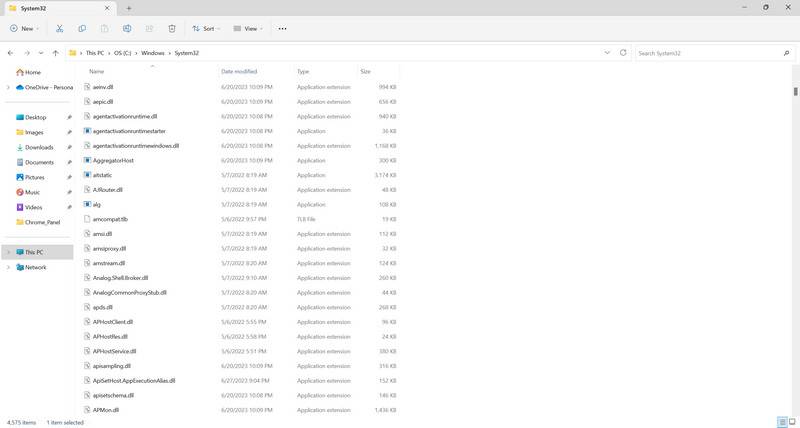
Common Ialmrnt5.dll Errors
When an error occurs with the Ialmrnt5.dll file, you may experience various issues related to your Intel graphics card. Some of the most common errors include:
- Blue Screen of Death (BSOD) crashes
- Application crashes or freezes
- System slowdowns or performance issues
- Display glitches or artifacts
- Error messages indicating a missing or corrupted Ialmrnt5.dll file
If you encounter any of these errors, it is crucial to address them promptly to ensure the stability and functionality of your system.
Causes of Ialmrnt5.dll Errors
Several factors can contribute to Ialmrnt5.dll errors. Understanding the potential causes can help you troubleshoot and resolve the issues effectively. Here are some common causes:
- Outdated or incompatible graphics drivers: Using outdated or incompatible graphics drivers can lead to conflicts and errors with the Ialmrnt5.dll file.
- Corrupted or missing DLL file: If the Ialmrnt5.dll file becomes corrupted or is accidentally deleted, it can result in errors.
- Malware or virus infections: Malicious software can infect DLL files, including Ialmrnt5.dll, causing errors and system instability.
- Hardware issues: Faulty hardware, such as a malfunctioning graphics card, can trigger errors related to the Ialmrnt5.dll file.
How to Fix Ialmrnt5.dll Errors
Resolving Ialmrnt5.dll errors requires a systematic approach. Here are some effective methods to fix these errors:
Method 1: Update Graphics Drivers
Outdated or incompatible graphics drivers are a common cause of Ialmrnt5.dll errors. To update your graphics drivers:
- Visit the official website of your graphics card manufacturer.
- Locate the support or drivers section.
- Enter the model number of your graphics card and select the appropriate operating system.
- Download the latest drivers for your graphics card.
- Install the downloaded drivers and restart your computer.
Updating your graphics drivers can often resolve compatibility issues and ensure the smooth functioning of your Intel graphics card.
Method 2: Scan for Malware or Viruses
Malware or virus infections can corrupt DLL files, including Ialmrnt5.dll. It is essential to scan your system for malware using reliable antivirus software. We recommend using Malwarebytes Free, a trusted and effective antivirus tool.
Follow these steps to scan your system with Malwarebytes:
- Download and install Malwarebytes Free from the official website.
- Launch the software and click on the “Scan” button.
- Wait for the scan to complete and follow the instructions to remove any detected malware or viruses.
- Restart your computer after the removal process.
Scanning for malware can eliminate any potential threats that may be causing Ialmrnt5.dll errors.
Method 3: Reinstall Intel Graphics Drivers
If updating the graphics drivers did not resolve the issue, you can try reinstalling them. Here’s how:
- Press the Windows key + X and select “Device Manager” from the menu.
- Expand the “Display adapters” category.
- Right-click on your Intel graphics card and select “Uninstall device.”
- Follow the on-screen instructions to uninstall the drivers.
- Restart your computer.
- After the restart, Windows will automatically reinstall the drivers. Alternatively, you can download the latest drivers from the Intel website and install them manually.
Reinstalling the graphics drivers can help resolve any issues related to the Ialmrnt5.dll file.
Summary
Ialmrnt5.dll errors can cause various problems with your Intel graphics card, leading to system instability and performance issues. By understanding the common causes and following the methods outlined in this article, you can effectively fix these errors. Remember to update your graphics drivers, scan for malware or viruses using Malwarebytes Free, and consider reinstalling the Intel graphics drivers if necessary. By taking these steps, you can ensure the smooth operation of your system and enjoy optimal performance from your Intel graphics card.

Join the discussion
0 commentsShare your experience or ask a question about this article.
Your progress
Did these steps help?
Let us know how the guide worked for you.
Describe what you see and the step you reached. Keep passwords and other private information out.
Discussion
Start the conversation
Have a question or something useful to share? Add the first comment.