“Install Antivirus Now to Remove Threats” Is a Scam: Here’s What to Do
Written by: Stelian
Published on:
If you’ve ever been browsing or turning on your computer and suddenly encountered a full-screen message demanding you to “Install antivirus now to remove threats and protect your PC,” you might have already come face to face with one of the most persistent tech support scams online. It looks urgent. It sounds helpful. But it’s fake.
This article dives deep into the “Install Antivirus Now To Remove Threats And Protect Your PC” scam. We’ll break down how it works, who’s behind it, and how you can protect yourself. If you’ve already fallen victim to it, we’ll also guide you through recovery steps. Let’s begin.
Scam Overview
The “Install Antivirus Now To Remove Threats And Protect Your PC” scam is a deceptive tactic used by cybercriminals and rogue affiliates. It attempts to trick users into installing software by creating a false sense of urgency and danger. At a glance, the message appears to be from a legitimate antivirus product, and it claims that your PC is at risk.
But there is no real virus scan happening. Instead, the pop-up is generated by a potentially unwanted application (PUA), often installed without clear user consent. One such known application associated with this scam is ManualFinder, which is infamous for its aggressive pop-up tactics and redirect behavior.
The Red Flags
Once the PUA is on your system, you might see an alert like this:
“Network and device security check in progress”
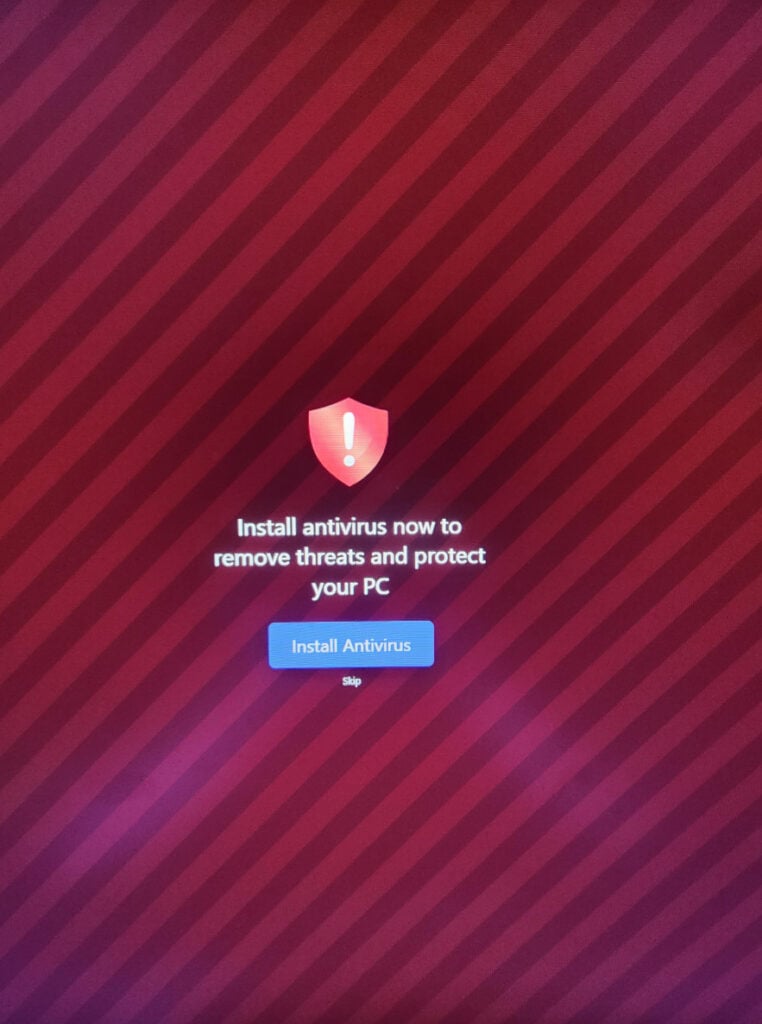
Followed by: “Install antivirus now to remove threats and protect your PC”
This transition is intentional. It mimics the flow of a legitimate system check, which makes the scam more believable. The warning screen is designed to hijack attention and direct users to click the “Install Antivirus” button.
Clicking this button typically redirects users to the official websites of real antivirus software providers such as McAfee, Norton, or TotalAV. While these products themselves are legitimate, the people behind the scam are not. They abuse affiliate marketing programs to earn commission whenever someone installs the software through their unique referral link.
Affiliate Marketing Abuse
Affiliate marketing is a legitimate strategy that allows marketers to earn commissions by referring customers. However, when scammers exploit these programs by deceiving users, it becomes fraudulent.
Here’s how it plays out:
The PUA is installed (often bundled with freeware or disguised as a necessary browser extension).
Fake system scans and pop-ups are displayed to create panic.
The user clicks the call-to-action button thinking it’s urgent.
They are redirected to real antivirus websites but with an affiliate code attached.
The scammer earns a commission for a deceptive referral.
Even though the final product may be legitimate, the route taken to get there involves manipulation and unauthorized software behavior.
Hidden Dangers
While some versions of this scam redirect users to genuine antivirus tools, other variants can lead to much worse outcomes. These include:
Fake antivirus downloads that install malware instead
Additional PUAs that bog down your system and collect data
Adware and browser hijackers that flood your screen with spammy content
Keyloggers and info-stealers that can compromise sensitive data
Trojans or ransomware that can lock you out of your own files
In essence, while this scam may appear benign at first glance, its underlying infrastructure can serve as a gateway to far more serious cybersecurity issues.
How the Operation Works
Understanding how this scam unfolds step-by-step can help you recognize and avoid it before any harm is done.
Step 1: The Entry Point – PUA Installation
Most victims never willingly install PUAs. These applications usually come bundled with free software, fake installers, pirated content, or deceptive websites. ManualFinder, for instance, is often downloaded as part of another utility or browser extension.
Once installed, the PUA begins running in the background. It configures itself to launch automatically with your operating system and alters browser settings to enable future redirects.
Step 2: Fake Security Checks
Shortly after installation, you may notice unusual behavior. A typical symptom is the sudden appearance of a fullscreen message that says:
“Network and device security check in progress.”
This is not a real scan. It’s a hard-coded animation or static screen designed to look legitimate. There is no antivirus engine or malware detection process running behind the scenes.
Step 3: The Scare Tactic Message
Following the fake scan, a second fullscreen message appears. This one is more urgent:
“Install antivirus now to remove threats and protect your PC”
The screen features a large warning icon (usually a red shield with an exclamation mark) and a prominent “Install Antivirus” button. A smaller “Skip” link may be included, but it’s often barely noticeable.
This tactic exploits fear, prompting the user to act without thinking. It mimics the behavior of legitimate system alerts to build trust and urgency.
Step 4: Redirection to Real Antivirus Sites
When the user clicks the button, they are redirected to a real antivirus provider such as:
McAfee
Norton
TotalAV
These redirects include the scammer’s affiliate code in the URL, which ensures they get paid if the user downloads or subscribes to the product.
This approach allows scammers to make money without delivering anything themselves, while pushing users into actions based on false premises.
Step 5: Optional Payload Delivery
In more dangerous versions of the scam, the redirection doesn’t lead to a legitimate antivirus site. Instead, it may trigger the download of malware or more PUAs. This can include:
Fake antivirus programs
Browser hijackers
Cryptocurrency miners
Ransomware loaders
Step 6: Repeat Behavior
Once the PUA is installed, it may persistently show alerts and pop-ups, disrupting normal use and increasing the chances of further exploitation. In some cases, the software can resist uninstallation or reinstall itself using hidden files.
What to Do If You Have Fallen Victim to This Scam
If you suspect you’ve interacted with the scam or installed software based on this misleading message, don’t panic. Follow these steps to clean your system and protect your data:
First, we’ll manually check your computer for unknown or malicious programs. Adware and browser hijackers often have a working uninstall entry — removing them this way takes care of the easy part before we run the scanners.
Windows 11Windows 10Windows 8Windows 7
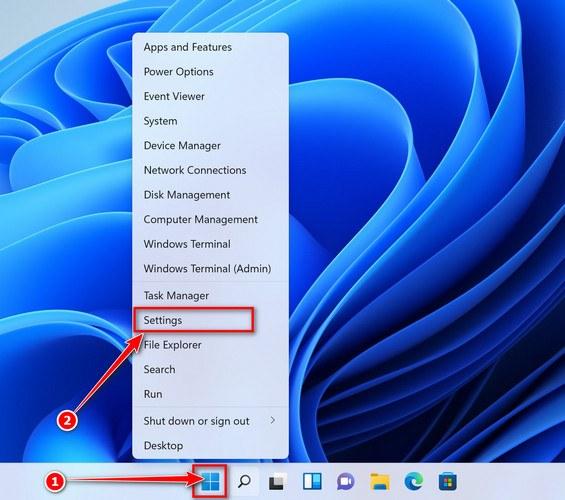
Open the Settings app
Press Windows + I on your keyboard to open Settings. Alternatively, right-click the Start button and select “Settings” from the menu.
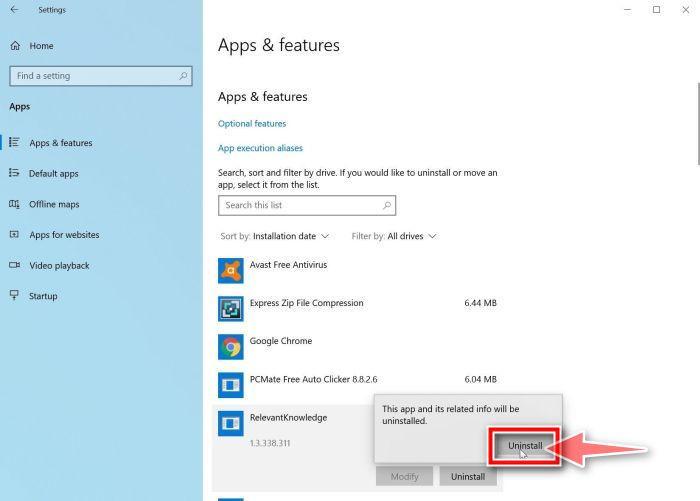
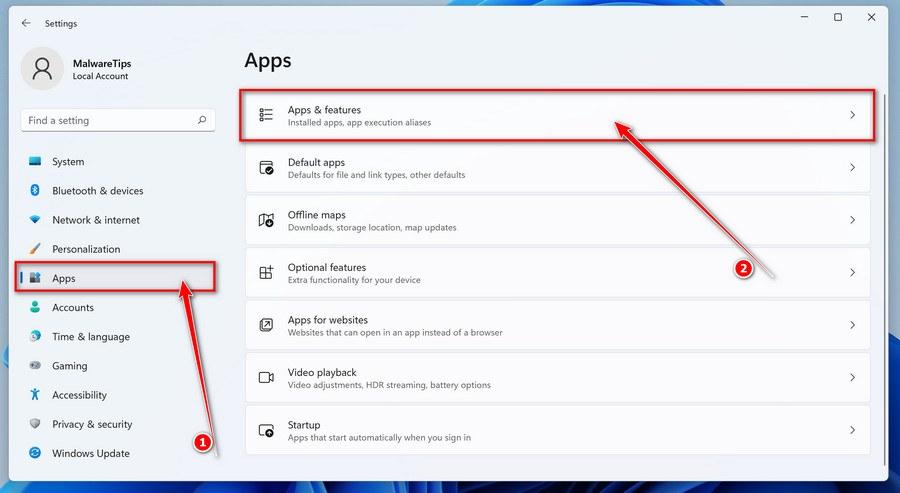
Go to “Apps & Features”
In the Settings window, click “Apps” in the sidebar, then select “Apps & Features“.
Find and uninstall the malicious program
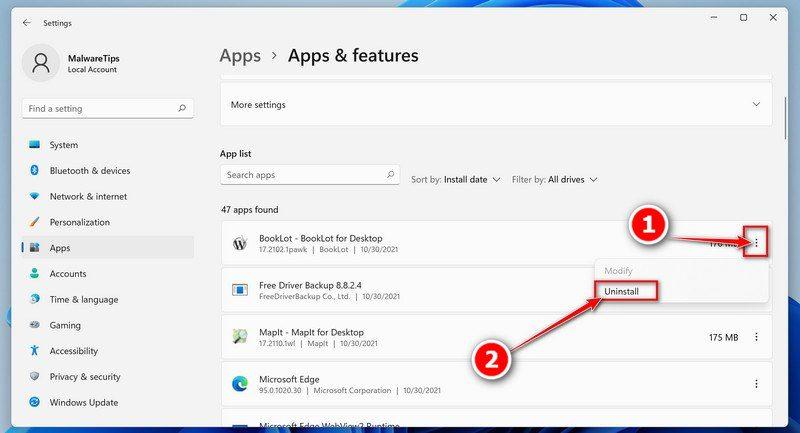
Scroll through the list of installed apps and look for anything suspicious — a program you don’t remember installing, or one with a strange or generic name. Quick tip: click “Sort by” and choose “Install date“. Malware is usually one of the most recently installed programs, so it will appear near the top.
When you find the malicious program, click the three dots next to it and select “Uninstall“.
Didn’t find any suspicious programs? That’s fine — not all infections install visible apps. Just continue with the next step in this guide.
Complete the uninstall
Confirm by clicking Uninstall in the message box, then follow the remaining prompts. Read each prompt carefully — some malicious programs use confusing wording or pre-ticked boxes hoping you’ll click through without looking.
Open the Settings app
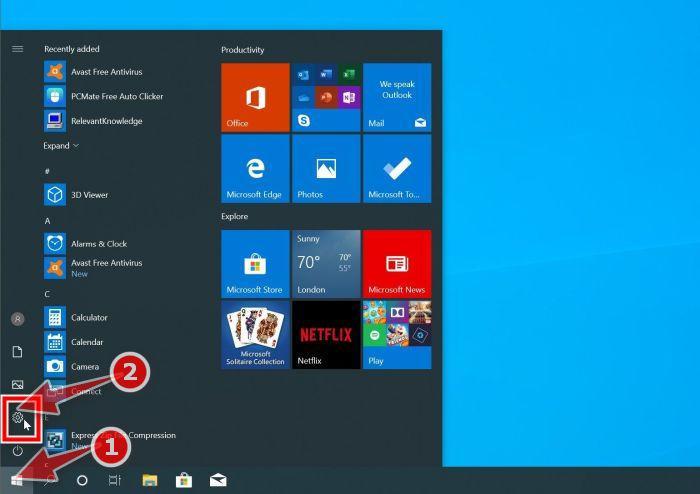
Press Windows + I on your keyboard to open Settings. Alternatively, click the Start button on the taskbar and select “Settings” (the gear icon).
Click on “Apps”
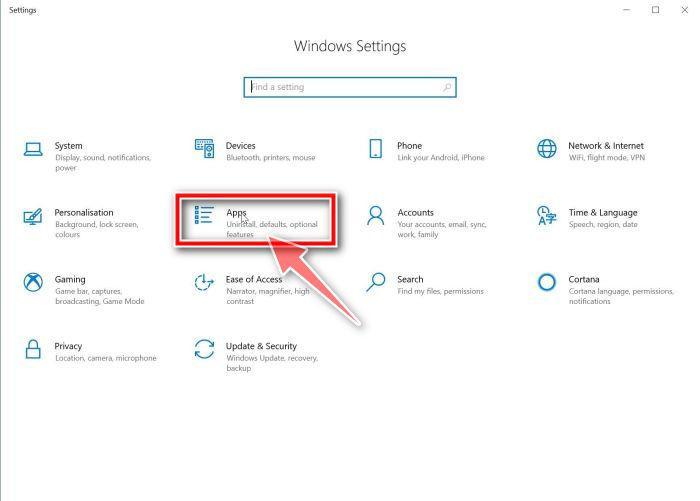
In the “Windows Settings” window, click “Apps“. The “Apps & Features” section should open by default — if it doesn’t, select it from the list on the left.
Find and uninstall the malicious program
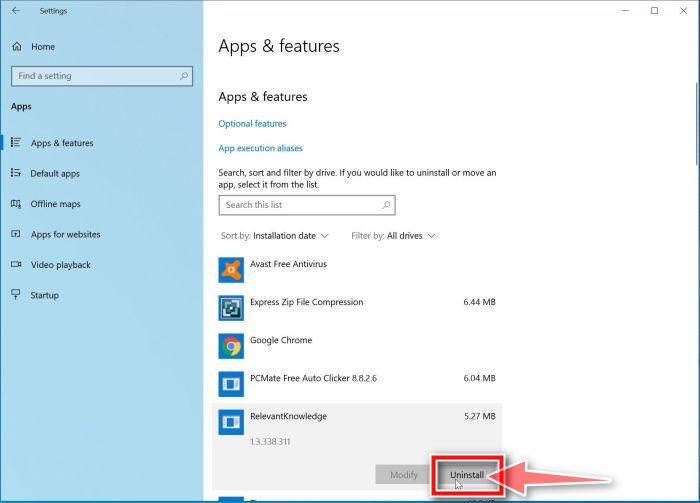
Scroll through the list of installed apps and look for anything suspicious — a program you don’t remember installing, or one with a strange or generic name. Quick tip: click “Sort by” and choose “Install date“. Malware is usually one of the most recently installed programs, so it will appear near the top.
When you find the malicious program, click on it and select “Uninstall“.
Didn’t find any suspicious programs? That’s fine — not all infections install visible apps. Just continue with the next step in this guide.
Complete the uninstall
Confirm by clicking Uninstall in the message box, then follow the remaining prompts. Read each prompt carefully — some malicious programs use confusing wording or pre-ticked boxes hoping you’ll click through without looking.
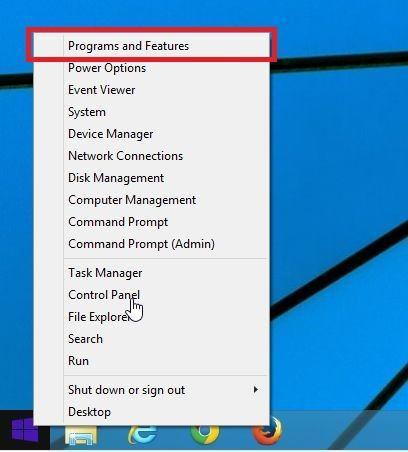
Open “Programs and Features”
Right-click the Start button in the taskbar, then select “Programs and Features“. This takes you straight to the list of installed programs.
Find and uninstall the malicious program
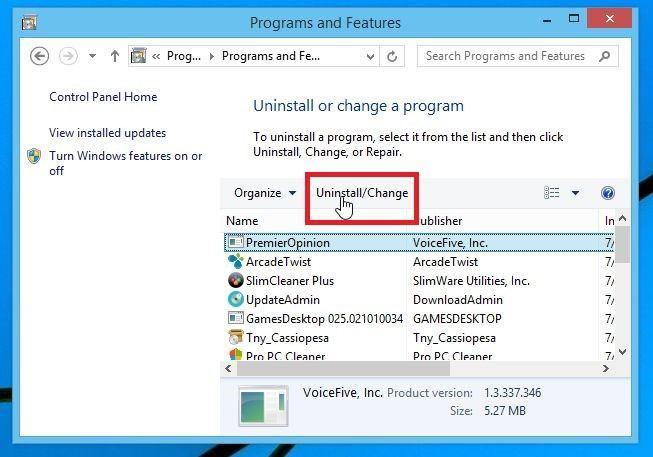
Scroll through the list of installed programs and look for anything suspicious — a program you don’t remember installing, or one with a strange or generic name. Click to highlight it, then click the “Uninstall” button.
Didn’t find any suspicious programs? That’s fine — not all infections install visible apps. Just continue with the next step in this guide.
Complete the uninstall
Confirm by clicking Yes in the message box, then follow the remaining prompts. Read each prompt carefully — some malicious programs use confusing wording or pre-ticked boxes hoping you’ll click through without looking.
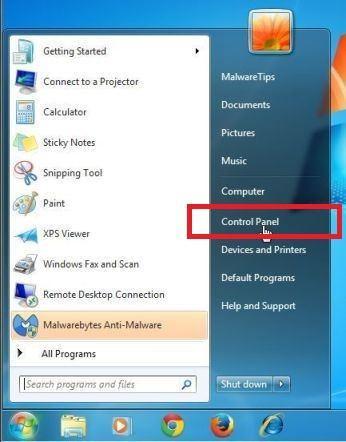
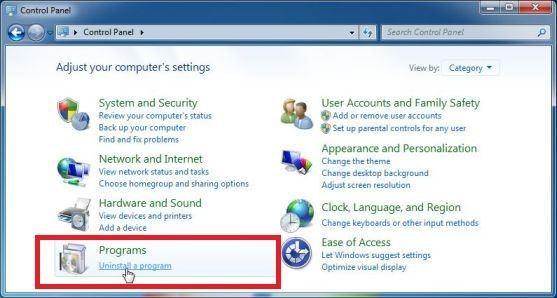
Open the Control Panel
Click the “Start” button, then click “Control Panel“.
Click on “Uninstall a Program”
In the Control Panel, click “Uninstall a Program” under the Programs category.
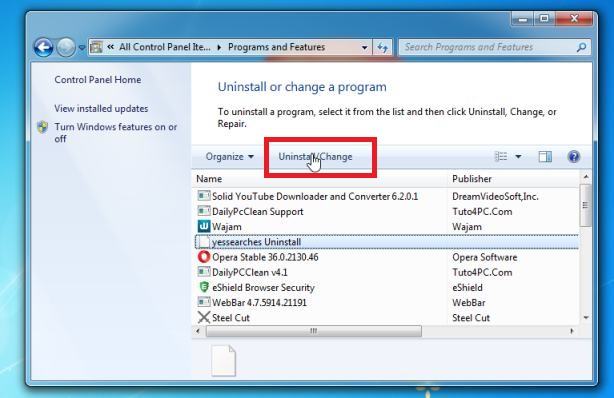
Find and uninstall the malicious program
Scroll through the list of installed programs and look for anything suspicious — a program you don’t remember installing, or one with a strange or generic name. Click to highlight it, then click the “Uninstall” button.
Didn’t find any suspicious programs? That’s fine — not all infections install visible apps. Just continue with the next step in this guide.
Complete the uninstall
Confirm by clicking Yes in the message box, then follow the remaining prompts. Read each prompt carefully — some malicious programs use confusing wording or pre-ticked boxes hoping you’ll click through without looking.
Is a stubborn program refusing to uninstall? Use Revo Uninstaller to force-remove it completely, including leftover files and registry entries.
With the malicious programs removed, you’re ready for the next step in this guide.
STEP 2: Reset browsers back to default settings
In this step, we will remove spam notifications, malicious extensions, and change to default any settings that might have been changed by malware. Please note that this method will remove all extensions, toolbars, and other customizations but will leave your bookmarks and favorites intact. For each browser that you have installed on your computer, please click on the browsers tab below and follow the displayed steps to reset that browser.
ChromeFirefoxMicrosoft EdgeInternet Explorer
Reset Chrome for Windows to default settings
We will now reset your Chrome browser settings to their original defaults. This will reset your startup page, new tab page, search engine, and pinned tabs. It will also disable all extensions and clear temporary data like cookies. Your favorites, history, and saved passwords will not be cleared.
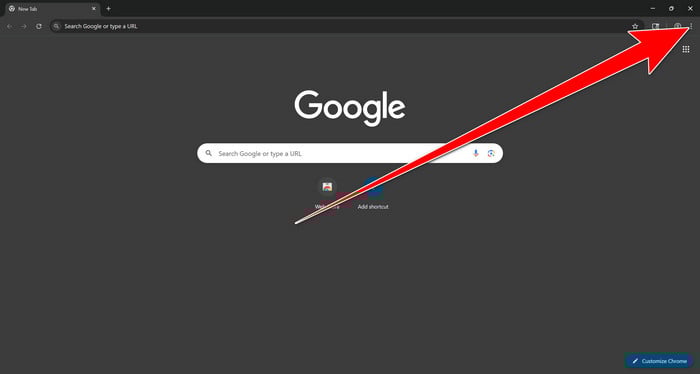
Open the Chrome menu
Open Google Chrome and click the three-dot (⋮) icon in the top-right corner.
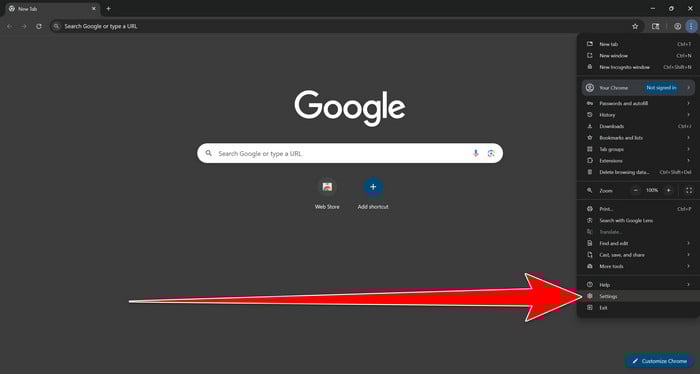
Open Chrome Settings
Select Settings from the Chrome menu.
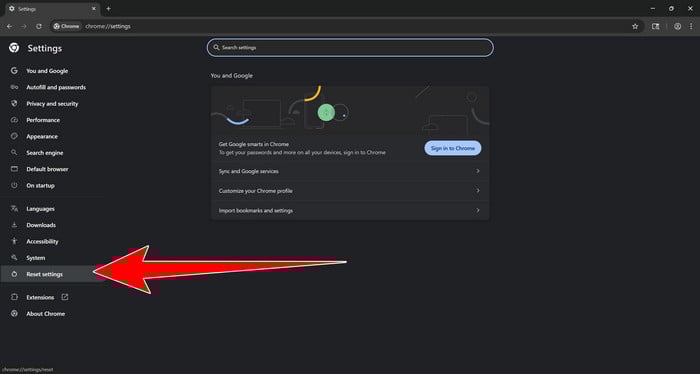
Select “Reset settings”
Look at the menu on the left side of the Settings page. Scroll down and click Reset settings.
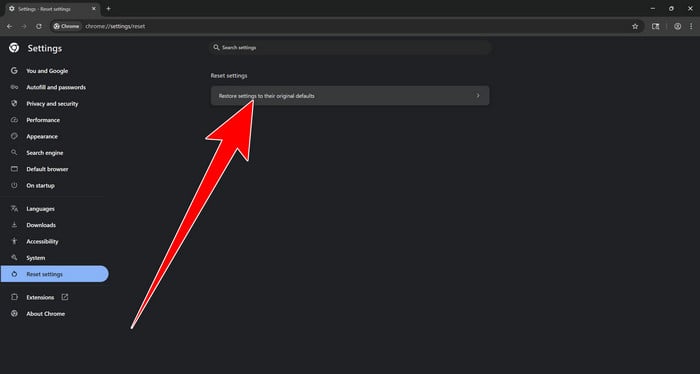
Restore Chrome’s original settings
Click Restore settings to their original defaults.
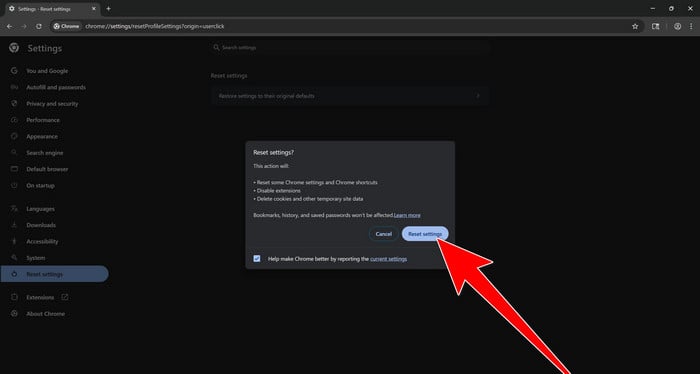
Confirm the Chrome reset
A confirmation window will appear. Click Reset settings.
This will:
Restore the default search engine, homepage, and new tab page
Reset startup pages and pinned tabs
Disable installed extensions
Clear temporary cookies and website data
Don’t worry: Chrome will not delete your bookmarks, browsing history, or saved passwords.
Restart Chrome and perform a test search. If your searches now open normally in Google, you can stop here.
If searches are still redirected through shady domains complete the additional step below.
Remove persistent search hijacker data
Only complete this step if the redirect continues after resetting Chrome.
Some browser hijackers hide inside Chrome’s local search-engine database. A standard Chrome reset may not remove this database, which is why searches can continue to pass through shady sites.
The following procedure creates a backup of the affected database and allows Chrome to build a new, clean version. This is safer and less disruptive than deleting the entire Chrome profile.
First, prevent Chrome Sync from restoring the hijacked settings:
Open a new Chrome tab.
Copy the following address, paste it into Chrome’s address bar, and press Enter:
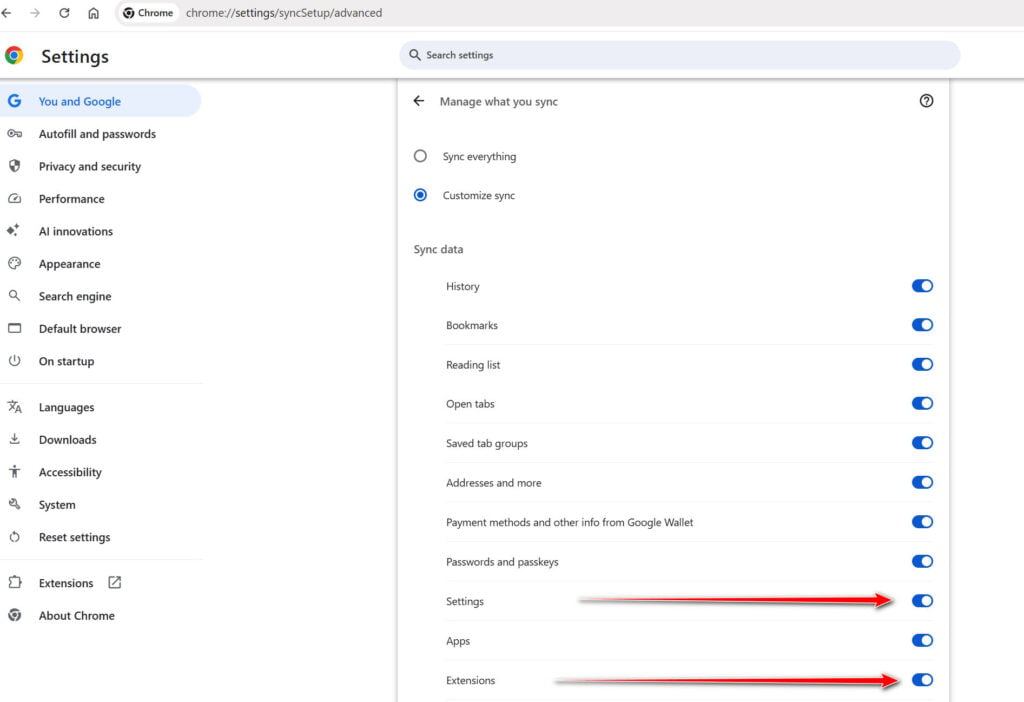
chrome://settings/syncSetup/advanced
Under Manage what you sync, select Customize sync.
Turn off Settings and Extensions.
You can leave Bookmarks and Passwords enabled so your important data remains synchronized.
Note: Some newer Chrome versions may automatically redirect this address to the Google Account settings page. If that happens, locate the list of synchronized Chrome data and turn off Settings and Extensions there.
Now save anything you are working on and close every Chrome window.
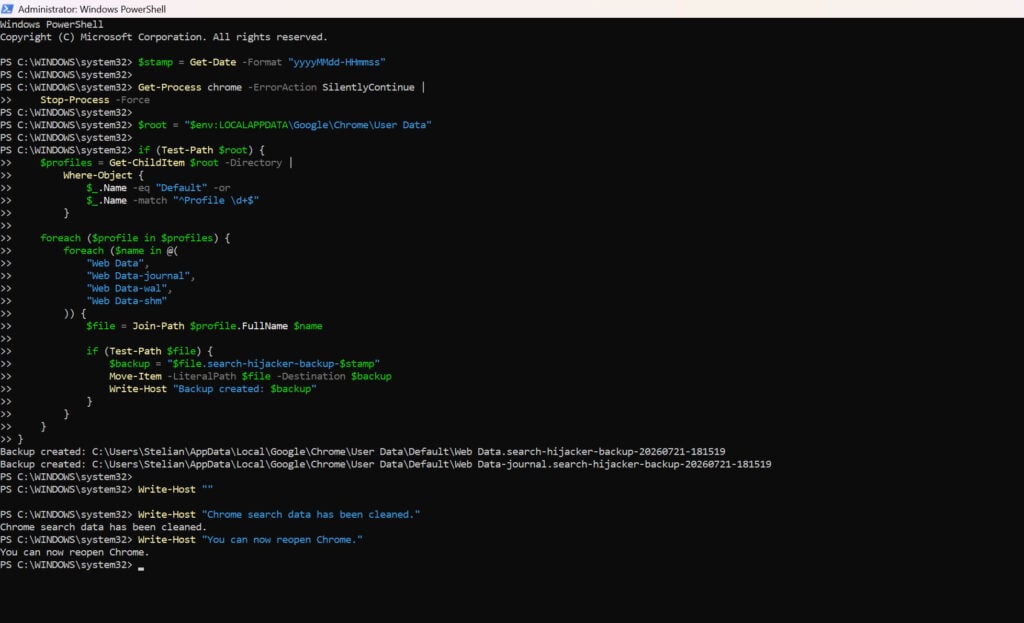
Run the cleanup command:
Press the Windows key on your keyboard.
Type PowerShell.
Open Windows PowerShell. Administrator access is not required.
Copy the entire command shown below.
Right-click inside the PowerShell window to paste the command, then press Enter.
If Windows warns you about pasting multiple lines, select the option to continue.
Write-Host "" Write-Host "Chrome search data has been cleaned." Write-Host "You can now reopen Chrome."
Wait until PowerShell displays the following message:
Chrome search data has been cleaned.
You can now reopen Chrome.
Close PowerShell and reopen Google Chrome. Chrome will automatically create a clean search database for every local profile.
Next, copy the following address, paste it into Chrome’s address bar, and press Enter:
chrome://settings/searchEngines
Make sure Google is selected as the default search engine. Test several searches from the address bar and confirm that they no longer pass through shady search engines.
Your important Chrome data is protected: the PowerShell cleanup does not remove bookmarks, saved passwords, browsing history, cookies, or installed extensions. However, it may reset locally stored Autofill addresses and form suggestions.
The original search database is not deleted. PowerShell renames it and adds search-hijacker-backup to its filename so it can be recovered if necessary.
Keep Settings and Extensions synchronization disabled while testing Chrome. Do not enable every extension at once. Enable only the extensions you recognize, one at a time, and test Chrome after each one.
If the redirect returns after enabling a particular extension, remove that extension immediately.
Reset Firefox for Windows to default settings
We will now reset your Firefox browser settings to their default. The reset feature fixes many issues by restoring Firefox to its factory default state while saving your essential information like bookmarks, passwords, web form auto-fill information, browsing history, and open tabs.
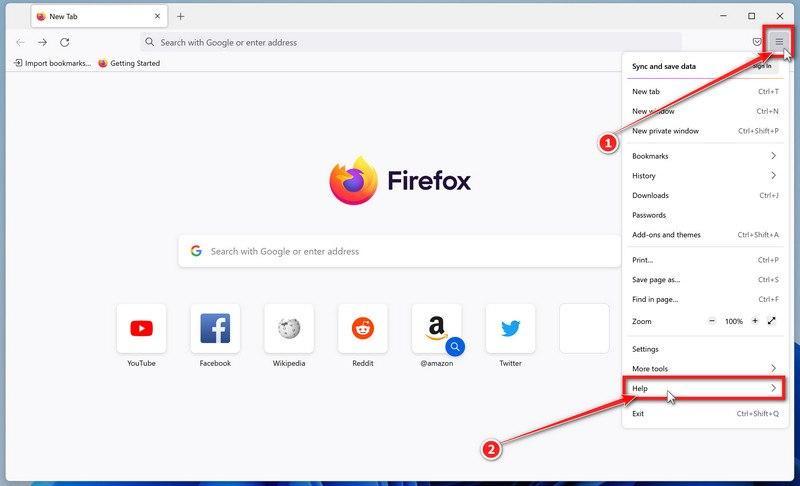
Open the Firefox menu and click “Help”
Click the three horizontal lines in the top-right corner of Firefox to open the main menu, then select “Help“.
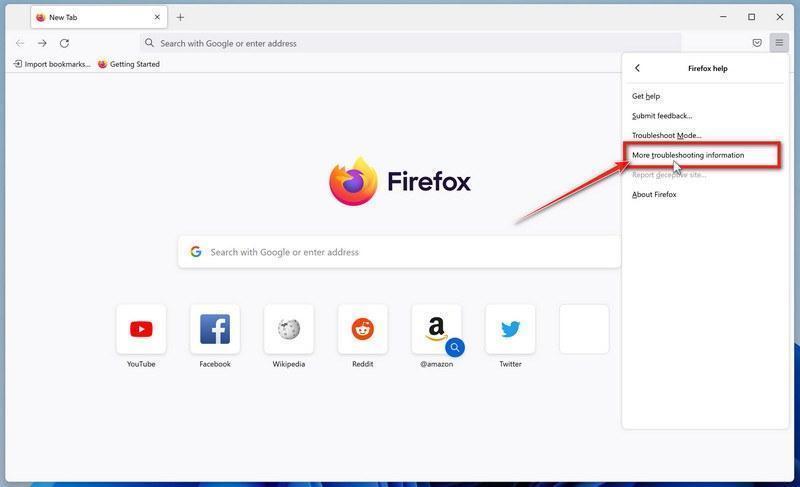
Click “More troubleshooting information”
In the Help menu, click “More troubleshooting information“.
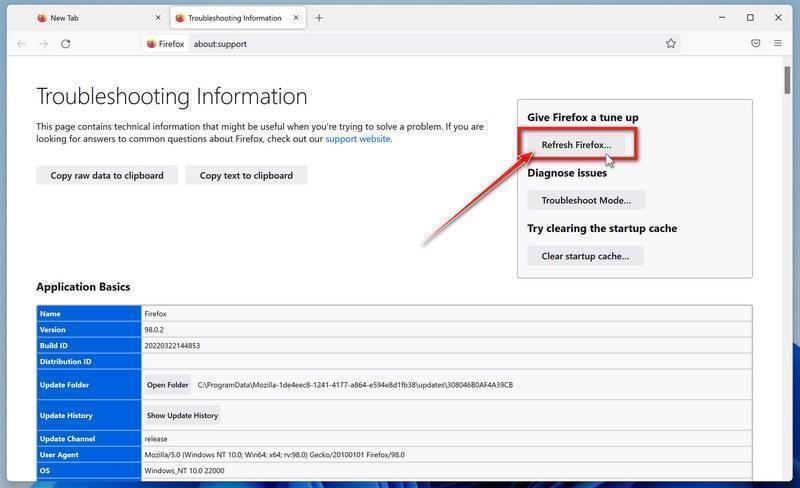
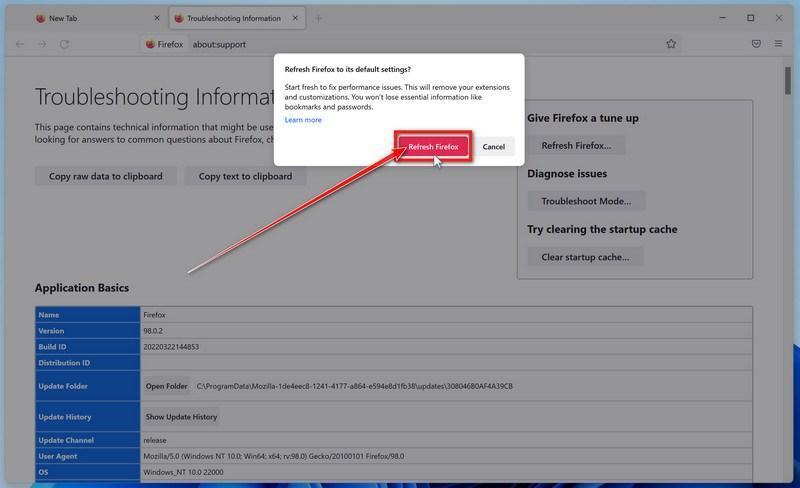
Click “Refresh Firefox”
On the “Troubleshooting Information” page, click the “Refresh Firefox” button in the top-right area of the page.
Confirm the refresh
In the confirmation window, click “Refresh Firefox” again. This removes extensions, themes, and customized settings — the usual hiding places for browser hijackers — while keeping your bookmarks, history, and saved passwords safe.
Click “Finish”
Firefox will close, reset itself to default settings, and reopen with a window listing the information that was restored. Click “Finish” — your Firefox is now clean.
About the “Old Firefox Data” folder: Firefox saves a copy of your old profile on your desktop. If something you need is missing after the reset, you can recover it from this folder. Otherwise, delete the folder — it contains sensitive data like passwords and cookies, and may also still hold the malicious files you just removed.
Reset Microsoft Edge to default settings
We will now reset your Microsoft Edge browser settings to their default. This will reset your startup page, new tab page, search engine, and pinned tabs. It will also disable all extensions and clear temporary data like cookies. Your favorites, history, and saved passwords will not be cleared.
Updated for Microsoft Edge on Windows 10 and Windows 11 — July 2026.
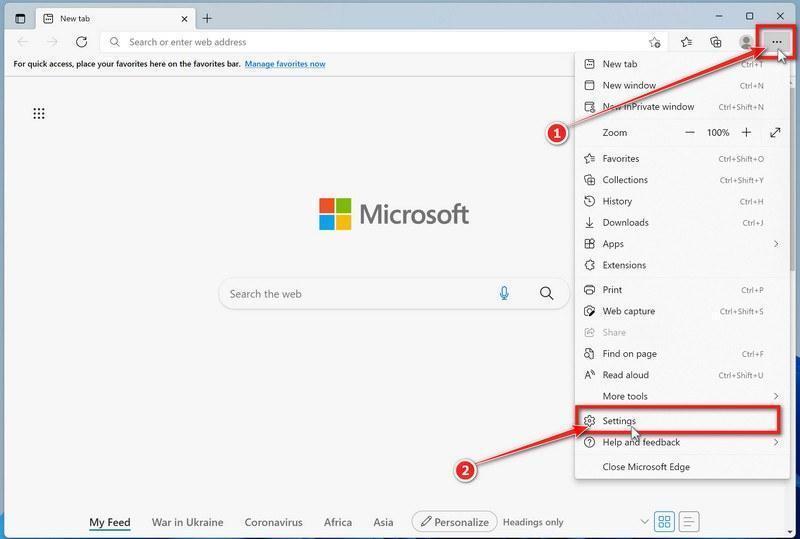
Open the Edge menu and click “Settings”
Open Microsoft Edge. In the top-right corner, click the three-dot (…) icon, then click Settings.
Prevent the unwanted settings from returning through Edge Sync
If you are signed in to Microsoft Edge, a bad setting or extension may be stored in your Microsoft account and return after the reset.
Copy the following address, paste it into the Edge address bar, and press Enter:
edge://settings/profiles/sync
On the Sync page, turn off these two options:
Settings
Extensions
You can leave Favorites and Passwords turned on.
If Edge says that sync is already off, simply continue to the next step.
Important: Edge Sync settings are separate for each profile. If you use more than one Edge profile, switch to each affected profile and repeat this step.
You do not need to sign out of your Microsoft account or delete the Edge profile.
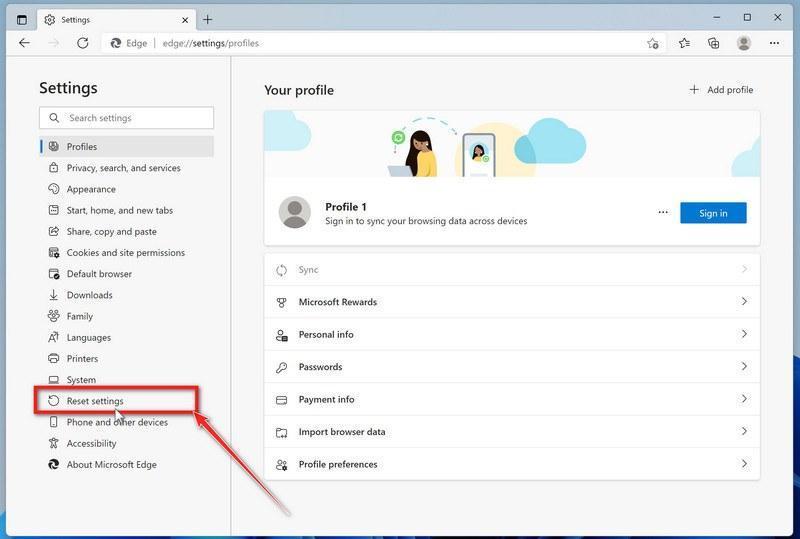
Open “Reset settings”
In the left sidebar, click Reset settings.
You can also open the reset page directly. Copy the following address, paste it into the Edge address bar, and press Enter:
edge://settings/reset
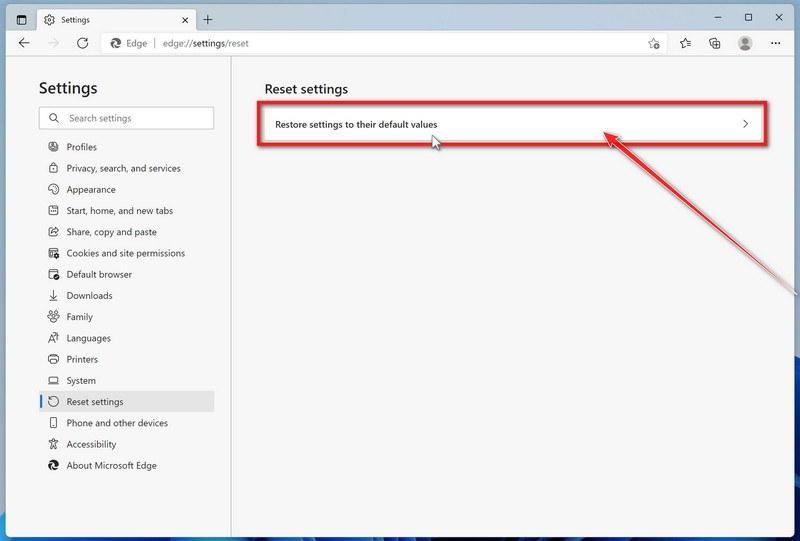
Click “Restore settings to their default values”
Click Restore settings to their default values.
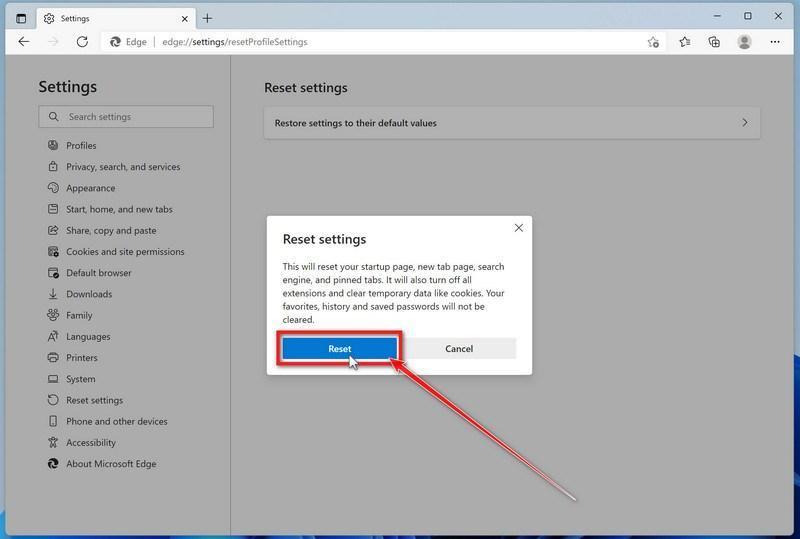
Confirm the reset
In the confirmation dialog, click Reset.
This resets the startup page, new tab page, search engine, and pinned tabs. It also disables all extensions and clears temporary site data, such as cookies.
Don’t worry: your favorites, browsing history, and saved passwords will not be deleted.
Check your extensions before turning them back on
Copy the following address, paste it into the Edge address bar, and press Enter:
edge://extensions
Remove any extension you do not recognize or no longer use. Pay particular attention to extensions related to search, coupons, shopping, PDF conversion, browser protection, new tabs, or video downloading.
Do not turn all extensions back on at the same time. Enable only the extensions you recognize and trust.
Select a trusted search engine
Copy the following address, paste it into the Edge address bar, and press Enter:
edge://settings/searchEngines
Select Bing, Google, DuckDuckGo, or another search provider you trust and make it the default.
Remove any unknown search engines, especially providers with strange names or addresses that you did not add yourself.
Restart Edge and perform a search from the address bar. If searches are no longer redirected, you can stop here.
If the redirect remains, clean the corrupted search data without deleting the Edge profile
Use this additional step only if Edge continues to redirect searches after the normal reset.
This command cleans the search-engine database from every local Edge profile while keeping your favorites, saved passwords, browsing history, cookies, and profiles.
Before continuing: save anything you are working on because the command will close Microsoft Edge.
Open the Windows Start menu.
Type PowerShell.
Open Windows PowerShell. Administrator access is not required.
Copy the entire command below.
Paste it into PowerShell and press Enter.
$stamp = Get-Date -Format "yyyyMMdd-HHmmss"
$root = Join-Path $env:LOCALAPPDATA "Microsoft\Edge\User Data"

Get-Process -Name msedge -ErrorAction SilentlyContinue |
    Stop-Process -Force -ErrorAction SilentlyContinue

Start-Sleep -Seconds 2

if (-not (Test-Path -LiteralPath $root)) {
    Write-Host "The Microsoft Edge profile folder was not found:"
    Write-Host $root
    return
}

$profiles = Get-ChildItem -LiteralPath $root -Directory |
    Where-Object {
        $_.Name -eq "Default" -or
        $_.Name -match "^Profile \d+$"
    }

$movedFiles = 0

foreach ($profile in $profiles) {
    foreach ($name in @(
        "Web Data",
        "Web Data-journal",
        "Web Data-wal",
        "Web Data-shm"
    )) {
        $file = Join-Path $profile.FullName $name

        if (Test-Path -LiteralPath $file) {
            $backup = "$file.search-reset-backup-$stamp"

            try {
                Move-Item -LiteralPath $file -Destination $backup -ErrorAction Stop
                Write-Host "Cleaned: $($profile.Name)\$name"
                $movedFiles++
            }
            catch {
                Write-Warning "Could not clean: $file"
            }
        }
    }
}

Write-Host ""

if ($movedFiles -gt 0) {
    Write-Host "Microsoft Edge search data has been cleaned." -ForegroundColor Green
    Write-Host "You can now reopen Microsoft Edge."
}
else {
    Write-Host "No Edge search database files were found." -ForegroundColor Yellow
}
The command does not permanently delete the original files. It renames them as backup files, and Edge creates a clean search database when it starts again.
Note: this additional cleanup may also reset saved form-fill suggestions, saved addresses, and manually added search engines. It does not delete favorites, passwords, or browsing history.
Reopen Edge and test the browser
Open Microsoft Edge again, visit edge://settings/searchEngines, and select your preferred search engine.
Perform several searches from the address bar to confirm that the redirect is gone.
Keep synchronization for Settings and Extensions turned off until you are certain that the computer and extensions are clean. If you enable them again, turn them on one at a time and test Edge after each change.
If Edge still redirects your searches
Open edge://policy. If this is your personal computer and Edge displays unknown policies such as ExtensionInstallForcelist or DefaultSearchProvider, the hijacker may be installed outside the browser profile.
In that situation, continue with the next malware-removal steps and run a complete antivirus scan. If the computer belongs to a company or school, contact its IT administrator before changing any policies.
Reset Internet Explorer to default settings
We will now reset your Internet Explorer browser settings to their default. You can reset Internet Explorer settings to return them to the state they were in when Internet Explorer was first installed on your computer.
Go to “Internet Options”.
Open Internet Explorer, click on the gear icon in the upper-right part of your browser, then select “Internet Options“.
Select the “Advanced” tab, then click “Reset”
In the “Internet Options” dialog box, select the “Advanced” tab, then click on the “Reset” button.
Click on “Reset”.
In the “Reset Internet Explorer settings” section, select the “Delete personal settings” checkbox, then click on the “Reset” button.
Click on “Close”.
When Internet Explorer has completed its task, click on the “Close” button in the confirmation dialogue box. Close your browser and then you can open Internet Explorer again.
STEP 3: Use Rkill to terminate suspicious programs
Next, we’ll download and run Rkill to stop any suspicious processes running in the background. This prevents the malware from interfering with the removal tools in the following steps.
RKill is a program that was developed at BleepingComputer.com that attempts to terminate known malware processes so that your normal security software can then run and clean your computer of infections. When RKill runs it will kill malware processes and then removes incorrect executable associations and fixes policies that stop us from using certain tools.
Download Rkill.
You can download RKill to your computer from the below link. When at the download page, click on the Download Now button labeled iExplore.exe. We are downloading a renamed version of Rkill (iExplore.exe) because some malware will not allow processes to run unless they have a certain filename.
RKILL DOWNLOAD LINK (The above link will open a new page from where you can download Rkill)
Run RKill.
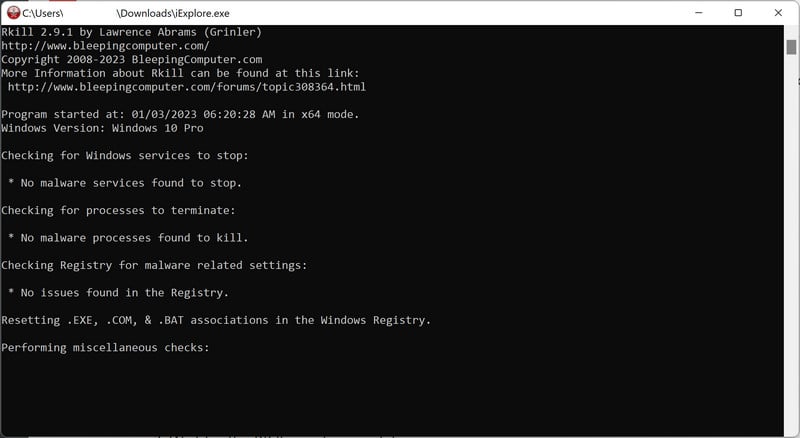
After downloading, double-click the iExplore.exe icon to kill malicious processes. In most cases, downloaded files are saved to the Downloads folder. The program may take some time to search for and end various malware programs.
When it is finished, the black window will close automatically and a log file will open. Do not restart your computer. Proceed to the next step in this guide.
STEP 4: Use Malwarebytes to remove Trojans and unwanted programs
Now we’ll install Malwarebytes and run a full scan to detect and remove infections, adware, and potentially unwanted programs from your computer.
Malwarebytes is one of the most popular and trusted anti-malware tools for Windows — and it’s completely free for removing infections. It catches threats that many antivirus programs miss, including adware, browser hijackers, and trojans. Follow the steps below to scan and clean your PC in just a few minutes.
Download Malwarebytes
Click the button below to download the latest version of Malwarebytes for Windows from the official source. The free version is all you need — it will scan your computer and remove adware, browser hijackers, and other malicious software at no cost.
(The link opens in a new page where your download will start)
Install Malwarebytes
When the download finishes, open your Downloads folder and double-click the MBSetup file. If Windows shows a User Account Control pop-up, click “Yes” to allow the installation.
Follow the On-Screen Prompts to Install Malwarebytes
The setup wizard will walk you through a few quick screens:
Choose where you’re installing the program — “Personal Computer” or “Work Computer” — then click Next.
Malwarebytes will now install on your device. This usually takes under a minute.
When installation is complete, the “Welcome to Malwarebytes” screen will open automatically.
On the final screen, click Open Malwarebytes to launch the program.
Enable “Scan for Rootkits”
Before scanning, turn on rootkit detection so Malwarebytes can find even the most hidden threats. Click the Settings gear icon on the left side of the screen.
In the settings menu, find “Scan for rootkits” and click the toggle so it turns blue.
Done? Click “Dashboard” in the left pane to return to the main screen.
Start the Scan
Click the blue Scan button. Malwarebytes will automatically update its virus database and start checking your computer for malware.
Wait for the Scan to Finish
The scan checks your entire system for browser hijackers and other malicious programs, so it can take several minutes. Feel free to do something else — just check back occasionally to see the progress.
Quarantine the Detected Threats
When the scan is done, you’ll see a list of everything Malwarebytes found — malware, adware, and potentially unwanted programs. Click the “Quarantine” button to remove all of them at once.
Malwarebytes will now remove the malicious files and registry entries and move them safely into quarantine.
Restart Your Computer
Some threats can only be fully removed after a reboot. If Malwarebytes asks you to restart, click Yes. Once you’re logged back in, your PC is clean and you can continue with the next steps in this guide.
STEP 5: Use HitmanPro to remove rootkits and other malware
Next, we’ll run a second-opinion scan with HitmanPro to catch Trojans, rootkits, and other malicious programs that may have survived the previous step.
HitmanPro is a second-opinion scanner — it’s designed to catch what your main antivirus might have missed. Instead of relying on a single detection engine, it checks the behavior of files in the locations where malware usually hides. Anything suspicious gets sent to the cloud, where it’s analyzed by two of the best antivirus engines available: Bitdefender and Kaspersky.
Good news: scanning is completely free, with no limits. You only need a license when it’s time to remove what was found — and even then, you can activate a free one-time 30-day trial to clean your PC at no cost. (A full license is $24.95 per year for 1 PC.)
Download HitmanPro
Click the button below to download HitmanPro. Remember — the scan is free, so you have nothing to lose by checking your PC.
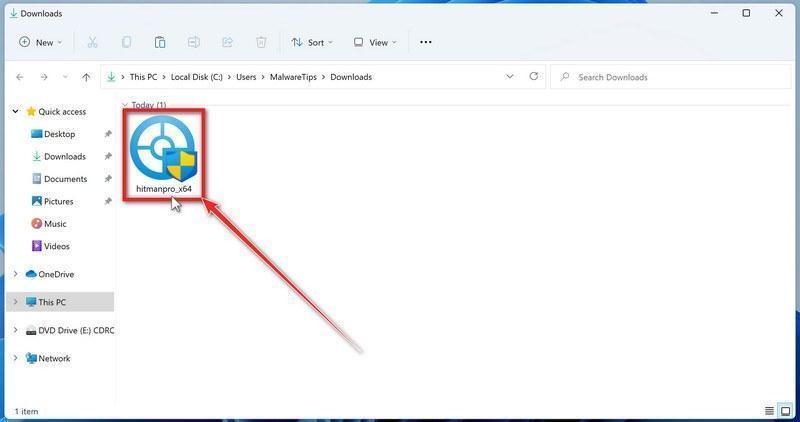
When the download finishes, open your Downloads folder and double-click the file: “hitmanpro.exe” on 32-bit Windows, or “hitmanpro_x64.exe” on 64-bit Windows.
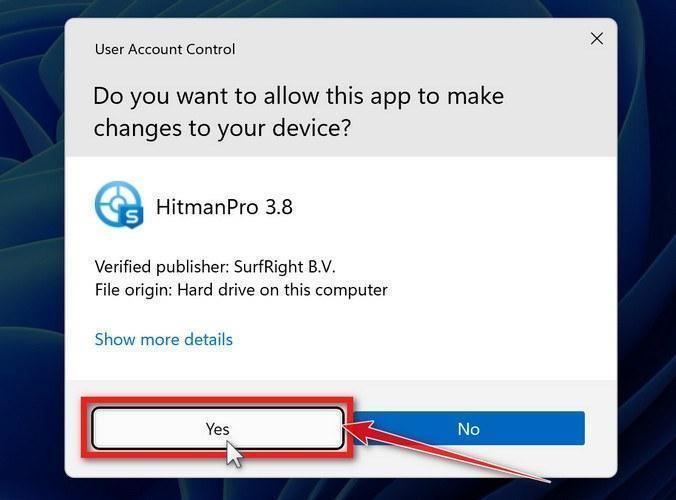
If a User Account Control pop-up asks whether HitmanPro can make changes to your device, click “Yes” to continue.
Follow the On-Screen Prompts
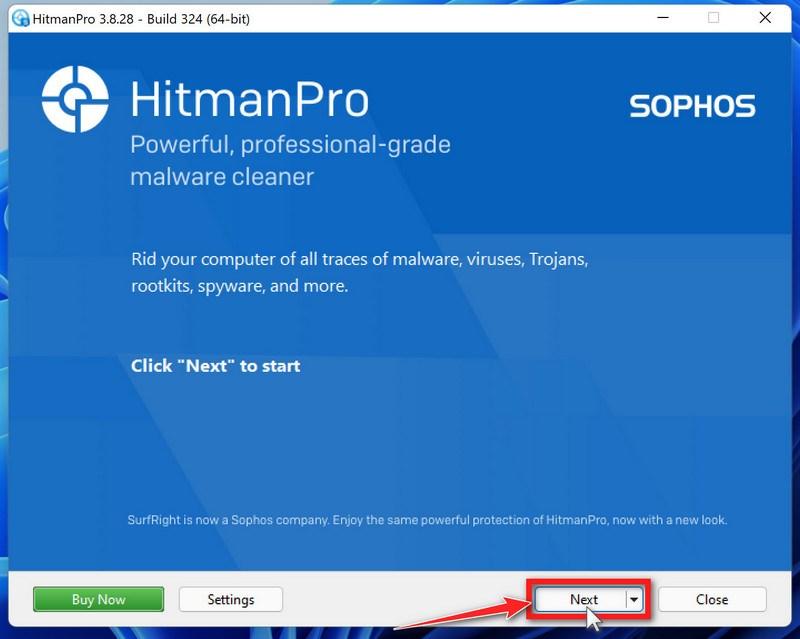
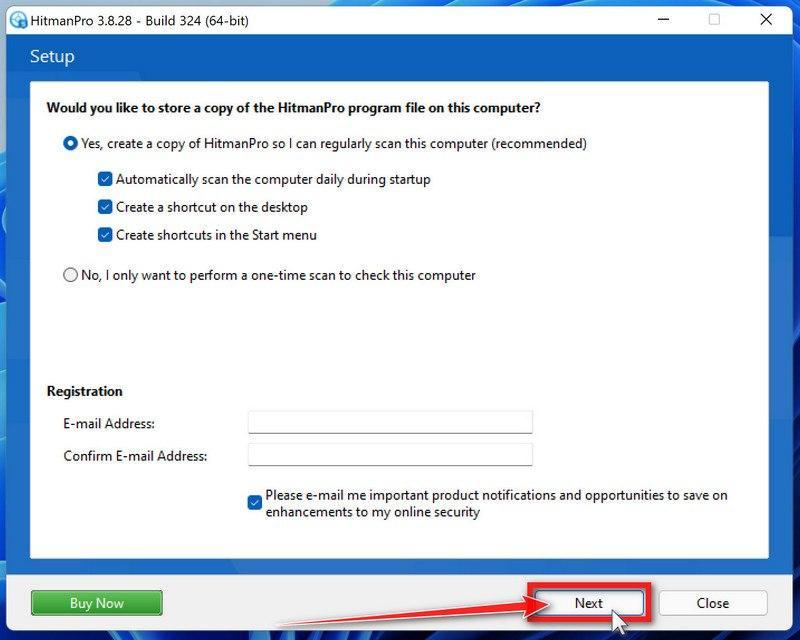
On the HitmanPro start screen, click “Next” to begin the system scan. No lengthy setup required — it goes straight to work.
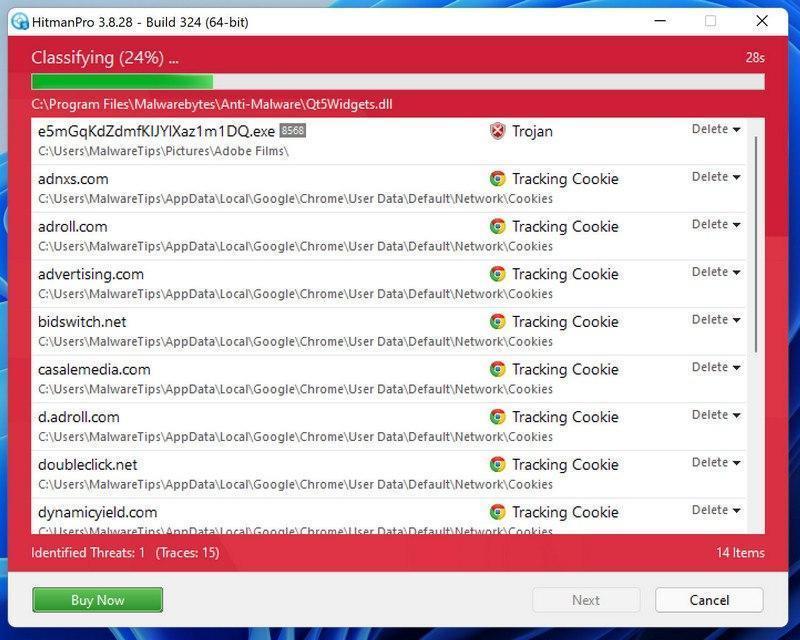
Wait for the Scan to Finish
HitmanPro will now check your computer for malicious programs. This usually takes just a few minutes thanks to its cloud-based scanning.
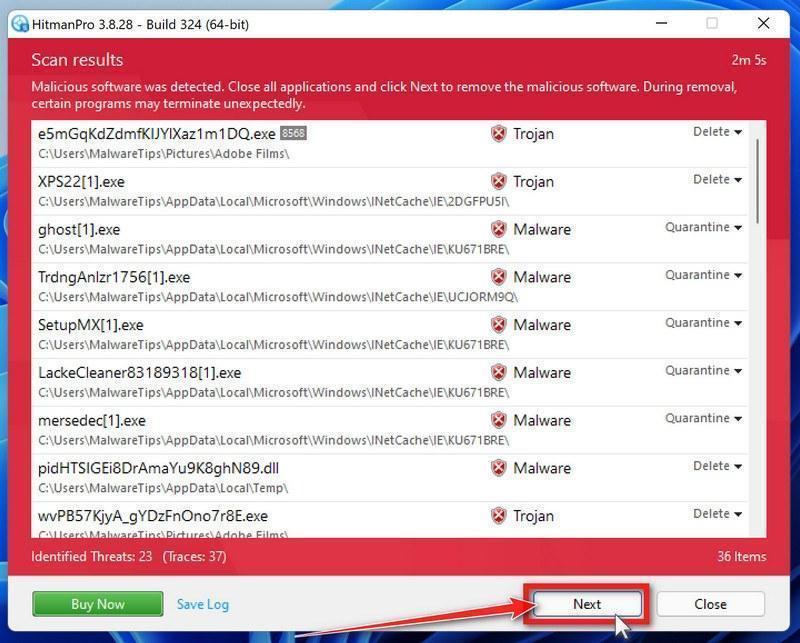
Review the Results and Click “Next”
When the scan is done, HitmanPro will show you everything it found. Click “Next” to remove the detected threats.
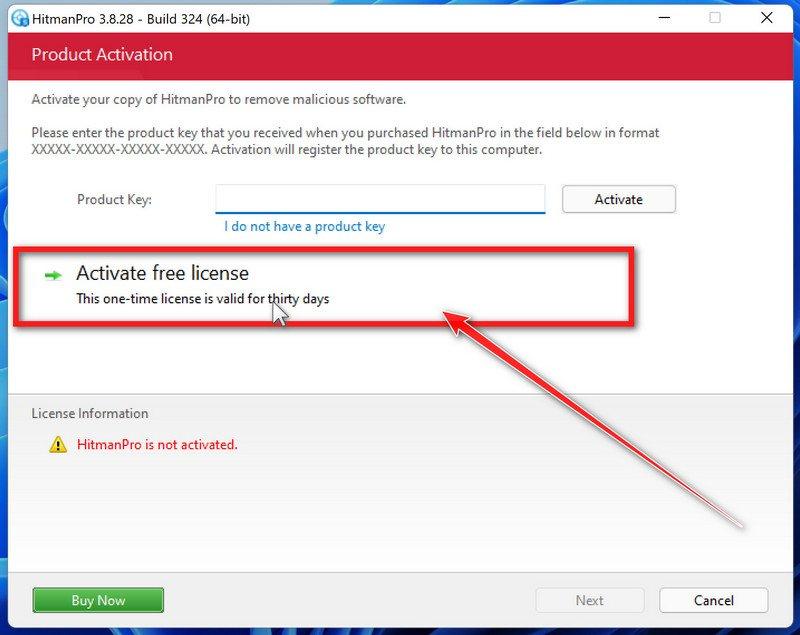
Click “Activate Free License”
To remove the malicious files, click the “Activate free license” button. This starts your free 30-day trial — no payment details needed — and unlocks the full cleanup.
When the removal is complete, HitmanPro will show a summary of everything it cleaned. Click Next, then click Reboot if prompted. If there’s no reboot prompt, just click Close — your PC is clean.
STEP 6: Use AdwCleaner to remove malicious browser policies and adware
We’ll now use AdwCleaner to remove malicious browser policies and unwanted browser extensions — the leftovers that keep hijacking your browser settings even after the malware itself is gone.
AdwCleaner is a free on-demand scanner that specializes in adware, browser hijackers, and unwanted toolbars — the exact threats that mainstream antivirus programs often miss. It also includes tools that repair the damage malware leaves behind, like hijacked browser settings and malicious policies. It’s a quick scan that’s well worth running.
Download AdwCleaner
Click the button below to download AdwCleaner — it’s free, portable, and requires no installation.
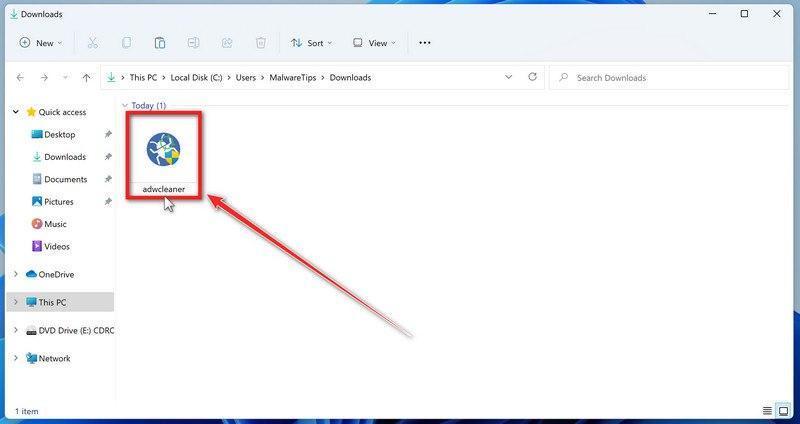
Open your Downloads folder and double-click the file named “adwcleaner_x.x.x.exe“. There’s no installation — the program starts right away.
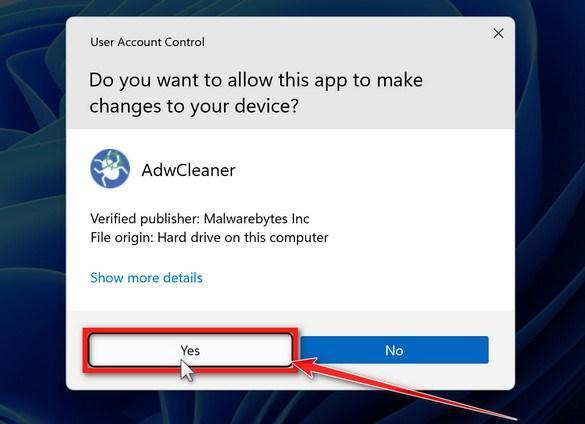
If Windows asks whether you want to allow AdwCleaner to run, click “Yes“. When the license agreement appears, click I agree to continue.
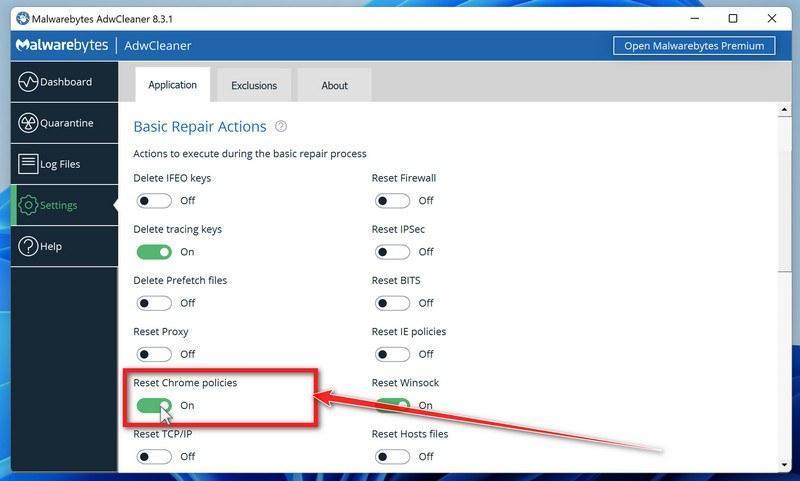
Enable “Reset Chrome policies”
This setting removes malicious browser policies — a trick malware uses to lock your browser settings so you can’t change them back. Click “Settings” on the left side of the window, then turn on “Reset Chrome policies“.
Start the Scan
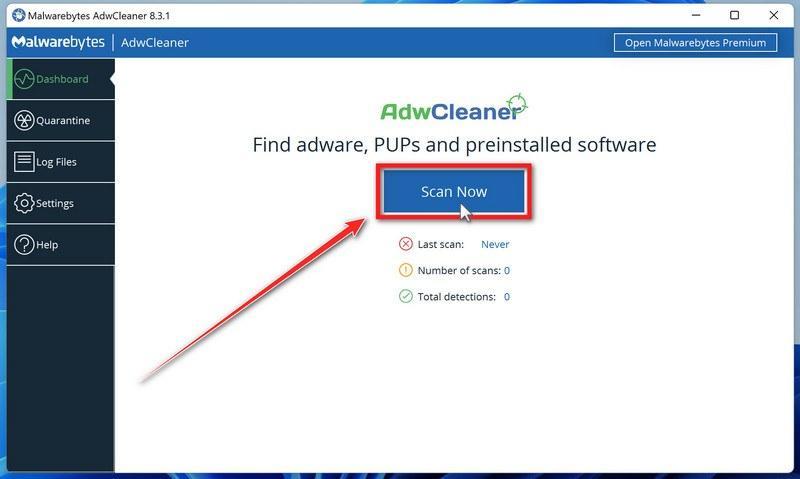
Click “Dashboard” on the left side of the window, then click the “Scan” button.
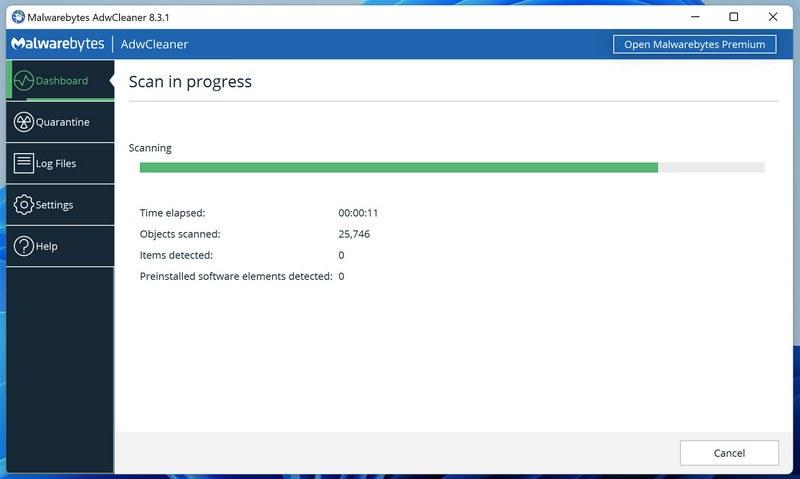
Wait for the Scan to Finish
AdwCleaner will now check your computer for adware and other malware. This usually takes only a few minutes — it’s one of the fastest scanners around.
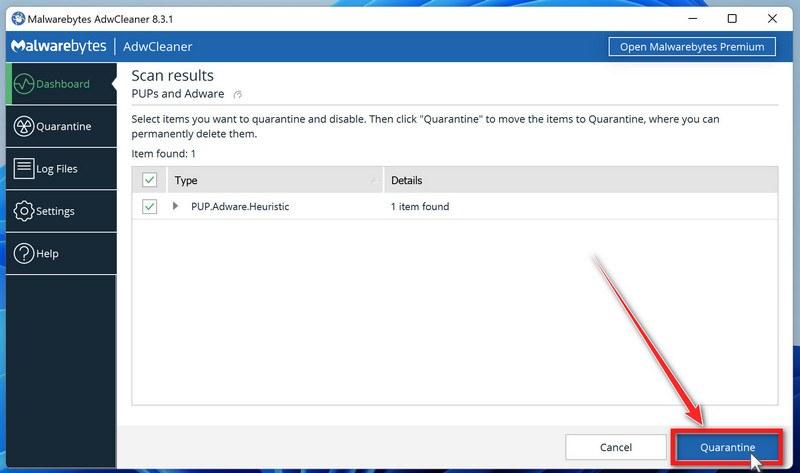
Quarantine the Detected Threats
When the scan finishes, AdwCleaner will list everything it found. Click the “Quarantine” button to remove all the malicious items at once.
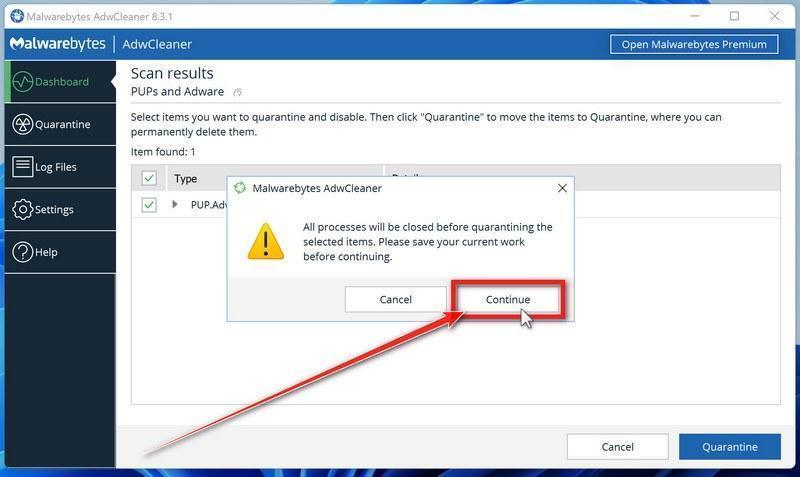
Click “Continue” to Finish the Cleanup
Save any open work first — AdwCleaner needs to close your open programs before it can clean. When you’re ready, click the “Continue” button.
AdwCleaner will now delete all detected malware from your computer. If it asks you to restart your PC, allow it — your computer will be clean when you log back in.
STEP 7: Perform a final check with ESET Online Scanner
Finally, we’ll run ESET Online Scanner as a last sweep to confirm nothing was missed. If this scan comes back clean, your computer is malware-free.
ESET Online Scanner is a free second-opinion scanner that performs a deep, full-system check for viruses, trojans, rootkits, and other malware. We use it as the final step because it’s thorough — if anything slipped past the previous scans, ESET will find it. A clean result here means your computer is malware-free.
Download ESET Online Scanner
Click the button below to download ESET Online Scanner.
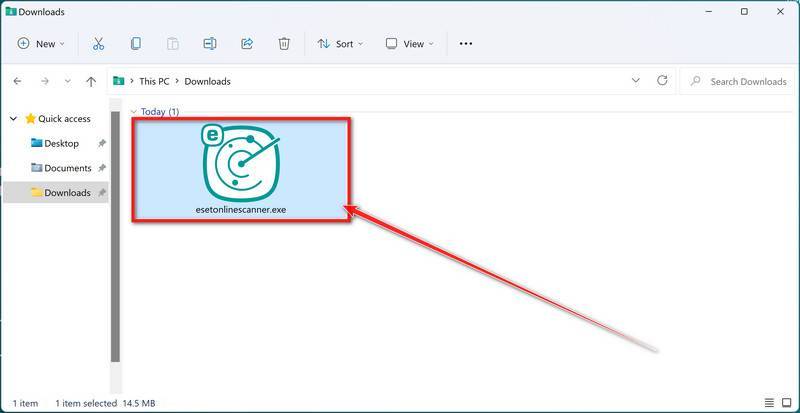
When the download finishes, open your Downloads folder and double-click “esetonlinescanner.exe“.
Install ESET Online Scanner
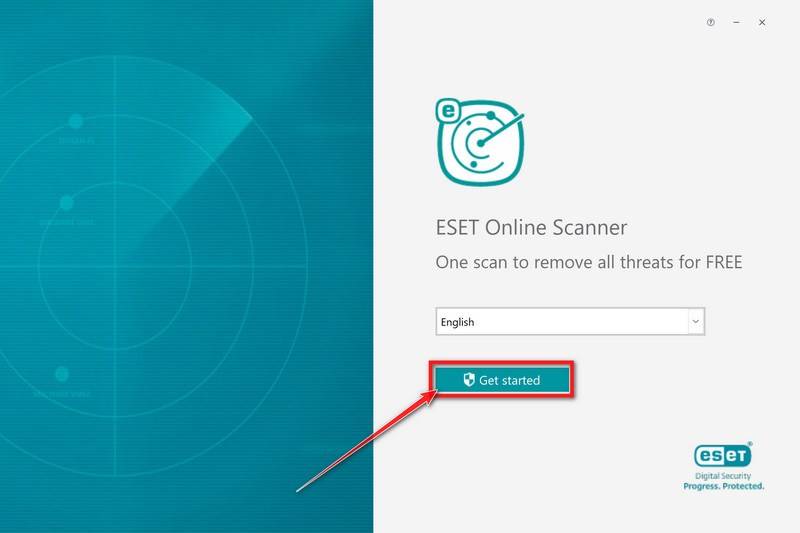
On the start screen, select your language from the drop-down menu and click Get started.
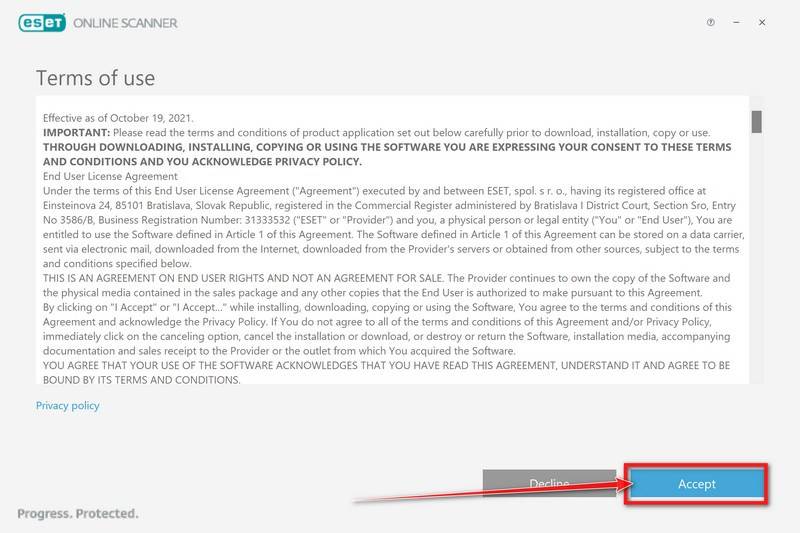
On the Terms of use screen, click Accept.
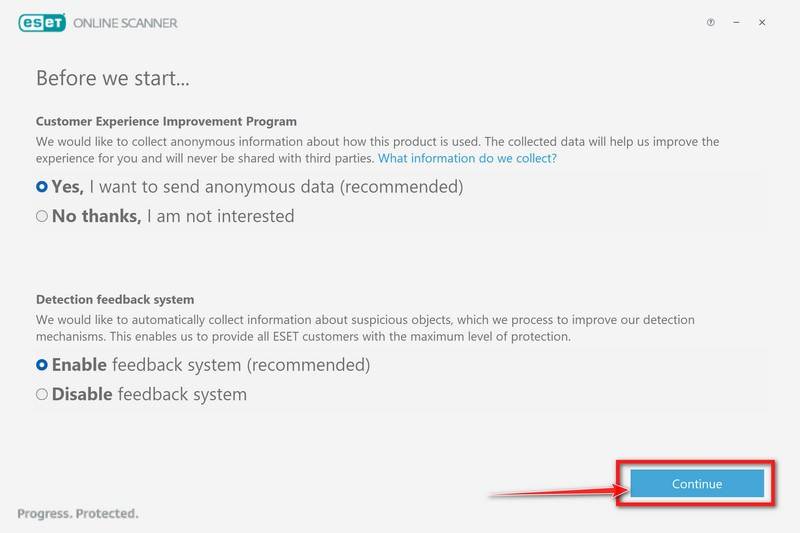
Choose your preferences for the Customer Experience Improvement Program and the Detection feedback system (either choice is fine), then click Continue.
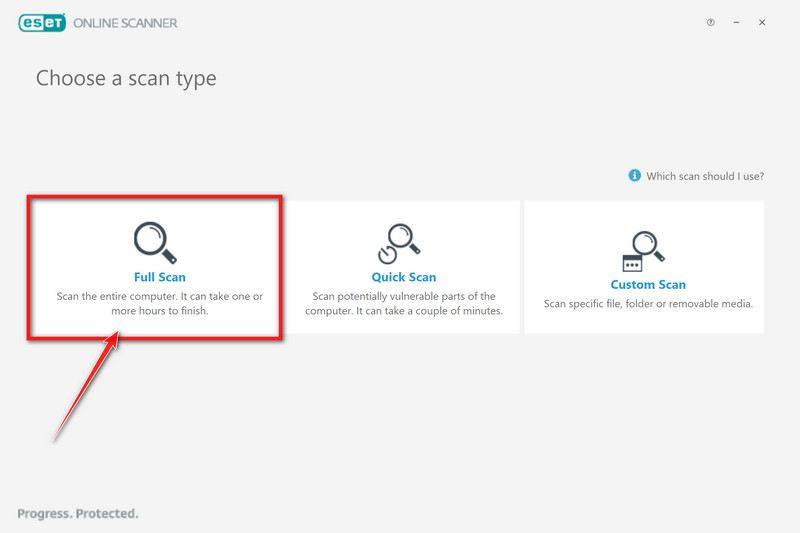
Start a Full Scan
Click Full Scan — this checks your entire computer, not just the common hiding spots.
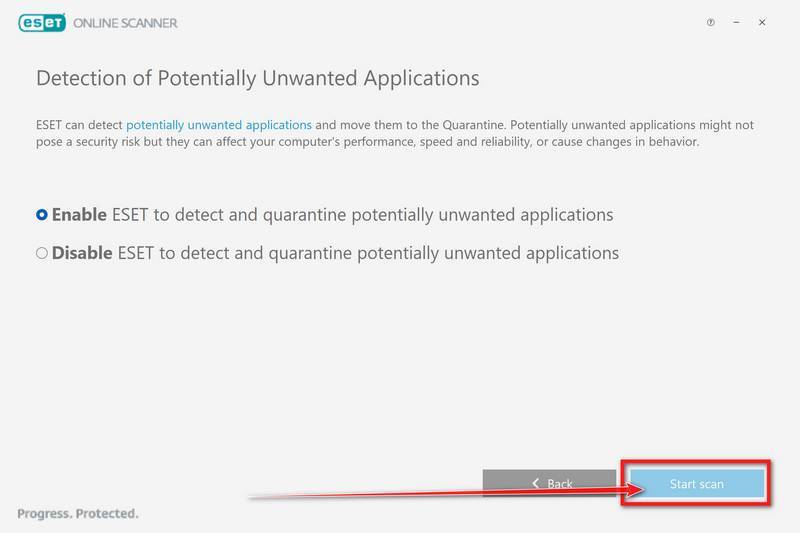
Select Enable for Detection of Potentially Unwanted Applications — this lets ESET catch adware and bundled junk programs, not just viruses. Then click Start scan.
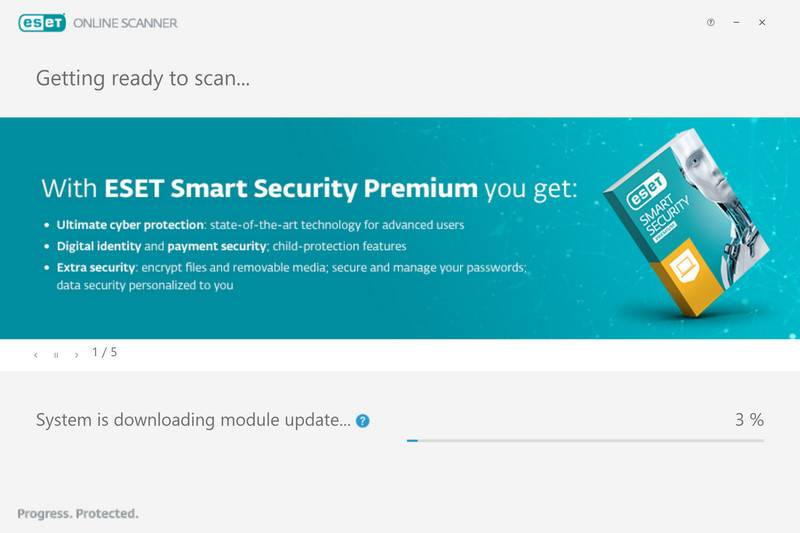
Wait for the Scan to Finish
ESET will now check every file on your computer. Because it’s a full scan, this can take a while — often an hour or more, depending on how much data you have. Leave it running in the background and check on it from time to time.
Review the Results
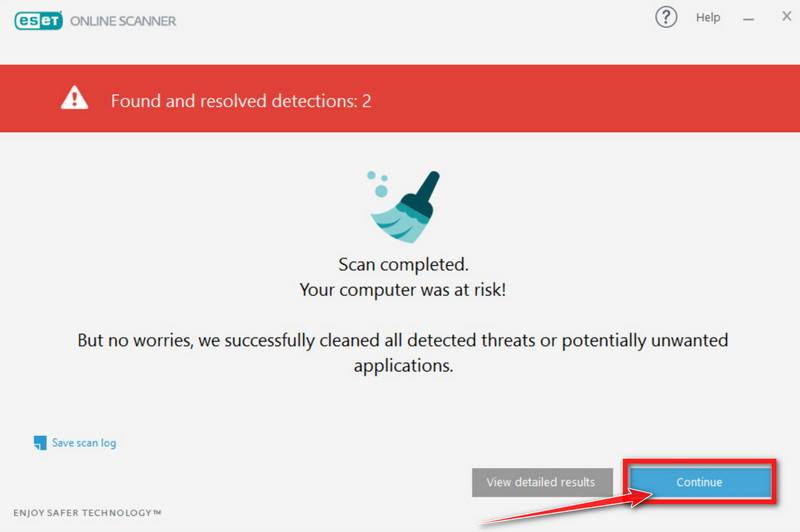
When the scan completes, the Found and resolved detections screen appears. Any threats found were automatically cleaned and quarantined — there’s nothing extra you need to do. Click View detailed results if you want to see exactly what was removed.
If ESET found nothing — congratulations, your computer has passed the final check and is malware-free.
The Bottom Line
The “Install Antivirus Now To Remove Threats And Protect Your PC” scam is an elaborate, deceptive affiliate marketing scheme that uses fear and manipulation to drive clicks. While it may sometimes lead to legitimate antivirus software, the path it takes is unethical and often dangerous.
By understanding how this scam works and taking the right precautions, you can stay one step ahead of cybercriminals. If you’ve already encountered it, don’t wait. Take action now to clean your system, secure your data, and report the scam to prevent its spread.
Cybersecurity threats continue to evolve, but so can your awareness. Stay alert, stay informed, and help others do the same.
Frequently Asked Questions (FAQ)
What is the “Install Antivirus Now To Remove Threats And Protect Your PC” pop-up?
The “Install Antivirus Now To Remove Threats And Protect Your PC” pop-up is a fake security alert generated by a potentially unwanted application (PUA), such as ManualFinder. It displays a full-screen warning claiming your PC is at risk and prompts you to install antivirus software. While the software promoted may sometimes be legitimate, the method of delivery is deceptive and often linked to affiliate marketing abuse or malware distribution.
Is the “Install Antivirus Now” message real or a scam?
It is a scam. The message is not from your operating system or a legitimate antivirus program. It is created by an unwanted application installed on your computer or browser. Its goal is to trick you into clicking a button that redirects you to an antivirus site through an affiliate link, or worse, downloads malware disguised as security software.
What happens if I click the “Install Antivirus” button?
Clicking the button typically redirects you to the official websites of antivirus providers like McAfee, Norton, or TotalAV. These redirects are embedded with affiliate codes, allowing the scammer to earn illegitimate commissions. In more harmful cases, clicking the button may initiate the download of fake antivirus tools, PUAs, or even malware like trojans, ransomware, or spyware.
How did this pop-up appear on my computer?
The pop-up is usually triggered by the installation of a Potentially Unwanted Application (PUA) like ManualFinder. PUAs often come bundled with free software, fake downloads, or browser extensions. Once installed, they generate misleading alerts, change browser settings, and initiate redirects to scam pages or affiliate links.
Can this scam install a virus on my computer?
Yes. While some variants only redirect you to legitimate antivirus software, others may install fake security tools, malicious software, or open the door for more severe infections. These may include keyloggers, cryptocurrency miners, ransomware, or browser hijackers. It is essential to treat any such alert as a potential threat.
How do I remove the “Install Antivirus Now” scam from my PC?
To remove this scam from your system, follow these steps:
Uninstall suspicious applications from your device.
Reset your browser settings to remove unwanted extensions.
Run a full malware scan using trusted tools like Malwarebytes or Windows Defender.
Use specialized cleaners like AdwCleaner or HitmanPro to detect and remove stubborn PUAs.
Clear your cache and cookies to remove residual tracking data.
Reboot your device and check if the pop-up returns.
Is ManualFinder a virus?
ManualFinder is classified as a Potentially Unwanted Application (PUA). While it may not be a virus in the traditional sense, it exhibits malicious behaviors such as displaying fake alerts, altering browser settings, and redirecting users through affiliate schemes. It is strongly recommended to remove it from your system.
Why does the pop-up redirect me to McAfee or Norton? Are those sites fake?
The sites themselves are legitimate. However, the redirection is manipulated by scammers through affiliate links. They make money if you purchase antivirus software after clicking through their link, even though they used deceptive tactics to drive traffic. This practice is unethical and violates the terms of most affiliate programs.
Can I stop this scam without installing new software?
You may be able to stop the scam manually by:
Uninstalling recently installed programs you don’t recognize
Removing suspicious browser extensions
Clearing your browsing data and cookies
Resetting your browser to default settings
However, using legitimate security tools is recommended to ensure complete removal and to detect any hidden threats that manual inspection may miss.
How can I prevent this scam from appearing again?
To avoid seeing this scam in the future:
Be cautious when downloading free software or browser extensions.
Always use custom installation to deselect unwanted offers.
Avoid visiting untrusted websites or clicking on unknown ads.
Use reputable antivirus or antimalware software to monitor threats.
Regularly update your system and software to patch vulnerabilities.
Enable browser protections such as pop-up blockers and safe browsing modes.
10 Rules to Avoid Online Scams
Here are 10 practical safety rules to help you avoid malware, online shopping scams, crypto scams, and other online fraud. Each tip includes a quick “if you already got hit” action.
Stop and verify before you click, log in, download, or pay.
Most scams win by creating urgency. Verify using a trusted method: type the website address yourself, use the official app, or call a known number (not the one in the message).
If you already clicked: close the page, do not enter passwords, and run a malware scan.
Keep your operating system, browser, and apps updated.
Updates patch security holes used by malware and malicious ads. Turn on automatic updates where possible.
If you saw a scary “update now” pop-up: close it and update only through your device settings or the official app store.
Use layered protection: antivirus plus an ad blocker.
Antivirus helps block malware. An ad blocker reduces scam redirects, phishing pages, and malvertising.
If your browser is acting weird: remove unknown extensions, reset the browser, then run a full scan.
Install apps, software, and extensions only from official sources.
Avoid cracked software, “keygens,” and random downloads. During installs, choose Custom/Advanced and decline bundled offers you do not recognize.
If you already installed something suspicious: uninstall it, restart, and scan again.
Treat links and attachments as untrusted by default.
Phishing often impersonates delivery services, banks, and popular brands. If it is unexpected, do not open attachments or log in through the message.
If you entered credentials: change the password immediately and enable 2FA.
Shop safely: research the store, then pay with protection.
Be cautious with brand-new stores, “closing sale” stories, and prices that make no sense. Prefer credit cards or PayPal for dispute options. Avoid wire transfers, gift cards, and crypto payments.
If you already paid: contact your card issuer or PayPal quickly to dispute the transaction.
Crypto rule: never pay a “fee” to withdraw or recover money.
Common patterns include fake profits, then “tax,” “gas,” or “verification” fees. Another is a “recovery agent” who demands upfront crypto.
If you already sent crypto: stop paying, save evidence (wallet addresses, TXIDs, chats), and report the scam to the platform used.
Secure your accounts with unique passwords and 2FA (start with email).
Use a password manager and unique passwords for every account. Enable 2FA using an authenticator app when possible.
If you suspect an account takeover: change passwords, sign out of all devices, and review recent logins and recovery settings.
Back up important files and keep one backup offline.
Backups protect you from ransomware and device failure. Keep at least one backup on an external drive that is not always connected.
If you suspect infection: do not connect backup drives until the system is clean.
If you think you are a victim: stop losses, document evidence, and escalate fast.
Move quickly. Speed matters for disputes, account recovery, and limiting damage.
Stop payments and contact: do not send more money or respond to the scammer.
Call your bank or card issuer: block transactions, replace the card if needed, and start a dispute or chargeback.
Secure your email first: change the email password, enable 2FA, and remove unfamiliar recovery options.
Secure other accounts: change passwords, enable 2FA, and log out of all sessions.
Scan your device: remove suspicious apps or extensions, then run a full malware scan.
Save evidence: screenshots, emails, order pages, tracking pages, wallet addresses, TXIDs, and chat logs.
Report it: to the payment provider, marketplace, social platform, exchange, or wallet service involved.
These rules are intentionally simple. Most online losses happen when decisions are rushed. Slow down, verify independently, and use payment methods and account controls that give you recourse.
Stelian leverages over a decade of cybersecurity expertise to lead malware analysis and removal, uncover scams, and educate people. His experience provides insightful analysis and valuable perspective.


 Didn’t find any suspicious programs? That’s fine — not all infections install visible apps. Just continue with the next step in this guide.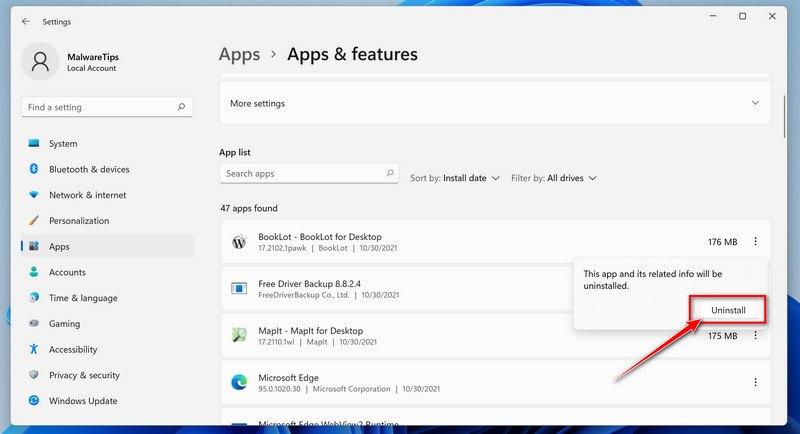
 Didn’t find any suspicious programs? That’s fine — not all infections install visible apps. Just continue with the next step in this guide.