


An overdue invoice can jump ahead of everything else, especially when it appears to come from a platform that people use and recognize every day.
Before opening the attachment, take a closer look. The small inconsistencies in this message matter far more than its polished billing language first suggests.
Overview
A polite billing reminder hides the urgency
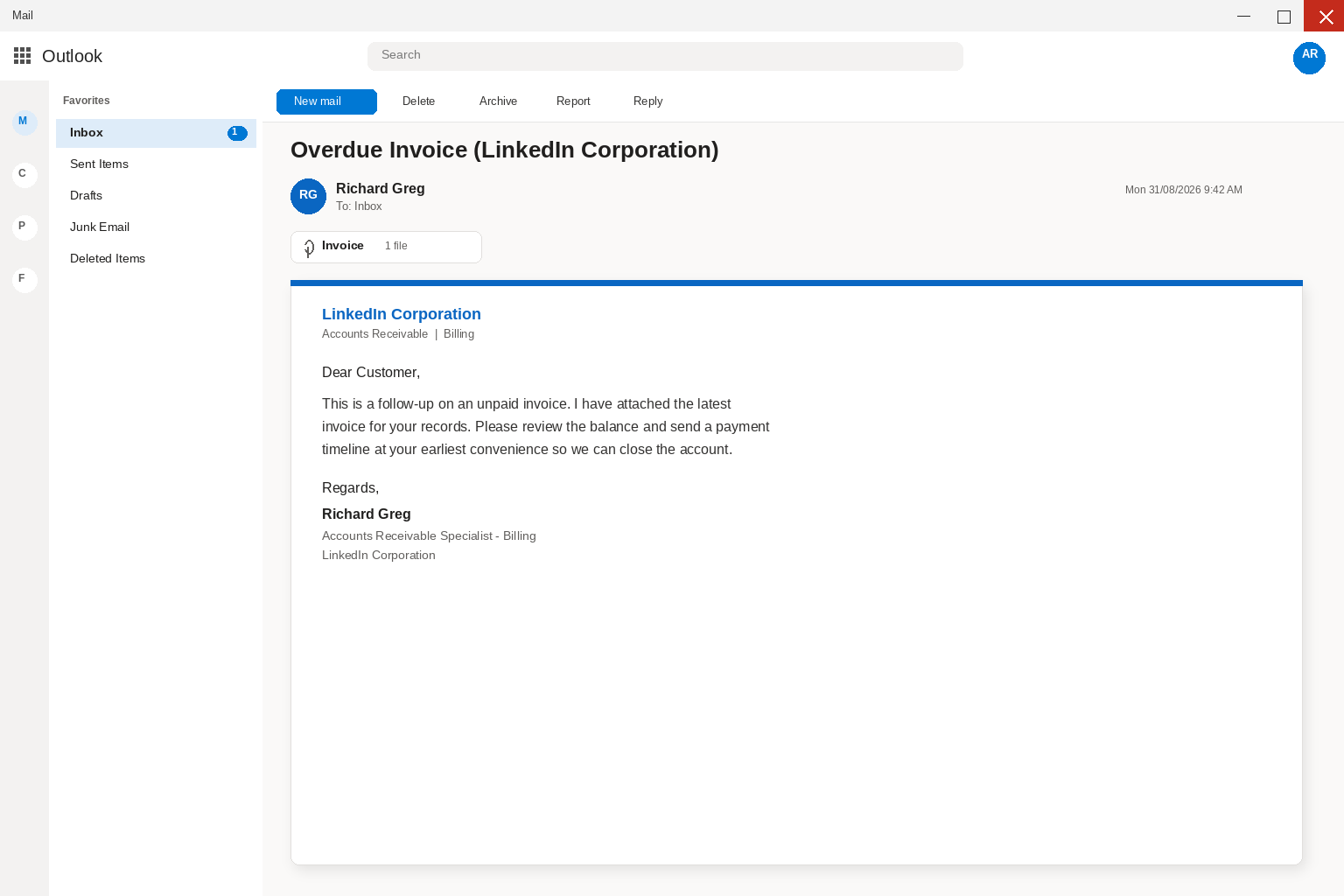
The message arrives with the subject `Overdue Invoice (LinkedIn Corporation)`.
It says an invoice remains unpaid and asks the recipient to review the latest invoice and provide a timeline for payment.
The wording is calm and professional. That restraint makes the message more believable than a loud final-warning notice. It sounds like a real accounts-receivable employee following up on ordinary business.
The sender uses a lookalike identity
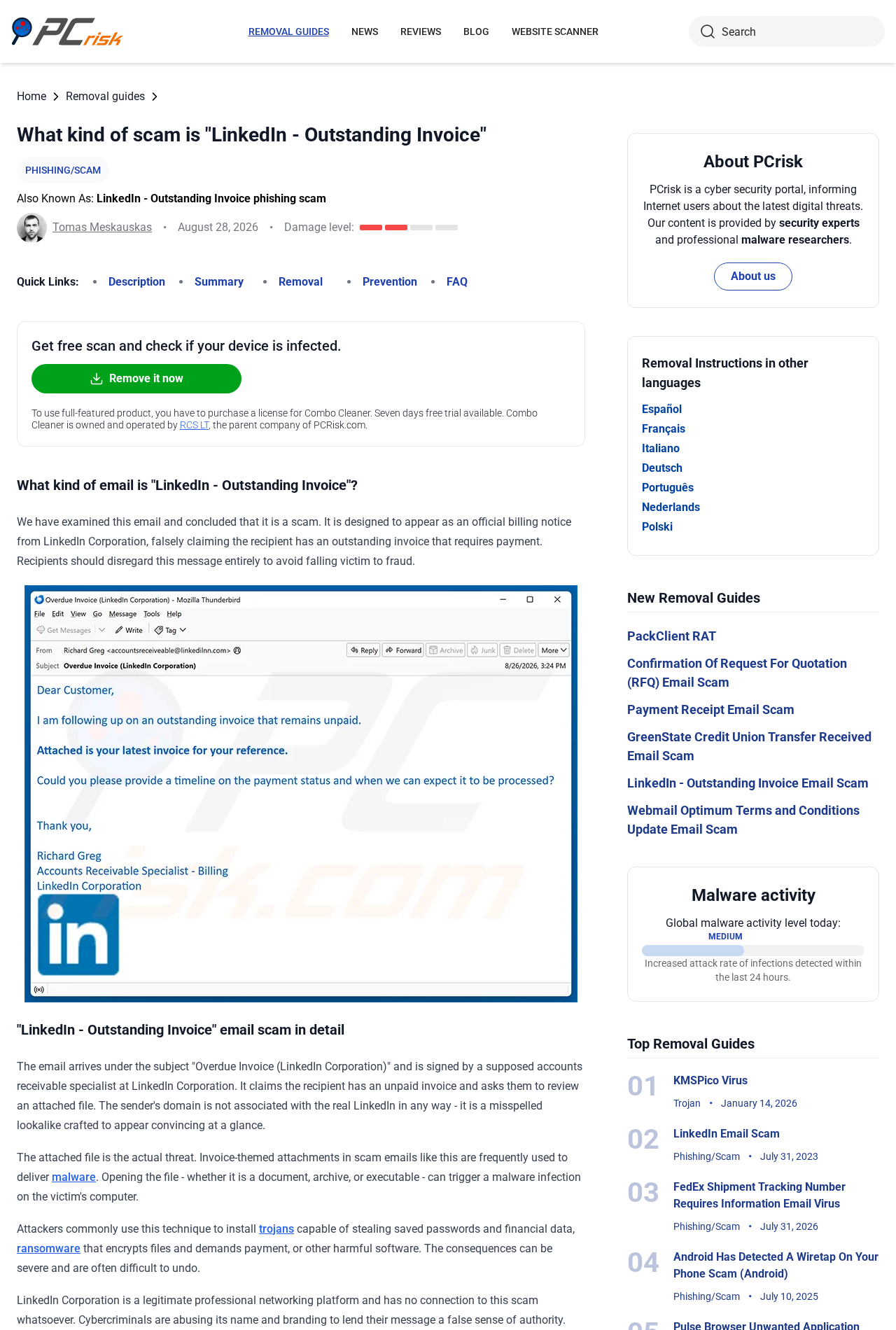
The visible signature names Richard Greg as an Accounts Receivable Specialist in Billing. Researchers found that the sender domain was a misspelled lookalike and was not connected to LinkedIn.
A familiar display name can hide that difference on a phone or narrow reading pane.
The complete address after the @ symbol matters more than the logo, signature, or company name printed in the message.
The attachment is the real threat
The email does not provide enough invoice detail to verify the debt. It pushes the recipient toward an attached file, which researchers identified as the dangerous part of the campaign.
Invoice attachments can carry malware or lead into another malicious stage.
The exact result depends on the file and the action taken, so do not assume a particular malware family unless your security team has analyzed that exact sample.
- Subject: Overdue Invoice (LinkedIn Corporation)
- Fake sender role: accounts receivable and billing
- Pressure: an unpaid balance needs a payment timeline
- Delivery method: an unexpected invoice attachment
- Likely goals: malware installation, credential theft, data theft, or further business email fraud
LinkedIn has no connection to this email.
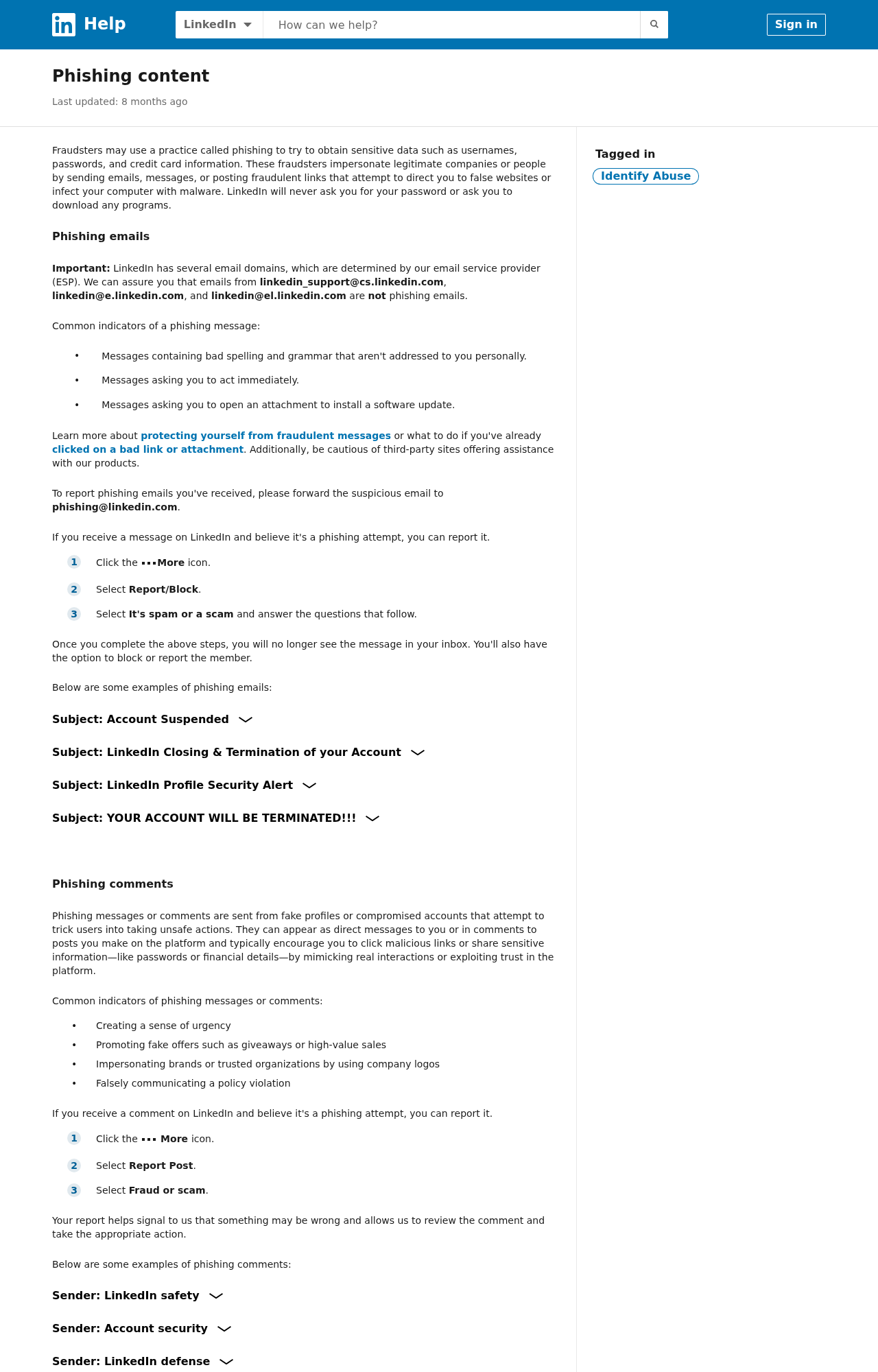
The company says it will never ask users for their password or ask them to download a program, and suspicious messages can be forwarded to `phishing@linkedin.com`.
How The Scam Works
Step 1: The email targets people who handle payments
Finance staff, office managers, recruiters, marketing teams, and small-business owners may all have legitimate reasons to receive a LinkedIn invoice.
The campaign does not need to know who purchased a service.
Sending the lure broadly is enough.
A small number of recipients will recognize LinkedIn as a supplier, know that a colleague manages the contract, or worry that an overdue bill could interrupt advertising or recruiting tools.
Step 2: The sender creates a believable billing role
The signature uses a common name and an ordinary corporate title. It does not claim to be a senior executive.
A routine specialist following up on an account feels less dramatic and therefore less suspicious.
The lookalike sender domain supports the same illusion.
On a quick glance, a small spelling change can disappear, especially when the mail client shows only the display name until the user taps or hovers.
Step 3: The message withholds the details needed to verify it
A real invoice can be checked against a contract number, billing account, purchase order, amount, and due date.
The lure keeps those details inside the attachment, where the victim must interact before learning anything useful.
That design turns healthy verification into the attack.
The recipient believes opening the file is the careful step, when the safer step is checking LinkedIn Admin Center or contacting the known contract owner.
Step 4: Opening the attachment starts the dangerous stage
A malicious invoice can be an executable, archive, script, HTML file, PDF, or Office document.
Some file types run code directly, while others require another click, an enabled macro, a password, or a fake sign-in.
Do not rely on the visible filename. Double extensions, misleading icons, hidden extensions, and archive contents can make a harmful file appear to be an ordinary invoice.
Step 5: Malware or phishing gives the attacker a foothold
If code executes, the attacker may steal browser passwords, cookies, documents, or financial data.
Some campaigns install remote-access tools or ransomware, while others display a fake Microsoft, Google, or LinkedIn login.
A credential page and a malware file are different threats, but they support the same objective: access.
Once attackers control a workstation or mailbox, they can search for real invoices and trusted contacts.
Step 6: The compromised account is used against others
A stolen business mailbox makes the next invoice far more convincing.
Criminals can reply inside an existing thread, attach a replacement document, or announce new banking instructions from an address the recipient already knows.
They may also create forwarding rules, delete security alerts, and wait for the right payment conversation. The first fake LinkedIn invoice can therefore become a genuine supplier-payment loss later.
Step 7: Recovery scammers may follow
Victims sometimes receive calls or ads promising remote cleanup, refunds, or account recovery for a fee.
Those offers can be another attempt to obtain payment details, remote access, or identity documents.
Use the official support route for LinkedIn, your mail provider, your bank, and your workplace.
Do not call a number found in the suspicious email or in a pop-up that appeared after opening the file.
How to Verify a Real LinkedIn Invoice
Start with the purchase history, not the email. LinkedIn says corporate customers can review billing information and invoices through LinkedIn Admin Center.
Ask the designated contract owner whether the invoice appears there.
LinkedIn also advises customers to verify that invoice emails come from a `linkedin.com` domain.
Consumer notifications can use several documented service addresses, so compare the exact sender with LinkedIn’s current help guidance rather than guessing.
Check the contract, purchase order, amount, billing entity, and designated invoice recipient. A generic message sent to someone outside the billing team should be treated with extra caution.
If an invoice cannot be found in the official account, contact LinkedIn through its Help or Corporate Billing pages.
Do not reply to the suspicious sender and do not use a support link embedded in the message.
Company, Address, and Fulfillment Checks
The LinkedIn name is borrowed, not involved
LinkedIn Corporation is a legitimate company and did not send the observed scam email.
A logo, signature, and corporate address inside an attachment can all be copied without the company’s knowledge.
The sender domain and the official account record carry more weight than the artwork. If those do not match, the message should not be treated as a LinkedIn bill.
The sender domain is the first company check
Expand the From field and inspect the complete address. Look for inserted letters, missing letters, extra words, unusual country domains, or a Reply-To address that points somewhere else.
A lookalike domain may have a professional website or valid encryption certificate. Neither proves it belongs to LinkedIn. Verify the exact domain through LinkedIn’s official help pages.
There is no physical product to fulfill
This campaign uses an invoice attachment as the delivery vehicle.
There is no warehouse, shipment, or returns center associated with the message, even if the file contains an address or shipping line.
Do not mail checks, return documents, or identity copies to an address printed inside the attachment.
A legitimate billing dispute should be handled through the account and contract already on record.
The attachment needs technical analysis, not curiosity
If a company must investigate the file, its security team should preserve and analyze it in an isolated environment.
An employee should not reopen it to identify the icon, extension, or payload.
Security staff can search mail logs for related senders, filenames, hashes, URLs, and recipients. That wider check matters because the same campaign may have reached several employees.
What Security Teams Should Investigate
Begin with the original message, not a forwarded screenshot.
The original preserves sender authentication, routing headers, attachment metadata, URLs, and timestamps that can connect one employee’s report to a wider campaign.
Identify the attachment type by its actual contents rather than its icon or extension.
A file named like a PDF can be an archive, script, executable, or HTML document, and each path requires a different containment decision.
Check endpoint logs for the process that opened the file and any child processes it started.
A document launching PowerShell, a script host, an installer, or an unfamiliar browser download is more significant than the visible invoice window.
Review network records for new outbound destinations at the time of execution.
Credential pages, payload servers, tracking pixels, and command systems may use separate hosts, so one blocked domain may not contain the incident.
Inspect the employee’s browser and identity logs for new sessions, impossible travel, unusual devices, consent grants, and failed authentication attempts.
A phishing page may capture credentials even when no malware is found on disk.
Mailbox audit logs deserve the same attention. Look for forwarding rules, hidden inbox rules, delegated access, changed recovery information, deleted security notices, and messages sent to finance or external suppliers.
If the attachment executed code, isolate the endpoint and preserve evidence before reimaging it.
A quick cleanup can remove indicators needed to learn which credentials, files, or network shares were exposed.
Search the mail environment for the subject, display name, sender domain, filename, hash, and similar invoice language. Campaigns often vary one field while keeping the rest of the template stable.
Finally, review payment activity connected to the affected user.
The most damaging consequence may appear later as a changed bank account inside a real thread, not as an alert from the first attachment.
Document the timeline in plain language for leadership and the finance team.
They need to know what was opened, what accounts were exposed, which vendors require warning, and which transfers need independent confirmation.
Do not close the incident because the attachment hash is absent from a public scanner.
New files and private campaigns can remain unknown for days, while a credential form may leave no traditional malware signature at all.
The recovery decision should follow observed behavior, identity logs, and business exposure.
A clean endpoint scan is reassuring, but it cannot prove that a password entered into a fake page was never transmitted.
Security teams should preserve the attachment’s original hash and message headers. Those details help block matching files and trace related messages across the organization.
What to Do if You Have Fallen Victim to This Scam
- If you did not open the attachment, report and delete it. Forward it to `phishing@linkedin.com` and your workplace security team before removing it from the inbox.
- Disconnect the affected computer when code may have run. Turn off Wi-Fi or unplug the network cable. Do not continue signing in to email, banking, or company systems from that device.
- Contact your security team immediately. Provide the original email, filename, time opened, actions taken, and any prompts or windows that appeared.
- Run a full Malwarebytes scan. Use updated security software if an attachment, installer, macro, script, or suspicious download was opened. A clean scan does not replace workplace incident response.
- Change exposed passwords from a clean device. Start with email and business identity accounts. Revoke sessions, review recovery details, and enable phishing-resistant multi-factor authentication where available.
- Review mailbox rules and sent items. Look for forwarding, deletion, or reply rules you did not create, plus messages sent to vendors or colleagues without your knowledge.
- Warn finance and business contacts. Ask them to verify any recent changes to payment instructions. Pause unusual transfers until the known supplier confirms them by a trusted channel.
- Use AdGuard as a preventive layer. It can block many malicious ads, trackers, and redirect domains. It cannot disinfect an opened file or restore an account, so complete the security steps first.
- Report financial loss. Contact the bank immediately, then file reports with the FTC, IC3, or the appropriate national cybercrime authority. Speed matters when a transfer is involved.
Is Your Device Infected? Run a Free Malware Scan
Slow performance, constant pop-ups, or strange behavior? These are classic signs of a malware infection. A quick way to check is to scan your device with Malwarebytes Free, one of the most trusted malware removal tools available. If you only visited a scam page and didn’t download or install anything, this scan is optional.
The free version detects and removes the most common threats, including:
- Adware — the cause of those annoying pop-ups
- Browser hijackers — unwanted redirects and changed homepages
- Trojans and spyware — hidden programs stealing your data
- Potentially unwanted programs (PUPs) — software you never asked for
👉 Select your device below — Windows, Mac, or Android — then follow the simple steps to download Malwarebytes, scan your system, and remove any threats it finds. The scan usually takes 5 to 20 minutes.
Run a Malware Scan with Malwarebytes for Windows
Malwarebytes is one of the most popular and trusted anti-malware tools for Windows — and it’s completely free for removing infections. It catches threats that many antivirus programs miss, including adware, browser hijackers, and trojans. Follow the steps below to scan your PC and remove what Malwarebytes finds.
Download Malwarebytes
Click the button below to download the latest version of Malwarebytes for Windows from the official source. The free version is all you need — it will scan your computer and remove adware, browser hijackers, and other malicious software at no cost.
Download MalwarebytesOfficial installer for Windows 11 and 10. Your download starts right away.Want real-time protection? See Malwarebytes Premium Malwarebytes Free for WindowsScans and removes malware at no cost
-
Install Malwarebytes
When the download finishes, open your Downloads folder and double-click the MBSetup file. If Windows shows a User Account Control pop-up, click “Yes” to allow the installation.

Follow the On-Screen Prompts to Install Malwarebytes
The setup wizard will walk you through a few quick screens:
-
Choose where you’re installing the program — “Personal Computer” or “Work Computer” — then click Next.

-
Malwarebytes will now install on your device. This usually takes under a minute.

-
When installation is complete, the “Welcome to Malwarebytes” screen will open automatically.

-
On the final screen, click Open Malwarebytes to launch the program.

-
Optional: Check for rootkits with a Custom Scan
You don’t need to change any settings for a normal scan. The standard Threat Scan in the next step is enough for most problems, so you can go straight to it.
If you also want to check for rootkits, use a Custom Scan. In current versions of Malwarebytes, rootkit scanning is only available there:
- On the Scanner tile, click the three-dot menu and select Advanced Scan.
- Choose Custom Scan. In its options, check Scan for rootkits.
- Select your system drive (usually C:\) as the location to scan, then start the scan. It takes longer than a Threat Scan.
- When it finishes, review and quarantine the results as described in the steps below.
Rootkit scanning isn’t available on Windows devices with ARM processors.
Start the Scan
Click the blue Scan button. Malwarebytes will automatically update its virus database and start checking your computer for malware.

-
Wait for the Scan to Finish
The scan checks your entire system for browser hijackers and other malicious programs, so it can take 5 to 20 minutes depending on your computer. Feel free to do something else — just check back occasionally to see the progress.

-
Quarantine the Detected Threats
When the scan is done, you’ll see a list of everything Malwarebytes found — malware, adware, and potentially unwanted programs. Click the “Quarantine” button to remove all of them at once.

Malwarebytes will now remove the malicious files and registry entries and move them safely into quarantine.

-
Restart Your Computer
Some threats can only be fully removed after a reboot. If Malwarebytes asks you to restart, click Yes. Once you’re logged back in, Malwarebytes has finished removing the threats it found.

When the scan is done, check whether the problems you noticed have stopped. If they continue, see the options below.
If you are still having problems with your computer after completing these instructions, then please follow one of the steps:
- Run a computer scan with ESET Online Scanner
- Ask for help in our Windows Malware Removal Help & Support forum.
Run a Malware Scan with Malwarebytes for Mac
Malwarebytes for Mac is a free on-demand scanner that removes the malware other security software tends to miss — adware, browser hijackers, and unwanted programs included. Cleaning an infected Mac with Malwarebytes has always been completely free, and it’s our go-to recommendation. Follow the steps below to scan your Mac and remove what Malwarebytes finds.
-
Download Malwarebytes for Mac
Click the button below to download the latest version of Malwarebytes for Mac.
Download MalwarebytesOfficial installer for macOS. Your download starts right away.Want real-time protection? See Malwarebytes PremiumMalwarebytes Free for MacScans and removes malware at no cost -
Open the Malwarebytes setup file
When the download finishes, open your Downloads folder and double-click the setup file to begin the installation.

-
Follow the On-Screen Prompts to Install Malwarebytes
The Malwarebytes for Mac Installer will guide you through a few quick screens. Click “Continue” and keep following the prompts until the installation completes.



When the installation is complete, Malwarebytes opens to the Welcome to Malwarebytes screen. Click “Get started“.
Malwarebytes needs Full Disk Access to check your whole Mac. When it asks, open System Settings > Privacy & Security > Full Disk Access, turn on Malwarebytes (it may be listed as Malwarebytes Protection), and confirm with your password or Touch ID. Then return to Malwarebytes. On macOS Monterey and earlier, this setting is in System Preferences > Security & Privacy > Privacy.
-
Select “Personal Computer” or “Work Computer”
Malwarebytes will ask what type of computer you’re installing it on. Click either Personal Computer or Work Computer, whichever applies.

-
Start the Scan
Click the “Scan” button. Malwarebytes will automatically update its detection database and begin checking your Mac for malware.

-
Wait for the Scan to Finish
Malwarebytes will scan your Mac for adware, browser hijackers, and other malicious programs. This can take a few minutes, so feel free to do something else — just check back occasionally to see the progress.

-
Quarantine the Detected Threats
When the scan is done, you’ll see a list of everything Malwarebytes found. Click the “Quarantine” button to remove all the threats at once.

-
Restart Your Mac
Malwarebytes will now remove all the malicious files it found. Some threats can only be fully removed after a reboot — if Malwarebytes asks you to restart, allow it. Once you’re logged back in, check whether the problems you noticed have stopped. If they come back, save the scan report and ask for help in our forum.

If the problems you noticed continue after the scan, see the options below.
If you are still experiencing problems while trying to remove a malicious program from your computer, please ask for help in our Mac Malware Removal Help & Support forum.
Run a Malware Scan with Malwarebytes for Android
Malwarebytes for Android scans your phone or tablet for malware, adware, and potentially unwanted apps. The free version scans only when you start a scan. Real-time protection, which checks apps automatically, is part of the paid Premium version.
-
Download Malwarebytes for Android.
You can download Malwarebytes for Android by clicking the link below.
Get Malwarebytes for AndroidOpens Google Play in a new tab.Want real-time protection? See Malwarebytes Premium for AndroidMalwarebytes for AndroidScans your phone and removes malware at no cost -
Install Malwarebytes for Android on your phone.
In the Google Play Store, tap “Install” to install Malwarebytes for Android on your device.

When the installation process has finished, tap “Open” to begin using Malwarebytes for Android. You can also open Malwarebytes by tapping on its icon in your phone menu or home screen.

-
Follow the on-screen prompts to complete the setup process
When Malwarebytes opens, it walks you through a short setup. Tap Get started and follow the prompts. If you see an offer for a trial or a paid plan, read it before you accept. You can skip it and keep using the free scanner.
Malwarebytes will ask for permission to access the files on your phone so it can scan them. Tap Allow, or turn on the permission in the Android screen that opens, then return to Malwarebytes.
-
Run a scan with Malwarebytes for Android
On the main screen, tap Scan now. In some versions, you open the menu, tap Scanner, and then tap Run a scan.
-
Wait for the Malwarebytes scan to complete.
Malwarebytes will now start scanning your phone for adware and other malicious apps. This process can take a few minutes, so we suggest you do something else and periodically check on the status of the scan to see when it is finished.

-
Remove the detected apps.
When the scan has been completed, you will see a list of the threats that Malwarebytes for Android has detected. Next to each detected item, tap the menu icon (three dots), then choose to uninstall the app or delete the file. Android then asks you to confirm. Tap OK or Uninstall to remove the app.
-
Restart your phone.
When the detected apps are removed, restart your phone if Malwarebytes asks you to. Then check whether the problems you noticed have stopped.
If the problems you noticed continue after the scan, see the options below.
If you are still having problems with your phone after completing these instructions, then please follow one of the steps:
- Ask for help in our Mobile Malware Removal Help & Support forum.
- Only as a last resort, reset your phone to factory settings. Read the warning below first.
- Back up your photos, videos, files, and messages, for example to your Google account or a computer.
- Make sure you know your Google account email and password. The phone asks for them after the reset. If you changed the password recently, Google recommends waiting 24 hours before you reset.
- On a Samsung phone, also make sure you know your Samsung account password.
- If you use an authenticator app for two-step verification, move your accounts to another device or save your backup codes first.
Stay Protected: Block Ads and Malicious Sites
No scan can prove a device is completely clean, so it helps to block threats before they reach you. Most infections start with a malicious ad or a fake download button — so blocking them at the source is your best defense.
We recommend AdGuard, which blocks malicious ads, phishing pages, and dangerous redirects before they can reach you.
👉 Download AdGuard and browse safely
Frequently Asked Questions
Did LinkedIn send the outstanding invoice email?
No. The analyzed campaign uses LinkedIn’s name without permission and comes from a lookalike domain unrelated to the company.
Is the attachment definitely ransomware?
Not necessarily. Malicious invoice files can deliver several payloads or phishing pages. Do not name a malware family without analysis of the exact attachment.
Can I safely preview the invoice?
Do not preview an unexpected attachment on a normal workstation. Verify the invoice in LinkedIn Admin Center or through the known contract owner instead.
Am I infected if I only read the email?
Reading the message without opening its attachment, clicking a link, or entering data usually does not cause infection. Report it and avoid further interaction.
Where should I report the phishing email?
LinkedIn asks recipients to forward suspicious email to `phishing@linkedin.com`. Business users should also notify their internal security or IT team.
Can AdGuard block malicious email attachments?
AdGuard can block many harmful web requests and advertising redirects, but it is not an email attachment scanner. Keep mail filtering and anti-malware protection active as well.
The Bottom Line
The LinkedIn Outstanding Invoice email turns responsible billing behavior into a delivery path for a dangerous file.
The professional tone is part of the disguise, not evidence that the debt exists.
Check invoices inside the official account, verify the sender domain, and let security professionals examine suspicious attachments. If the file was opened, isolate the device and respond immediately.

Join the discussion
0 commentsShare your experience or ask a question about this article.
Discussion
Start the conversation
Have a question or something useful to share? Add the first comment.