


A new buyer appears to have reviewed your company catalog and submitted a purchase order through LinkedIn. For a sales team, that notification can feel promising.
The opportunity becomes less convincing once the button, destination, and unusual login request are examined together.
Overview
A business opportunity designed to attract attention
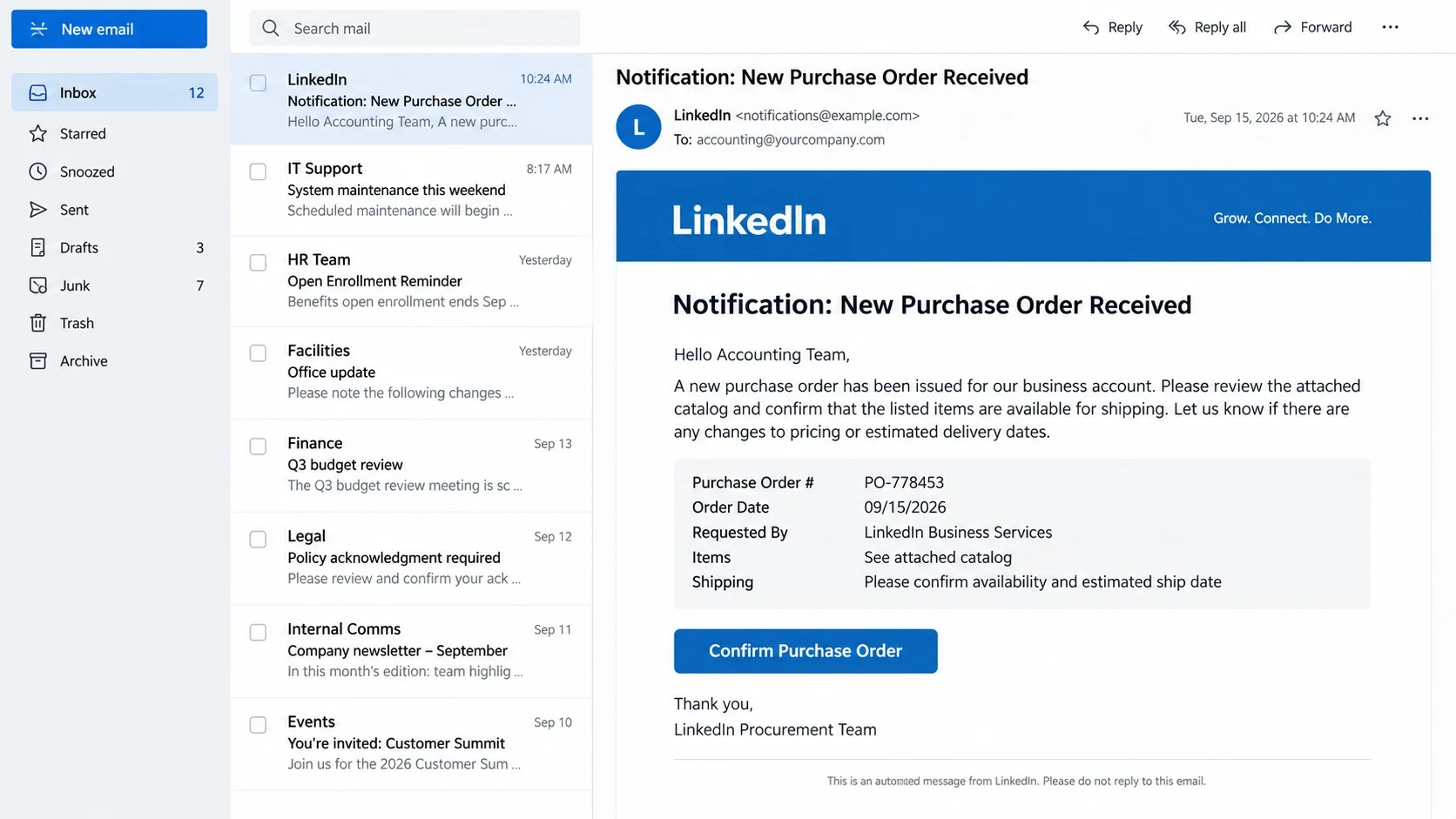
The email imitates a LinkedIn notification and says a buyer has sent a new purchase order. It claims the buyer reviewed the recipient’s product catalog.
The supposed customer asks about shipping availability, giving the message a believable commercial purpose. Employees handling sales or accounts may feel expected to respond quickly.
Buttons such as “Confirm Purchase Order,” “View All Order,” and “My LinkedIn” encourage the recipient to continue through the email.
The page is not a LinkedIn order portal
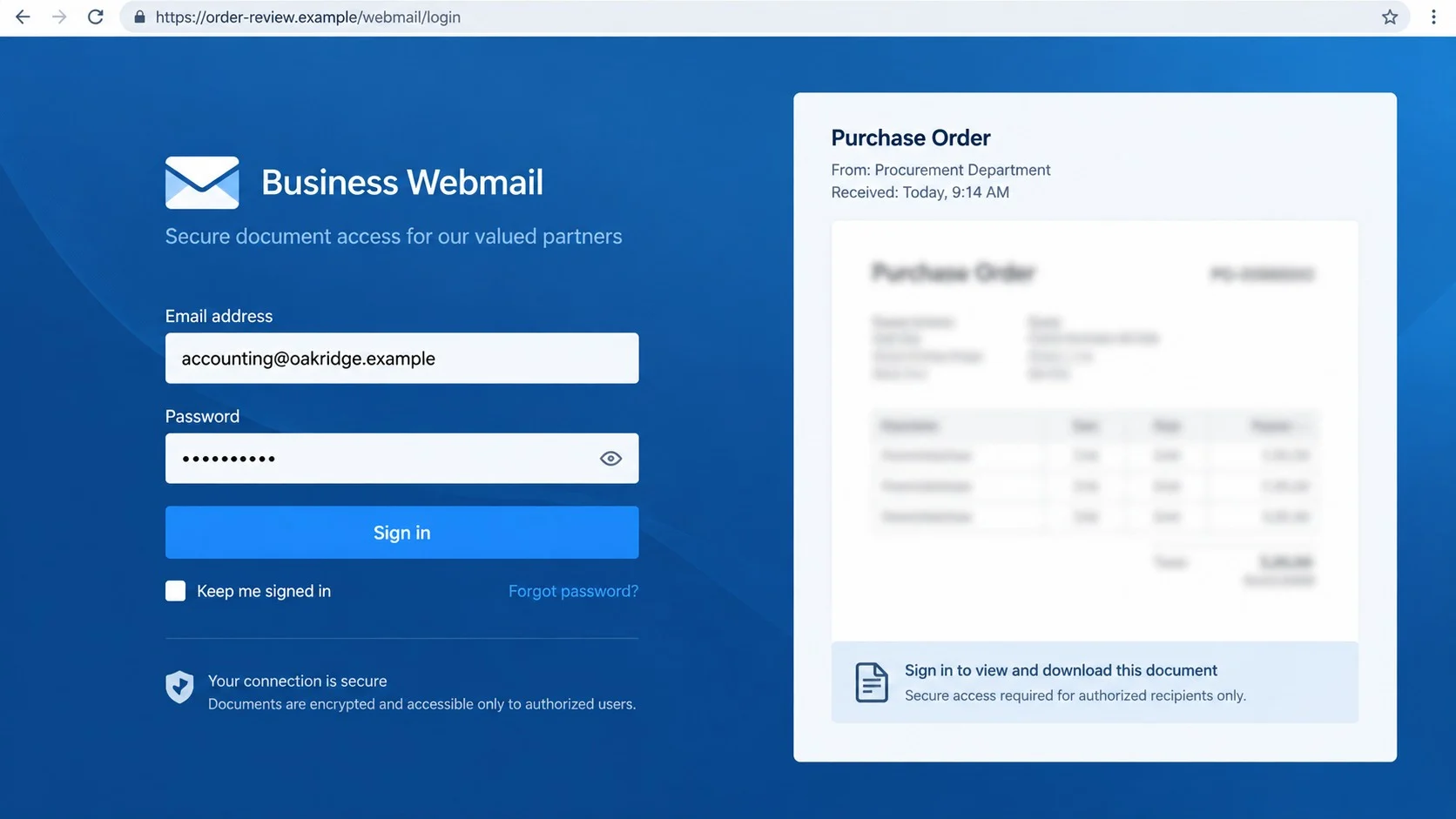
The main button redirects to a counterfeit webmail login. The observed page used a pages.dev address and imitated a cPanel-style mail service.
The email address may already appear in the form, creating the impression of a connected workflow. The page then asks for the mailbox password.
LinkedIn is not involved with this campaign. The platform’s name is being used to make an unexpected sales inquiry feel professionally sourced.
The real target is the company inbox
The criminals are not trying to complete an order. They want access to the mailbox used by sales, procurement, accounting, or another business role.
That access can expose customer conversations, quotations, invoices, and password resets. It can also support payment fraud sent from the legitimate address.
Important facts about this campaign include:
- The purchase order exists only inside the phishing story.
- The confirmation button opens an unrelated webmail sign-in.
- A prefilled email address does not prove account integration.
- The password is collected for mailbox takeover.
- Compromised business email can endanger customers and suppliers.
How the LinkedIn New Purchase Order Email Scam Works
Step 1: The message arrives as a valuable sales lead
Instead of threatening the recipient, this campaign offers something desirable: a customer who appears ready to buy.
The approach suits shared inboxes because multiple employees may handle inquiries. A person who lacks context can assume another colleague maintains the LinkedIn catalog.
Attackers can collect company names, job roles, and email addresses from public pages. That research helps them direct the lure toward employees likely to open orders.
The notification format reduces the need for a long explanation. It resembles an automated platform event rather than a cold message from an unknown buyer.
Step 2: Commercial details make the request feel plausible
The fake buyer supposedly reviewed available products and wants shipping information. That small detail mirrors questions genuine prospects ask before placing a substantial order.
The scam avoids specifying enough information to be checked. There may be no verifiable company, product list, quantity, delivery address, or purchase-order number.
Employees may click because the missing details seem likely to appear behind the button. Curiosity and fear of losing business replace the usual security hesitation.
A real procurement request should be independently attributable to a buyer. It should not require an email password merely to reveal what was ordered.
Step 3: The confirmation button leaves LinkedIn
“Confirm Purchase Order” sounds like a normal platform action. However, the link does not remain on an authenticated LinkedIn service.
The destination uses an unrelated hosting domain. In the examined campaign, the address was under pages.dev rather than a LinkedIn-owned web property.
Cloud development platforms legitimately host many sites, but criminals can also place temporary phishing pages there. Hosting reputation cannot validate the individual page.
The other buttons may lead to the same trap or decorative destinations. Their presence makes the email look complete without proving any functional relationship.
Step 4: A prefilled webmail form asks for the password
The landing page resembles webmail, not LinkedIn. It may display the recipient’s email automatically because that value was embedded in the phishing link.
Prefilling creates false confidence. It shows that the attacker knew the address receiving the campaign, not that the page recognized a genuine account.
The form asks for a password to view the order. LinkedIn would not need credentials for the recipient’s independent company mailbox.
After submission, the page may reject the password or show a loading message. This behavior can prompt a second entry and confirm the stolen value.
Step 5: The attacker searches the business mailbox
If the credentials work, the intruder can read current threads and identify people authorized to approve payments, release goods, or change supplier records.
Quotations and invoices reveal transaction sizes and payment schedules. Signatures provide names, roles, direct contacts, and the writing style used internally.
The attacker may create a forwarding rule for messages containing words such as payment, bank, invoice, order, or transfer.
That surveillance period can remain invisible. The criminal gains context before choosing a conversation where a fraudulent instruction is least likely to be challenged.
Step 6: A fake order becomes business email compromise
Once the real mailbox is controlled, the attacker no longer needs the LinkedIn disguise. Messages can be sent directly from a trusted corporate address.
Customers may receive altered bank details, malicious documents, or requests for advance payment. Suppliers may be asked to redirect refunds to another account.
Existing conversation threads are especially valuable. A small modification inside a genuine exchange can escape the checks applied to an unfamiliar sender.
The organization may also face privacy consequences if personal or contractual data was accessible. Recovery must cover more than the owner’s password.
How to Verify a LinkedIn Purchase Order Notice
Check LinkedIn without using the email
Open the LinkedIn app or type the known address independently. Review messages, notifications, and any business tools your organization actually uses.
If no corresponding buyer or order exists, do not return to the email. Capture the evidence and report it through your company’s security process.
Remember that LinkedIn is primarily a professional network. Treat an alleged purchase workflow as unusual unless your organization knowingly configured such a feature.
Validate the buyer and the order details
A legitimate purchase order normally identifies a legal entity, contact person, items, quantities, delivery address, payment terms, and unique reference.
Verify the buyer through independently found company details. Do not rely on a telephone number, domain, or profile linked only from the suspicious message.
Ask sales colleagues whether they recognize the conversation. Genuine deals usually leave a trail beyond one automated-looking email.
Inspect the link’s destination
A LinkedIn action should not send you to a generic cPanel webmail screen on an unrelated pages.dev site.
Look at the registered domain, not merely familiar words elsewhere in the address. Subdomains and page titles can contain any brand name an attacker chooses.
Never enter corporate email credentials after following an unsolicited order link. Open webmail through the organization’s established portal instead.
Ask what credential the action should require
This simple question breaks the story. Viewing a LinkedIn notification should not require the password for a separate business email provider.
Unexpected transitions between brands often reveal phishing. The email starts with LinkedIn, promises an order, then suddenly requests cPanel-style webmail authentication.
When a workflow crosses unrelated services without explanation, stop and verify every component through its own trusted entry point.
Why Purchase Orders Are Effective Phishing Bait
Purchase orders carry urgency without sounding threatening. Sales teams want to respond quickly, while accounting teams expect documents and external contacts.
Large organizations receive many legitimate inquiries. A generic request can hide inside ordinary volume, particularly when a shared mailbox rotates among employees.
Orders also justify attachments, links, and logins. Those routine actions give criminals several believable ways to introduce credential theft or malware.
The safest culture does not punish reasonable verification. Employees should feel comfortable delaying an order until the buyer, destination, and requested action are confirmed.
Organizations can reduce exposure by publishing a clear intake process. Buyers should know where orders belong, and employees should recognize departures from that process.
Signs the Mailbox May Already Be Compromised
Unexpected sent mail is one clue, but sophisticated intruders often avoid obvious spam. Subtle changes deserve equal attention.
- Security alerts disappear shortly after arriving.
- Replies are automatically moved into unfamiliar folders.
- Unknown forwarding addresses or delegates appear.
- Sign-in logs show locations or applications nobody recognizes.
- Customers report invoice changes the owner never sent.
- Password resets arrive for unrelated business services.
Check audit logs with an administrator when available. A local inbox view may not reveal deleted rules, OAuth grants, or sessions maintained elsewhere.
Preserve timestamps before cleaning the account. They can connect a credential submission with later logins, messages, and payment changes.
What to Do If You Fell Victim to This Scam
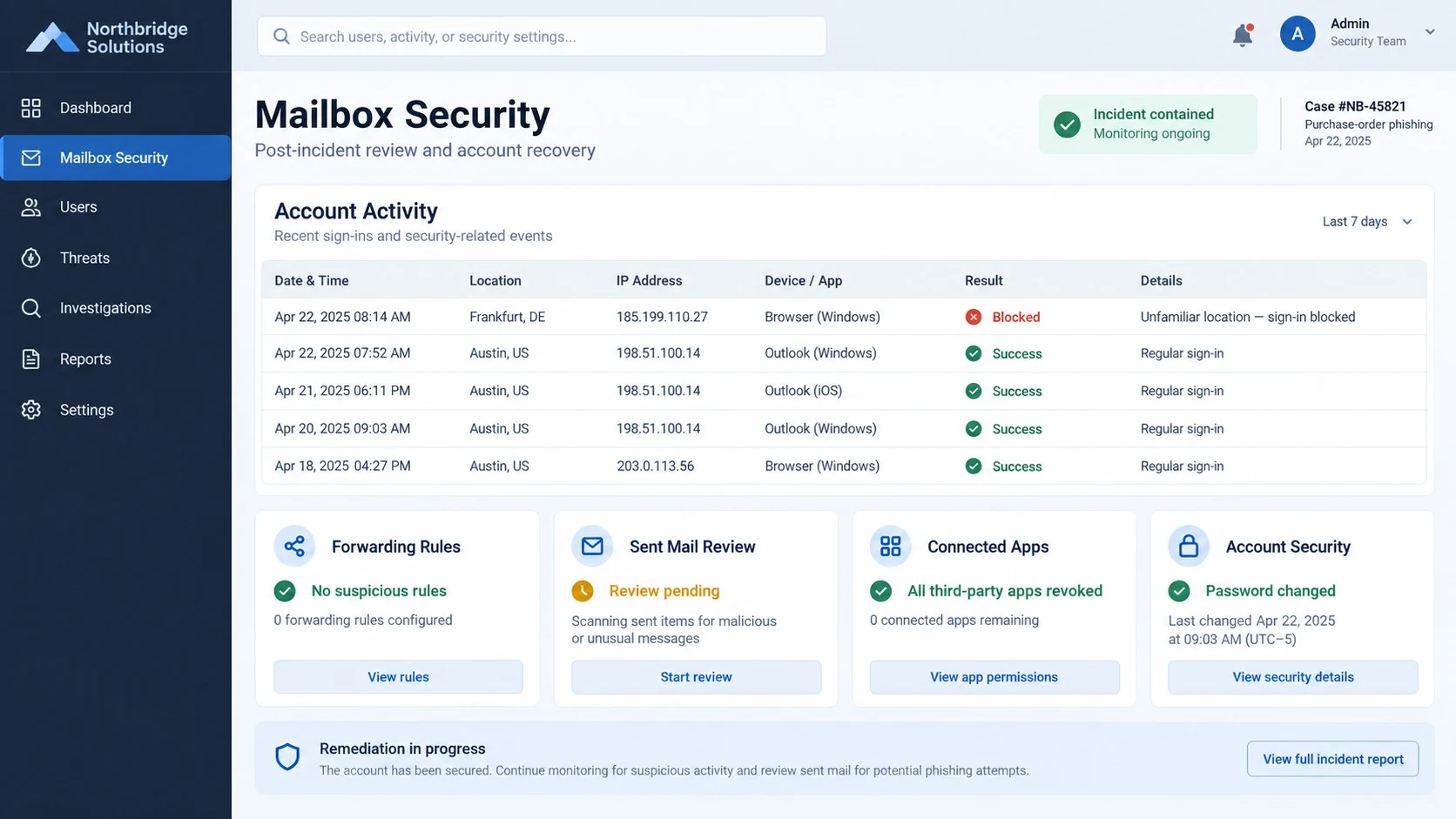
Treat the incident as a business mailbox compromise, not merely a bad link. Fast coordination can protect the company and its external contacts.
- Contact your IT or security team. Provide the original email, the time you clicked, the information entered, and any page behavior you observed.
- Reset the mailbox password. Work from the known company portal on a trusted system, then invalidate every existing session.
- Strengthen authentication. Enable multifactor protection, regenerate recovery codes, and remove unknown authentication methods or application passwords.
- Audit mailbox configuration. Review forwarding, inbox rules, delegates, connected apps, recovery addresses, and sent or deleted messages.
- Examine linked business systems. Secure customer platforms, cloud storage, invoicing tools, and services that used the same password or inbox for recovery.
- Alert customers and suppliers when necessary. Warn them about unauthorized payment changes, files, or requests sent during the exposure window.
- Run Malwarebytes. Scan the affected workstation for downloaded malware, malicious browser extensions, or other threats that may accompany the credential page.
- Add AdGuard protection. Use it as another layer against malicious destinations, while completing direct account and administrator-led recovery.
- Review financial activity. Check invoices, bank-detail changes, shipments, refunds, and pending transfers associated with the compromised conversations.
- Document the incident. Preserve logs and evidence for insurers, law enforcement, privacy review, and any affected business partners.
Is Your Device Infected? Run a Free Malware Scan
Slow performance, constant pop-ups, or strange behavior? These are classic signs of a malware infection. A quick way to check is to scan your device with Malwarebytes Free, one of the most trusted malware removal tools available. If you only visited a scam page and didn’t download or install anything, this scan is optional.
The free version detects and removes the most common threats, including:
- Adware — the cause of those annoying pop-ups
- Browser hijackers — unwanted redirects and changed homepages
- Trojans and spyware — hidden programs stealing your data
- Potentially unwanted programs (PUPs) — software you never asked for
👉 Select your device below — Windows, Mac, or Android — then follow the simple steps to download Malwarebytes, scan your system, and remove any threats it finds. The scan usually takes 5 to 20 minutes.
Run a Malware Scan with Malwarebytes for Windows
Malwarebytes is one of the most popular and trusted anti-malware tools for Windows — and it’s completely free for removing infections. It catches threats that many antivirus programs miss, including adware, browser hijackers, and trojans. Follow the steps below to scan your PC and remove what Malwarebytes finds.
Download Malwarebytes
Click the button below to download the latest version of Malwarebytes for Windows from the official source. The free version is all you need — it will scan your computer and remove adware, browser hijackers, and other malicious software at no cost.
Download MalwarebytesOfficial installer for Windows 11 and 10. Your download starts right away.Want real-time protection? See Malwarebytes Premium Malwarebytes Free for WindowsScans and removes malware at no cost
-
Install Malwarebytes
When the download finishes, open your Downloads folder and double-click the MBSetup file. If Windows shows a User Account Control pop-up, click “Yes” to allow the installation.

Follow the On-Screen Prompts to Install Malwarebytes
The setup wizard will walk you through a few quick screens:
-
Choose where you’re installing the program — “Personal Computer” or “Work Computer” — then click Next.

-
Malwarebytes will now install on your device. This usually takes under a minute.

-
When installation is complete, the “Welcome to Malwarebytes” screen will open automatically.

-
On the final screen, click Open Malwarebytes to launch the program.

-
Optional: Check for rootkits with a Custom Scan
You don’t need to change any settings for a normal scan. The standard Threat Scan in the next step is enough for most problems, so you can go straight to it.
If you also want to check for rootkits, use a Custom Scan. In current versions of Malwarebytes, rootkit scanning is only available there:
- On the Scanner tile, click the three-dot menu and select Advanced Scan.
- Choose Custom Scan. In its options, check Scan for rootkits.
- Select your system drive (usually C:\) as the location to scan, then start the scan. It takes longer than a Threat Scan.
- When it finishes, review and quarantine the results as described in the steps below.
Rootkit scanning isn’t available on Windows devices with ARM processors.
Start the Scan
Click the blue Scan button. Malwarebytes will automatically update its virus database and start checking your computer for malware.

-
Wait for the Scan to Finish
The scan checks your entire system for browser hijackers and other malicious programs, so it can take 5 to 20 minutes depending on your computer. Feel free to do something else — just check back occasionally to see the progress.

-
Quarantine the Detected Threats
When the scan is done, you’ll see a list of everything Malwarebytes found — malware, adware, and potentially unwanted programs. Click the “Quarantine” button to remove all of them at once.

Malwarebytes will now remove the malicious files and registry entries and move them safely into quarantine.

-
Restart Your Computer
Some threats can only be fully removed after a reboot. If Malwarebytes asks you to restart, click Yes. Once you’re logged back in, Malwarebytes has finished removing the threats it found.

When the scan is done, check whether the problems you noticed have stopped. If they continue, see the options below.
If you are still having problems with your computer after completing these instructions, then please follow one of the steps:
- Run a computer scan with ESET Online Scanner
- Ask for help in our Windows Malware Removal Help & Support forum.
Run a Malware Scan with Malwarebytes for Mac
Malwarebytes for Mac is a free on-demand scanner that removes the malware other security software tends to miss — adware, browser hijackers, and unwanted programs included. Cleaning an infected Mac with Malwarebytes has always been completely free, and it’s our go-to recommendation. Follow the steps below to scan your Mac and remove what Malwarebytes finds.
-
Download Malwarebytes for Mac
Click the button below to download the latest version of Malwarebytes for Mac.
Download MalwarebytesOfficial installer for macOS. Your download starts right away.Want real-time protection? See Malwarebytes PremiumMalwarebytes Free for MacScans and removes malware at no cost -
Open the Malwarebytes setup file
When the download finishes, open your Downloads folder and double-click the setup file to begin the installation.

-
Follow the On-Screen Prompts to Install Malwarebytes
The Malwarebytes for Mac Installer will guide you through a few quick screens. Click “Continue” and keep following the prompts until the installation completes.



When the installation is complete, Malwarebytes opens to the Welcome to Malwarebytes screen. Click “Get started“.
Malwarebytes needs Full Disk Access to check your whole Mac. When it asks, open System Settings > Privacy & Security > Full Disk Access, turn on Malwarebytes (it may be listed as Malwarebytes Protection), and confirm with your password or Touch ID. Then return to Malwarebytes. On macOS Monterey and earlier, this setting is in System Preferences > Security & Privacy > Privacy.
-
Select “Personal Computer” or “Work Computer”
Malwarebytes will ask what type of computer you’re installing it on. Click either Personal Computer or Work Computer, whichever applies.

-
Start the Scan
Click the “Scan” button. Malwarebytes will automatically update its detection database and begin checking your Mac for malware.

-
Wait for the Scan to Finish
Malwarebytes will scan your Mac for adware, browser hijackers, and other malicious programs. This can take a few minutes, so feel free to do something else — just check back occasionally to see the progress.

-
Quarantine the Detected Threats
When the scan is done, you’ll see a list of everything Malwarebytes found. Click the “Quarantine” button to remove all the threats at once.

-
Restart Your Mac
Malwarebytes will now remove all the malicious files it found. Some threats can only be fully removed after a reboot — if Malwarebytes asks you to restart, allow it. Once you’re logged back in, check whether the problems you noticed have stopped. If they come back, save the scan report and ask for help in our forum.

If the problems you noticed continue after the scan, see the options below.
If you are still experiencing problems while trying to remove a malicious program from your computer, please ask for help in our Mac Malware Removal Help & Support forum.
Run a Malware Scan with Malwarebytes for Android
Malwarebytes for Android scans your phone or tablet for malware, adware, and potentially unwanted apps. The free version scans only when you start a scan. Real-time protection, which checks apps automatically, is part of the paid Premium version.
-
Download Malwarebytes for Android.
You can download Malwarebytes for Android by clicking the link below.
Get Malwarebytes for AndroidOpens Google Play in a new tab.Want real-time protection? See Malwarebytes Premium for AndroidMalwarebytes for AndroidScans your phone and removes malware at no cost -
Install Malwarebytes for Android on your phone.
In the Google Play Store, tap “Install” to install Malwarebytes for Android on your device.

When the installation process has finished, tap “Open” to begin using Malwarebytes for Android. You can also open Malwarebytes by tapping on its icon in your phone menu or home screen.

-
Follow the on-screen prompts to complete the setup process
When Malwarebytes opens, it walks you through a short setup. Tap Get started and follow the prompts. If you see an offer for a trial or a paid plan, read it before you accept. You can skip it and keep using the free scanner.
Malwarebytes will ask for permission to access the files on your phone so it can scan them. Tap Allow, or turn on the permission in the Android screen that opens, then return to Malwarebytes.
-
Run a scan with Malwarebytes for Android
On the main screen, tap Scan now. In some versions, you open the menu, tap Scanner, and then tap Run a scan.
-
Wait for the Malwarebytes scan to complete.
Malwarebytes will now start scanning your phone for adware and other malicious apps. This process can take a few minutes, so we suggest you do something else and periodically check on the status of the scan to see when it is finished.

-
Remove the detected apps.
When the scan has been completed, you will see a list of the threats that Malwarebytes for Android has detected. Next to each detected item, tap the menu icon (three dots), then choose to uninstall the app or delete the file. Android then asks you to confirm. Tap OK or Uninstall to remove the app.
-
Restart your phone.
When the detected apps are removed, restart your phone if Malwarebytes asks you to. Then check whether the problems you noticed have stopped.
If the problems you noticed continue after the scan, see the options below.
If you are still having problems with your phone after completing these instructions, then please follow one of the steps:
- Ask for help in our Mobile Malware Removal Help & Support forum.
- Only as a last resort, reset your phone to factory settings. Read the warning below first.
- Back up your photos, videos, files, and messages, for example to your Google account or a computer.
- Make sure you know your Google account email and password. The phone asks for them after the reset. If you changed the password recently, Google recommends waiting 24 hours before you reset.
- On a Samsung phone, also make sure you know your Samsung account password.
- If you use an authenticator app for two-step verification, move your accounts to another device or save your backup codes first.
Stay Protected: Block Ads and Malicious Sites
No scan can prove a device is completely clean, so it helps to block threats before they reach you. Most infections start with a malicious ad or a fake download button — so blocking them at the source is your best defense.
We recommend AdGuard, which blocks malicious ads, phishing pages, and dangerous redirects before they can reach you.
👉 Download AdGuard and browse safely
Controls That Stop Fake Orders From Becoming Real Losses
Require secondary confirmation for new banking instructions, unusual shipping addresses, and urgent refund requests. Use a known channel, not details supplied in the message.
Separate sales intake from financial approval. One mailbox compromise should not give an attacker the ability to request and authorize a payment.
Configure external-sender labels, attachment scanning, and domain protections. These controls will not catch everything, but they make unusual transitions more visible.
Train employees with examples relevant to their work. A sales representative benefits more from purchase-order scenarios than from generic security slogans.
Finally, maintain a rapid reporting route. A five-minute warning to administrators can be far more valuable than quietly deleting the message after a mistake.
How Finance Teams Can Validate an Unexpected Order
Start by matching the buyer’s legal name against the purchase order, tax information, delivery details, and independently located company records.
New customers requesting immediate credit deserve careful review. Urgency should not bypass ordinary checks for authority, identity, and payment terms.
Call the buyer using a number obtained from a trusted directory or established company website. Do not use contact details supplied only in the order.
Confirm that the employee named on the request works for the organization. A real profile can also be impersonated, so profile existence alone is insufficient.
Inspect document metadata and reply paths when a file is provided. Mismatched domains or last-minute address changes require escalation.
For high-value shipments, verify delivery locations and payment clearance before releasing goods. Fraudulent buyers may use forwarding addresses or compromised accounts.
Keep approval records outside the email thread. An intruder controlling the conversation should not be able to rewrite the only evidence of authorization.
A legitimate customer generally accepts reasonable verification. Pressure to ignore normal controls is always a much stronger warning than the promised size of any important sale.
Frequently Asked Questions
Does LinkedIn send purchase orders by email?
The examined notice is not a genuine LinkedIn order. Verify any claimed platform activity inside LinkedIn rather than through buttons in the message.
Why was my business email already filled into the login form?
The attacker placed it in the link or page data. Prefilling demonstrates targeting, not a secure connection with your mailbox provider.
What does the fake page steal?
Its primary target is the email password. Variants may also request multifactor codes, recovery information, or other credentials during additional screens.
Could the buyer still be genuine?
A real buyer can be verified independently and can provide a complete order without demanding webmail credentials. This campaign’s workflow is fraudulent.
What if I clicked but did not enter a password?
Close the site, report the message, and scan any downloaded files. Watch for follow-up phishing tailored to your address and company role.
Should the company warn its customers?
If unauthorized access or messages occurred, yes. Scope the incident first, then send a clear warning through established channels without spreading the malicious link.
The Bottom Line
The LinkedIn new purchase order email is a business-focused phishing lure that redirects employees to a counterfeit webmail login on unrelated infrastructure.
Verify orders outside the message, protect corporate inboxes with layered controls, and investigate the whole mailbox if anyone submitted credentials.

Join the discussion
0 commentsShare your experience or ask a question about this article.
Discussion
Start the conversation
Have a question or something useful to share? Add the first comment.