

Live Security Platinum is a malicious program also known as rogue security software, which will display fake security alerts in an attempt to scare you into buying this fake security product.
In addition, Live Security Platinum has also hijacked your PC,blocking your from running files,so now when your trying to open and executable file (file ending with .exe), this program will instead display this fake alerts:
Warning!

Application cannot be executed. The file rdpclip.exe is infected. Please active your antivirus software.
Security Monitor: WARNING!

Attention! System detected a potential hazard (TrojanSPM/LX) on your computer that may infect executable files. Your private information and PC safety is at risk.

To get rid of unwanted spyware and keep your computer safe you need to update your current security software.

Click Yes to download official intrusion detection system (IDS software).
Live Security Platinum Warning Spyware.IEMonster activity detected. This is spyware that attempts to steal passwords from Internet Explorer, Mozilla FireFox, Outlook and other programs. Click here to remove it immediately with Live Security Platinum
Live Security Platinum Firewall Alert Live Security Platinum Firewall has blocked a program from accessing the Internet. Internet Explorer Internet Browser is infected with SVCHOST.Stealth.Key-logger. This worm is trying to send your credit card details using Internet Explorer Internet Browser to connect to remove host
Live Security Platinum will also cause malicious browser redirects and system slowdowns so it needs to be removed from your computer as soon as possible.
This is are a few images of Live Security Platinum:
![[Image: Live Security Platinum virus]](https://malwaretips.com/blogs/wp-content/uploads/mwt-media/78/783c1b732d113f836bde9af8615f4a67abc3eb2fb84e105be7ae0c5b9a01c993/0f02a9185e04eb2b7d5a52f701fd75bda1efbf8aac6649f081b4d02f12d33095-750.webp "Live Security Platinum")
![[Image: Live Security Platinum Alert]](https://malwaretips.com/blogs/wp-content/uploads/mwt-media/28/28e04da1c8356809c0e9f41a188271e431d5f42ed0dbf33c93be3fe766950757/7cbde32bc1c176bc662475bc3cf375284463c015efcb453ae3da24c085f4d51c-490.webp "Live Security Platinum fake alert")
![[Image: Live Security Platinum Warning]](https://malwaretips.com/blogs/wp-content/uploads/mwt-media/f7/f7cadfc53c851f2cece0312a2a494e10a5fab7d1efcd86947b9f52a4b41ff20e/21ac989757e0d33135d0c674ea46dd36fc2e453bc77d25b0eeb362dc28ea3a77-497.webp "Live Security Platinum fake warning")
Registration codes for Live Security Platinum
As an optional step,you can use the following license key to register Live Security Platinum and stop the fake alerts.
AA39754E-715219CE
Please keep in mind that entering the above registration code will NOT remove Live Security Platinum from your computer , instead it will just stop the fake alerts so that you’ll be able to complete our removal guide more easily.
Live Security Platinum Removal Guide
STEP 1 : Start your computer in Safe Mode with Networking
- Remove all floppy disks, CDs, and DVDs from your computer, and then restart your computer.
- Press and hold the F8 key as your computer restarts.Please keep in mind that you need to press the F8 key before the Windows start-up logo appears.
Note: With some computers, if you press and hold a key as the computer is booting you will get a stuck key message. If this occurs, instead of pressing and holding the “F8 key”, tap the “F8 key” continuously until you get the Advanced Boot Options screen. - On the Advanced Boot Options screen, use the arrow keys to highlight Safe Mode with Networking , and then press ENTER.
![[Image: Safemode.jpg]](//malwaretips.com/images/removalguide/safemode.jpg "Safe Mode with Networking screen")
![[Image: Safemode.jpg]](http://malwaretips.com/images/removalguide/safemode.jpg "Safe Mode with Networking screen")
STEP 2: Remove Live Security Platinum malicious proxy server
Live Security Platinum may add a proxy server which prevents the user from accessing the internet,follow the below instructions to remove the proxy.
- Start the Internet Explorer browser and if you are using Internet Explorer 9 ,click on the gear icon
![[Image: IE gear icon]](//malwaretips.com/images/removalguide/icongear.jpg "Gear Icon") (Tools for Internet Explorer 8 users) ,then select Internet Options.
(Tools for Internet Explorer 8 users) ,then select Internet Options.
![[Image: Internet-options-IE.png]](//malwaretips.com/images/removalguide/ie1.png "Internet Options in IE")
- Go to the tab Connections.At the bottom, click on LAN settings.
![[Image: Remove-proxy-server2.png]](//malwaretips.com/images/removalguide/ie2.png "Connections tab in Internet Explorer")
- Uncheck the option Use a proxy server for your LAN. This should remove the malicious proxy server and allow you to use the internet again.
![[Image: Remove-proxy-server3.png]](//malwaretips.com/images/removalguide/ie3.png "Uncheck the option Use a proxy server for your LAN")
![[Image: IE gear icon]](http://malwaretips.com/images/removalguide/icongear.jpg "Gear Icon") (Tools for Internet Explorer 8 users) ,then select Internet Options.
(Tools for Internet Explorer 8 users) ,then select Internet Options.![[Image: Internet-options-IE.png]](http://malwaretips.com/images/removalguide/ie1.png "Internet Options in IE")
![[Image: Remove-proxy-server2.png]](http://malwaretips.com/images/removalguide/ie2.png "Connections tab in Internet Explorer")
![[Image: Remove-proxy-server3.png]](http://malwaretips.com/images/removalguide/ie3.png "Uncheck the option Use a proxy server for your LAN")
If you are a Firefox users, go to Firefox(upper left corner) → Options → Advanced tab → Network → Settings → Select No Proxy
STEP 3: Repair your Windows Registry from Live Security Platinum malicious changes.
Smart Fortress 2012 has changed your Windows registry settings so that when you try to run a executable file (ending with .exe ) , it will instead launch the infection rather than the desired program.
- Download the registryfix.reg file to fix the malicious registry changes from Live Security Platinum.
Download RegistryFix.regOpens the download page in a new tab. - Double-click on registryfix.reg file to run it. Click “Yes” for Registry Editor prompt window,then click OK.
![[Image: fix registry]](https://malwaretips.com/blogs/wp-content/uploads/mwt-media/eb/ebb442be105de3ba699098a7eabfd9a0d16dc8095665c269a2522c8688db35b2/26385b223113f019b2e1203ccb53c22dd9afebee09d707d7218c37072ce252ce-429.webp "Remove Live Security Platinum (Uninstall Guide) 1")
STEP 4: Run RKill to terminate known malware processes associated with Live Security Platinum.
RKill is a program that will attempt to terminate all malicious processes associated with Live Security Platinum,so that we will be able to perform the next step without being interrupted by this malicious software.
Because this utility will only stop Live Security Platinum running process, and does not delete any files, after running it you should not reboot your computer as any malware processes that are configured to start automatically will just be started again.
- While your computer is in Safe Mode with Networking ,please download the latest official version of RKill.Please note that we will use a renamed version of RKILL so that Live Security Platinum won’t block this utility from running.
Download RKillYour download starts right away. - Double-click on the iExplore.exe icon in order to automatically attempt to stop any processes associated with Live Security Platinum.
![[Image: run-rkill-1.png]](//malwaretips.com/images/removalguide/rkill1.png "RKILL ICON")
- RKill will now start working in the background, please be patient while the program looks for various malware programs and tries to terminate them.
![[Image: run-rkill-2.png]](//malwaretips.com/images/removalguide/rkill2.png "RKILL Command prompt")
IF you are having problems starting or running RKill, you can download any other renamed versions of RKill from here. - When Rkill has completed its task, it will generate a log. You can then proceed with the rest of the guide.
![[Image: Live Security Platinum rkill3.jpg]](//malwaretips.com/images/removalguide/rkill3.png "RKILL LOG")
![[Image: run-rkill-1.png]](http://malwaretips.com/images/removalguide/rkill1.png "RKILL ICON")
![[Image: run-rkill-2.png]](http://malwaretips.com/images/removalguide/rkill2.png "RKILL Command prompt")
![[Image: Live Security Platinum rkill3.jpg]](http://malwaretips.com/images/removalguide/rkill3.png "RKILL LOG")
WARNING: Do not reboot your computer after running RKill as the malware process will start again , preventing you from properly performing the next step.
STEP 5: Remove Live Security Platinum malicious files with Malwarebytes Anti-Malware FREE
- Download the latest official version of Malwarebytes Anti-Malware FREE.
Download MalwarebytesFree official installer. Your download starts right away. - Start the Malwarebytes’ Anti-Malware installation process by double clicking on mbam-setup file.
![[Image: Malwarebytes Installer]](//malwaretips.com/images/removalguide/malwarebytes-setup.png "Malwarebytes Anti-Malware Installer")
- When the installation begins, keep following the prompts in order to continue with the setup process. Do not make any changes to default settings and when the program has finished installing, make sure you leave both the Update Malwarebytes’ Anti-Malware and Launch Malwarebytes’ Anti-Malware checked. Then click on the Finish button. If Malwarebytes’ prompts you to reboot, please do not do so.
![[Image: Finishing Malwarebytes installation]](//malwaretips.com/images/removalguide/update-malwarebytes.png "Malwarebytes last setup screen")
- Malwarebytes Anti-Malware will now start and you’ll be prompted to start a trial period , please select ‘Decline‘ as we just want to use the on-demand scanner.
![[Image: Decline Malwarebytes trial]](//malwaretips.com/images/removalguide/mbam3.PNG "Decline trial period in Malwarebytes Anti-Malware")
- On the Scanner tab,select Perform full scan and then click on the Scanbutton to start scanning your computer.
![[Image: Starting a full system sca]](//malwaretips.com/images/removalguide/start-scan-malwarebytes.png "Perform a Full System Scan with Malwarebytes Anti-Malware")
- Malwarebytes’ Anti-Malware will now start scanning your computer for Live Security Platinum malicious files as shown below.
![[Image: Malwarebytes scanning for malicious files]](//malwaretips.com/images/removalguide/scan-malwarebytes.png "Malwarebytes Anti-Malware scanning for Live Security Platinum")
- When the scan is finished a message box will appear, click OK to continue.
![[Image: Malwarebytes scan results]](//malwaretips.com/images/removalguide/results-malwarebytes.png "Malwarebytes when the system scan has finished")
- You will now be presented with a screen showing you the malware infections that Malwarebytes’ Anti-Malware has detected.Please note that the infections found may be different than what is shown in the image.Make sure that everything is Checked (ticked) and click on the Remove Selectedbutton.
![[Image: Infections found by Malwarebytes]](//malwaretips.com/images/removalguide/detection-malwarebytes.png "Removing the infections found by Malwarebytes")
- Malwarebytes’ Anti-Malware will now start removing the malicious files.After completing this task it will display a message stating that it needs to reboot,please allow this request and then let your PC boot in Normal mode.
![[Image: Malwarebytes Installer]](http://malwaretips.com/images/removalguide/malwarebytes-setup.png "Malwarebytes Anti-Malware Installer")
![[Image: Finishing Malwarebytes installation]](http://malwaretips.com/images/removalguide/update-malwarebytes.png "Malwarebytes last setup screen")
![[Image: Decline Malwarebytes trial]](http://malwaretips.com/images/removalguide/mbam3.PNG "Decline trial period in Malwarebytes Anti-Malware")
![[Image: Starting a full system sca]](http://malwaretips.com/images/removalguide/start-scan-malwarebytes.png "Perform a Full System Scan with Malwarebytes Anti-Malware")
![[Image: Malwarebytes scanning for malicious files]](http://malwaretips.com/images/removalguide/scan-malwarebytes.png "Malwarebytes Anti-Malware scanning for Live Security Platinum")
![[Image: Malwarebytes scan results]](http://malwaretips.com/images/removalguide/results-malwarebytes.png "Malwarebytes when the system scan has finished")
![[Image: Infections found by Malwarebytes]](http://malwaretips.com/images/removalguide/detection-malwarebytes.png "Removing the infections found by Malwarebytes")
STEP 6: Double check your system for any left over infections with HitmanPro
- This step can be performed in Normal Mode ,so please download the latest official version of HitmanPro.
Download HitmanProOfficial Sophos download. Free scan, free 30-day trial to remove threats. - Double click on the previously downloaded fileto start the HitmanPro installation.
![[Image: hitmanpro-icon.png]](//malwaretips.com/images/removalguide/hpro1.png "HitmanPro Installer")
IF you are experiencing problems while trying to starting HitmanPro, you can use the “Force Breach” mode.To start this program in Force Breach mode, hold down the left CTRL-key when you start HitmanPro and all non-essential processes are terminated, including the malware process. (How to start HitmanPro in Force Breach mode – Video) - Click on Next to install HitmanPro on your system.
![[Image: installing-hitmanpro.png]](//malwaretips.com/images/removalguide/hpro2.png "HitmanPro installation process")
- The setup screen is displayed, from which you can decide whether you wish to install HitmanPro on your machine or just perform a one-time scan, select a option then click on Next to start a system scan.
![[Image: hitmanpro-setup-options.png]](//malwaretips.com/images/removalguide/hpro3.png "HitmanPro setup options")
- HitmanPro will start scanning your system for malicious files. Depending on the size of your hard drive, and the performance of your computer, this step will take several minutes.
![[Image: hitmanpro-scanning.png]](//malwaretips.com/images/removalguide/hpro4.png "HitmanPro scanning for Live Security Platinum")
- Once the scan is complete,a screen displaying all the malicious files that the program found will be shown as seen in the image below.After reviewing each malicious object click Next.
![[Image: hitmanpro-scan-results.png]](//malwaretips.com/images/removalguide/hpro5.png "HitmanPro Live Security Platinum scan results")
- Click Activate free license to start the free 30 days trial and remove the malicious files.
![[Image: hitmanpro-activation.png]](//malwaretips.com/images/removalguide/hpro6.png "Activate HitmanPro free license to remove detected infections")
- HitmanPro will now start removing the infected objects, and in some instances, may suggest a reboot in order to completely remove the malware from your system. In this scenario, always confirm the reboot action to be on the safe side.
![[Image: hitmanpro-icon.png]](http://malwaretips.com/images/removalguide/hpro1.png "HitmanPro Installer")
![[Image: installing-hitmanpro.png]](http://malwaretips.com/images/removalguide/hpro2.png "HitmanPro installation process")
![[Image: hitmanpro-setup-options.png]](http://malwaretips.com/images/removalguide/hpro3.png "HitmanPro setup options")
![[Image: hitmanpro-scanning.png]](http://malwaretips.com/images/removalguide/hpro4.png "HitmanPro scanning for Live Security Platinum")
![[Image: hitmanpro-scan-results.png]](http://malwaretips.com/images/removalguide/hpro5.png "HitmanPro Live Security Platinum scan results")
![[Image: hitmanpro-activation.png]](http://malwaretips.com/images/removalguide/hpro6.png "Activate HitmanPro free license to remove detected infections")
STEP 7: Remove any left over malicious registry keys and files
Live Security Platinum has sadded some malicious registry keys to your Windows installation , to remove this malicious changes we need to run a scan with RogueKiller
- Please download the latest official version of RogueKiller.
Download RogueKillerOpens the download page in a new tab. - Double click on RogueKiller.exe to start this utility and then wait for the Prescan to complete.This should take only a few seconds and then you can click the Start button to perform a system scan.
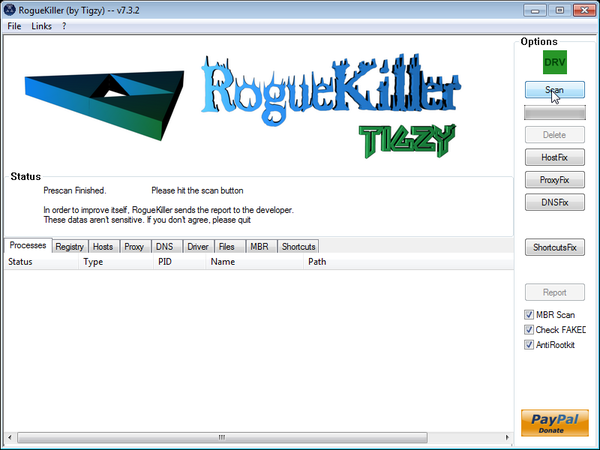
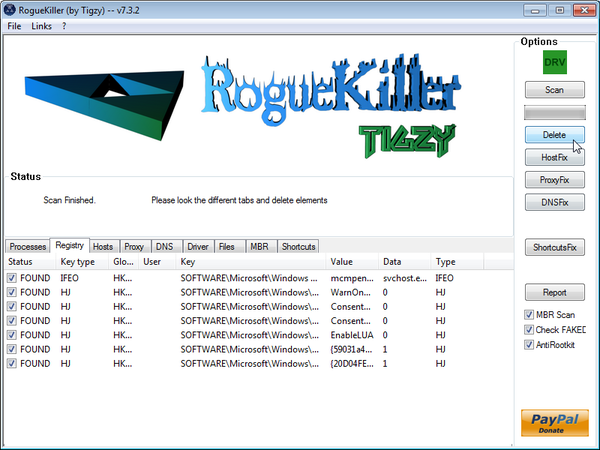
- After the scan has completed, press the Delete button to remove any malicious registry keys.
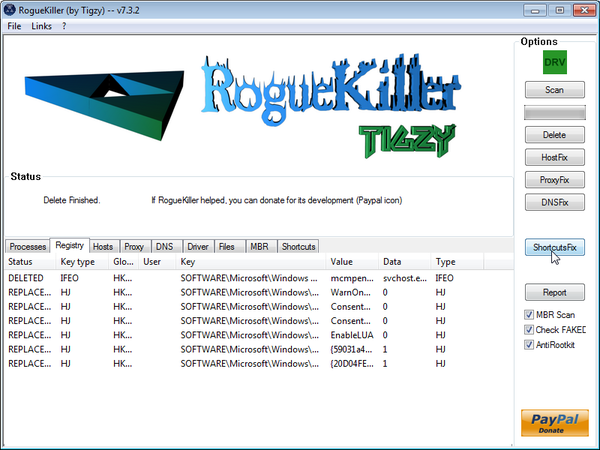
- Next we will need to restore your shortcuts, so click on the ShortcutsFix button and allow the program to run.

Join the discussion
538 commentsShare your experience or ask a question about this article.
Your progress
Did these steps help?
Let us know how the guide worked for you.
Describe what you see and the step you reached. Keep passwords and other private information out.
Discussion
Thank you so very much! Your guide saved my computer, and my money. I thought I was going to have to take it in, or kill it. Then I found your website and everything went by in ease. I have full control over my computer (or so I believe) but find the Live Security Platinum “video” I downloaded unaware it wasn’t what was labeled, is still listed in my notifications (though it’s not active). Is this dangerous? If so, how can I remove it? Malwarebytes says there were no malicious malware detected on the second scan which took place after the reboot in normal mode.
Also, I was wondering if it could spread to any other computers on my network if they were accessing the network at the time of my computers infection and uninstallation process? I was unaware this was so until today.
Sorry to take up your time, but it is much appreciated. Do you maybe have the answer to my questions?
I’ll check back often.
-Sara
In reply to Sara
Hello Sara,
Did you run a scan with HitmanPro?
Also please update Malwarebytes and run another scan.
Next,please follow the below steps:
1.Run a scan with Kaspersky Virus Removal Tool
Click here to download the Kaspersky Virus Removal Tool.
2.Run a scan with Eset Online Scanner.
ESET Online Scanner Download Link (This link will automatically download ESET Online Scanner on your computer.)
Stelian,
thanks for this thorough solution for removing LPS malware. Like others, my PC got infected after performing a Java update. Your instructions helped to remove the infection, but more importantly, to understand how it operates. This will help me respond more intelligently the next time my system is infected (and there will undoubtedly be a next time.)
The last time my system was infected by something very like this, my IT organization made me rebuild my disk from scratch after disinfecting my data files. It cost me a week of lost productivity and the loss of some software because I no longer had license keys for some video editing apps. Your solution saved time and those licenses.
Thanks again!
Hi,
Thanks so much for your tips on how to get rid of the trojan. As i’m only 12 it has been a good experience of how to get rid of viruses. Me and my family can finaly do work and I can get back on Skype and Minecraft.
Thanks again,
Simeon Elliott
Hey, Stelian.
Thanks for your guide. I’ve been following the instructions, and I’ve been making great progress.. until the part with HitmanPro. I’m bothered by something:
I’ve scanned using HitmanPro three times. The first time I scanned and removed, I found about 7 Trojans/Malware, and when I was prompted to restart, my computer blue-screened/crashed. The second time I scanned, I only found two Trojans. I removed, and didn’t blue-screen when I followed the restart prompt. The third time I scanned, I found the same two Trojans.
Every time I’ve scanned, these two Trojans have been present. One is named services.exe, found in C:\Windows\system32. HitmanPro states it must replace this file with the original version to maintain stability. However, every time I’ve done the removal process, at the end, it says “Delete Failed”, and the Trojan maintains its presence on my machine.
The other Trojan is named Desktop.ini, found in C:\Windows\assembly\GAC_32\. Every time I’ve done the removal process, at the end, it says “Delete on reboot”, yet every reboot, it comes back the next time I scan.
This bothers me. I could really use your help on this one.
Please and thank you! -Josh
In reply to Josh F.
Hello Josh,
It seems like you have a ZerroAccess rootkit on your computer……
Can you please run Combofix:
Download ComboFix from one of these locations:
Save as Combo-Fix.exe during the download. ComboFix must be renamed before you download to your Desktop
Link 1
Link 2
* IMPORTANT !!! Save ComboFix to your Desktop
See HERE for help
**Please note: (This applies to Windows XP systems only) If the Microsoft Windows Recovery Console is already installed, ComboFix will continue it’s malware removal procedures.
Once the Microsoft Windows Recovery Console is installed using ComboFix, you should see the following message:
Click on Yes, to continue scanning for malware.
When finished, ComboFix will produce a log.
Note:
1. Do not mouseclick combofix’s window while it’s running. That may cause it to stall!
2. Remember to re-enable your anti-virus and anti-spyware before reconnecting to the Internet.
Waiting for your reply to tell me how things are running.
In reply to Stelian Pilici
Mwahahahaaaa! ComboFix did the trick. It replaced the file with an original, and removed those two viruses, plus two more. I ran another scan of HitmanPro, and it found no threats. My internet speed is back to normal, as well.
Thank you so much, Stelian. You really know your shi_. -Josh
Thank you very very much :) you are the best!!! you saved my pc at work! i have soooo much stuff in it. THANK YOU THANK YOU ……you are the man :)
Somehow, thank you just does not seem to be enough. I am humbled by your kindness
Thank you Mr. Pilici, it worked.
I’m puzzled that the Live Security Platinum virus was able to change the registry entry in [HKEY_CLASSES_ROOT\exefile\shell\open\command] and the other HKCR entries to disable running .EXE files.
I use my Win XP SP3 system as a normal user without Admin privileges. Would you have an idea how the virus got access to the Registry?
In reply to Andrew_M_Garland
Hello,
Please download and run the registry fix from the guide.Alternatively you can use the license key from the guide and stop this behavior.
Thanks for this guide Stelian! Unfortunately after running everything, when I’m in normal mode, nothing will open. I’ve run everything in Safe Mode and removed everything the various programs gave me, but nothing works in Normal Mode. I mainly cannot access any of my internet platforms (Firefox, Chrome or IE). Is there something else I can try? Also when my computer starts in Normal Mode it says that MalWare Bytes cannot run the cleanup file. Help please? Thank you!
In reply to Lisa
I ran a system restore and things are now working but it is a tad slow. Is there anything I need to do now? Thanks!
In reply to Lisa
Hello,
Check your startup items with Malwarebytes StartupLite to remove any unnacesary files from starting with Windows.
Next,please defragment your computer – http://windows.microsoft.com/en-us/windows7/improve-performance-by-defragmenting-your-hard-disk
Also please run a scan with ESET Online Scanner,just to make sure you don’t have any left over infections.
ESET Online Scanner Download Link (This link will automatically download ESET Online Scanner on your computer.)
If it is still slow than you’ll need to run a File System Check and Disk Check… To do this , download Windows Repair All In One and install this utility.
Then go to Step 2 (Check File System) and click on “DO IT”, after this step is done, go to Step 3 (System File Check) and again click on DO IT.
NEXT,go to the last Startup Repairs tab and click the Start button (bottom right)
Note: When asked if you would like to create a restore point. It is recommended just in-case something does not go as planned.
Note: Leave everything else unchecked
If I overlooked the answer to this in the guide I apologize.
Can I use this guide (downloads included) if my computer is currently running Microsoft Security Essentials? Will it conflict with any of the programs you suggest in the removal guide?
In reply to Lynsey
Yes,you can use the above tools as they are only on-demand scanners (basically they are just cleaning tools which won’t protect your system)
Good Luck!
In reply to Lynsey
What a great help! Thank you!
I have just one question,
Can I delete the “mbam-setup-1.62.0.1300” and the ‘registryfix’ files ?
Or it gonna have to stay in my Computer ?
Thanks a lot !
In reply to JumPer808
Hello,
Yes,you can delete and uninstall all the tools used in this guide. Stay safe!
thanks a lot, your simple way rescued my notebook.
thank you, thank you, thank you. really good instructions, easy to follow, and saved me big time. Appreciate your good work.
Thank you very much!!! It was of great help…
Excellent. Keep doing what you do which is being one of the good guys.
In reply to Jeff
Thanks for the guide. It really help a lot.
In reply to Jeff
Um, I think I have a problem. Prior to finding this excellent webpage, I’d gone to McAfee website for help. Downloaded “stinger” and “fixed” a few things. However my pc wasn’t fixed so i have now ended up at this site. I can only get as far as Step 1 (safe mode with networking, opened IE and uncheck the LAN setting .. which was already unchecked). However i couldn’t get an internet connection. Got a message about reconnecting DCHP? Hopped onto microsoft that to meto search for services.msc … Got a message that it doesn’t exist/isn’t installed. Can’t proceed to step 2 and now way beyond my computing limits. Help!
In reply to Fozzy
Can you please disable your firewall to see if this will fix your internet connection.
Next,can you please run a scan with Combofix:
STEP 1 : Run a scan with Combofix
Download ComboFix from one of the following locations:
COMBOFIX DOWNLOAD LINK #1 (This link will automatically download Combofix on your computer)
COMBOFIX DOWNLOAD LINK #2 (This link will automatically download Combofix on your computer)
VERY IMPORTANT !!! Save as Combo-Fix.exe during the download. ComboFix must be renamed before you download to your Desktop
———————————————————–
———————————————————–
———————————————————–
Notes:
STEP 2: Run a scan with ESET Online Scanner:
ESET Online Scanner Download Link (This link will automatically download ESET Online Scanner on your computer.)
Thank you SO much for your easy instructions! You are totally awesome! Sending you many blessings!!!
Thanks – really clear tips and no pushing products. Great advice!
Hey Stelian,thanks a lot for creating this guide. But my Malwarebytes’ Anti-Malware did not manage to complete its full scan (I’ve tried four times and usually the scan only runs 20 minutes+) and my laptop shuts itself off. And also when I’m running IExplore/RKill it does not terminate any processes. Any input from you(or any other user) would be greatly appreciated.Thanks a lot!
In reply to Scott
Hello,
Lets try do this another way.Please follow the below steps while your computer is in Normal Mode:
1.Run a scan with Malwarebytes Anti-Malware in Chameleon Mode:
2.Next,please perform a scan with HitmanPro as seen on the guide.
3. Run a scan with ESET Online Scanner
ESET Online Scanner Download Link (This link will automatically download ESET Online Scanner on your computer.)
Waiting for your reply to tell me how everything is working.. :) Good luck!
In reply to Stelian Pilici
Hey Stelian,progress has been made,my pc is on normal mode now without any sight of Live Security Platinum.However, the ESET scanner could not be updated and states “cannot get update.Is proxy configured?”,any solutions to this? Thanks !
In reply to Scott
Did you check for any proxy server (see step 2 on the guide)?
Can you try to disable your antivirus and firewall while doing the ESET scan and see if this will fix the problem…
Thanks a bunch for your help! The Live Platinum Security virus would not allow me to connect to the internet at all, even after trying all the internet connection tips. I finally resorted to using the fake registration code, and that allowed me to gain access to the internet once again. I am now running all the software to get rid of the virus for good! Thanks again!
Thanks so much!!!!
In reply to Emily D.
Thank you very much for your helpful information in removing this virus.I am really greatful to you. Best wishes for you.
In reply to Emily D.
THAX n GBU
I share an iMac (OSX 10.6.8) with my wife. We installed Parallels 7 desktop to run Windows 7 on the Mac so she could access a work related site that requires a PC. The other day she was checking e-mail on the Mac side (aol.com) and found an official looking e-mail from USPS saying that a package she was supposed to have sent was undeliverable. She never sent such a package. She clicked a link to get more info about the package, and it downloaded Live Security Platinum. Not knowing what that was she tried to open it, and it opened Windows and displayed the Live Security Platinum Warnings and error messages. The correct thing to do would have been to send the USPS e-mail to Spam.
Since my wife only uses Windows 7 to get on one web site , and she has no other data files saved on the PC side, is it possible to re-install Parallels, Windows and Explorer to remove the Live Security Platinum? What do you think?
Thanks,
Joe
In reply to Joe
Hello Joe,
Yes,I think that if you reinstall Windows on Pararels you should be fine..This type of products work like a sandbox so basically if you do a reinstall you should be ok!
Something that your wife needs to read: http://malwaretips.com/blogs/how-to-easily-avoid-pc-infections/ .. Stay safe!:D
Yeah!! The solution worked great..!! Thanks for the help!!
Don’t even realize when was the virus get into my pc..