


Your employer asks you to install Microsoft Intune Company Portal on a phone you bought yourself. The notices mention management, but they don’t always tell you which kind.
An app protecting work email, an Android Work Profile, and device-wide enrollment give IT different powers, even when all three start in the same app.
Overview
Installing Company Portal is not the same as enrolling
On Android, Microsoft documents scenarios in which the app is required even though the phone itself is not enrolled. Look at the setup that was completed, not merely the icon.
An enrolled personal phone still shares device information
Microsoft’s visibility guide distinguishes device information visible to IT from personal content. The exact app inventory and actions depend on the ownership and configuration.
Verify the setup before you change it
- Identify whether you use app protection alone, an Android Work Profile, Apple User Enrollment, or another device enrollment method.
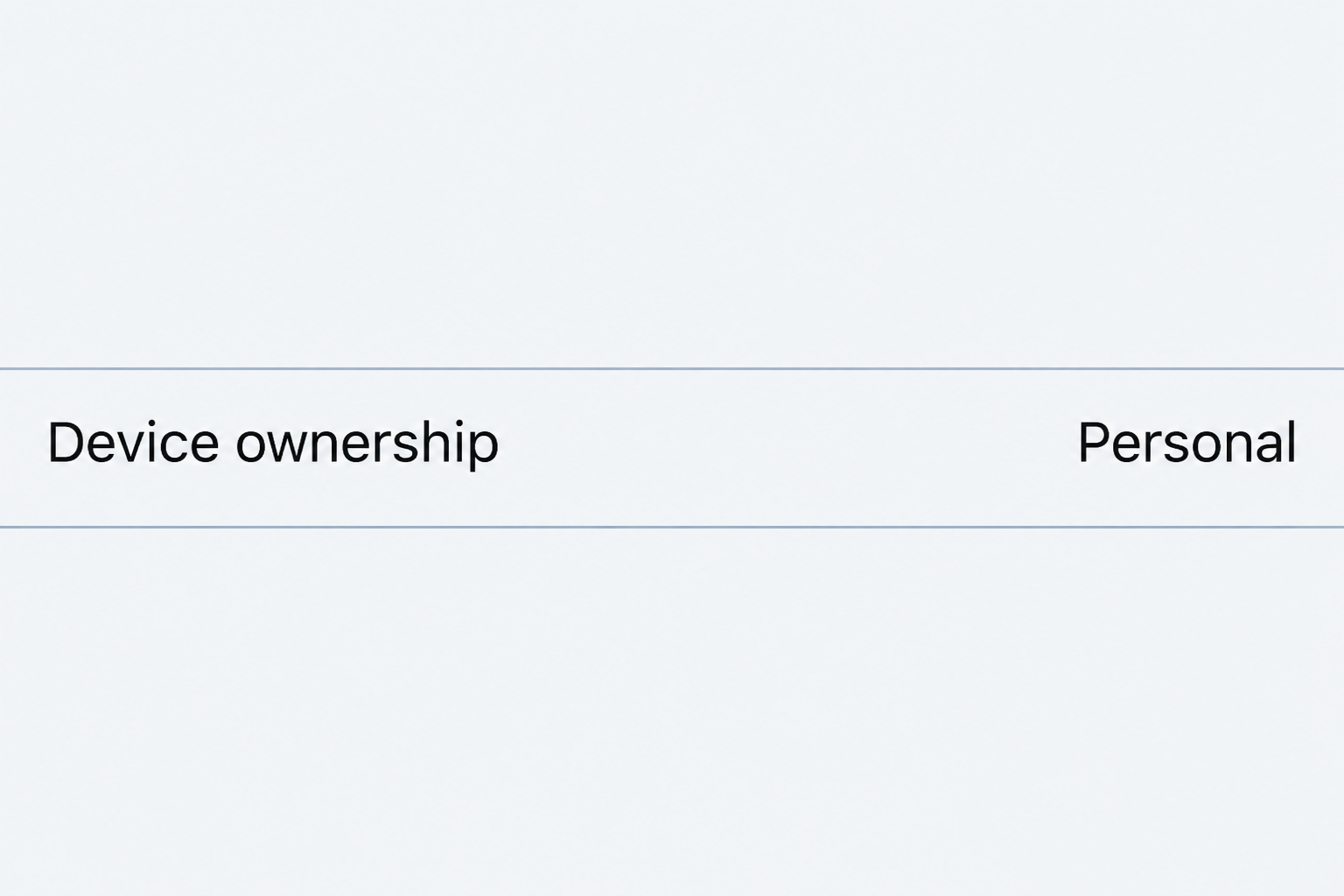
- Check the ownership recorded by IT instead of assuming the organization classified your phone as personal.
- Ask what work data may be removed at offboarding before you delete an app, profile, or account.
Four situations that can look the same on day one
A work app is protected, but the phone is not enrolled
Microsoft describes app protection without enrollment. IT can require an extra PIN, restrict copying company material into personal apps, or remove company data from the protected app.
Those actions do not by themselves enroll or manage the entire phone. A restriction inside a work account can remain visible even though there is no device-management profile.
This matters if you see an instruction to install Company Portal on Android. Microsoft says the app can be required for its app protection without enrollment configuration.
Ask IT whether they mean app-only protection or mobile device management. The answer determines which enrollment prompt or settings label should be present on your phone.
A copy restriction in Outlook is not evidence IT reads your clipboard in every app. It may be a policy applied when you try to move work data.
Android shows a Work Profile
Android’s Work Profile guide explains the separation between work and personal apps and data. Work apps carry a briefcase badge, which helps you recognize which copy you opened.
You may have two instances of the same app. The one with the badge can have a different account, data, and restrictions from the one you use personally.
Look for Work Profile settings or a Work tab in the phone’s settings. Search for the feature if your Android release uses a different layout from the instructions.
The presence of a Work Profile does not settle ownership. Android also supports work profiles on organization-owned devices, which can have additional management powers.
A work app can have permissions of its own. Ask what the app can collect, not simply whether Intune has a command to locate the device.
An iPhone uses Apple User Enrollment
Microsoft’s Apple User Enrollment documentation describes an enrollment method for personally owned devices that separates managed work data from personal data, without supervision.
Do not assume any iPhone management entry means Apple User Enrollment. Other Apple enrollment methods exist and give organizations different capabilities.
Read the enrollment description on your phone and ask IT for the exact method. The name of a profile alone may tell you which organization installed it, not its scope.
If you received the phone from work or purchased it from a previous employer, verify its ownership and management history. A personally held phone can still have an organizational association.
Do not remove the profile to see what it controls. First find out which managed apps, certificates, network settings, and work information will be removed.
A phone is enrolled as corporate-owned
A company-owned phone is a different case. Microsoft documents broader inventory in many corporate configurations, and location features for certain lost corporate devices.
An ownership value is worth checking even on a phone you bought. If IT’s records appear wrong, ask them to correct or explain the classification rather than altering it yourself.
If the phone is managed but you don’t recognize the company, do not approve another setup or send your credentials. Verify the organization’s identity through a known channel.
What Microsoft says an Intune administrator can see
Device inventory and ownership
Microsoft describes model and serial number as examples of information IT can see after enrollment. The inventory can also include information such as the operating system and device identifiers.
The visibility guide says the organization can see the last four digits of the phone number on a personal device. Corporate devices have different rules, including a Work Profile exception.
Use Device Details in the Company Portal app or website to check the ownership type when the record is available to you. Ask IT if the record is absent.
That classification matters beyond the name of the device. The recorded ownership is part of how administrators interpret what management actions are appropriate for it.
Personal contents versus managed apps
Microsoft’s list of personal information it says Intune does not expose includes personal texts, contacts, photos, passwords, and the contents of your personal documents.
Microsoft states that management can show a personal device’s managed app inventory, and that some configurations allow more than the managed list. Ask IT what applies to your specific enrollment.
Do not confuse seeing that an app is present with seeing everything in it. Device inventory and reading an individual message are distinct capabilities.
Conversely, an employer can still manage the work email, files, and accounts it supplies. A personal device does not turn a company mailbox into your private mailbox.
Location commands versus location permissions
Microsoft says the organization cannot view the location of a personal device through Intune’s device-location capability. It describes capabilities for certain lost company-owned devices separately.
That statement is about the management product, not all data other services might collect. A work app can ask for location permission or use information you provide while working.
Review the work app’s permissions and any separate work VPN or security tool with IT. Clarify whether the question concerns device management, an app, or the work account.
If you want to know whether a map or attendance app records your location, identify that app by name. The Intune inventory guide cannot answer its separate privacy policy.
Understand removal before taking something off the phone
Removing a work profile can remove the apps and data in that profile. Check Google’s Work Profile guidance and your workplace’s offboarding process before making that change.
Microsoft distinguishes a selective removal of work data from a full device wipe.
Ask which operations can apply to your specific enrollment; do not assume either based on a warning label.
Keep personal files backed up through approved personal methods. Do not move employer data into an unapproved personal account to preserve a copy before access ends.
If the phone holds a work authentication method, ask how you will sign in afterward. Confirm a replacement or recovery route before removing the only method you rely on.
If you are selling a personal phone, plan to remove work access through IT before you hand it over. Do not include organizational apps or tokens in a device transfer.
For a company phone, use the authorized return process. Do not factory-reset it just because that is what you would normally do with a phone you own.
Three everyday situations that reveal the difference
Work Outlook refuses to paste into a personal message
That restriction can be an application policy designed to keep company material within approved apps. It does not tell you that management can read your unrelated personal conversations.
If the task requires moving information, ask for an approved transfer method. Do not spend time changing enrollment, removing a profile, or using a second account to get around it.
If the message says the organization removed its data from the app, keep it for IT. Ask whether the action concerned a work identity, the profile, or the device.
For a policy dispute, write down which app and account were active. An extra PIN may come from app protection, while a device passcode requirement can have a different source.
A work app asks to use location
Review what the app says it needs location for and when it is allowed to use it. Then ask the organization for that app’s purpose and retention rules.
A location permission screen is not the same as a lost-phone location command from Intune. The same organization can run both services, but the permissions and evidence differ.
On Android, distinguish the permission of a badge-marked work app from a personal copy. On an iPhone, verify the app and work account shown before drawing conclusions.
If you need to opt out or work differently, ask for an approved alternative. Some jobs may offer employer equipment, while others may require a specific workflow.
You are leaving work and moving to a new phone
Confirm whether IT will disable the account, remove work data from apps, remove its profile, or do something else. The words wipe and remove are not precise enough alone.
Ask if you need to move an approved work authentication method first. A phone migration can leave you able to open personal apps but unable to confirm a work sign-in.
Before removing a personal device from management, make sure you do not need access to a work support channel to undo a mistake. Follow the offboarding instructions from your organization.
If you’re worried about personal photos, inventory where they’re stored first. A photo saved into a managed app or shared work folder is different from an untouched personal photo library.
When you return organization equipment, ask how to handle any personal material it contains. Do not erase the device or retain company data without instructions from the authorized team.
A screen lists a device you no longer own
A record in a portal does not tell you whether a recently sold phone still has working access. Ask IT to compare the record with the device you actually used.
If you still have the phone, verify its real enrollment before handoff. If you no longer have it, do not initiate broad removal actions against a record you cannot identify.
What to Do Before Enrolling or Changing Your Setup
- Start from an internal IT channel you know and verify that the request is genuine before approving a profile or entering your work credentials.
- Ask IT to name the exact enrollment type, whether the phone is recorded as personal, and whether app-only access is allowed for your role.
- Read the on-screen disclosure; compare its app inventory, profile, and data-removal language with the method IT says you are using.
- If you’re already enrolled, review the recorded ownership and known work apps without changing the configuration. Bring any discrepancy to IT.
- Before offboarding, moving to another device, or removing enrollment, confirm the approved steps and how you will retain access to your authentication and personal data.
If someone contacted you from an unexpected email to install management software, confirm with IT independently first. A familiar app name does not authenticate the sender.
Frequently Asked Questions
Can Intune read personal text messages or see my photos?
Microsoft’s Intune visibility guide excludes personal texts and pictures from the content your organization can see through enrollment. This is distinct from content you upload to a managed app.
Check which account and app you use before sharing a personal photo. Anything sent to work storage is governed by the rules of that service.
Can my employer see where I am?
Microsoft says Intune’s lost-device location capability does not show the location of a personal device. A work app’s location access is a separate permission and policy question.
If the concern arose after using one app or service, identify which one and ask IT about that collection rather than assuming Intune itself recorded it.
Does installing Company Portal mean IT manages the whole phone?
On Android, Microsoft uses Company Portal for some app-protection setups without device enrollment as well as for device management. The installation alone does not tell you which.
Check what onboarding steps were completed and how IT describes the setup. An app icon is not an enrollment record.
Can my employer see every app I installed?
Microsoft’s answer depends on recorded ownership, platform, and configuration. On personal devices it describes the managed app inventory and notes some setups show more.
Ask what your organization’s enrollment collects in your situation. Do not assume that an app inventory implies access to private content within those apps.
Will removing a work profile delete my personal data?
An Android Work Profile contains separate work apps and data. Removing it removes that work content; the action is not the same as a factory reset.
Check the actual ownership, platform, and method before removal. Stop and ask IT if the phone displays a different operation than the one you intended.
Can I use my work email without enrolling?
Some organizations allow a protected app without enrolling the phone, but that is an employer decision. Microsoft documents that option, not a right to use it.
Ask whether your organization permits a separate work device, a managed app, or another approved choice. Do not try to bypass its security requirements.
The Bottom Line
Confirm exactly what your employer is asking you to manage. App protection, a personal Work Profile, and company-owned device management are not interchangeable.
If already enrolled, check the recorded ownership and ask IT about visibility and removal before making changes. Keep personal activity and information outside the work tools where practical.

Join the discussion
0 commentsShare your experience or ask a question about this article.
Community experiences
Did this happen to you?
Your experience could help someone recognize the same scam. Submit a private report for our team to review.
I experienced this tooReports are reviewed before publication. Sharing publicly is always your choice.
Discussion
Start the conversation
Have a question or something useful to share? Add the first comment.