


A new phone should feel like a fresh start. You unpack it, finish setup, and expect the software inside to belong there.
When strange behavior begins almost immediately, it’s worth looking beyond the last app you installed. The starting point may matter more than you think.
Overview
Midnight Mimosa can arrive with the phone
Midnight Mimosa is an Android malware campaign found in the system software of some low-cost, multi-brand devices built on MediaTek platforms.
Bitdefender’s technical research describes preinstalled components with powerful privileges, silently added applications, fraudulent advertising activity, and residential-proxy payloads.
This isn’t evidence that every inexpensive Android phone is infected. It is a reason to take unexplained behavior on a new device seriously.
A legitimate budget handset and a counterfeit phone borrowing a premium model’s identity aren’t the same purchase. Price alone doesn’t settle the security question.
The root problem can sit below an ordinary app
A normal downloaded app is one layer of a phone. The operating-system software underneath it is another, with different privileges and removal limits.
If the malicious component lives in that system layer, deleting an unwanted weather app may remove one symptom while leaving the component that installed it.
That distinction changes the cleanup plan. A scan can provide useful findings without being able to replace the phone’s underlying software.
Start with evidence, not a diagnosis from one symptom
Battery drain, heat, or ads can have ordinary explanations. None identifies Midnight Mimosa by itself.
Useful things to document include:
- The advertised model compared with device information.
- The Android security-update date.
- Play Protect certification status.
- Applications appearing without an installation you recognize.
- Security detections and whether unwanted behavior returns.
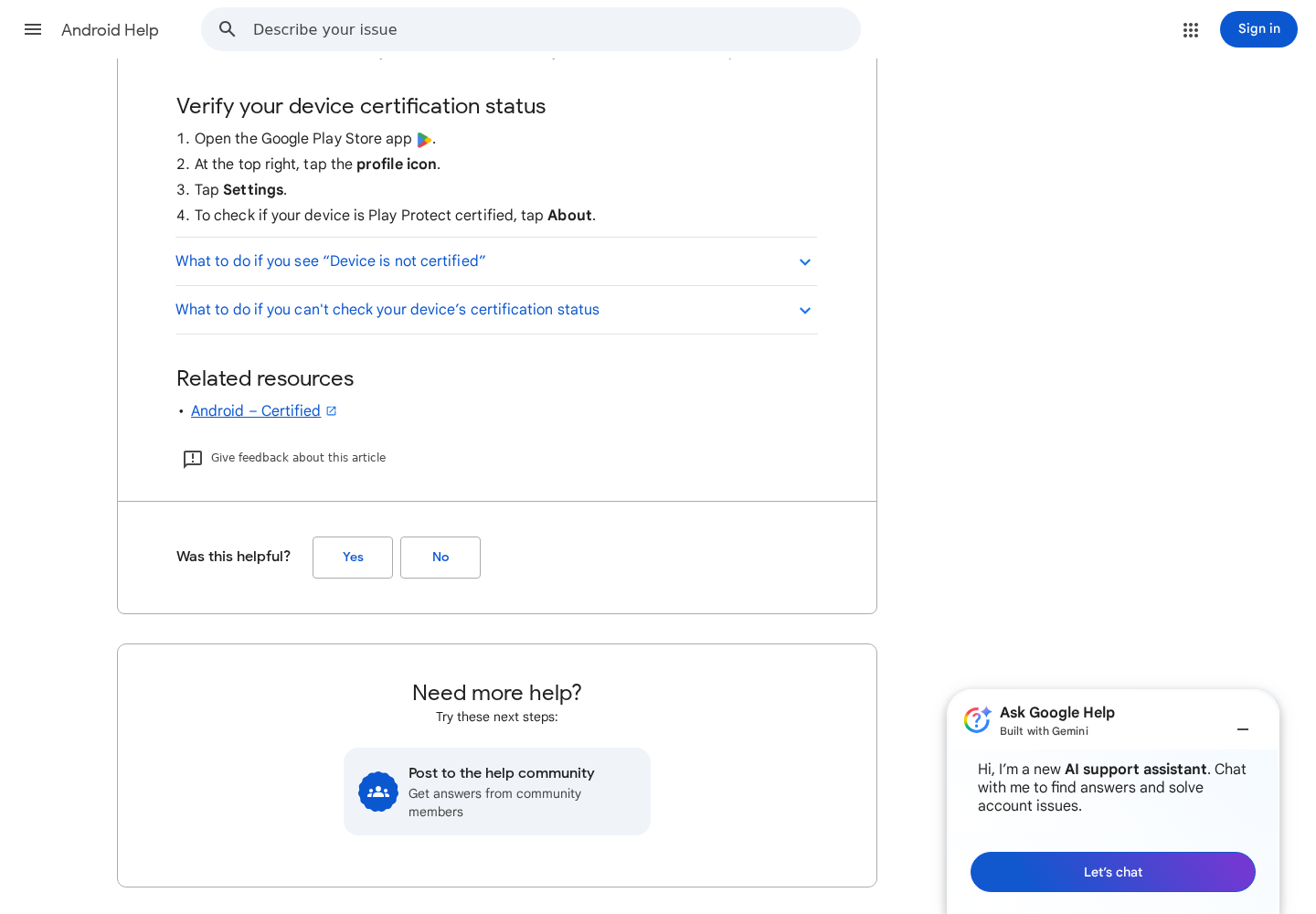
The lead screenshot shows Google’s certification-check instructions. It isn’t a malware detection, and certification status is one check rather than a complete security verdict.
How Preinstalled Android Malware Can Work
Step 1: The device starts with untrustworthy system software
Most app-safety advice assumes the phone begins in a trustworthy state. You then decide what software to add and which permissions to grant.
A preinstalled threat changes that starting point. The problem can exist before your app choices have had any role in it.
Think of the difference between a questionable visitor and a questionable building manager. Removing one visitor doesn’t necessarily remove the person letting others in.
That comparison explains why a system infection needs a different response from a single suspicious download. It isn’t a reason to start deleting unfamiliar system components.
Step 2: Privileged components can add or control other software
The Midnight Mimosa research identifies components able to install or remove apps and load additional code. Those powers aren’t normal expectations for a harmless utility.
Bitdefender’s consumer explanation describes ordinary-looking apps used as cover, including weather and app-lock tools.
An ordinary name isn’t enough to identify a safe app, but it also isn’t enough to identify malware. Many legitimate applications serve those functions.
Keep the exact detection and package details for support. Guessing from the icon can lead you to remove the wrong application while missing the real problem.
Step 3: The device performs activity its owner didn’t choose
Advertising fraud can create views or clicks without meaningful user interaction. A residential proxy routes someone else’s traffic through an affected connection.
The concern isn’t simply an irritating banner. Background activity can use the phone’s resources and network for purposes unrelated to what you bought it to do.
Still, high data usage isn’t proof of a proxy infection. Video streaming, backups, and updates can also consume large amounts of data.
Compare the unexplained activity with your actual use. Save what you can observe and let a qualified support team interpret it alongside the security findings.
Step 4: Removing a visible symptom may leave the source intact
If an unwanted app disappears and later returns, don’t repeat the same removal endlessly. Record what happened and reconsider whether another component is restoring it.
For confirmed firmware-level problems, the seller or manufacturer needs to explain a supported remedy. That may involve trustworthy replacement software or replacing the device.
A factory reset is not a guarantee against malicious software embedded in the system image. Starting the setup screen again isn’t the same as rebuilding that image.
What Play Protect Certification Tells You
Certification and scanning are separate checks
Google distinguishes device certification from Play Protect scanning. Certification concerns Android compatibility testing; scanning checks applications for harmful behavior or known threats.
To inspect certification, open Google Play Store, select your profile, open Settings, and look under About for Play Protect certification.
Wording can vary with software versions. If the option is unavailable, consult Google’s help page and your manufacturer’s official support rather than a seller’s improvised workaround.
An uncertified result needs an explanation
A device that isn’t certified deserves attention, but that label doesn’t name a particular infection. Modified software or other device-integrity problems can affect the result.
Don’t accept instructions to switch off protection as a solution. Disabling Play Protect doesn’t resolve the underlying certification issue.
If the phone was sold as a normal supported Android device, ask the seller to address the mismatch in writing. Keep the answer with your purchase records.
A certified result isn’t an all-clear for every concern
One satisfactory check doesn’t erase unrelated evidence. An actual detection or repeatedly appearing unwanted app still needs investigation.
Likewise, a clean scan doesn’t establish that every system component is trustworthy. Treat the result as information, not a promise that nothing can be wrong.
You don’t need to master mobile forensics before asking for help. A model, software version, certification result, and detection report are a useful starting package.
Keep a brief symptom diary too. Note what you were doing when an unwanted app appeared, which network was connected, and whether an update had just finished.
A dated sequence is more useful than a broad statement that the phone feels wrong. It helps support identify patterns without asking you to reproduce risky behavior.
If you photograph an error or app list, hide private notifications and account information. Send the technical details privately through the provider’s established support route.
Keep the device serial number and purchase reference available for the seller, but don’t publish them in a public warning. They aren’t necessary for other readers.
Never demonstrate the problem by entering a banking password while recording the screen. Evidence collection shouldn’t create the sensitive exposure you’re trying to avoid.
Check the Phone’s Identity and Support Before Blaming an App
Compare the purchase listing, receipt, packaging, and About phone information. Save discrepancies instead of relying on memory when the seller asks what changed.
A premium-sounding name doesn’t establish that a recognized brand made the device. Confirm the exact model through that manufacturer’s official information.
If you cannot find meaningful support for the supposed model, pause before trusting the phone with banking or your main email account.
Check the security-update date separately from the Android version. A modern-looking version label doesn’t tell you when security fixes were last applied.
For a legitimate supported phone, follow the manufacturer’s update route. Don’t install a file offered by an unfamiliar forum user to make the displayed version look newer.
Keep seller promises too. A claim about brand identity, certification, or update support may be relevant when explaining why the delivered item doesn’t match the offer.
Don’t turn the issue into a blanket allegation about country of origin. A traceable manufacturer and trustworthy software matter more than a flag in an advertisement.
What to Do If You Suspect Preinstalled Malware
-
Move sensitive activity to a trusted device. Avoid banking, password changes, and confidential documents on the suspect handset while you investigate.
If suspicious activity is continuing, disconnect its network access when practical. Arrange a safe alternative for essential calls and authentication first.
Don’t lock yourself out by abandoning your only authentication device without checking your provider’s supported recovery or migration options.
-
Document the problem before experimenting. Record the model, software version, update date, certification result, exact security detection, and unwanted applications.
Note whether the behavior began before you installed anything and whether it returned after a removal. That timeline can help distinguish different causes.
-
Keep protection enabled and check supported updates. Follow the manufacturer’s genuine instructions and keep Google Play Protect active.
Google’s unsafe-software guidance includes app checks, security updates, and manufacturer assistance when problems remain.
Don’t delete a system app solely because its name appears unfamiliar. Critical phone functions may depend on it.
-
Run a reputable Android security scan. Our Android malware-removal guide explains ordinary app cleanup and provides a route to Malwarebytes.
You can also use our existing Malwarebytes for Android link. Obtain software through a trusted distribution channel, not a seller’s chat attachment.
Save the scan results for support. MalwareTips may earn a commission from eligible affiliate links, but a purchase doesn’t guarantee removal of this campaign.
AdGuard can help filter unwanted web advertising on supported setups. It cannot repair compromised firmware or remove a privileged system component.
-
Secure accounts from the trusted device. If the suspect phone handled sensitive logins, review account activity, recovery details, and active sessions.
Use Google’s device-access settings for Google accounts. Sign out the suspect device and investigate activity you don’t recognize.
Change exposed credentials where appropriate. A scan and an account-access review solve different problems; neither replaces the other.
-
Contact the seller and manufacturer with specific findings. Request a written remedy, and explain any mismatch between the advertised device and the one delivered.
Ask whether they can provide a supported, trustworthy system image or a replacement. Don’t accept a vague promise that another reset always removes malware.
Preserve return and dispute deadlines. If the seller doesn’t resolve the problem, contact the marketplace or payment provider with the evidence.
-
Back up personal data selectively. Preserve photos, documents, and essential information. Avoid transferring unknown APK files or automatically restoring every app and setting.
Verify the backup is readable before surrendering or wiping the phone. Keep authenticator migration and account recovery separate from ordinary photo backup.
-
Choose replacement over risky improvised repair when necessary. If a system infection is confirmed and trustworthy recovery isn’t available, stop using that device for sensitive tasks.
Use the seller’s return process or obtain qualified help. Random firmware downloads and bootloader instructions can damage the phone or introduce another untrusted image.
Why a Factory Reset Isn’t a Firmware Repair
Google explains that a factory reset erases user data. It is a significant action, not a harmless diagnostic button.
A reset can help with some ordinary software problems, but its meaning depends on what it changes. It shouldn’t be sold as a universal malware guarantee.
If malicious code remains in the software the phone boots from, deleting your installed apps and preferences doesn’t necessarily remove that code.
That’s why repeated resets can be frustrating: you lose time setting the phone up again without addressing the suspected source.
Before any supported reset, confirm that your data is backed up and you can access the account required during setup afterward.
Before returning a device, ask the seller what its process requires. Protect personal data, but don’t erase the only evidence of a disputed problem prematurely.
For workplace phones, involve IT before wiping anything. They may need records, device-management access, or a specific recovery procedure.
A Safer Way to Buy the Replacement
You don’t need the most expensive phone. Choose a device whose manufacturer, exact model, software support, and seller can be identified.
Compare the model with the manufacturer’s own product page rather than trusting a marketplace title. An implausible flagship bargain deserves scrutiny.
Check who handles returns and where the replacement comes from. A clear written process is more useful than a promise made only inside a sales conversation.
After setup, install applications deliberately. Restore the things you need rather than treating your old app collection as something that must all return automatically.
Use the first days to check updates, certification, and ordinary behavior while the return route is still available. Keep the receipt and seller correspondence.
Frequently Asked Questions
Can Midnight Mimosa be present in a brand-new phone?
Yes. The documented campaign involves preinstalled system software, so an affected owner may encounter it without installing the original malicious component.
Does this mean every cheap Android phone is unsafe?
No. The findings concern affected devices and software, not all budget phones. Check the actual manufacturer, model, support, and behavior.
Will removing a weather app fix the system infection?
Not necessarily. An added app can be a downstream component. A privileged source remaining in system software may require manufacturer recovery or replacement.
Is an uncertified device proof of Midnight Mimosa?
No. Certification status can reveal a compatibility or integrity concern, but it doesn’t identify this malware campaign. Use it alongside other findings.
Can Malwarebytes guarantee firmware cleanup?
No. An Android scan may detect relevant threats, but it cannot promise trustworthy replacement of compromised system software. Escalate confirmed system problems to the manufacturer.
What is the safest choice after a confirmed system infection?
Stop sensitive use and seek a supported remedy. If trustworthy recovery isn’t available, return or replace the device rather than relying on repeated resets.
The Bottom Line
Don’t keep using a phone with confirmed preinstalled malware for banking or important accounts. A low price doesn’t make compromised system software an acceptable tradeoff.
Move sensitive activity to a trusted device, preserve findings, and seek supported recovery or replacement. Use scanning as help with diagnosis, not a firmware-cleanup guarantee.

Join the discussion
0 commentsShare your experience or ask a question about this article.
Discussion
Start the conversation
Have a question or something useful to share? Add the first comment.