


An account alert lands while you’re busy. The wording sounds reasonable, the page looks familiar, and signing in seems faster than worrying about it.
Before you type anything, there’s a detail worth understanding about the convincing login screens now turning up in messages.
Overview
BlueKit packages phishing as a service
BlueKit is a phishing toolkit, not a legitimate account-security service. It gives criminals ready-made infrastructure for impersonating familiar online services.
Malwarebytes researchers describe branded login templates, campaign management, SMS delivery, and AI-assisted messaging. The templates target both personal accounts and business logins.
The operator advertises quick deployment and a large template library. Those sales claims shouldn’t be confused with independent tests of every advertised capability.
For someone receiving a message, the practical problem is simpler: a convincing page can ask for a real secret while belonging to the wrong person.
Your password isn’t the only thing at risk
A password helps you begin a login. A session lets you stay logged in afterward. Phishing attacks can target either part of that process.
Session theft matters because changing a password isn’t always the complete response. Depending on the service, existing sessions or connected applications may need separate attention.
Common requests that deserve an independent check include:
- Signing in to resolve an account restriction.
- Opening a document after another unexpected login.
- Approving a security prompt you didn’t initiate.
- Providing a recovery code or wallet recovery phrase.
- Installing a browser extension to complete verification.
A message may ask for just one of these actions. Pay attention to what you’re being asked to share, install, or approve before proceeding.
A polished page still needs the right address
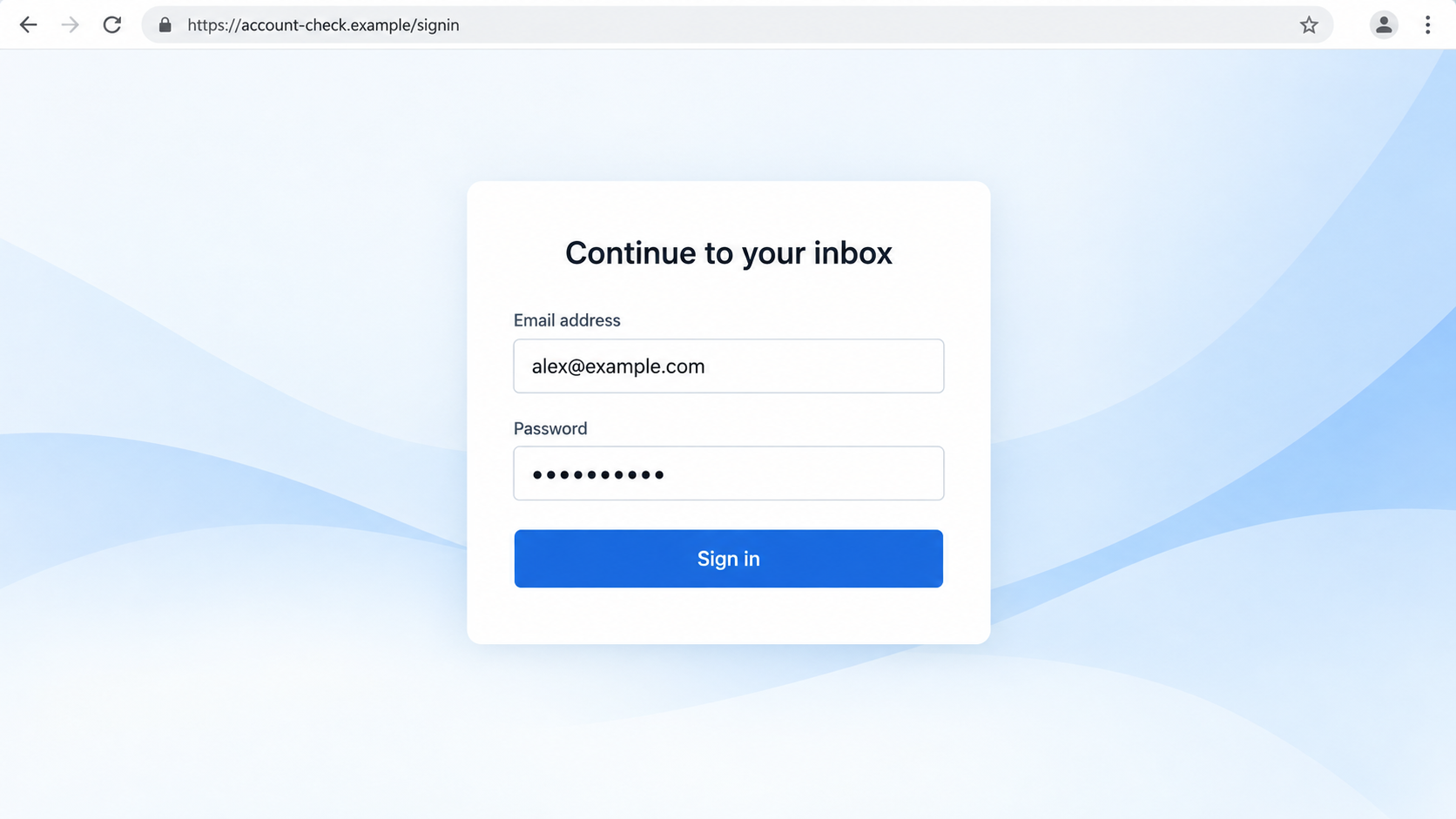
The login illustration uses fictional information and an example domain. It shows the visual problem, not a captured BlueKit attack against a named provider.
Logos, colors, spacing, and friendly instructions are easy to imitate. The destination, the reason for signing in, and the request itself matter more.
Don’t authenticate through an unexpected account message. Open the provider’s app or a trusted bookmark and check whether the same issue exists there.
Why the Message Can Feel So Convincing
People rarely study a login screen. We recognize a familiar layout, enter the usual details, and expect to return to whatever we were doing.
Phishing takes advantage of that habit. The page doesn’t need a remarkable story if the message has already supplied a believable reason to use it.
Imagine expecting a hotel confirmation. A message about a reservation problem naturally attracts more attention than an unrelated offer. Context does some of the persuading.
Check the reservation inside your booking account. The actual travel dates and confirmation details are more useful than how well the message matches your expectations.
Good spelling is no longer a useful pass-or-fail test. AI-assisted writing can remove awkward phrasing without making the sender trustworthy.
You also don’t need to prove that AI wrote the message. A request for credentials at an untrusted destination is dangerous regardless of its author.
Another trap is treating a successful login as reassurance. Some attacks let the victim reach the real service after exposing information along the way.
Seeing your inbox afterward doesn’t answer how you got there. If the journey began at a questionable address, inspect the account rather than assuming nothing happened.
How the BlueKit Phishing Scam Works
Step 1: A message gives you a reason to sign in
The initial hook may be an account problem, a shared file, or a transaction needing attention. Its job is to make authentication feel necessary.
A useful way to assess it is to separate two questions. Is the situation plausible? And is this particular sender entitled to handle it?
A genuine account issue can exist alongside a fraudulent message. Checking independently protects you even when the subject happens to match something real.
Don’t use urgency as a reason to skip that check. If an account really needs attention, the official service should provide a route to address it.
Step 2: The link moves you onto an imitation
A link can hide behind ordinary button text. Readable words such as account center or secure document say nothing about the actual destination.
On mobile, the address may be partly hidden. Expand the address bar before entering information, and don’t judge ownership from words placed inside a longer hostname.
In the fictional address account-check.example, the whole domain belongs to the example site. Adding a familiar provider’s name elsewhere wouldn’t make that provider its owner.
If interpreting the address feels confusing, don’t gamble. Close the page and reach the service through a route you’ve already established as trustworthy.
Password-manager autofill can provide another clue when it refuses to fill a familiar login. Don’t override that refusal just because the screen looks right.
Step 3: The page asks for information it can misuse
A basic credential form can collect what you type. That might include your email address, password, or a code copied from another device.
Different requests create different losses. An email password can expose messages; a recovery code can undermine recovery; a wallet phrase can put cryptocurrency at risk.
Never treat those secrets as interchangeable with harmless contact information. A support conversation doesn’t justify sharing them with a stranger.
Repeated errors can be another warning. An imitation may ask you to retype information, but you shouldn’t keep supplying additional passwords to troubleshoot an unexpected page.
If you already entered a password, stop there. Withholding the next code may still prevent additional access, even though the password now needs replacing.
Step 4: Some phishing flows target the logged-in session
A session cookie is a browser-held token that helps a service recognize an authenticated visit. Someone who steals a usable token may not need another password prompt.
Microsoft describes intermediary phishing that relays a login through an attacker-controlled site and captures credentials or session information.
This is why a one-time code isn’t a universal shield. If you approve a login happening through an intermediary, the attacker may capture its resulting session.
That explanation describes a phishing technique, not proof that every BlueKit template performs it. Account protections and session restrictions differ between services.
The safe response is still to terminate suspicious sessions explicitly. Don’t rely on the assumption that changing one secret automatically removes every route back in.
Step 5: Access creates opportunities beyond the first login
Once an account is accessible, the problem may spread through its trusted relationships. Contacts could believe requests arriving from a familiar account.
Email deserves particular attention because it often receives password-reset messages for other services. A compromised inbox can become a route to additional accounts.
Check what was changed, not just whether you can still sign in. New recovery details, forwarding rules, or connected applications can outlast the initial intrusion.
For a workplace account, tell your security team promptly. They can examine sessions and administrative logs that an ordinary user may not be able to inspect.
Passkeys, Codes, and Session Theft Are Different Problems
A passkey isn’t a reusable password
A passkey uses cryptographic authentication rather than sending a reusable password to a website. Your fingerprint or device PIN generally authorizes use of that credential.
FIDO authentication binds credentials to their service. A lookalike website cannot simply collect a passkey’s private key through a normal password-style form.
Don’t abandon passkeys because a phishing seller claims broad capabilities. The relevant question is which authentication route you actually used.
A fallback can bring passwords back into the picture
Suppose a page says passkey login isn’t available and directs you to a password instead. You are now evaluating that password flow, not passkey authentication.
A surprising fallback deserves a fresh check in the genuine app. Don’t weaken a safer login method just to satisfy instructions on an unexpected page.
Keep recovery details protected too. Strong front-door authentication helps less if someone can persuade you to hand over the recovery route.
Two-factor authentication still helps
Keep multifactor protection enabled. Its limits aren’t a reason to return to password-only security, which removes a useful barrier altogether.
Approve only requests you initiated at a trusted destination. A real-looking prompt may confirm an action, but it doesn’t prove you intended that action.
If the prompt describes a different location or device, pause. An explanation supplied by the suspicious sender shouldn’t override the details shown by your own service.
What to Do if You Have Fallen Victim to This Scam
-
Leave the suspicious login journey. Close the page and stop communicating with anyone steering you through it. Keep the message for a report.
Don’t try another password there to see whether it works. If you need account access, begin again through the real provider.
-
Use a trusted device when software was installed. If the message led to an extension, download, or remote-access session, don’t perform recovery on that device yet.
A separate trusted phone or computer lets you secure the account without typing the replacement password into potentially compromised software.
-
Replace exposed passwords, starting with email. Choose a unique replacement through official settings. Change the same password anywhere else you reused it.
Keep a short account checklist so a shopping account, work login, or cloud service sharing that password doesn’t get overlooked.
-
Sign out unfamiliar sessions and inspect access. Look for active devices, recent logins, connected apps, app passwords, and newly added authentication methods.
Google’s compromised-account guide is useful for Google users. For other providers, follow their own recovery and session-management instructions.
Restore recovery addresses and numbers you recognize. Check inbox forwarding and filters if email was involved, including rules that hide security notices.
-
Explain consequential exposure to the right organization. Contact your employer for a work account, or your financial provider if financial access was exposed.
Describe exactly what you entered or approved. A password, a code, a transfer, and remote access require different responses.
-
Clean up only the device risks that occurred. If you installed untrusted software, use our Windows malware-removal guide or Android cleanup guide, as appropriate.
Our Malwarebytes scanning instructions explain the process. Use AdGuard as an additional filtering layer against intrusive ads and some risky web content.
Neither tool revokes stolen sessions or reverses a payment. Merely receiving the message doesn’t mean a malware scan is necessary.
-
Warn affected contacts and keep records. If your account sent fraudulent messages, notify recipients through a separate trusted channel.
Save relevant timestamps, URLs, and security alerts without circulating passwords or recovery codes. Those details make a support report much more useful.
How to Check the Next Account Alert Without Taking the Bait
Build one small habit: keep the message and the verification route separate. The message tells you what to check; it shouldn’t dictate where you check.
For example, an unexpected file notification can be checked inside the sharing service. A payment concern can be checked in the provider’s transaction history.
If nothing corresponding appears, that mismatch matters. Don’t ask the original sender to supply a more convincing link as your next verification step.
For work documents, contact the supposed colleague through an existing directory entry or familiar conversation. A reply within the questionable thread isn’t an independent check.
For account support, avoid searching an error message and trusting the first promoted result. Use the help route built into the real app.
Don’t screenshot authentication codes to demonstrate a problem. A screenshot can disclose the same secret as copying the code into a message.
Keep account recovery information current before an emergency. Trying to remember an old recovery address while under pressure makes an already difficult situation worse.
Use your password manager for unique passwords, not just convenient filling. Unique credentials limit the consequences if one account’s password is exposed.
And remember that you don’t need to recognize BlueKit by name. The same protective habits apply when a different toolkit produces the imitation.
Frequently Asked Questions
What is the BlueKit phishing scam?
BlueKit is infrastructure used for deceptive login campaigns. The scam is the impersonated message or page collecting access, not a problem with the genuine brand it copies.
Can a phishing page look exactly like my usual login?
It can closely imitate familiar design. Appearance isn’t an ownership check, so verify through the official app or an established bookmark before supplying credentials.
Does a stolen session mean my password was cracked?
No. A usable session token can represent an already completed login. Session misuse and password cracking are different routes into an account.
Should I turn off two-factor authentication?
No. Keep it enabled and consider passkeys where supported. Only approve authentication you initiated through a trusted service, not an unexpected message.
Will Malwarebytes restore a compromised account?
No. Malwarebytes can help investigate relevant device infections. Account recovery still requires the provider’s settings, password changes, session removal, and any necessary support assistance.
What if I opened the page but typed nothing?
Close it and check for downloads, permissions, or approvals. Opening a page alone doesn’t establish account theft; respond to the actions you actually completed.
The Bottom Line
Don’t sign in through unexpected account messages. BlueKit-style phishing exploits familiar design, so reach the service independently before trusting an authentication request.
If you already supplied access, secure the account now: replace exposed passwords, end suspicious sessions, and review recovery settings. Address installed software separately.

Join the discussion
0 commentsShare your experience or ask a question about this article.
Discussion
Start the conversation
Have a question or something useful to share? Add the first comment.